Getting Started
Download and Launch

webRios is available on the App Store. Tap the badge below to download it.

Tap the webRios icon to open the app. On first launch, a loading screen shows a progress bar while the R runtime initializes, which takes 5–15 seconds.
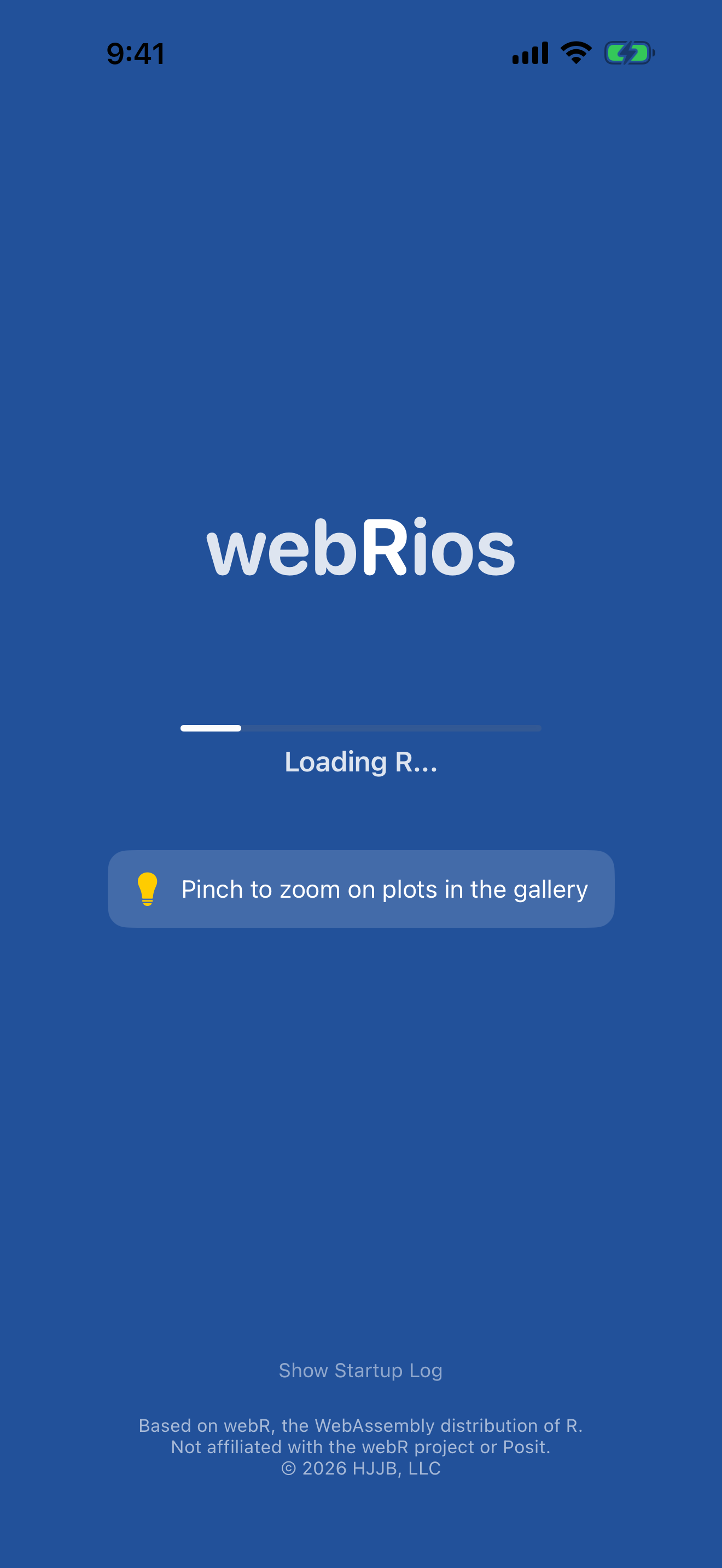
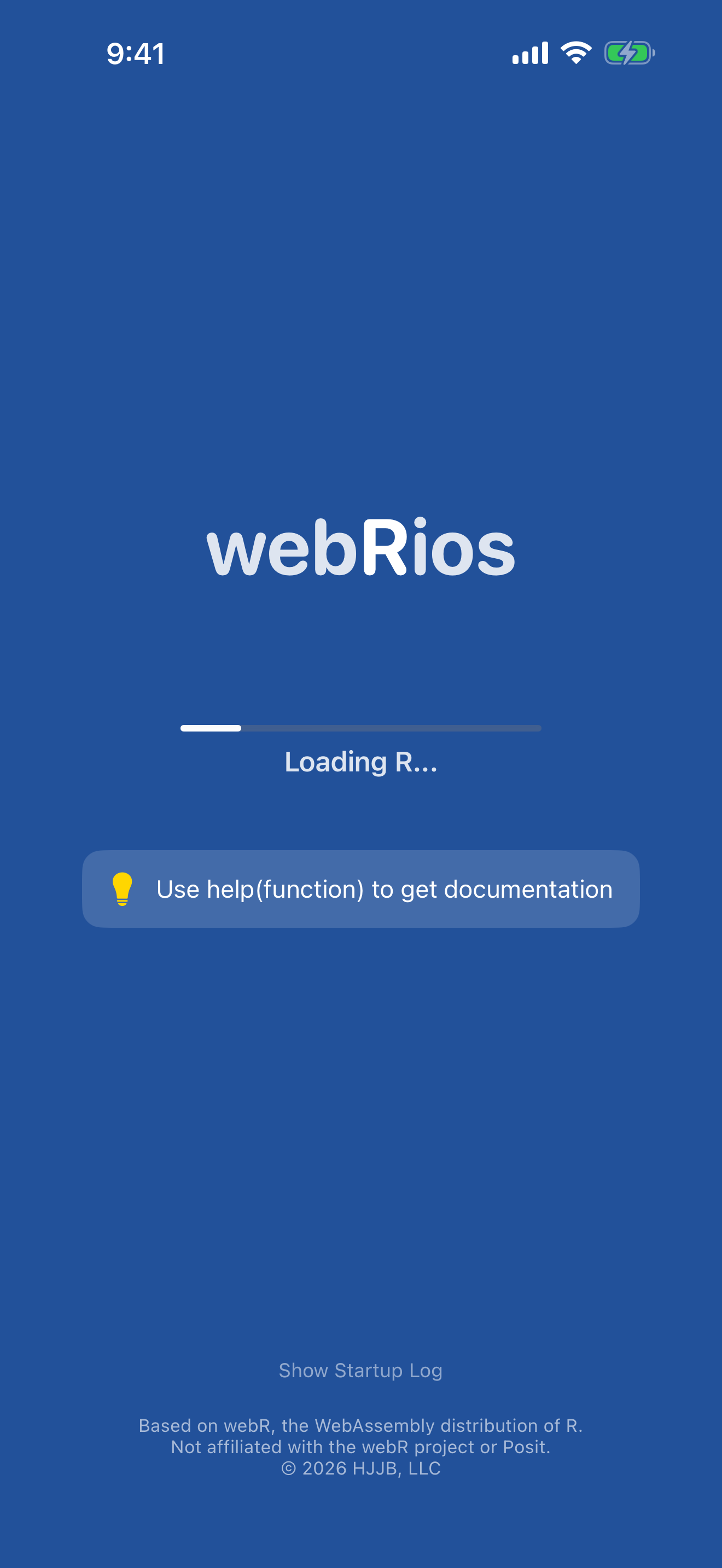
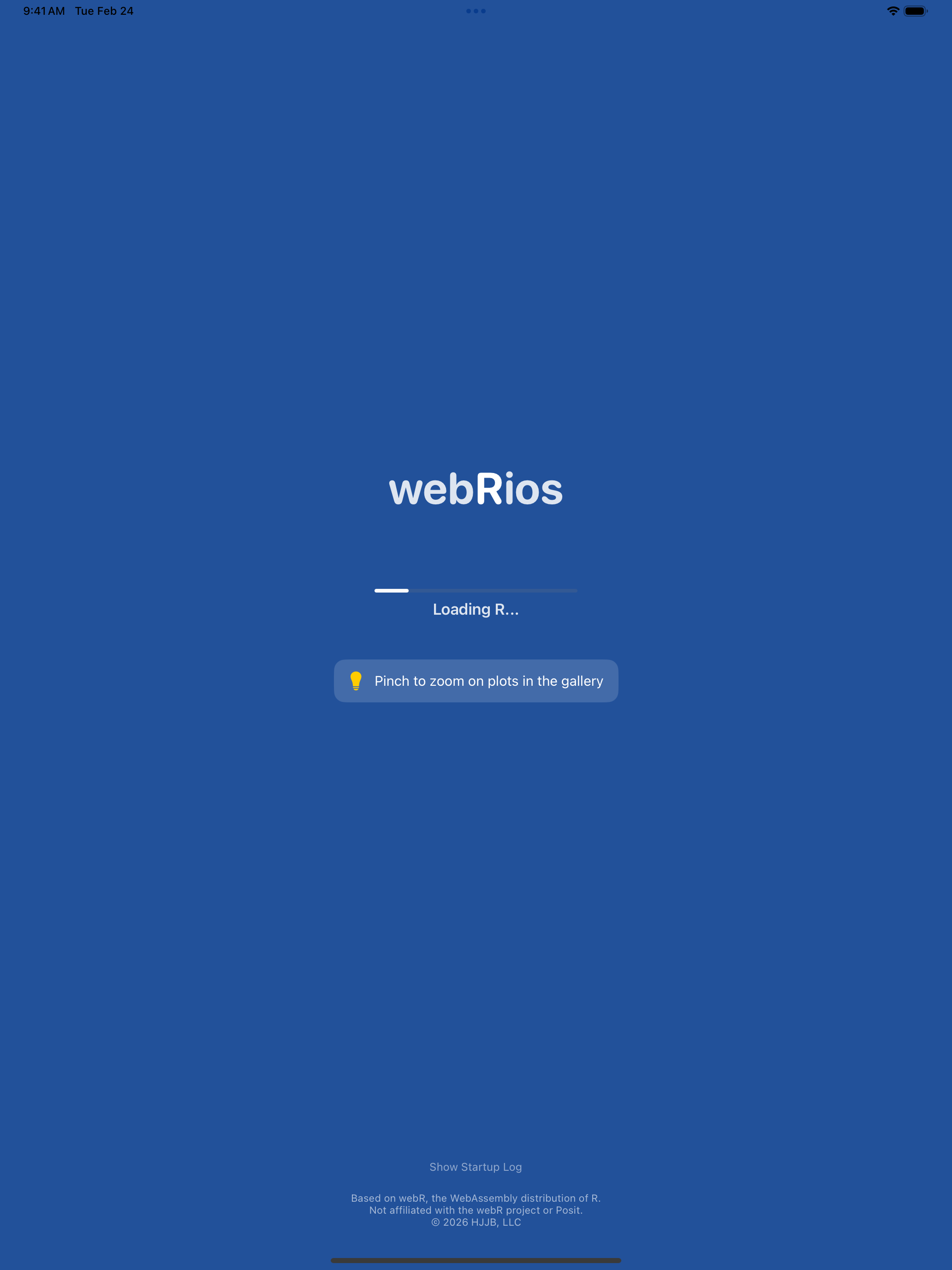
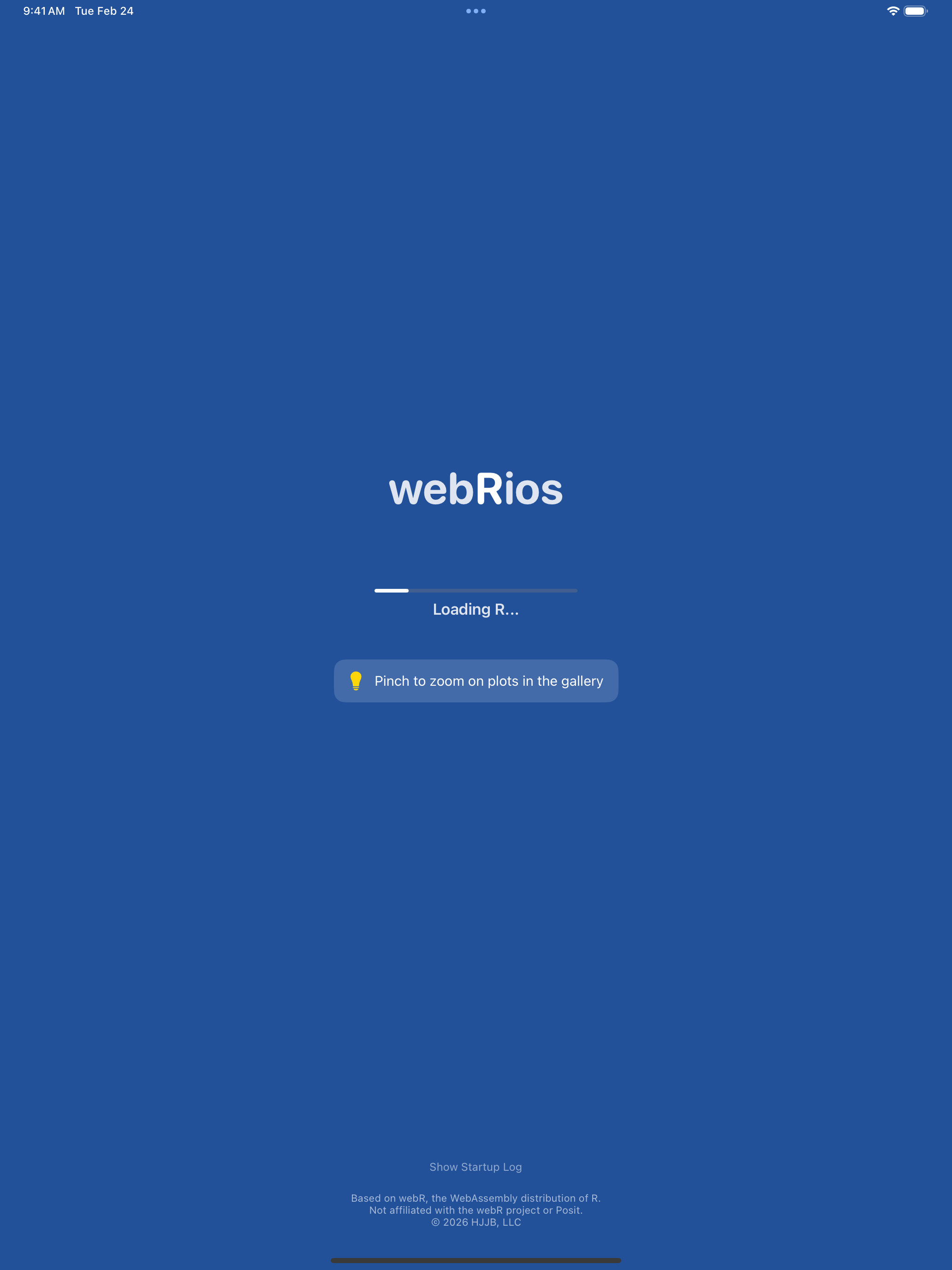
Subsequent launches are faster because your device caches the initialized runtime.
The Getting Started Checklist
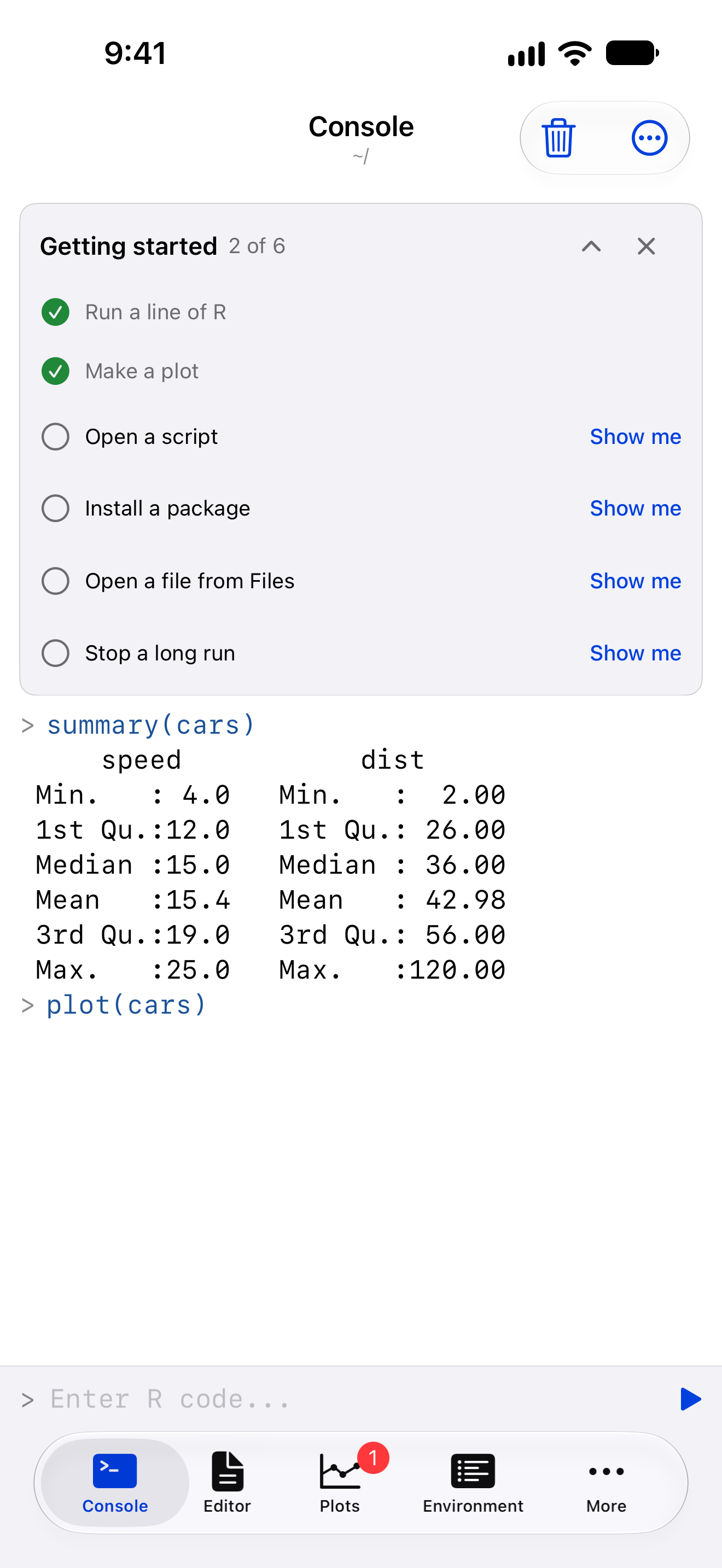
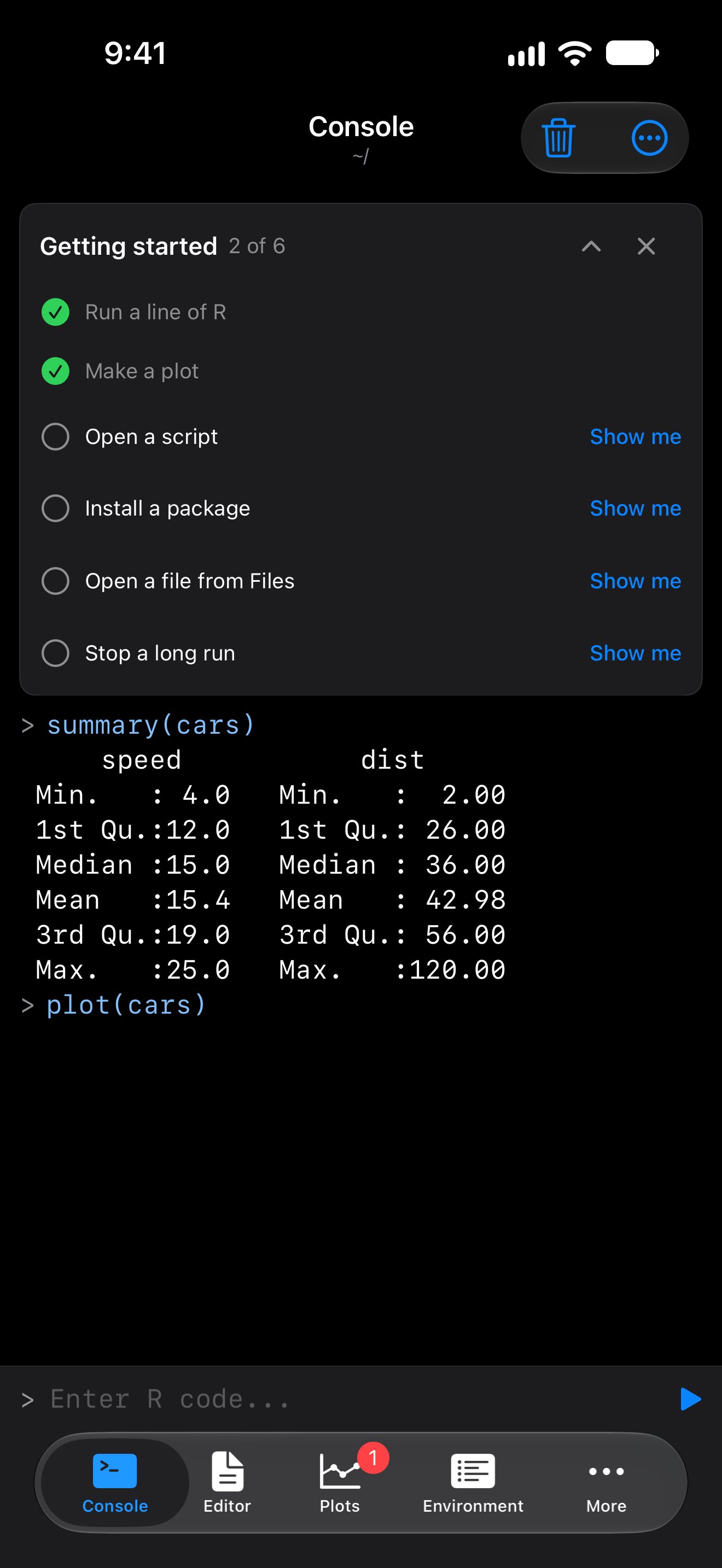
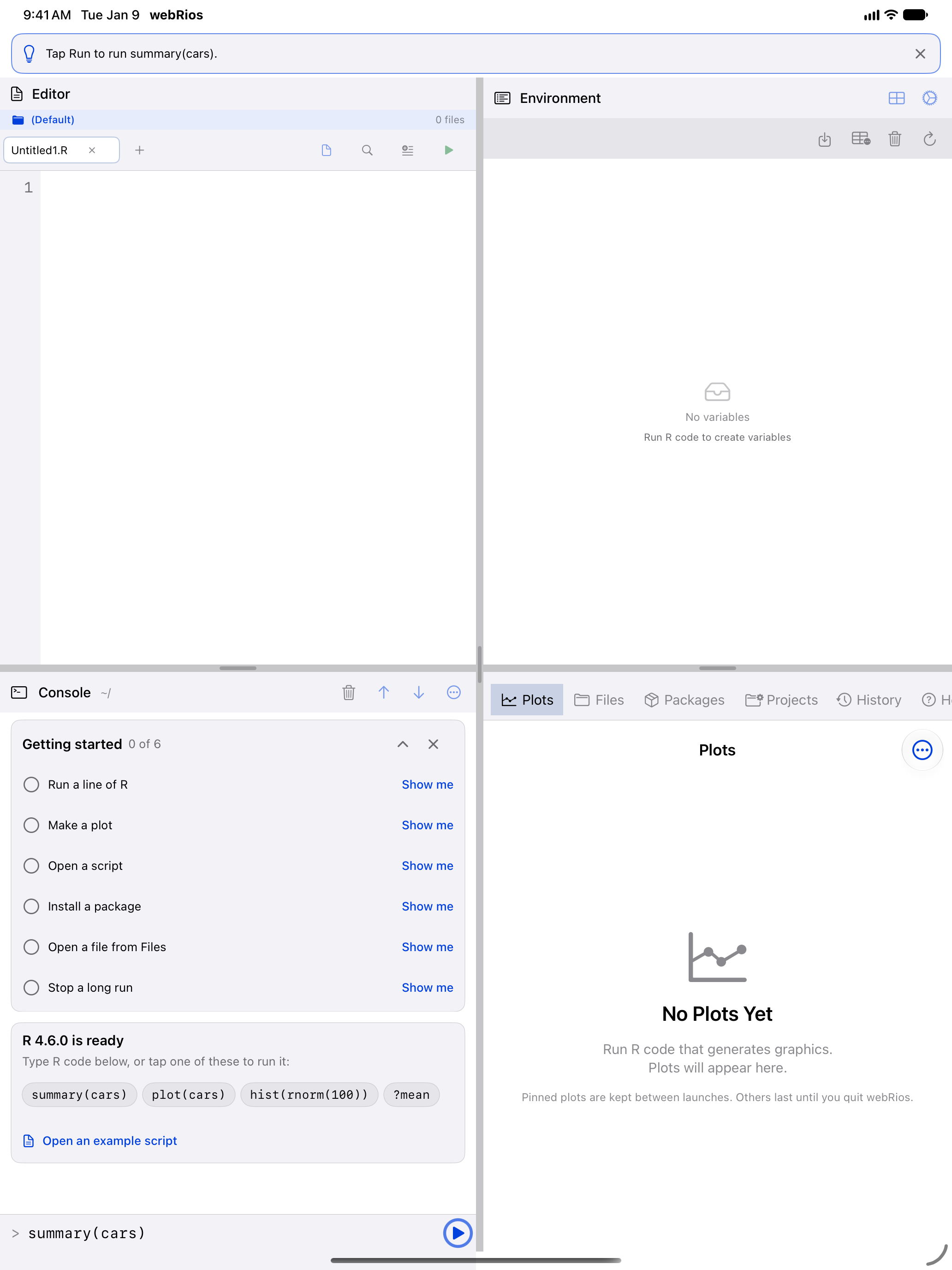
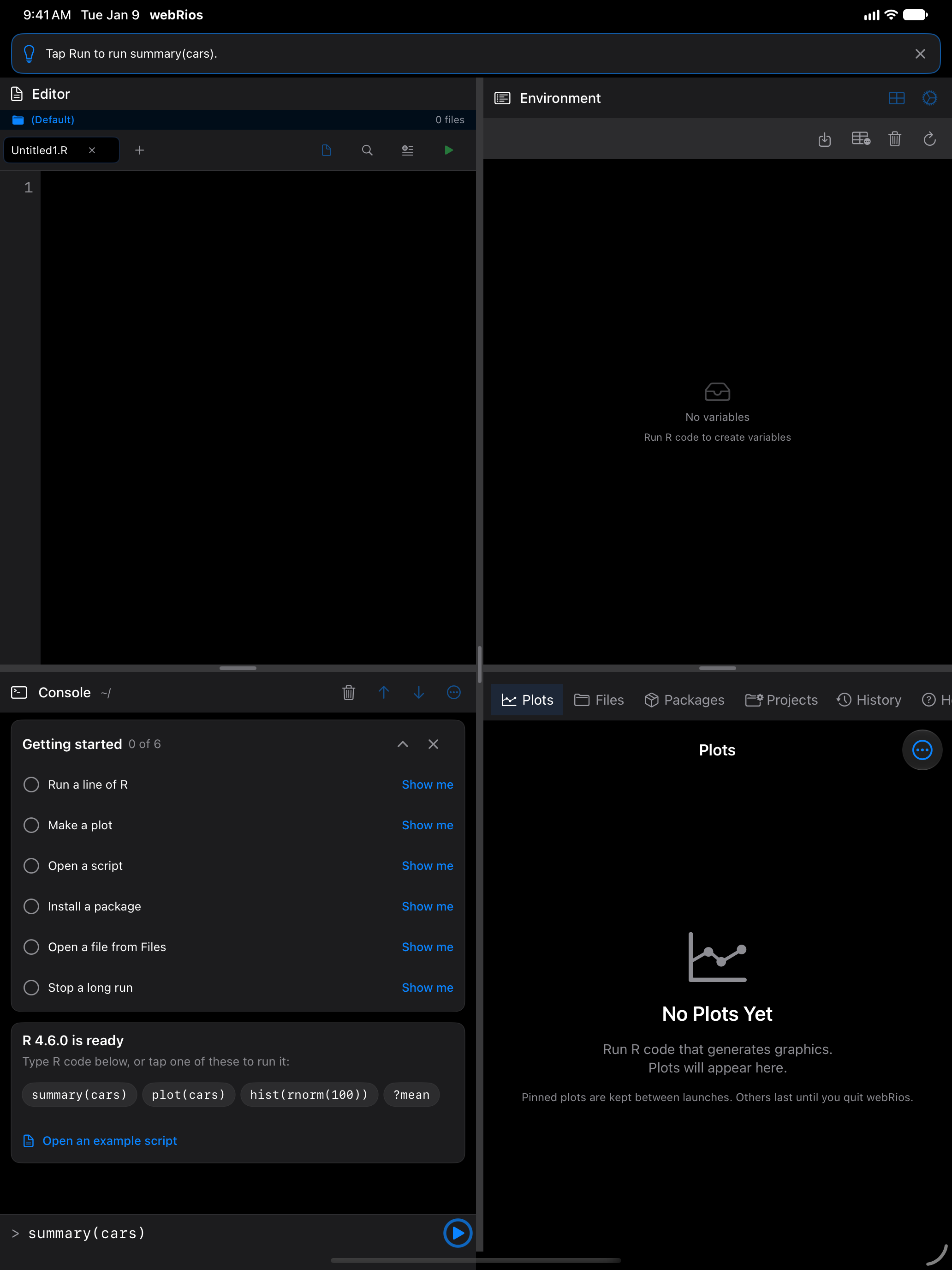
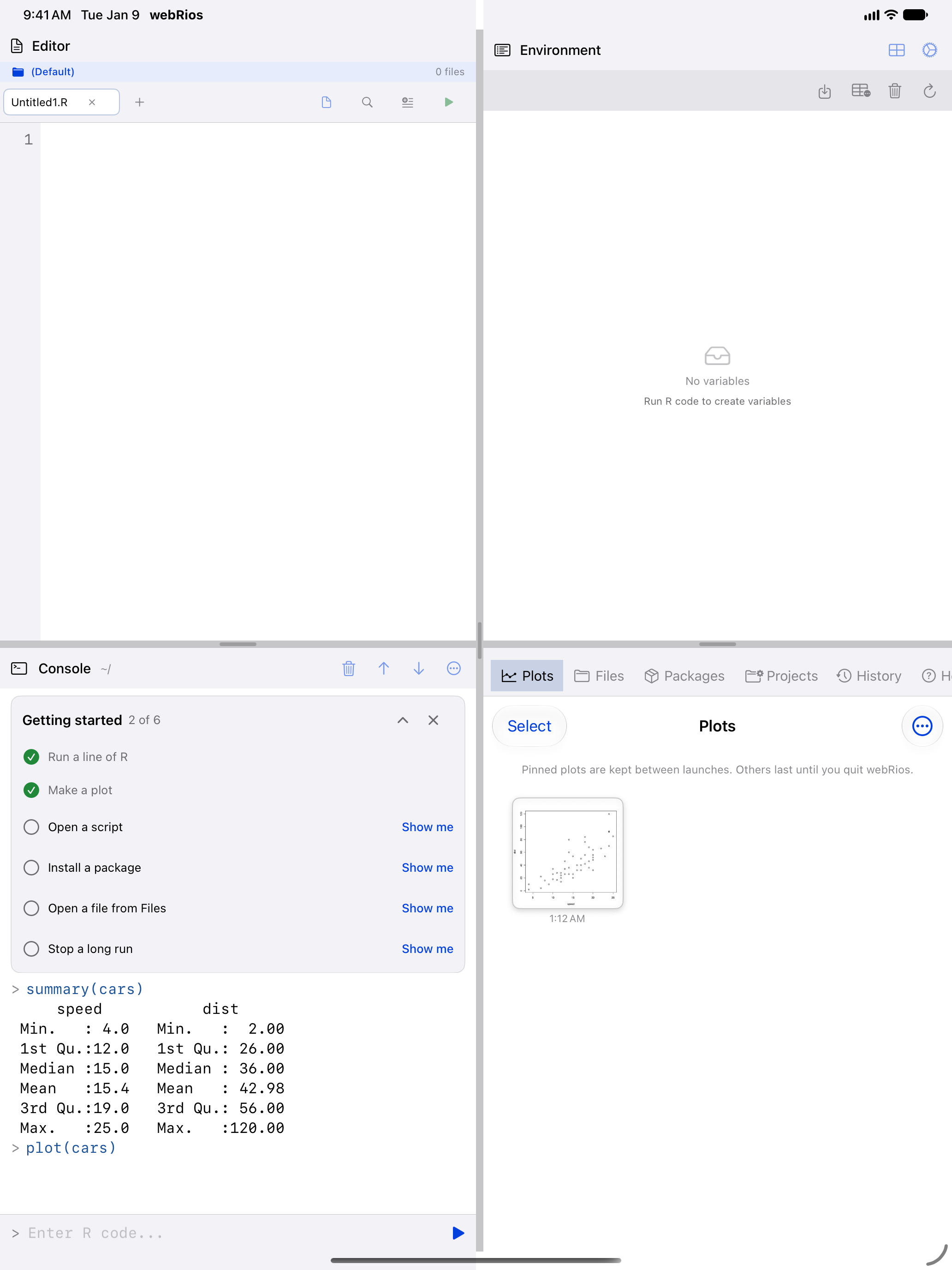
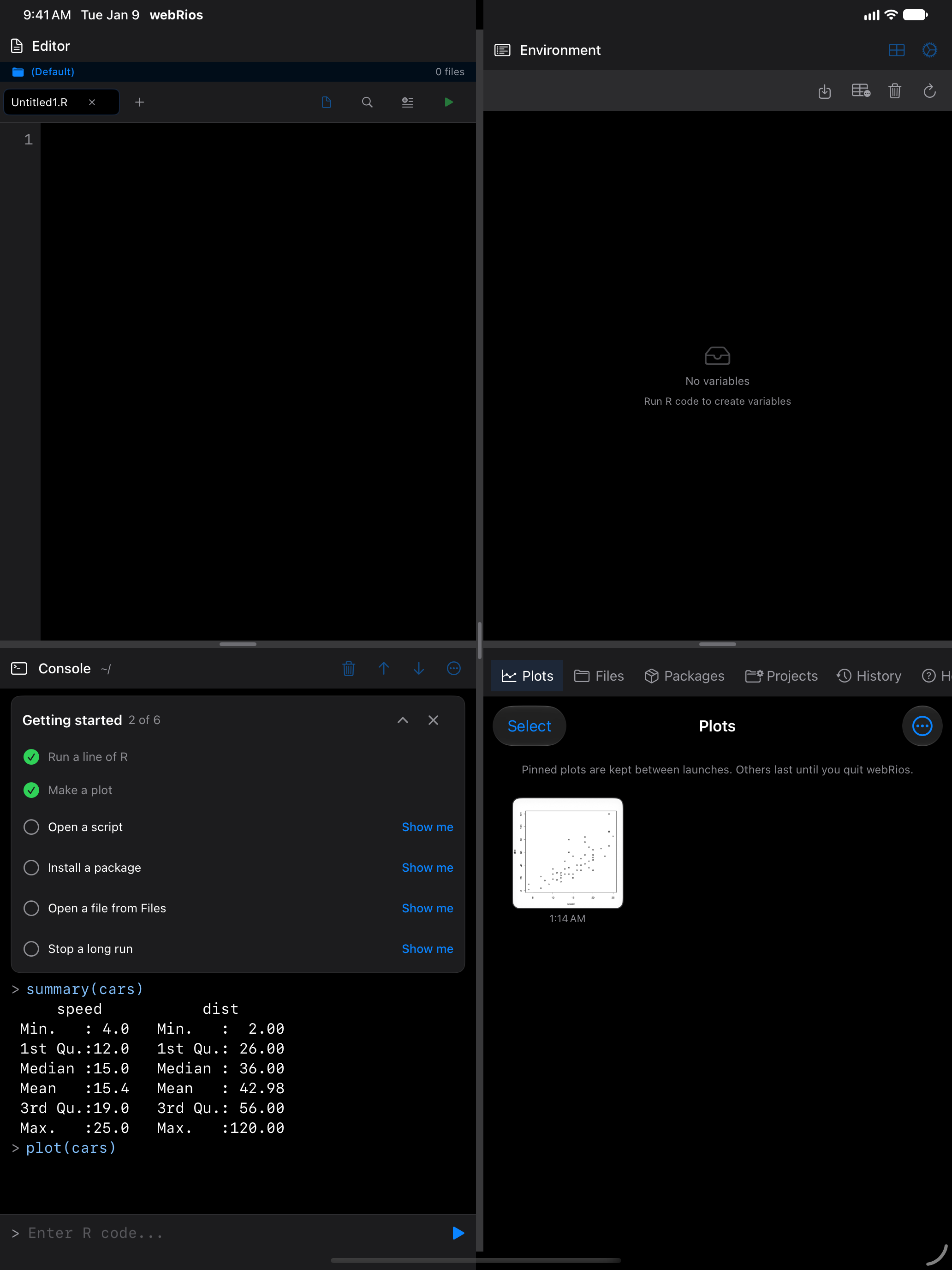
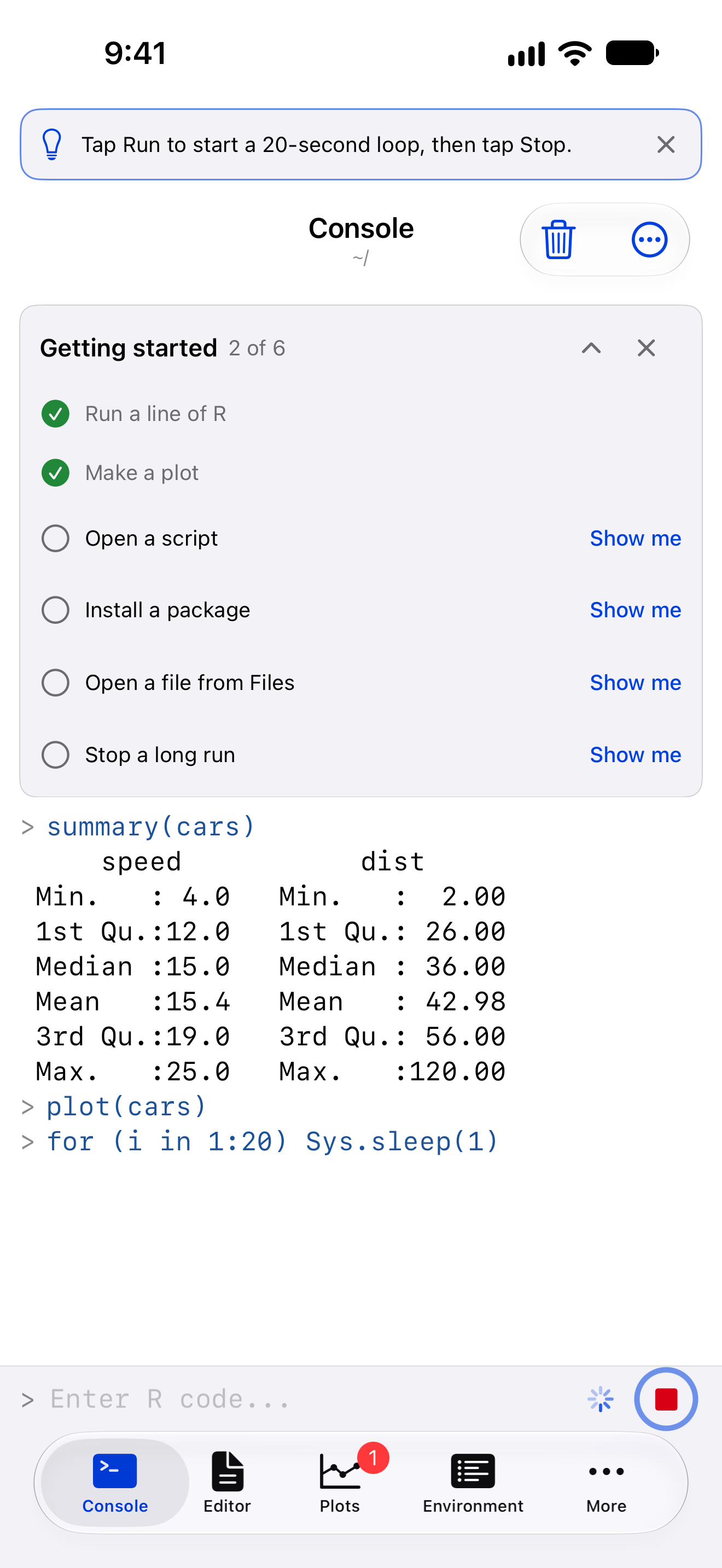
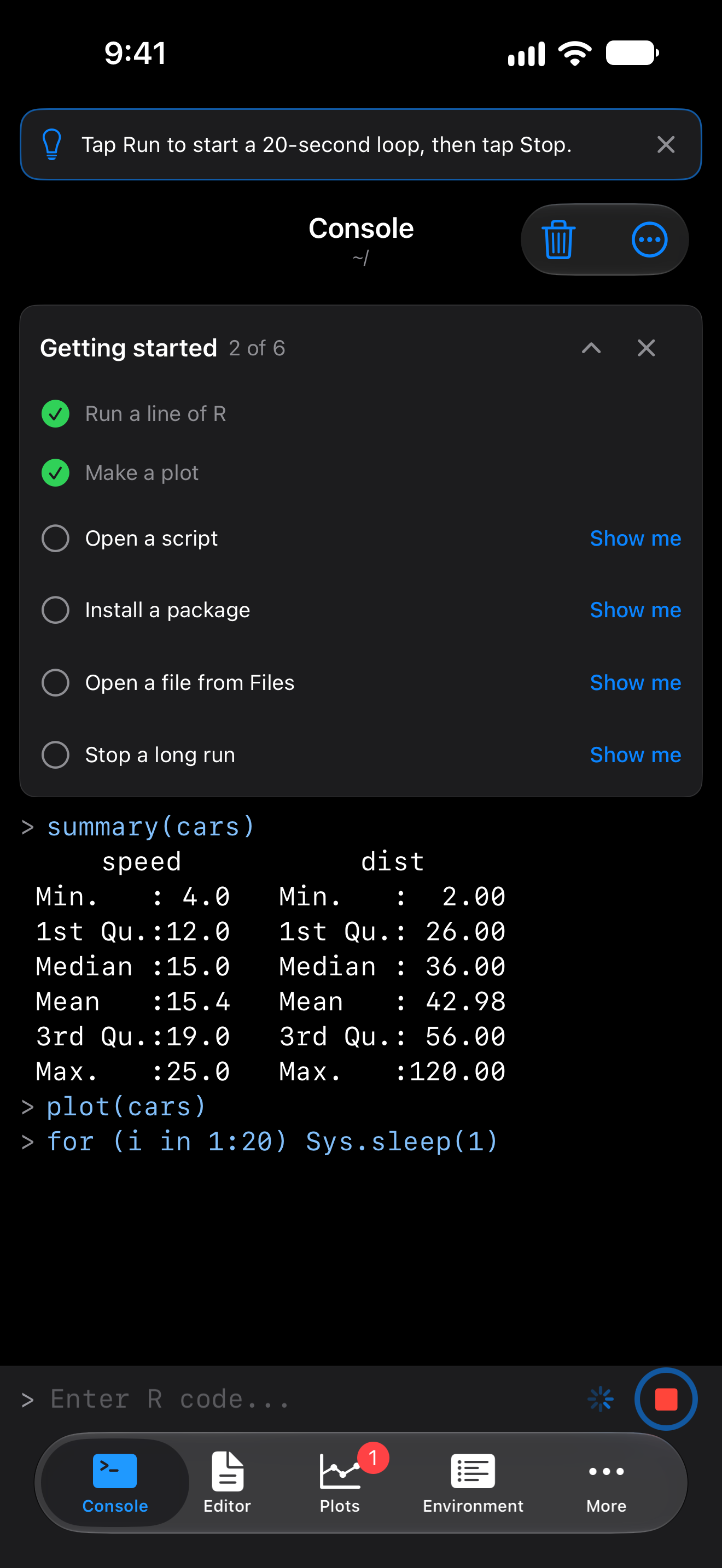
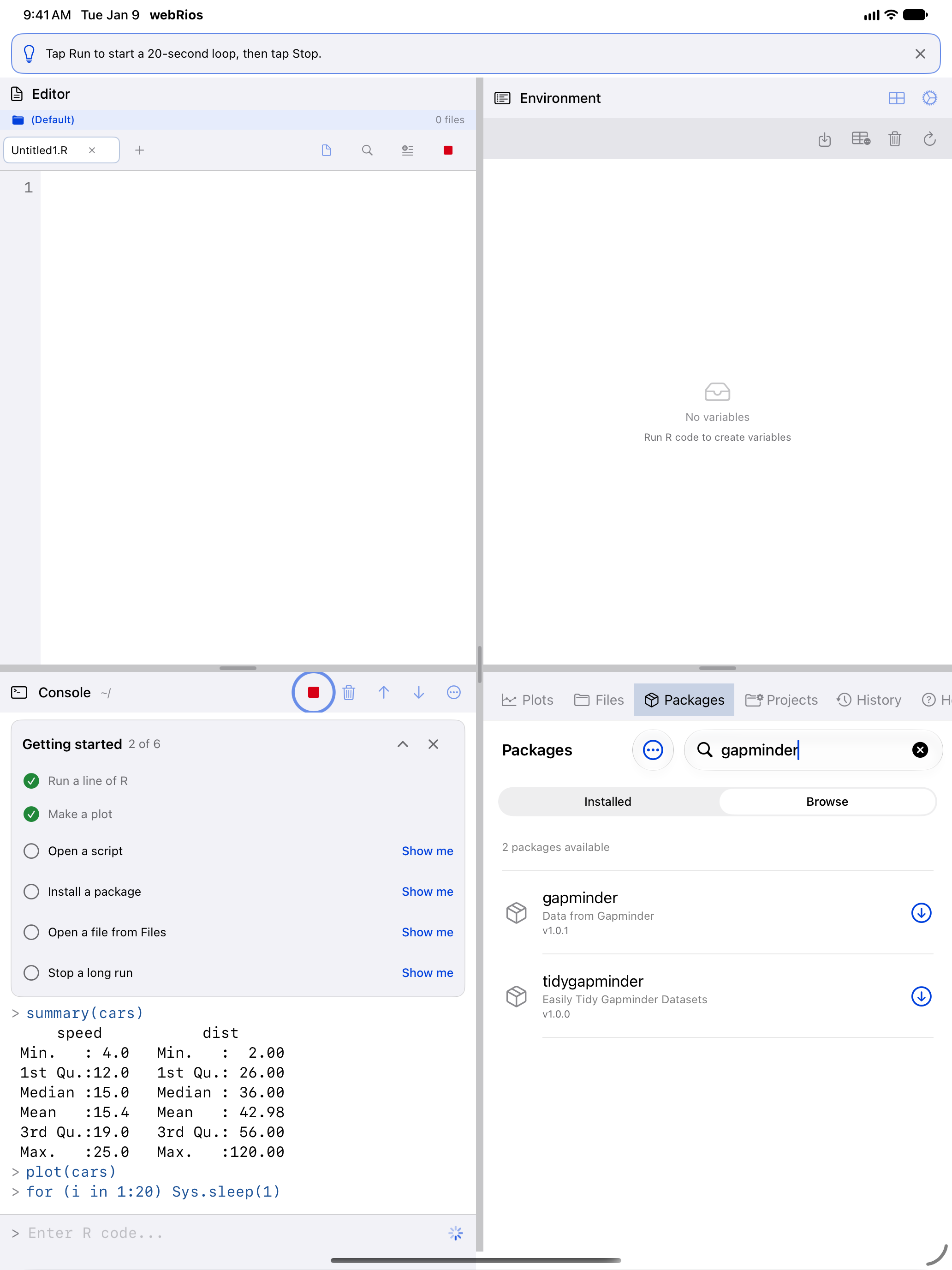
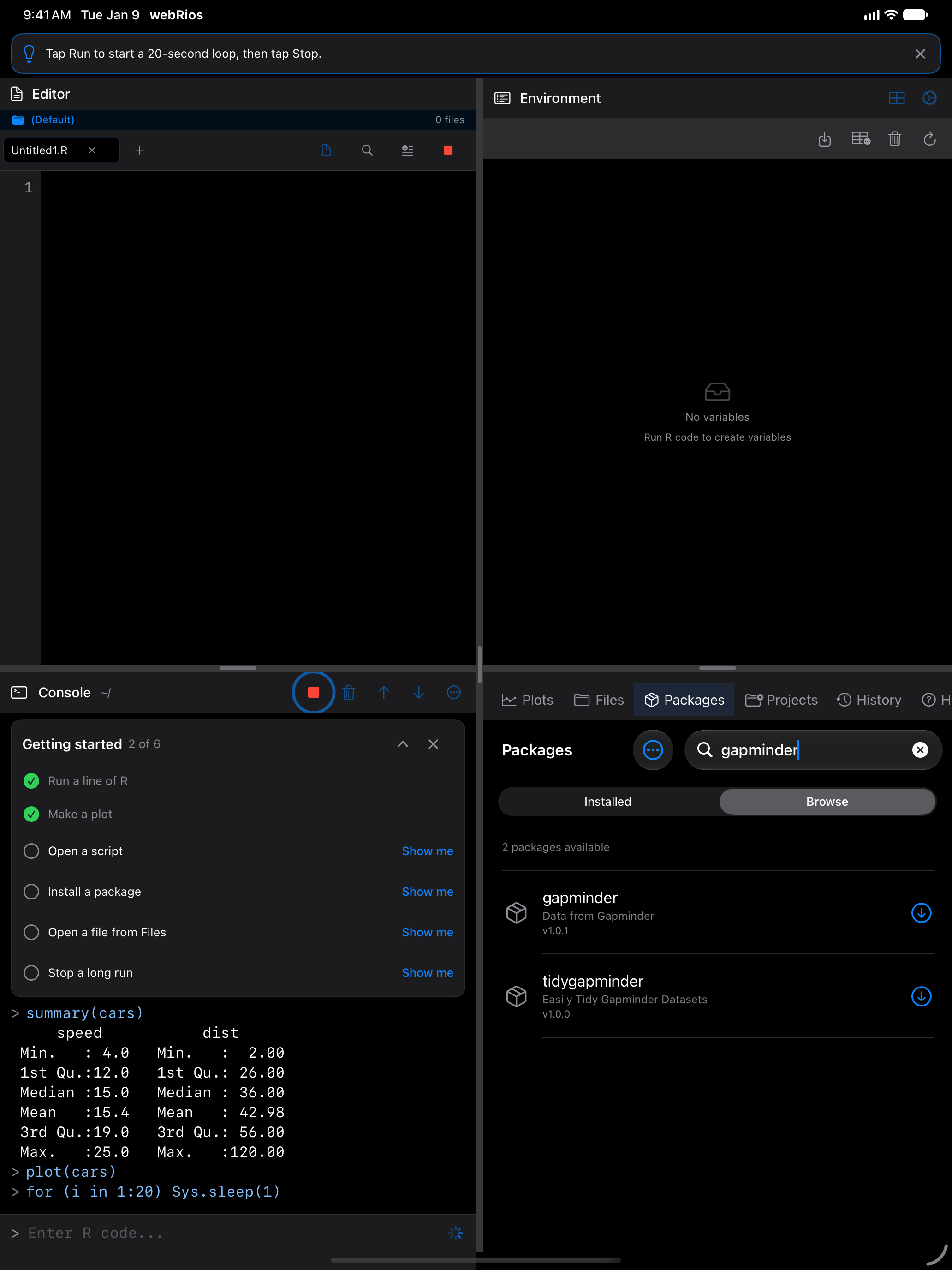
When R is ready, the Console opens with a Getting started checklist. It has six first steps, each ticked off as you do it, wherever you do it:
- Run a line of R
- Make a plot
- Open a script
- Install a package
- Open a file from Files
- Stop a long run
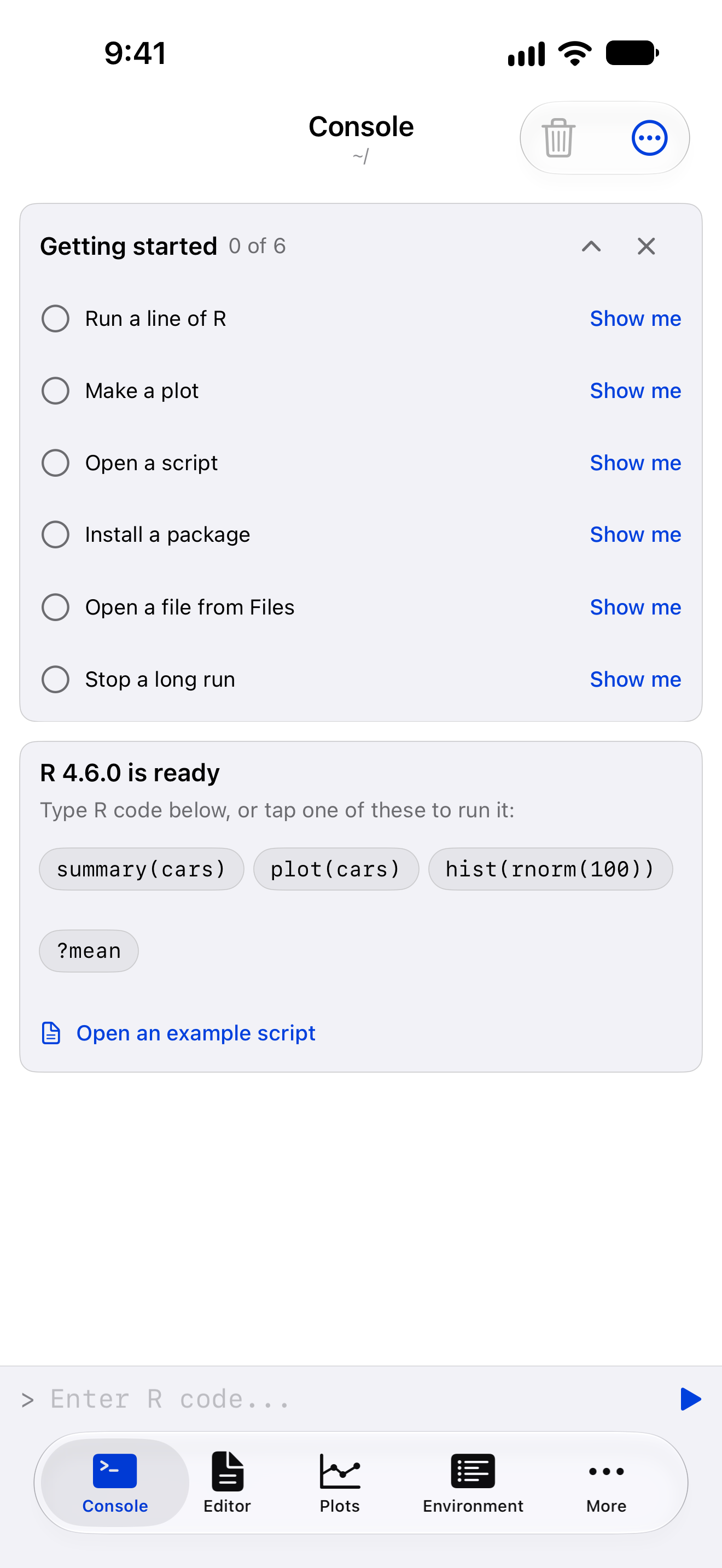
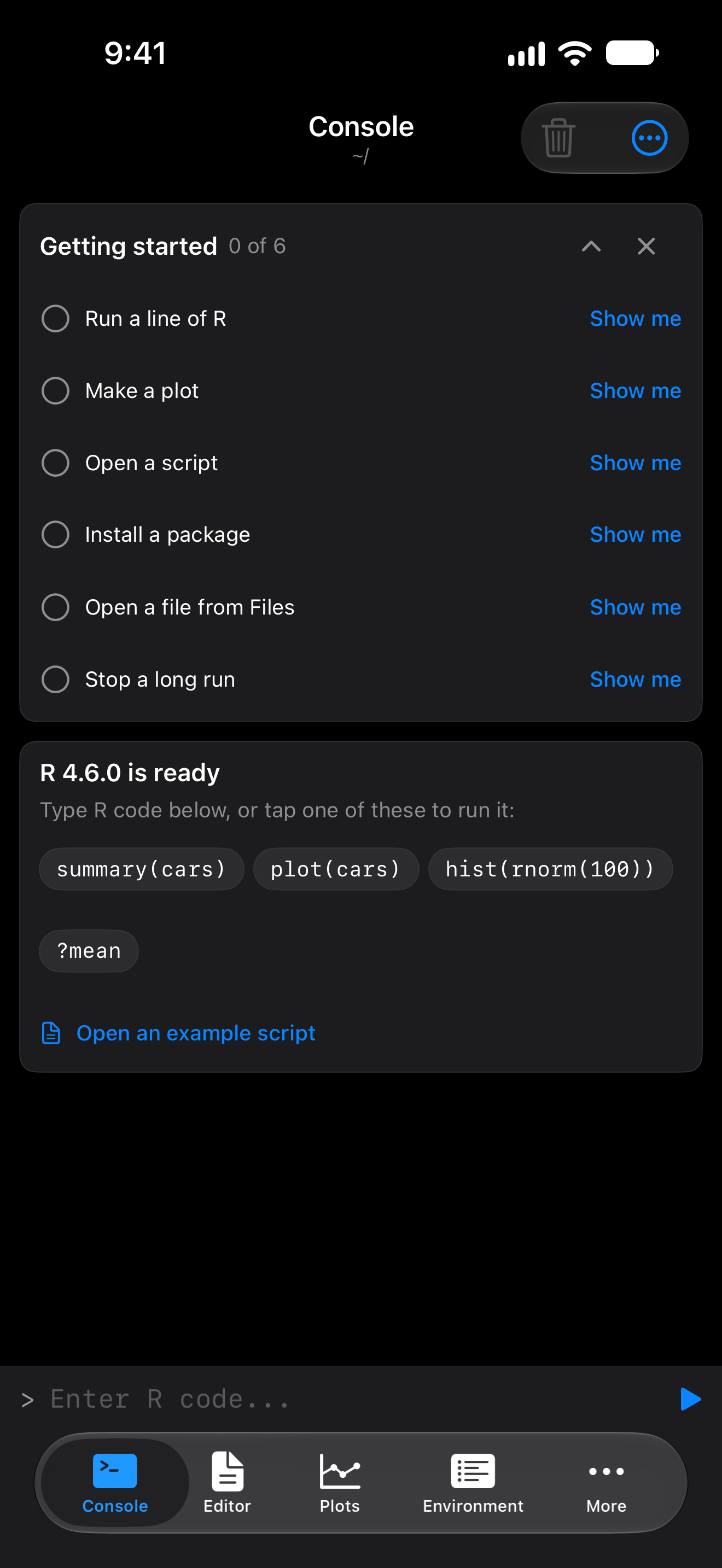
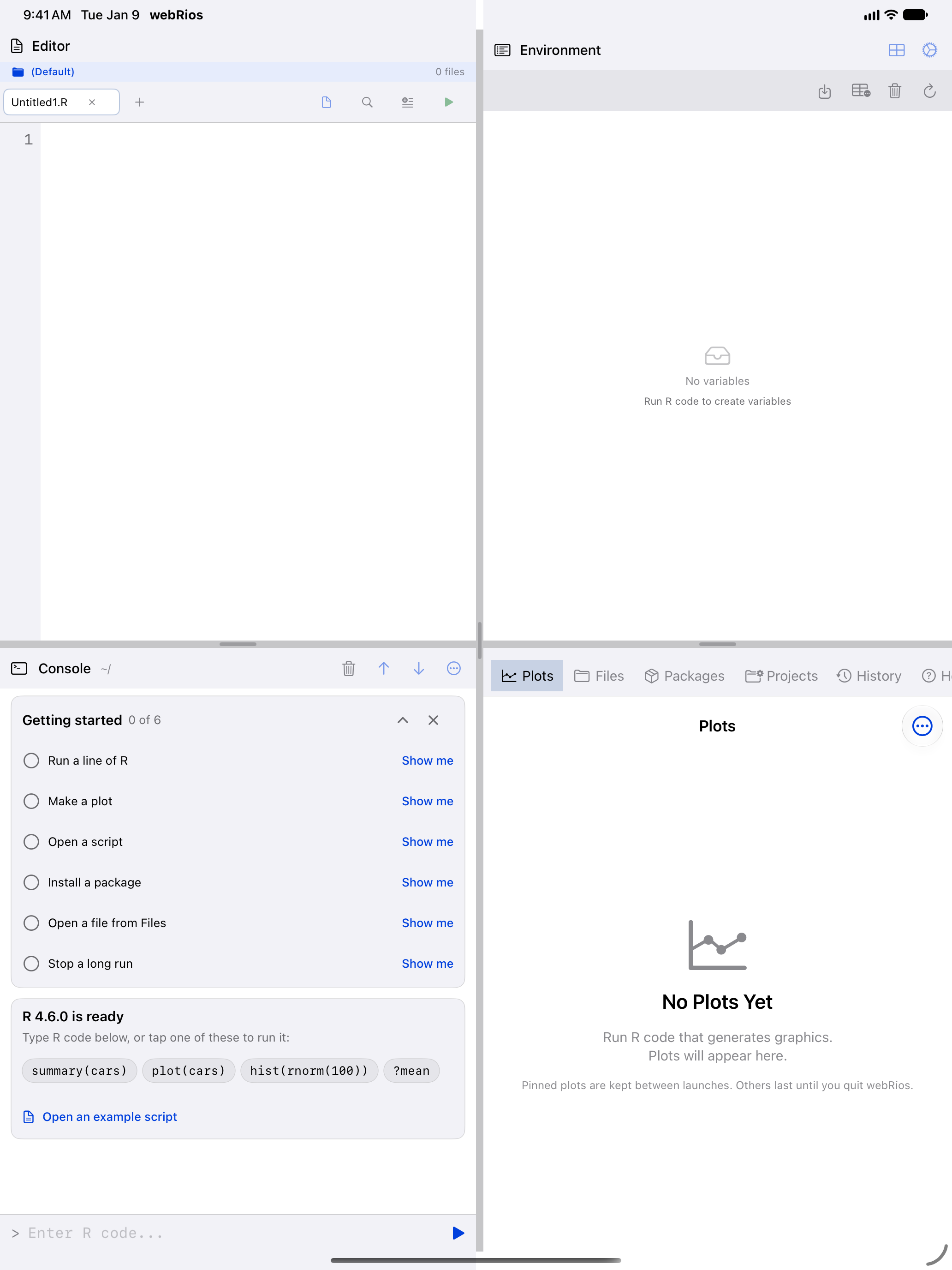
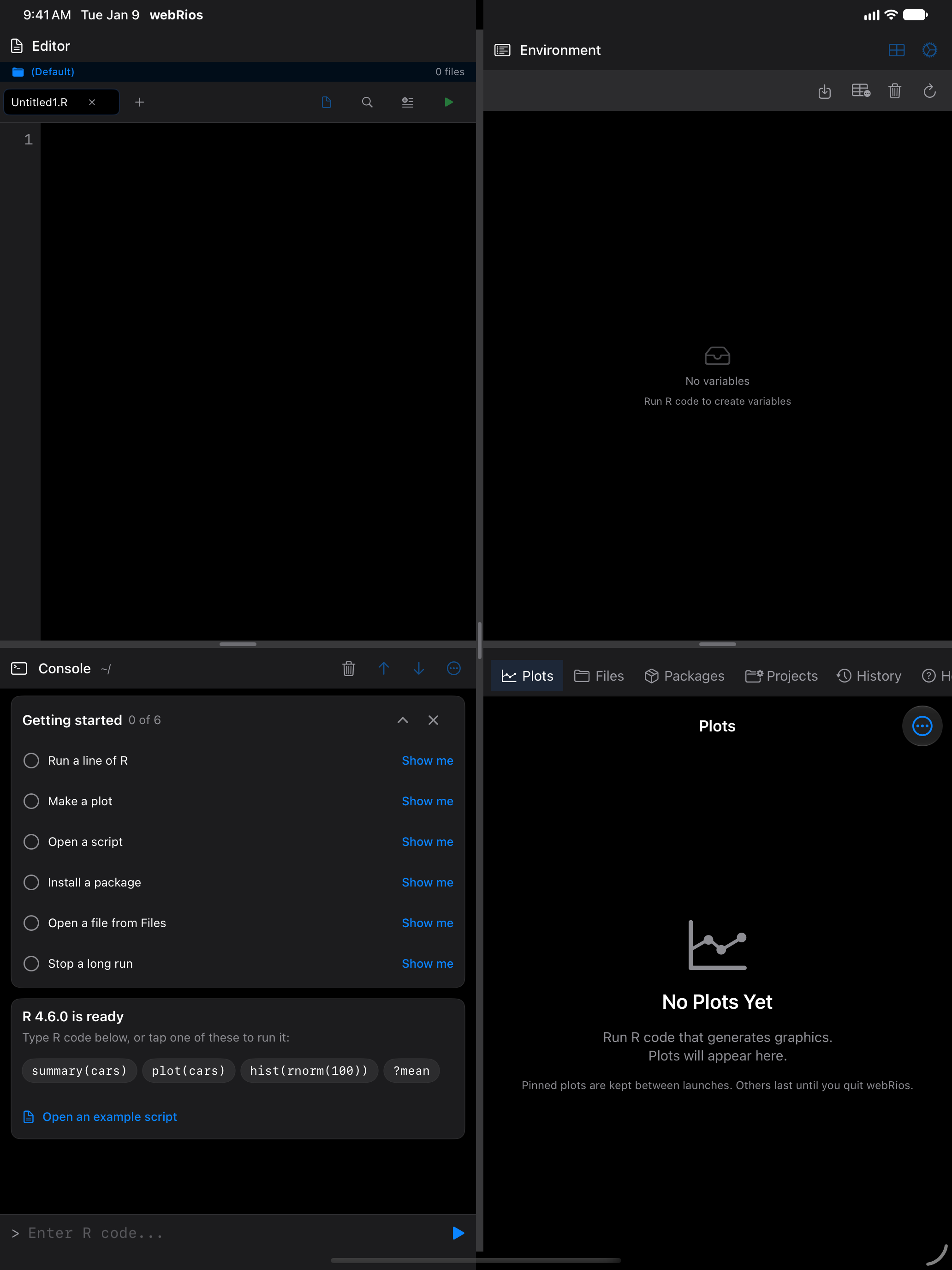
The header counts progress, “0 of 6” to start. Tap it to fold the list to that line. The list folds itself once the Console has output, and starts folded in the iPad 4-Pane Workspace. Tap ✕ to close it. Settings > Help & Resources > Getting Started brings it back, ticks kept and unfolded. When all six are done it says “You’re all set” and puts itself away. The same Settings row then starts it over, all six unticked.
Show me
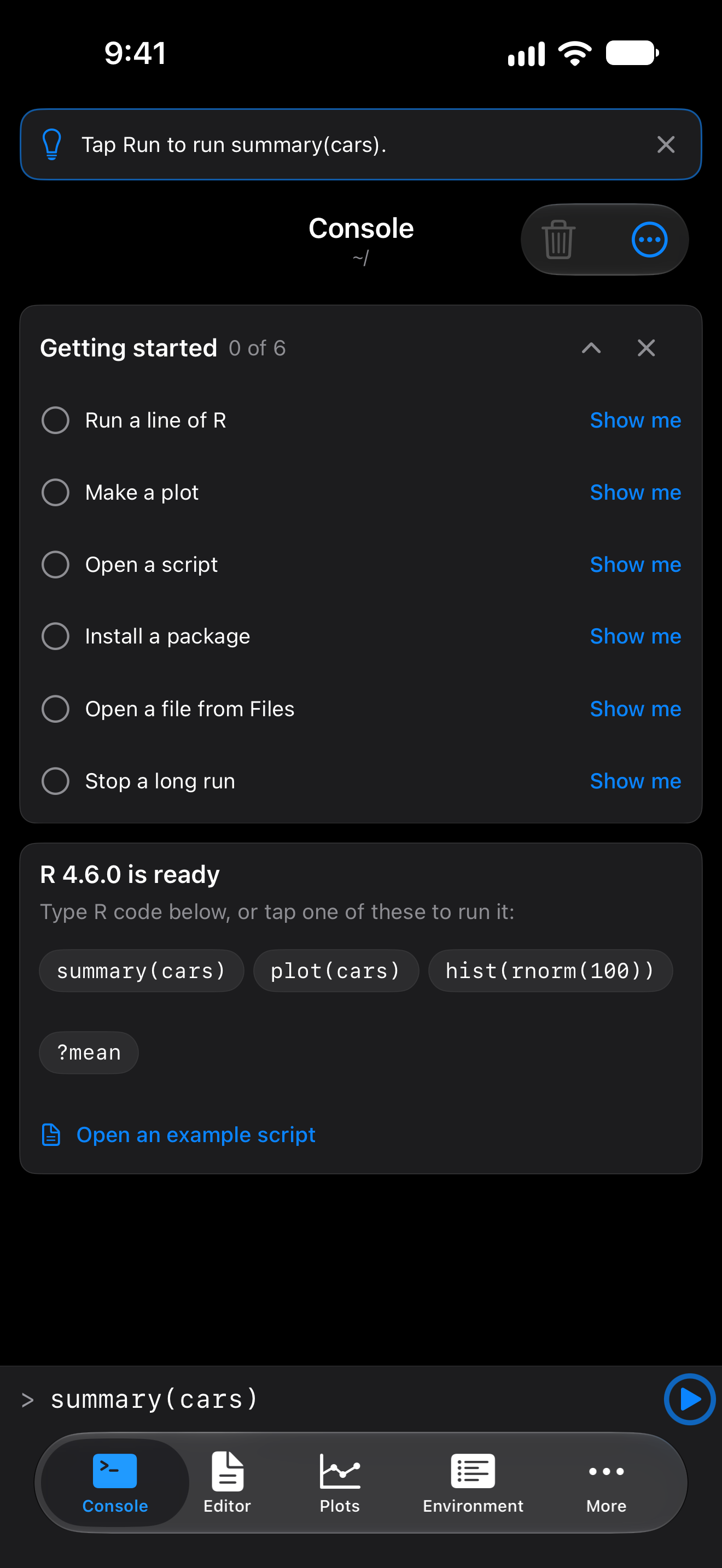
Each step not yet done has Show me. It takes you to where the step happens and, for most steps, puts a one-line tip at the top of the window. The checklist scrolls to keep that step in view. For the first two it fills in summary(cars) or plot(cars) and rings Run, so one tap does the step. It never replaces what you have typed, and fills in nothing while R is busy. The tip then says what to run.
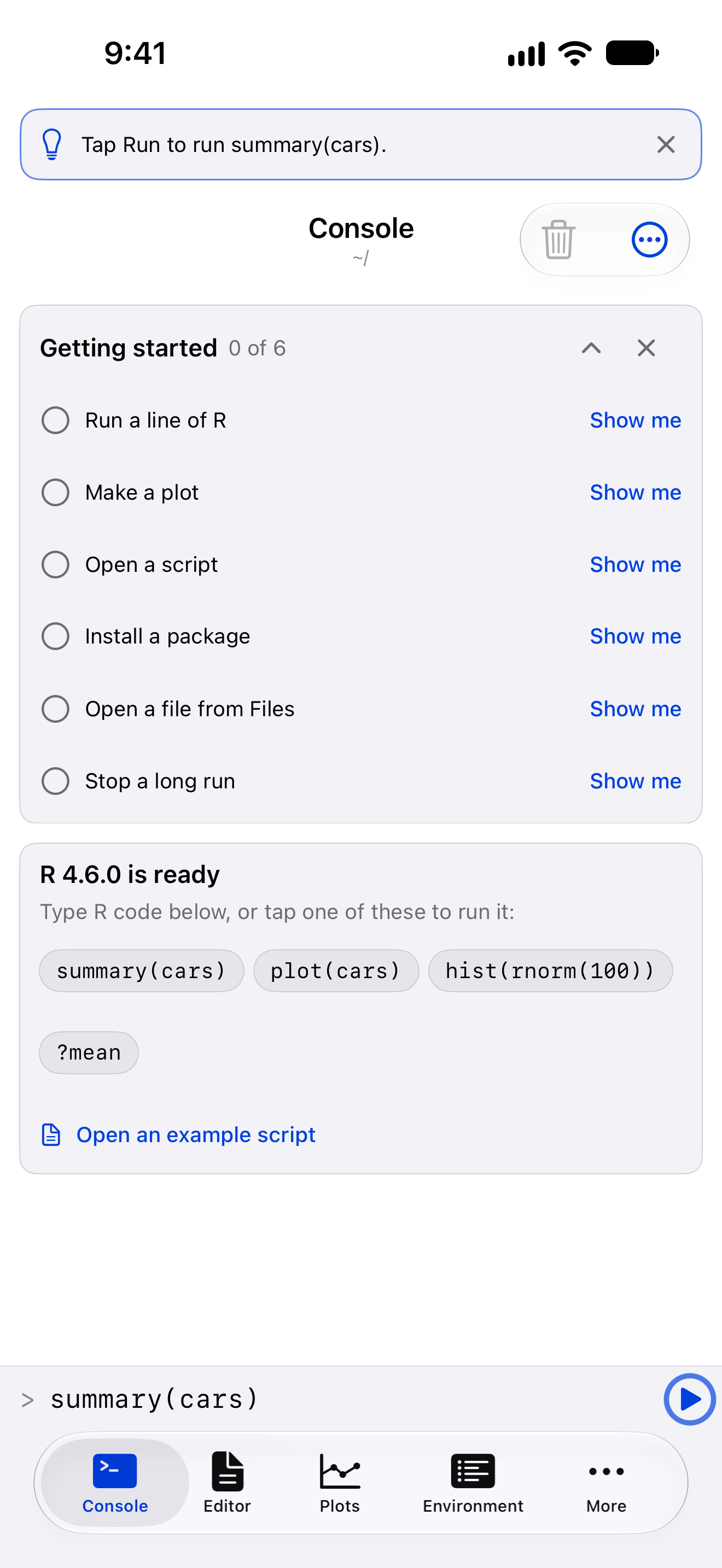
The other steps:
- Open a script opens the Getting Started example in the Editor, which ticks the step.
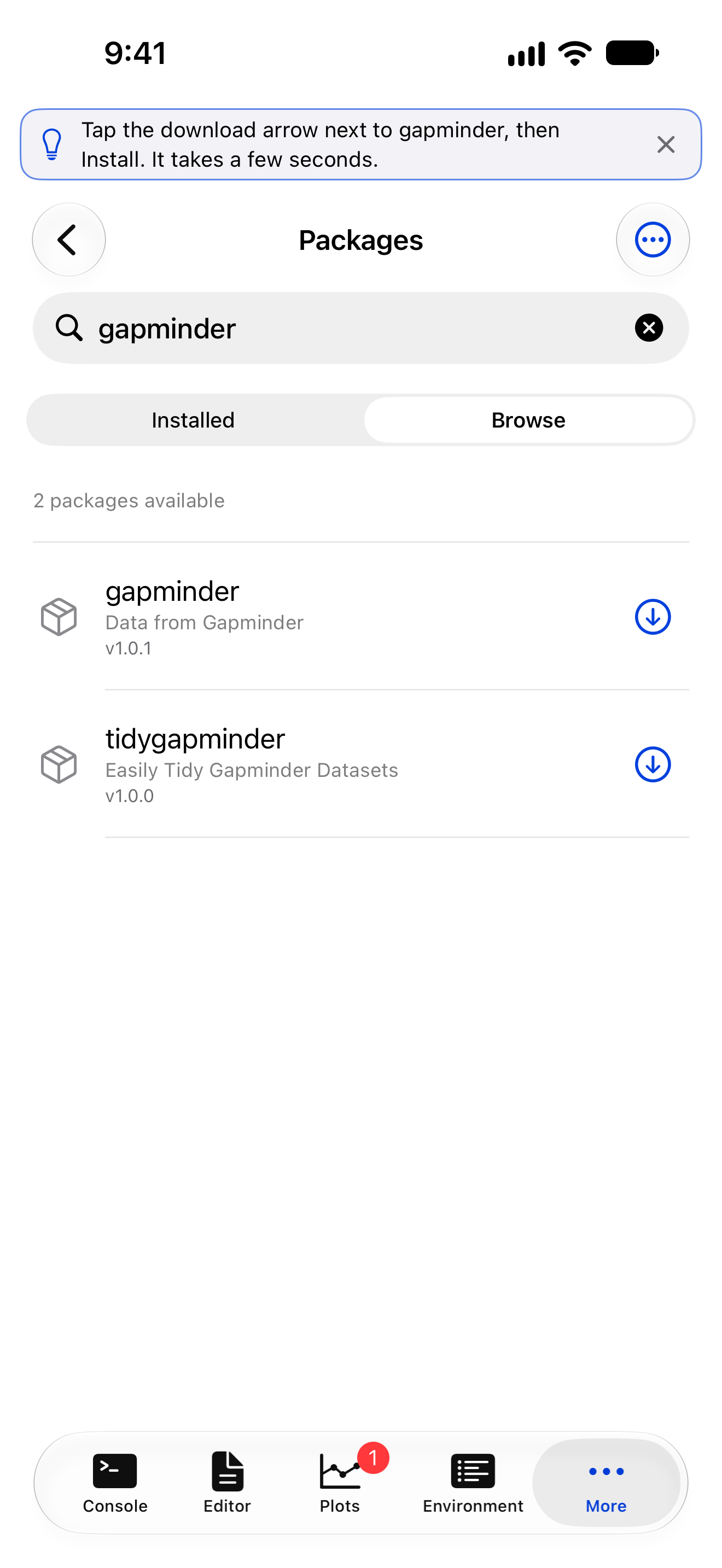
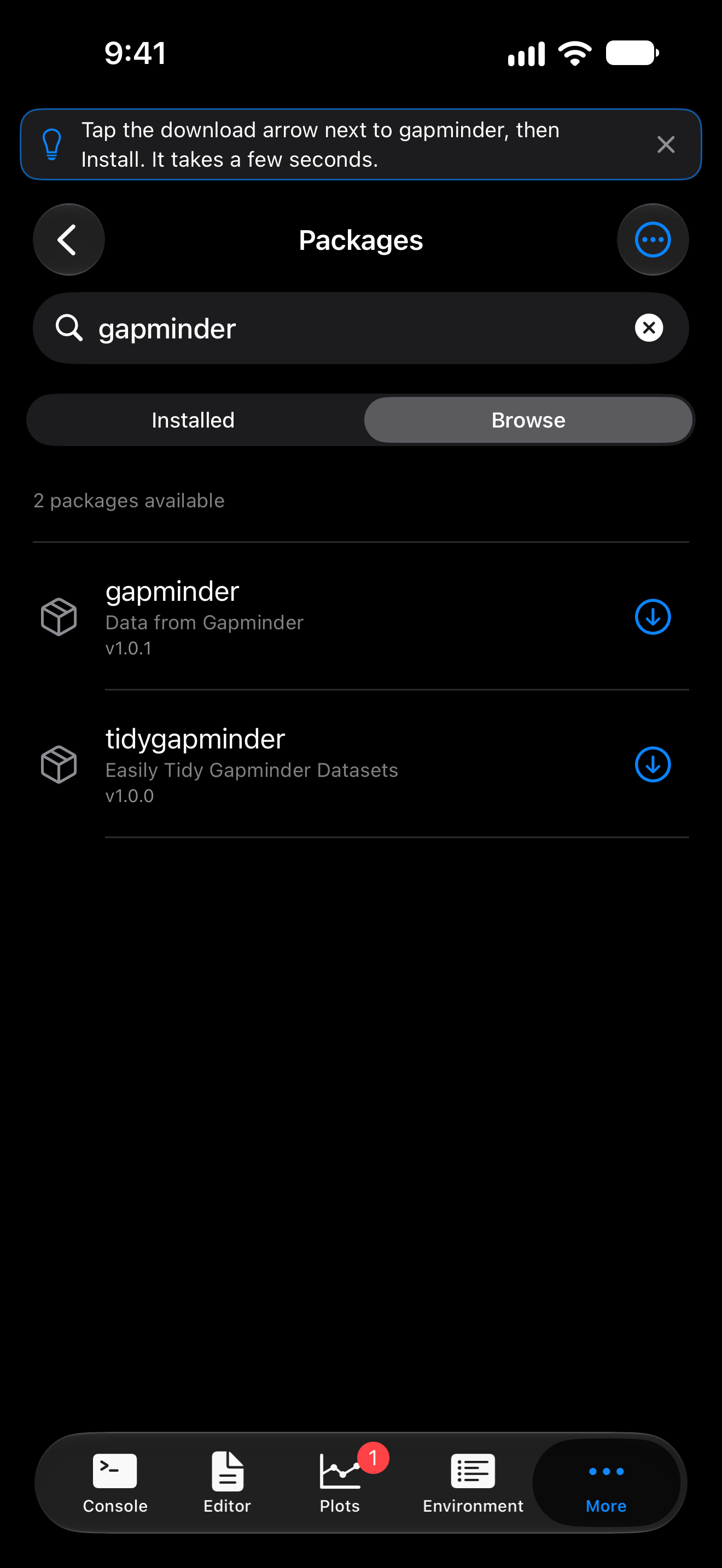
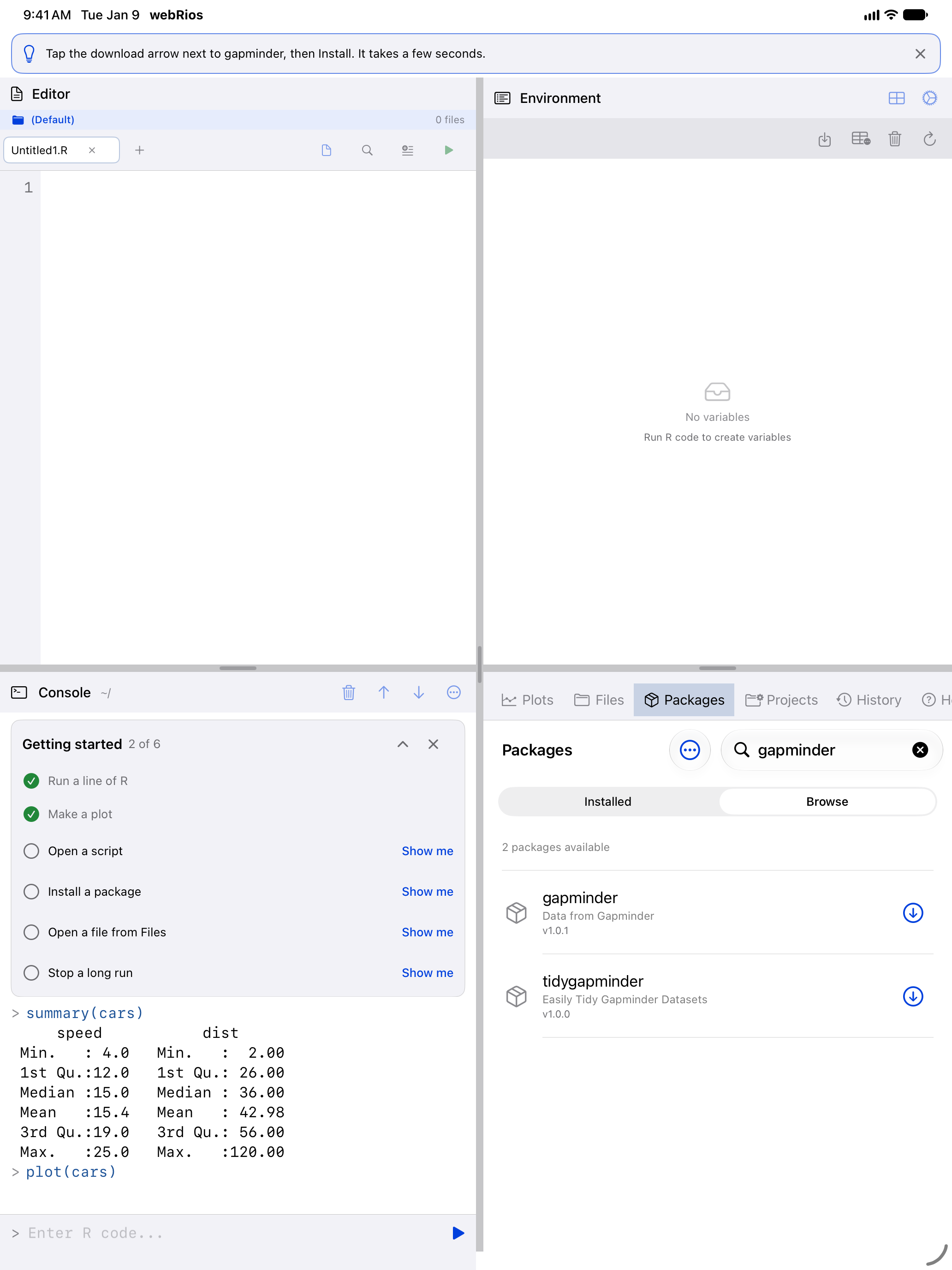
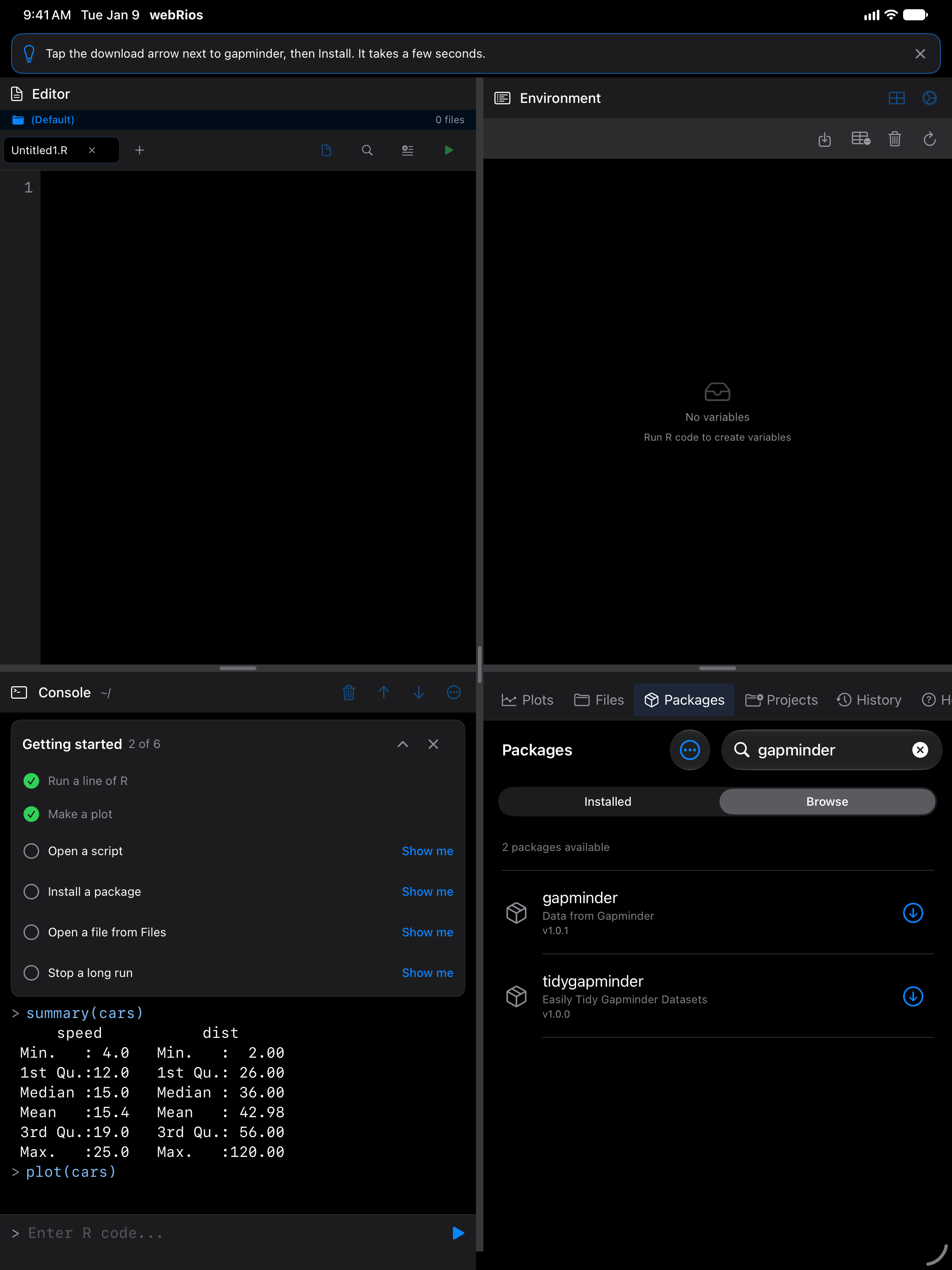
- Install a package opens Packages on Browse with
gapminder, a small data package, already searched for, with the keyboard down. Tap the download arrow beside it, then Install. It takes a few seconds, since it bringstibbleand whattibbleneeds. - Open a file from Files explains how, since webRios can’t reach into another app. In Files, touch and hold a CSV, R script or
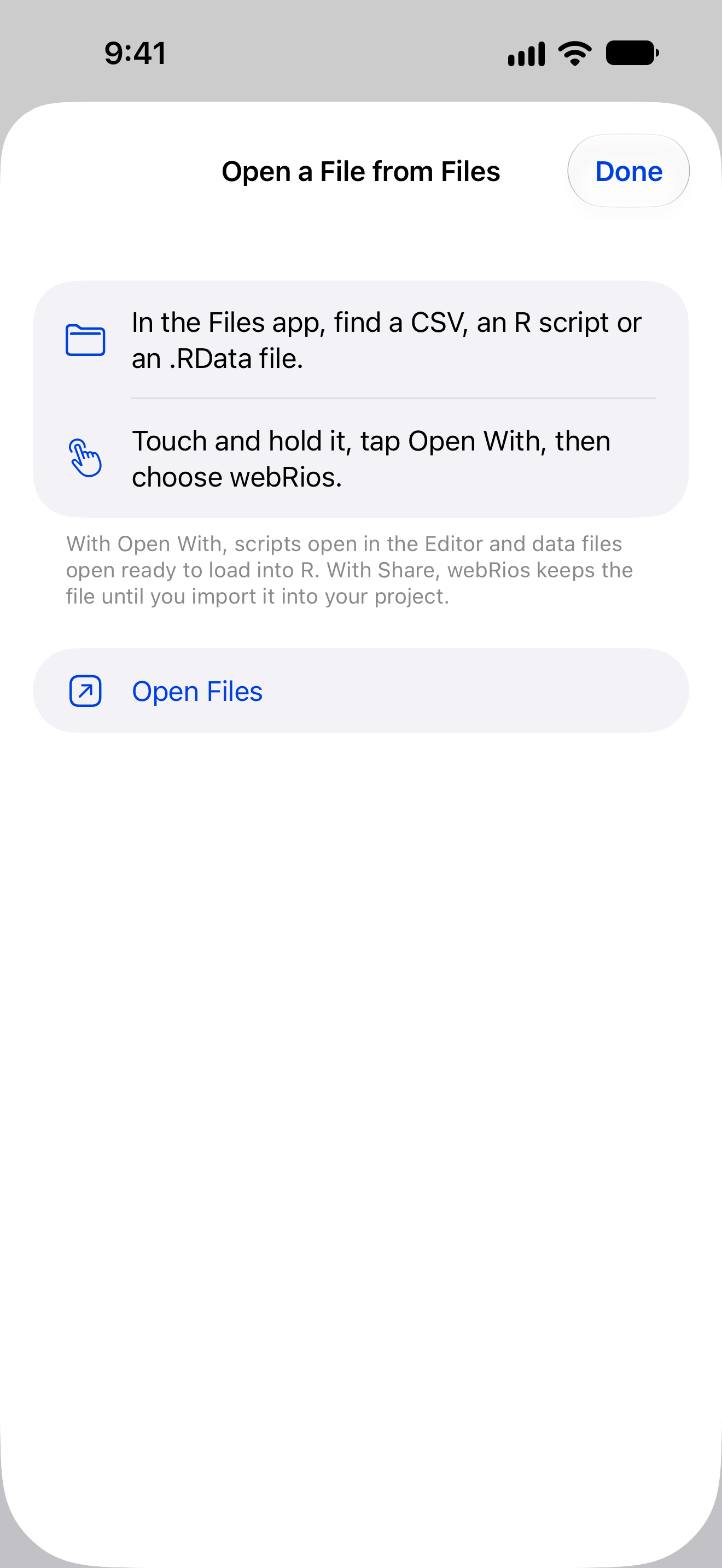
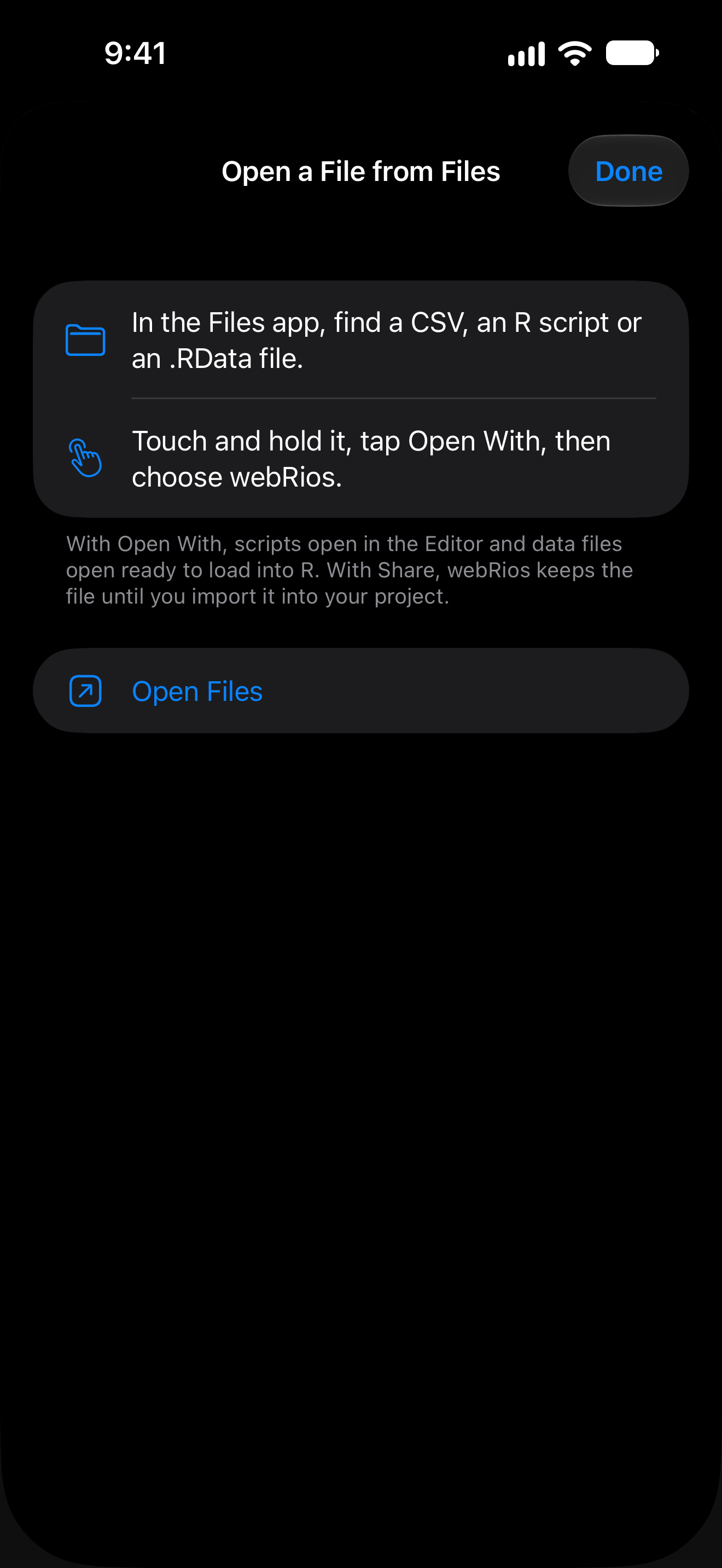
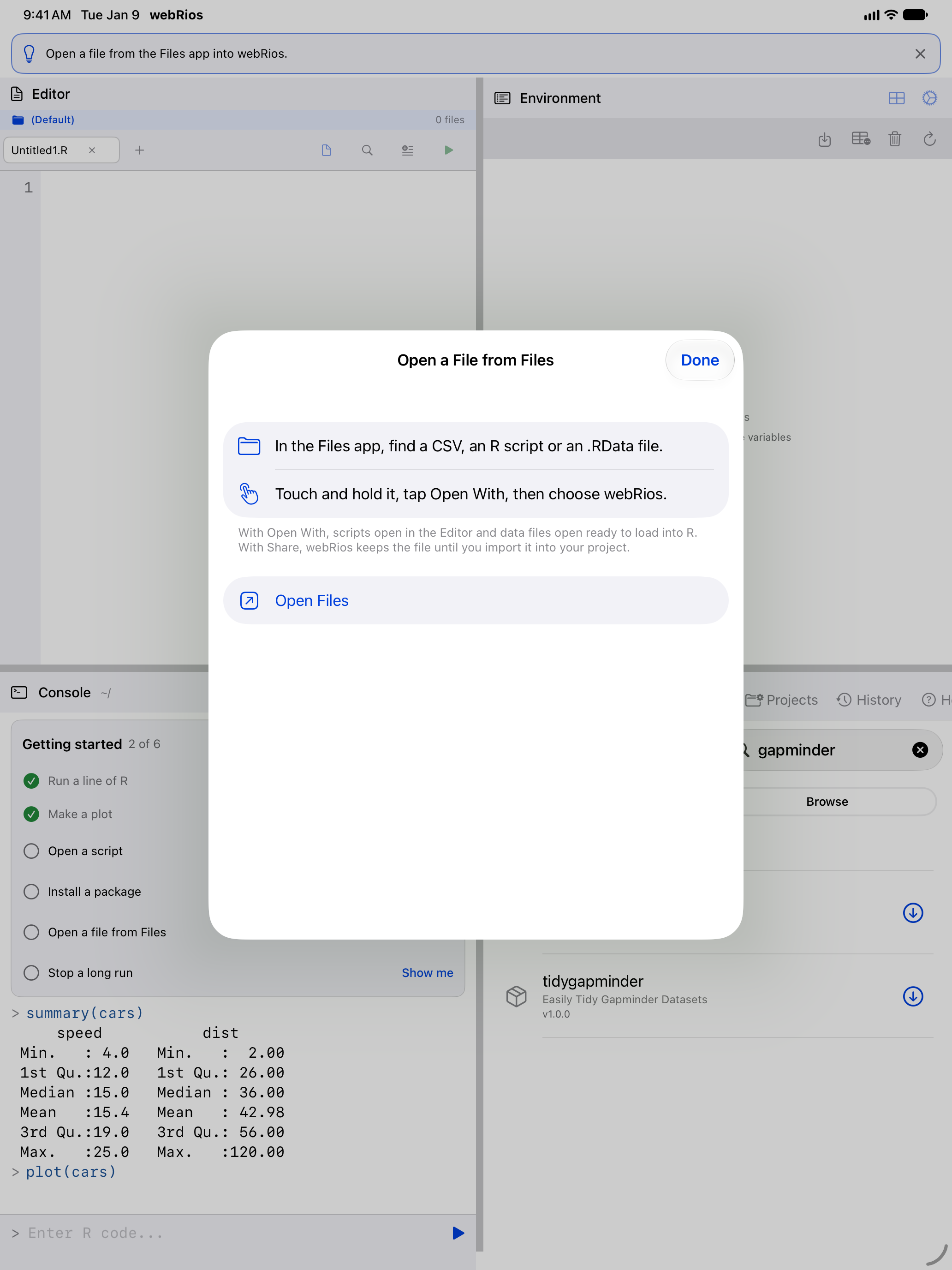
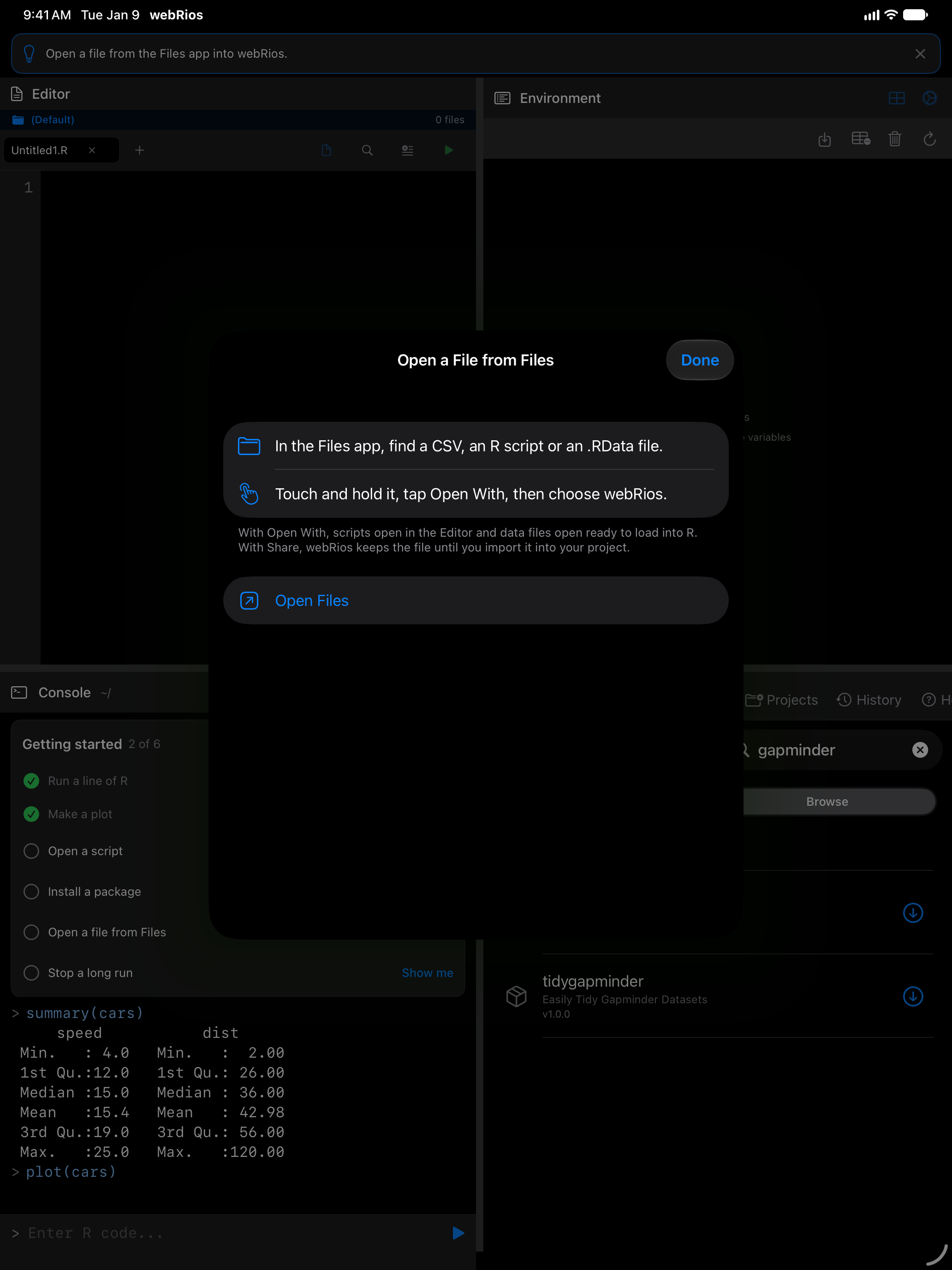
.RDatafile, tap Open With, and choose webRios. A script opens in the Editor, and a data file opens ready to load into R. Share instead keeps the file until you import it (see Shared files). Open Files switches to the Files app. Opening a file from Mail or another app ticks the step too. - Stop a long run fills in a 20-second loop,
for (i in 1:20) Sys.sleep(1). Tap Run. Once the loop is going, Show me rings Stop. Tap it and R stops, variables kept. See Stopping running code.
Try Your First R Command
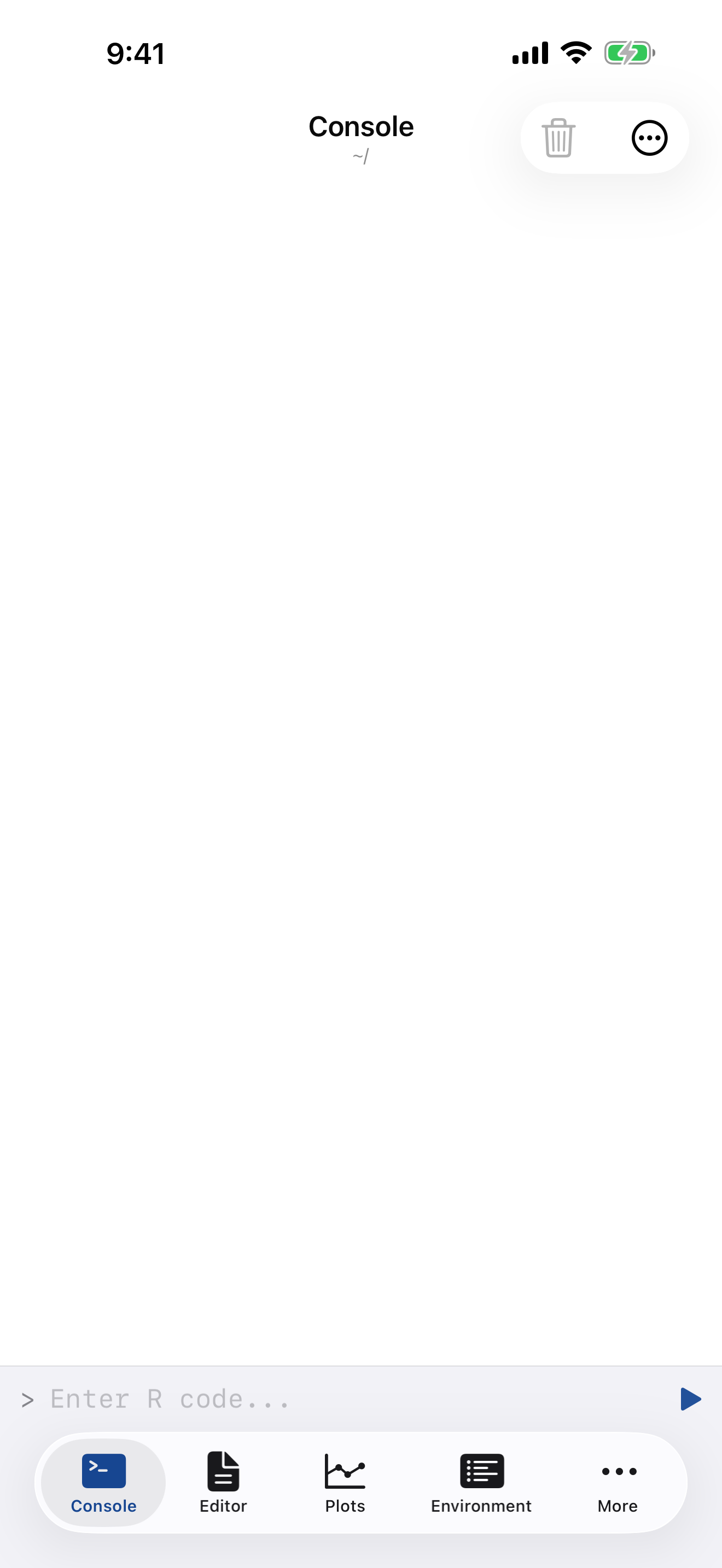
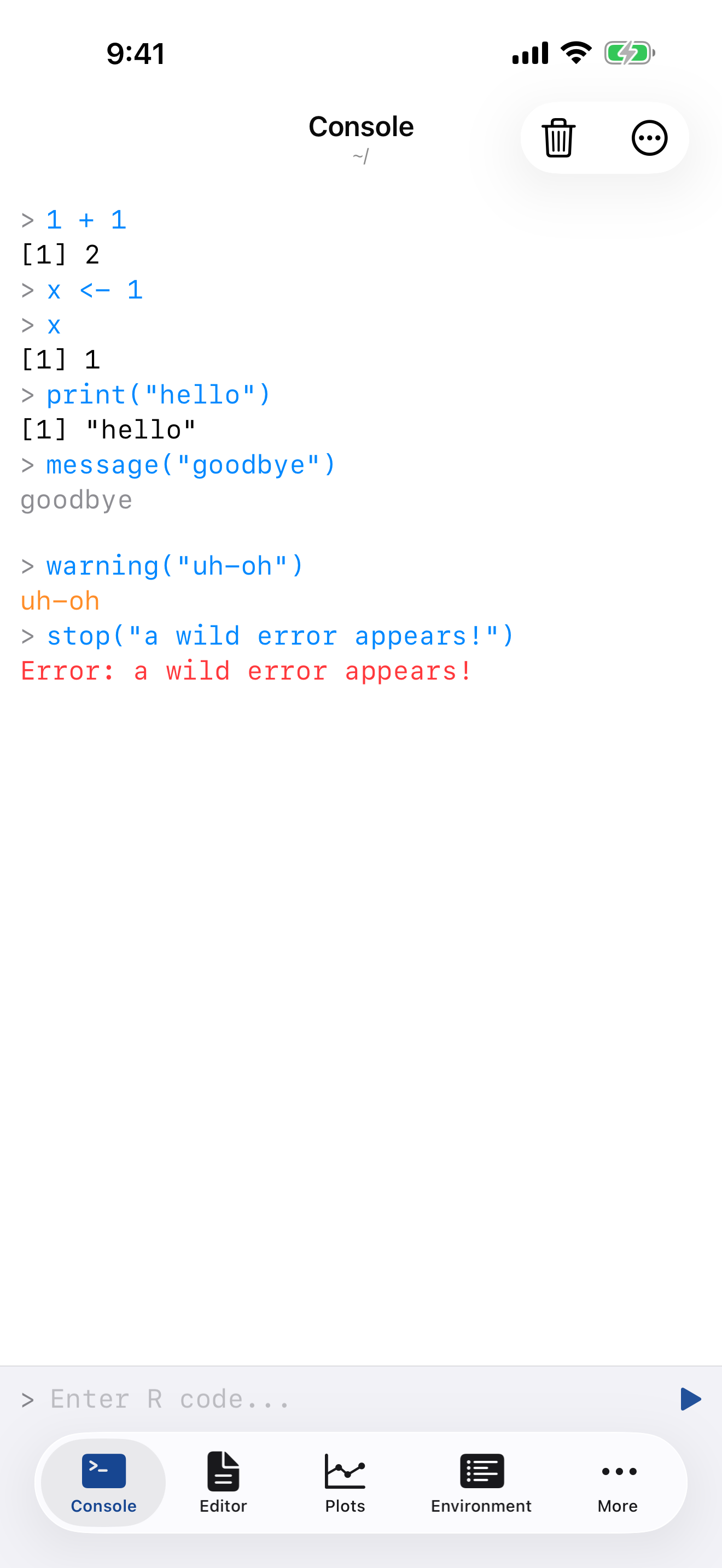
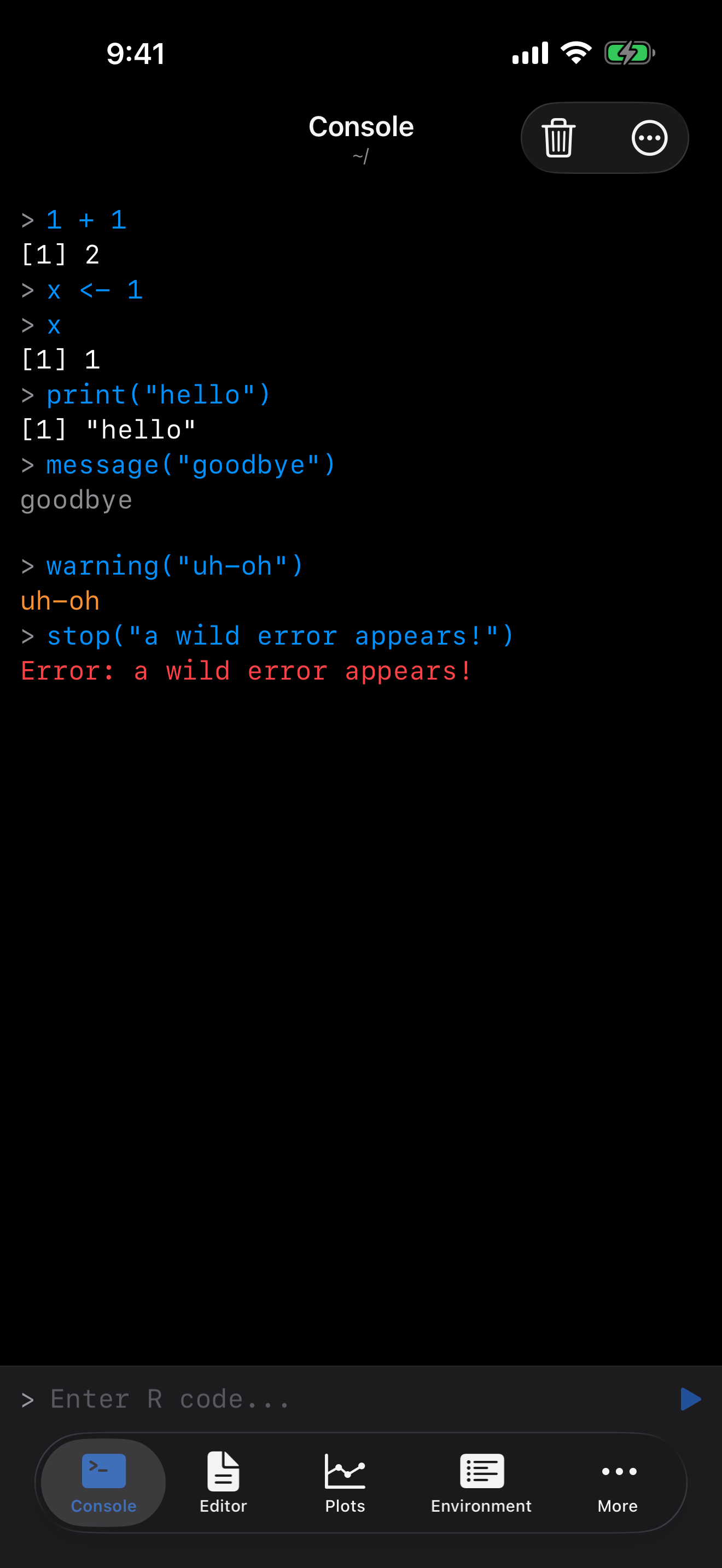
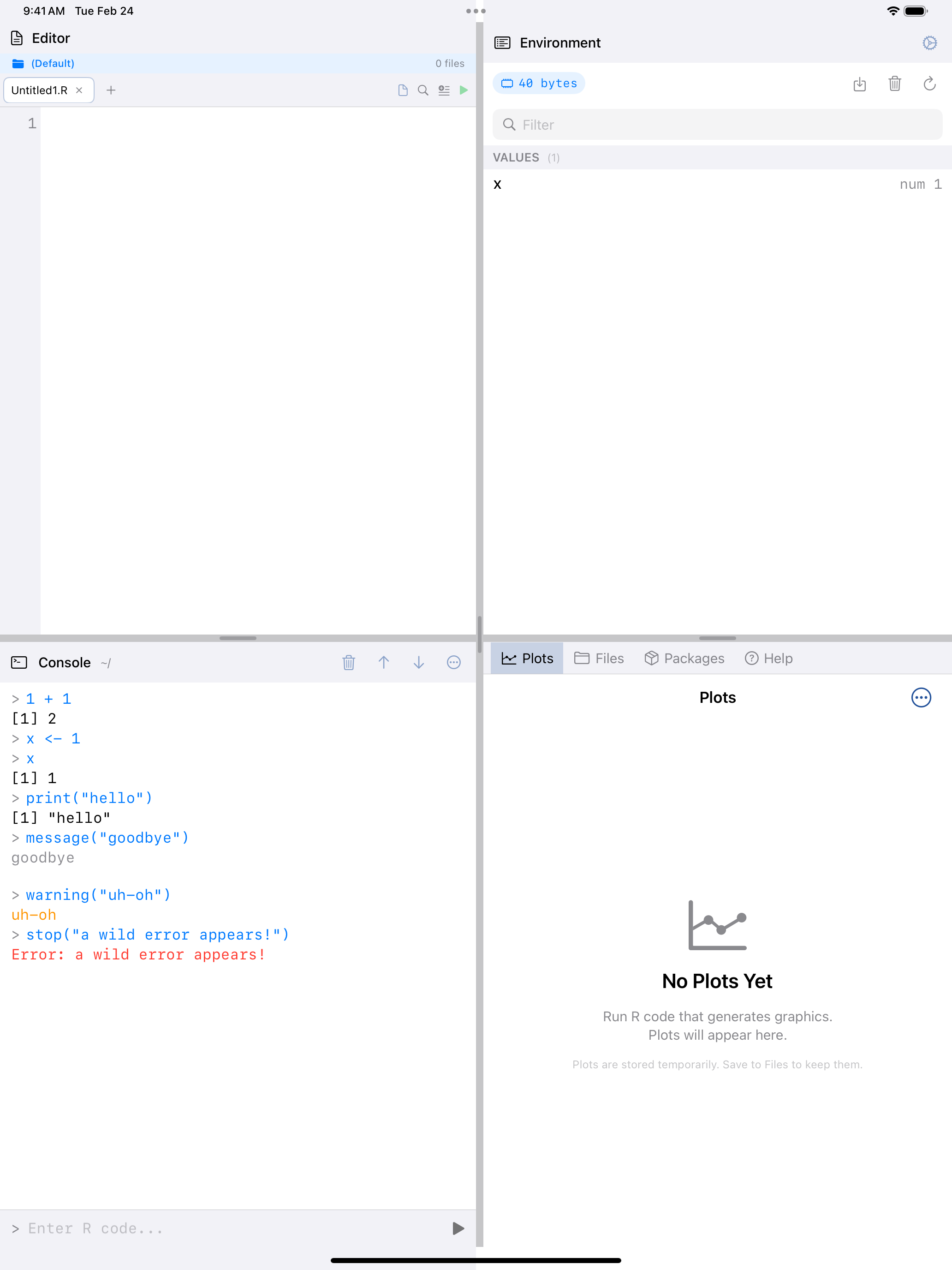
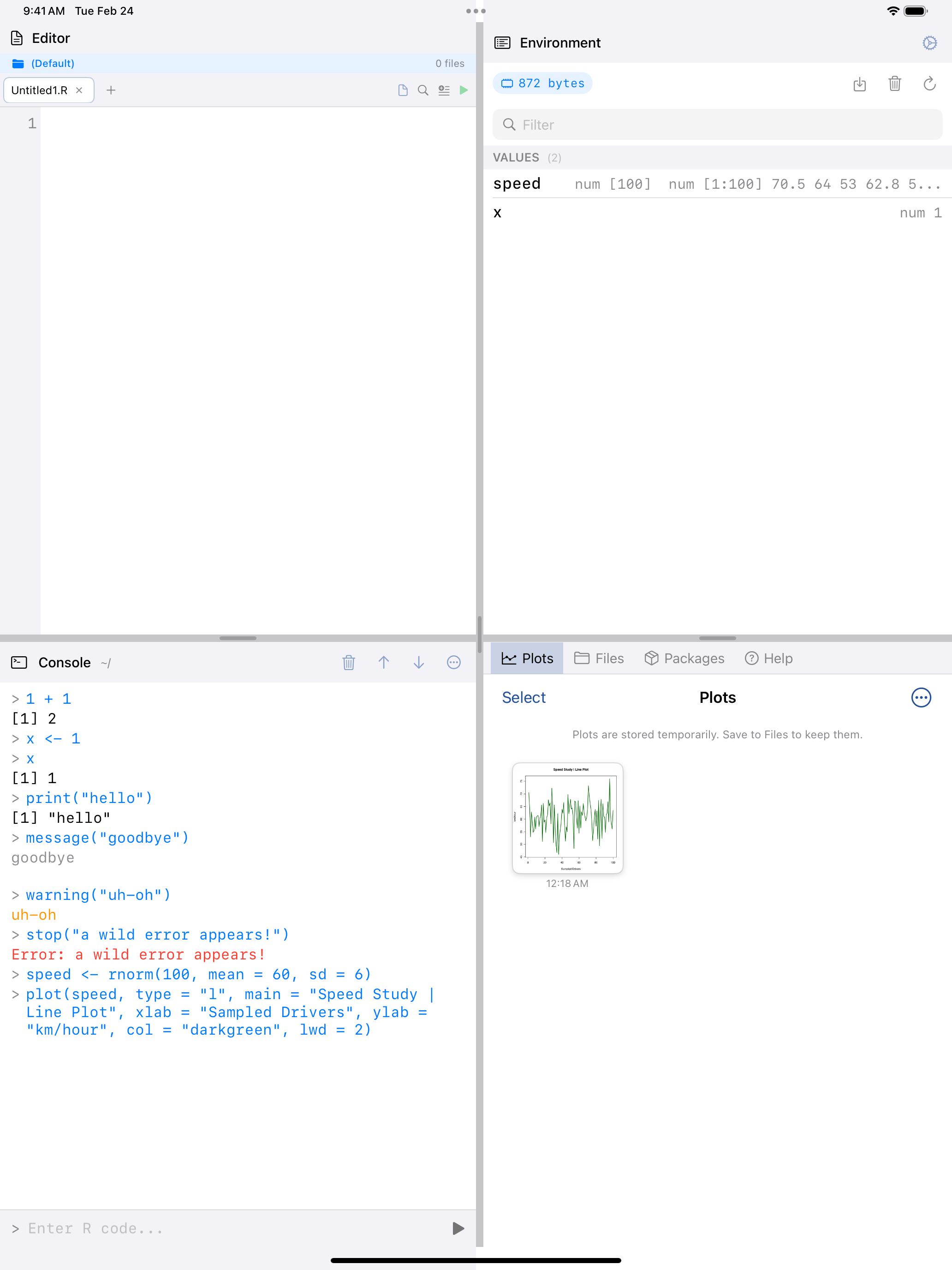
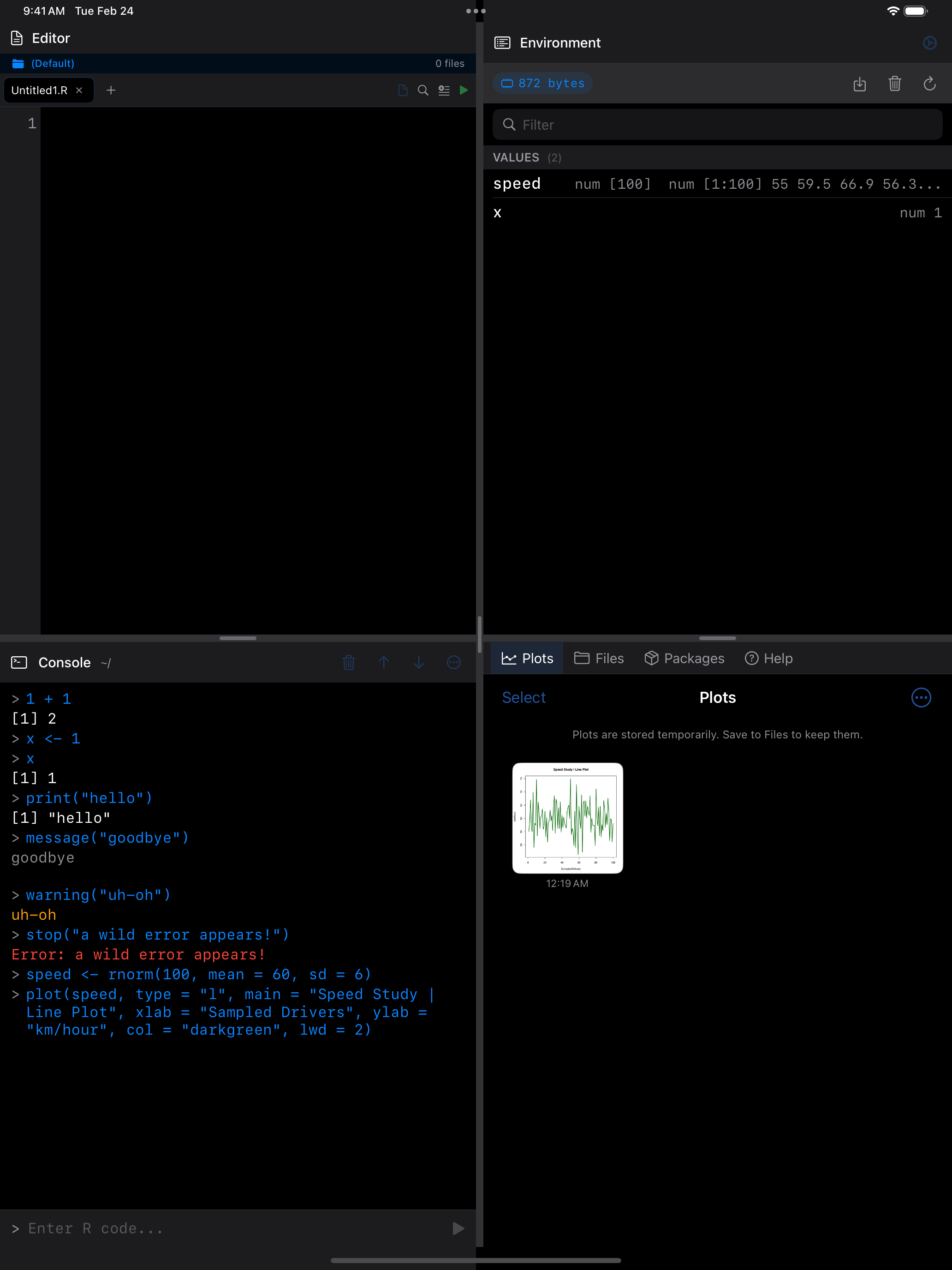
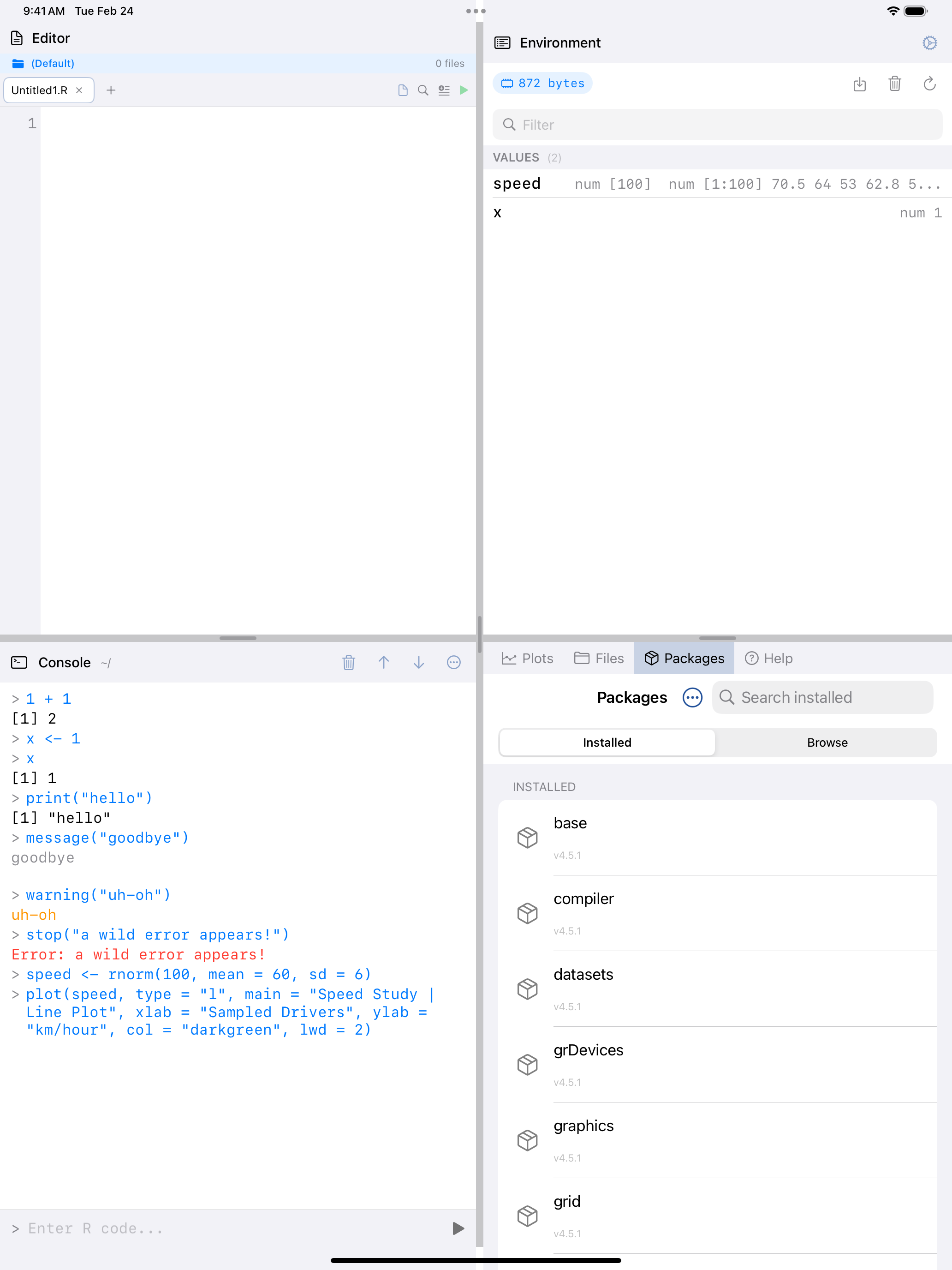
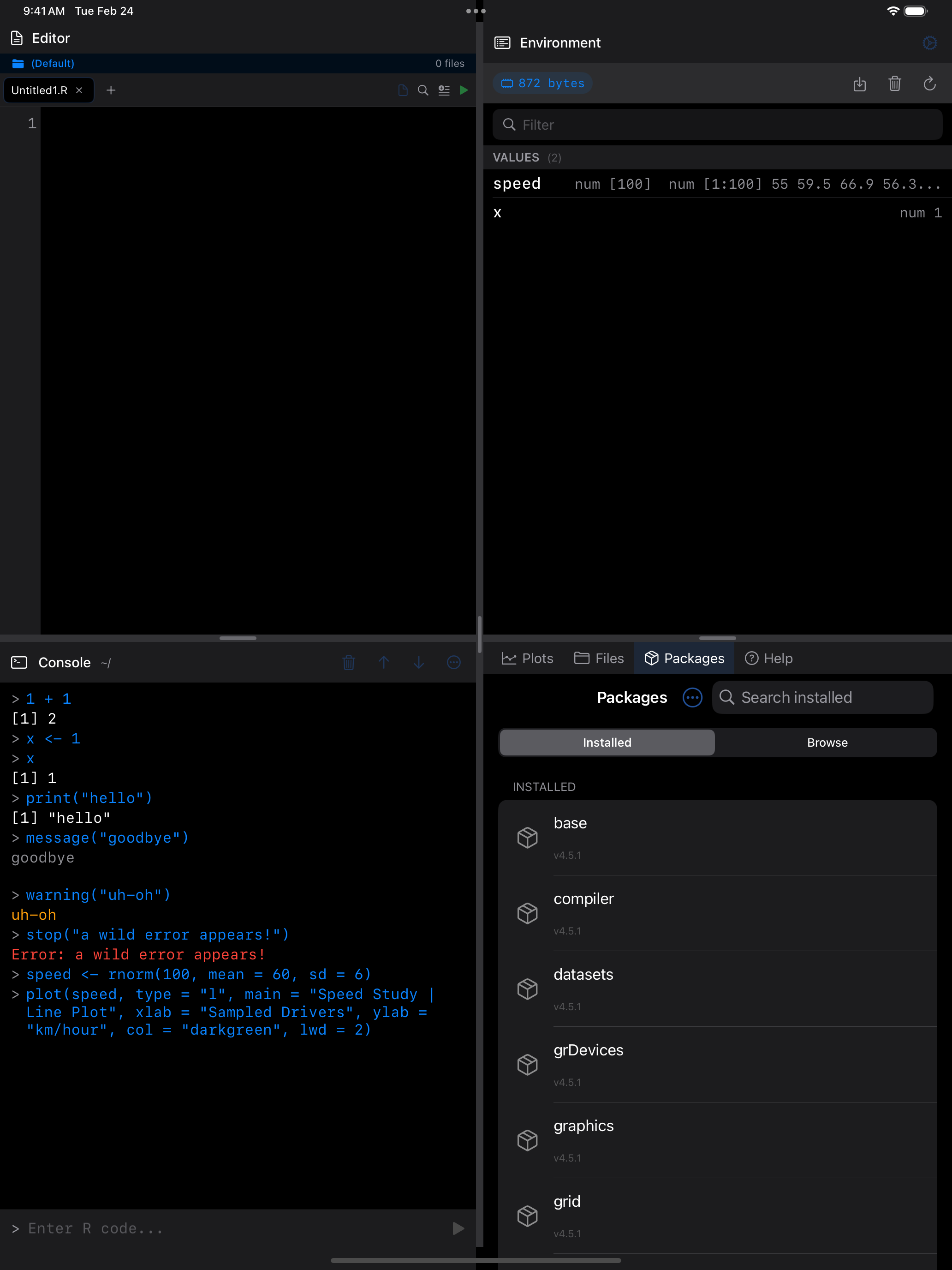
Once R loads, you land on the Console. Below the checklist, a welcome card offers commands to run with a tap and an example script. The screenshots from here on show the Console without the checklist. Type an expression in the input field and tap the button to run it. Try these lines one at a time:
1 + 1
x <- 1
x
print("hello")
message("goodbye")
warning("uh-oh")
stop("a wild error appears!")
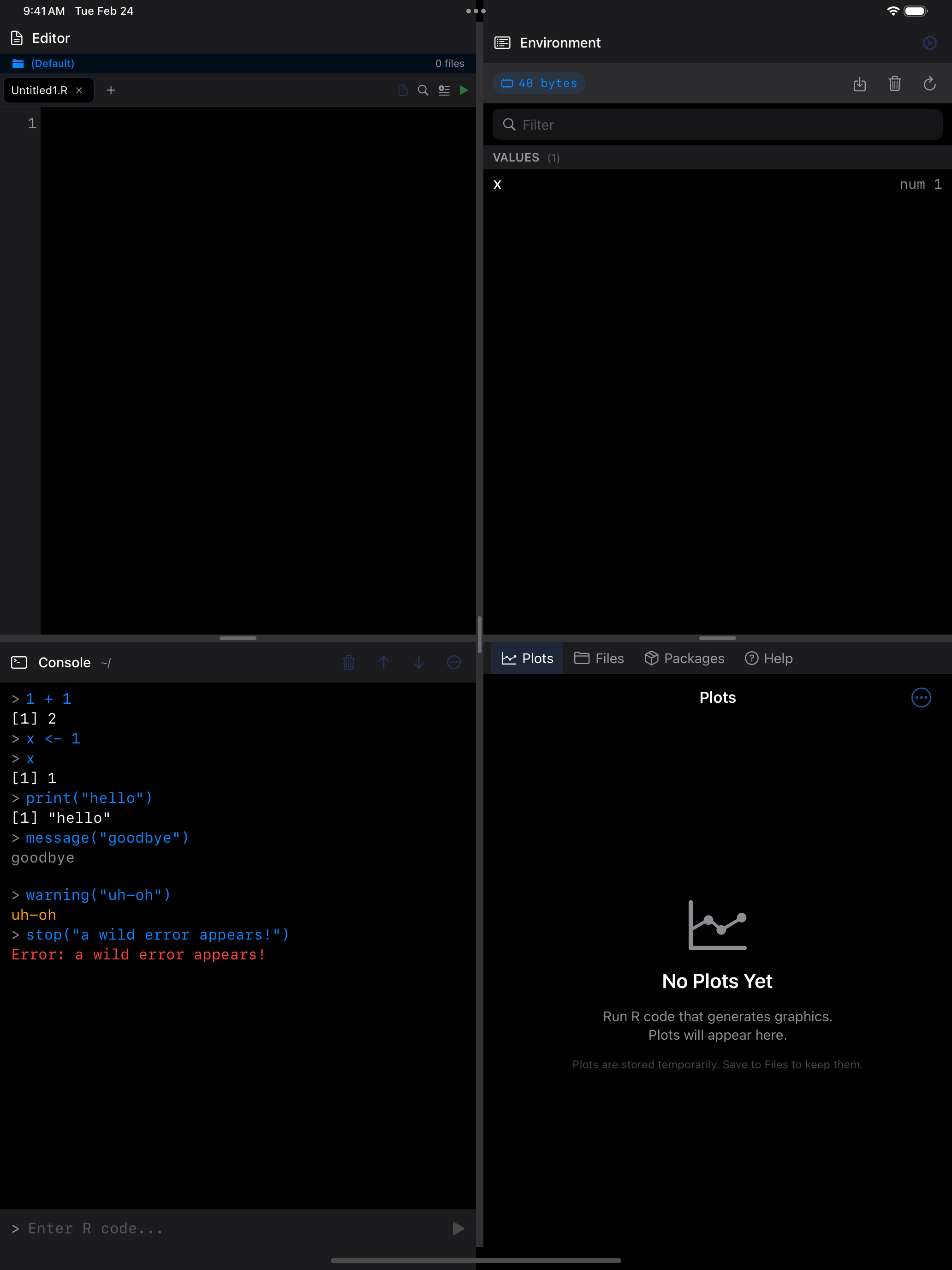
Output is color-coded by kind. The last line stops with an error on purpose.
Create Your First Plot
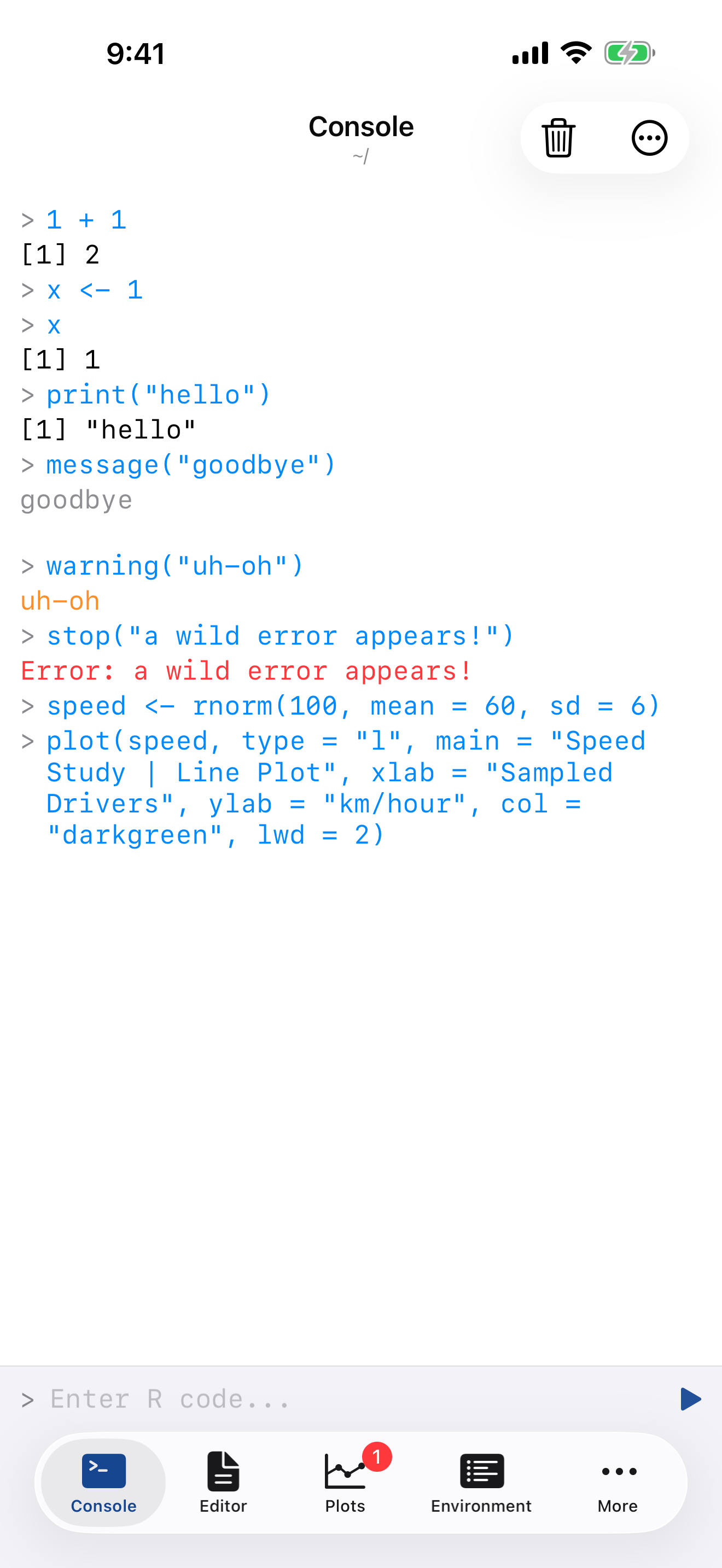
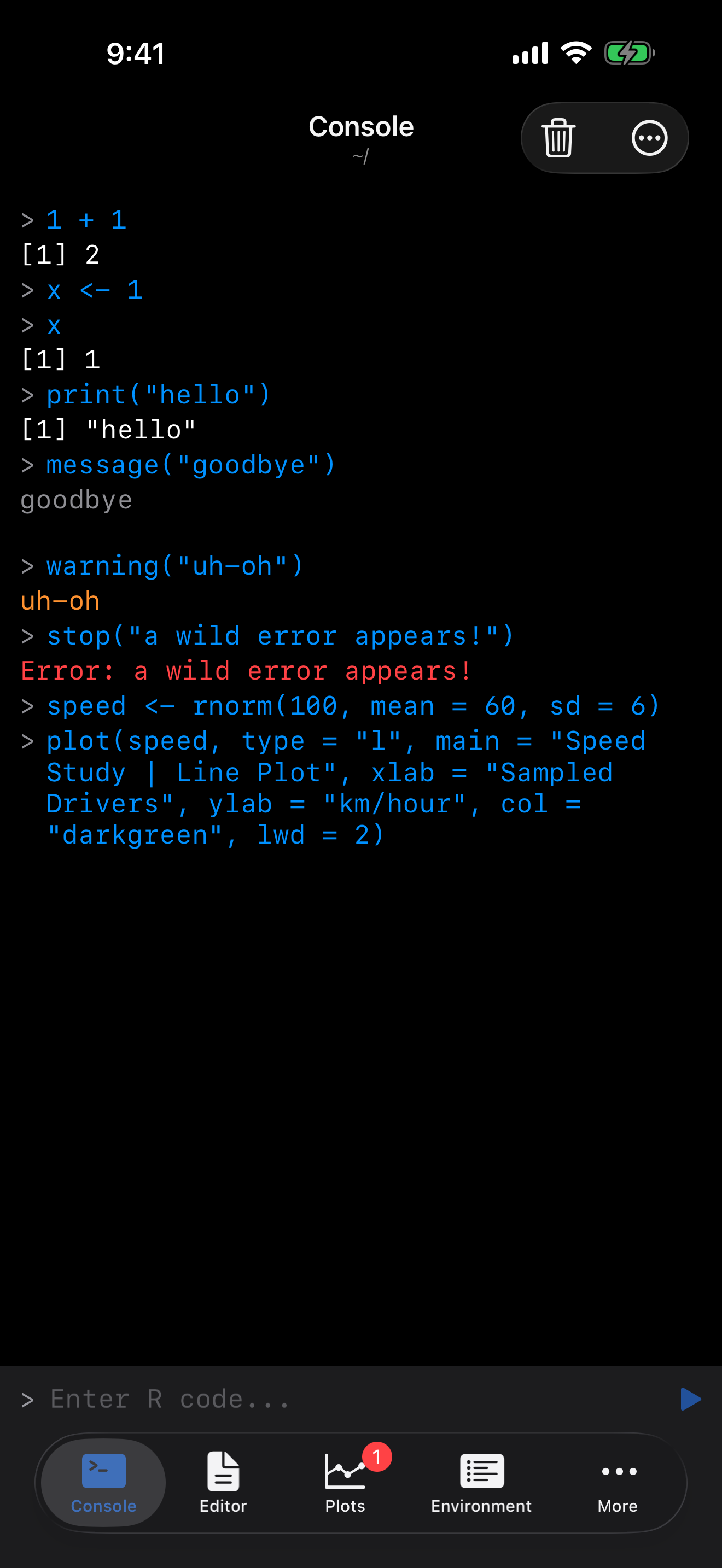
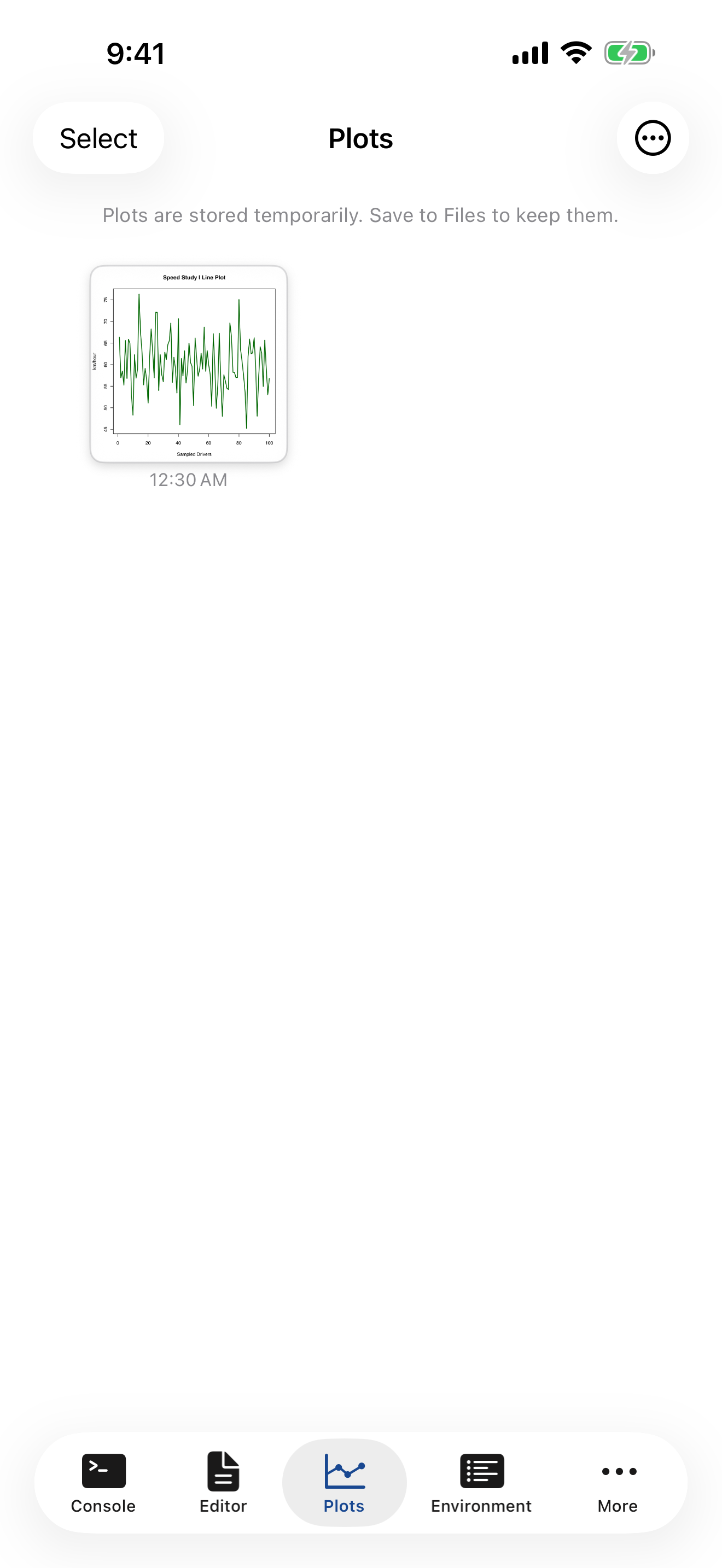
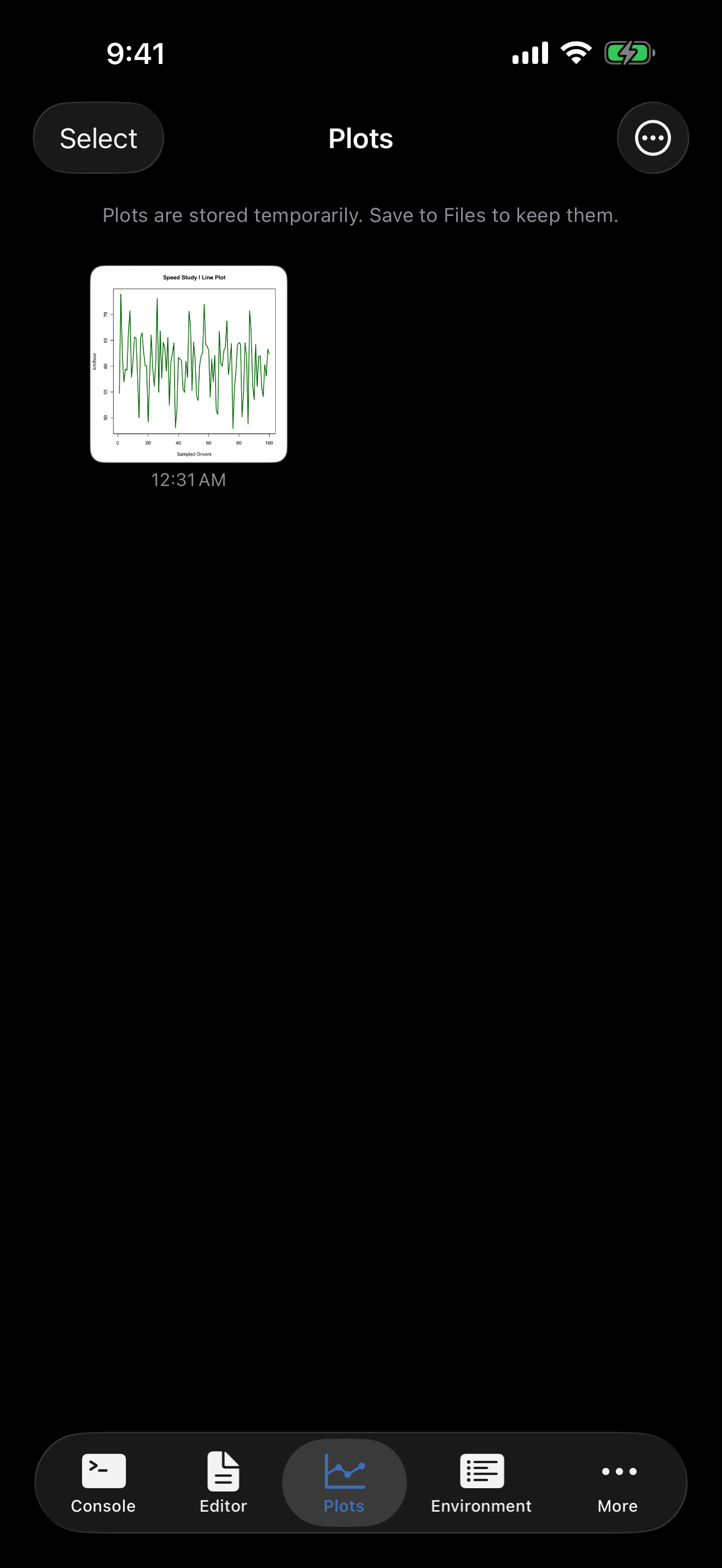
To create a plot, type a plotting command in the Console and tap . This one simulates 100 speeds and draws them as a line:
speed <- rnorm(100, mean = 60, sd = 6)
plot(speed, type = "l", main = "Speed Study | Line Plot",
     xlab = "Sampled Drivers", ylab = "km/hour",
     col = "darkgreen", lwd = 2)
Switch to the Plots tab to see it. Pinch to zoom, and tap to share it.
Install a Package
To install additional packages, go to the Packages tab and install from the webR package repository.
- Open the Packages tab (under More on iPhone)
- Tap the menu
- Select Install Package
- Type a package name (e.g.,
jsonlite) - Tap Install
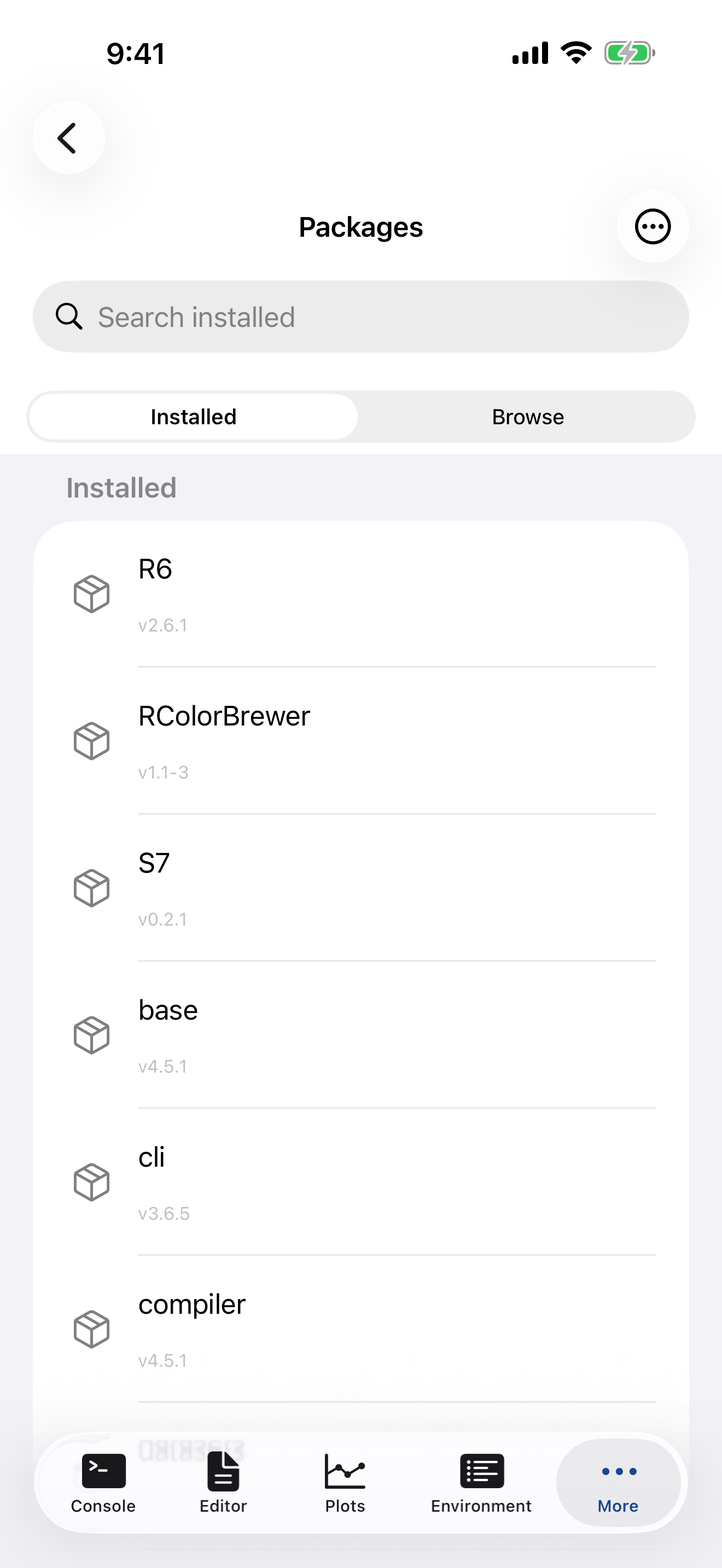
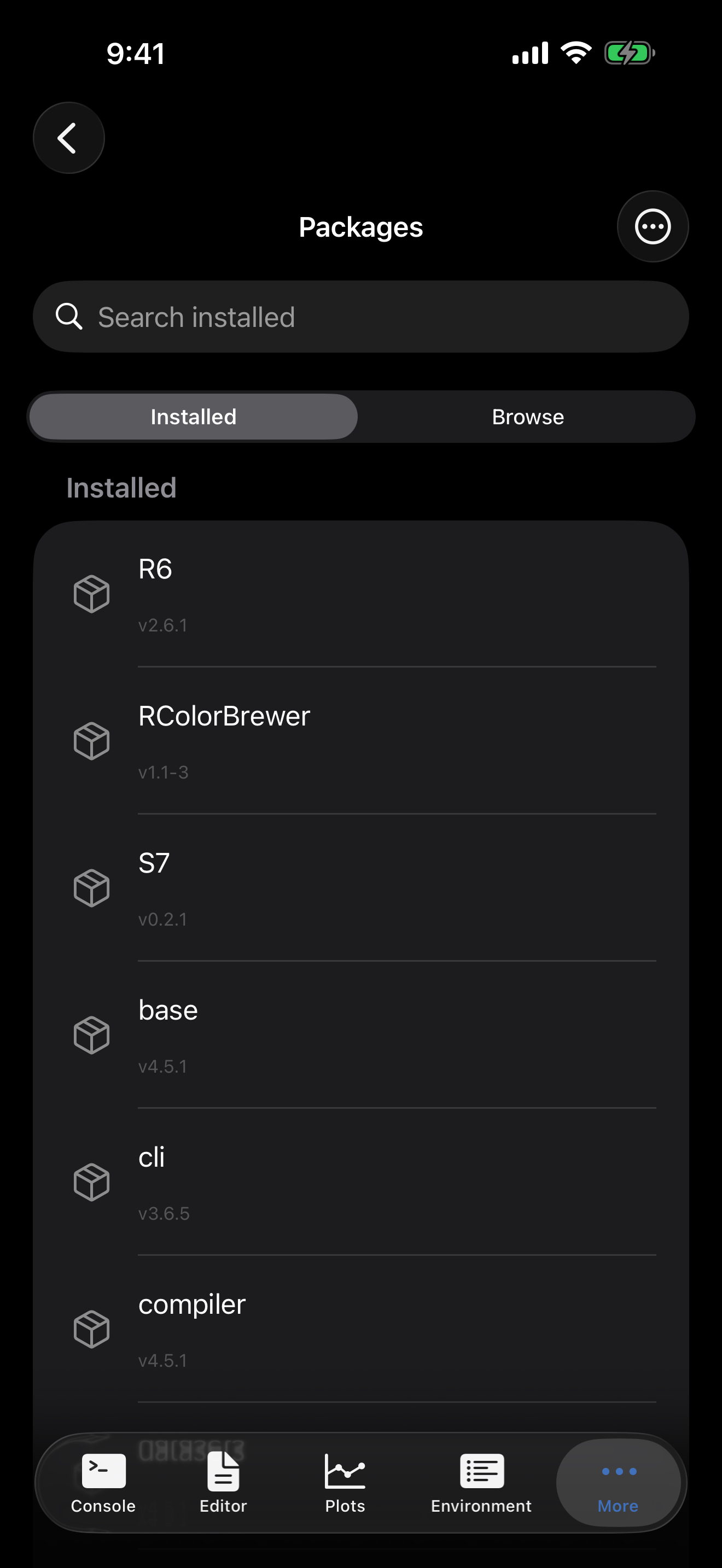
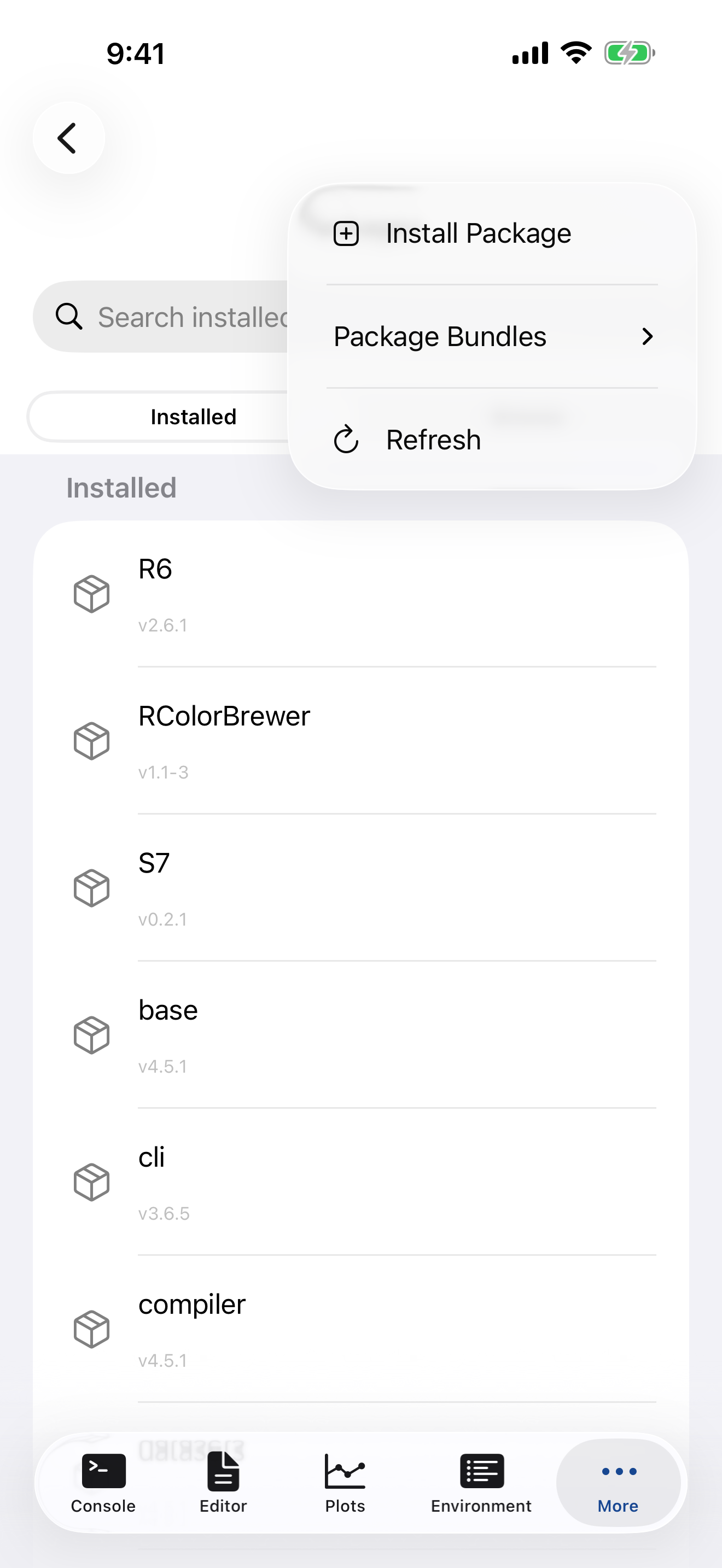
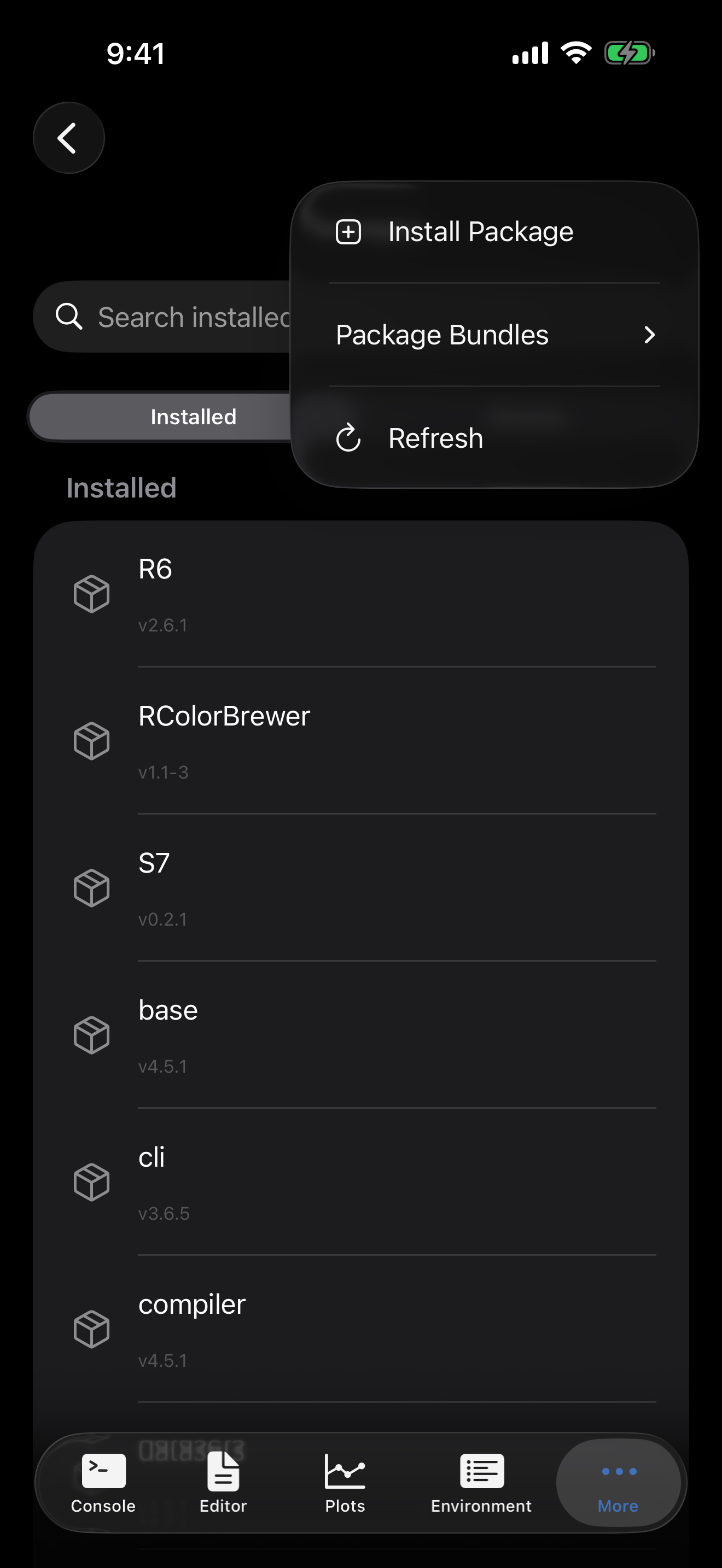
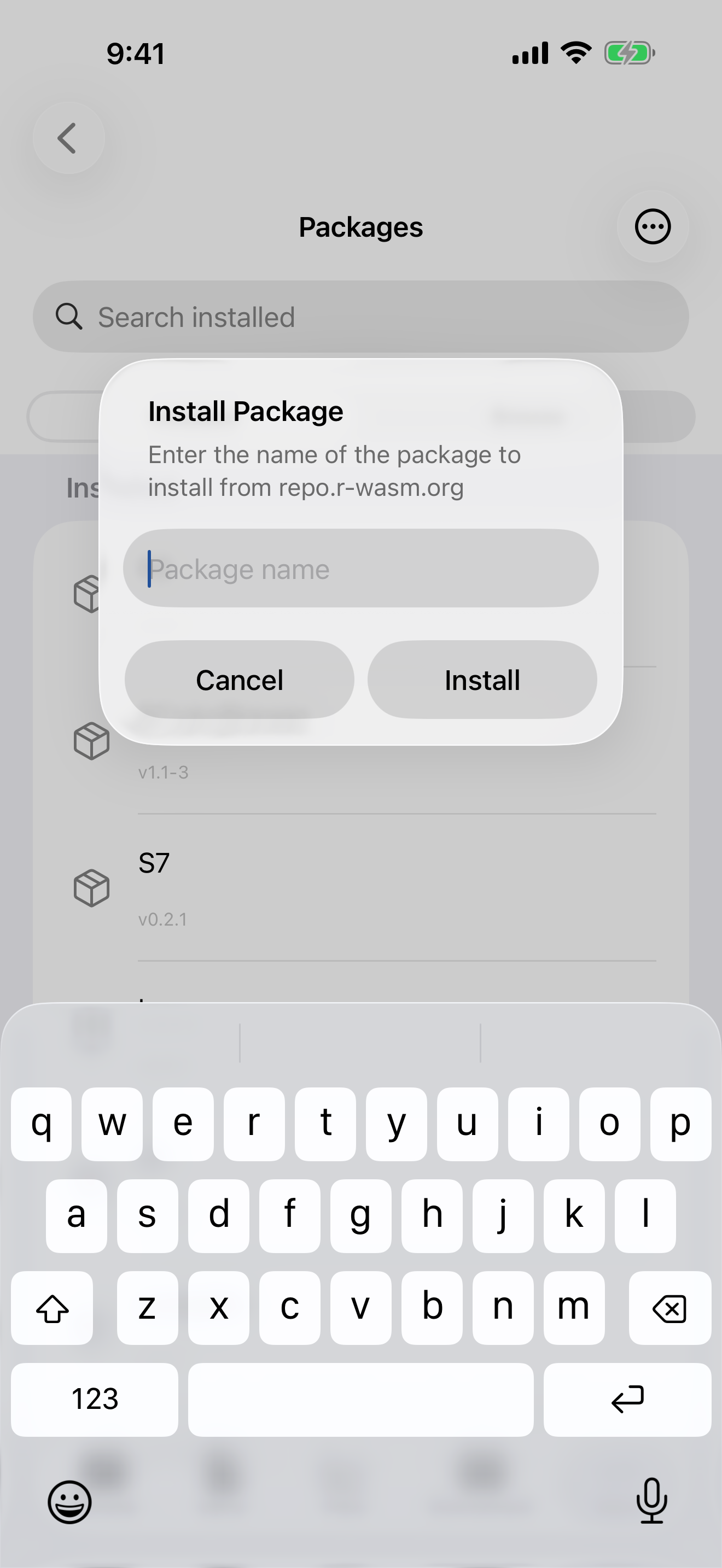
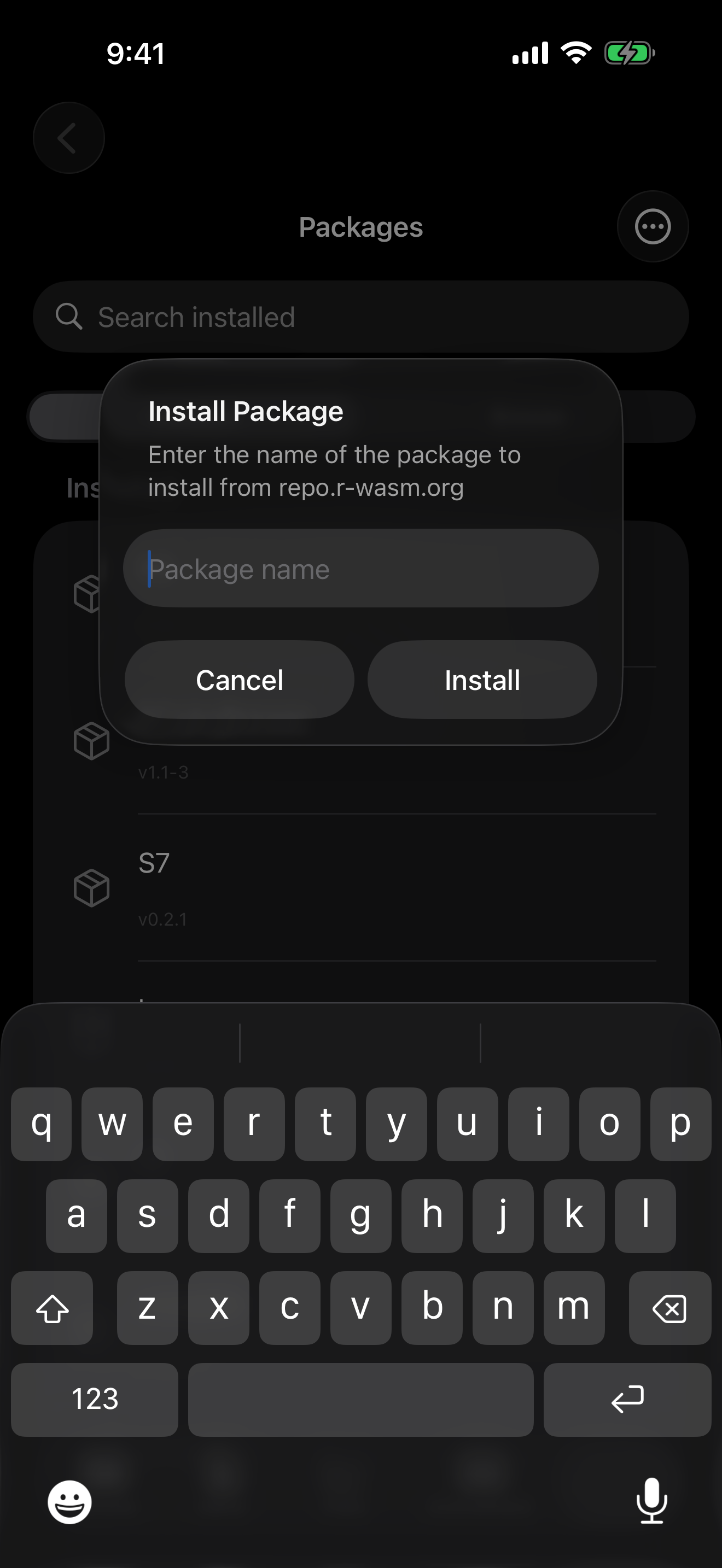
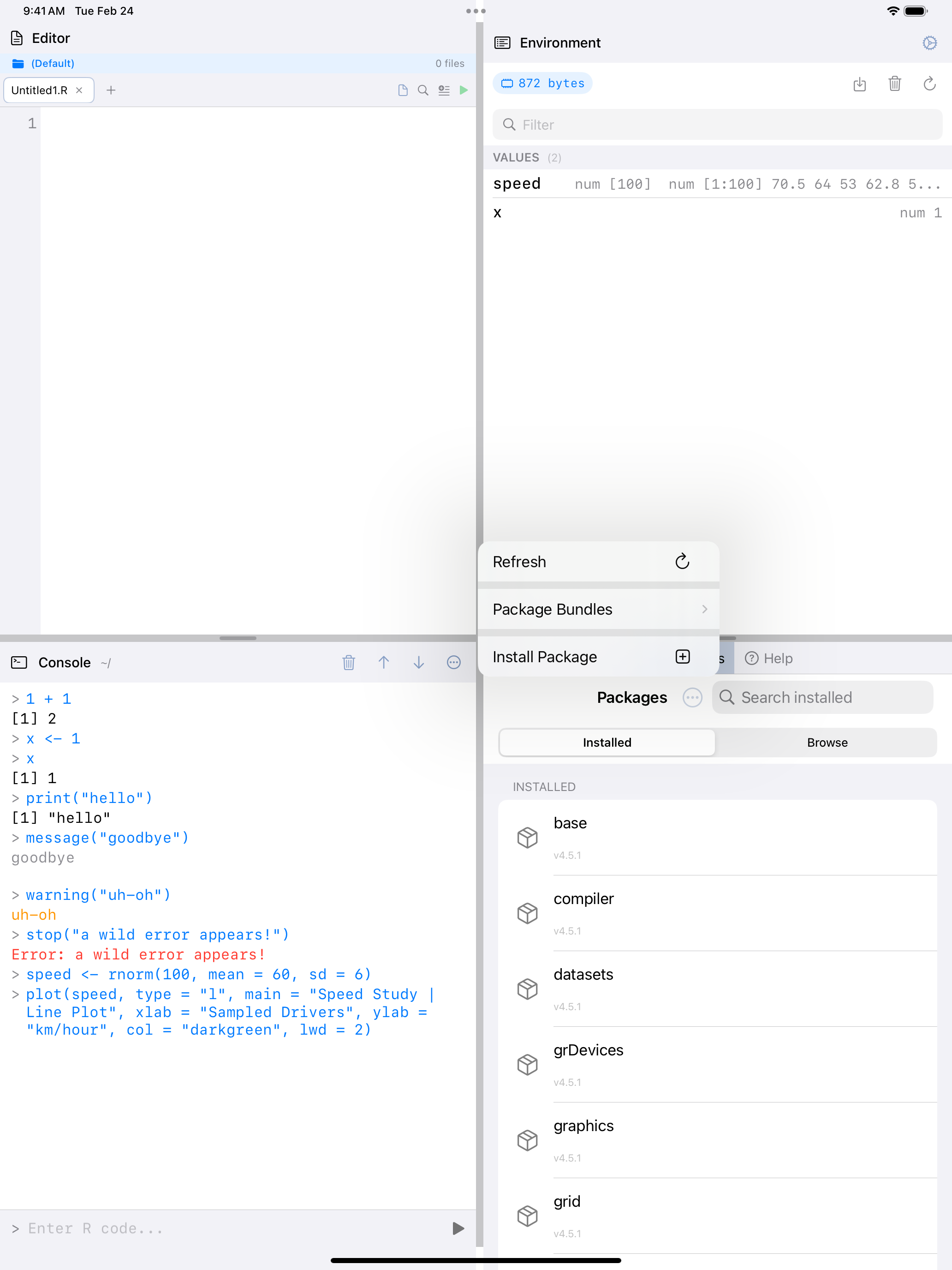
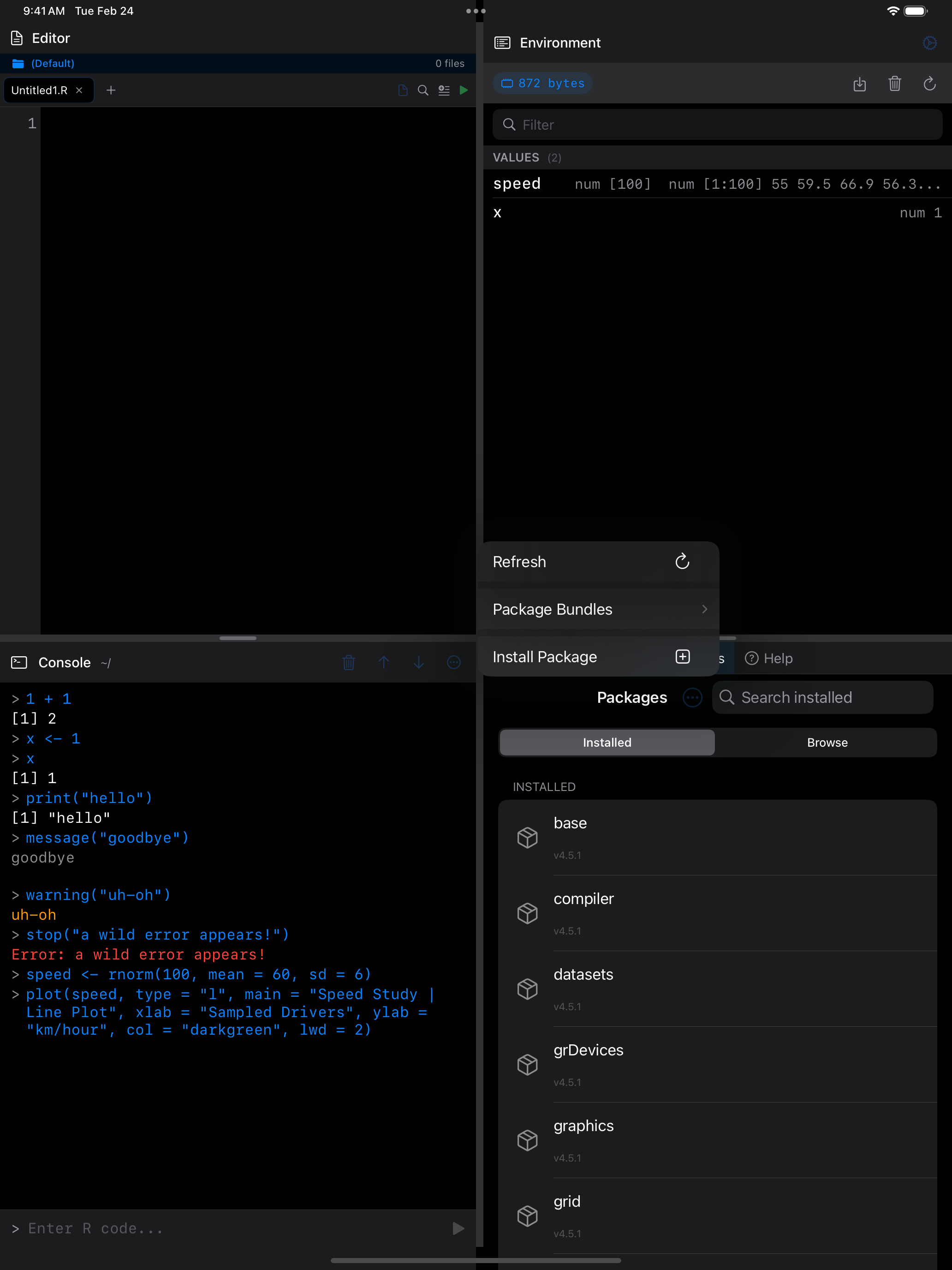
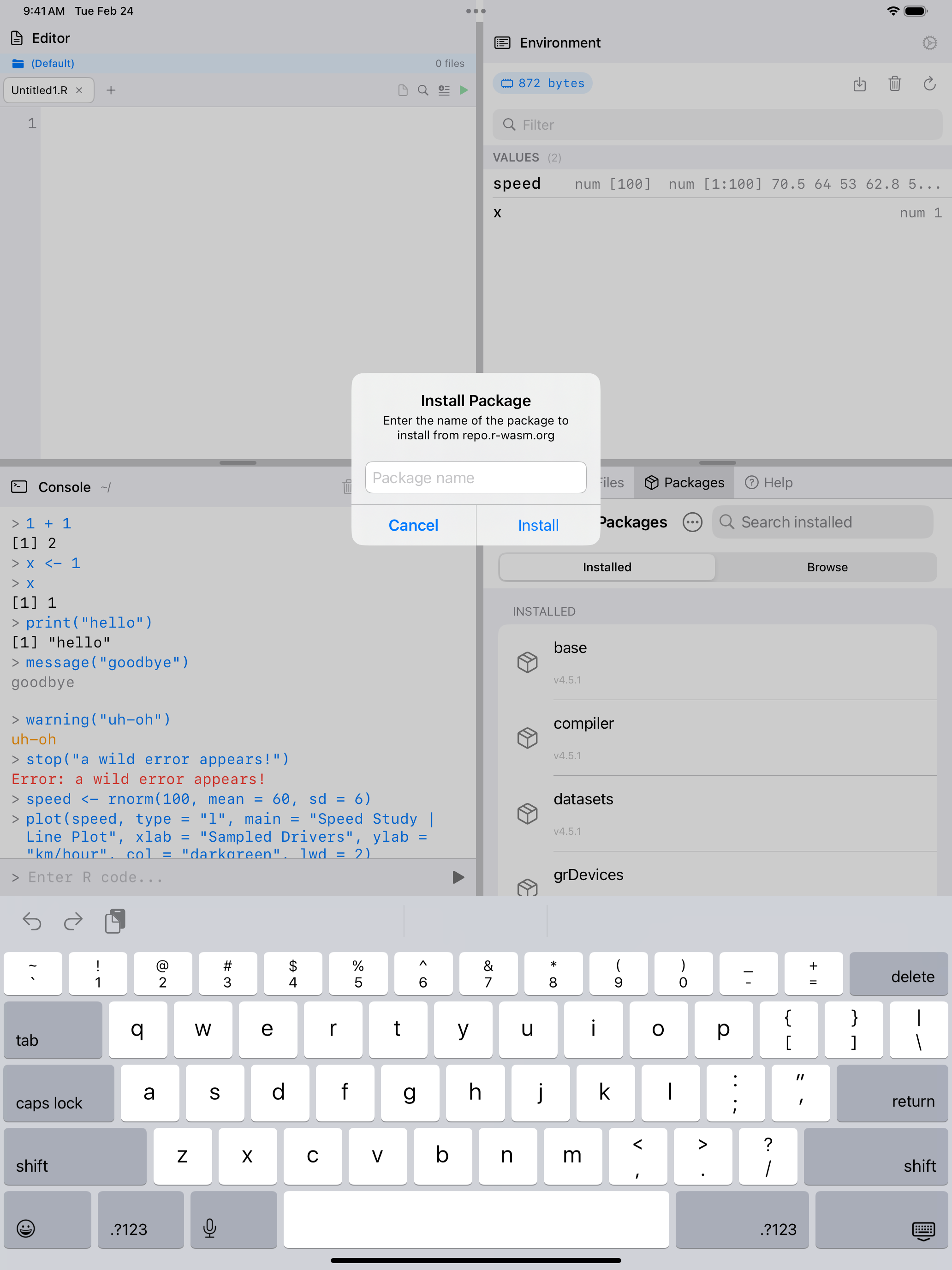
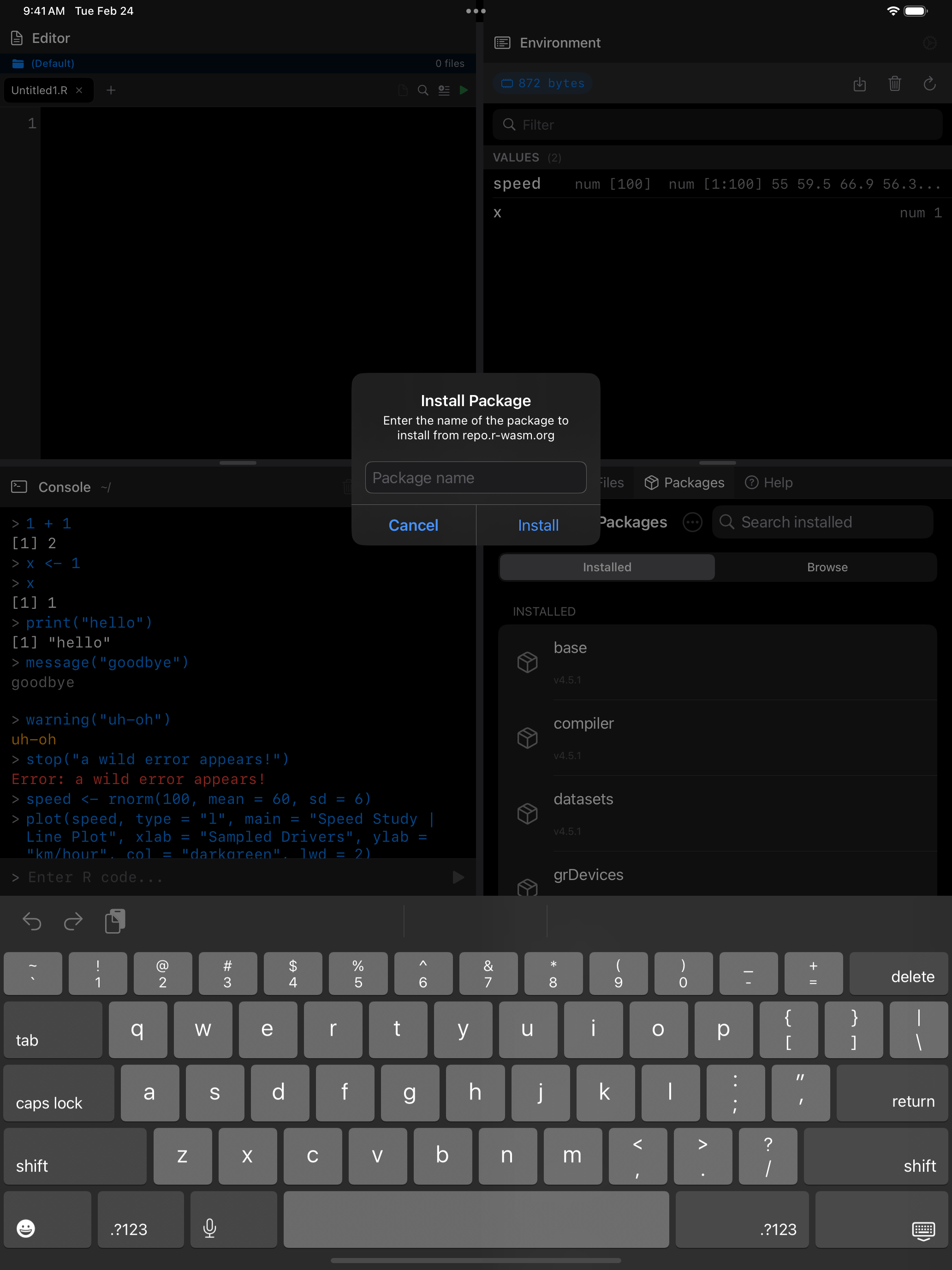
Or run install.packages("dplyr") in the Console or Editor. The repository is set to repo.r-wasm.org.
Only packages compiled for WebAssembly are available. Most popular ones are there, dplyr, ggplot2, tidyr and stringr among them. The webR package repository has the full list.
Explore the App
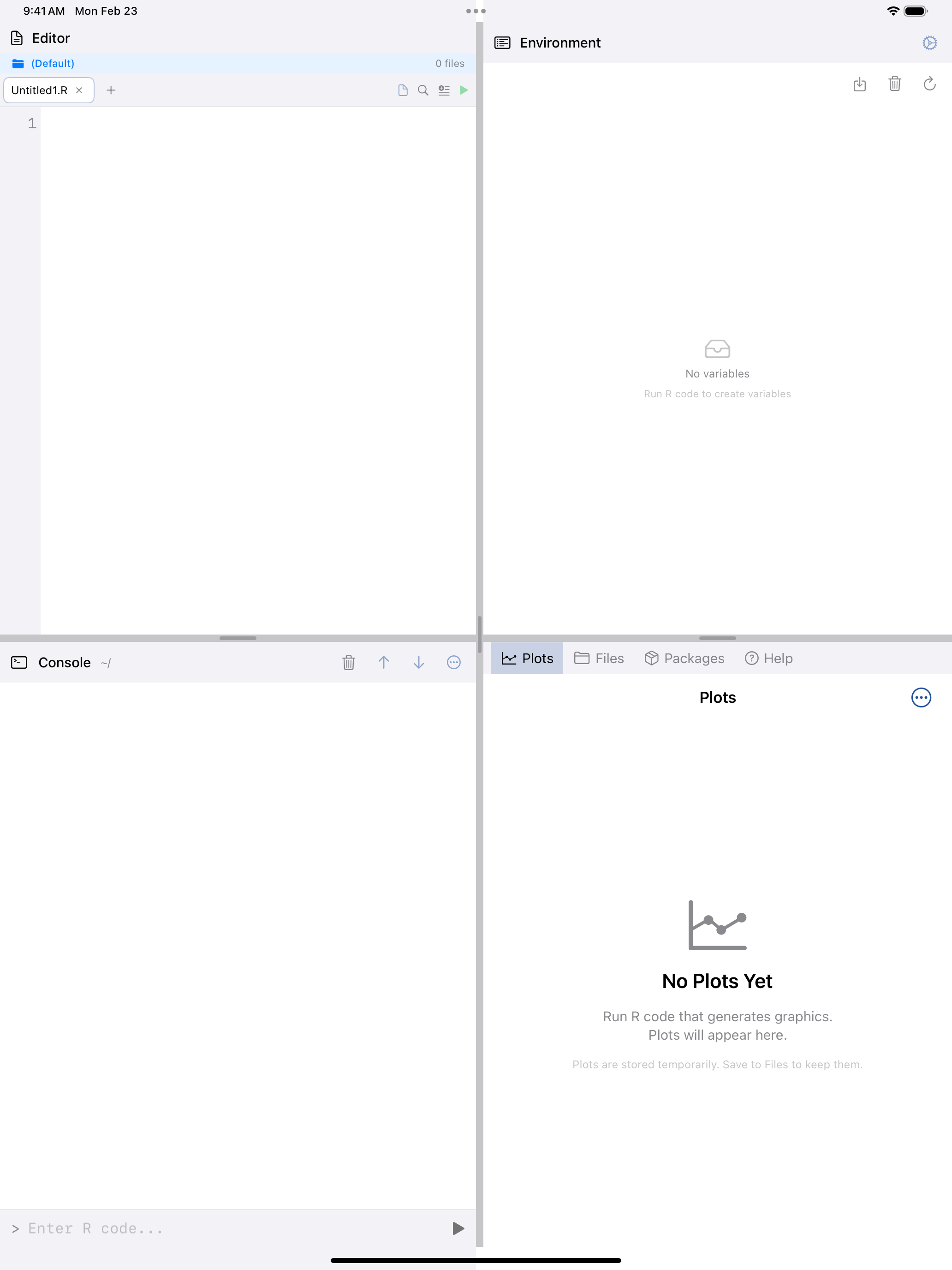
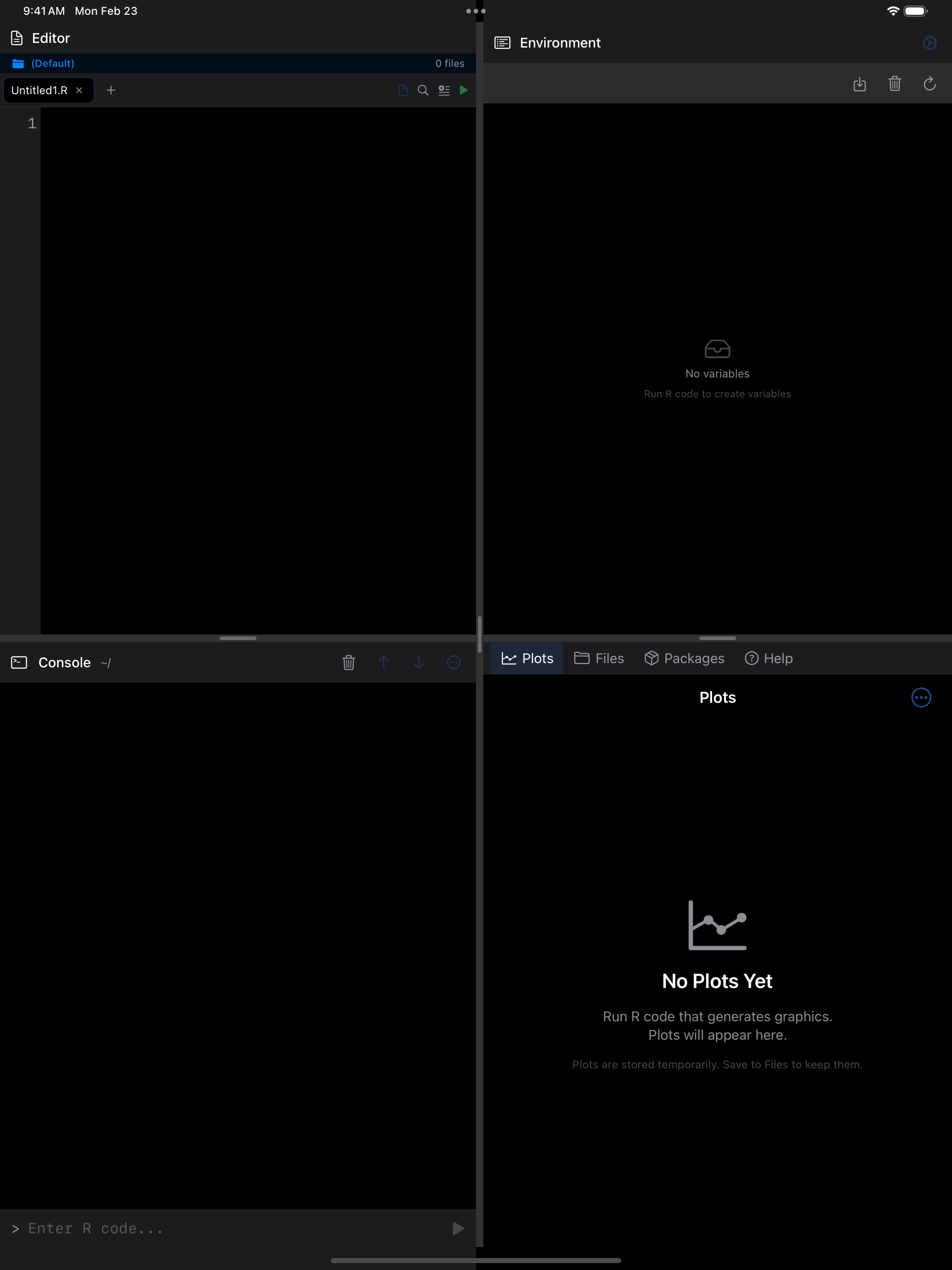
webRios has seven main sections.
Console
Interactive R command line with color-coded output, command history, and the R keyboard toolbar.
Editor
Write multi-line R scripts with syntax highlighting, multiple tabs, code folding, and code completion.
Plots
View, zoom, and export your R graphics. Pin favorites and share via the system share sheet.
Environment
Inspect your R workspace, with variables, data frames, models and their values at a glance.
Files
Browse, create, import, and export R scripts and data files with iOS Files app integration.
Packages
Install additional R packages from the webR repository. Thousands of packages available.
Settings
Configure themes, editor preferences, keyboard shortcuts, and manage memory.