Files
The Files tab is a file manager for your R scripts, data files, and folders. Create, organize, edit, and run scripts without leaving the tab.
Browsing your files
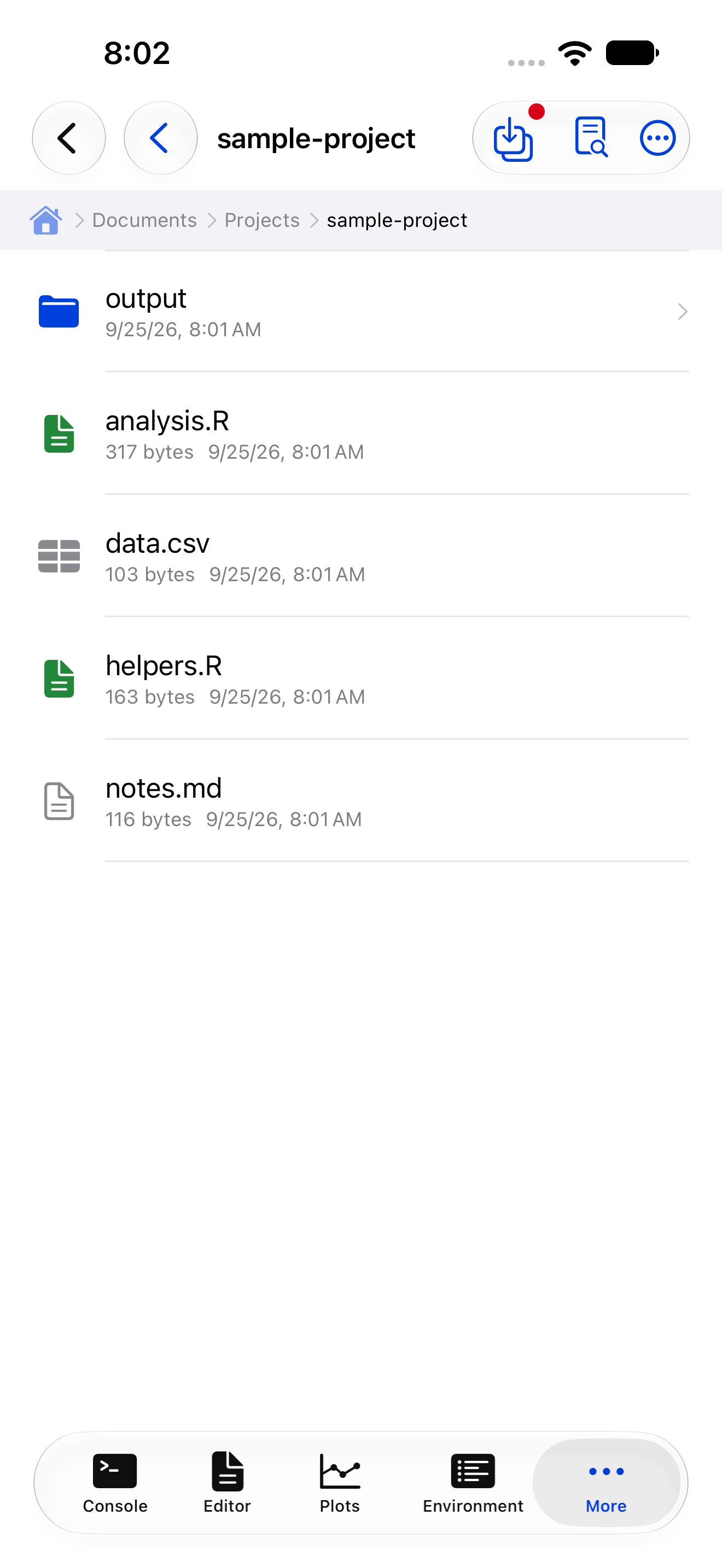
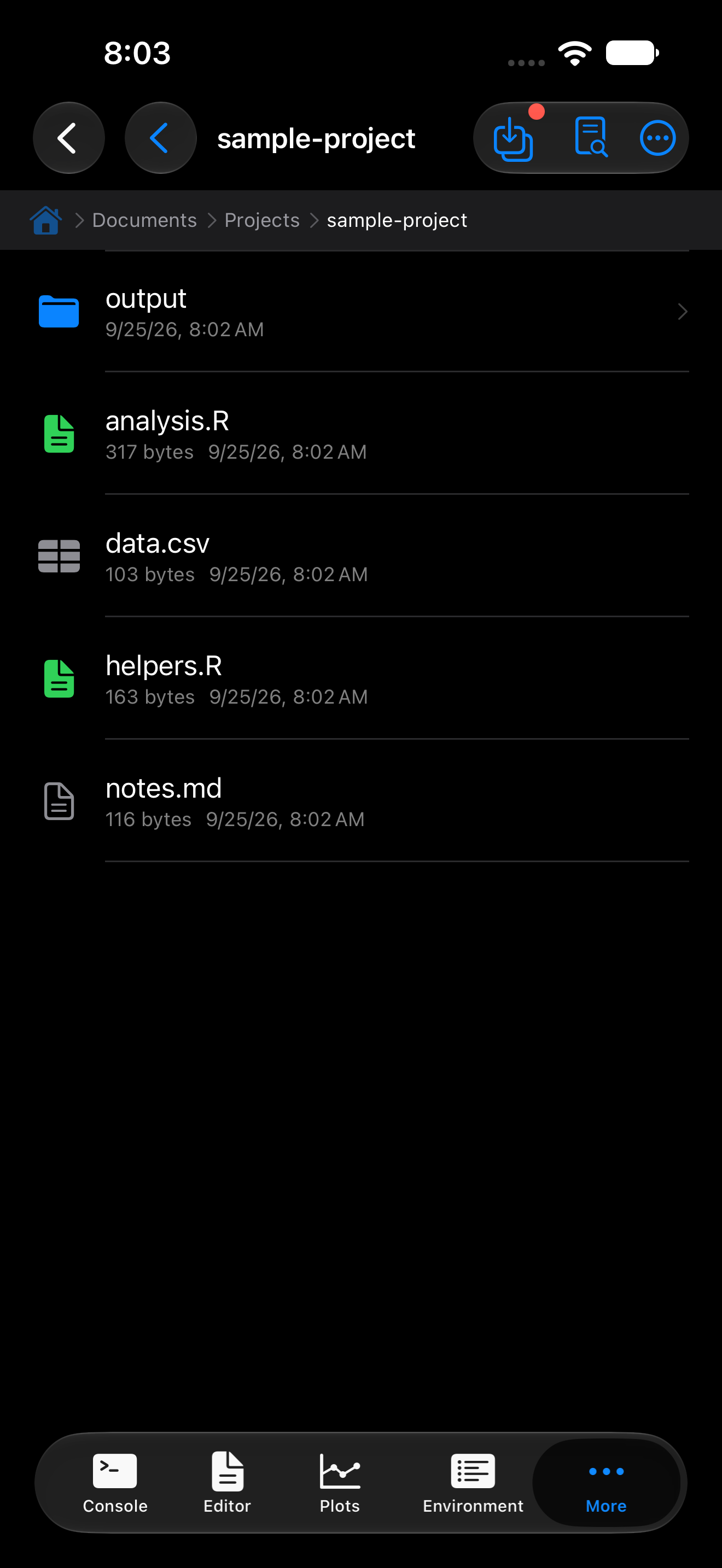
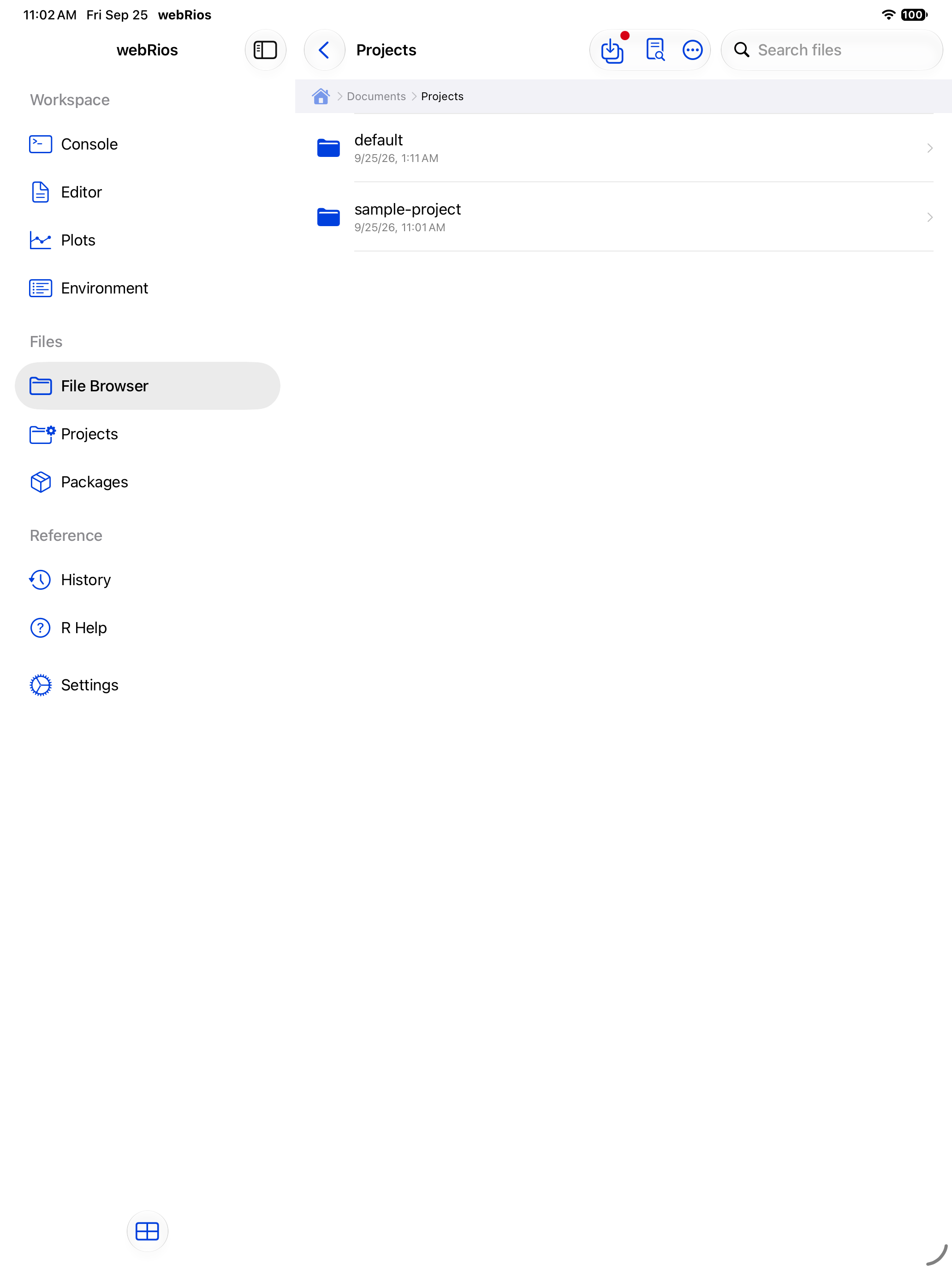
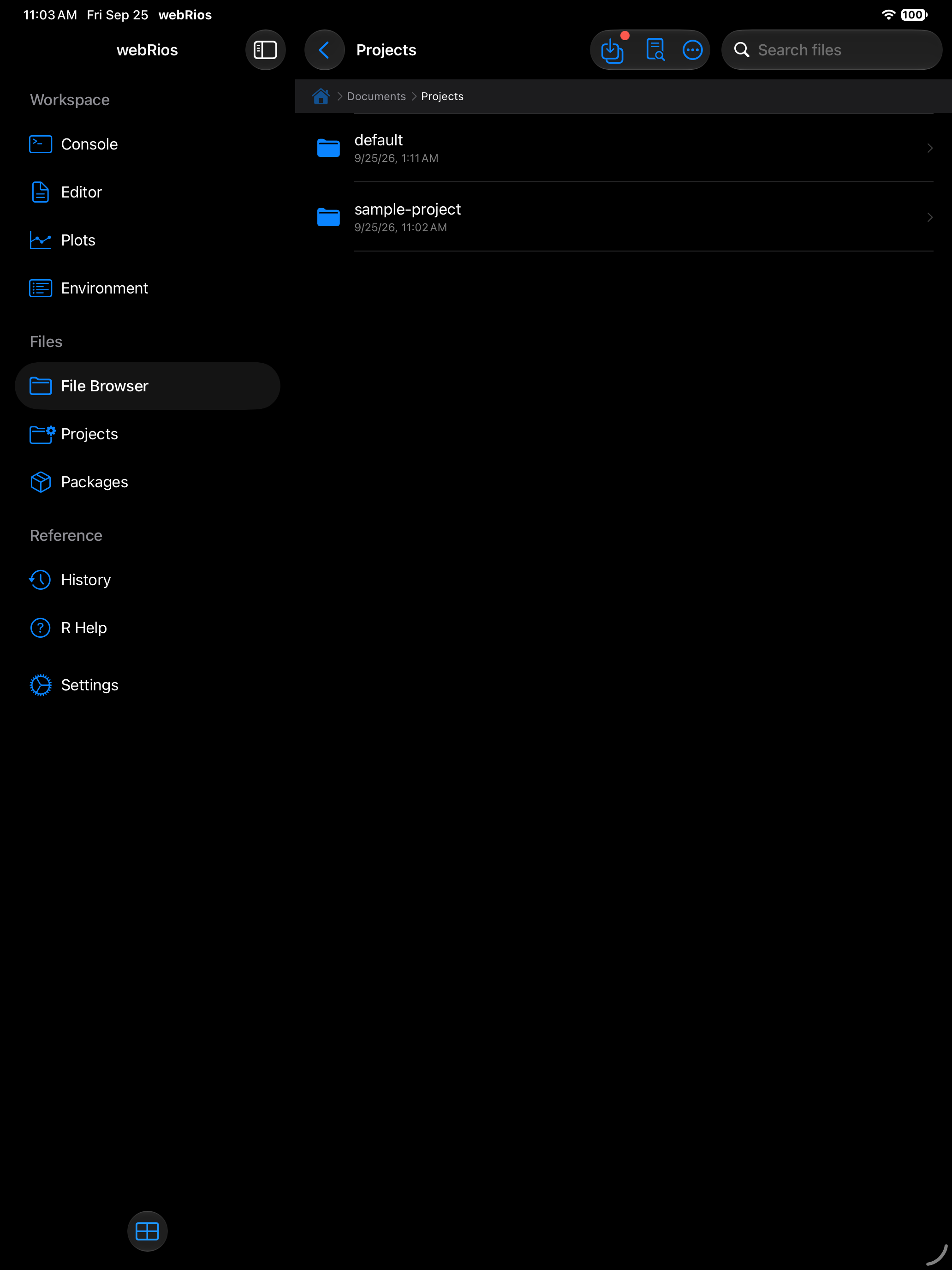
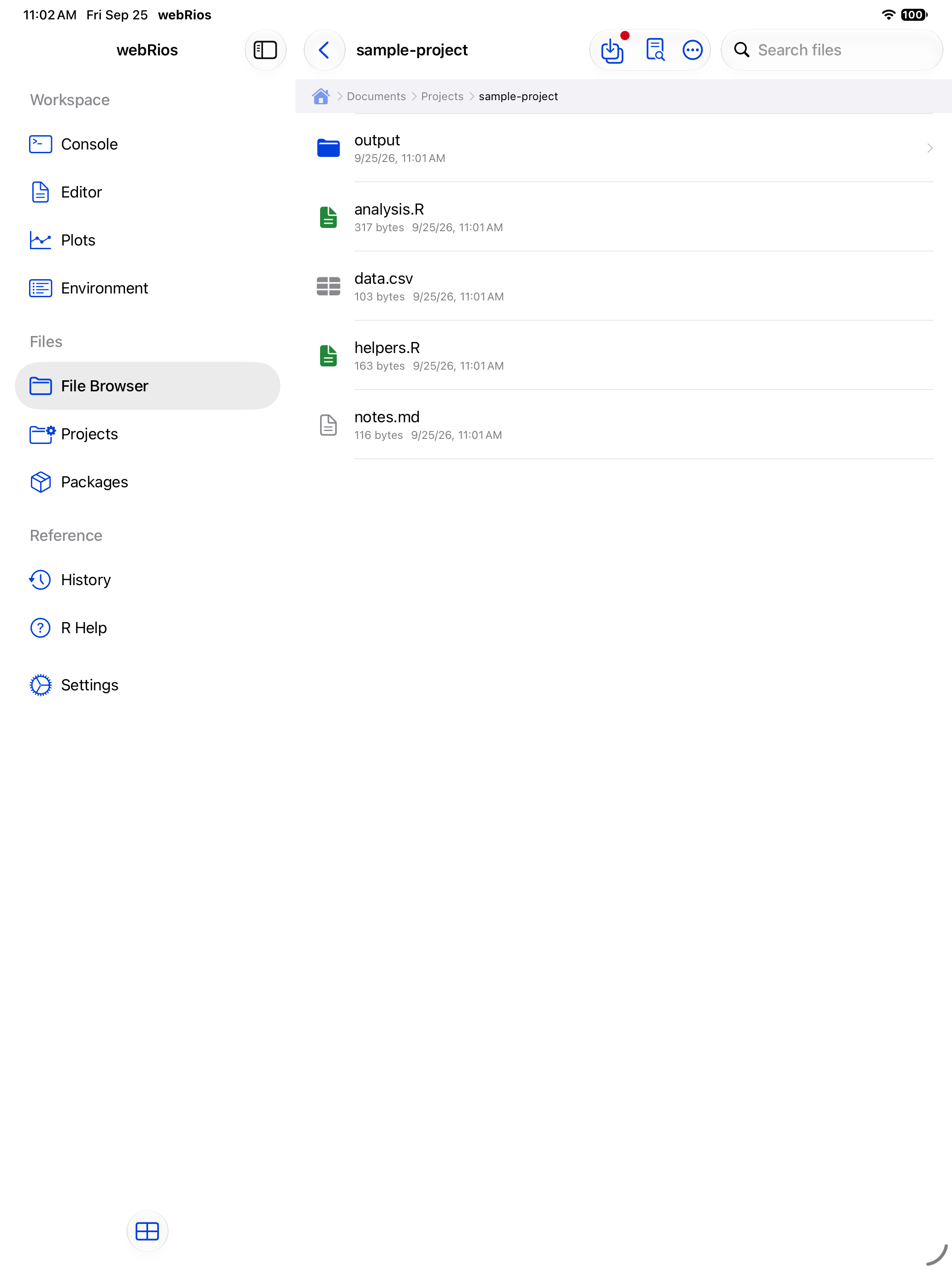
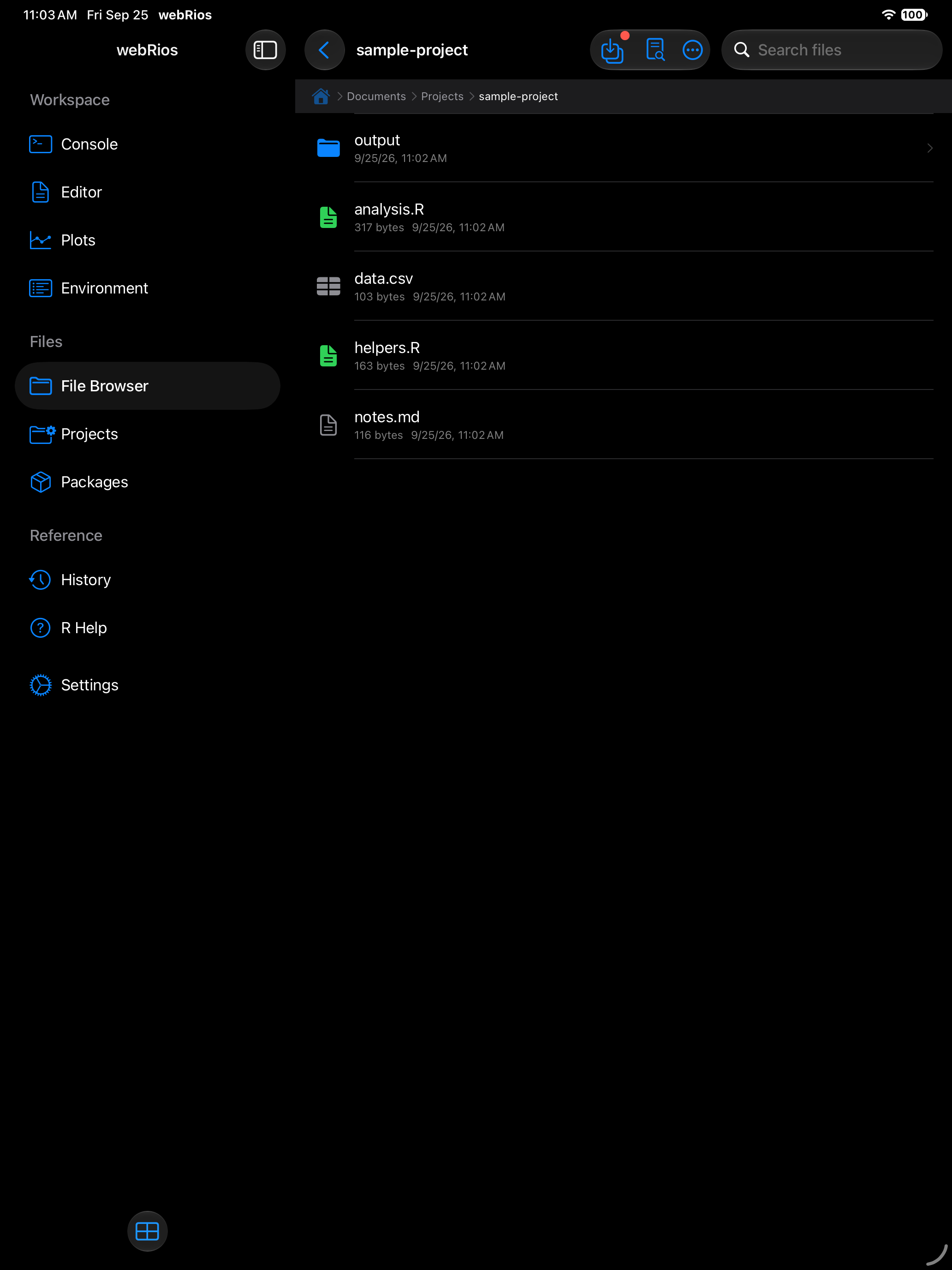
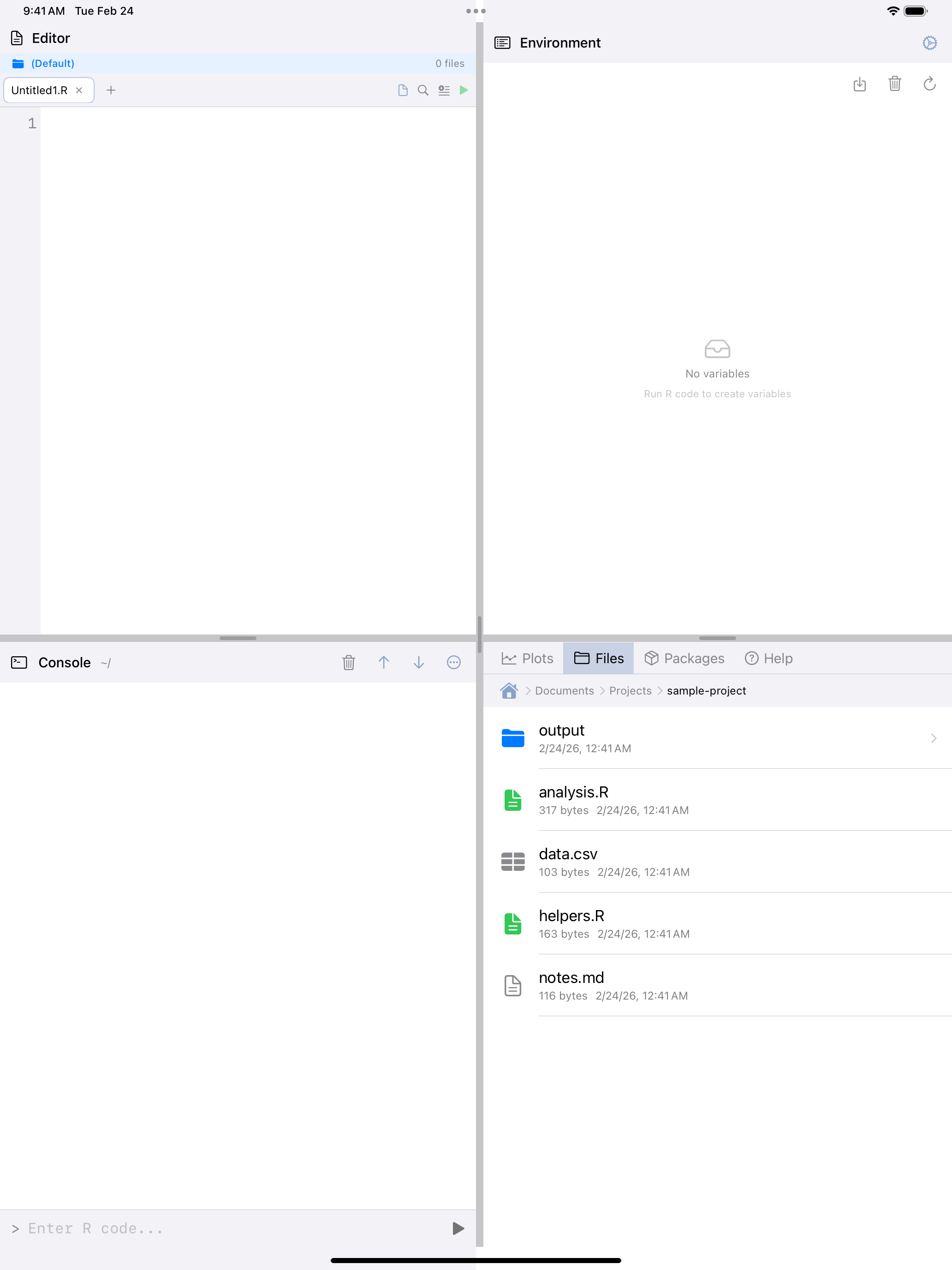
The Files tab opens to your Documents folder. Tap a folder to open it. A breadcrumb trail at the top lets you jump back to any level, and the home icon returns to the root.
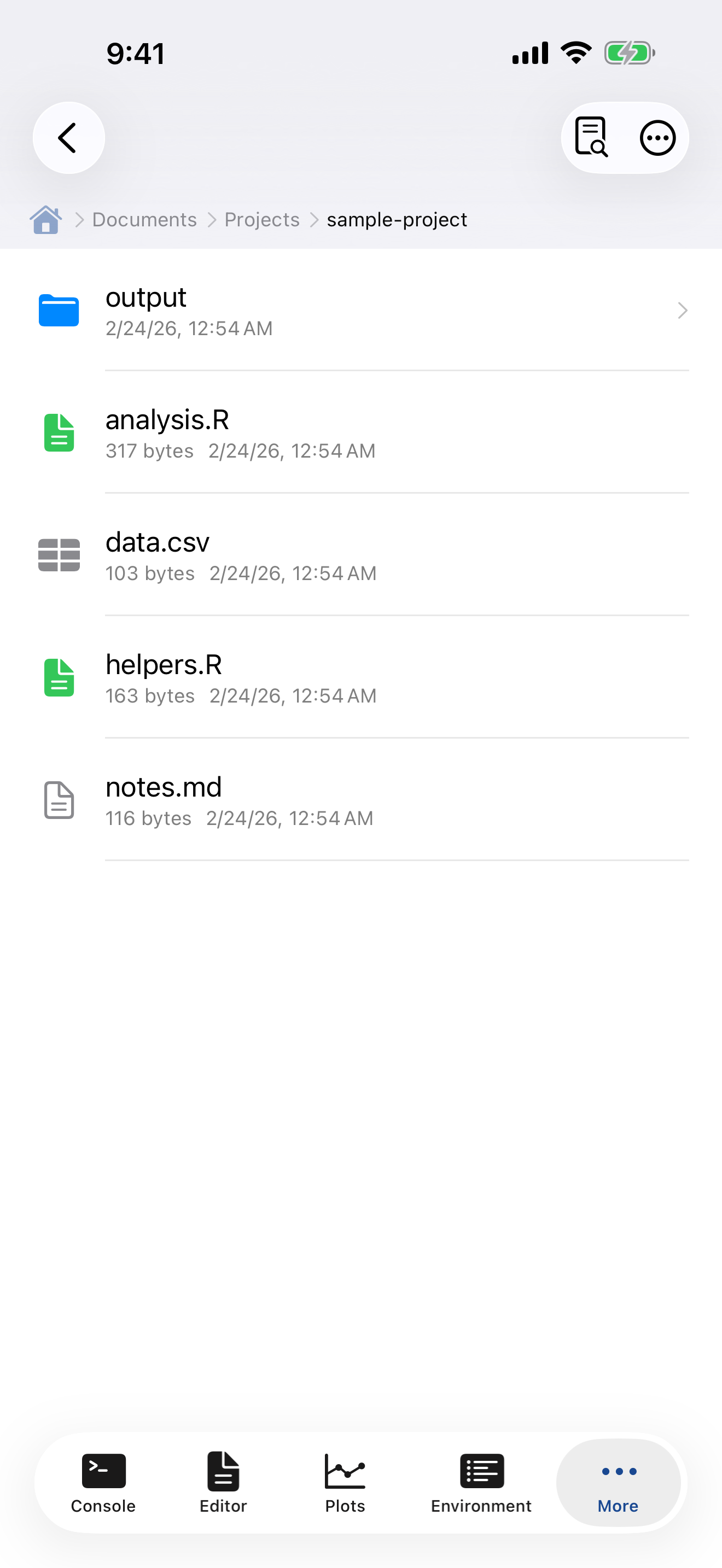

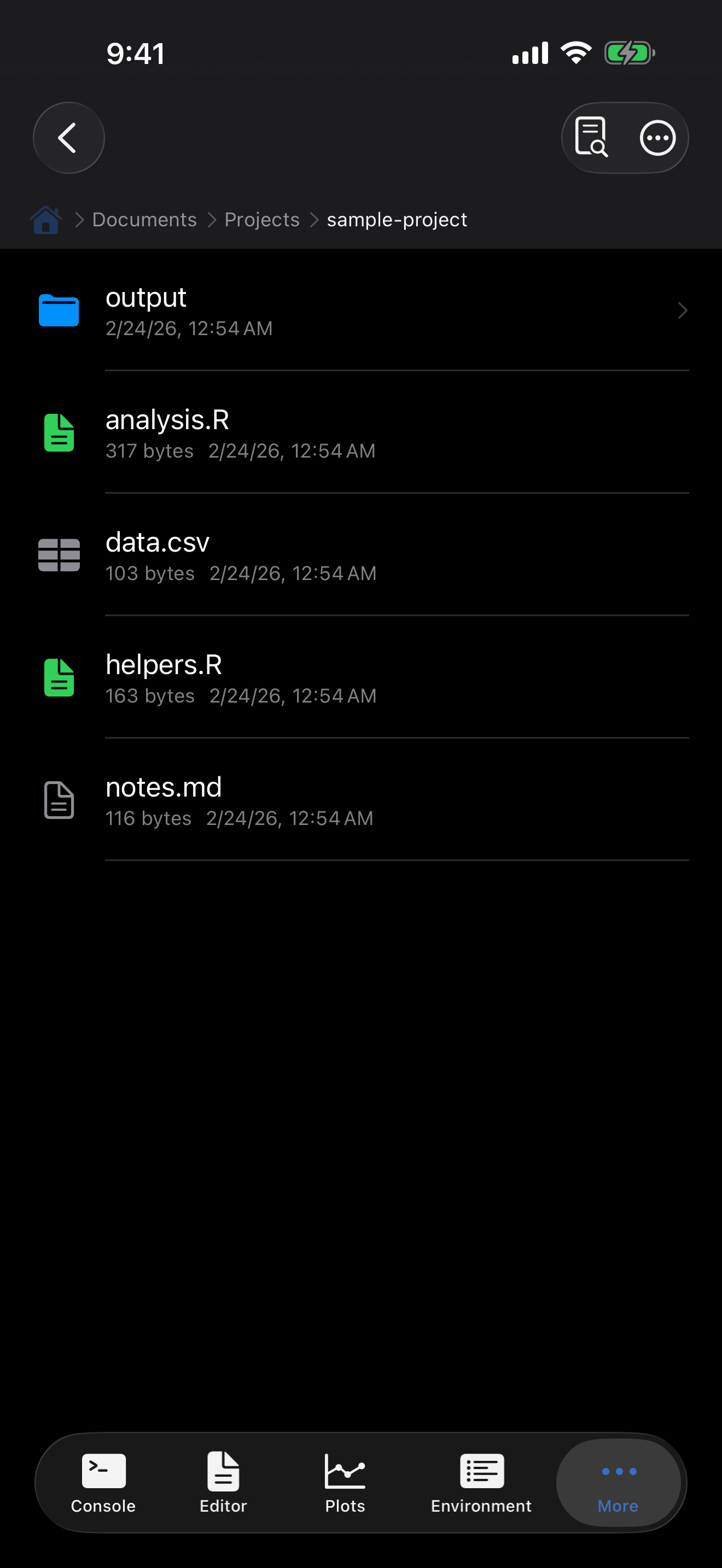
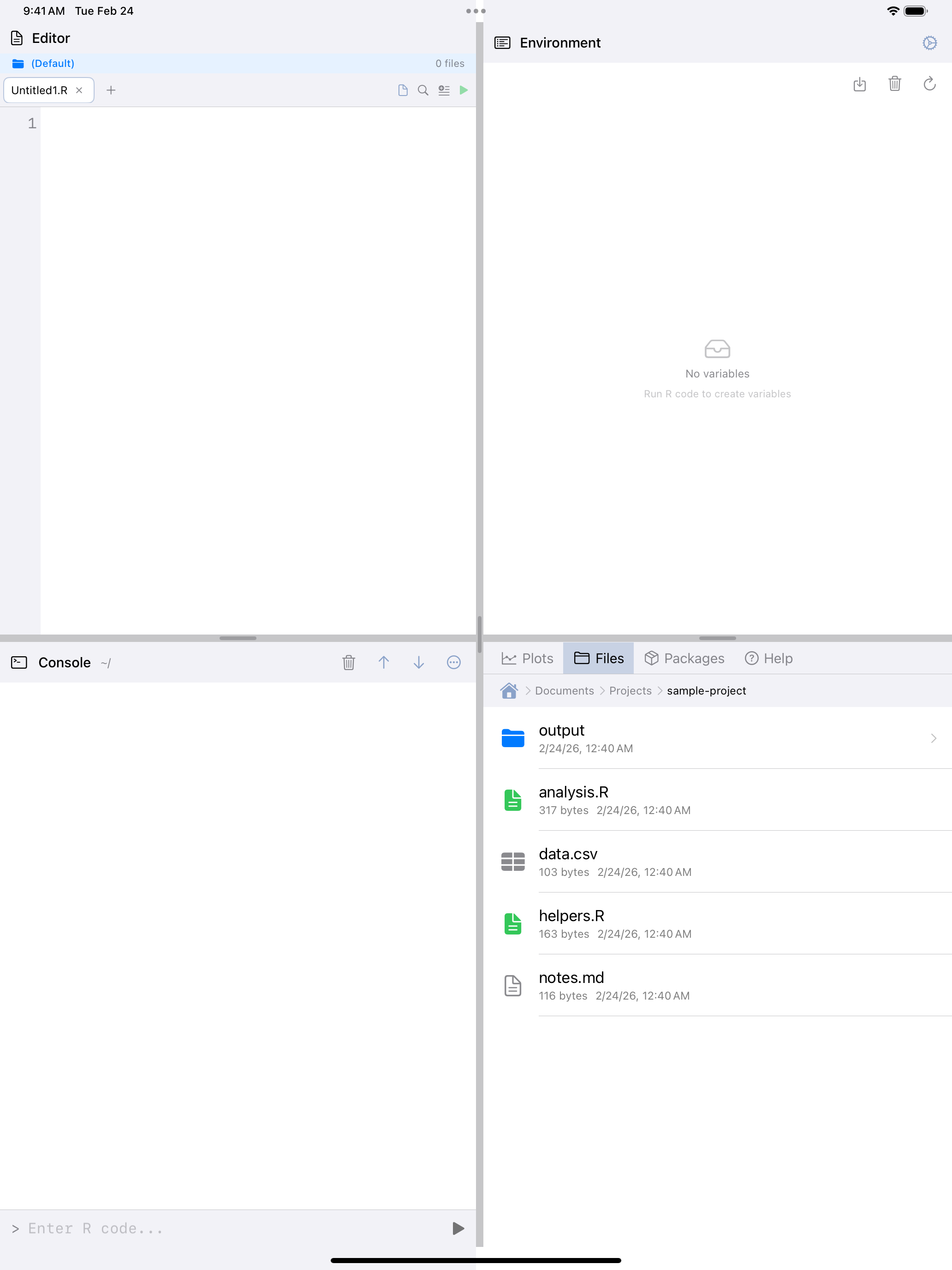
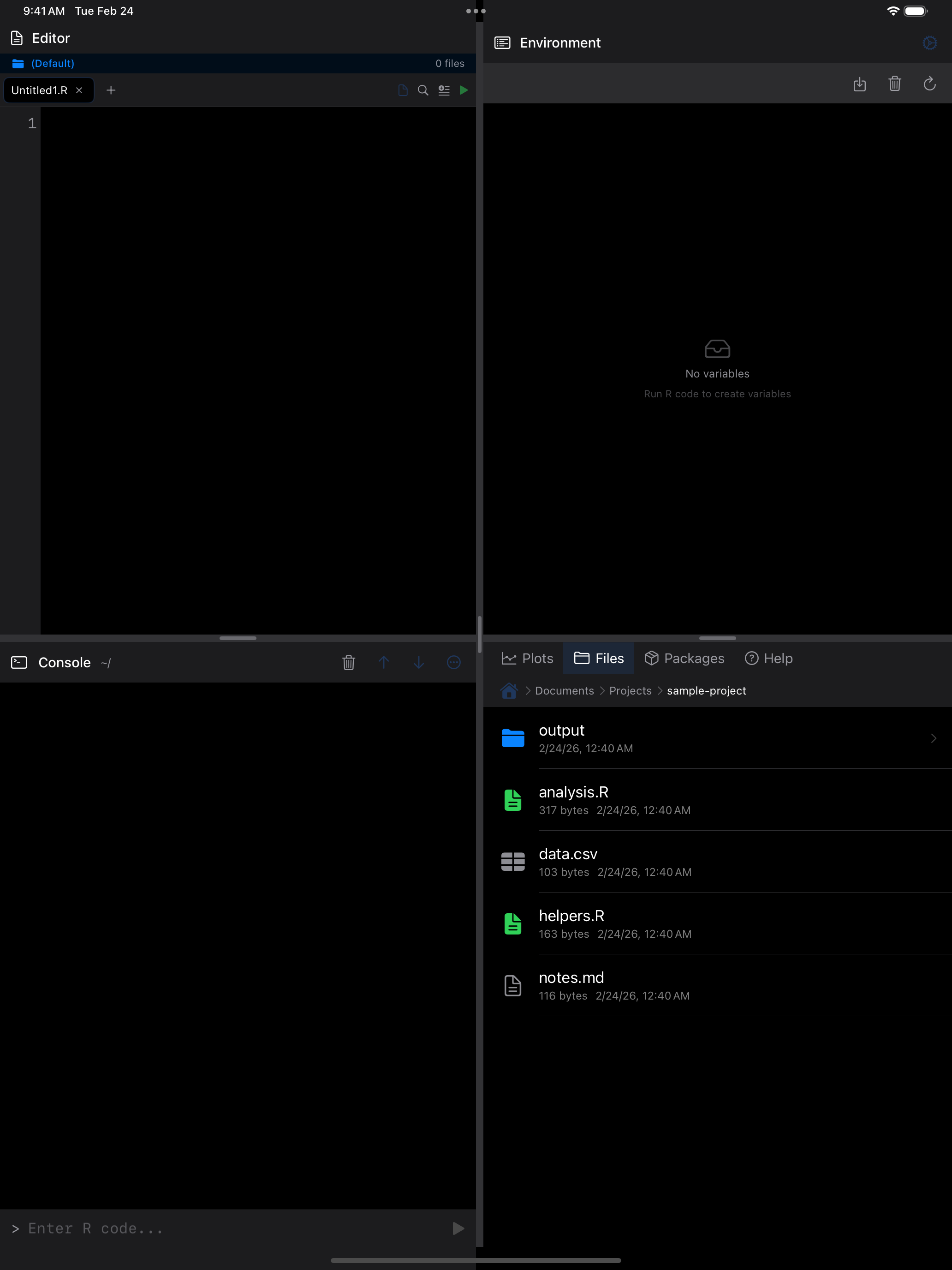
Each row shows the file name, size, and modification date. R scripts get a green icon, folders blue, everything else gray.
Projects
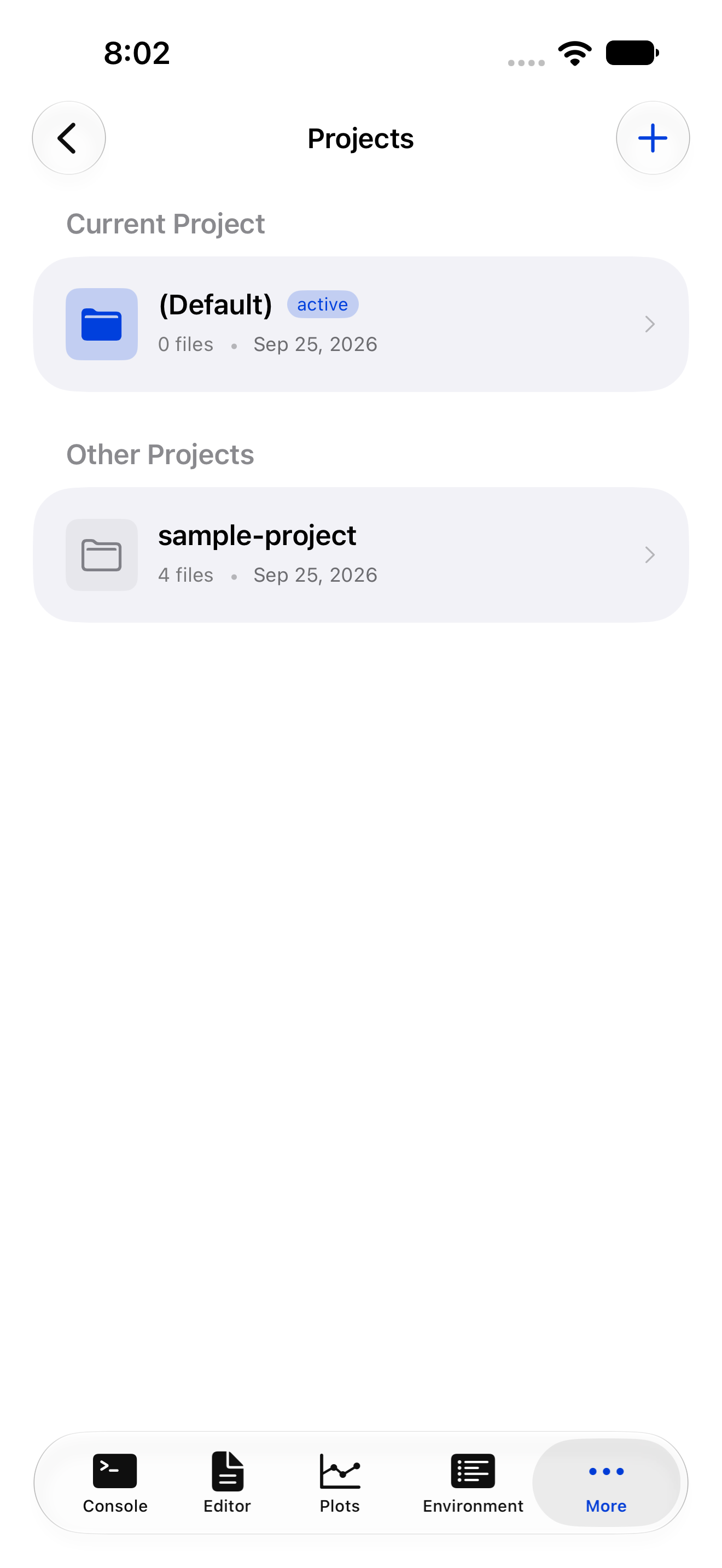
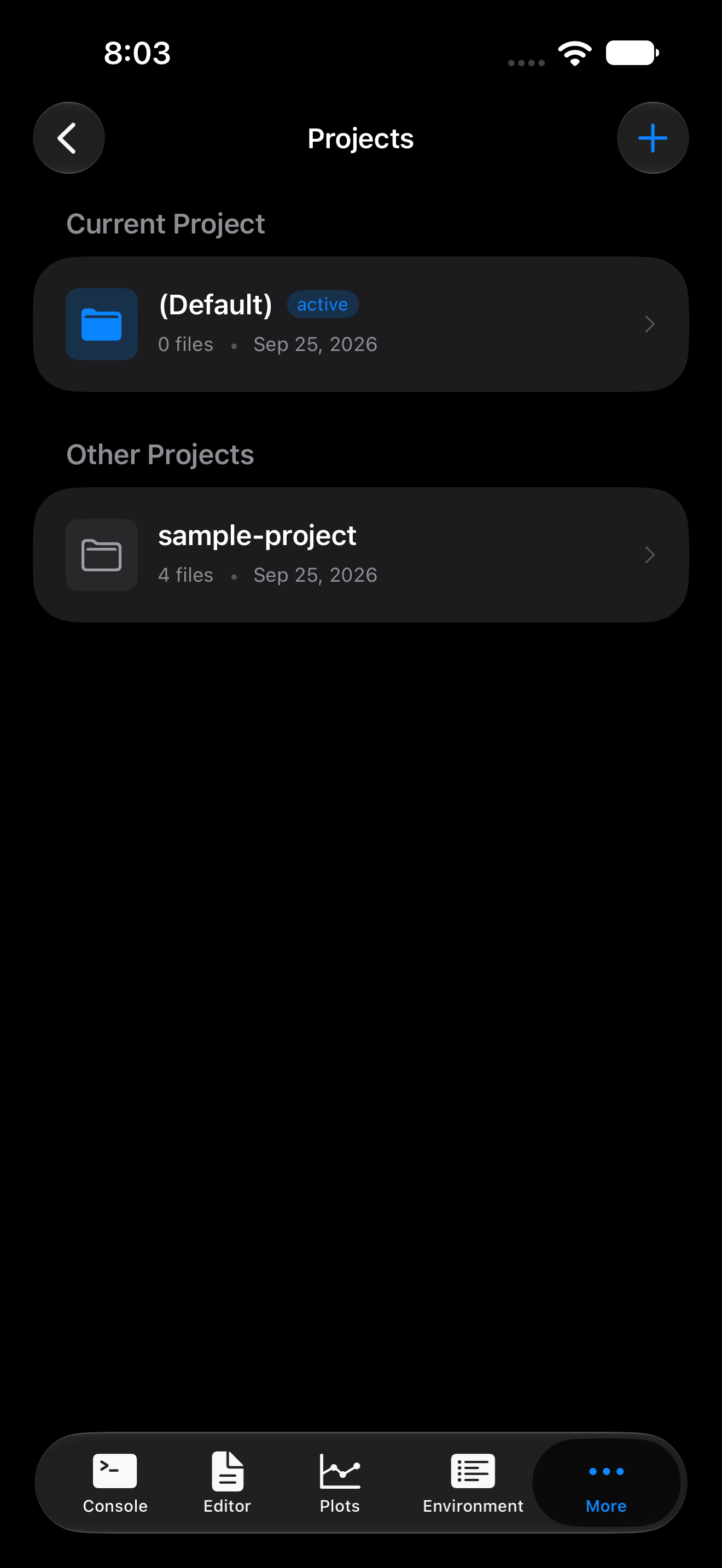
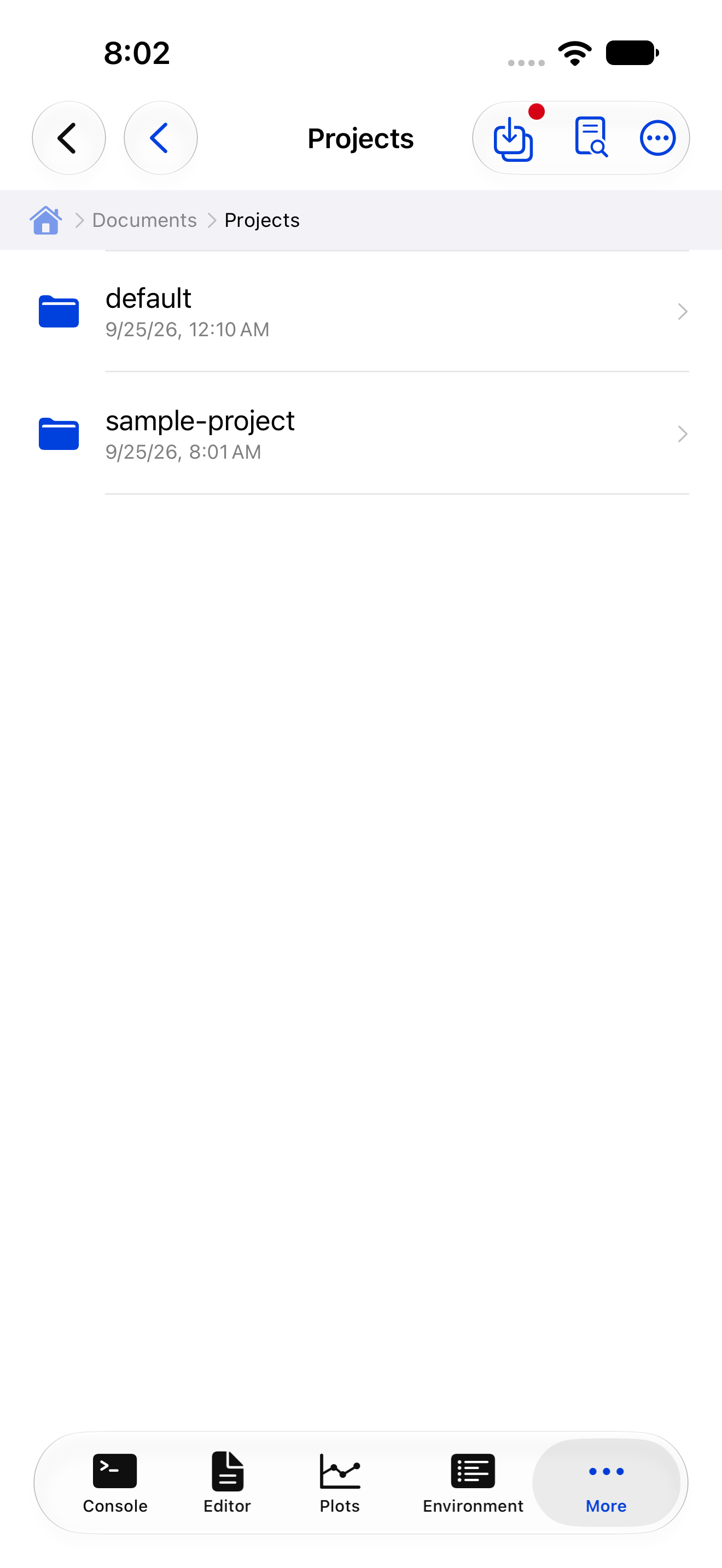
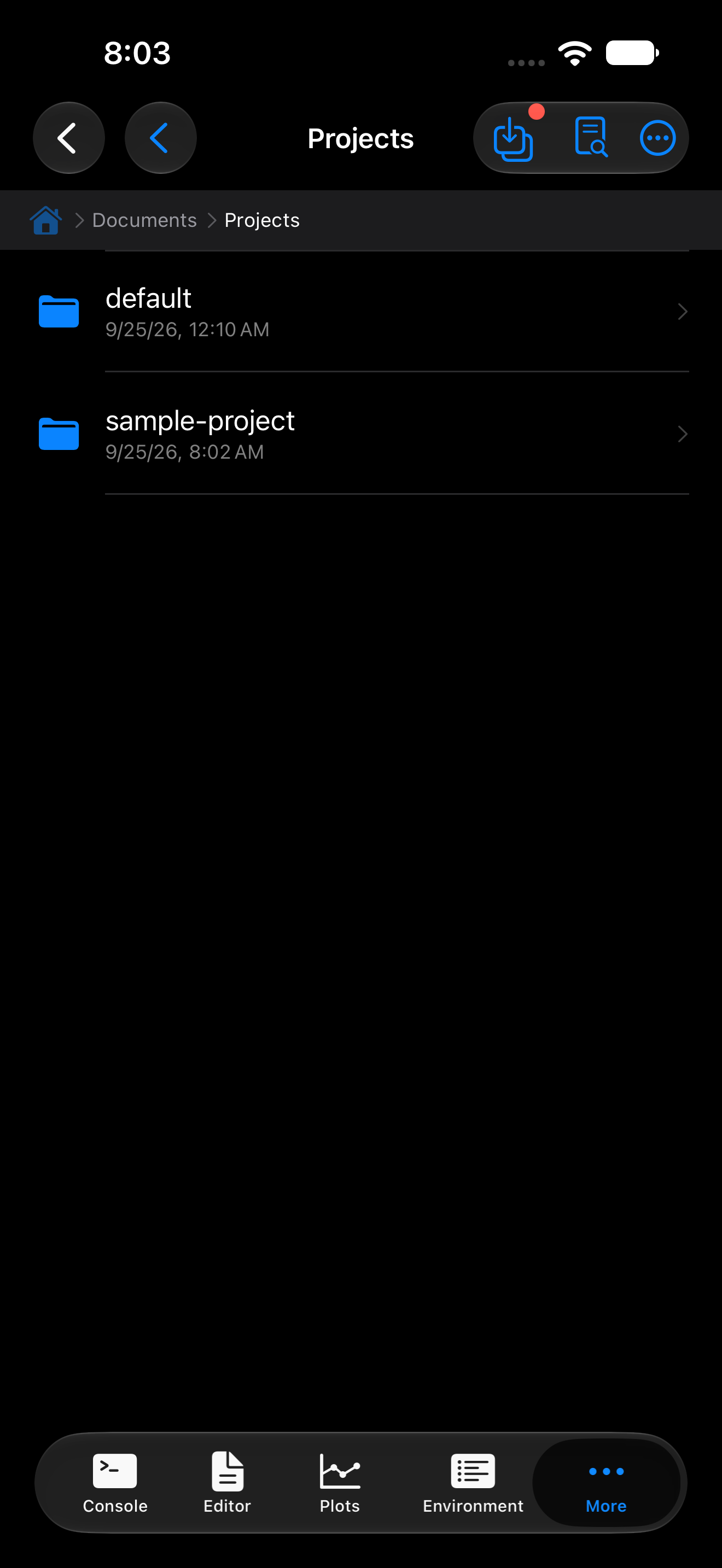
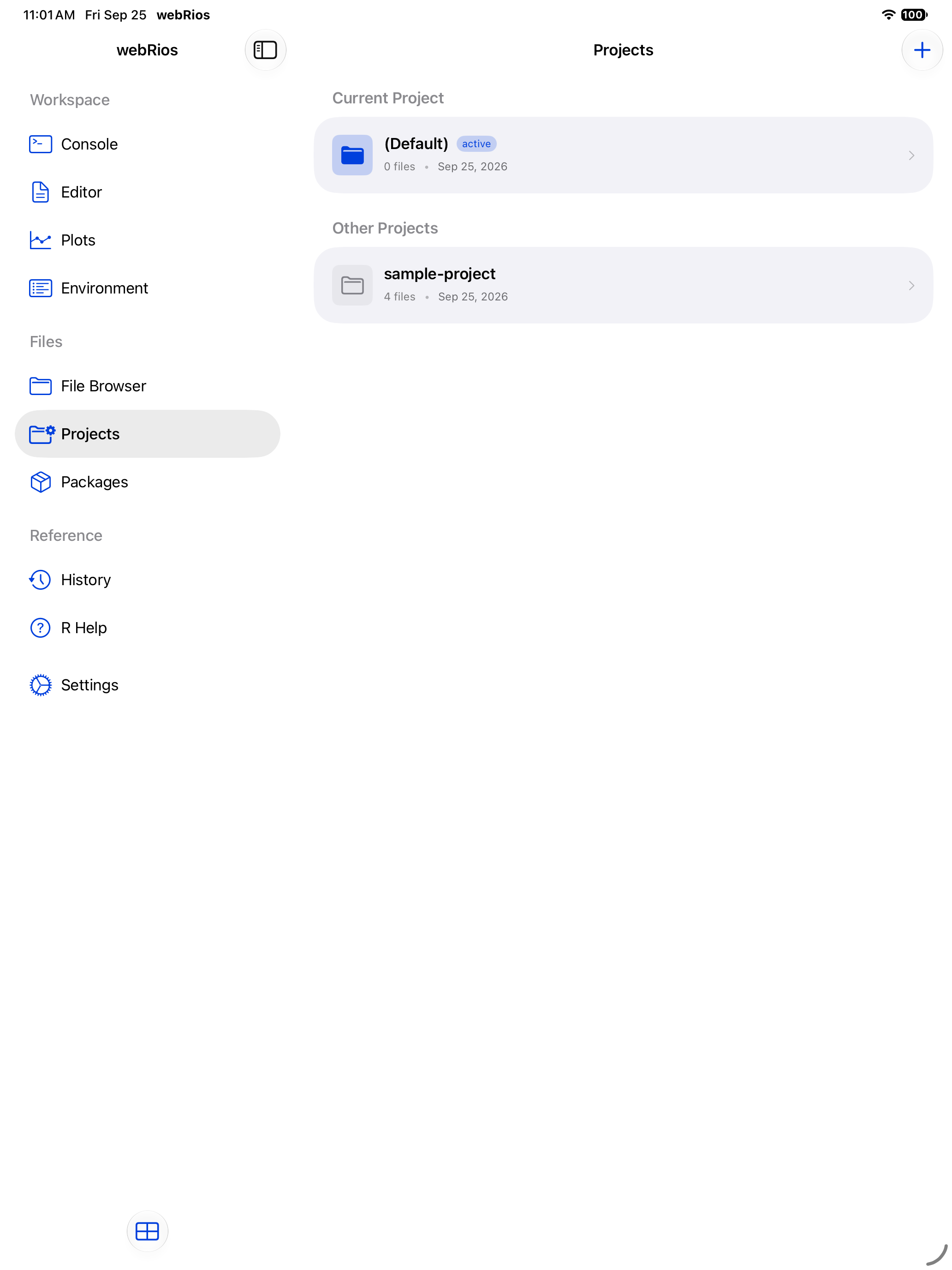
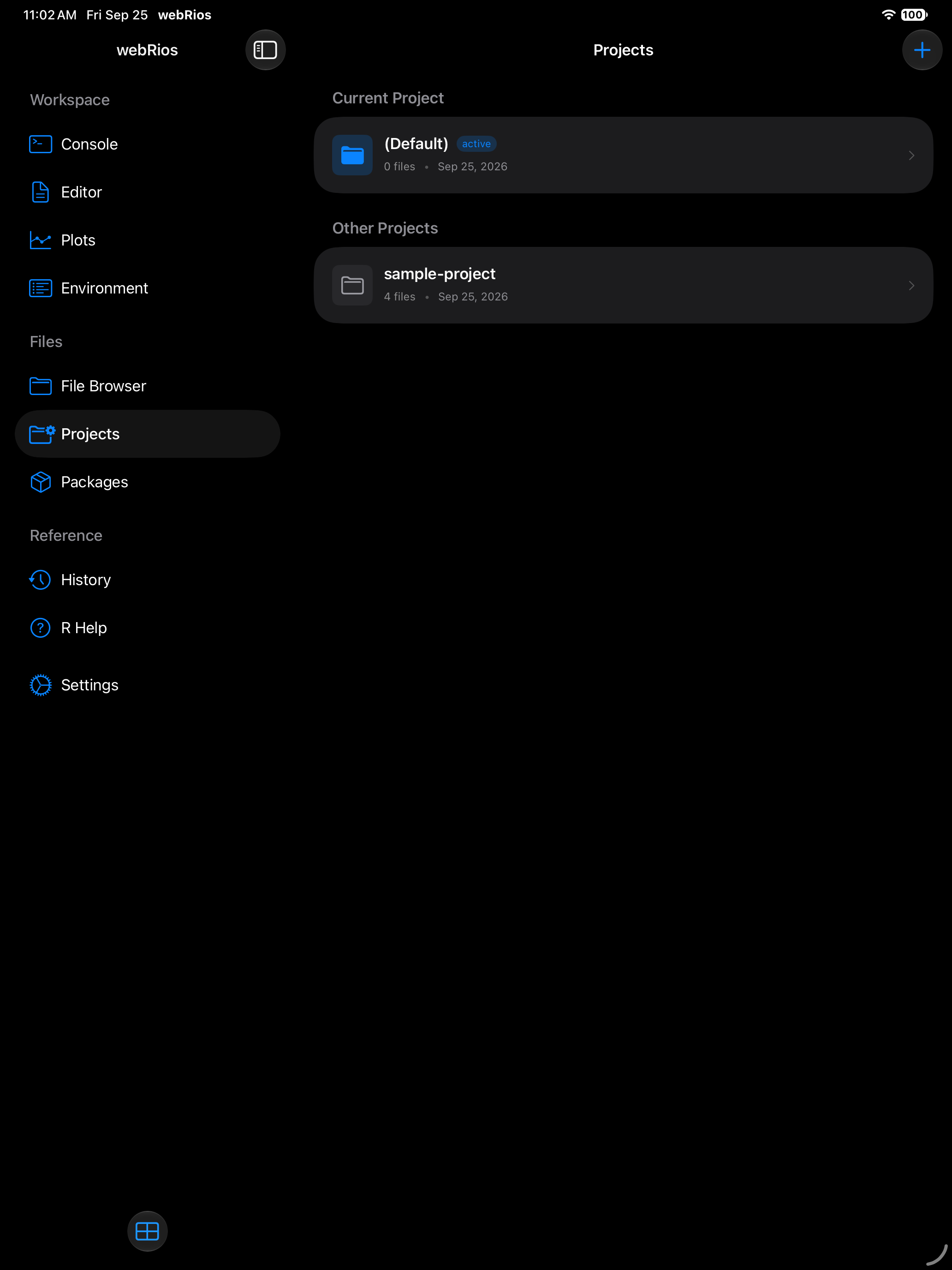
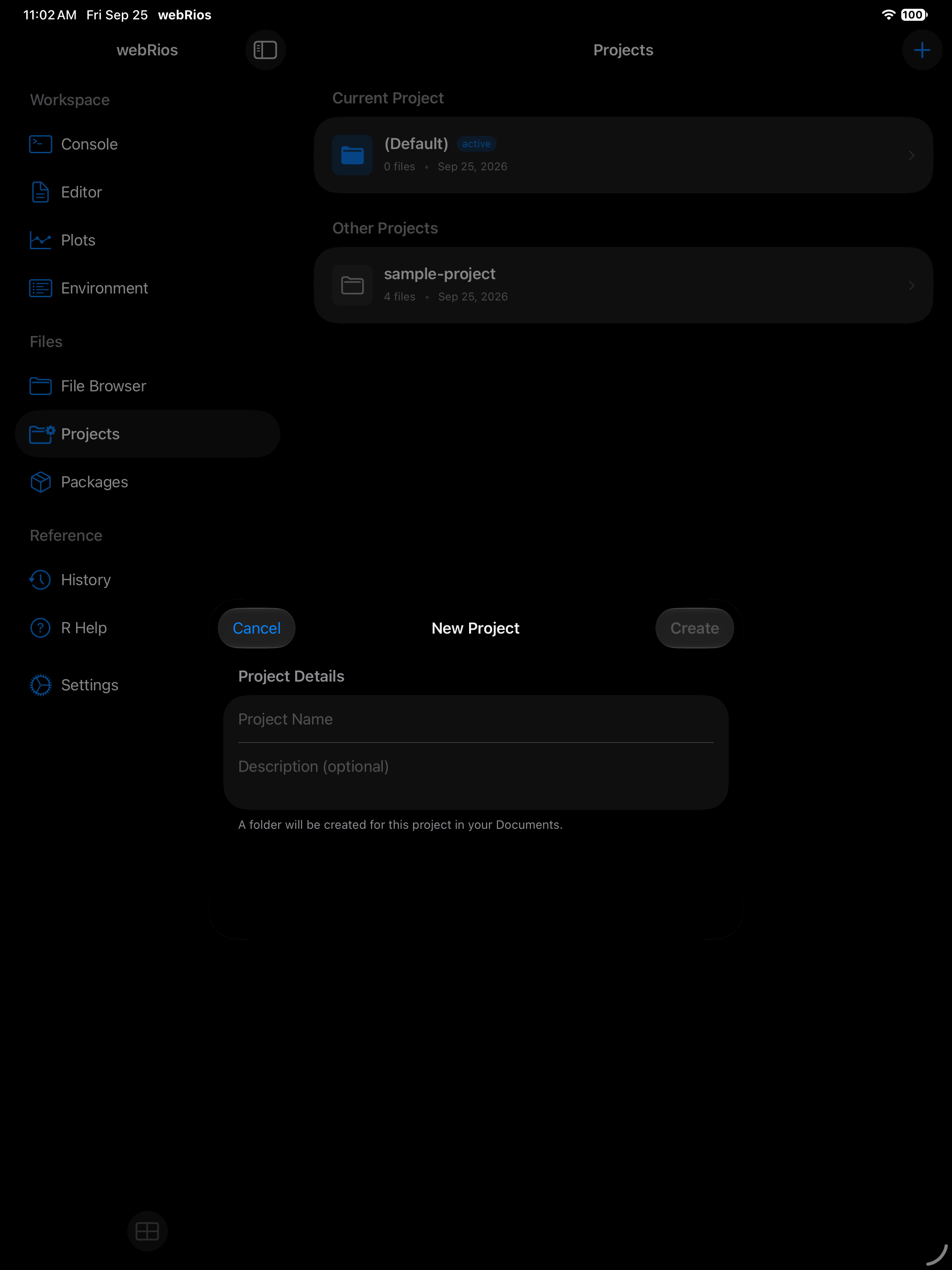
Your files live in projects inside Documents/Projects/. A (Default) project is created on first launch.
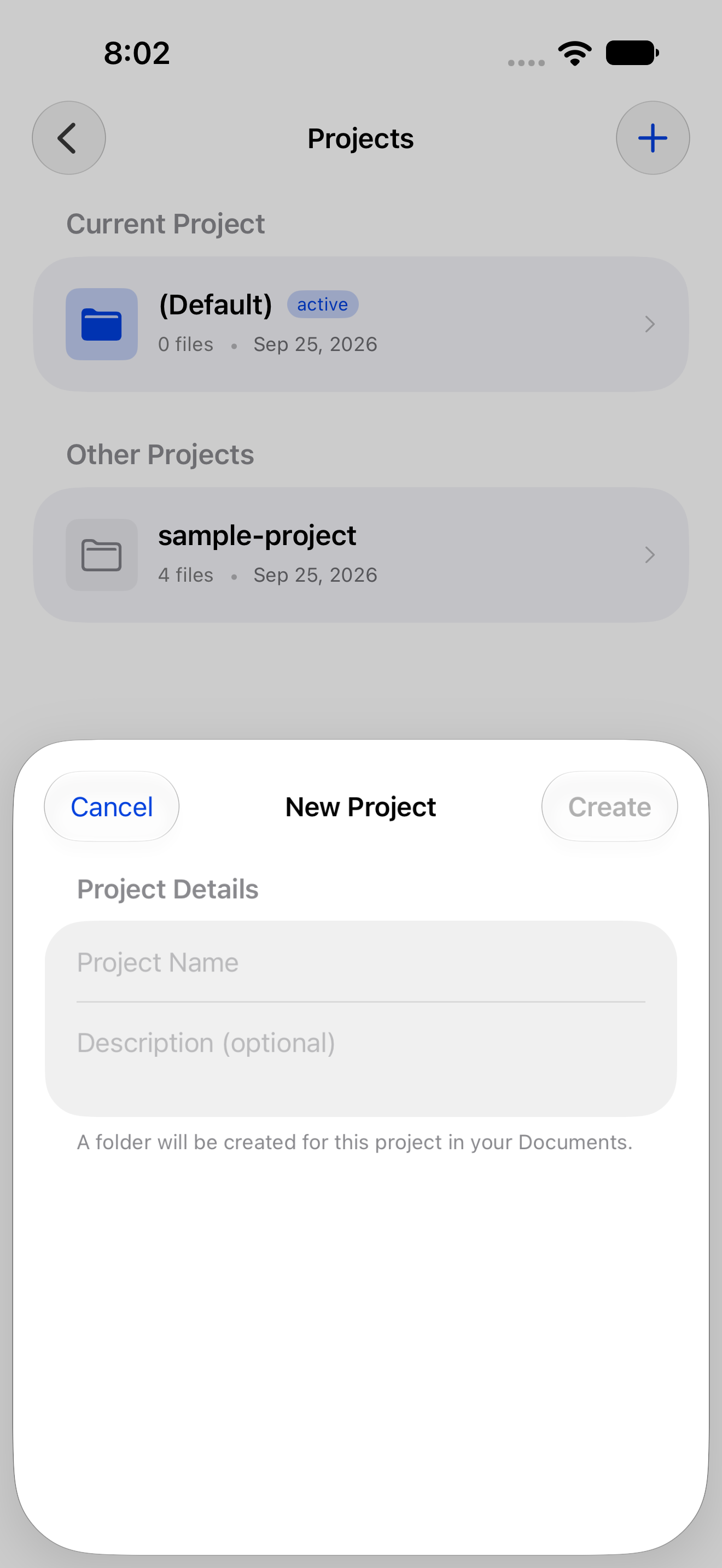
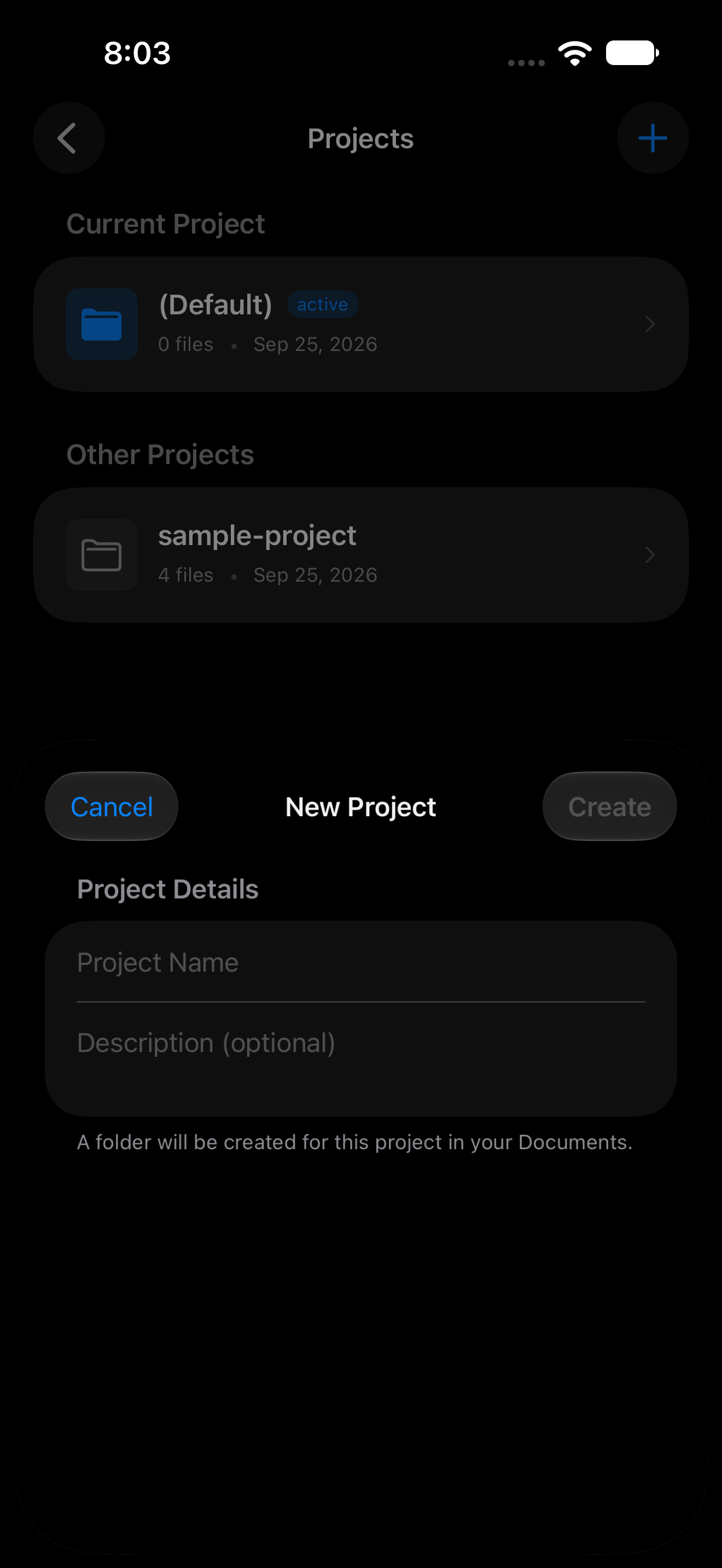
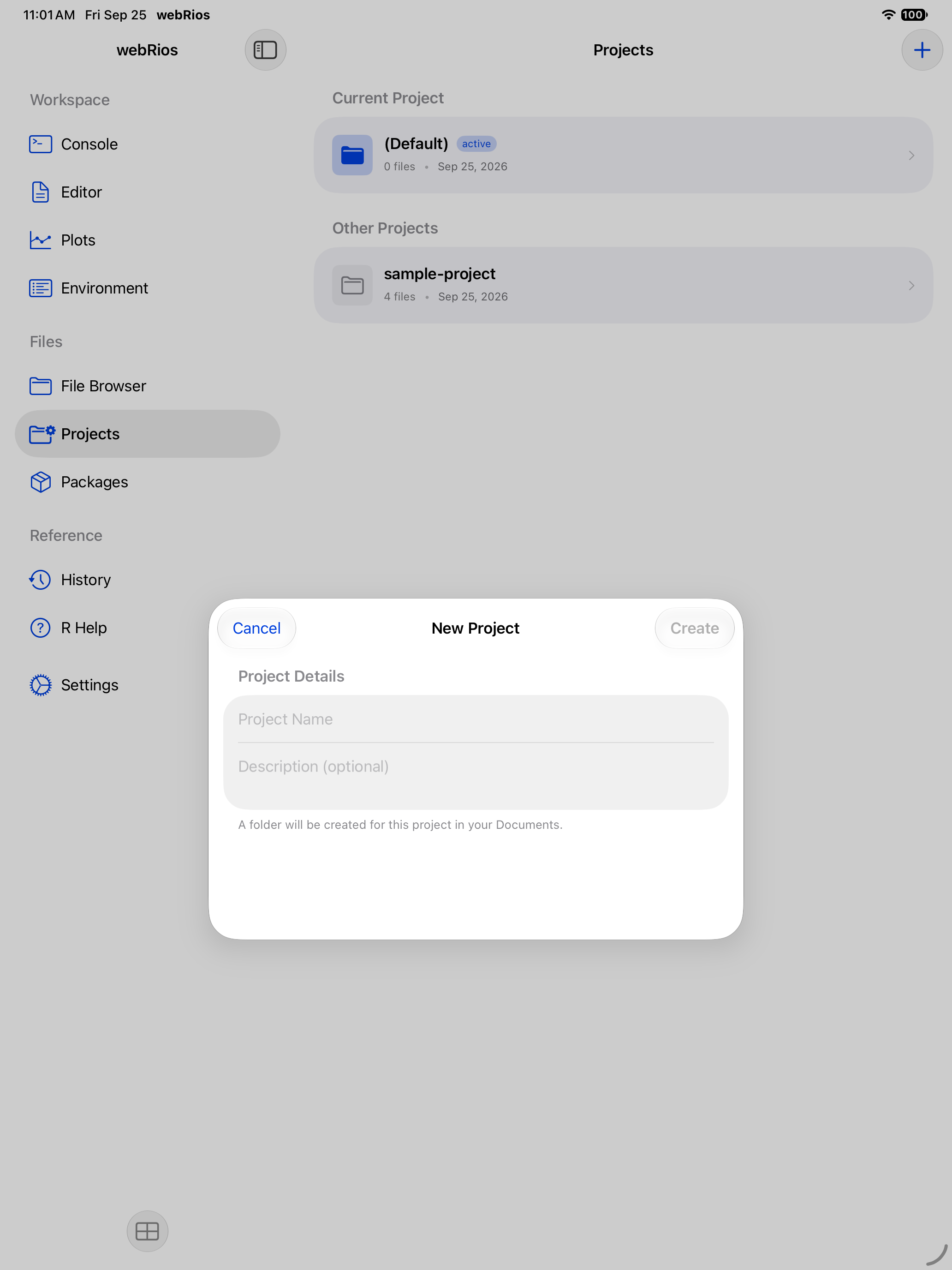
Switch to the Projects tab and tap + to create a new one. Each project gets its own folder, and the Editor header shows which project is active (visible in the Editor guide).
A folder you create under Projects/, here or in the iOS Files app, becomes a project named after it (with ” 2” added if the name is taken). Rename the folder in Files and the project follows, even the current one.
Tap a project for its Project Details: swipe or long-press a file to open, rename, delete or share it, and New Script creates a script there and opens it in the Editor. Project rows have long-press menus too.
With Save Workspace on (Settings > R Session), switching projects switches R too: your variables are saved to the project you leave, cleared, and the new project’s workspace is loaded. Loaded packages, options and the working directory stay. A switch waits for running code, which you can still stop.
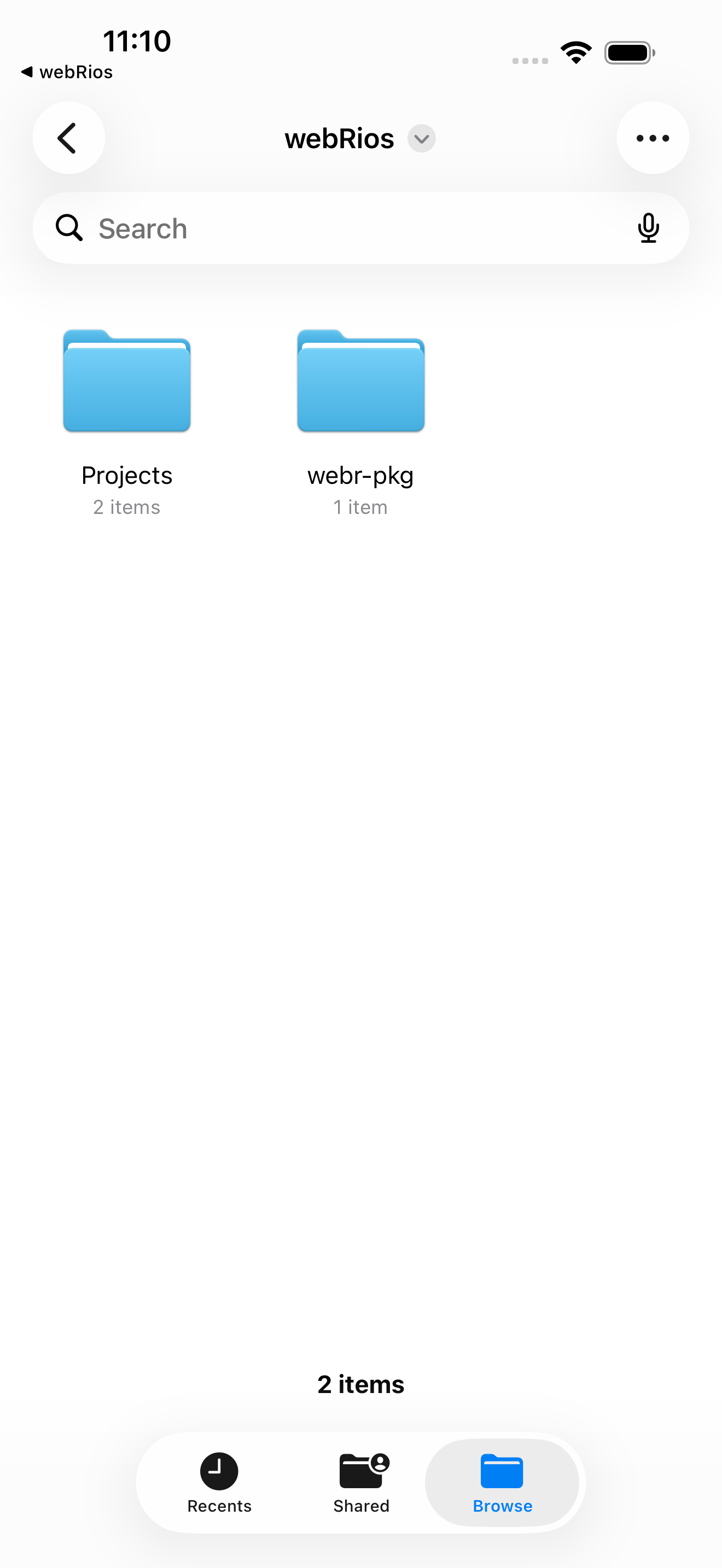
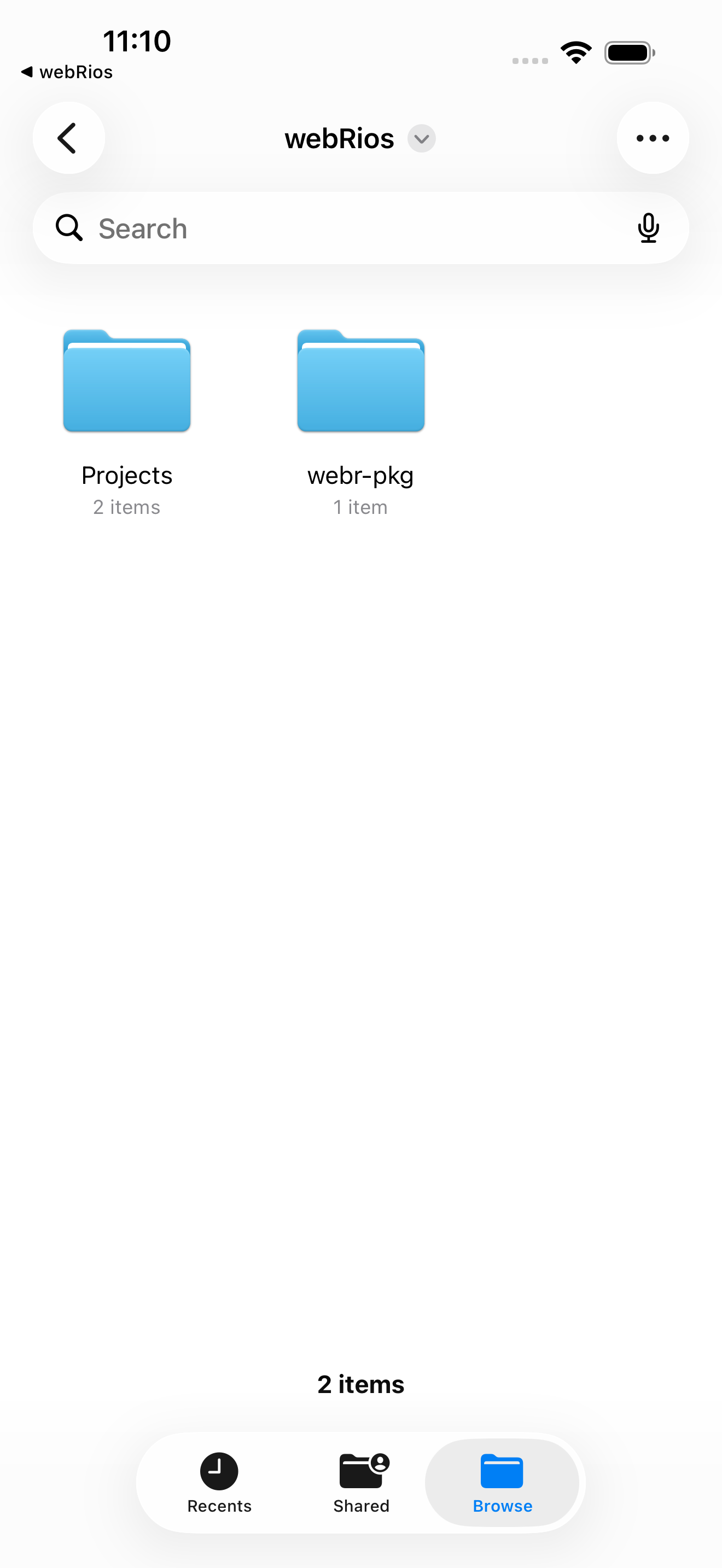
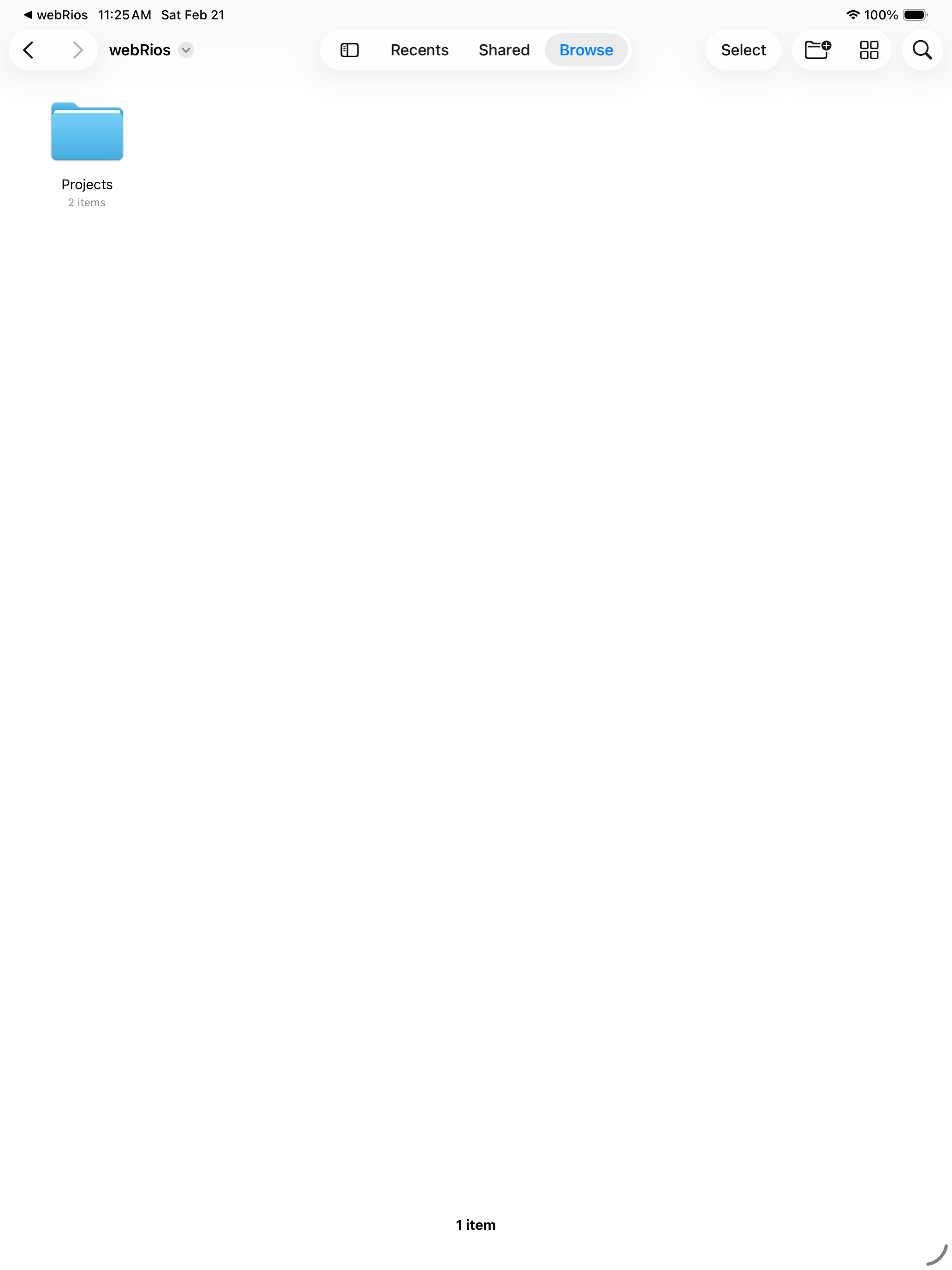
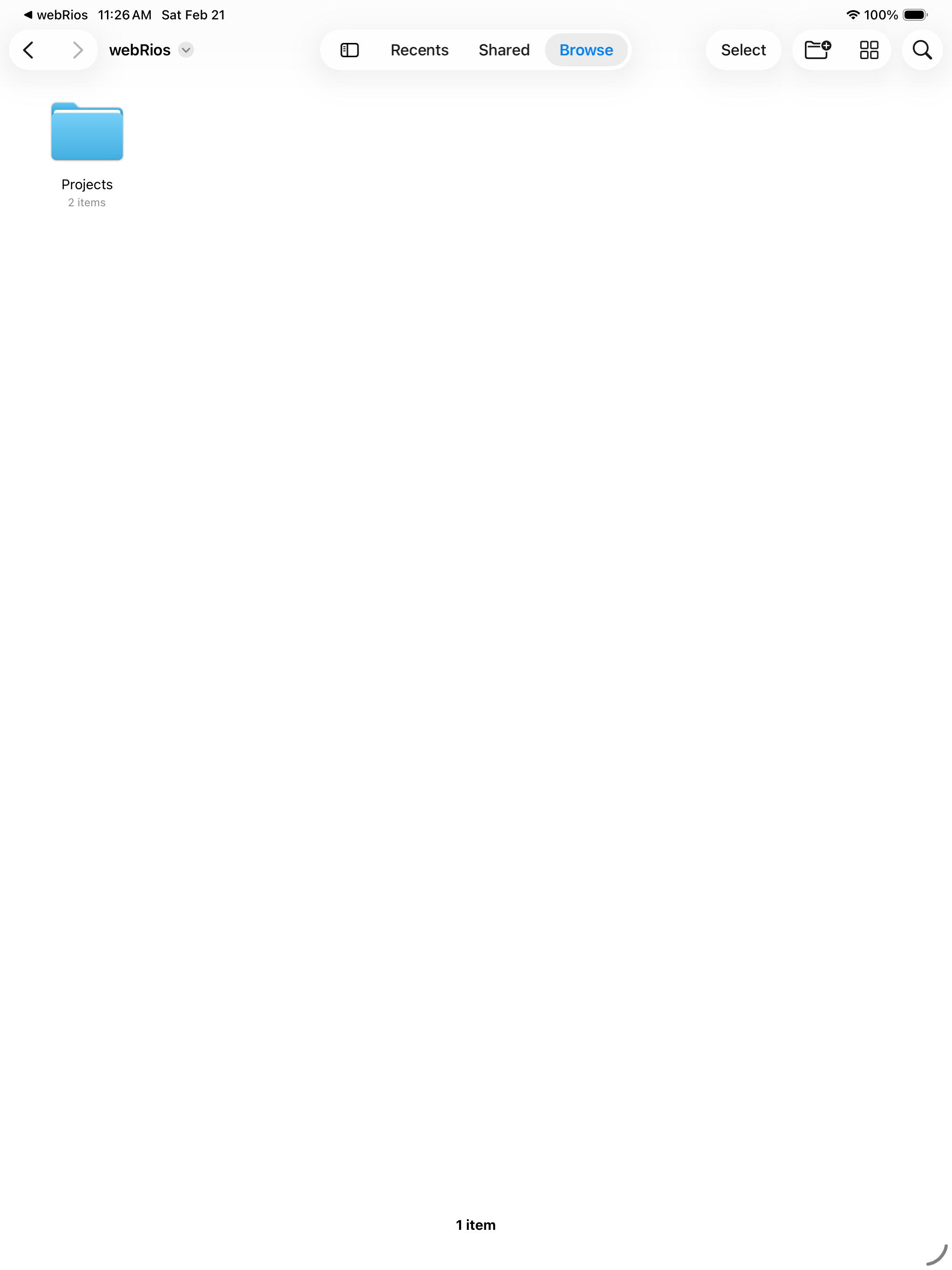
Projects are also visible in the iOS Files app under On My iPhone (or On My iPad) > webRios, so you can copy data in, share scripts via AirDrop, or back up to iCloud Drive.
Creating files and folders
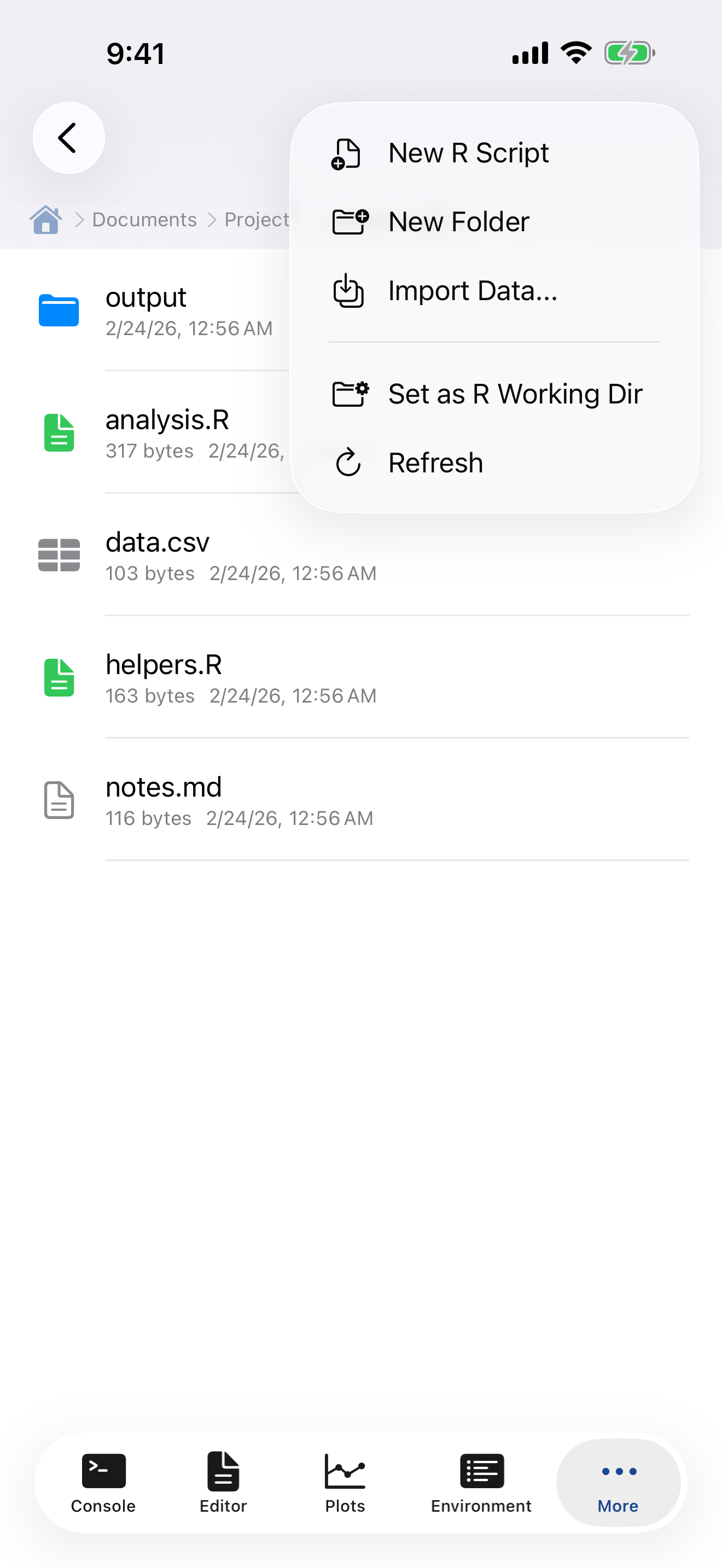
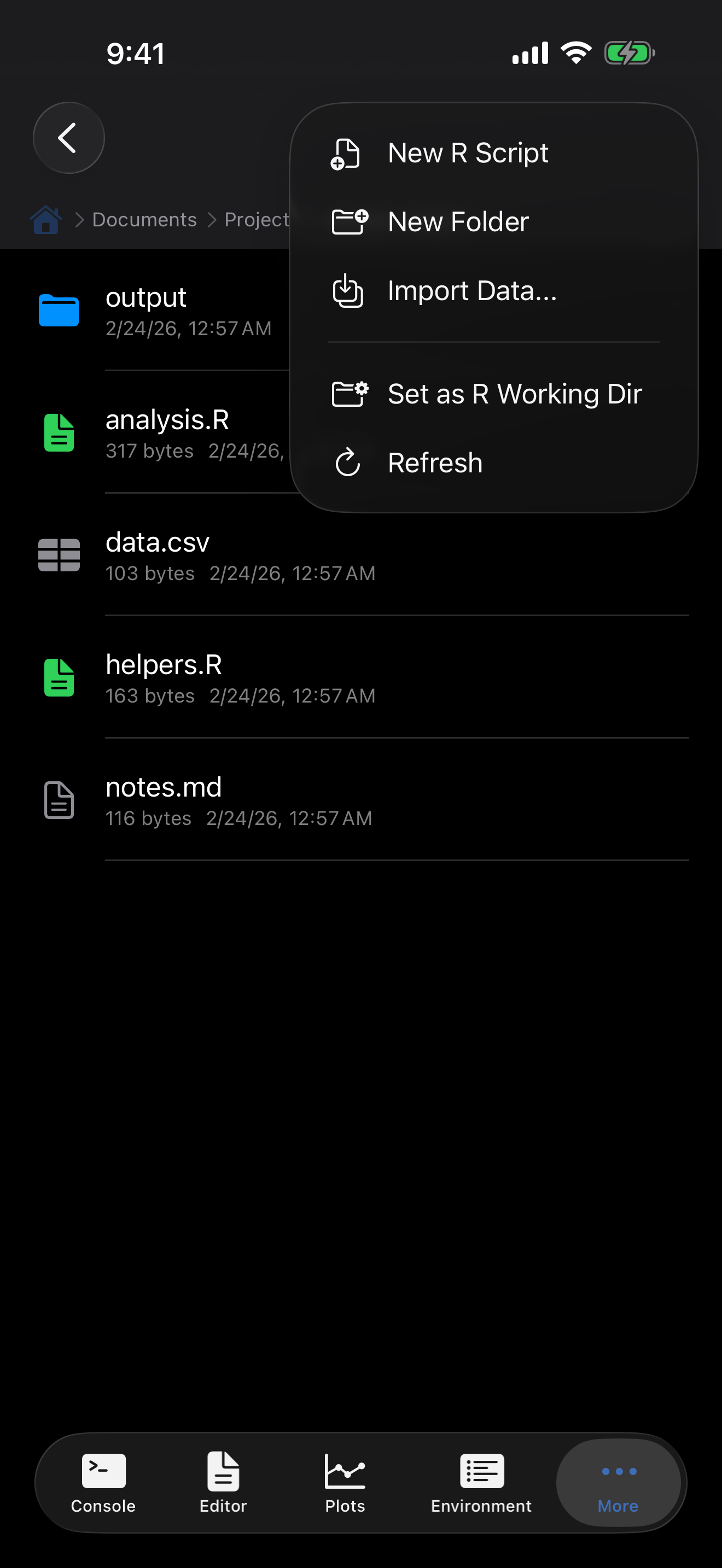
Tap the menu button (...) in the top-right corner to see your options:
- New R Script: creates a
.Rfile in the current folder. The extension is added automatically. - New Folder: creates a subfolder.
- Import Data: opens the data import wizard for CSV, TSV, and JSON files.
- Set as R Working Dir: copies this folder’s files into R’s workspace and sets it as the working directory. See Setting the R working directory below.
- Copy Files Back from R: copies changed files from R’s workspace back into the folder you set as the working directory (not the folder you are currently browsing). Disabled until you have set a working directory.
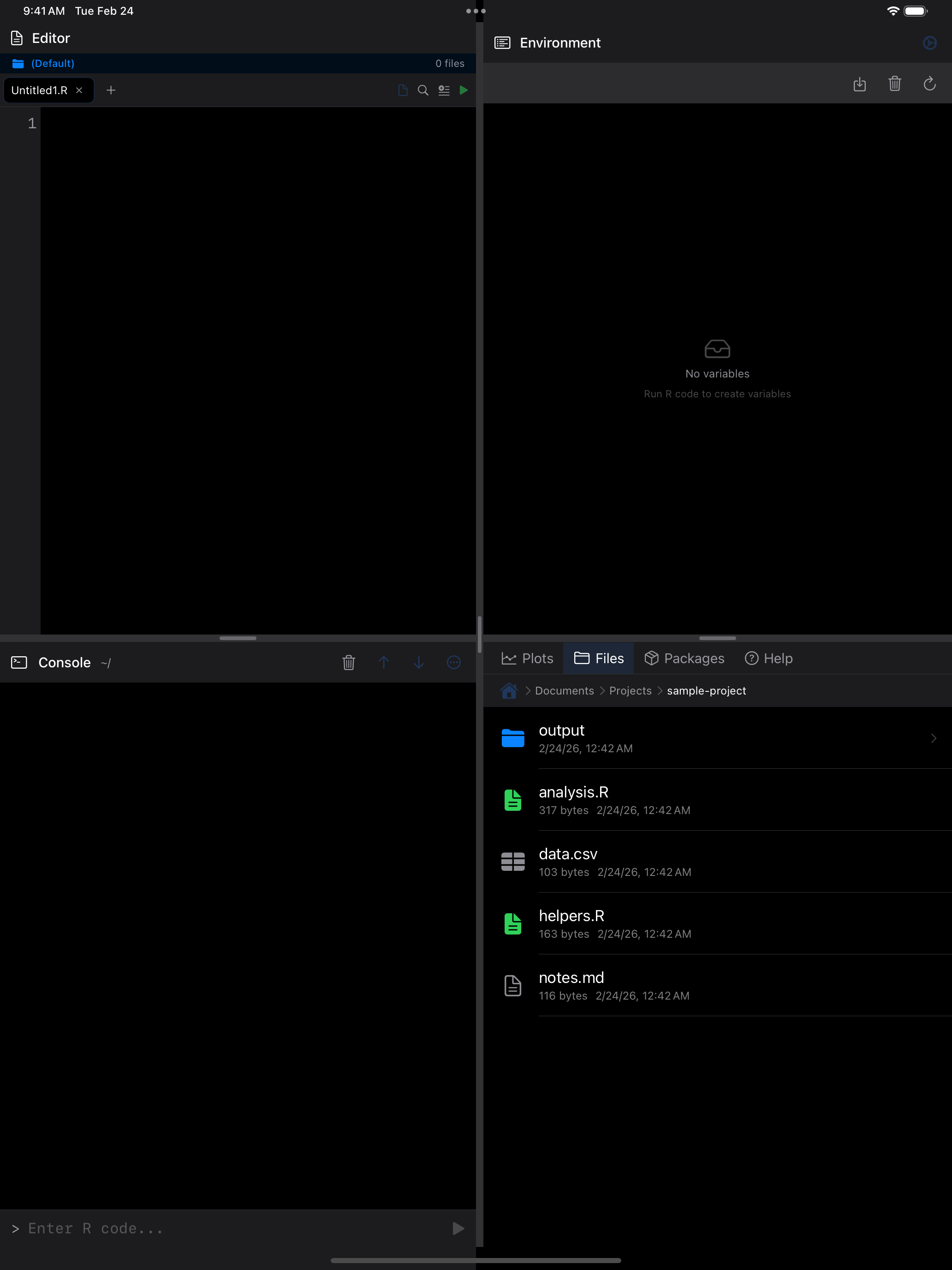
A new script opens in the Editor at once. If a file of that name exists, webRios says so instead of replacing it.
Data Import Wizard
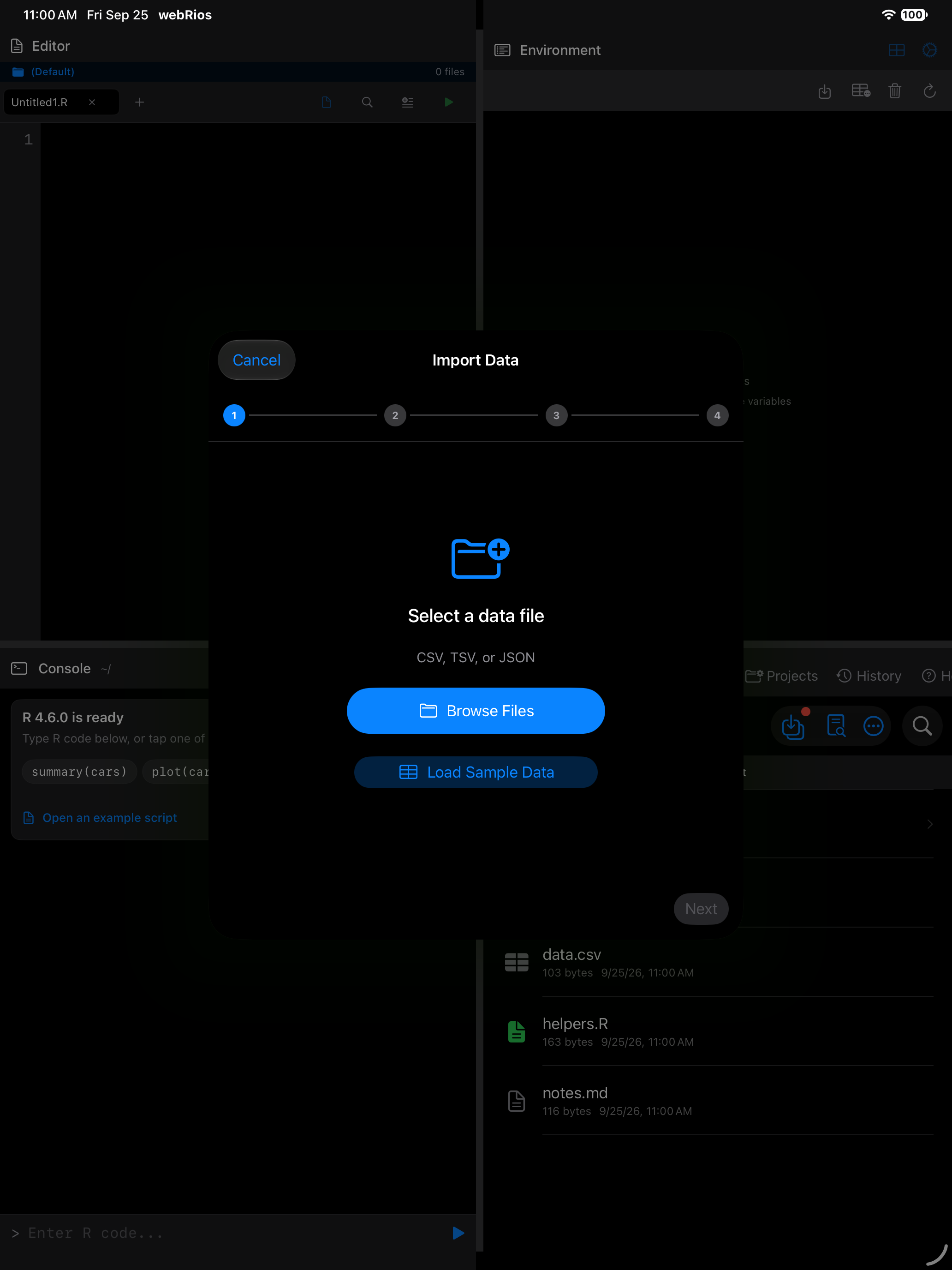
The Import Data option in the create menu opens a guided wizard that walks you through importing a data file into your R session. It supports CSV, TSV, and JSON files.
Step 1: Select a file
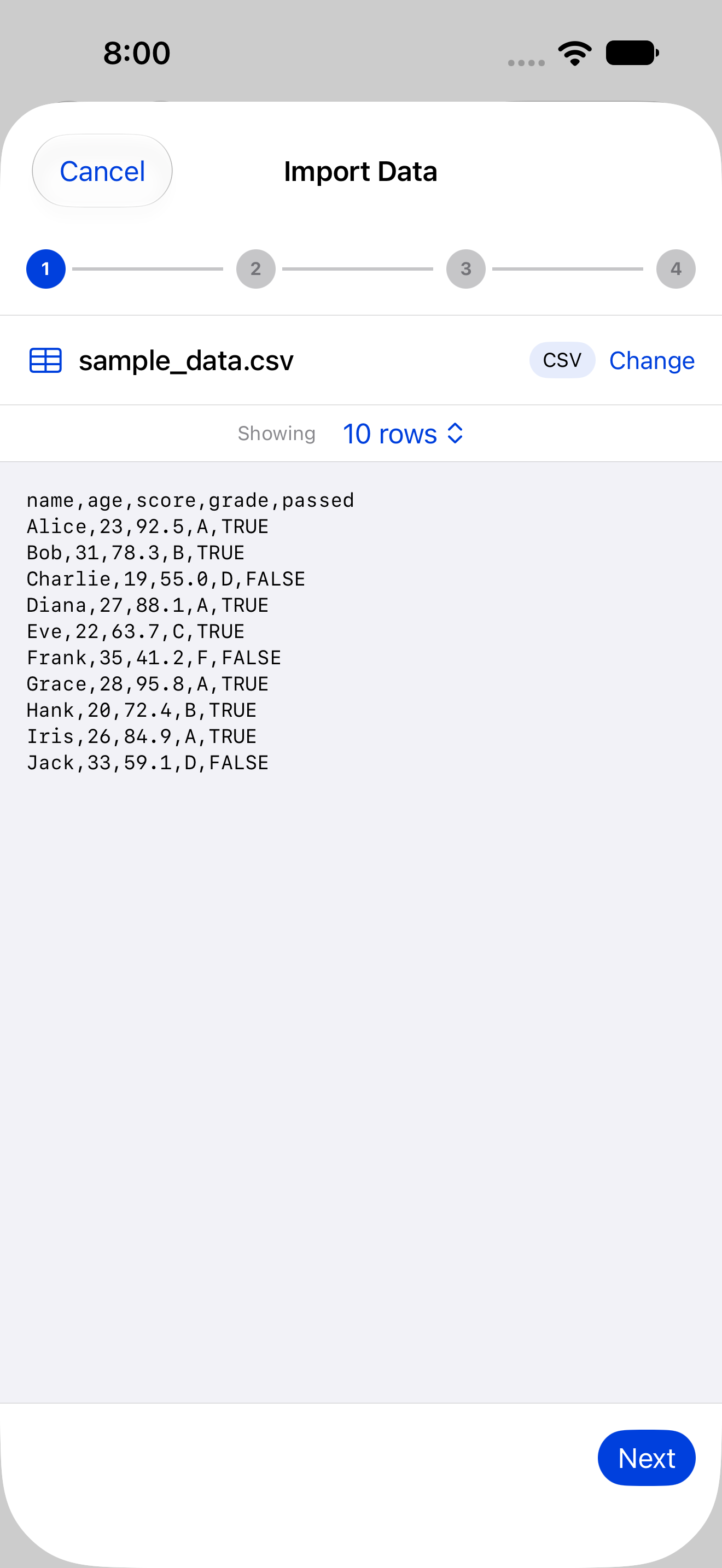
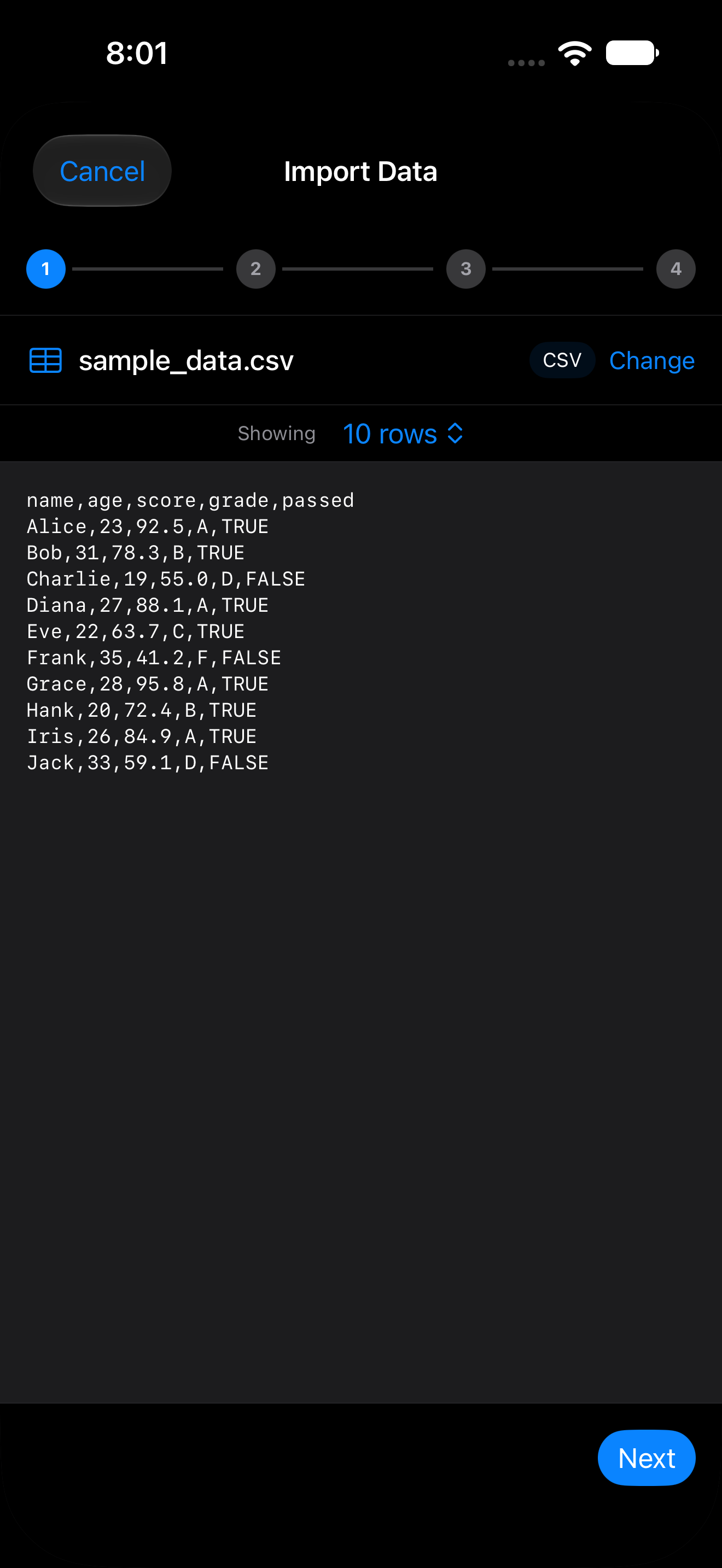
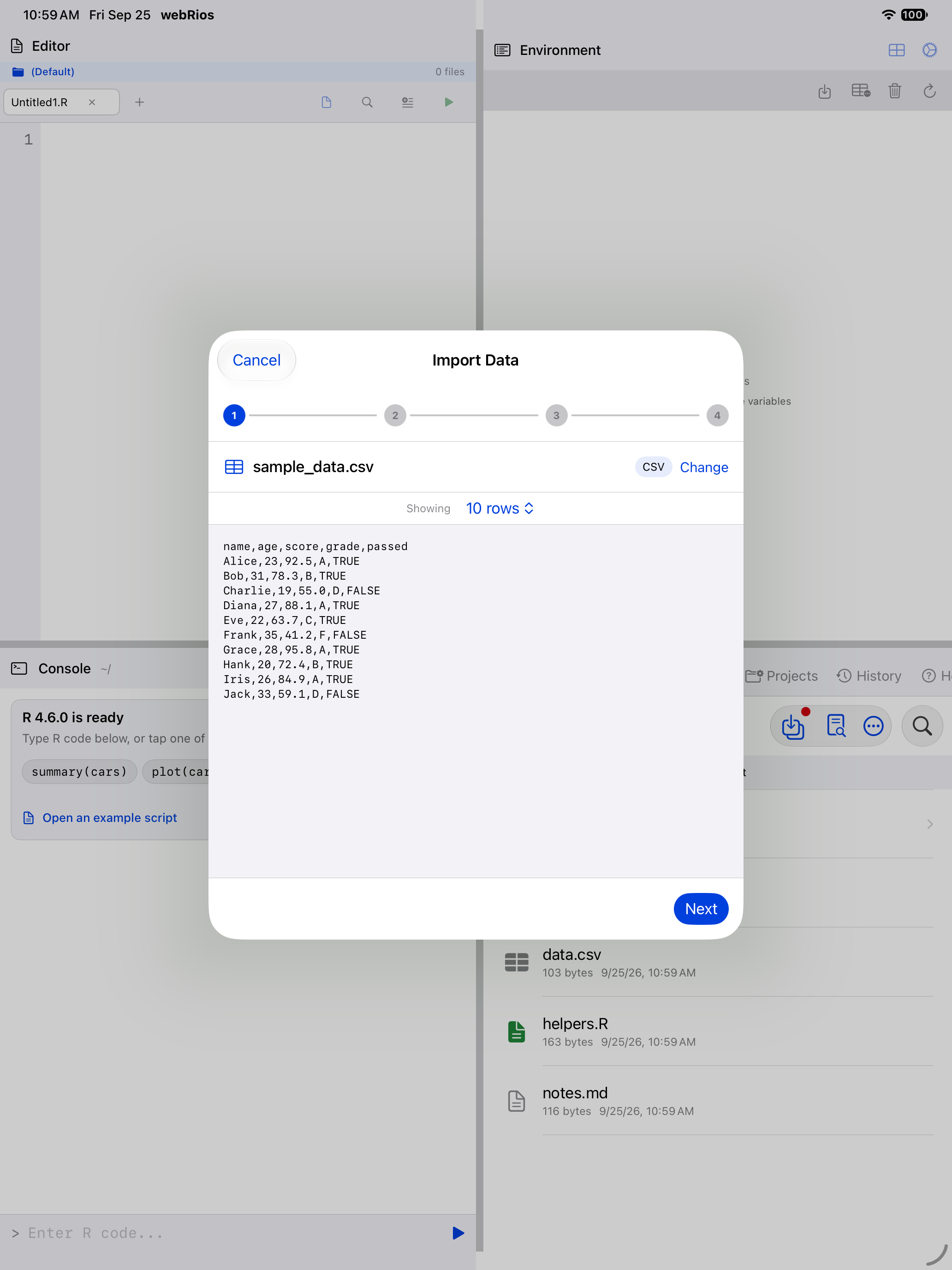
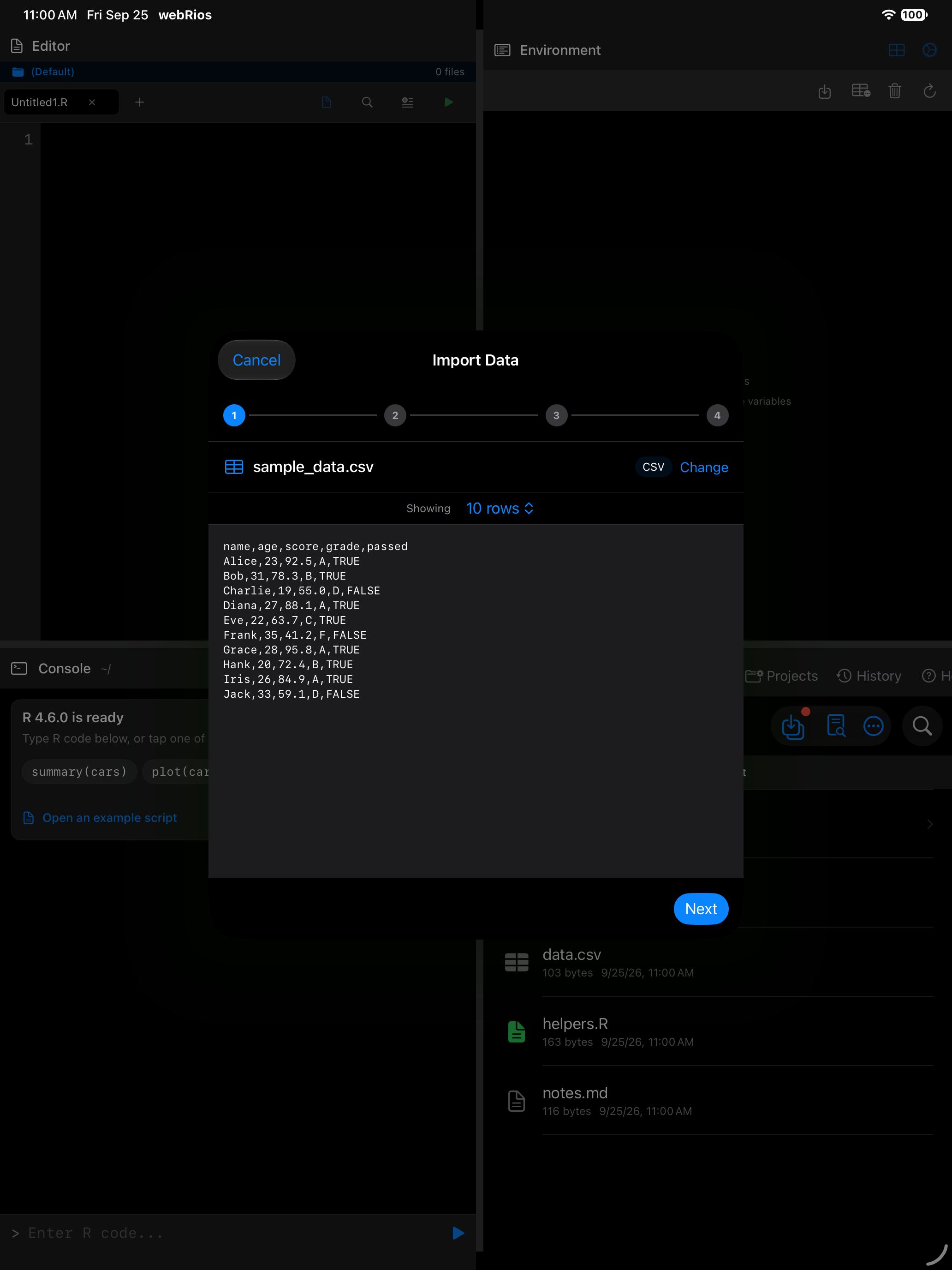
Choose Browse Files to pick a file from your device, or Load Sample Data to try the wizard with a built-in dataset. Once loaded, you will see the detected format, row count, and a raw preview of the file contents.
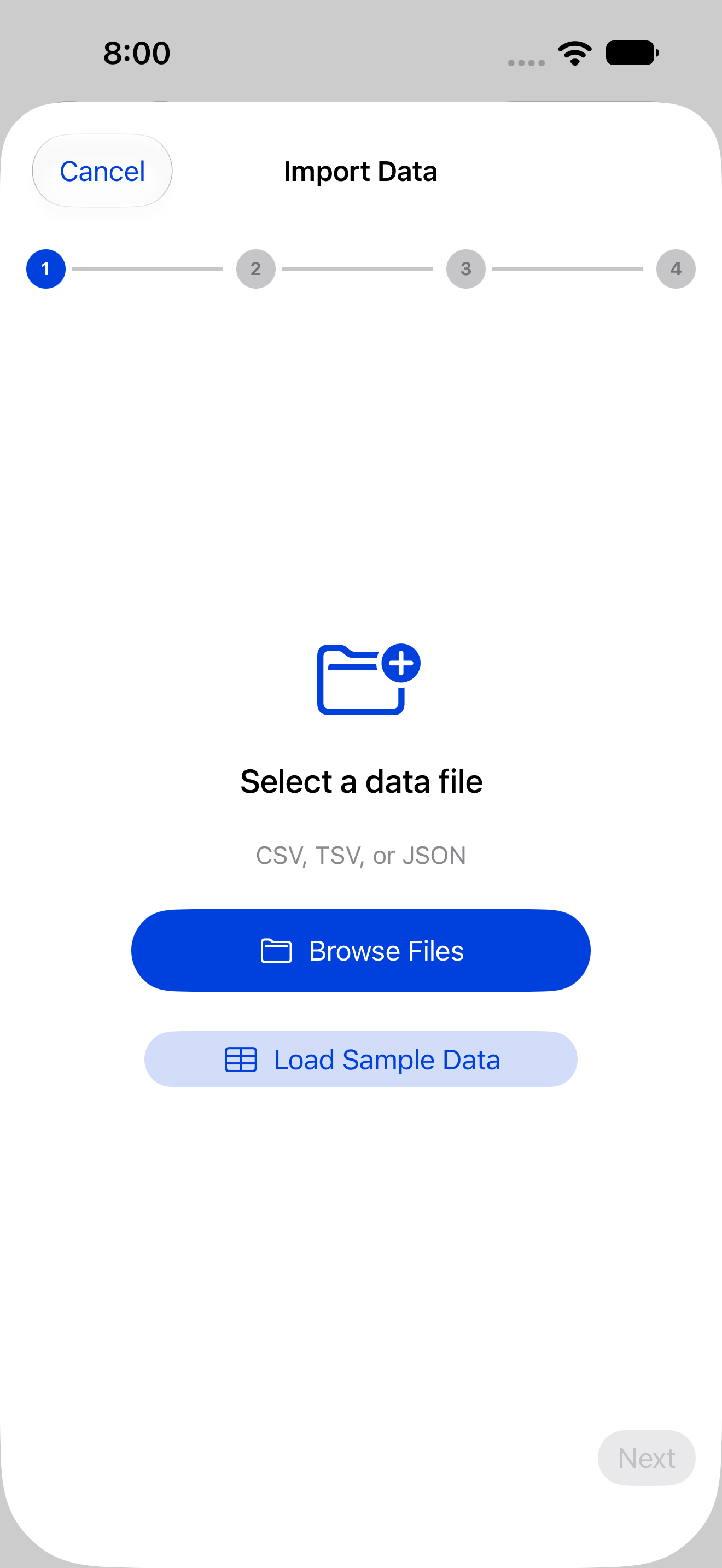
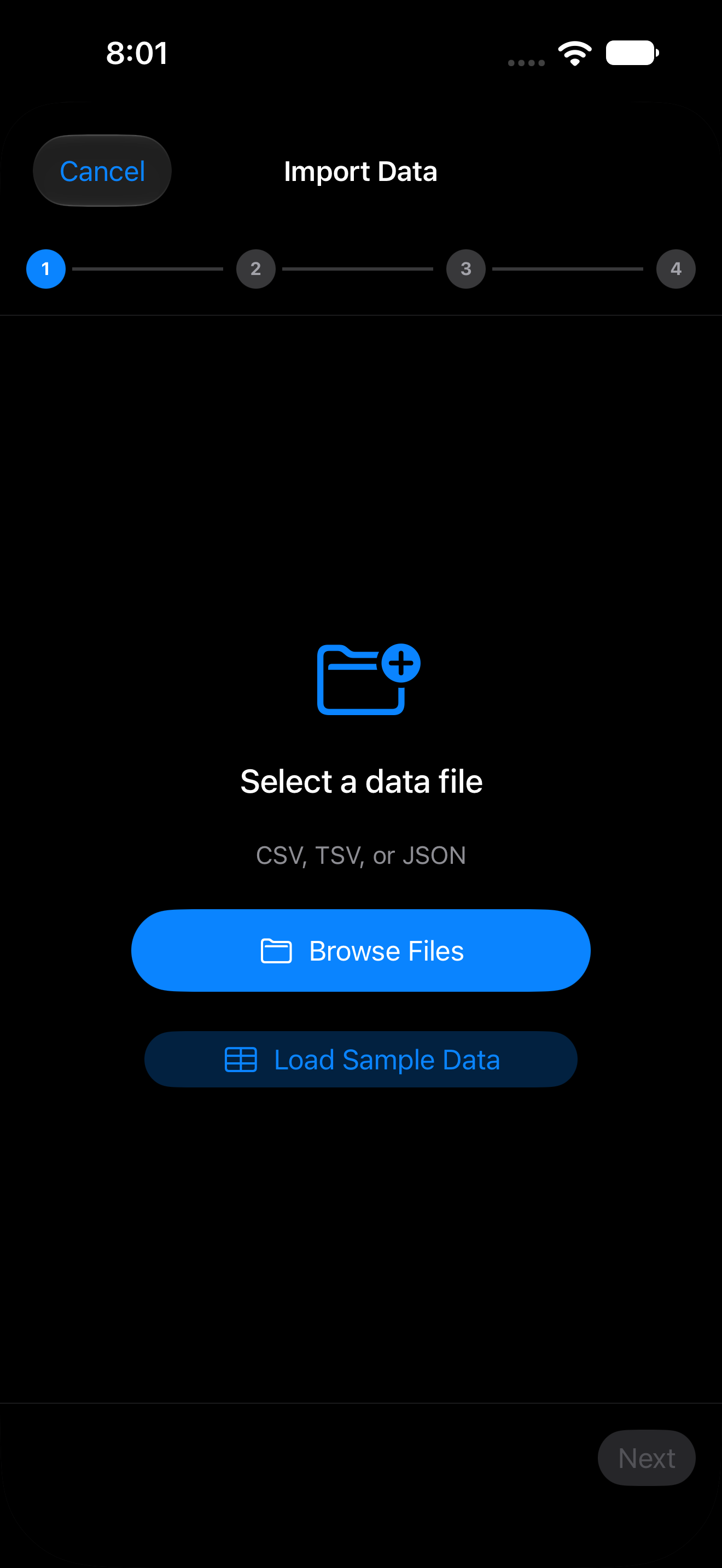
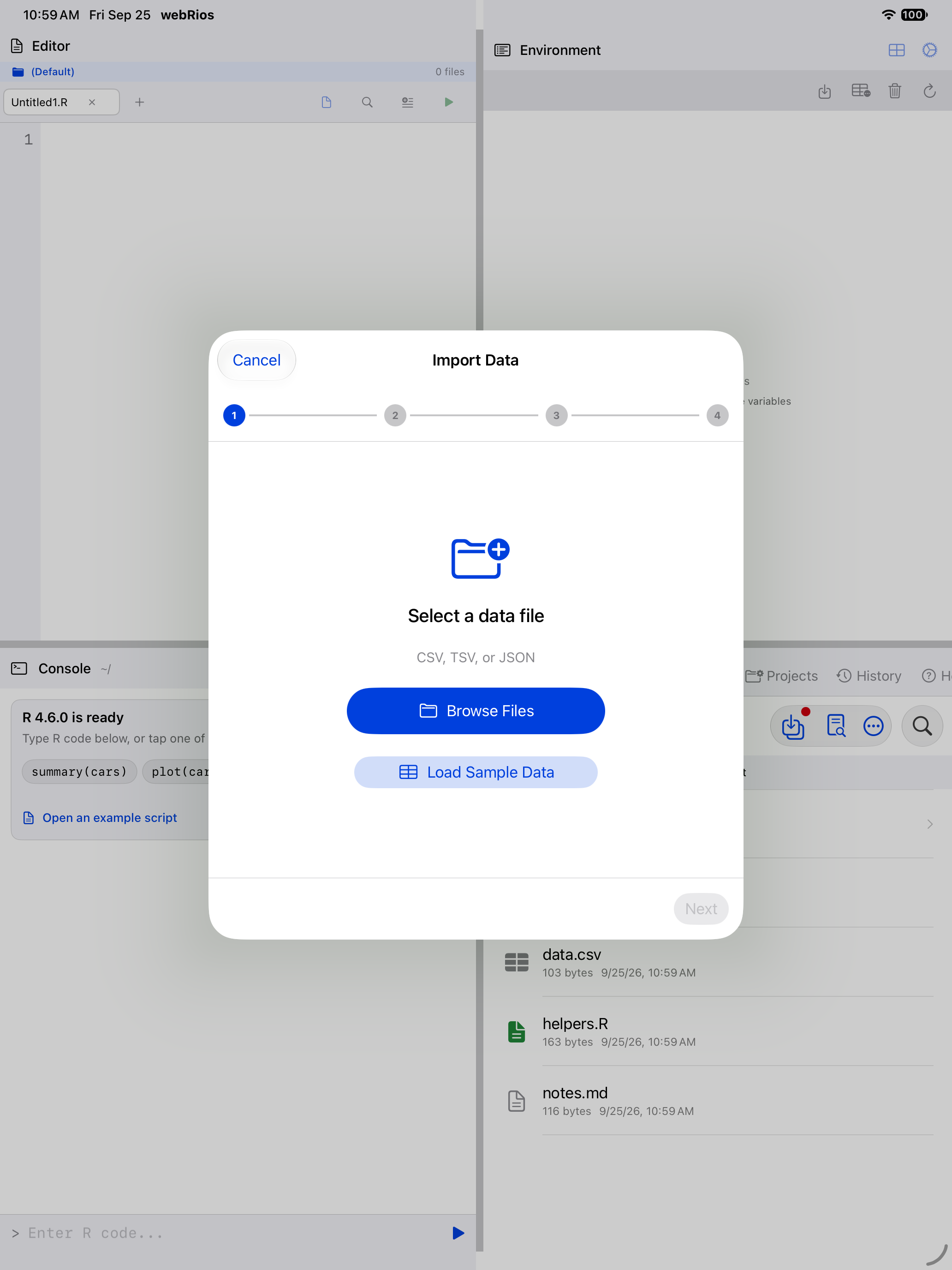
With a file loaded, the same step reports what it found:
Step 2: Configure parsing options
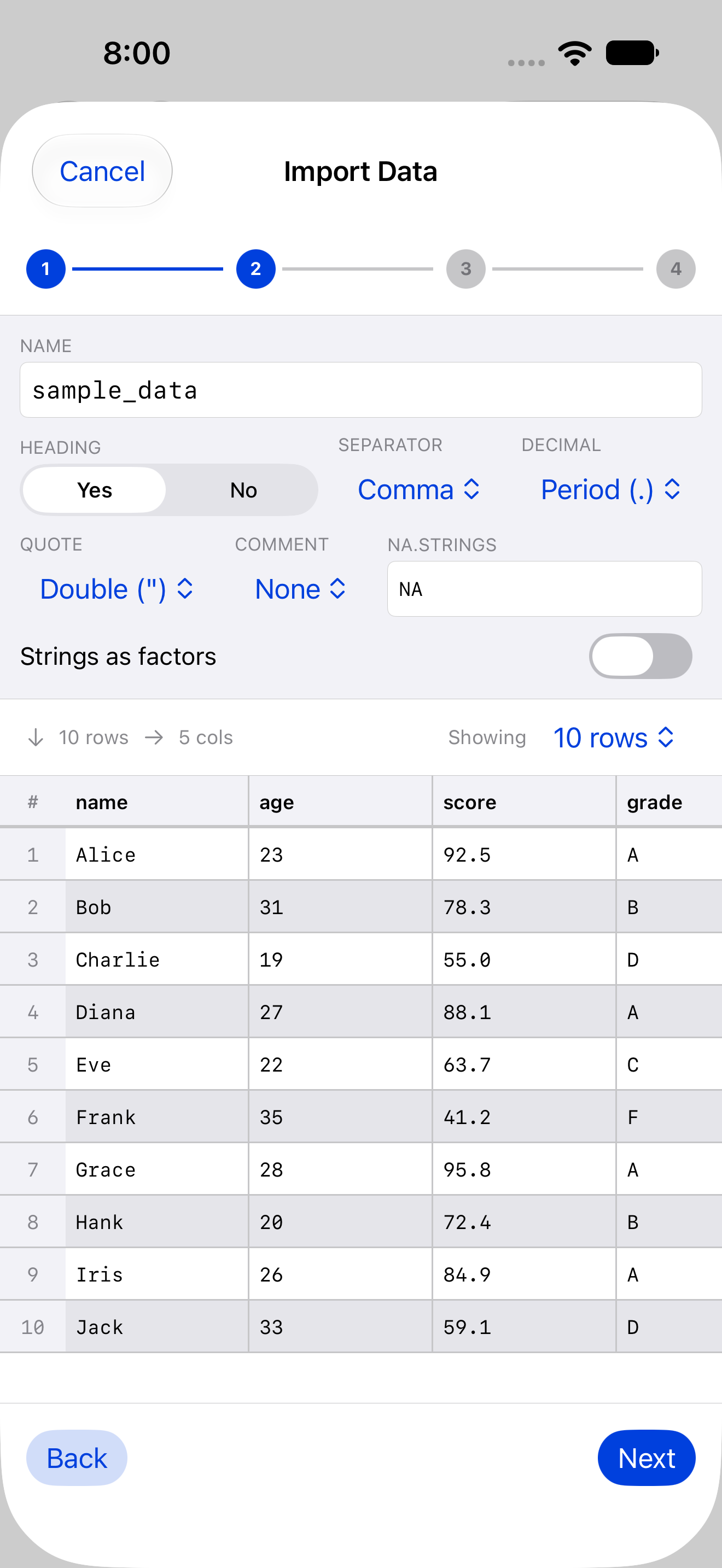
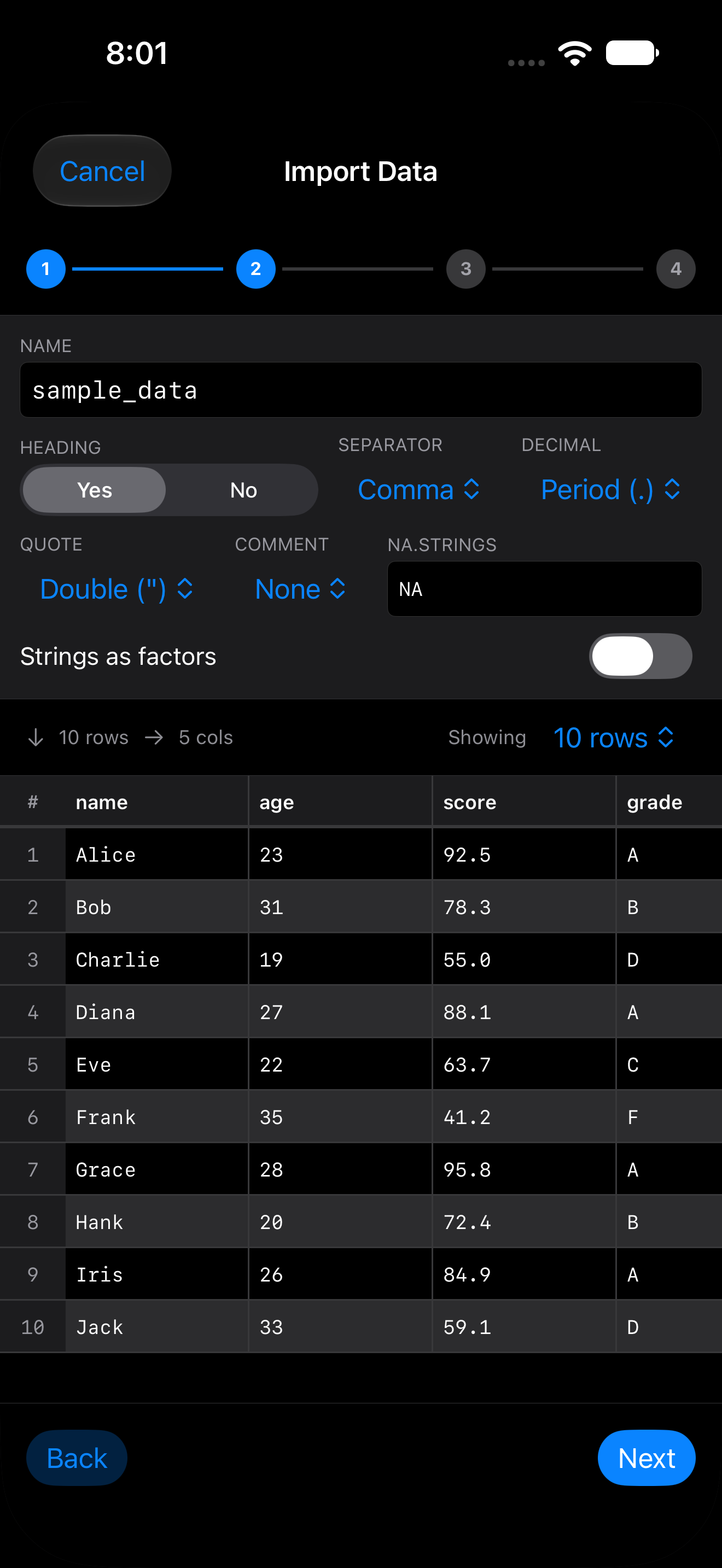
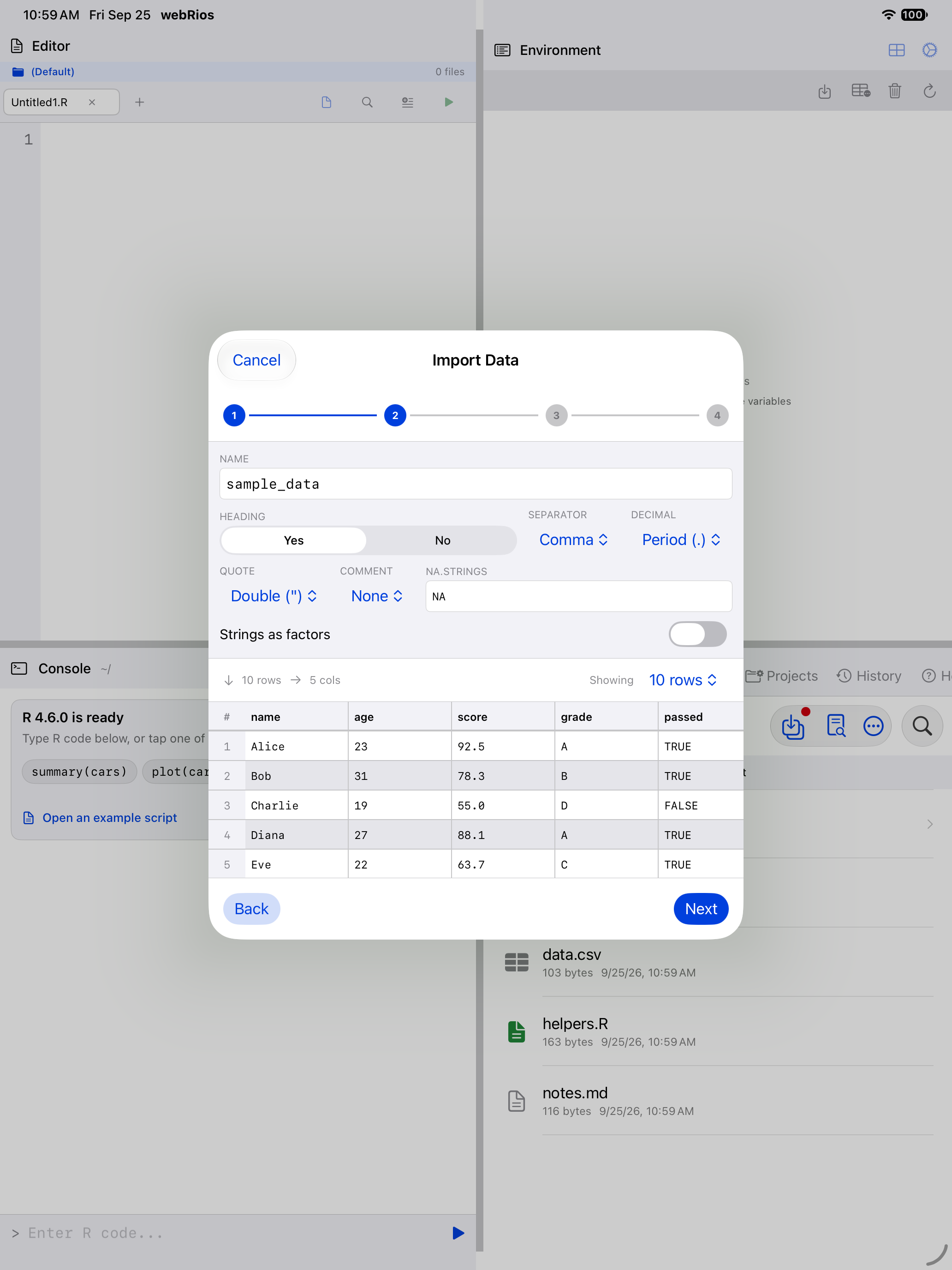
For CSV and TSV files, you can adjust how the data is parsed:
| Option | Choices | Description |
|---|---|---|
| Name | (text field) | The R variable name for the imported data. Must be a valid R identifier; if it isn’t, a note under the field explains the rule and Next stays disabled. |
| Heading | Yes / No | Whether the first row contains column names. |
| Separator | Comma, Semicolon, Tab, Pipe | The delimiter between fields. |
| Decimal Mark | Period, Comma | How decimal numbers are written (varies by locale). |
| Quote Character | Double, Single, None | Character used to quote text fields. |
| Comment Character | None, #, %, ! |
Lines starting with this character are skipped. |
| na.strings | (text field) | Text that should be treated as NA. |
| Strings as factors | On / Off | Whether text columns become factors instead of character vectors. |
A live data preview updates as you change settings, so you can confirm the parsing looks right before importing.
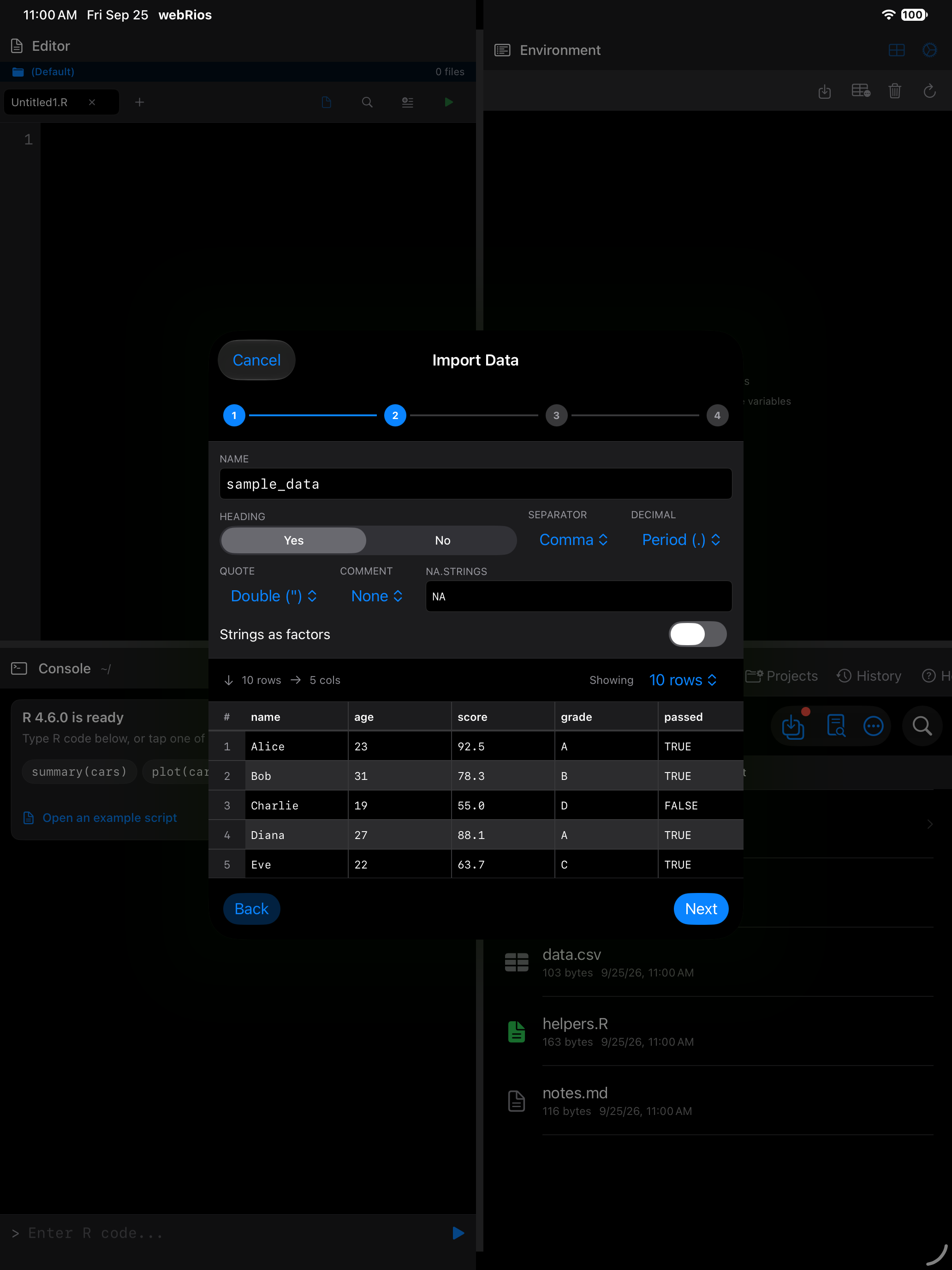
For JSON, only the variable name is configurable, and the file must hold an array of objects. JSON import uses jsonlite, which the wizard offers to install if needed. An empty array, [], imports as an empty list, and the Console says the file has no data.
The separator and decimal mark start from what the wizard detects, so a semicolon-separated file with decimal commas imports unchanged. Files in other encodings, such as a CSV saved by Excel on Windows, reach R as UTF-8.
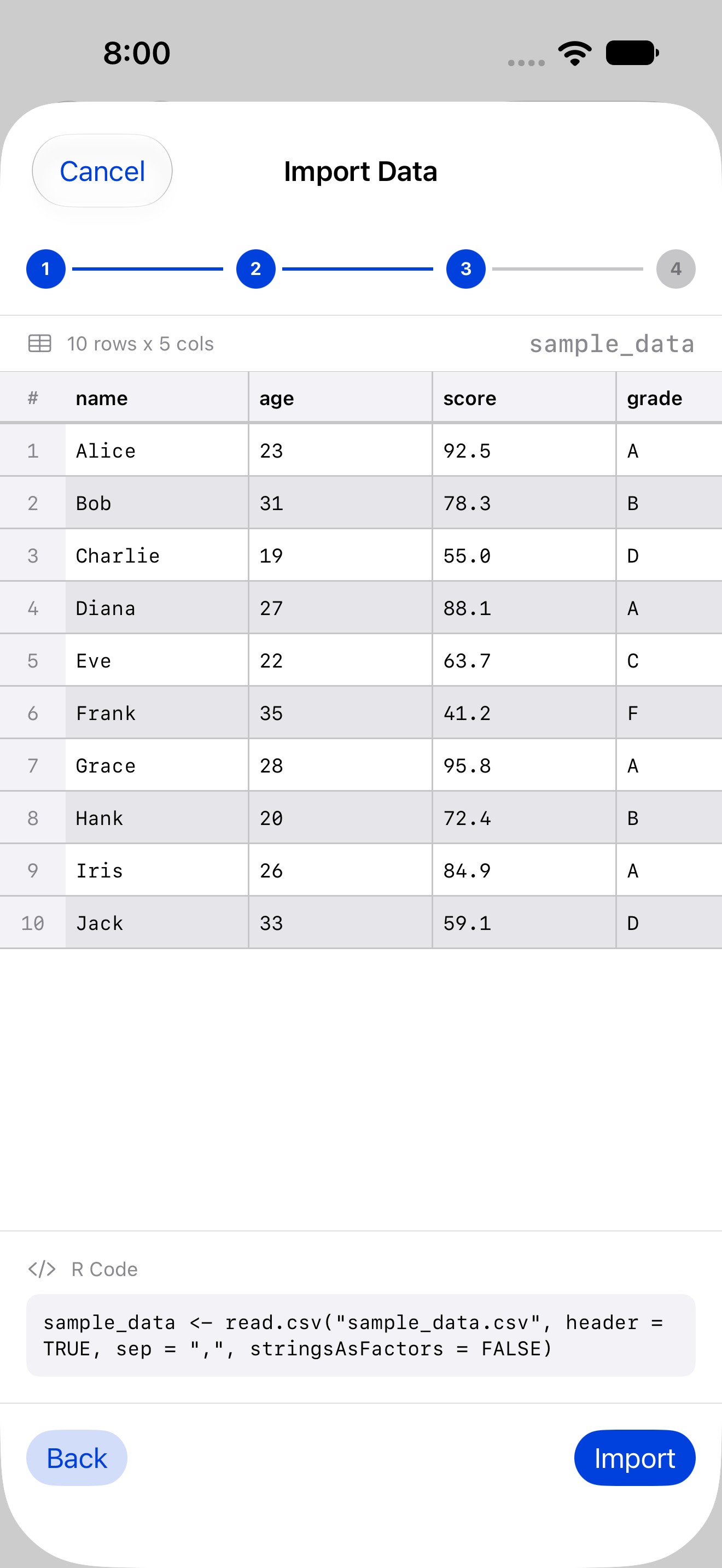
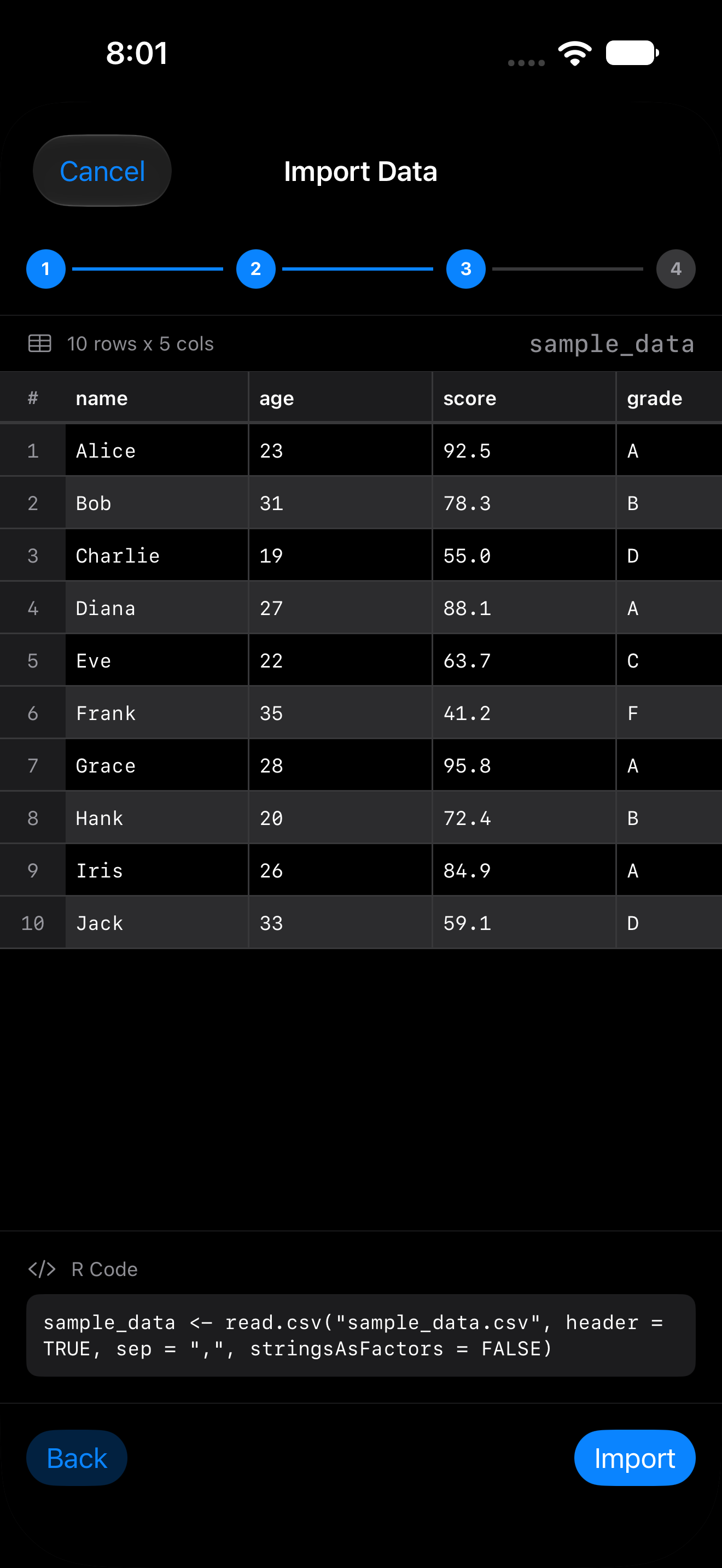
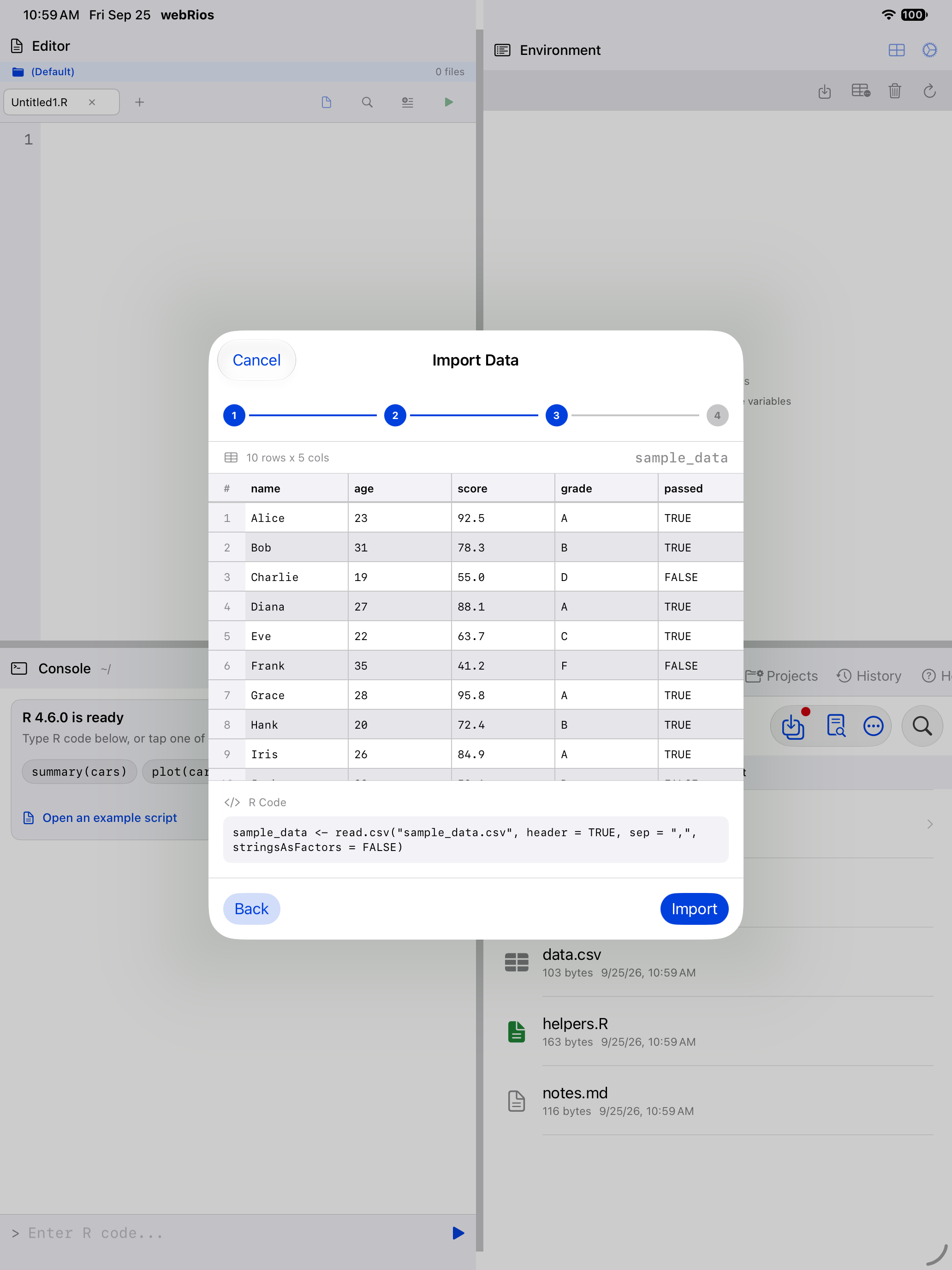
Step 3: Review
See the final data preview along with the exact read.csv() or fromJSON() R code that will be executed. The generated code is displayed in a monospaced box and is copyable if you want to use it in your own scripts.
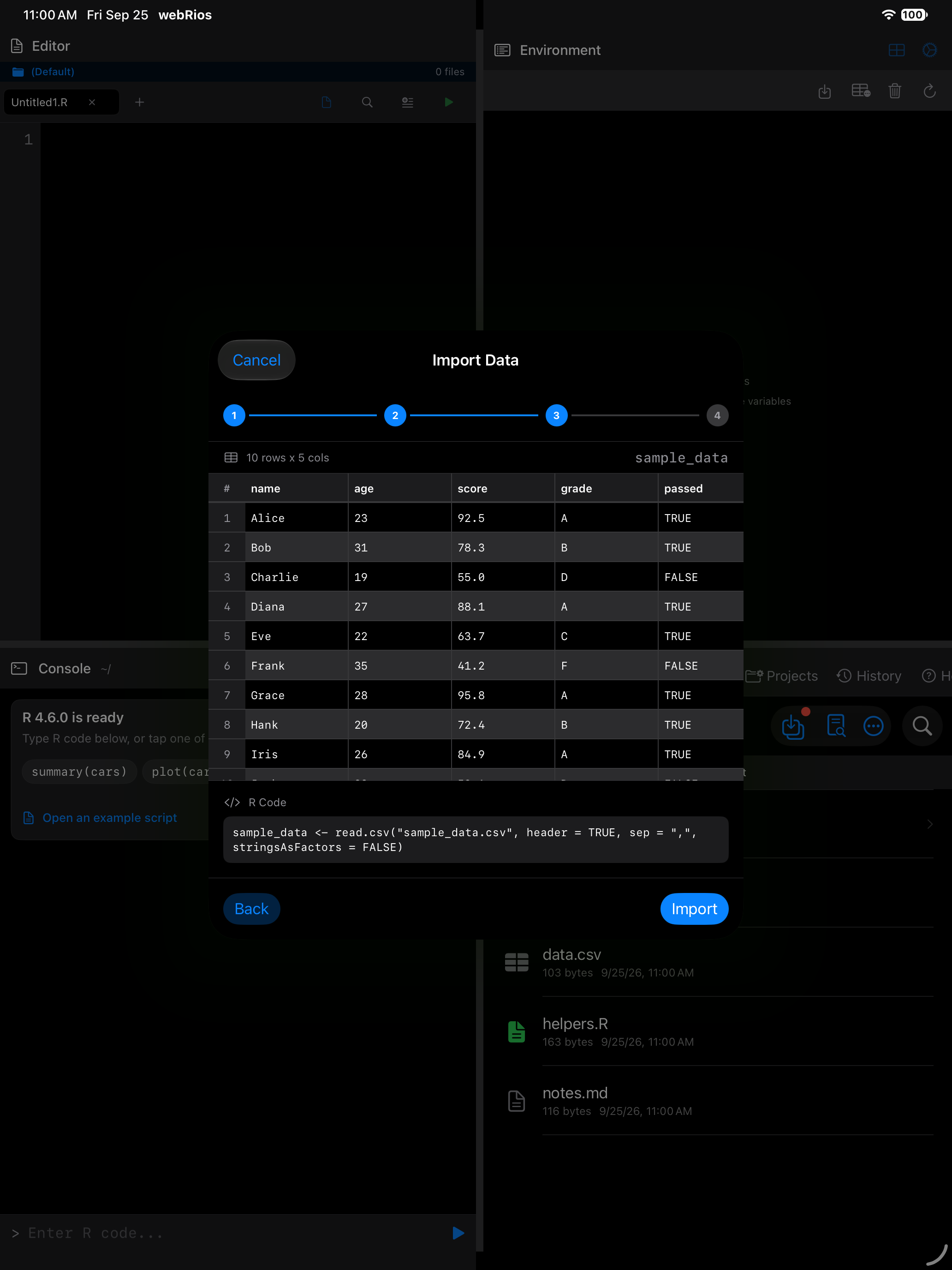
Step 4: Import
Import runs the generated code. On success, View Data opens the result in the Data Frame Viewer. If it fails, Back returns to Review with every option as you left it.
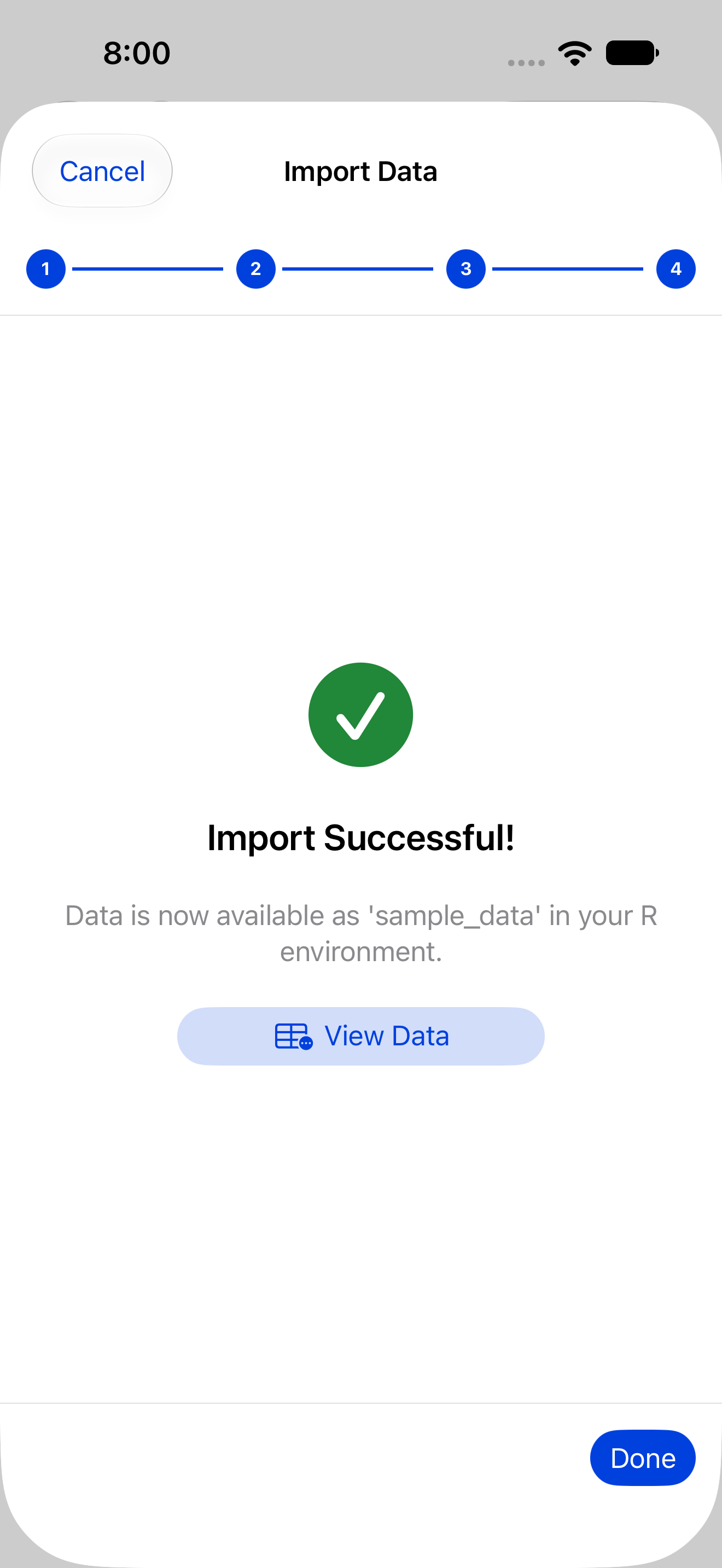
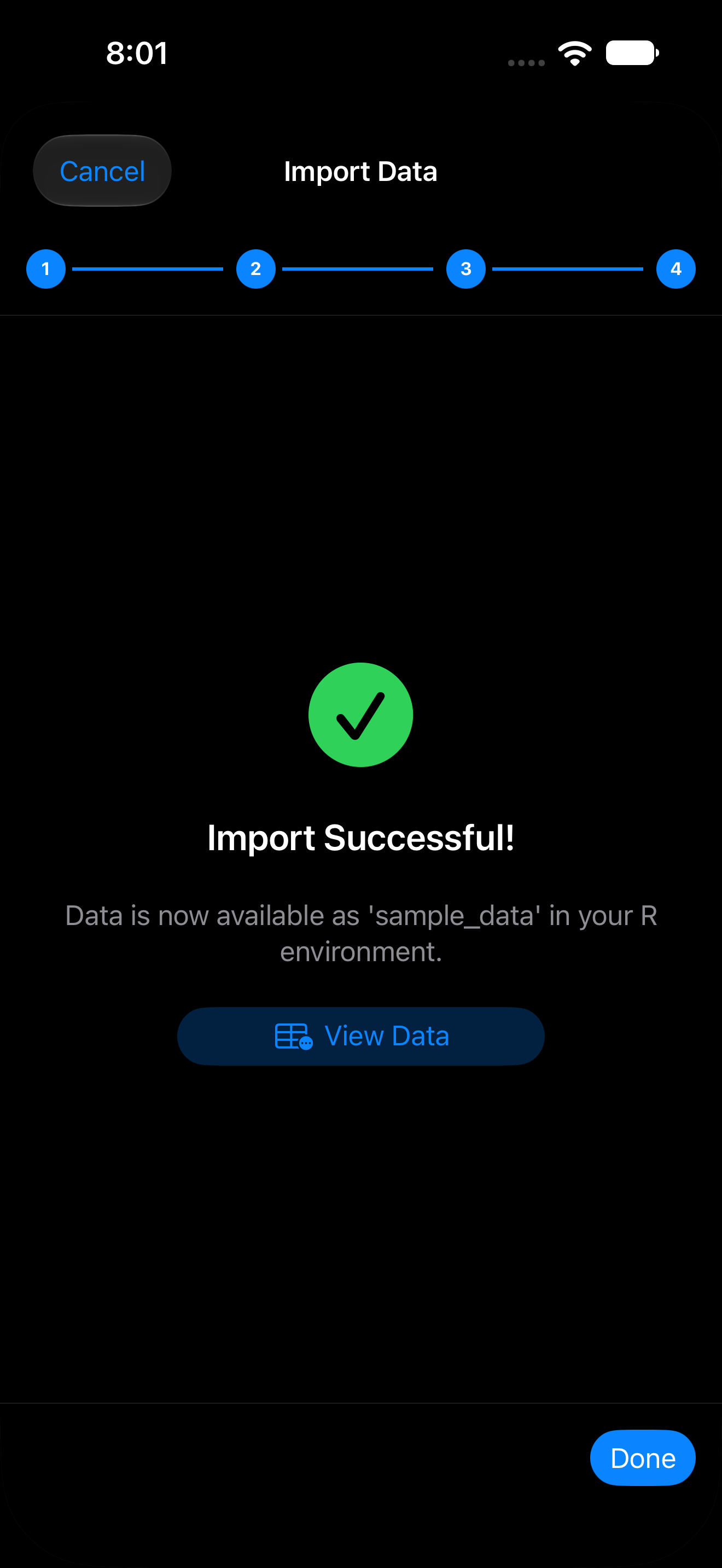
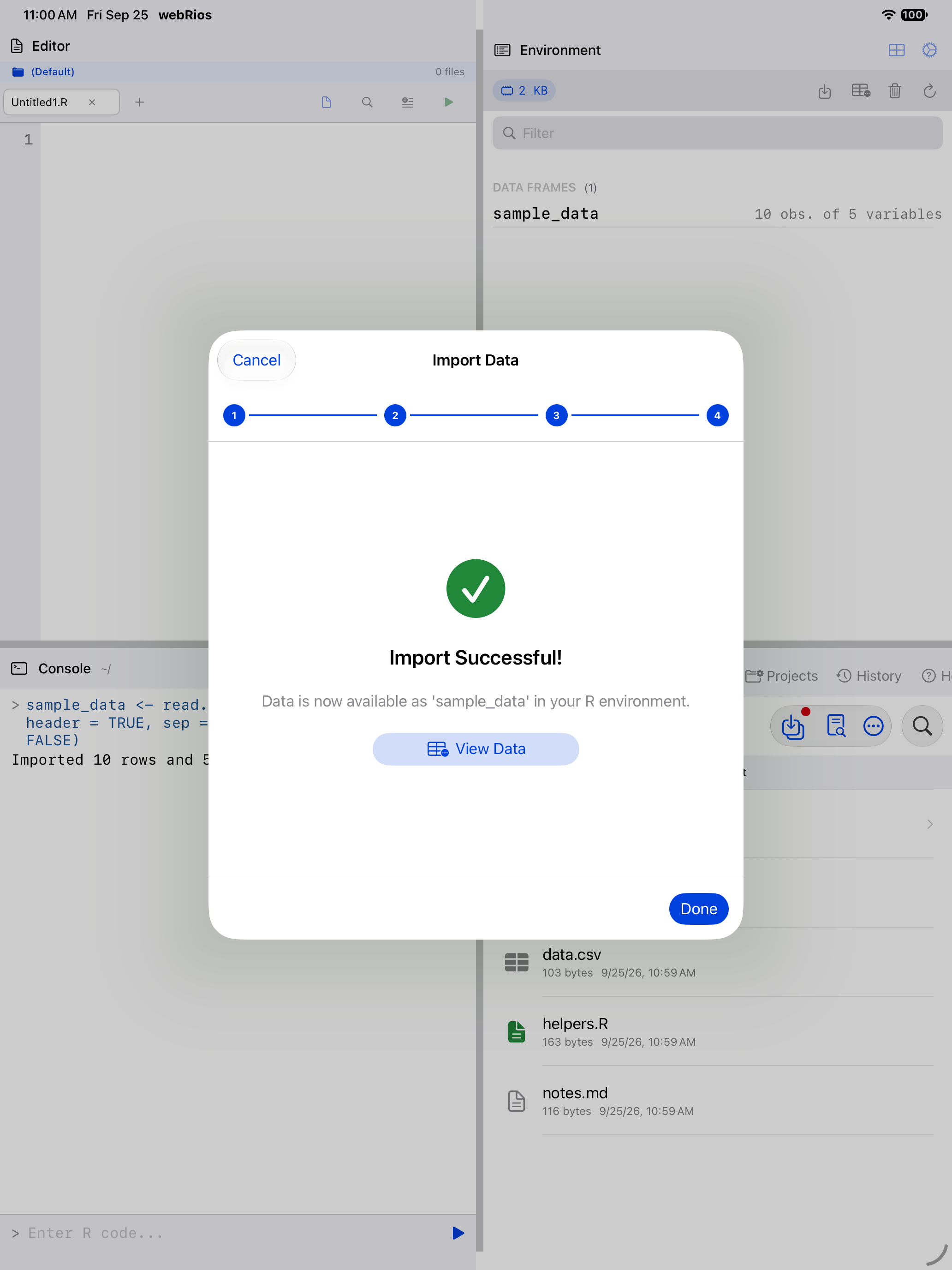
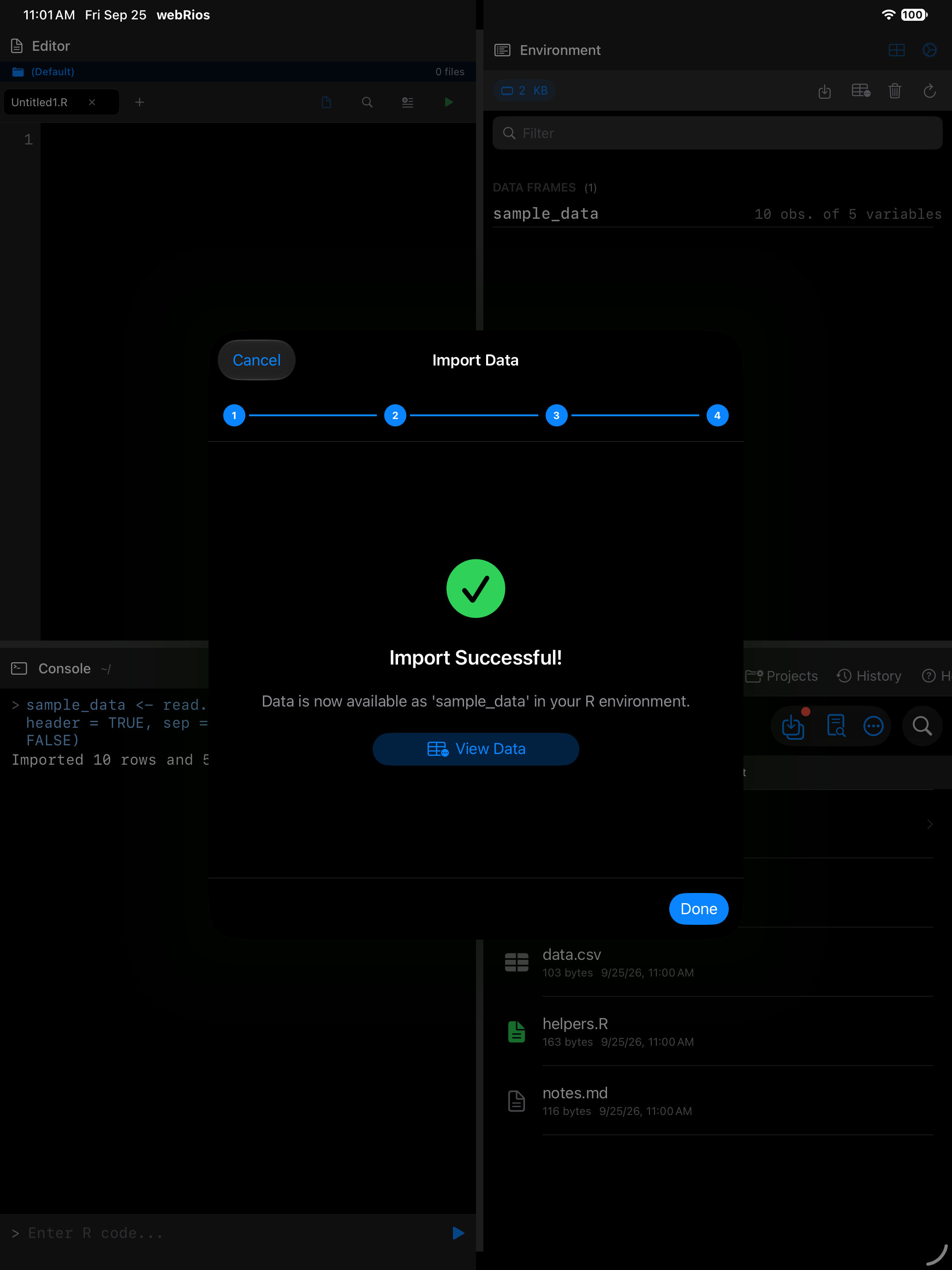
The wizard generates standard R code. For more control (e.g., read.csv2() or readr functions), import manually from the Console.
Editing text files
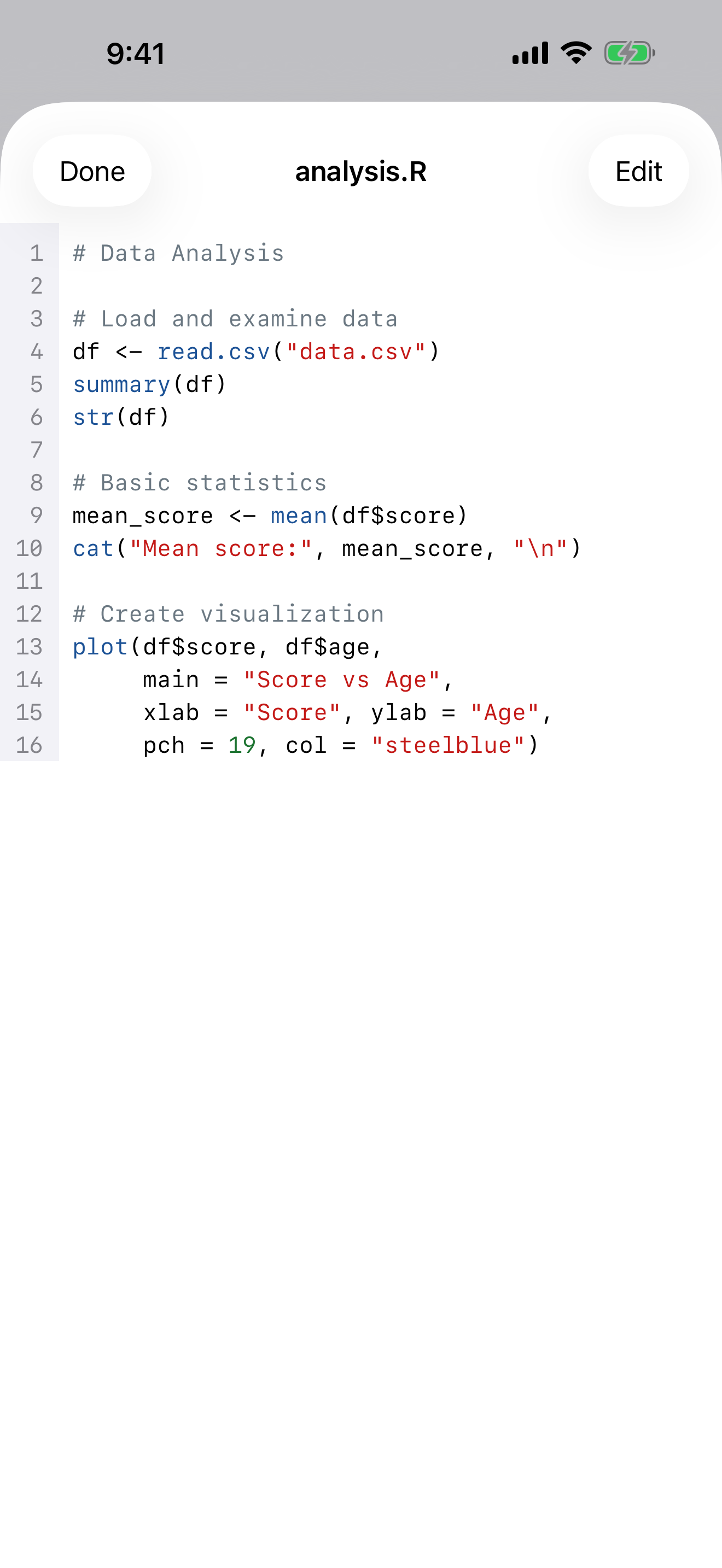
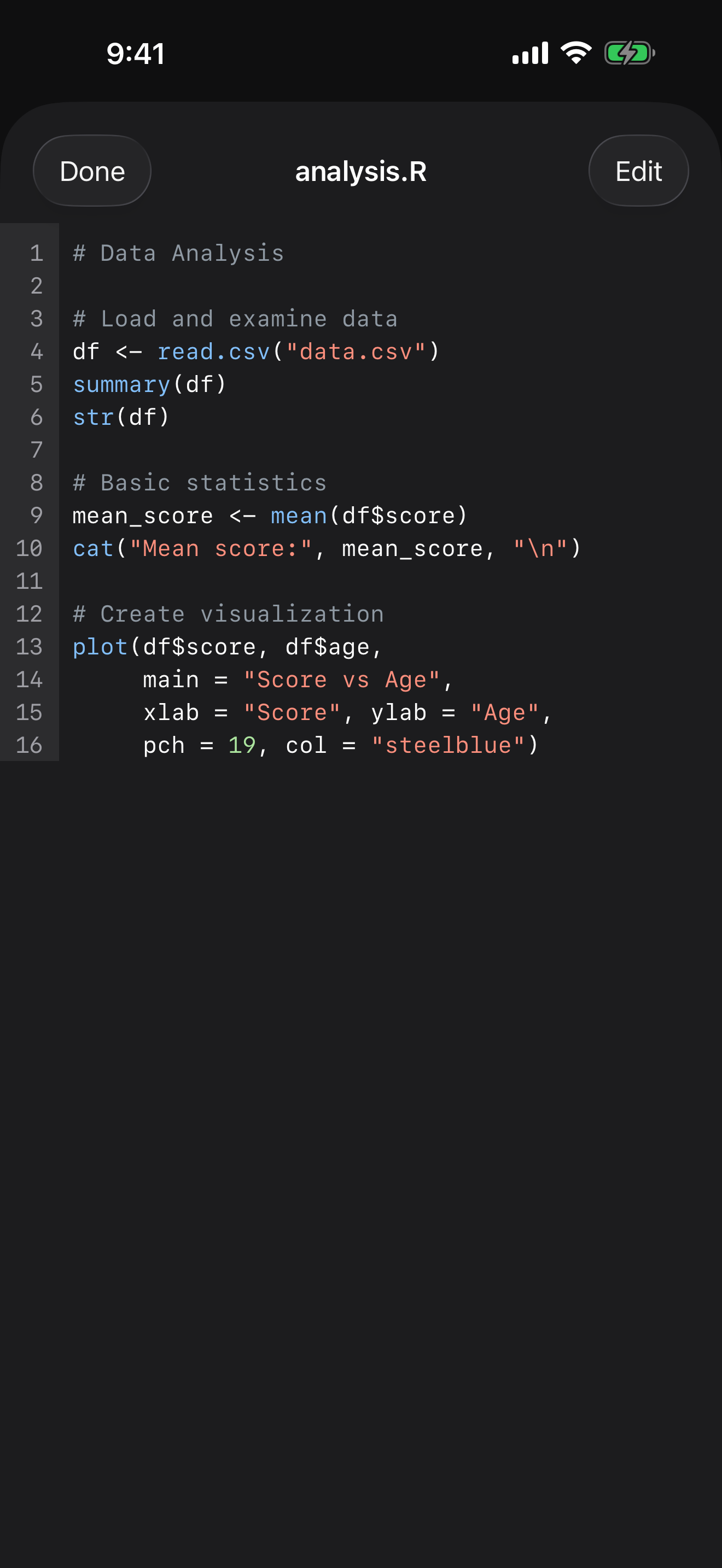
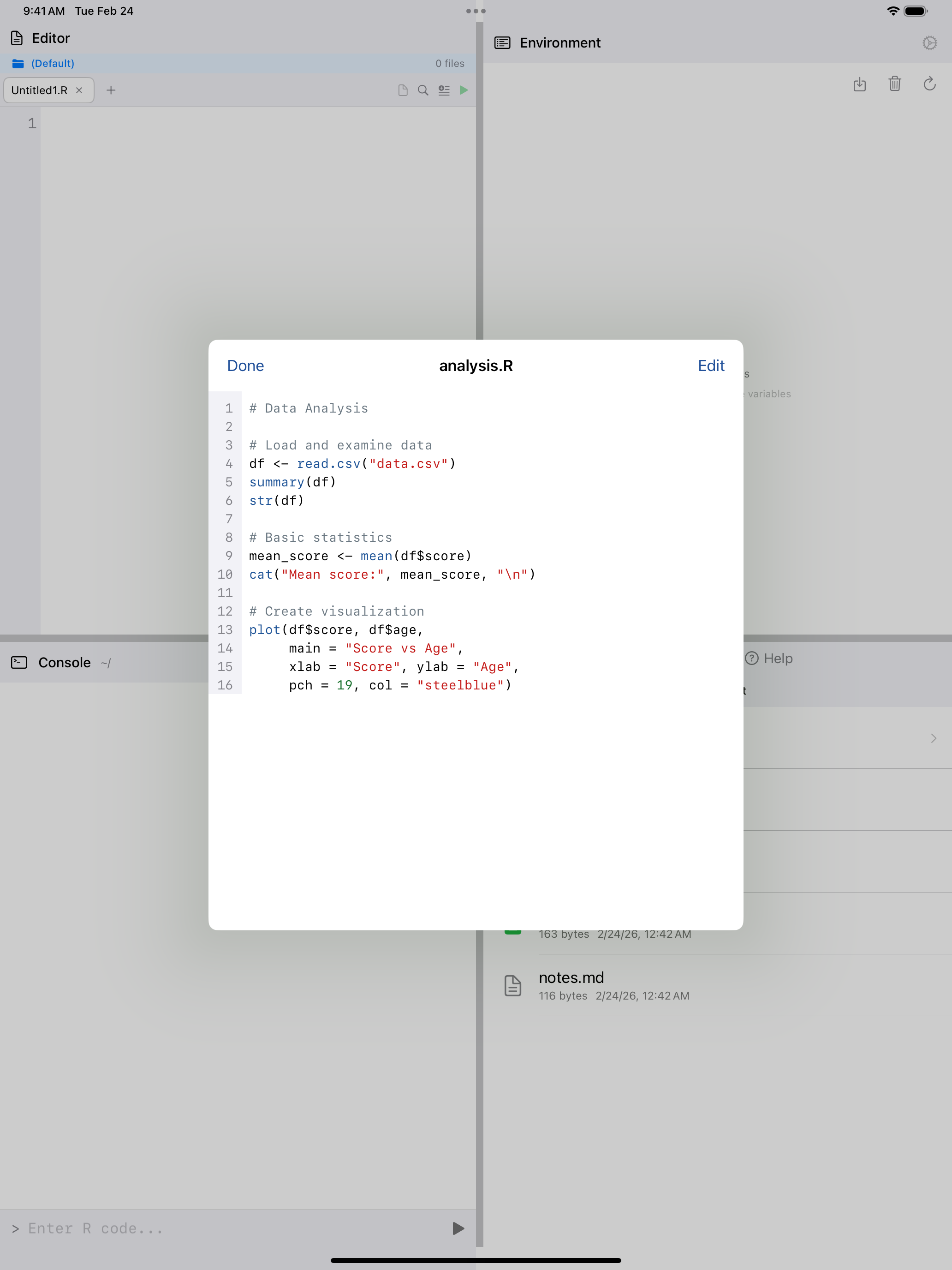
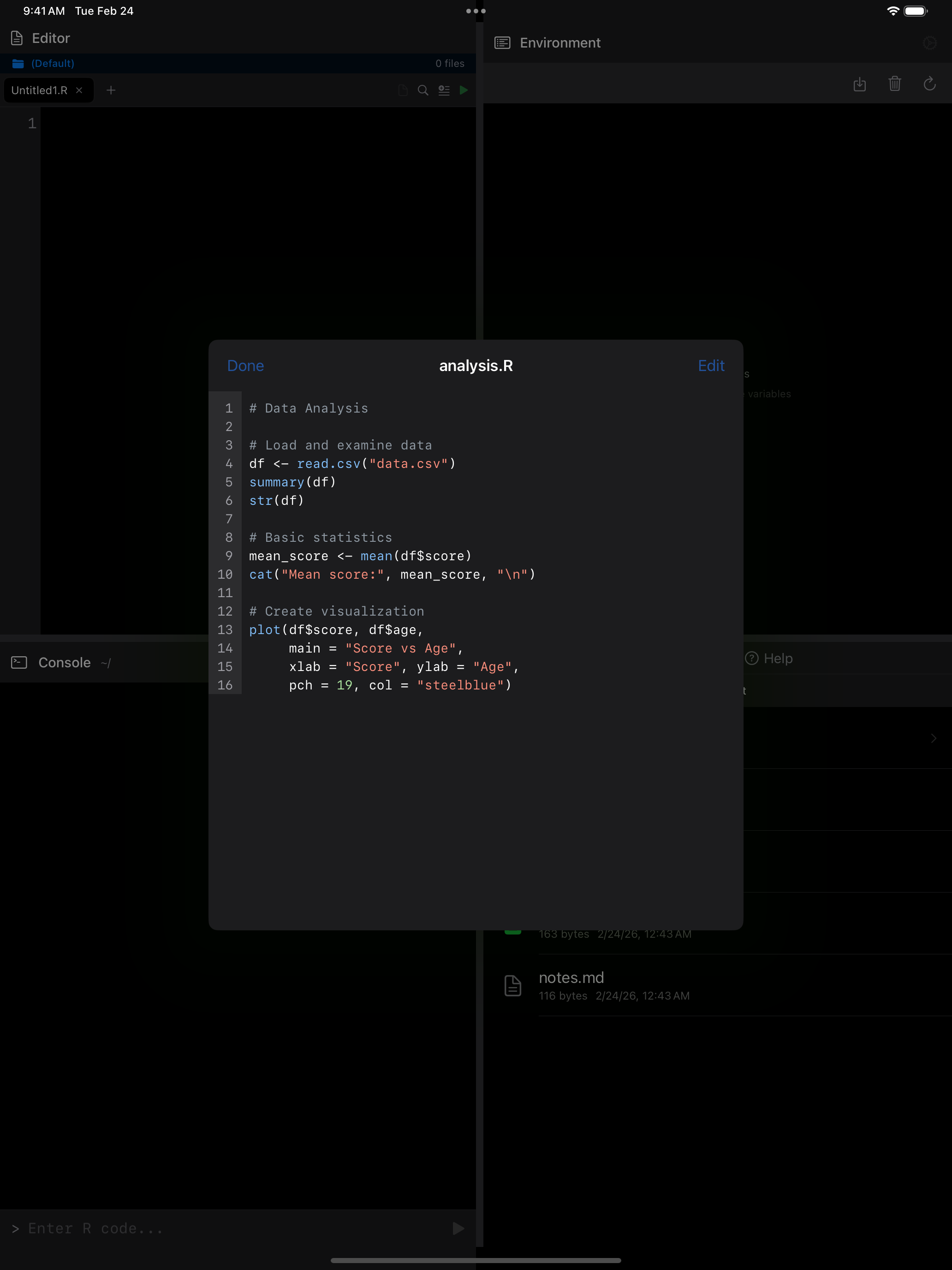
Tap any text-based file (.R, .txt, .csv, .json, .md) to open it in a viewer with line numbers and syntax highlighting for R files.
Tap Edit to edit, then Save, or Cancel, which asks first if you changed anything. If a save fails, your edits stay and an alert says why.
Files keep their text encoding. A file that isn’t UTF-8, such as a CSV saved by Excel on Windows, opens correctly with a note naming its encoding, and saves back the same way. Type a character the encoding can’t hold and you are offered Save as UTF-8.
Large CSV and text files open without freezing the app, showing the first 500 rows and counting the rest.
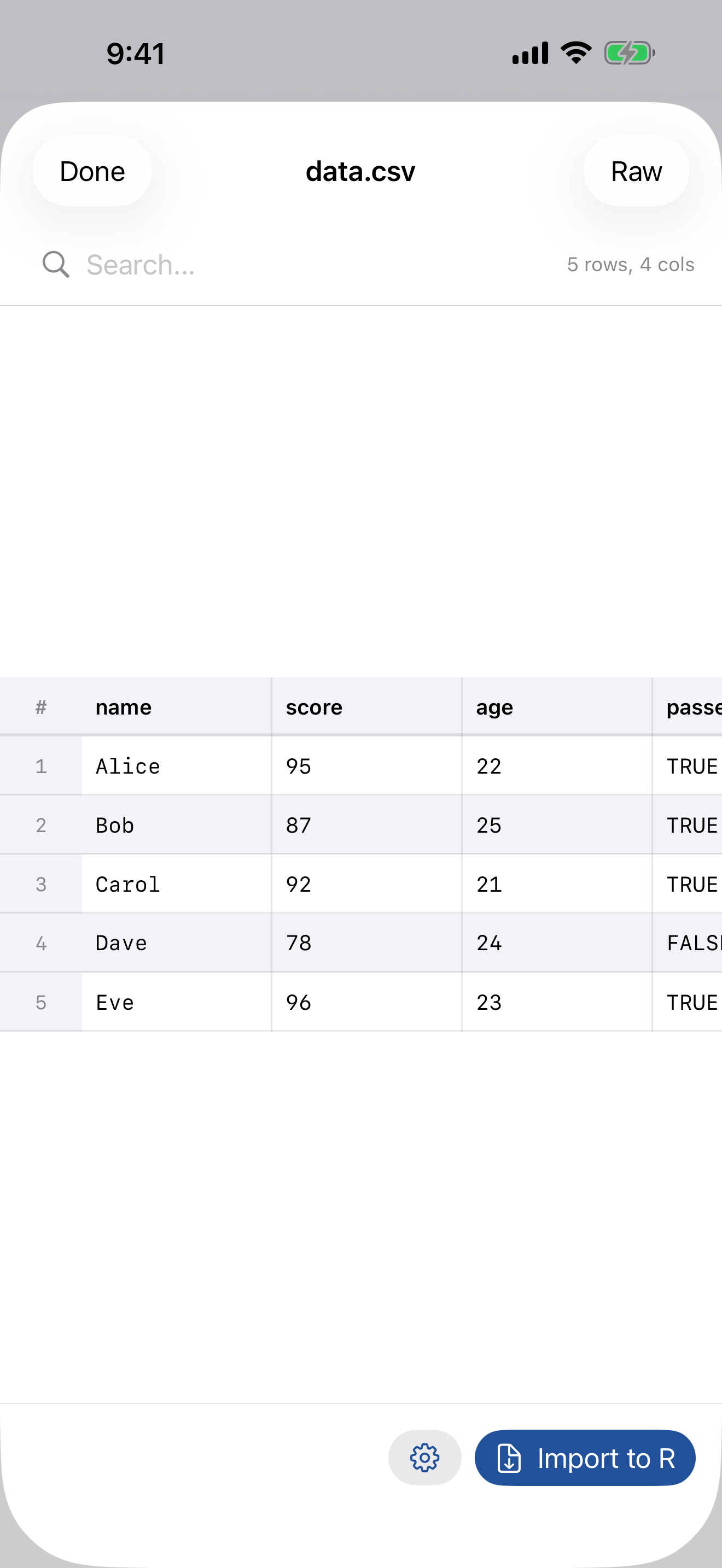
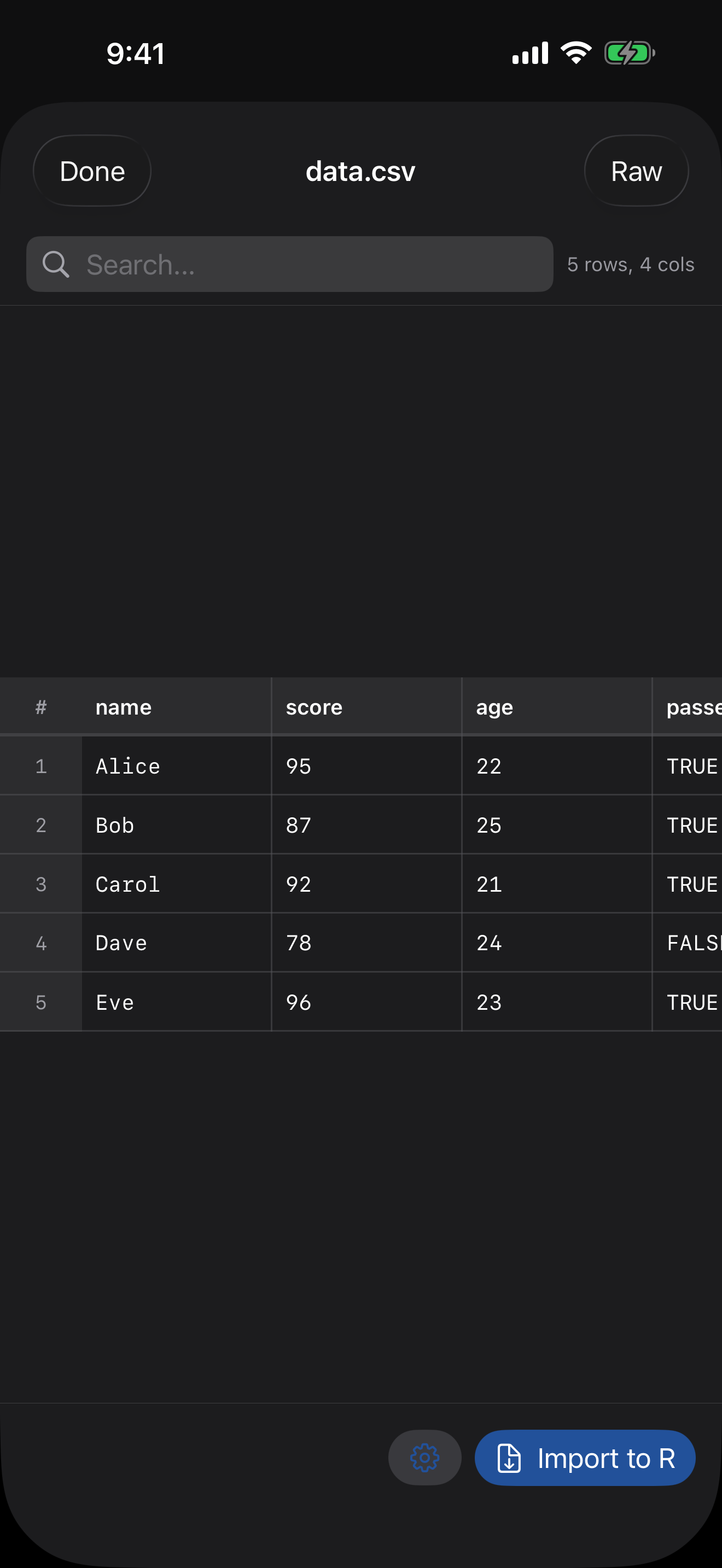
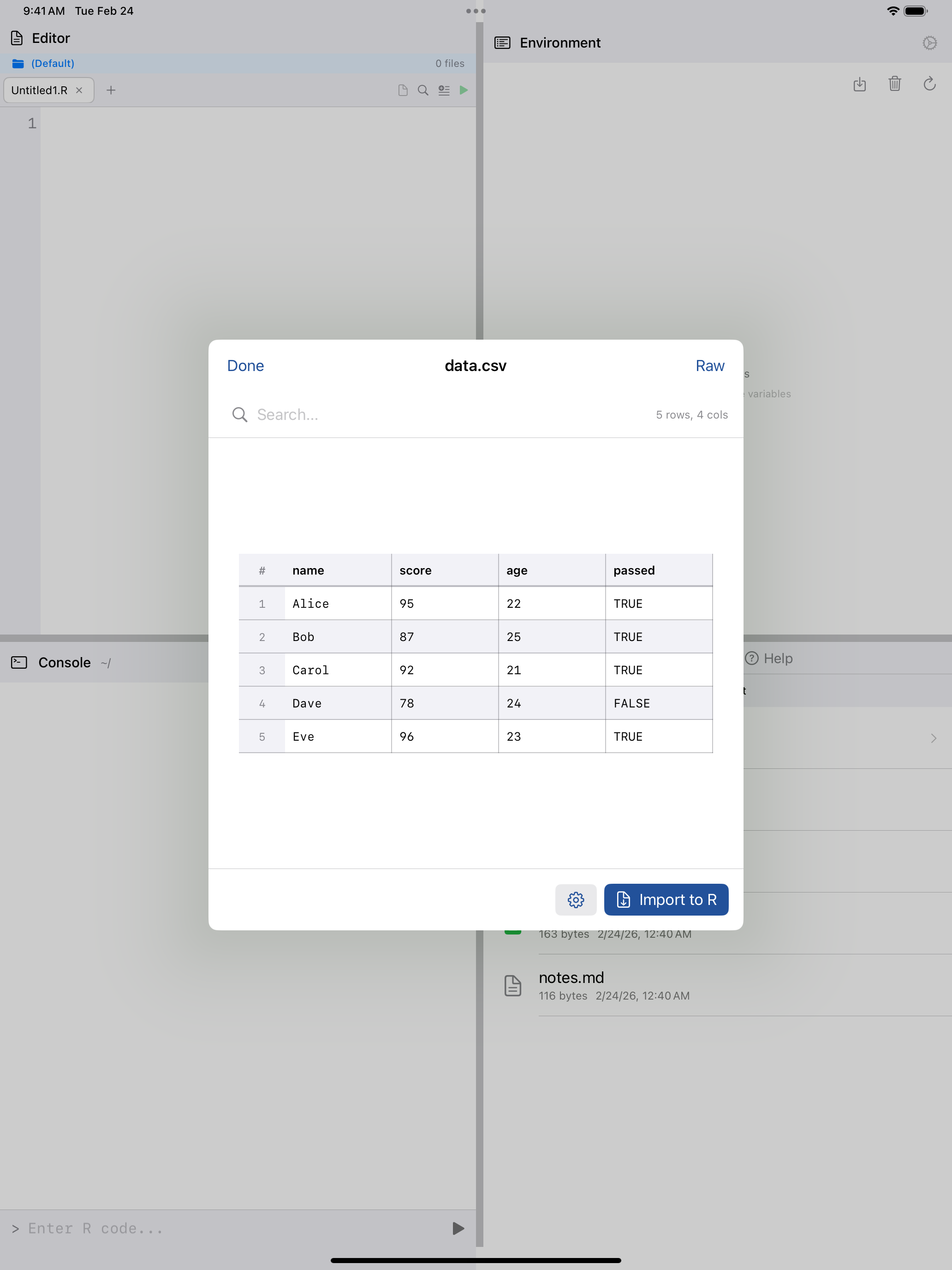
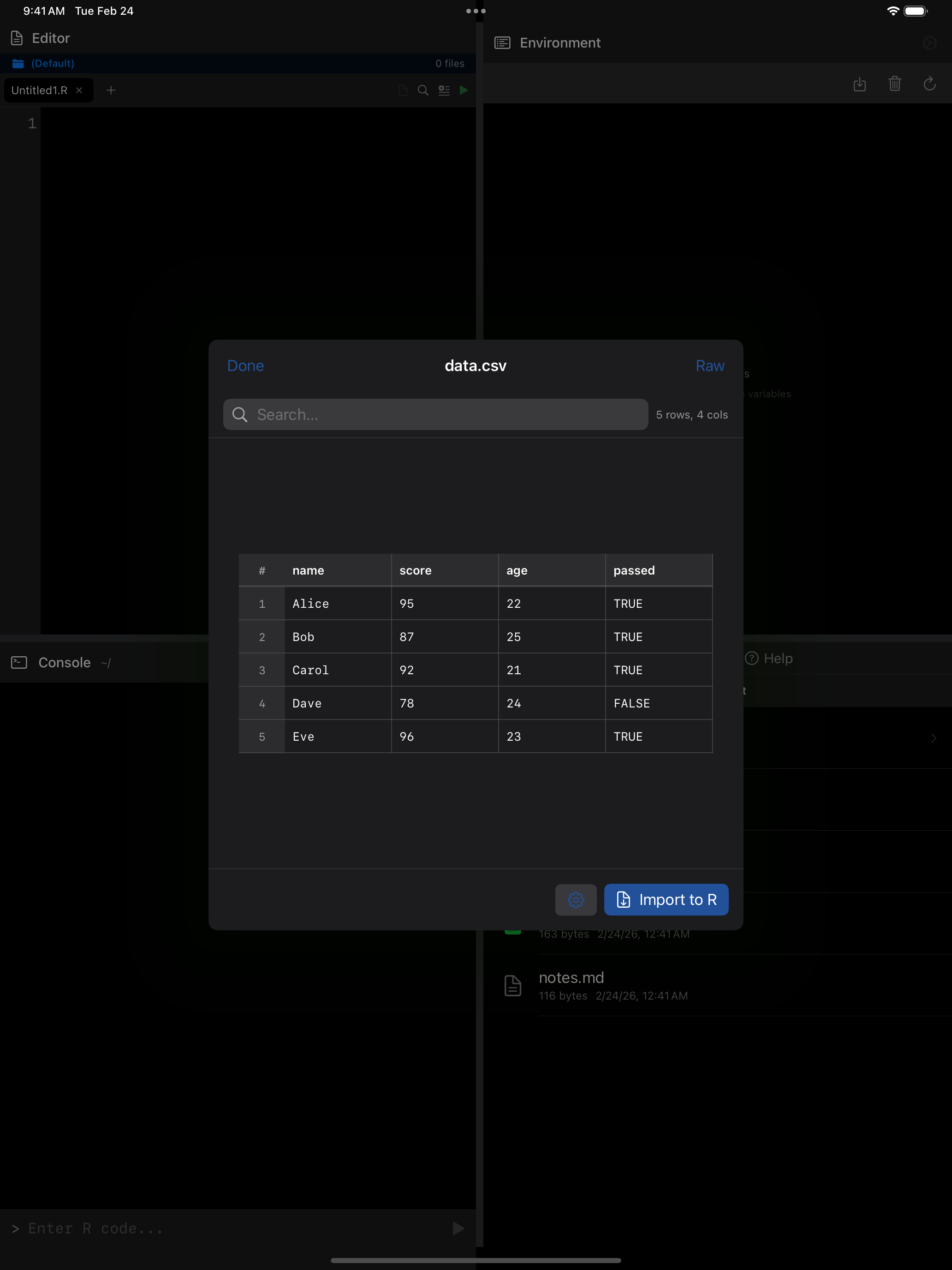
CSV files get special treatment: they open in a formatted table view by default, making it easy to scan rows and columns. You can switch to the raw text view using the Raw button, and toggle back with Table.
Image files (PNG, JPEG) open in a scrollable preview so you can view plots or graphics you have saved.
PDFs and other documents open in Quick Look. An .rds, .RData or .rda file asks whether to load it into R: an .rds becomes one variable named after the file, and an .RData adds all its objects to R’s workspace, replacing any of the same name. Files says when it can’t show a file.
Renaming and deleting
Manage files with swipe gestures:
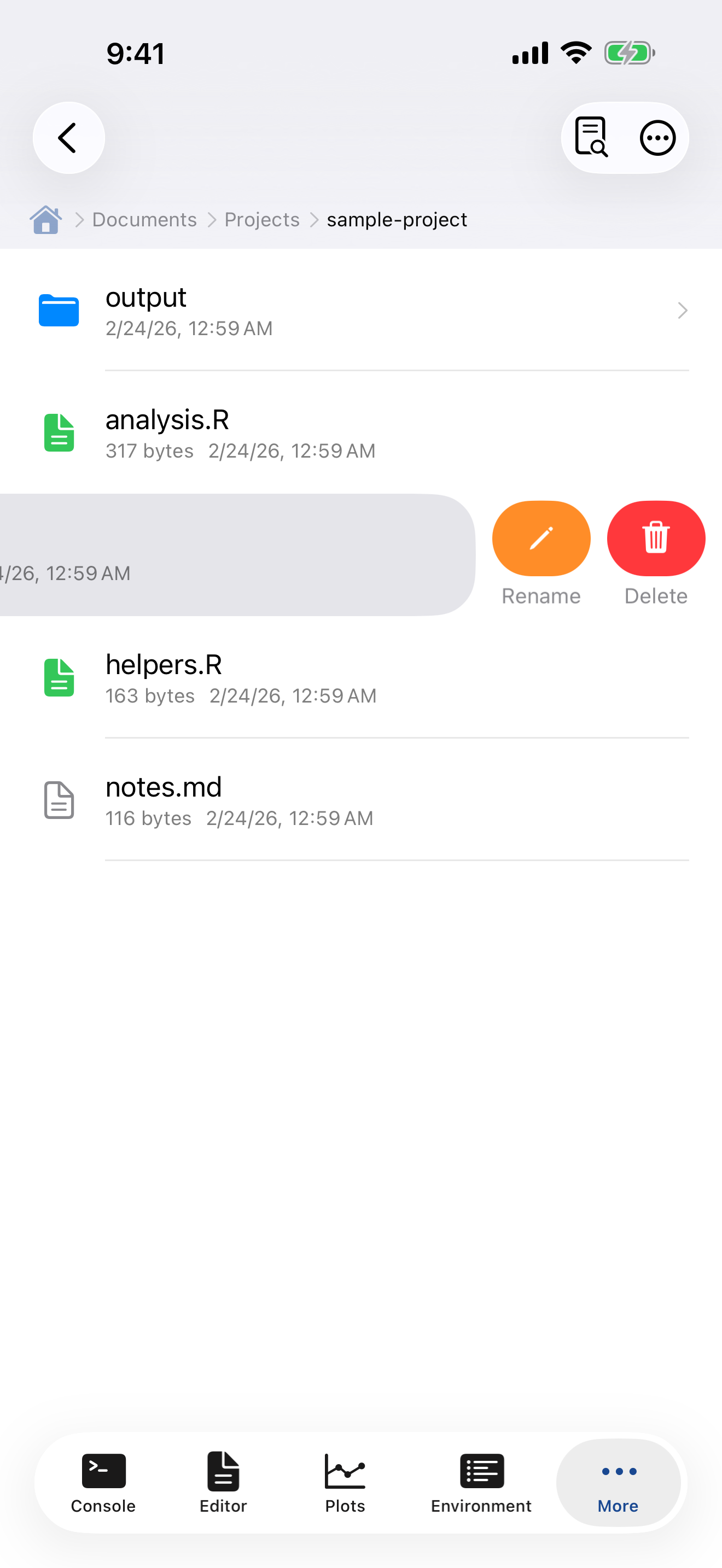
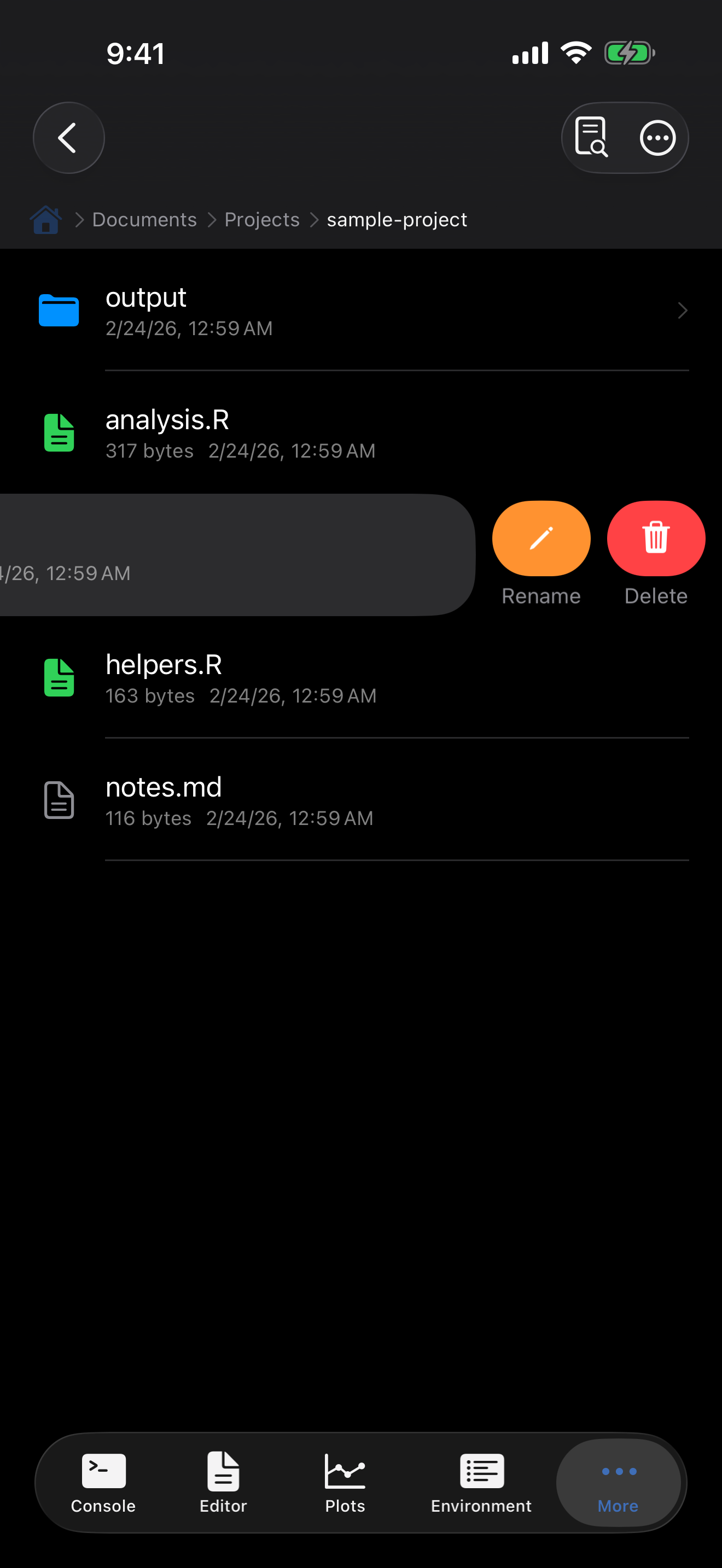
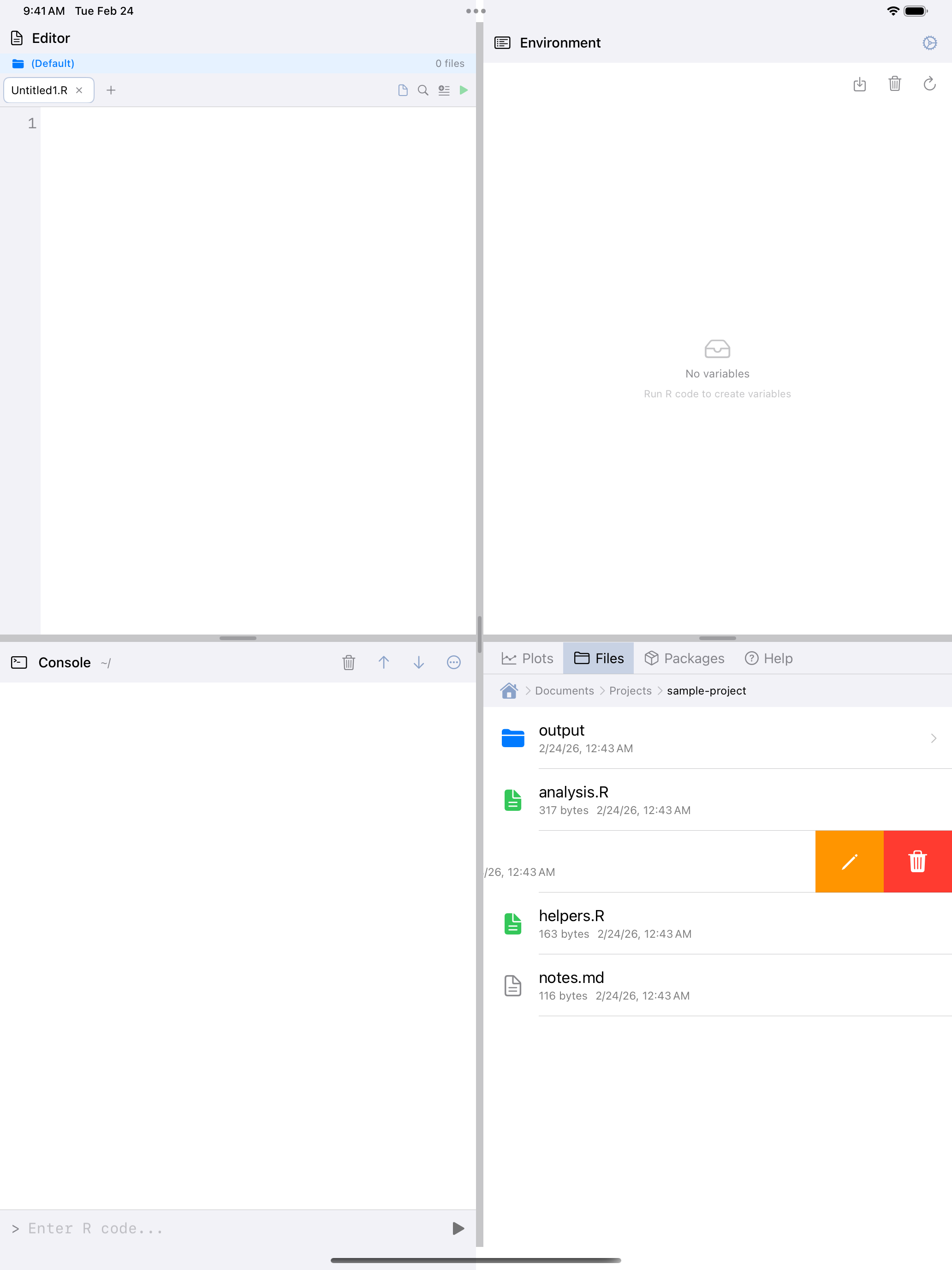
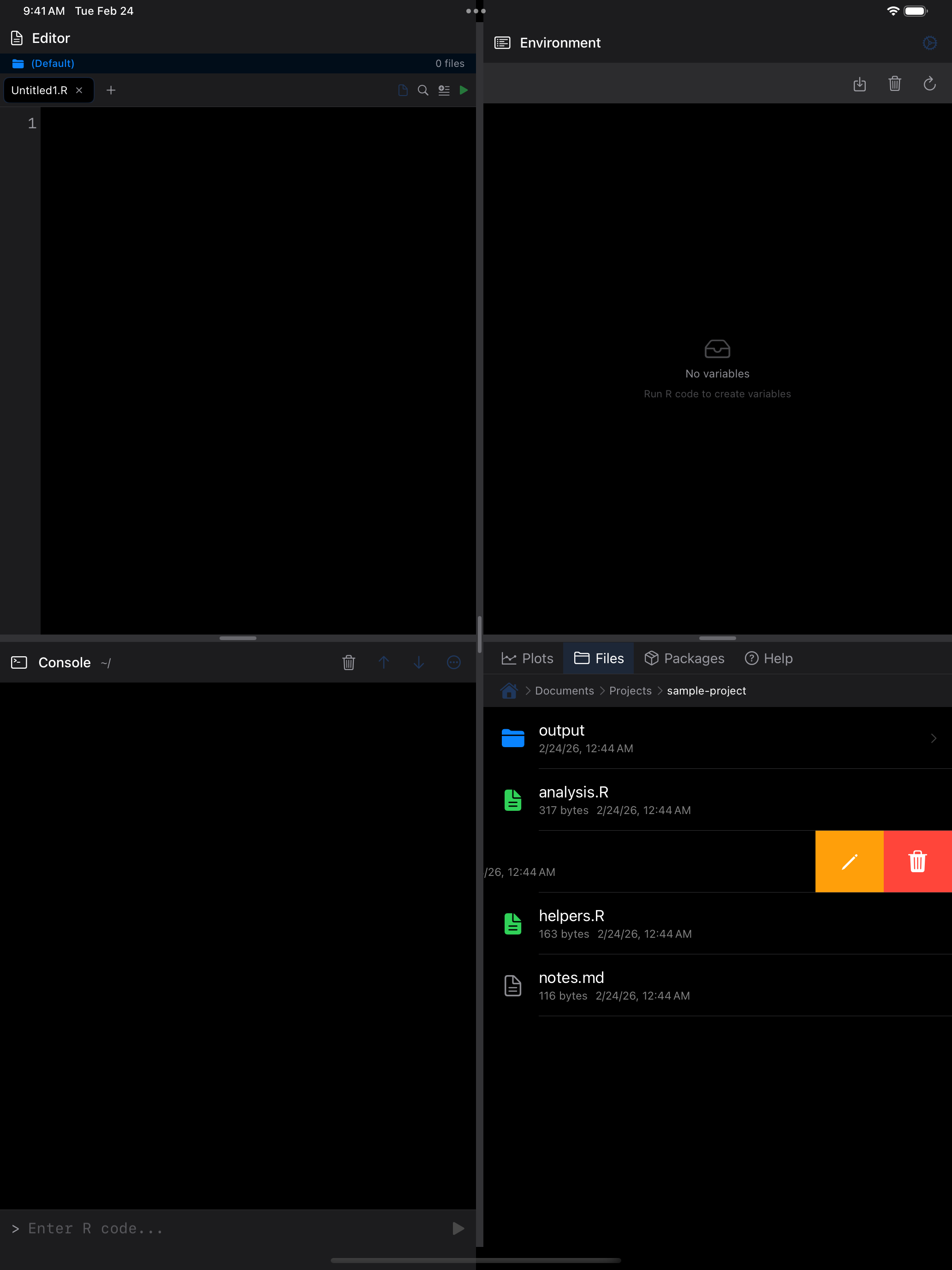
- Swipe left on a file or folder to see the Delete (red) and Rename (orange) buttons.
- Long-press a file for a context menu with the same options, plus Open in Editor, Import into R… for data files, Load into R for
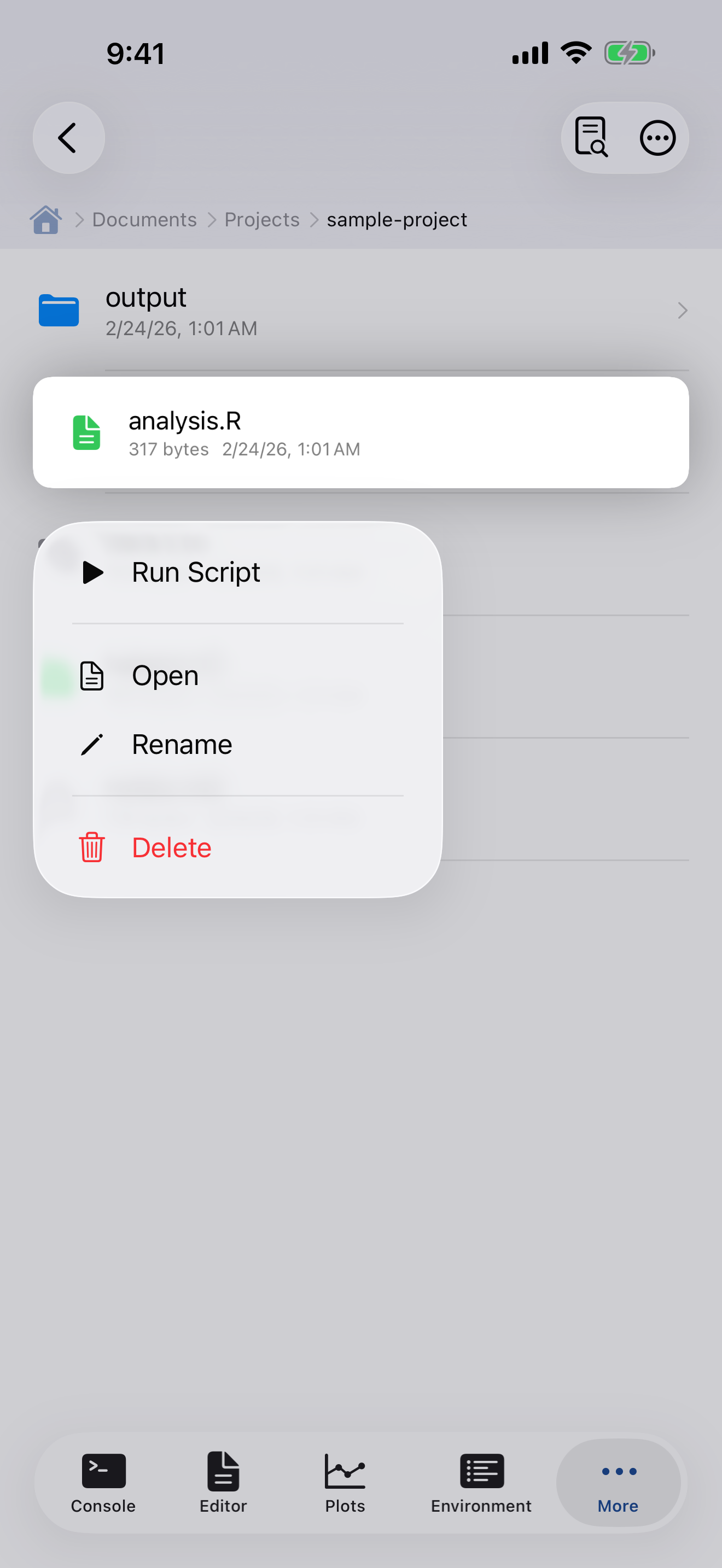
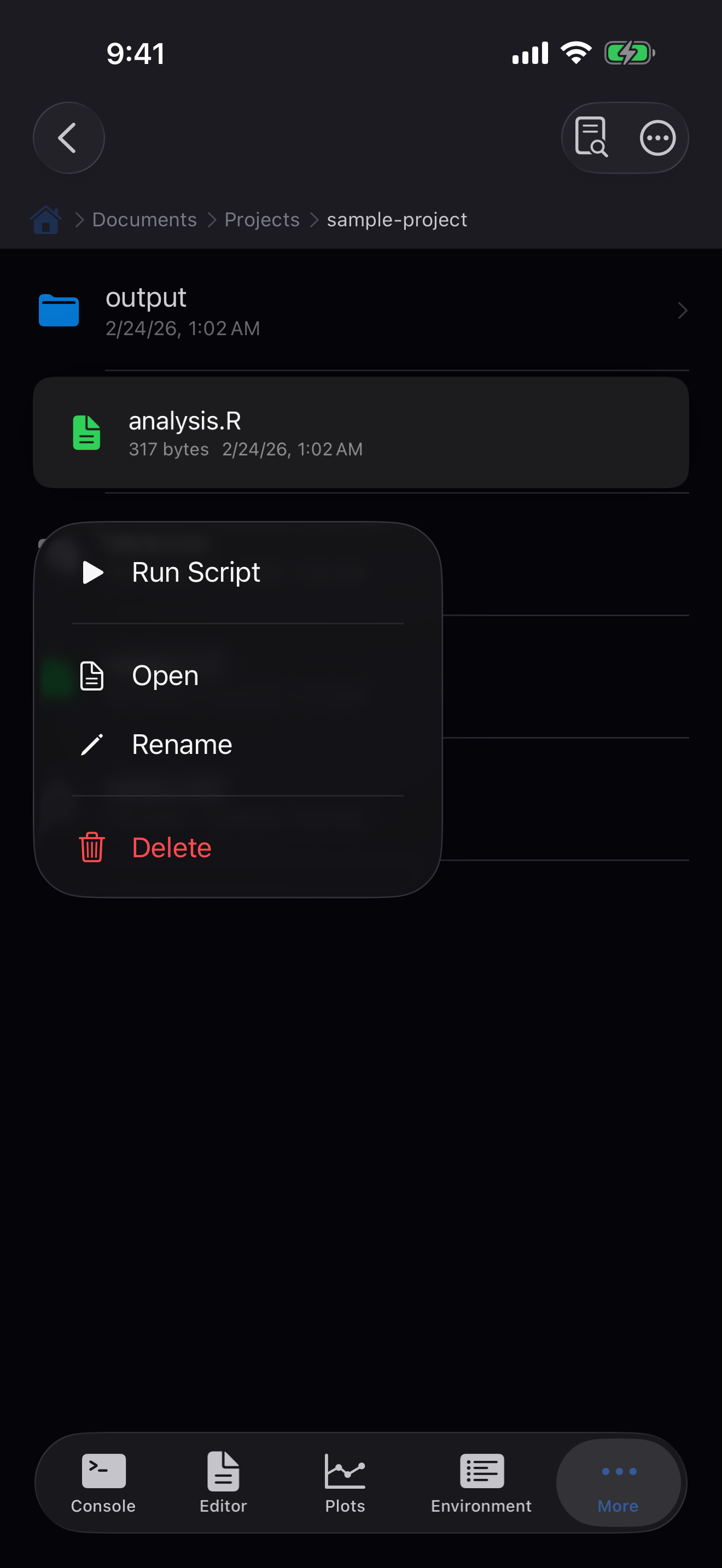
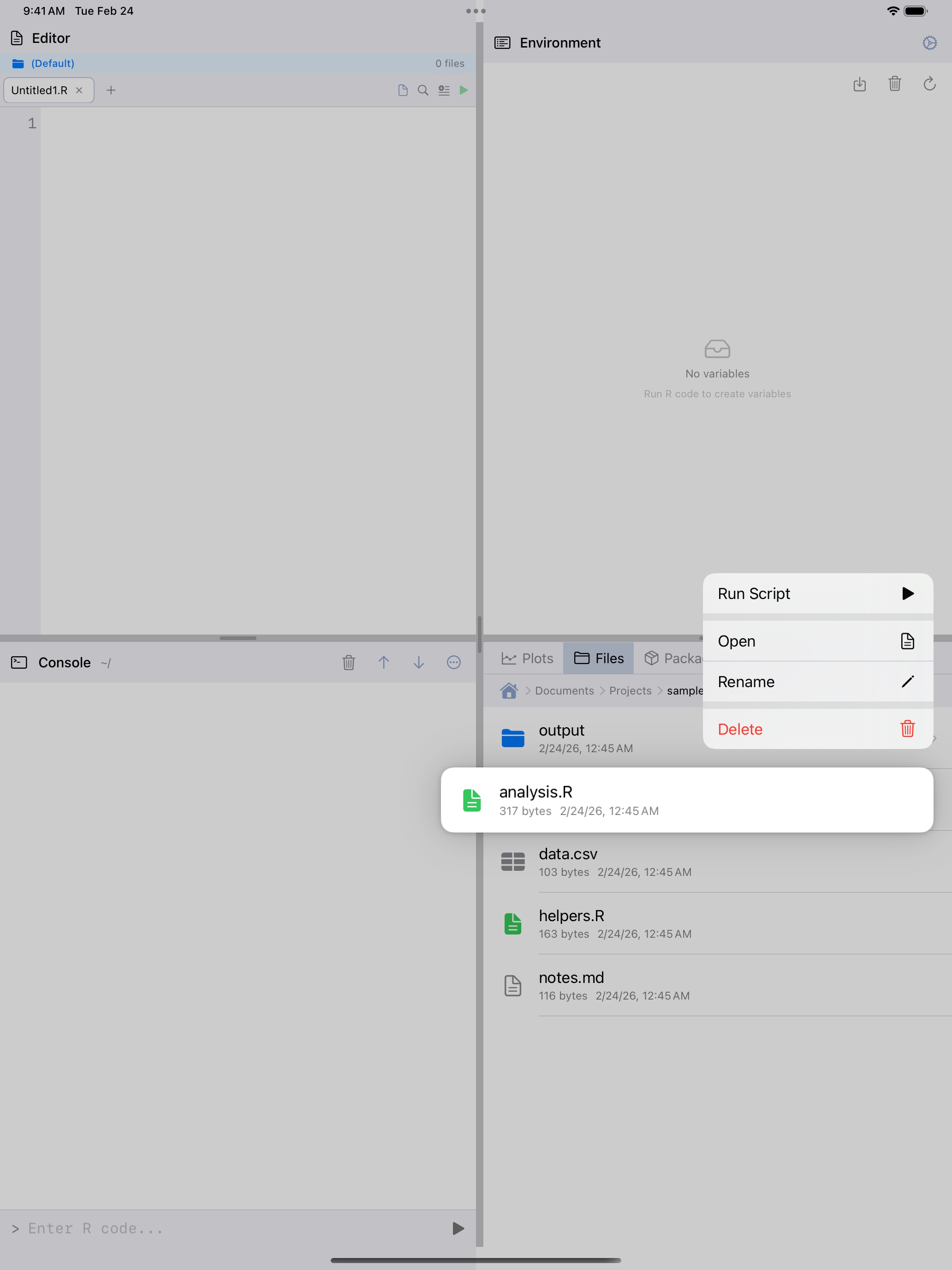
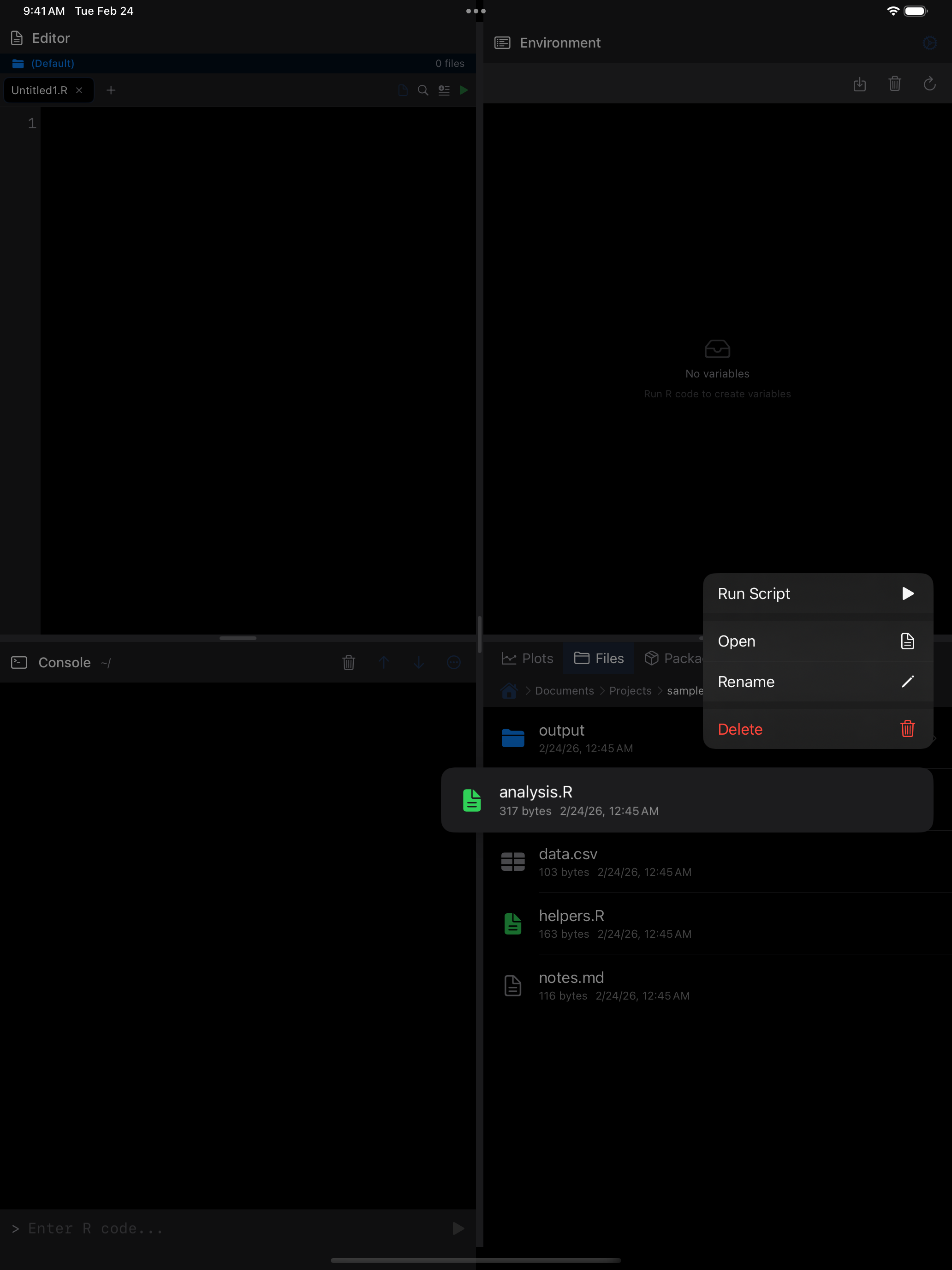
.rdsand.RDatafiles, Run Script for R files, Share, and Open in New Window on iPad. VoiceOver offers the same items as actions.
Deleting is permanent. A confirmation prompt appears, but there is no undo.
Renaming, moving or deleting a file updates everything that refers to it: editor tabs and iPad editor windows, Recent Files, R’s working directory and Spotlight, so Save writes the new name. An iPad editor window whose file was deleted keeps its text, and Save offers a copy in the current project.
Searching for files
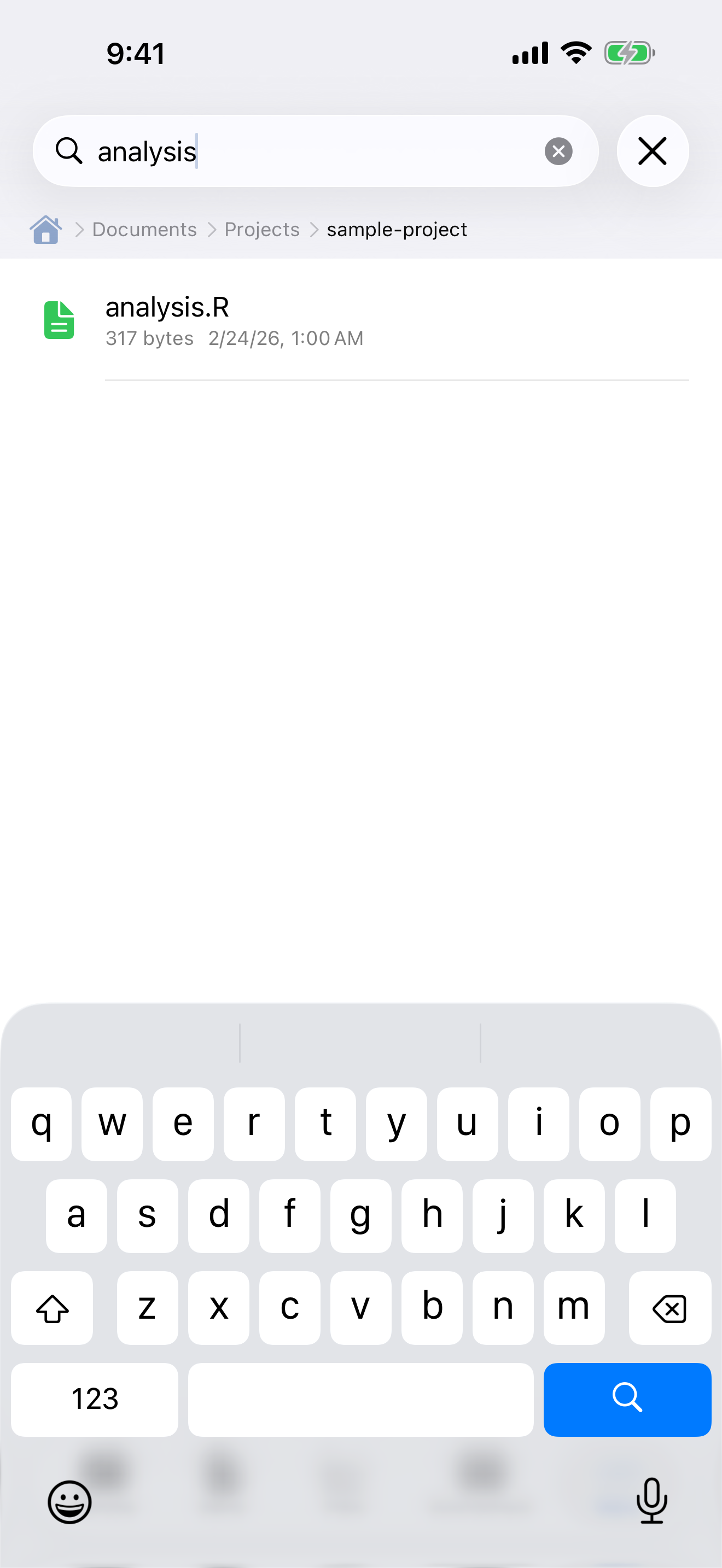
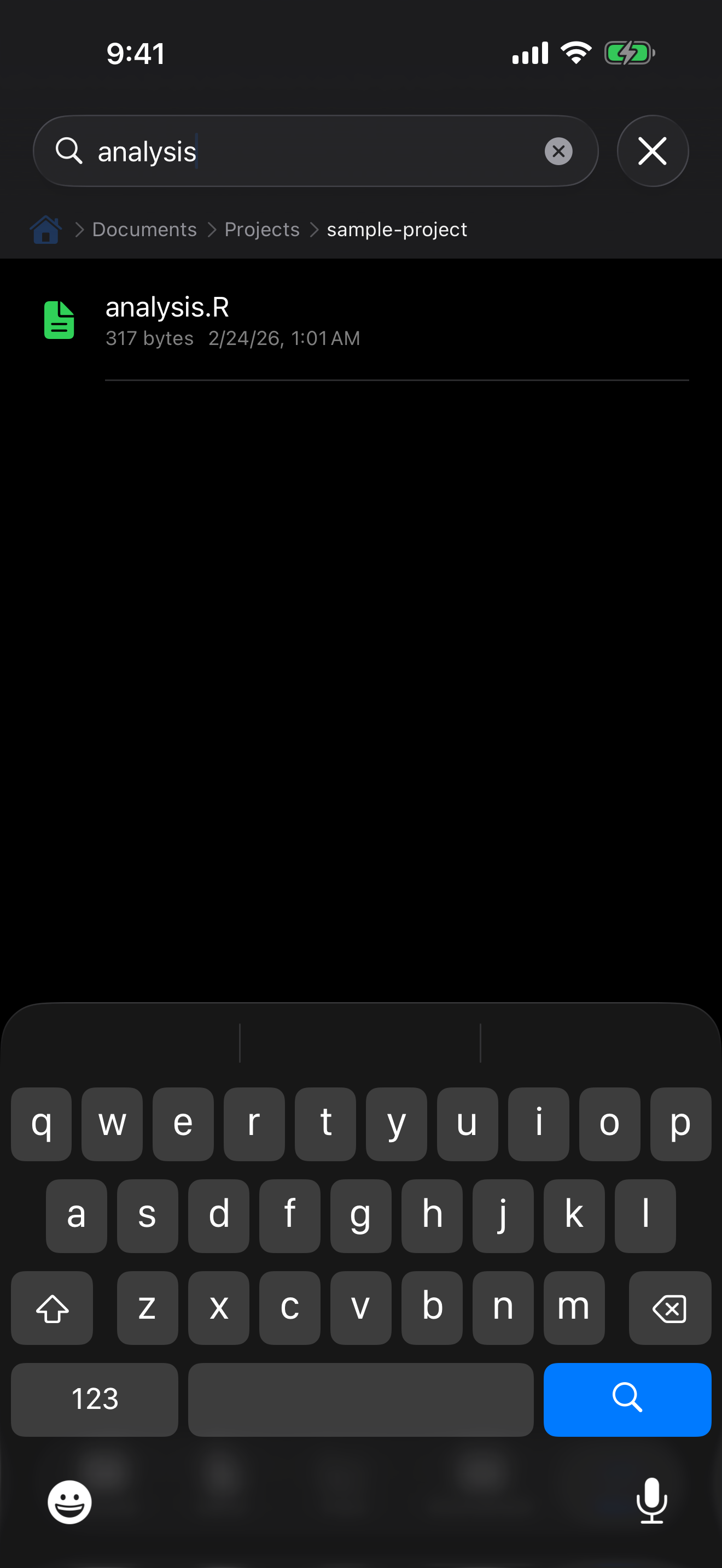
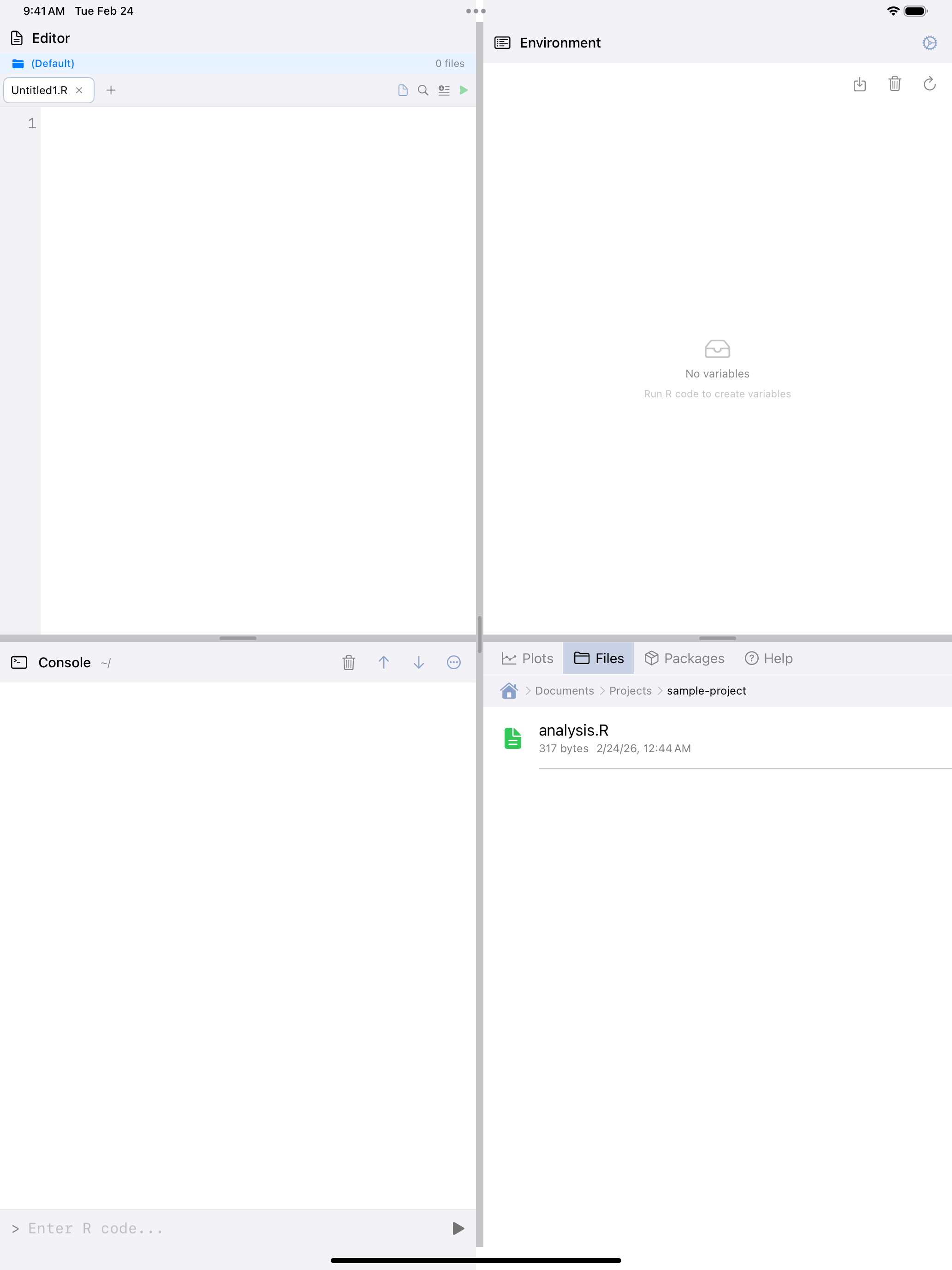
The search bar at the top filters files by name within the current folder.
For full-text search across folders, the magnifying glass opens Search in Files. Chips choose the file types (R, Text, CSV, JSON, Markdown), and tapping a result opens the file. Installed-package folders are left out of the list and the search.
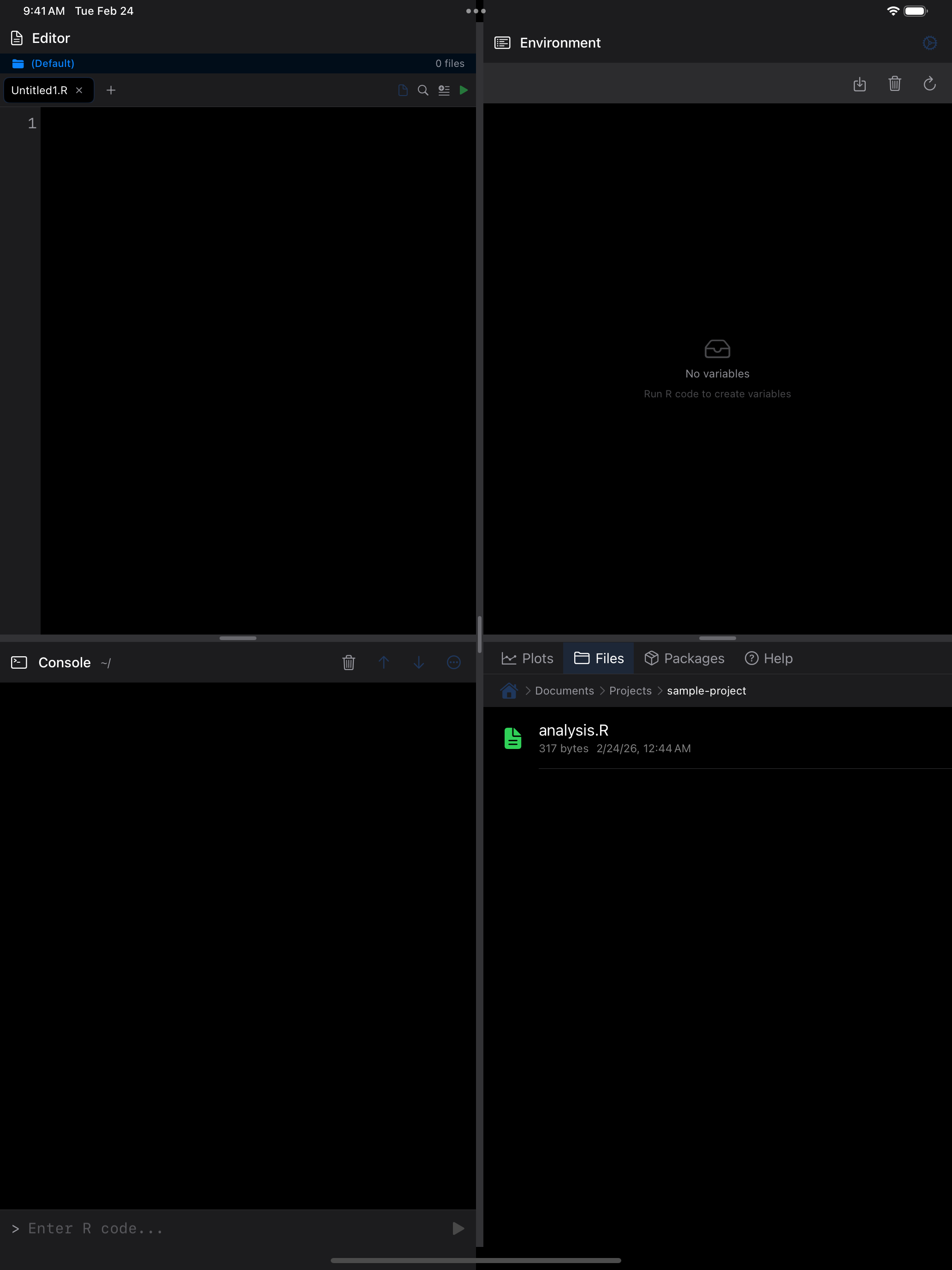
Running R scripts
There are two ways to run an R script directly from the Files tab:
- Long-press the file and choose Run Script from the context menu.
- Open the file, then use the Editor’s run functionality.
The script is echoed in the Console and run as one piece, as source() would. Output goes to the Console, plots to the Plots tab. While it runs, its row shows a spinner and the Console shows Stop. A banner then reports the outcome, error or stop included, with Show Console and Dismiss, and VoiceOver announces it. The run is logged in History. If R is busy, the script doesn’t start and Files says so.
Setting the R working directory
If your script reads files by relative path (e.g., read.csv("data.csv")), set the working directory first.
Navigate to the folder, tap the menu (...), and choose Set as R Working Dir. If R has new or changed files in its current working directory that haven’t been copied back, you are asked first: Copy Back First, Discard, or Cancel. Because webR runs in a sandboxed filesystem, this copies the folder’s files into R’s workspace rather than pointing R at the iOS folder. Relative paths then work immediately. To confirm, check the Console tab, which shows the current working directory beneath the title.
The copy is shallow and size-limited: only files directly in the folder are copied (not subfolders), and files over 4 MB are skipped. If you need files from a subfolder, set the working directory on that subfolder instead.
The sandbox also prevents R from writing back to the iOS folder directly. Anything your script creates stays in R’s workspace until you retrieve it with Copy Files Back from R or enable automatic copying in Settings. See Copying files back from R below.
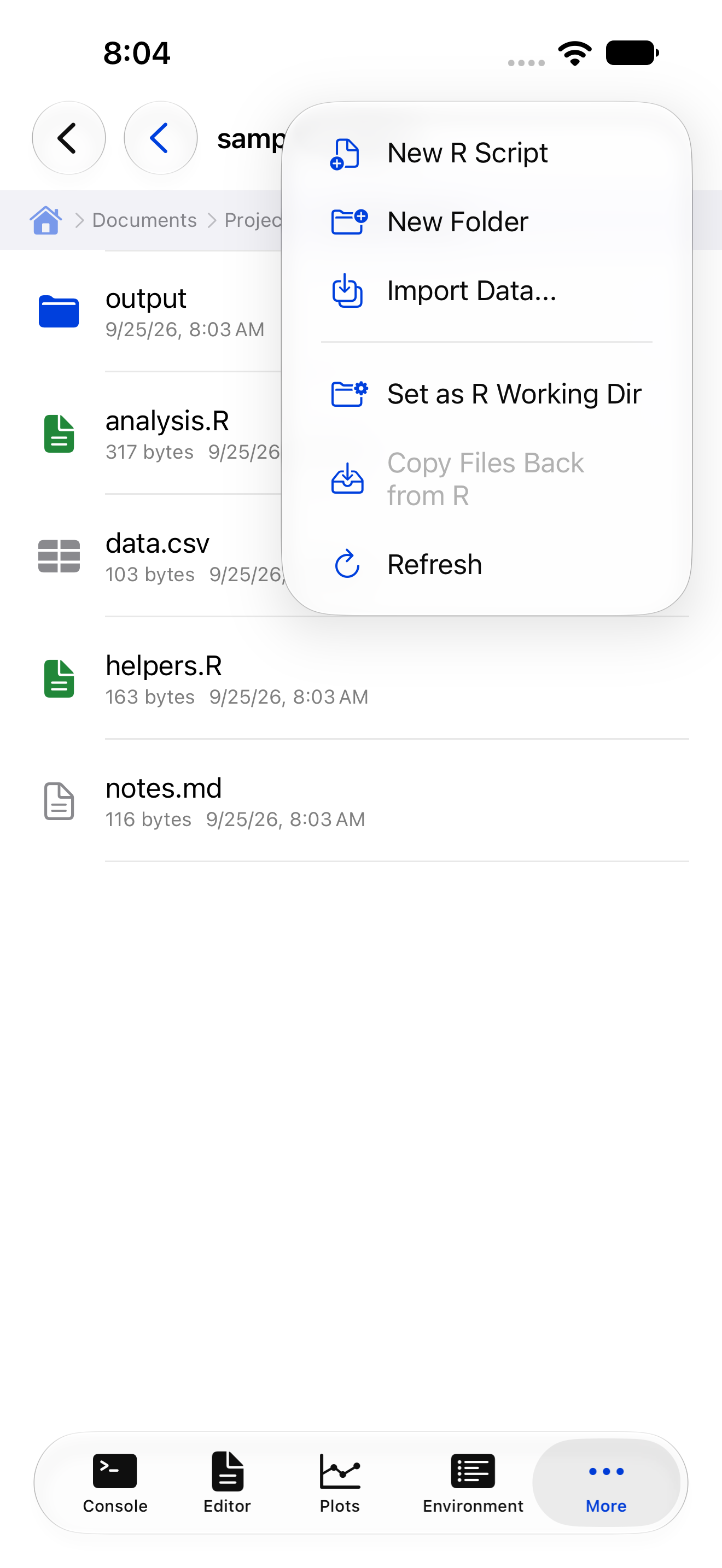
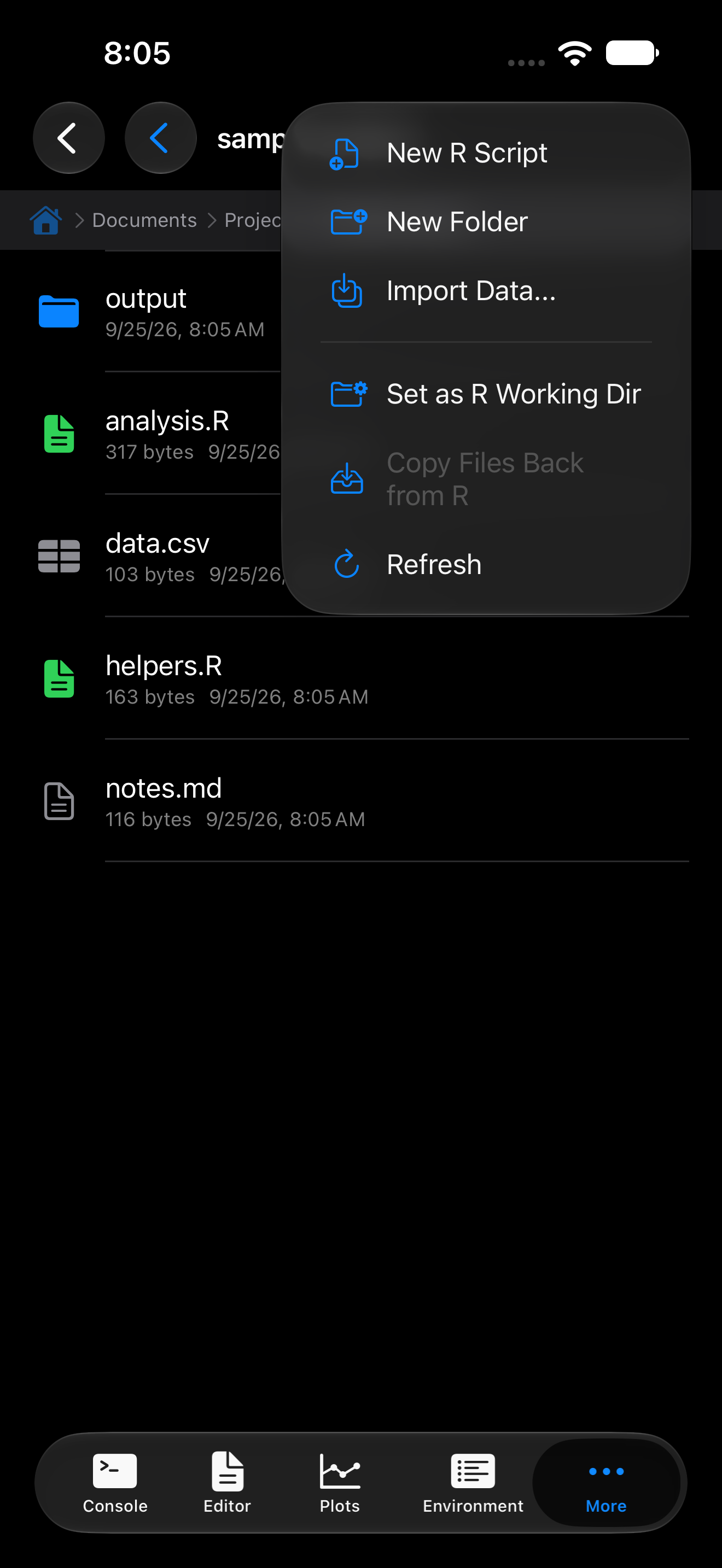
(a) Choose Set as R Working Dir
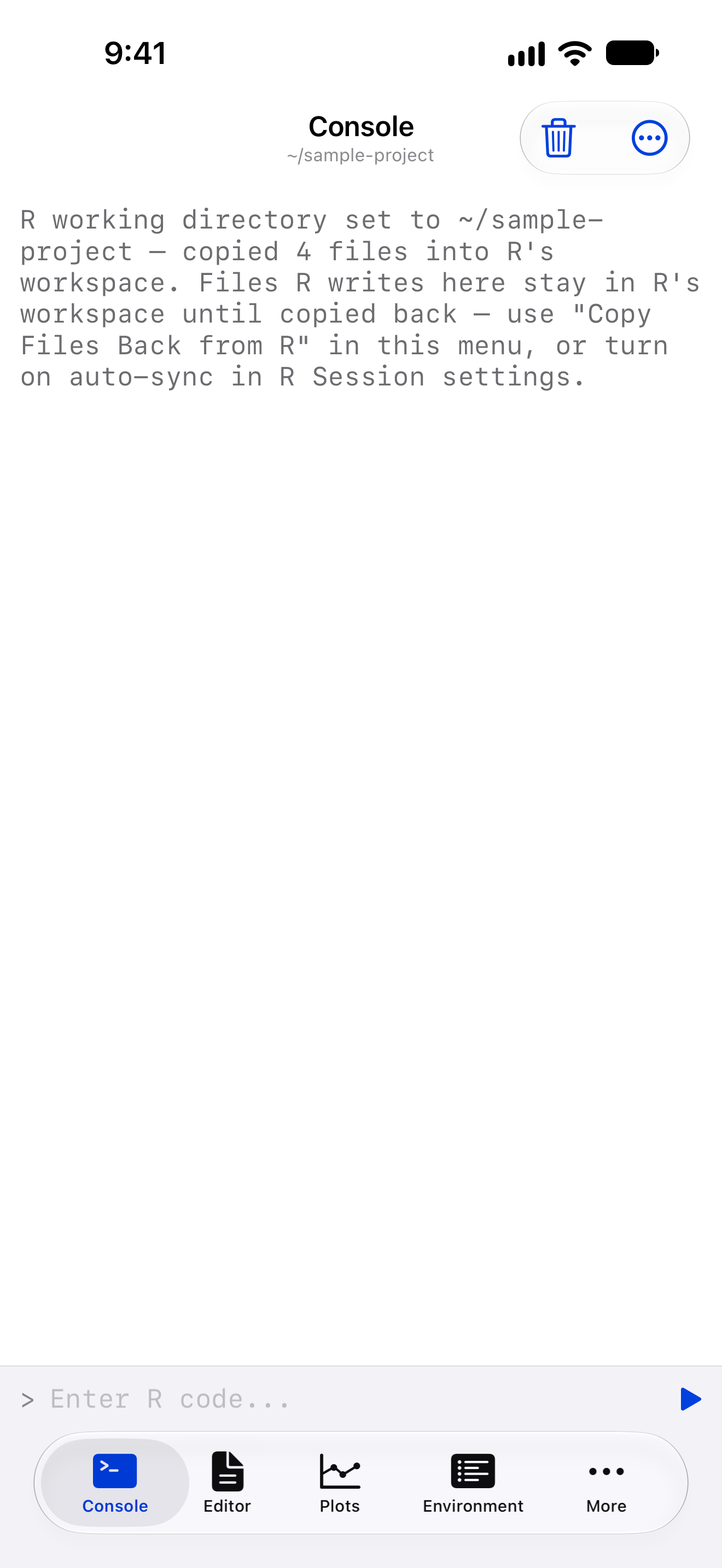
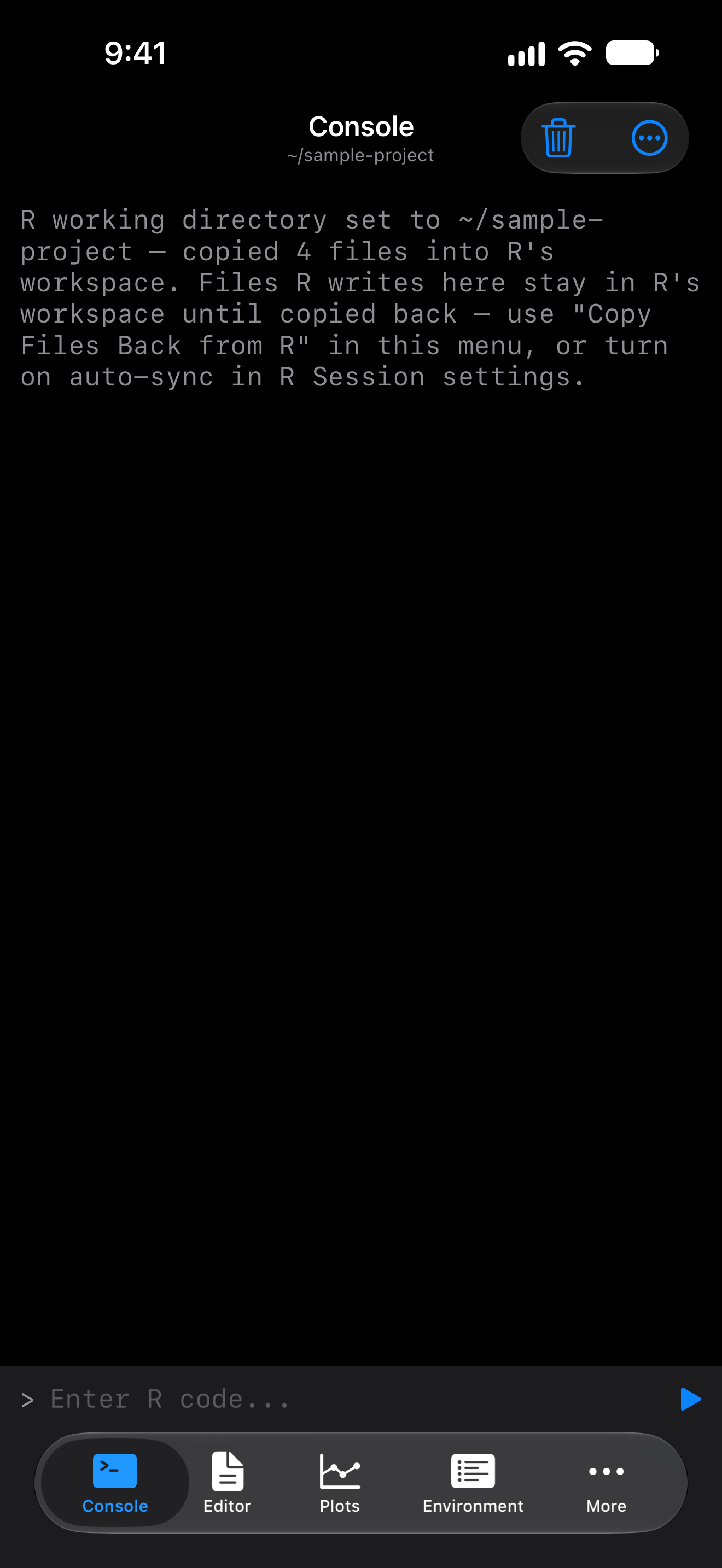
(b) The Console header confirms the new directory
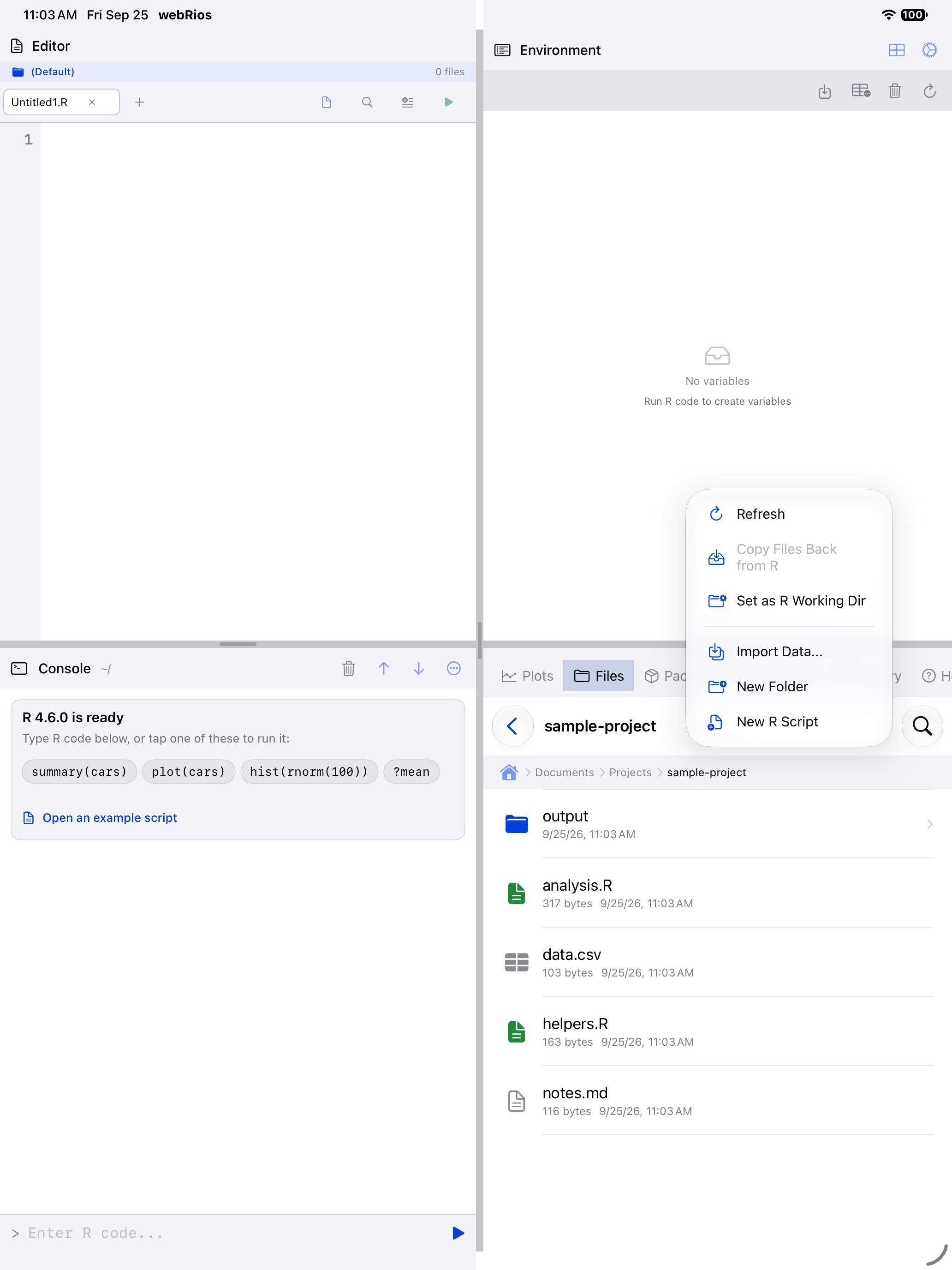
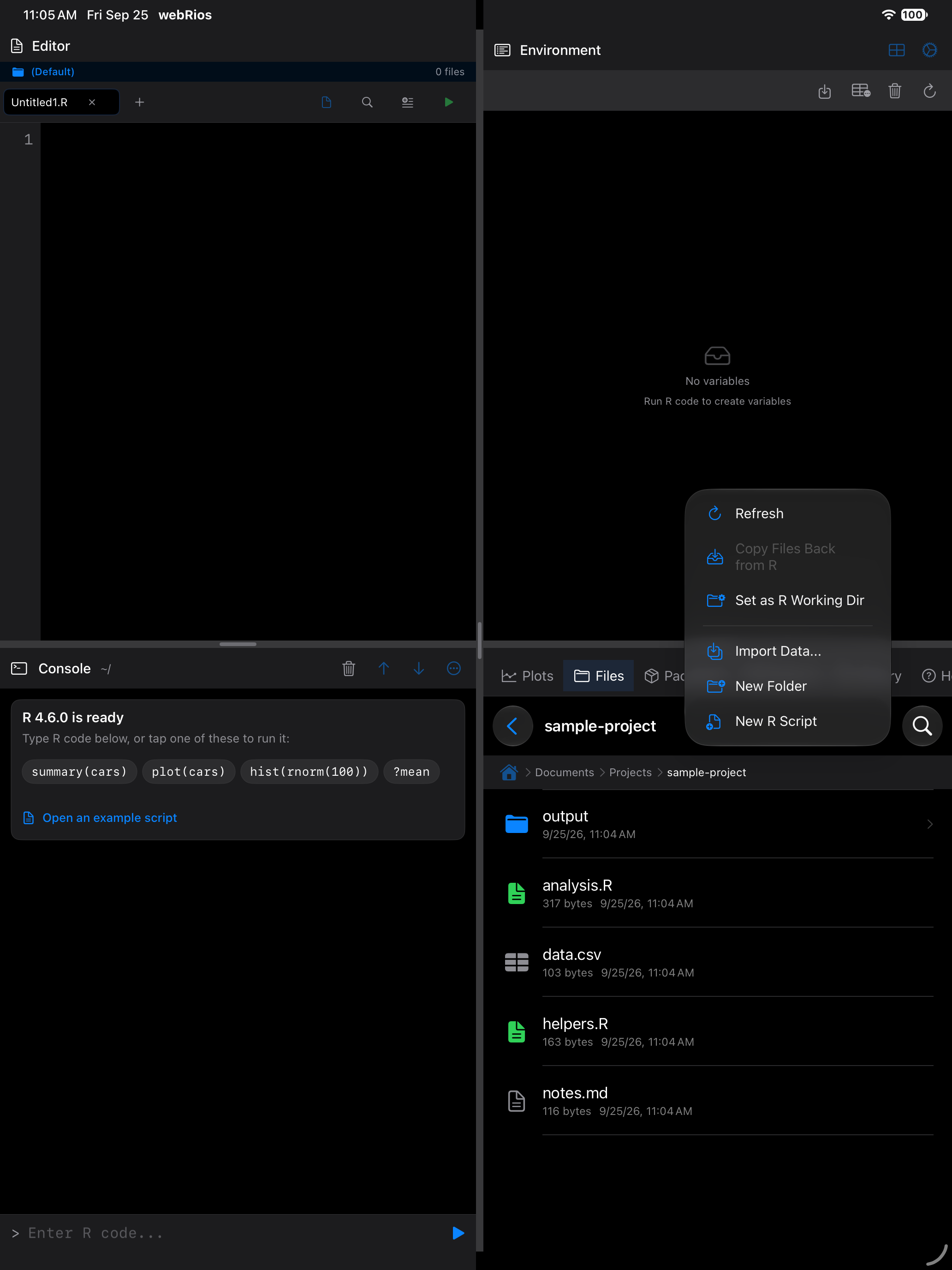
(a) Choose Set as R Working Dir
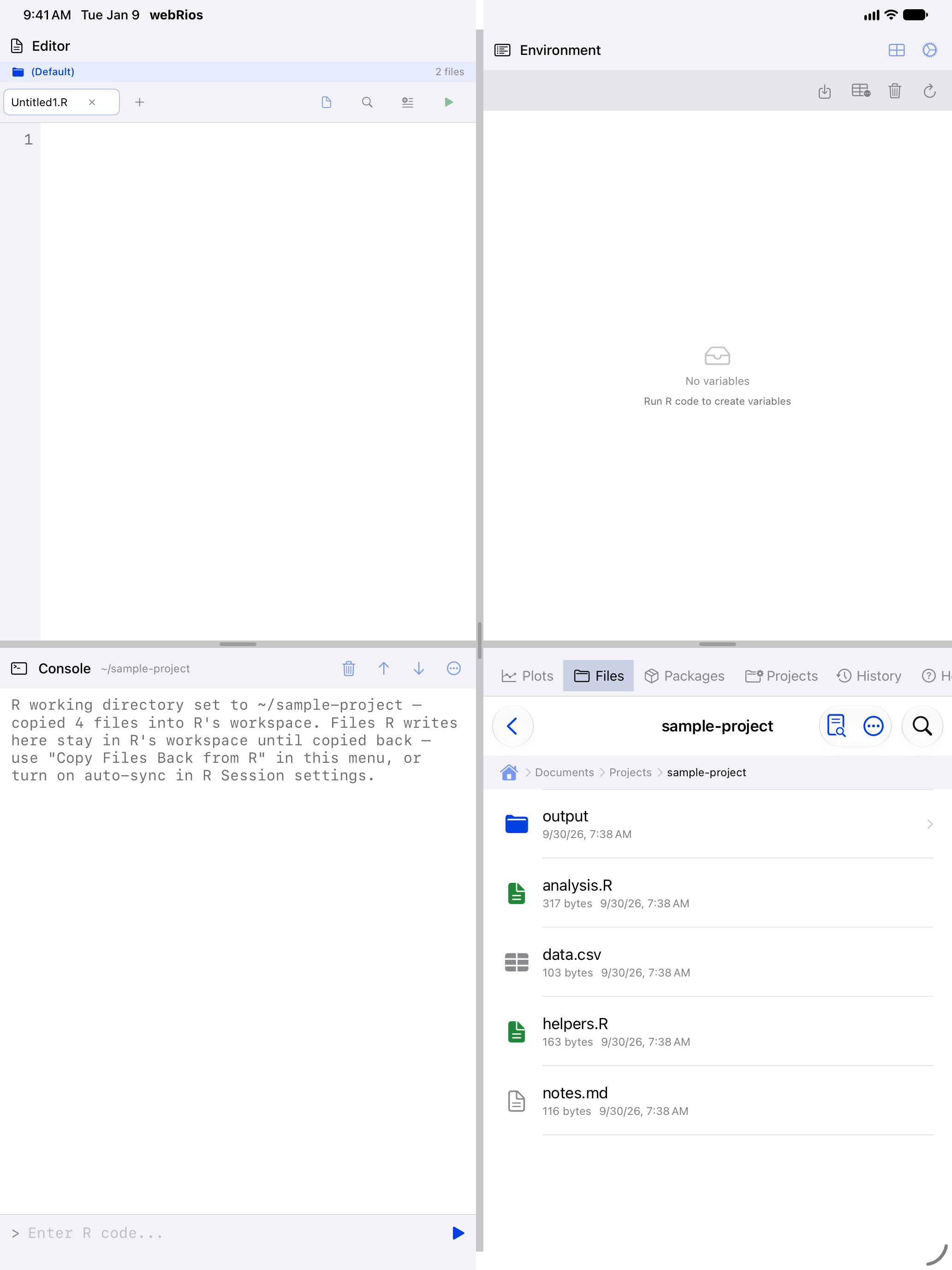
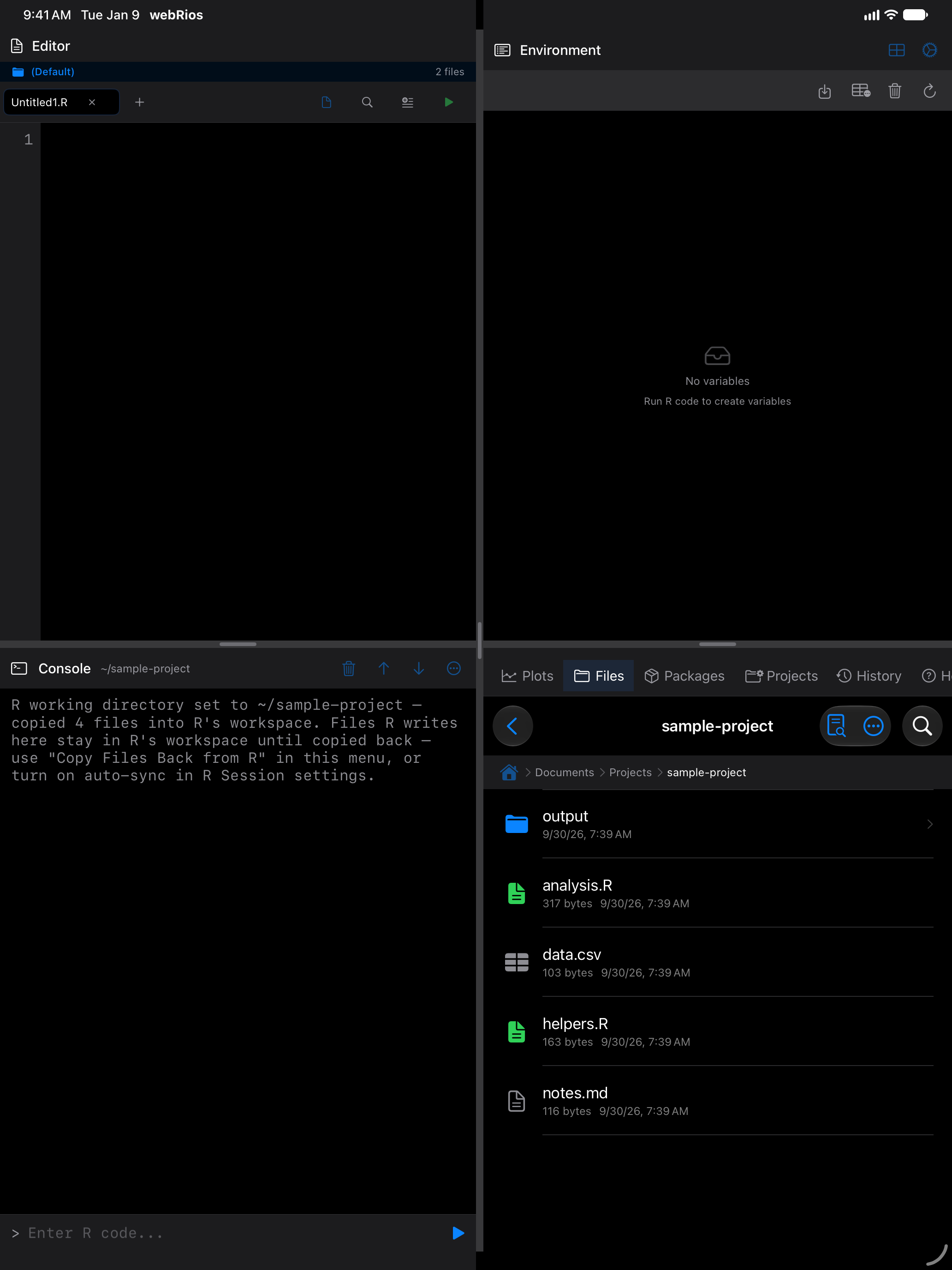
(b) The Console header confirms the new directory
Set the working directory before running scripts that read data files, so your code can use simple file names like "data.csv". Anything the script writes stays in R’s workspace until you copy it back via the menu or by enabling Copy Files Back Automatically in R Session settings.
Copying files back from R
Tap the menu (...) and choose Copy Files Back from R to copy files from R’s workspace back into the iOS folder you set as the working directory.
This item is disabled until you set a working directory. The same rules as the outbound copy apply: only files directly in R’s working directory are copied (not subfolders), files over 4 MB are skipped, and unchanged files are skipped. Copying back never deletes files already in the iOS folder.
The Files list refreshes automatically. For details on what was copied, check the Console tab.
To copy changed files back after every command automatically, enable Copy Files Back Automatically under R Session in Settings. Off by default.
The action sits in the same … menu as Set as R Working Dir:
Opening files from other apps
Two routes bring files in from other apps.
Open With. In the Files app, touch and hold a file, tap Open With, and choose webRios; in Mail, Messages and other apps, choose webRios wherever they offer another app. R scripts, R Markdown and Quarto documents open in the Editor, CSV and TSV files in the import wizard, and .rds and .RData files load into R after asking. A file from Mail or Messages moves into the current project, renamed if needed; one already in webRios, or elsewhere such as iCloud Drive, opens in place. If webRios is still starting, the file waits for R.
Import to webRios. Sharing opens nothing; in the Files app, Share offers webRios only as this action. It appears for files webRios can import (.R, .Rmd, .qmd, .csv, .tsv, .json, .txt, .rds and .RData, up to ten at a time) and lists anything it skipped or couldn’t read. The files wait until you import them: Files gets a badge (on iPhone, so does More), and next time you open the app an alert offers Open Files to bring them into the current project.
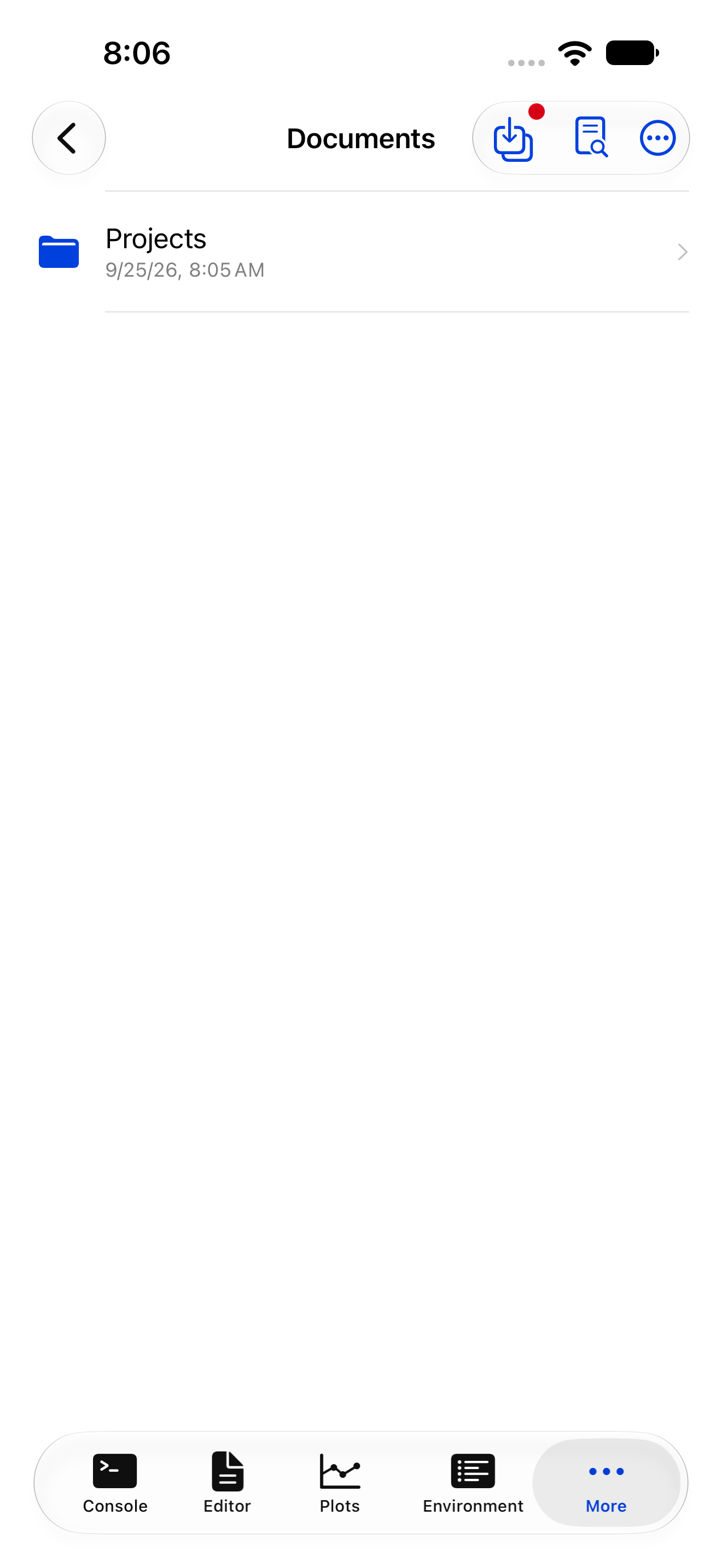
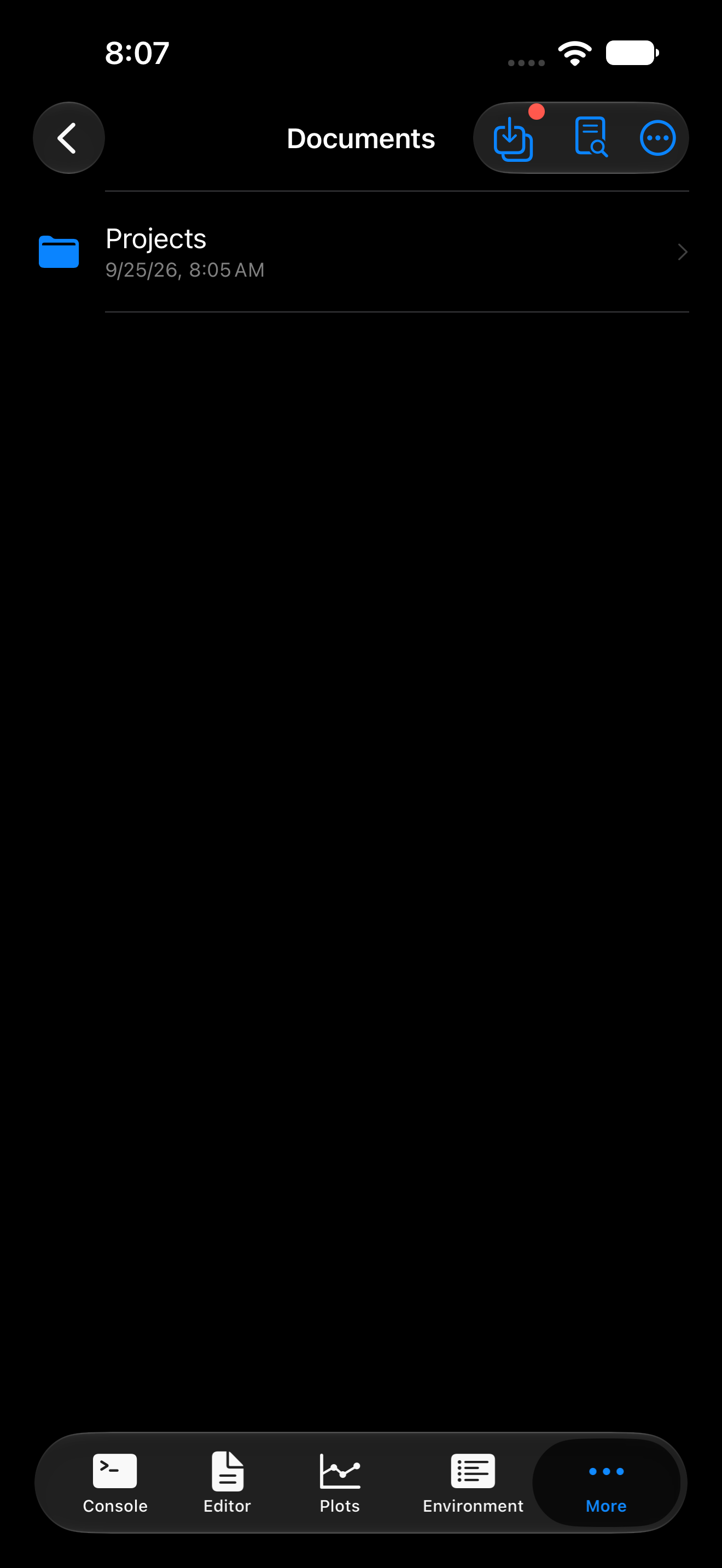
(a) A badge appears in the toolbar
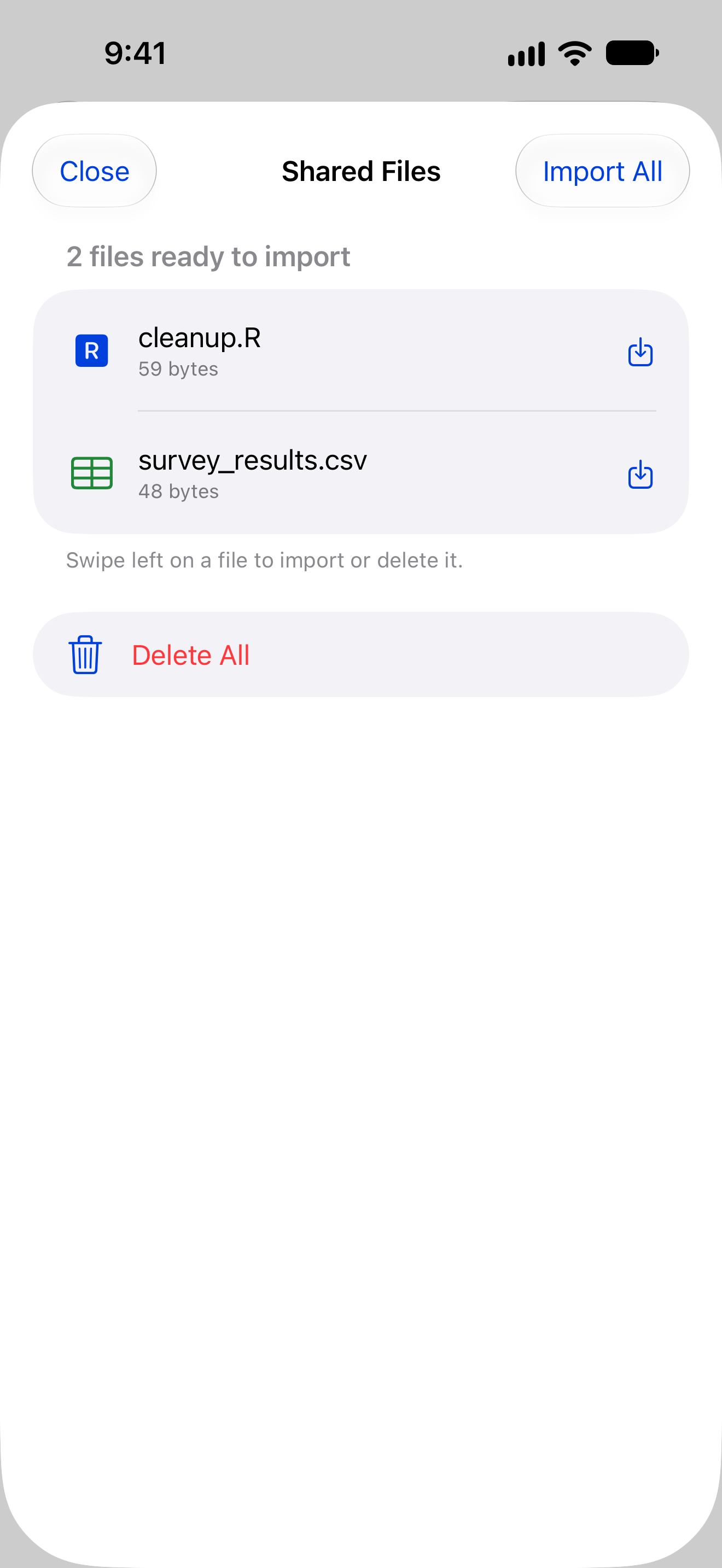
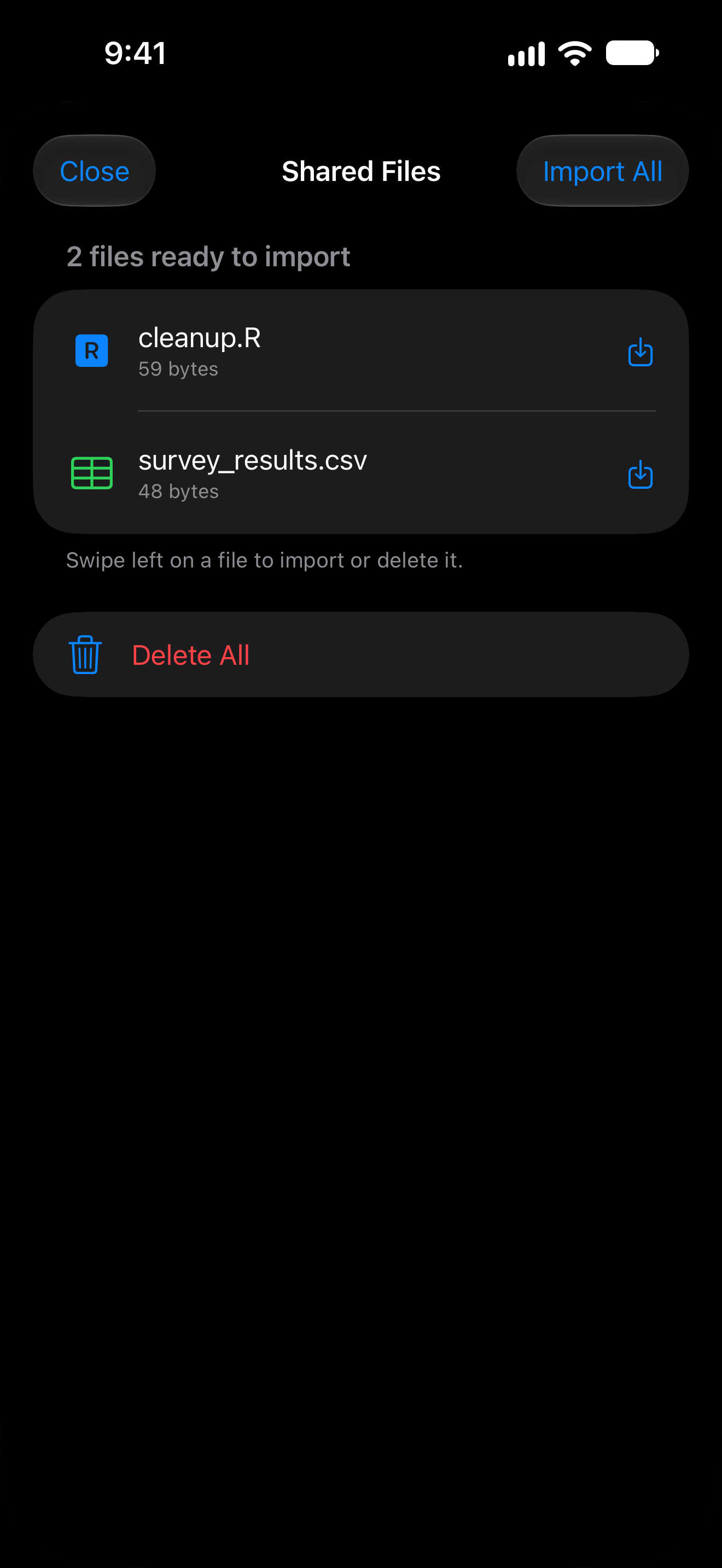
(b) Review and import the shared files
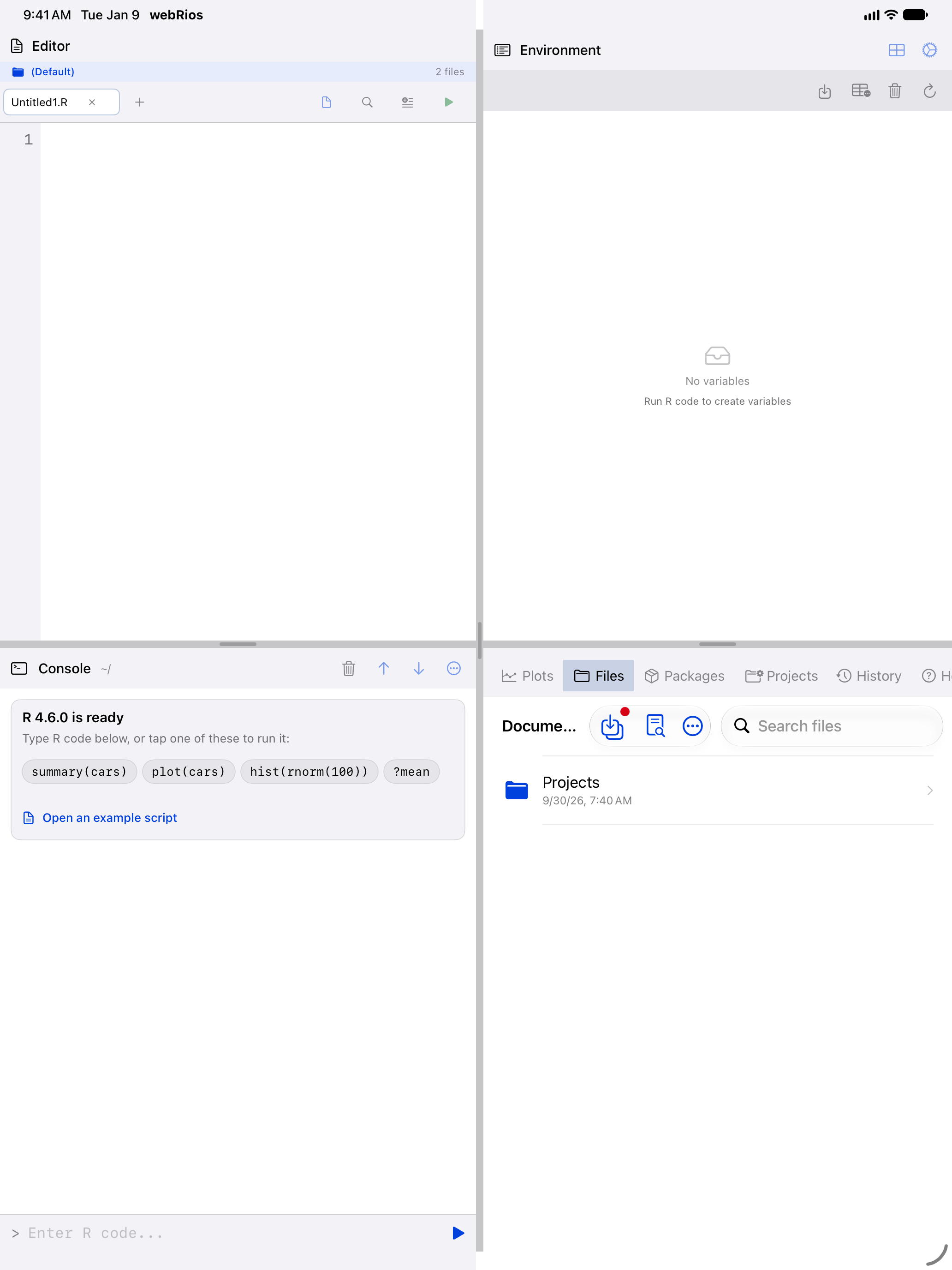
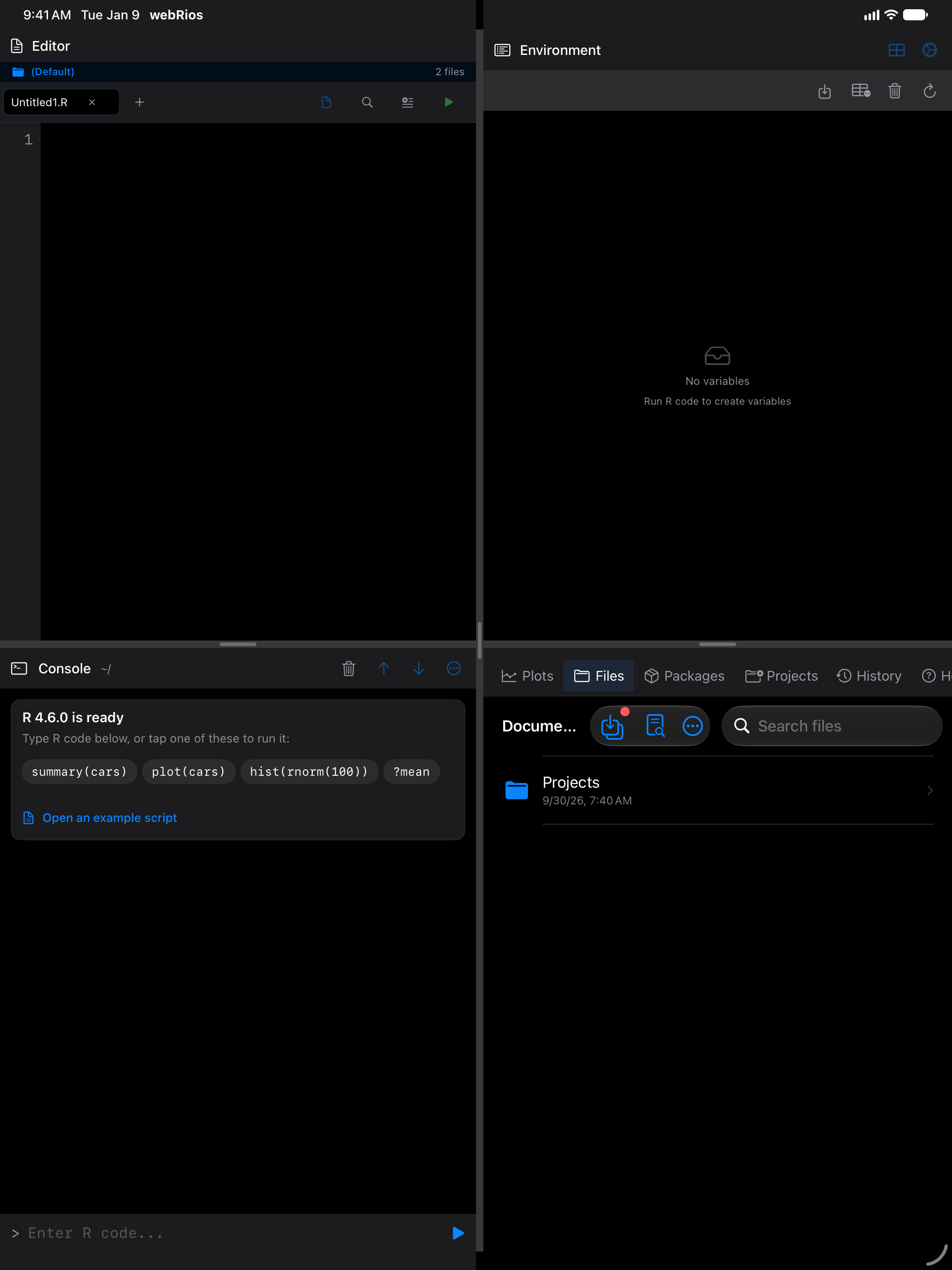
(a) A badge appears in the toolbar
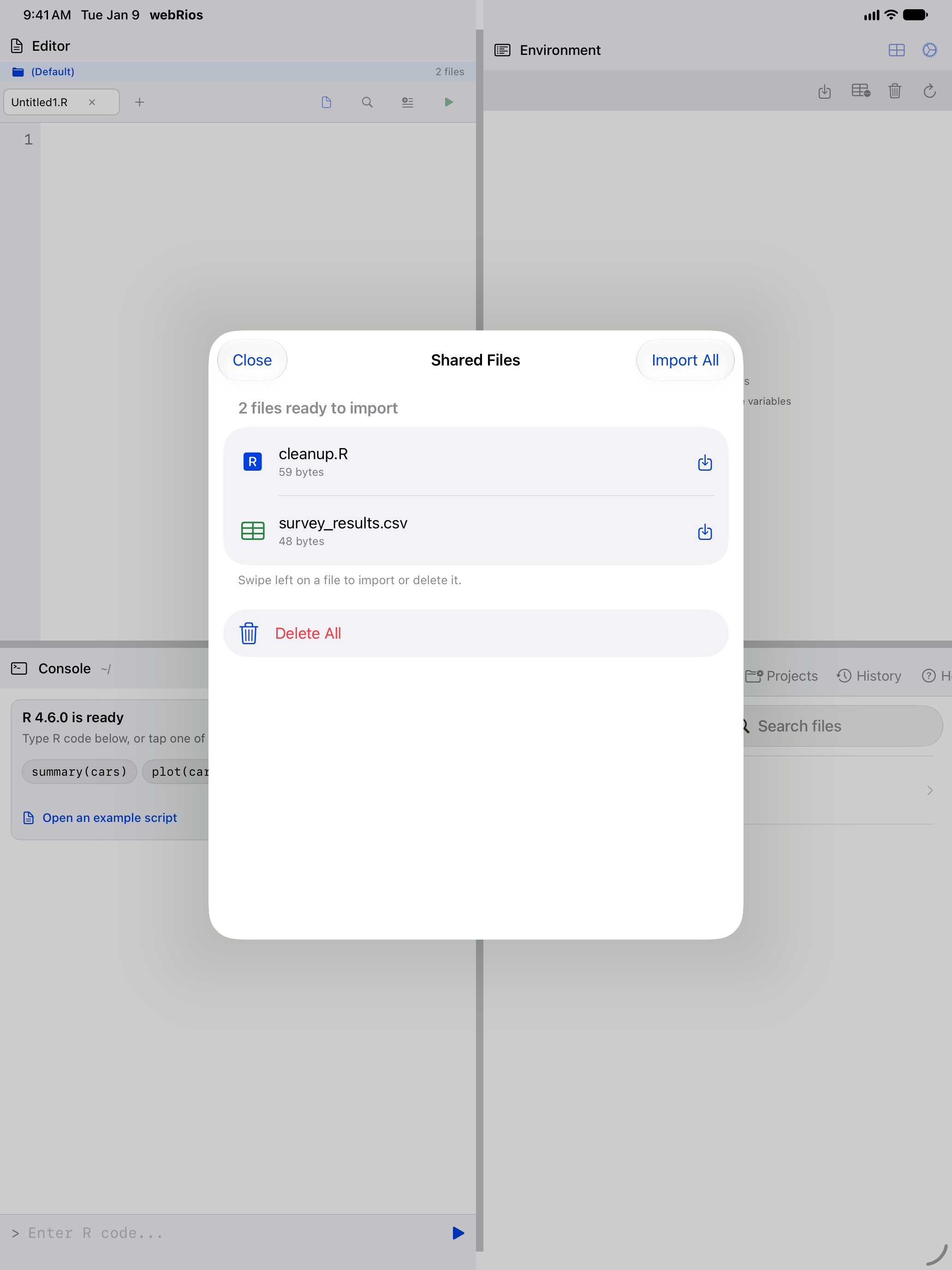
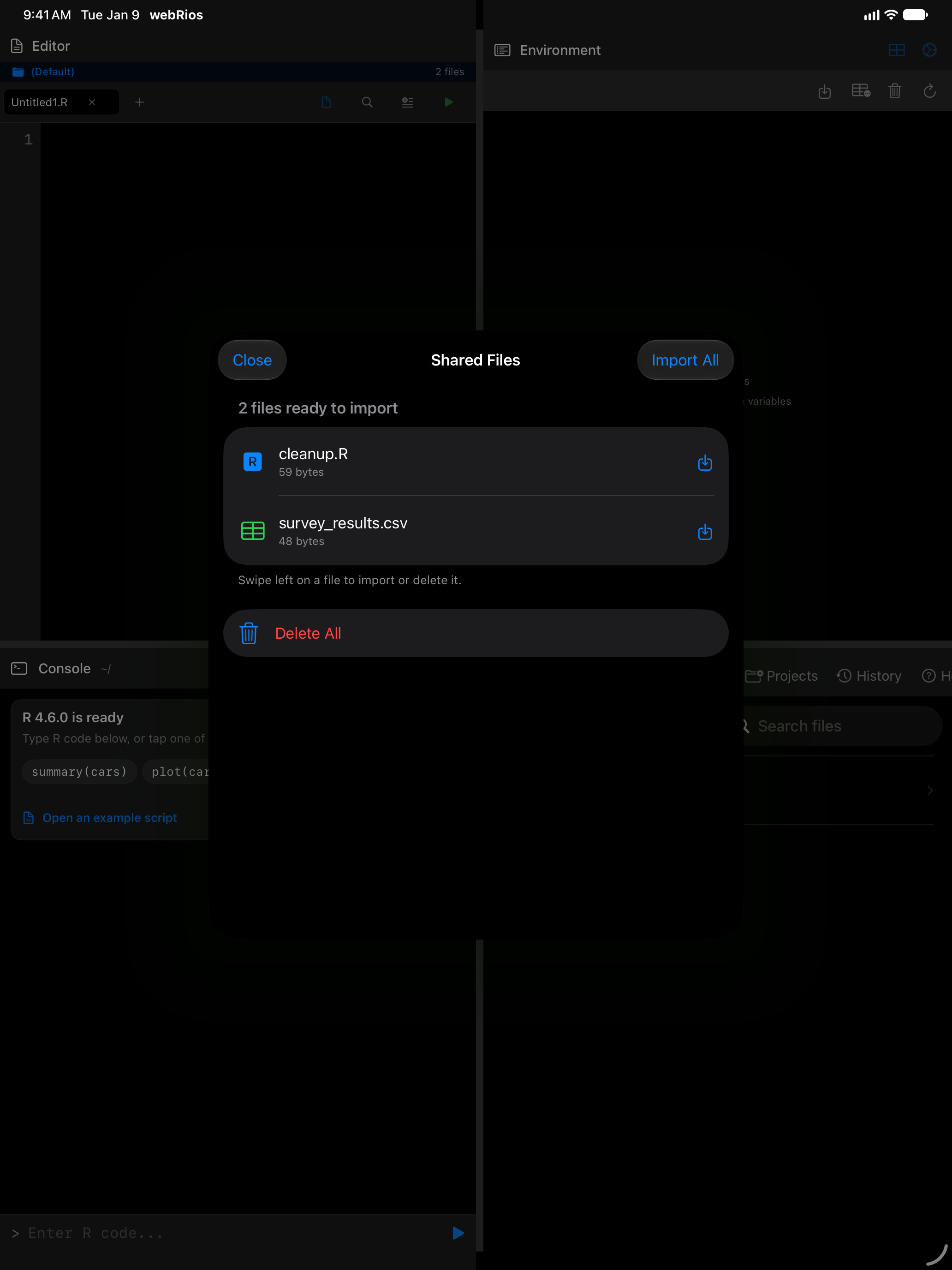
(b) Review and import the shared files
Supported file types
The editor handles any text file: R scripts, R Markdown, Quarto, plain text, logs, CSV, TSV, JSON and Markdown. Images open in a preview, PDFs and other documents in Quick Look, and .rds and .RData files load into R. Other types appear in the list, and Files says when it can’t open one.
The list refreshes when the Editor saves or files are copied back from R. Pull down to refresh after changes made outside the app.