Environment
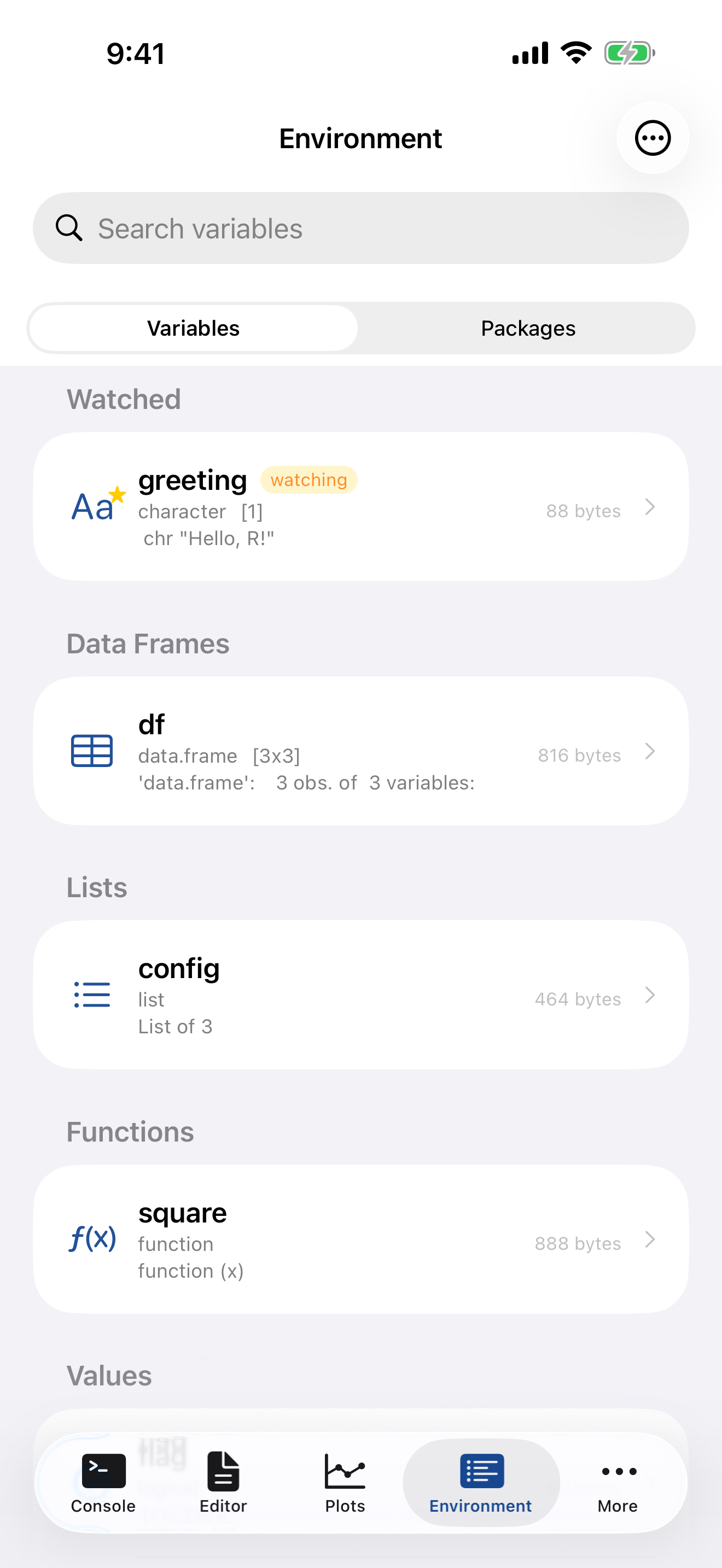
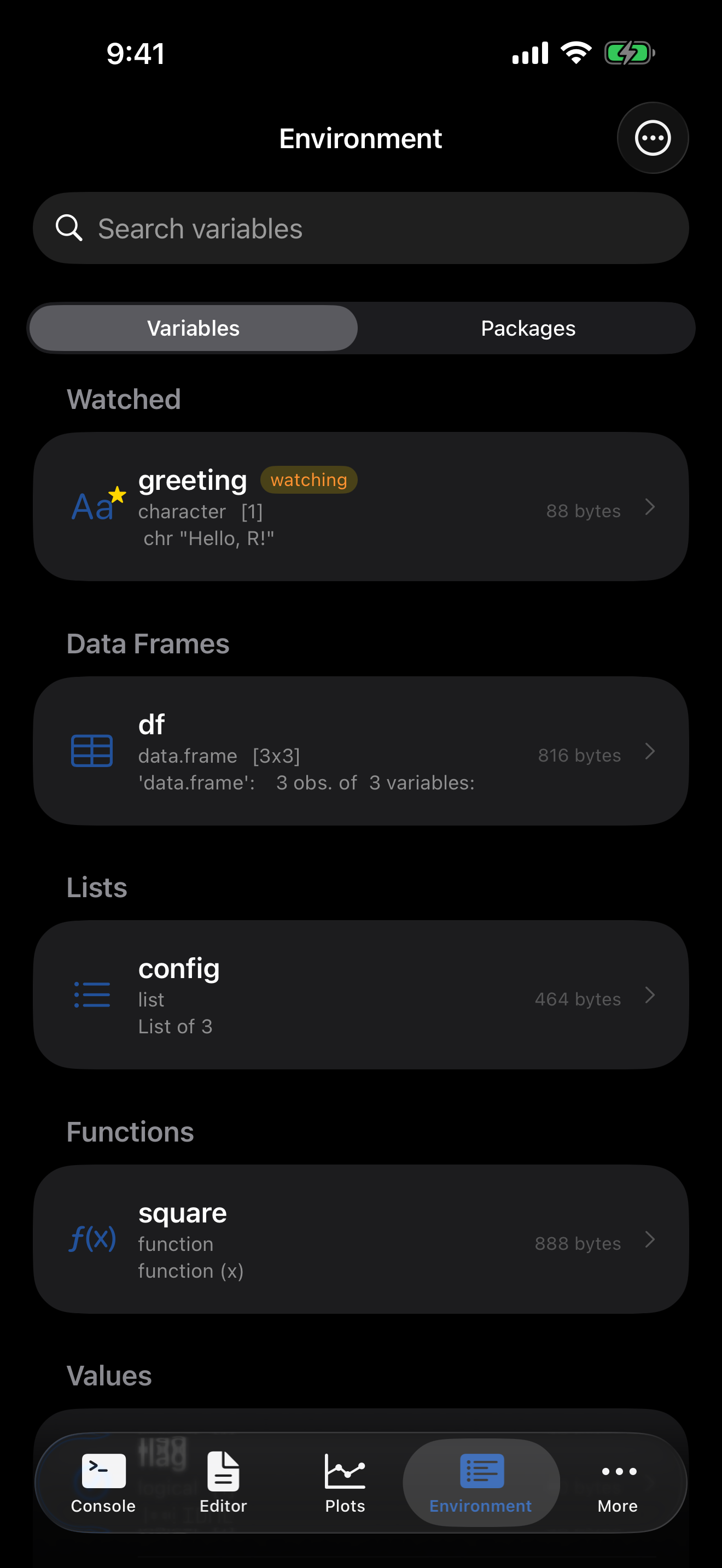
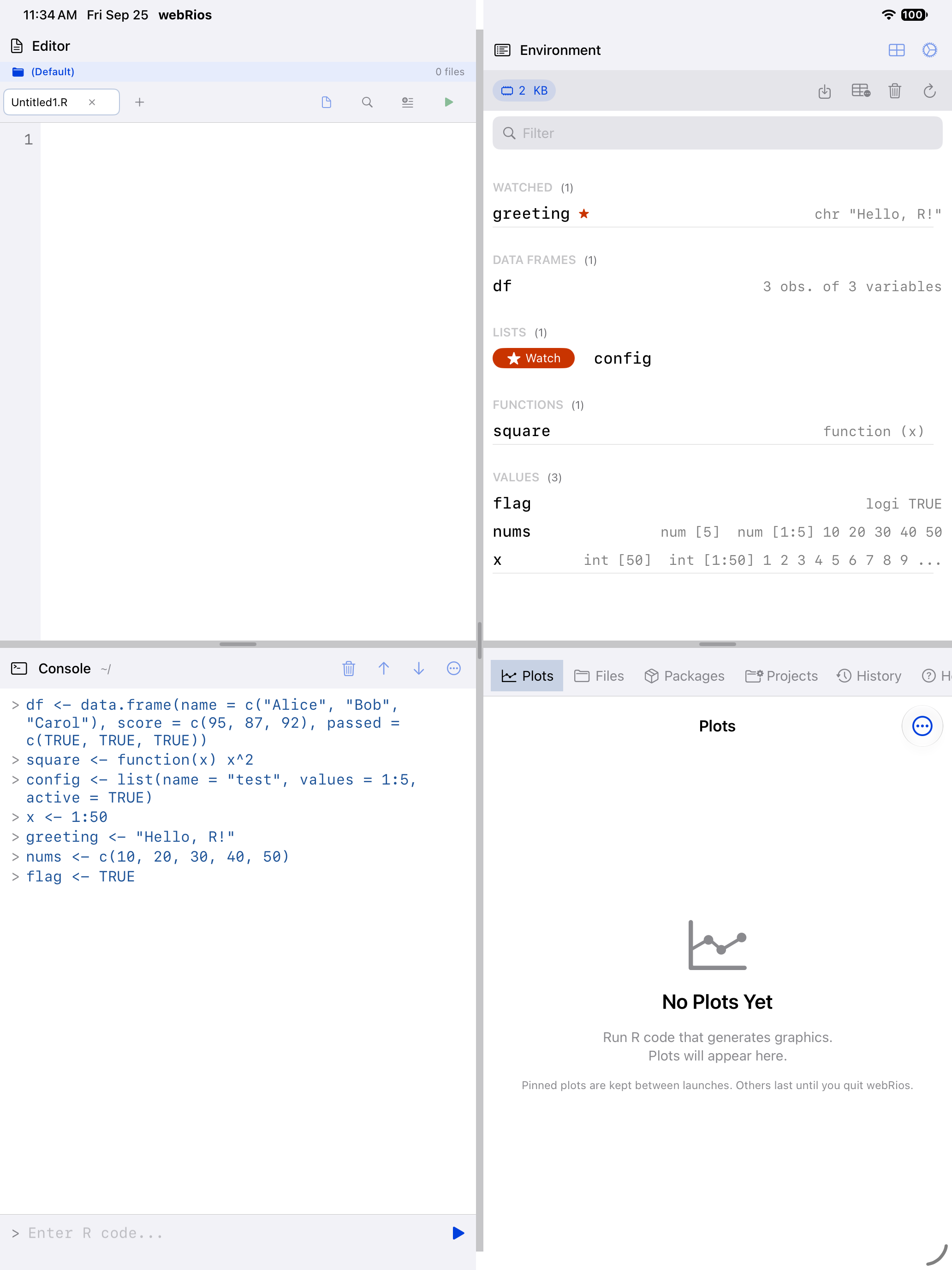
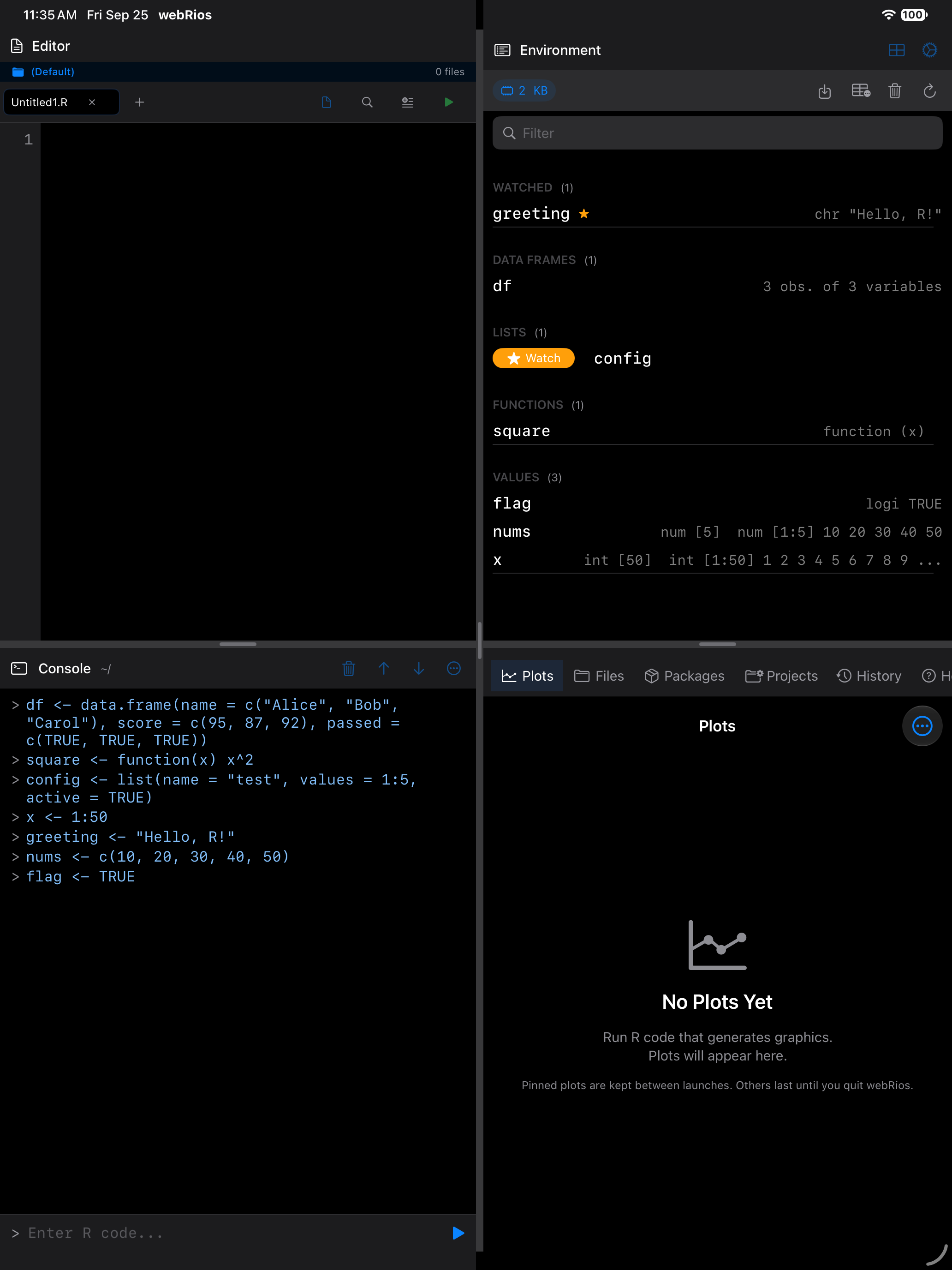
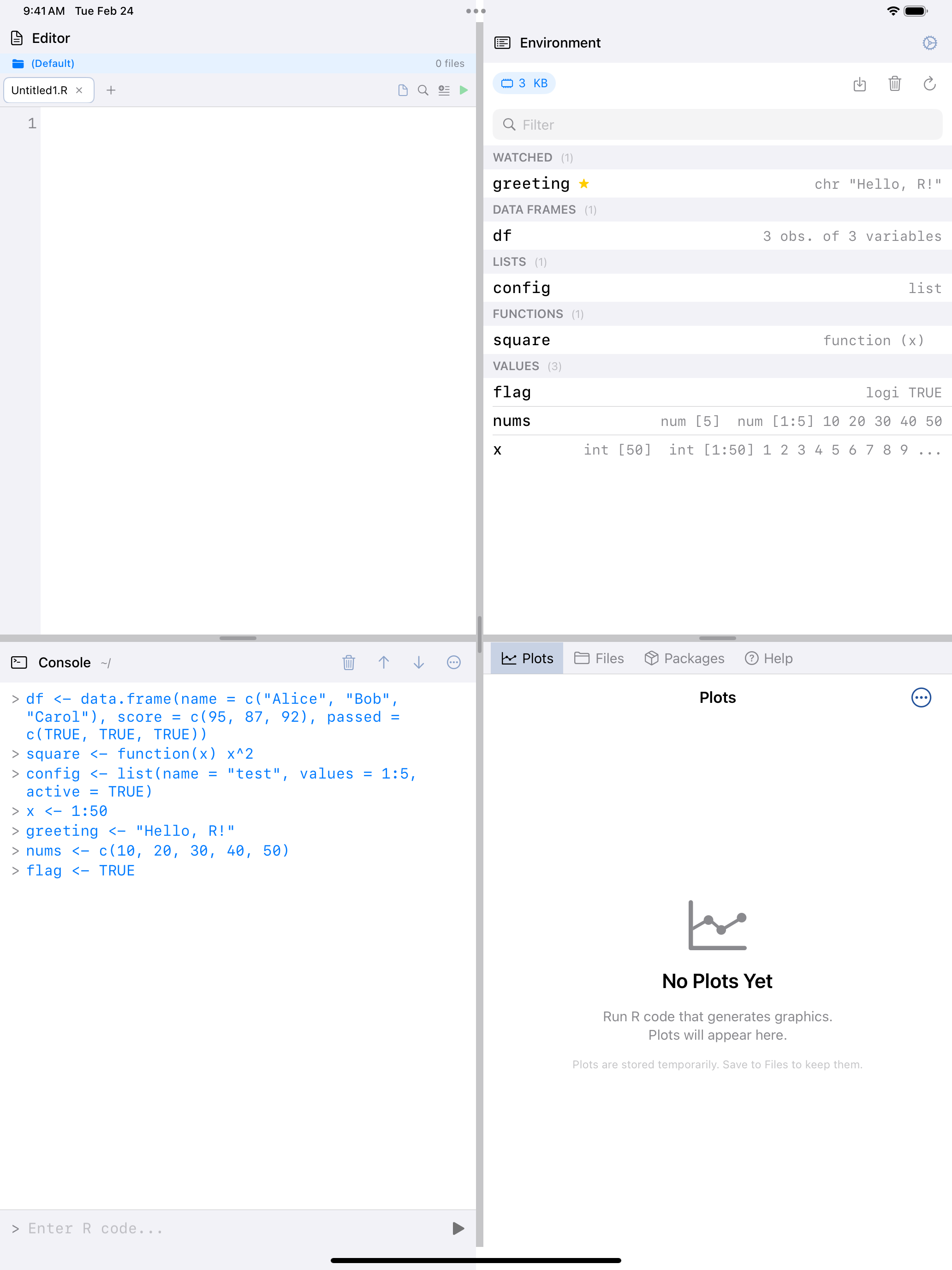
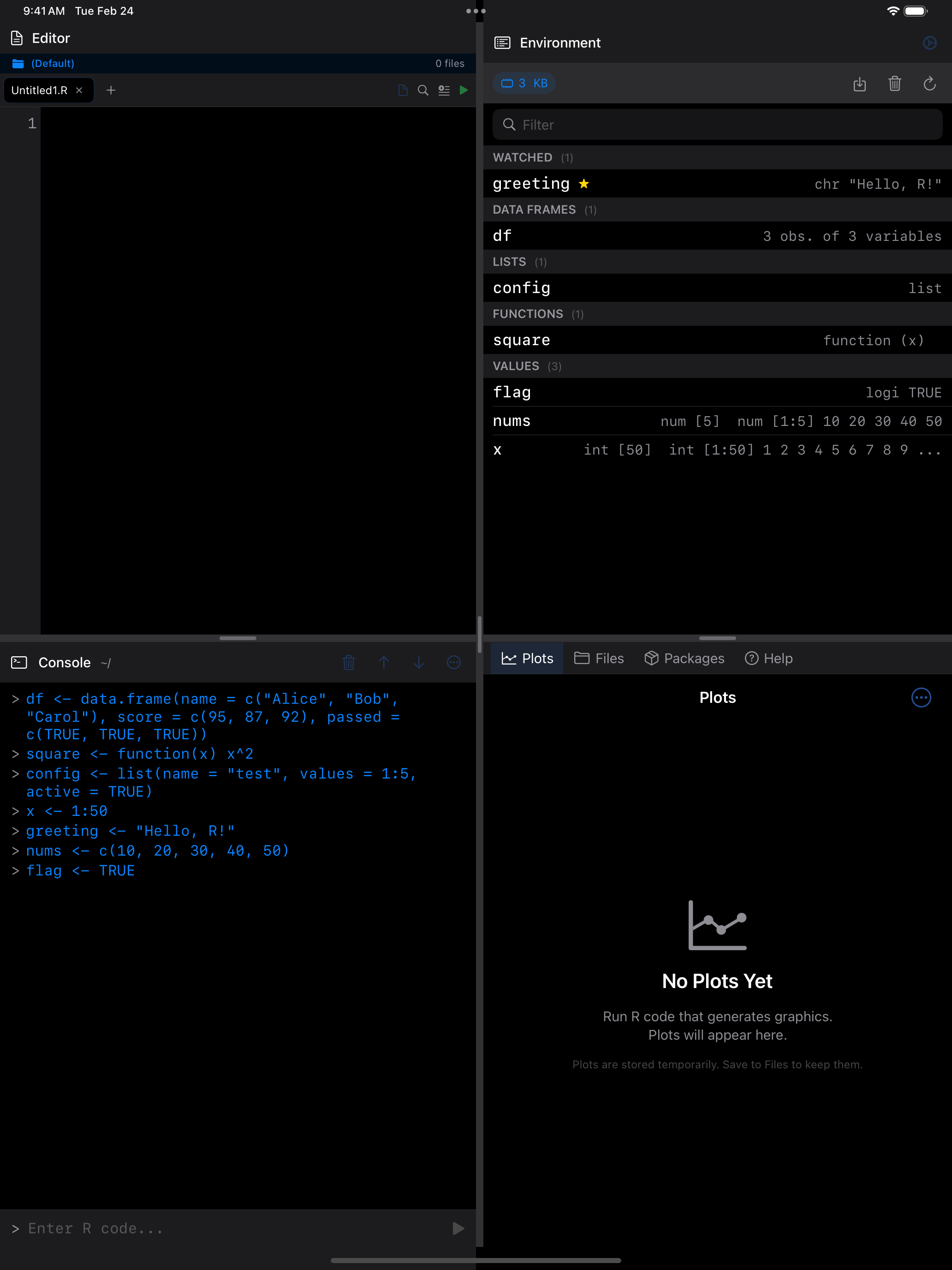
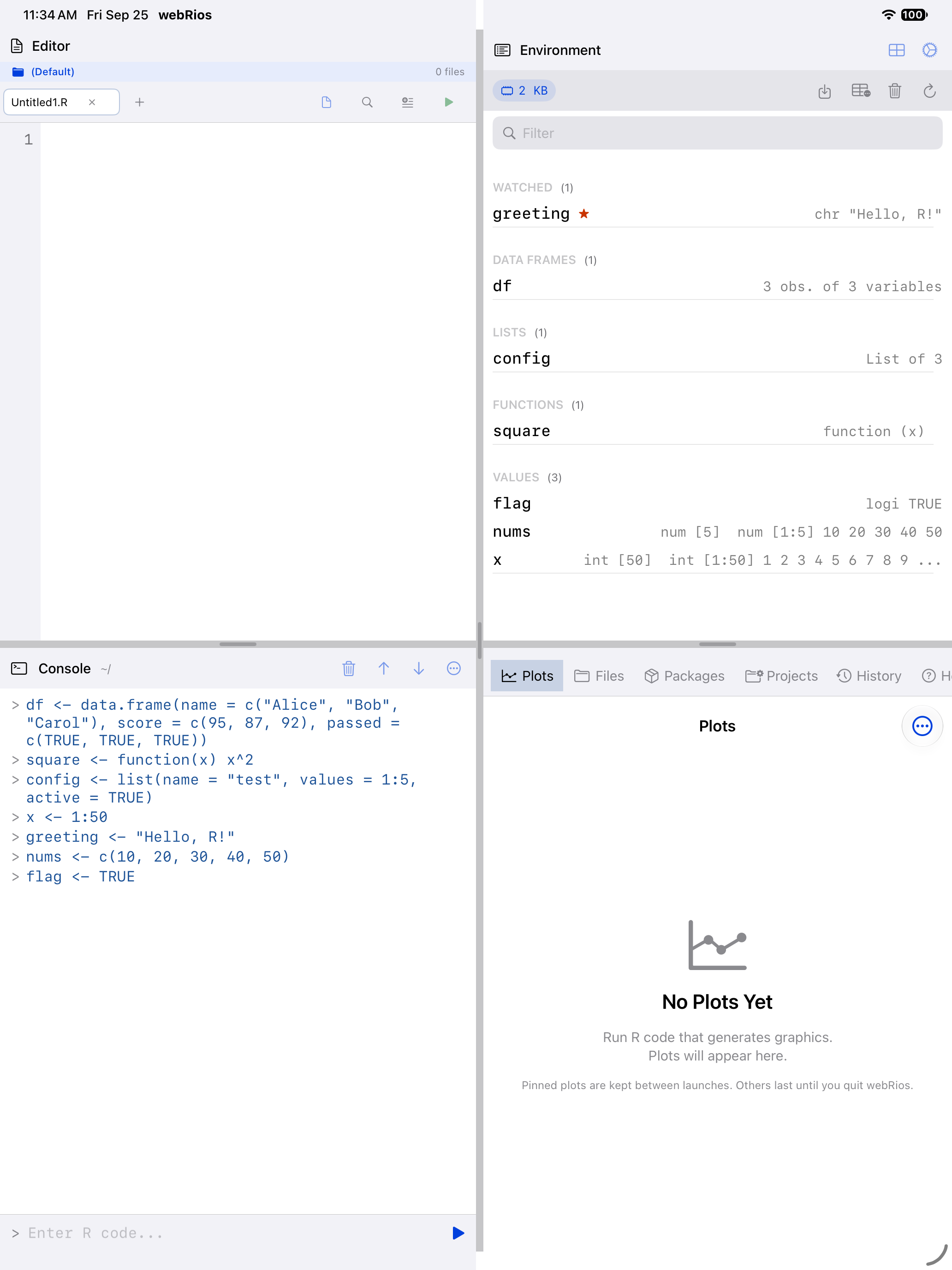
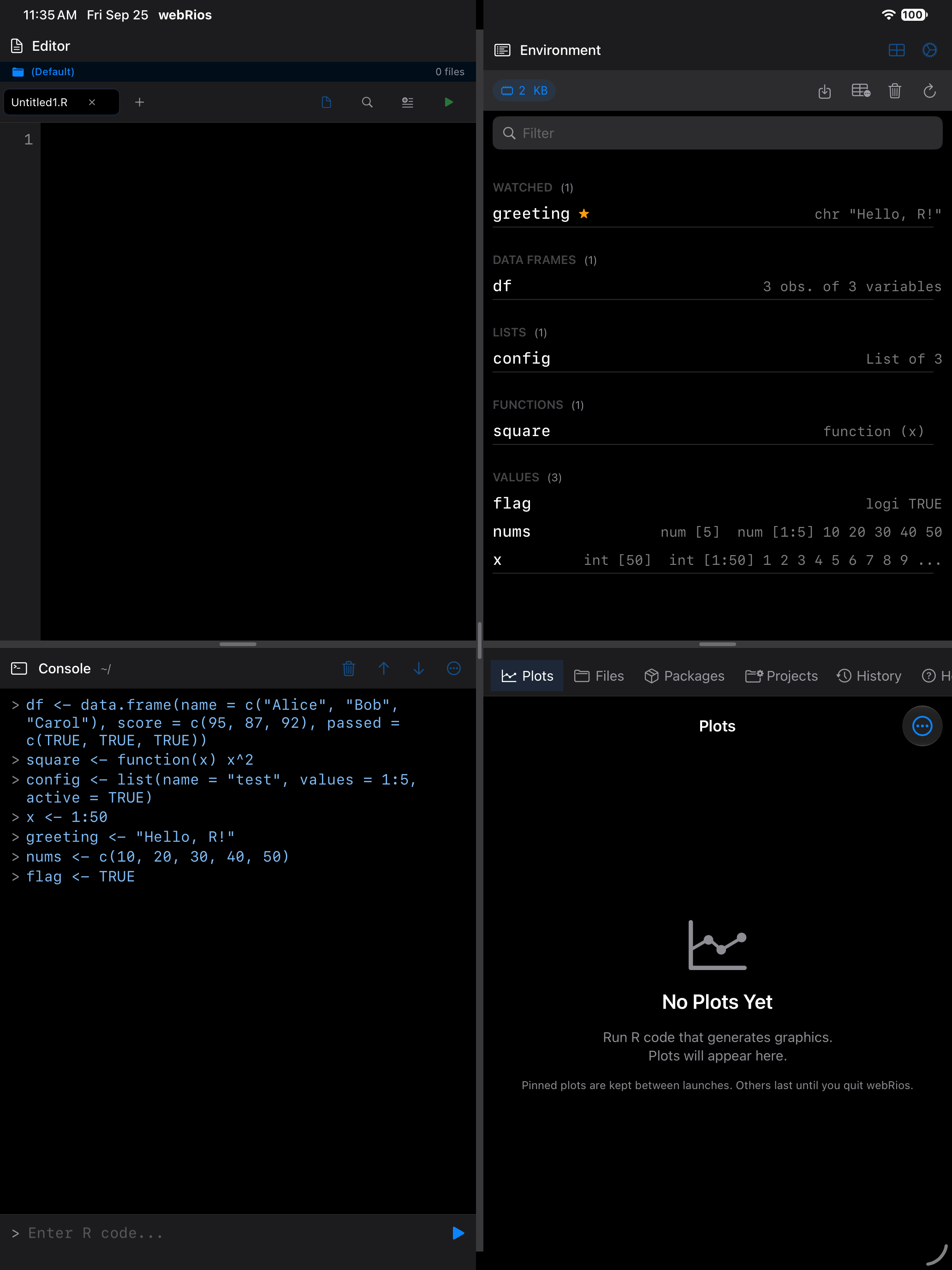
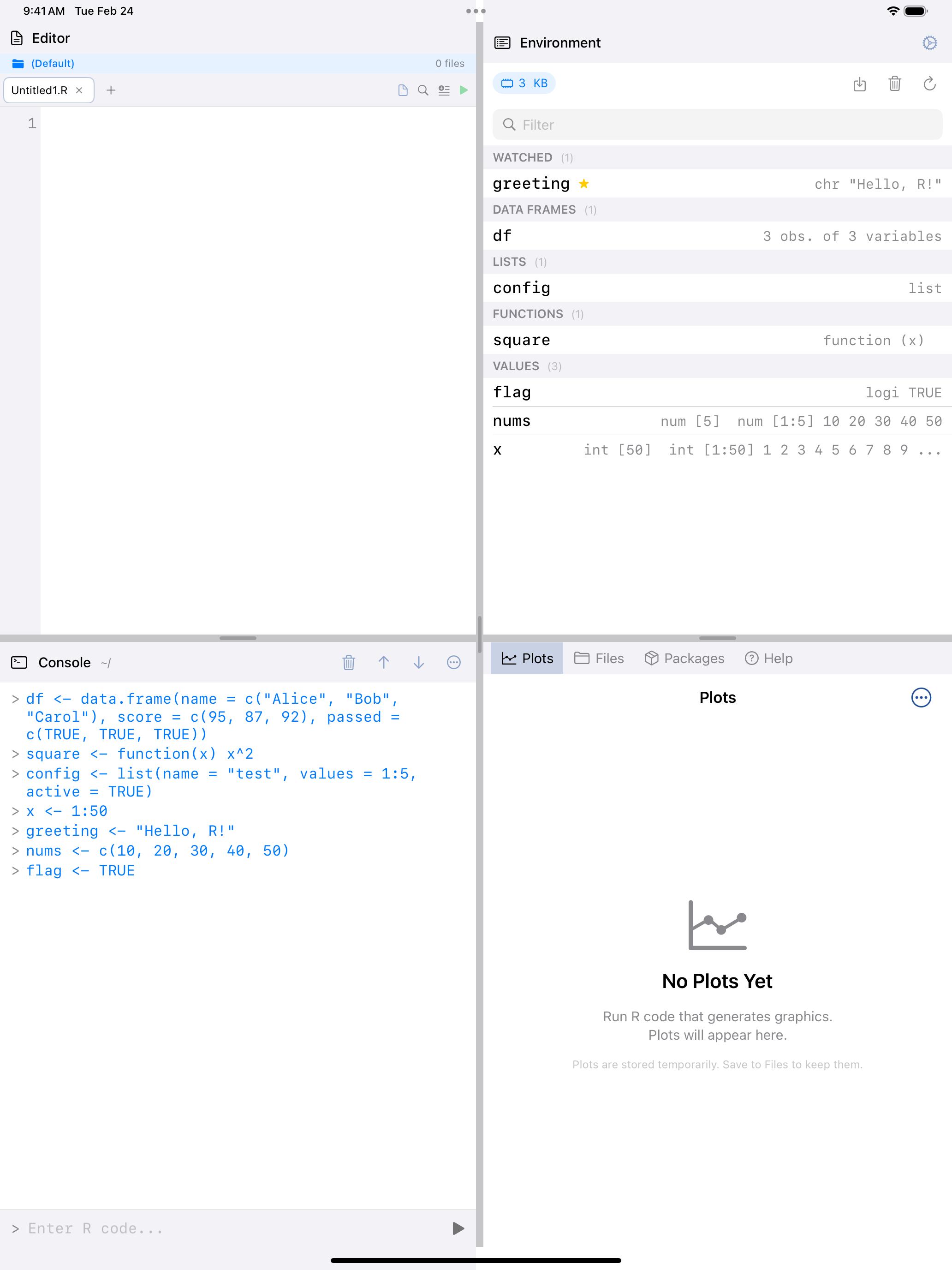
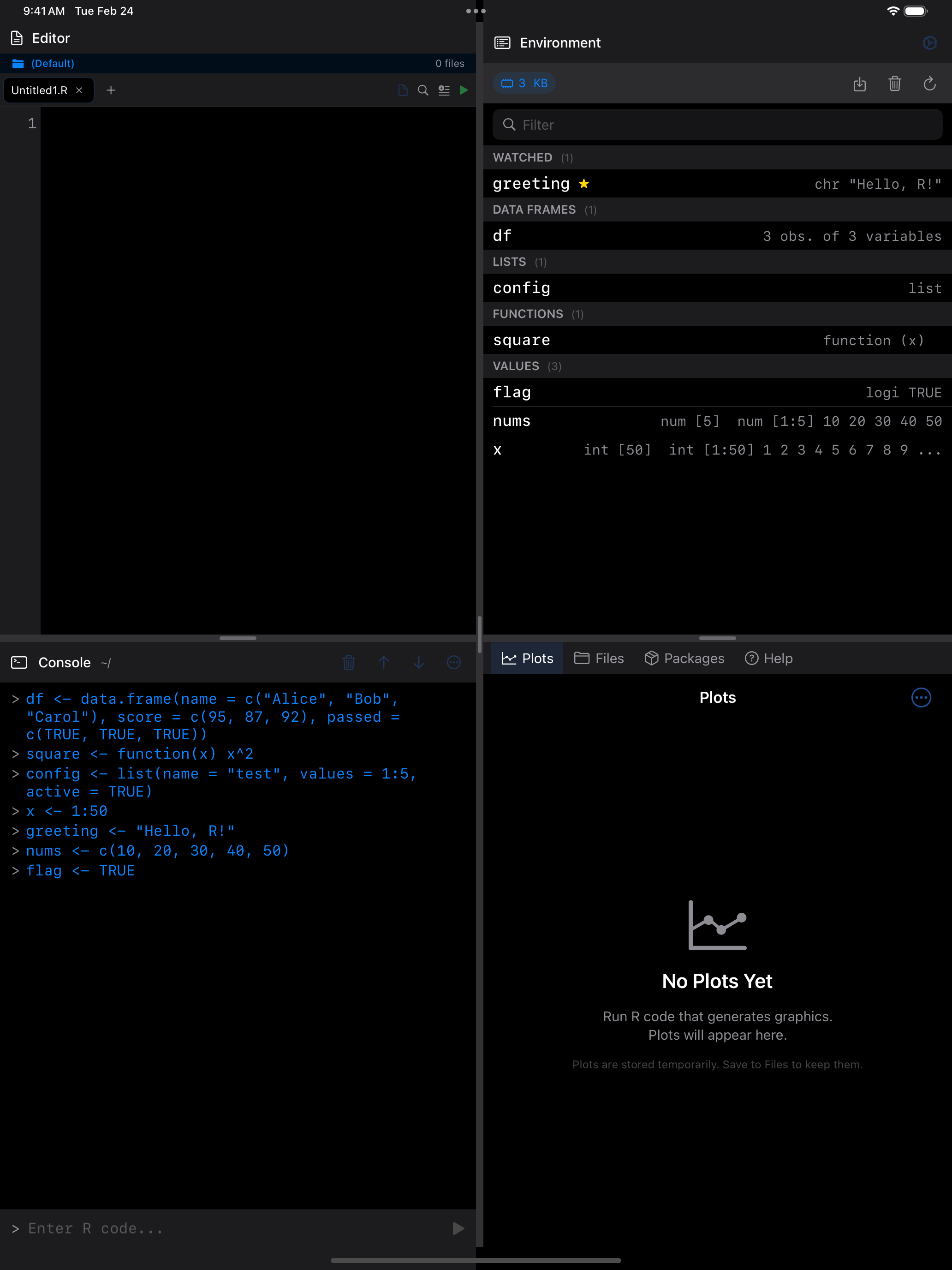
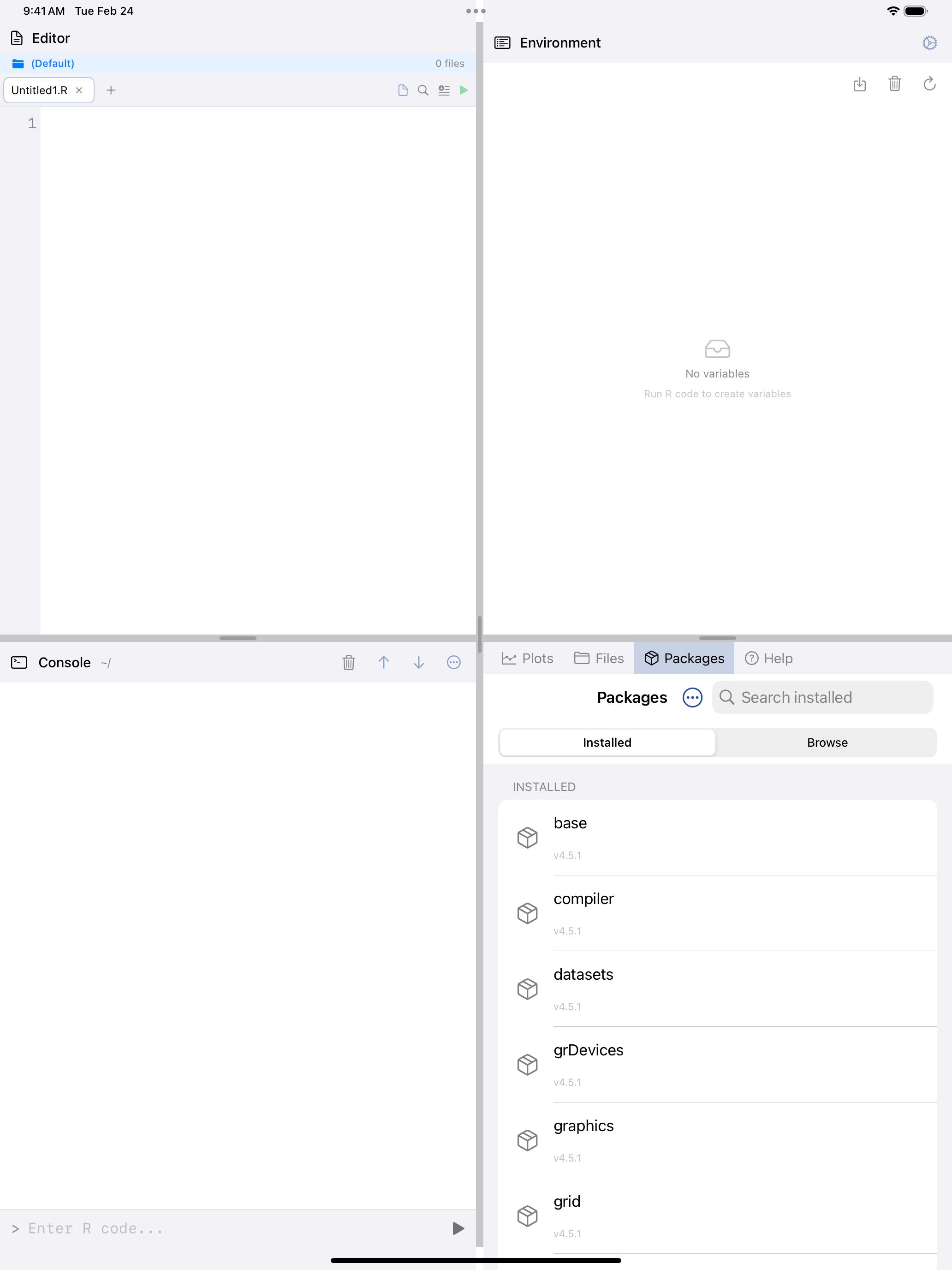
The Environment tab shows every variable in your R session at a glance: names, types, sizes, and value previews, all updated in real time.
Your variables, at a glance
Once you start creating variables in the Console or Editor, they show up here automatically. The list refreshes in real time, so you will see new variables appear right after you create them.
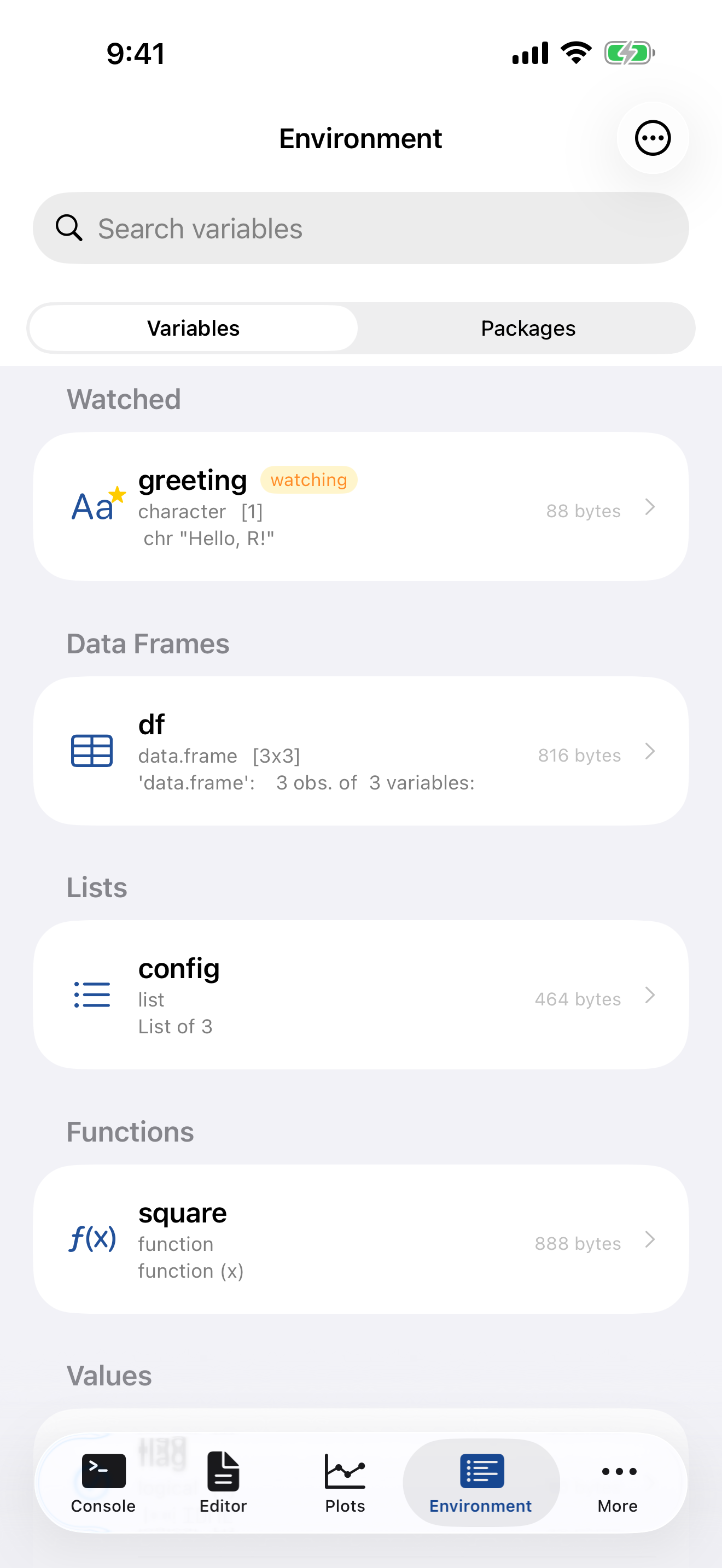
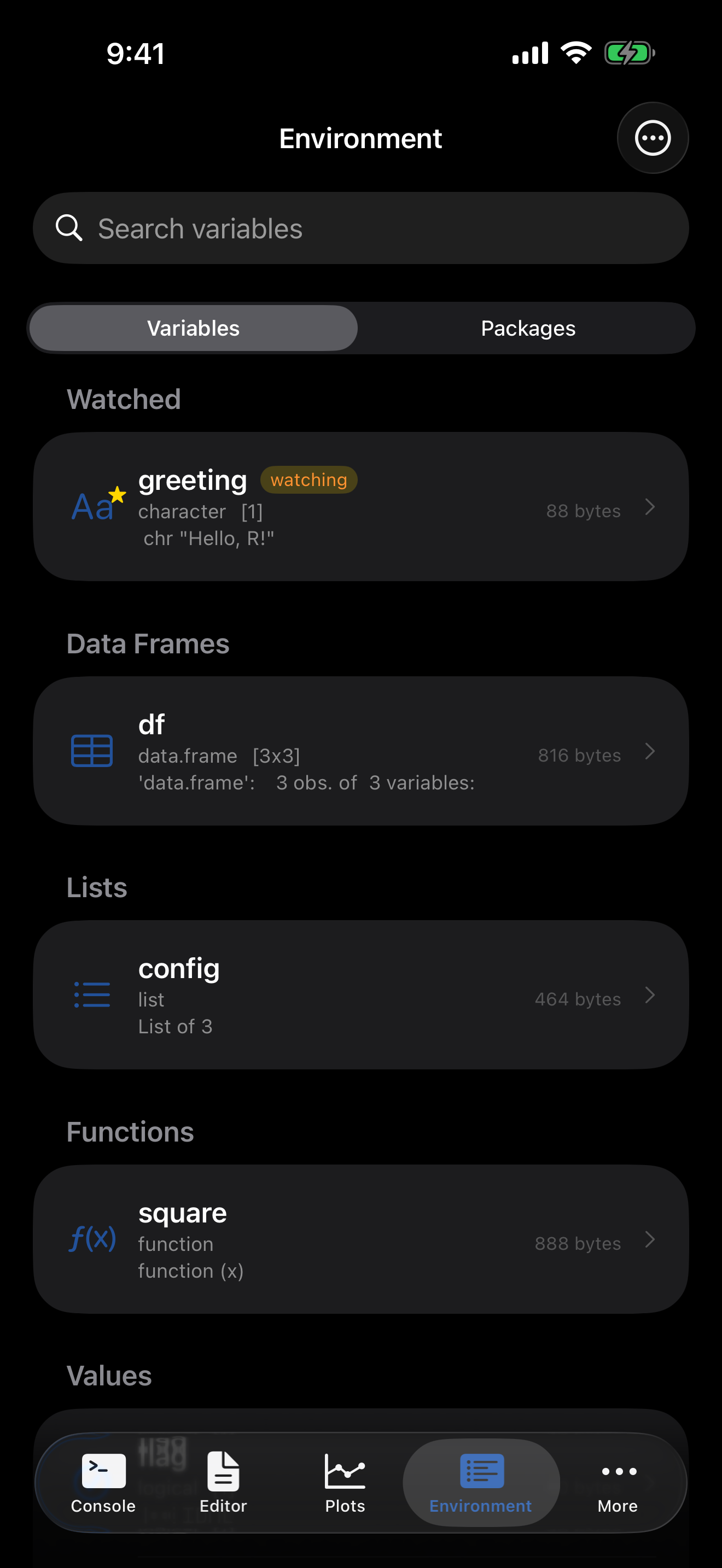
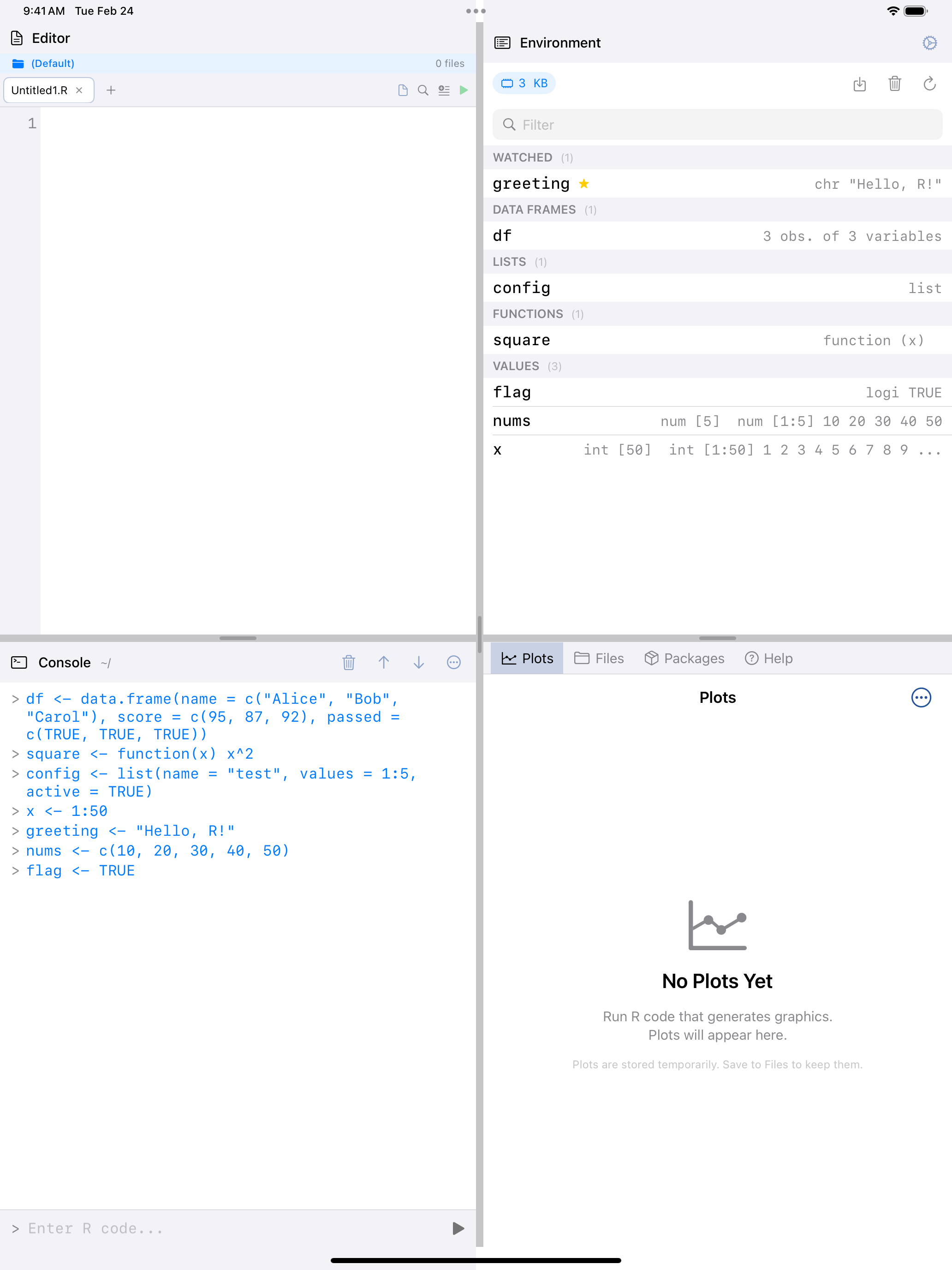
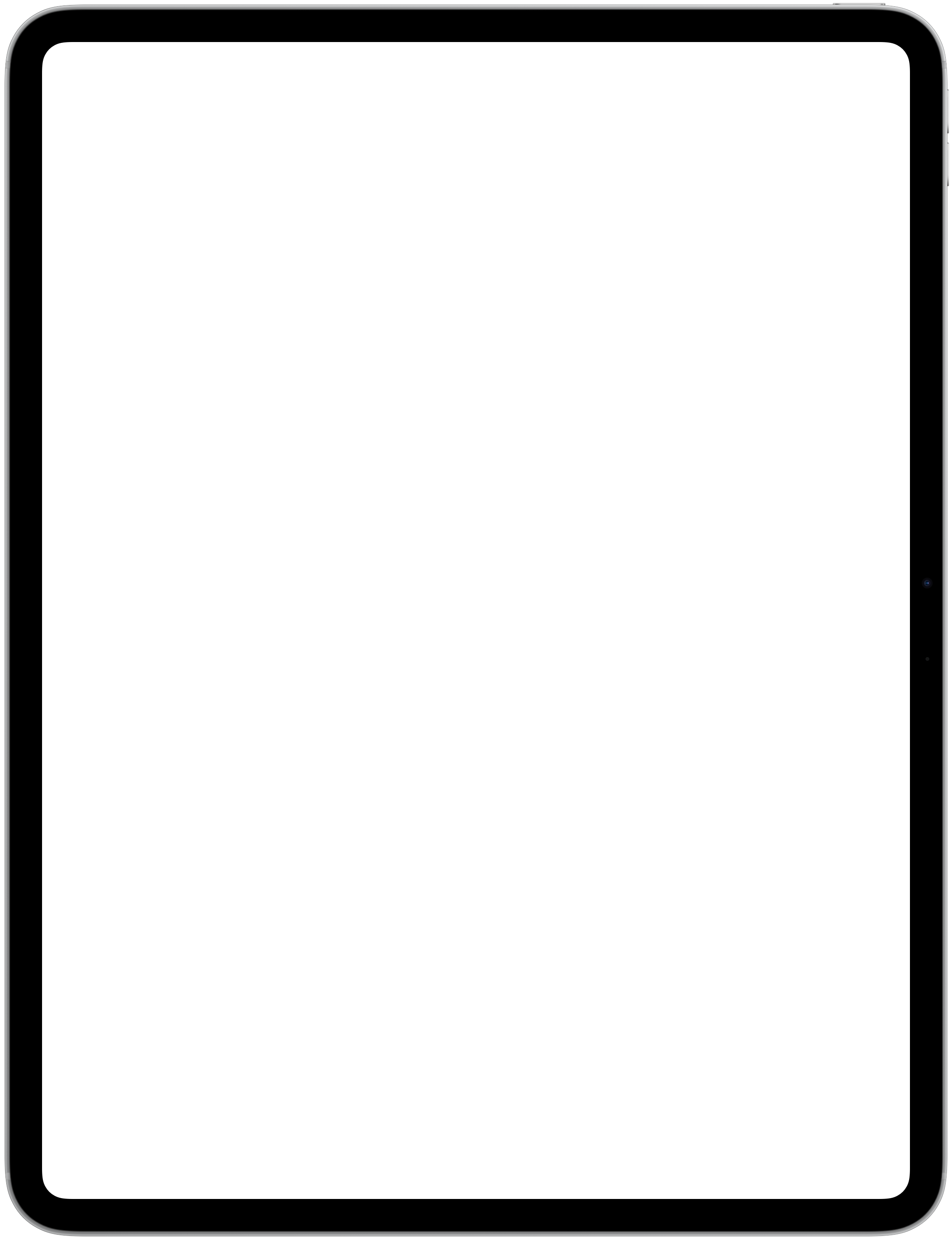
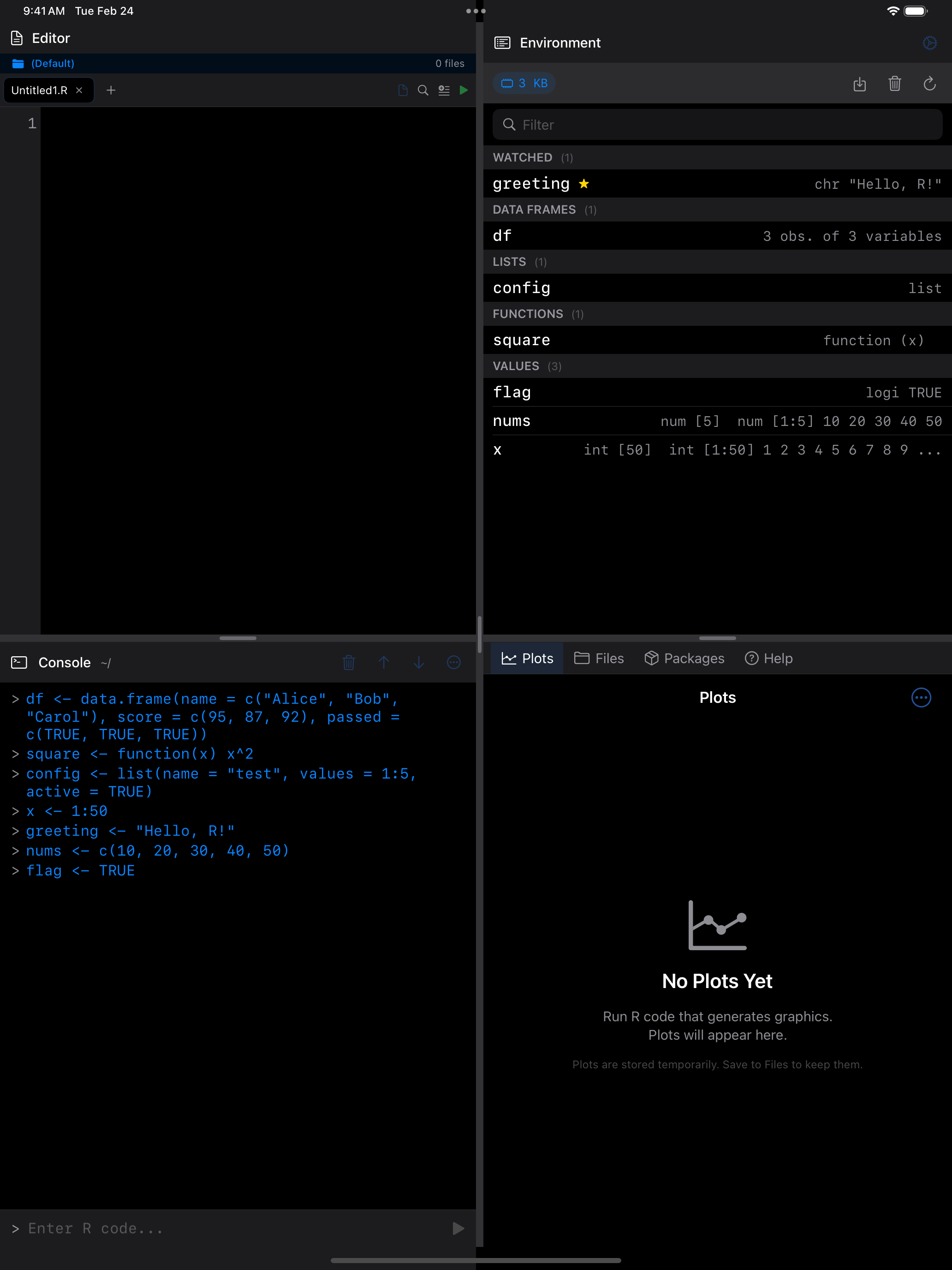
Each row shows the variable’s name, class (like data.frame or numeric), memory size, and a short preview of its contents.
How variables are organized
Variables are grouped by R type:
- Data Frames: includes
data.frame,tibble, anddata.tableobjects - Matrices:
matrixandarraytypes - Lists: nested list structures
- Functions: any custom functions you have defined
- Values: everything else: vectors, scalars, strings, logicals, and so on
If you have added any variables to your watch list (more on that below), they appear at the very top in their own “Watched” section, regardless of type.
Inspecting a variable in detail
Tap any variable to open a detail sheet. What you see depends on the type.
Data frames show all columns with types and sample values, a preview of the first 10 rows, and an “Open in Data Frame Viewer” button for a full scrollable table.
Vectors and scalars show the full value (up to 15 digits of precision), or a summary and the first 20 elements for longer vectors.
Lists show the str() output and a preview of each element.
Functions show the signature and body.
Other objects, such as a model from lm(), a formula or an environment, are described with str() in a scrolling block.
Every detail view has Copy as R Code: tap View Code for the dput() output, to recreate or share the variable. Over 512 KB, the sheet suggests running dput() in the Console instead.
Unusual names, such as `sales 2024`, work everywhere, and the code shown quotes them with backticks.
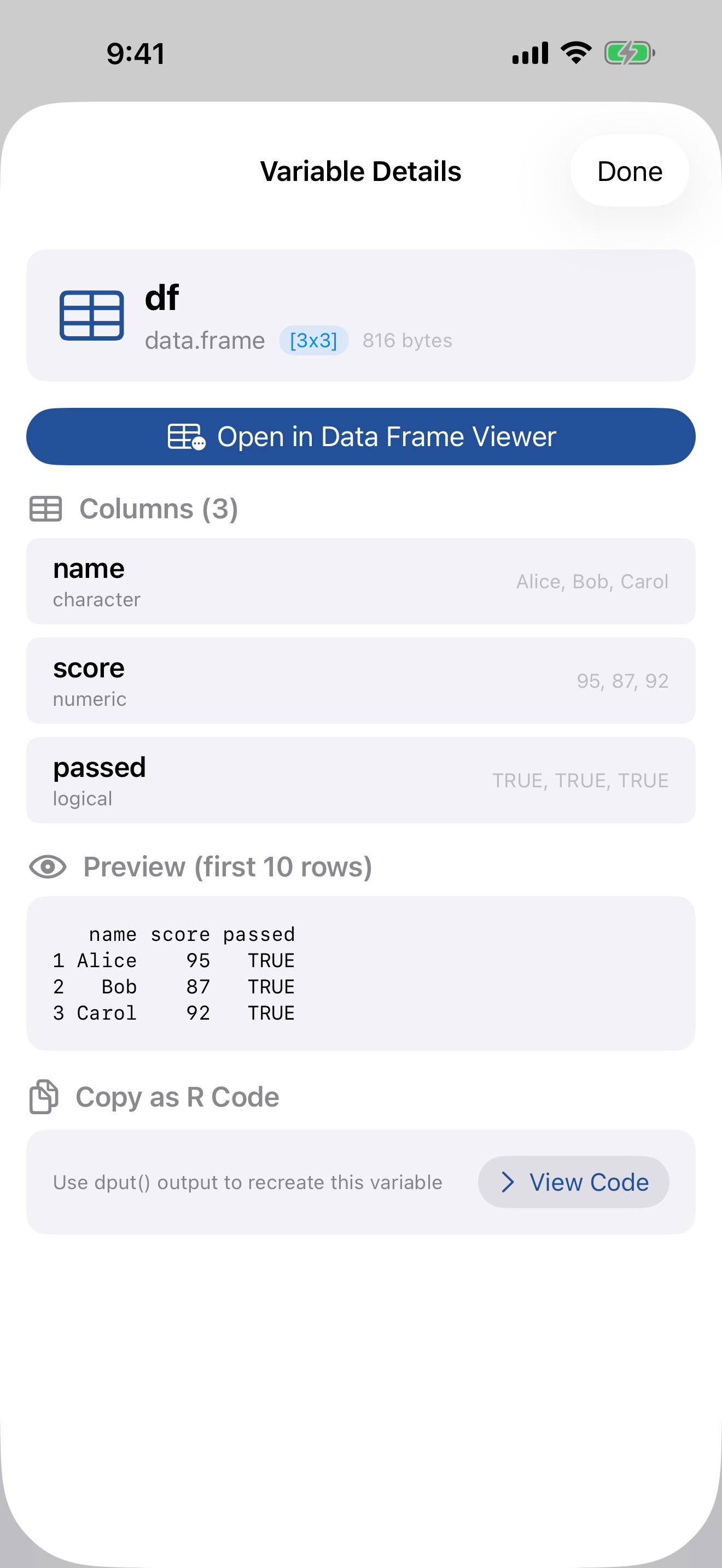
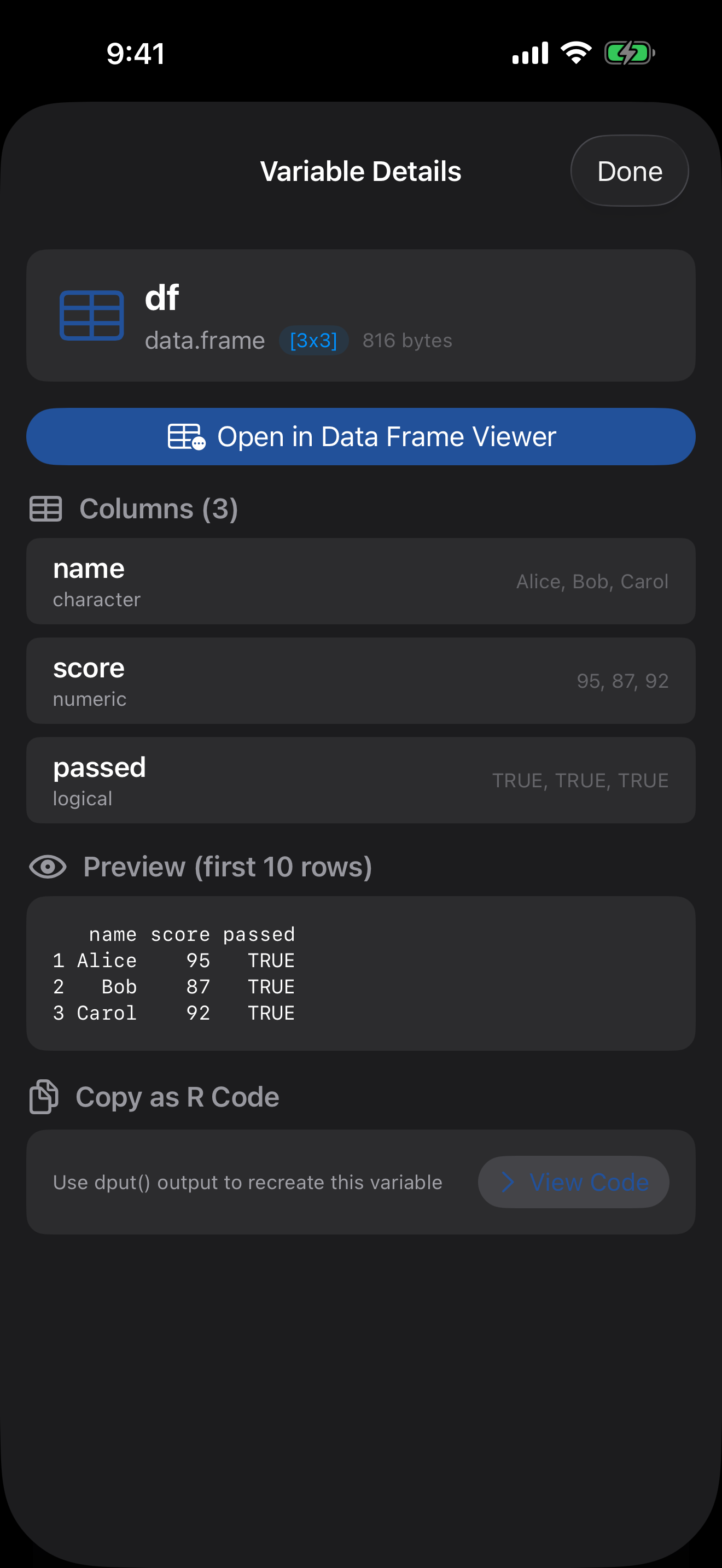
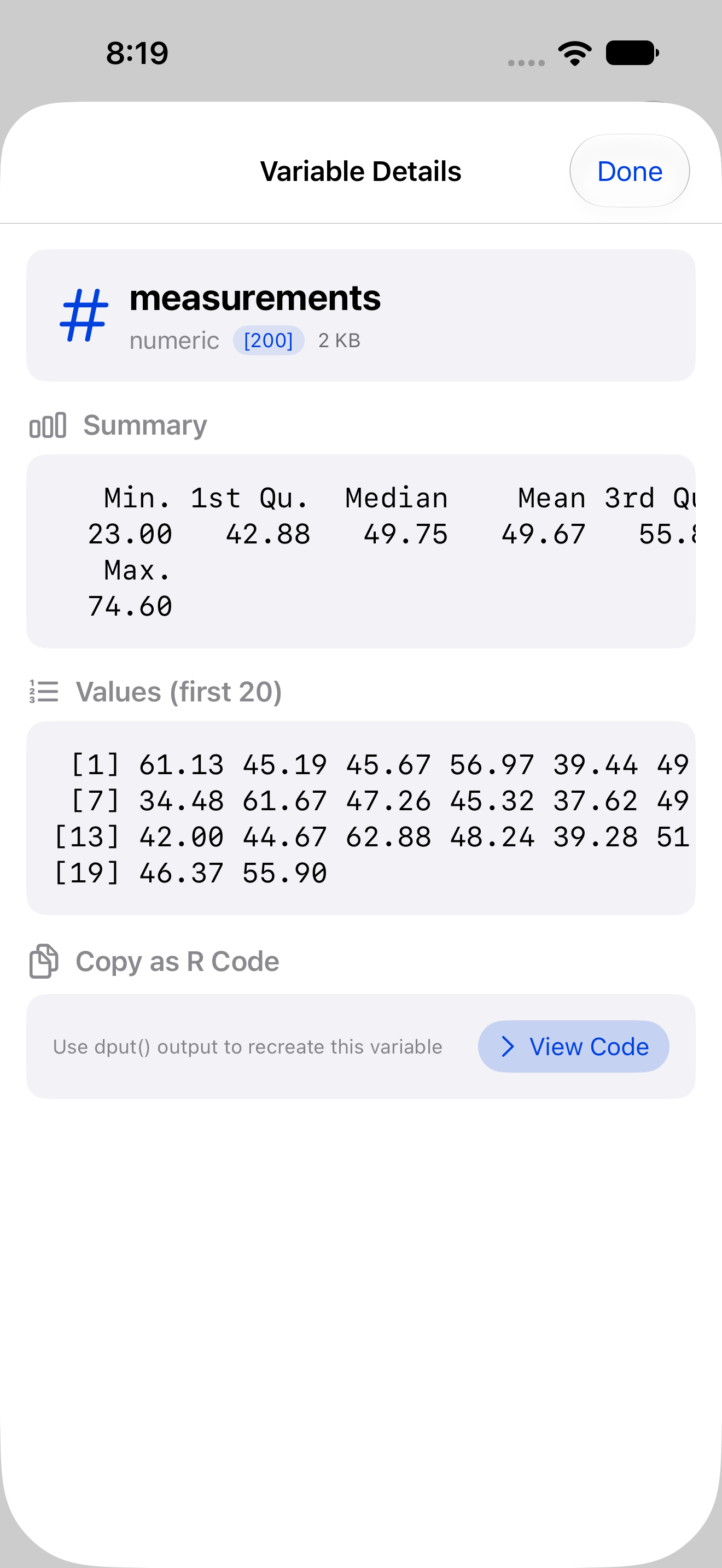
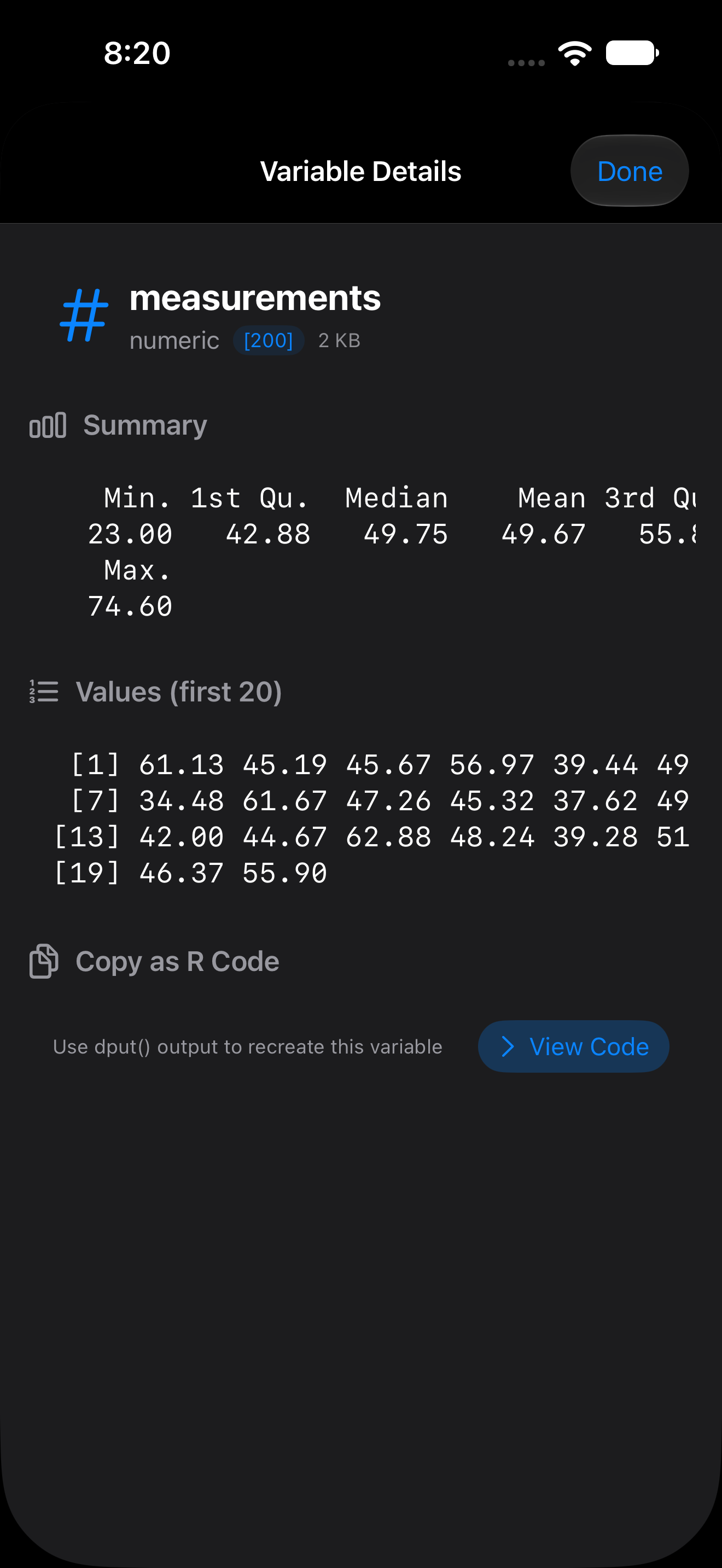
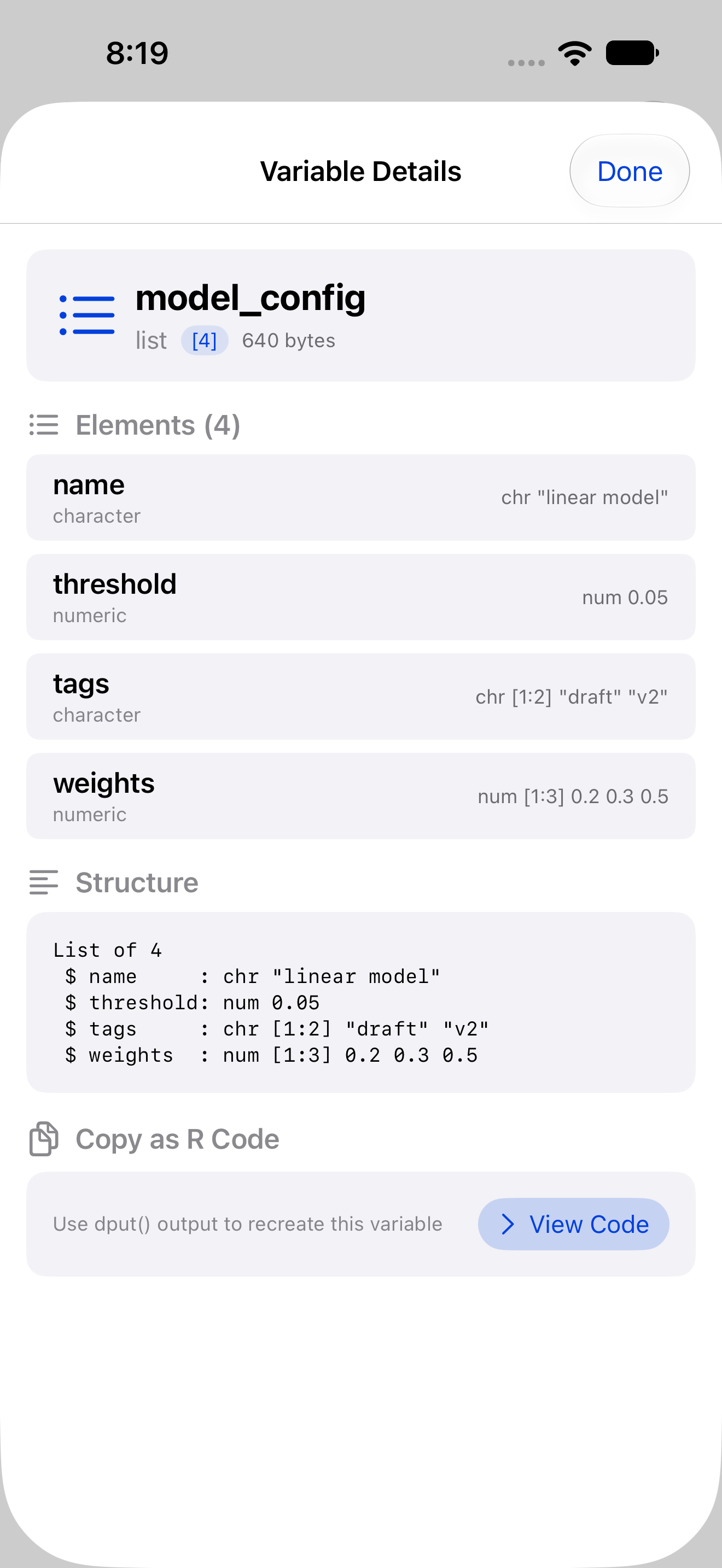
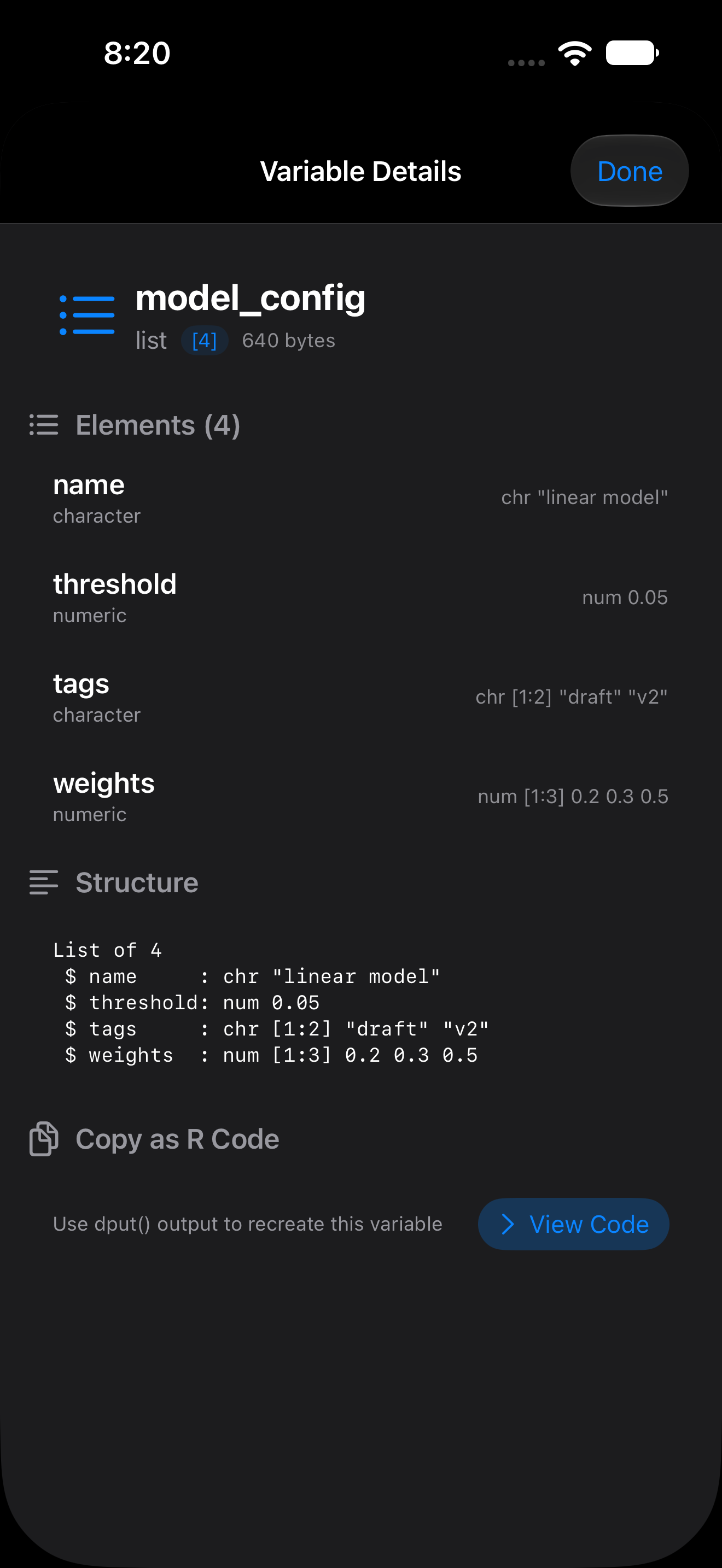
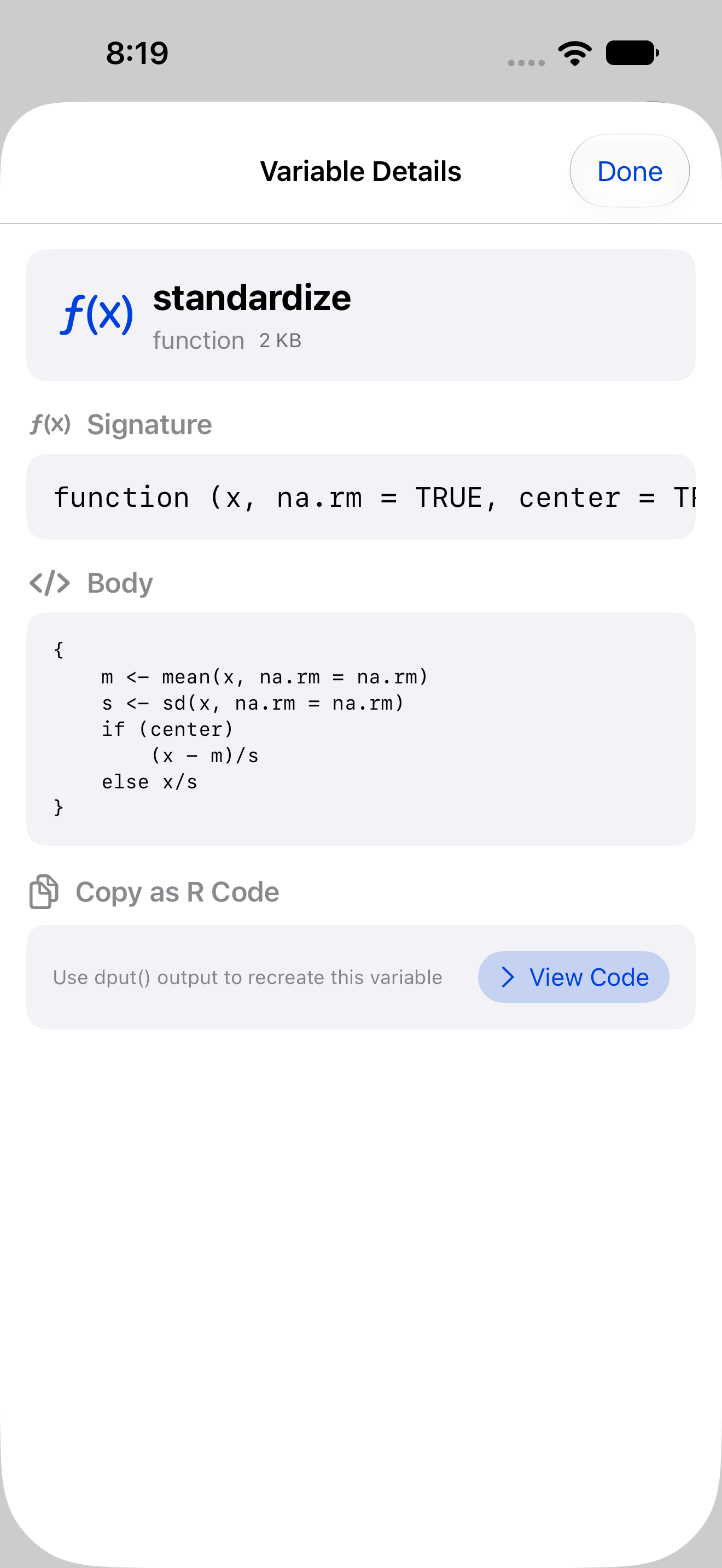
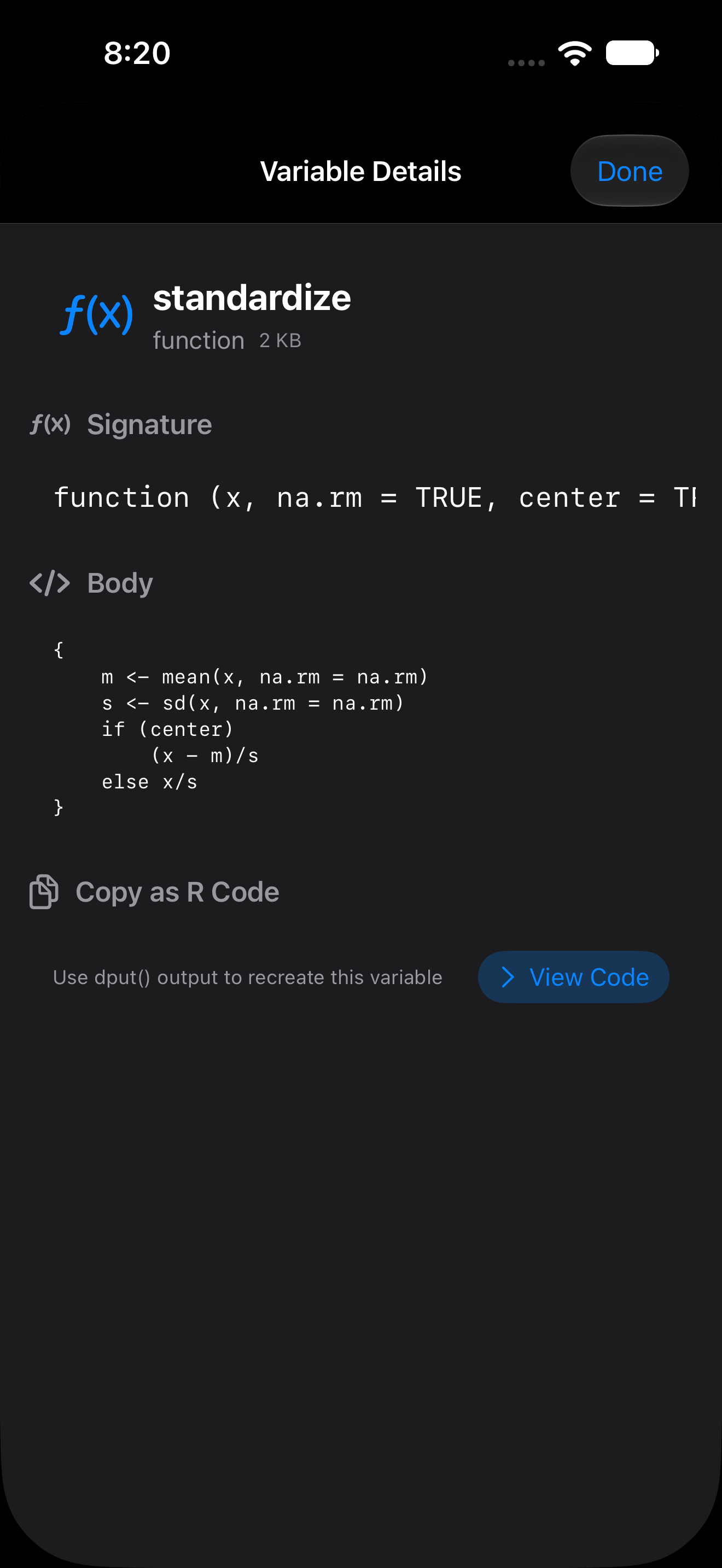
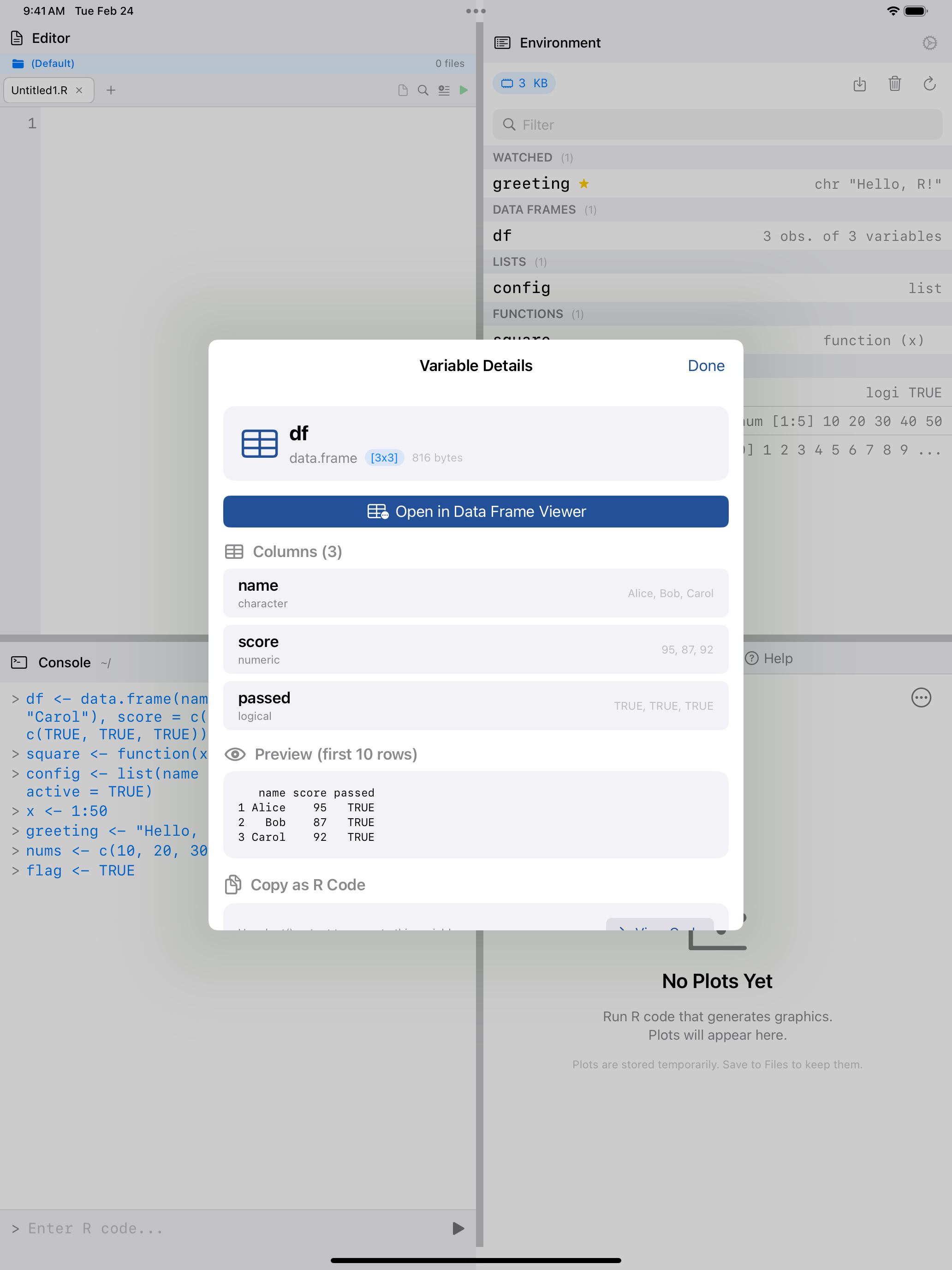
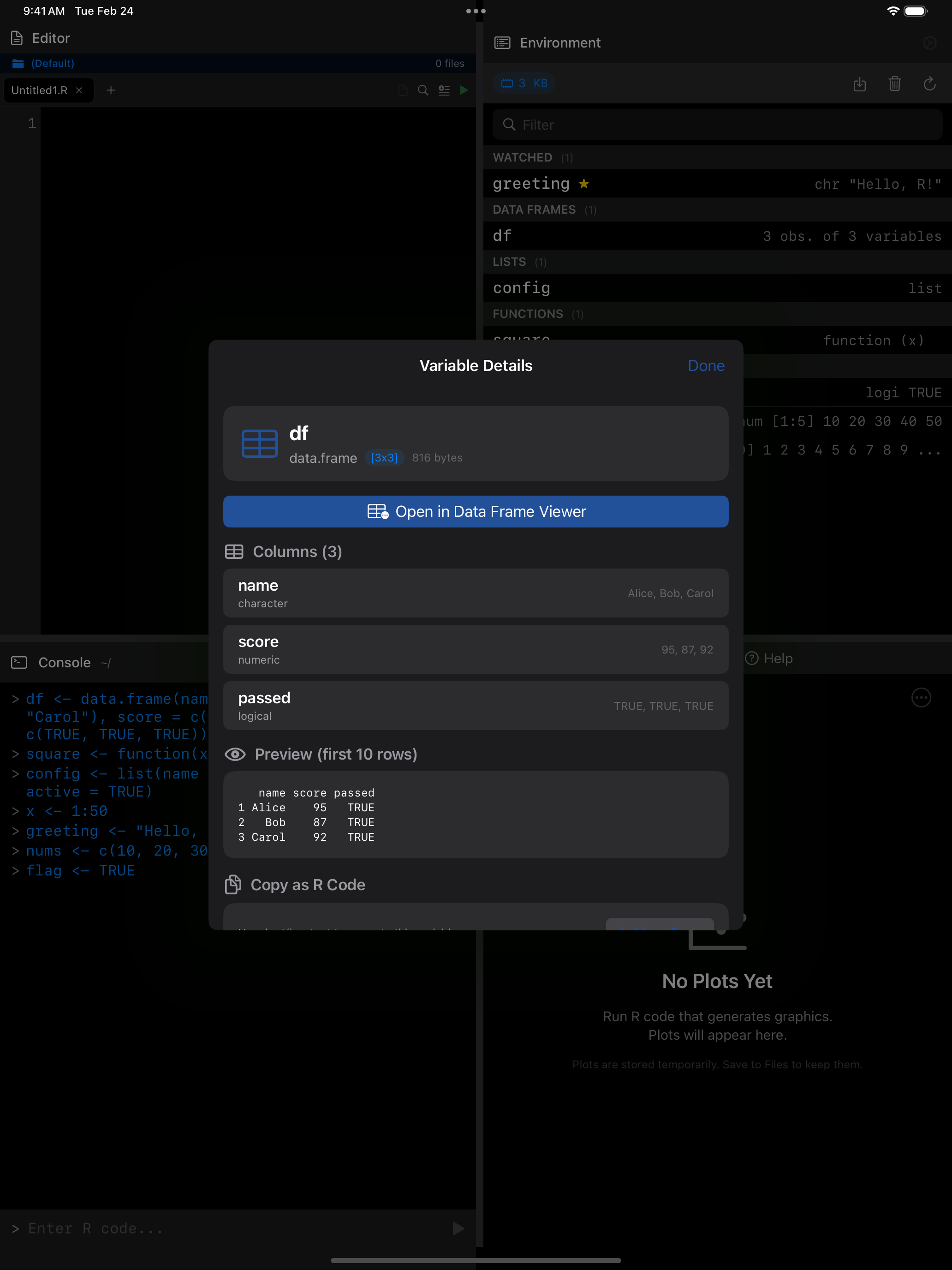
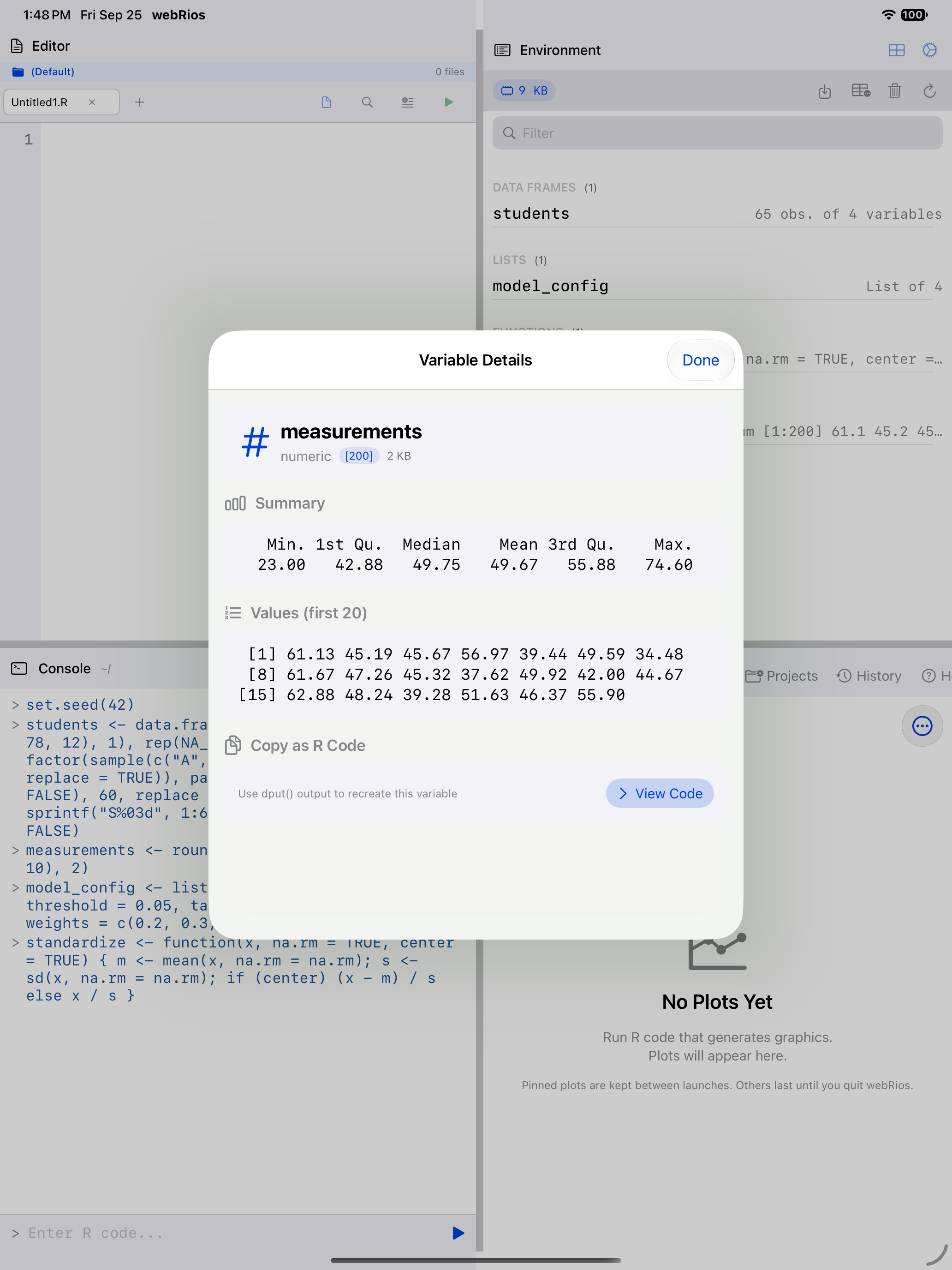
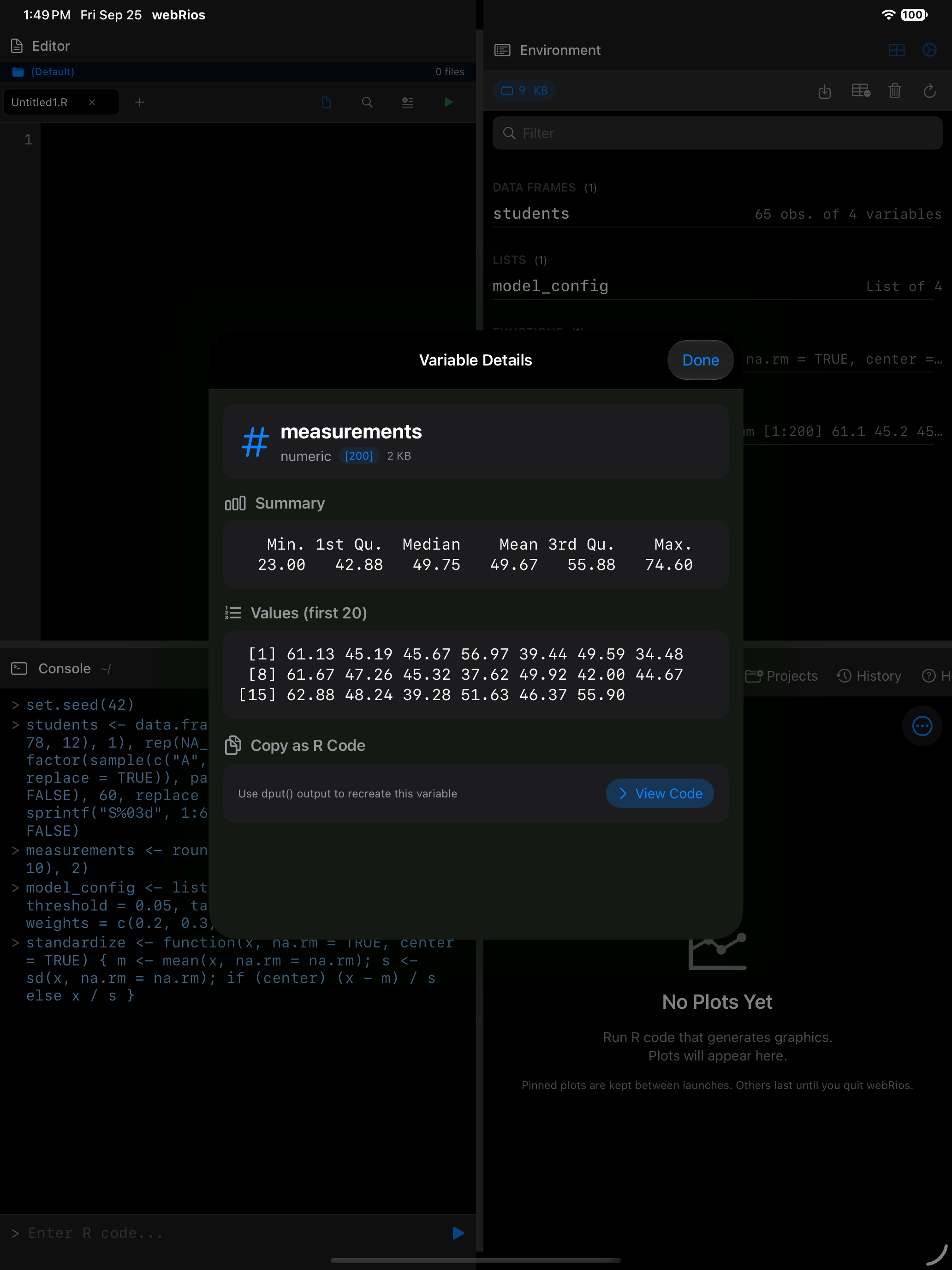
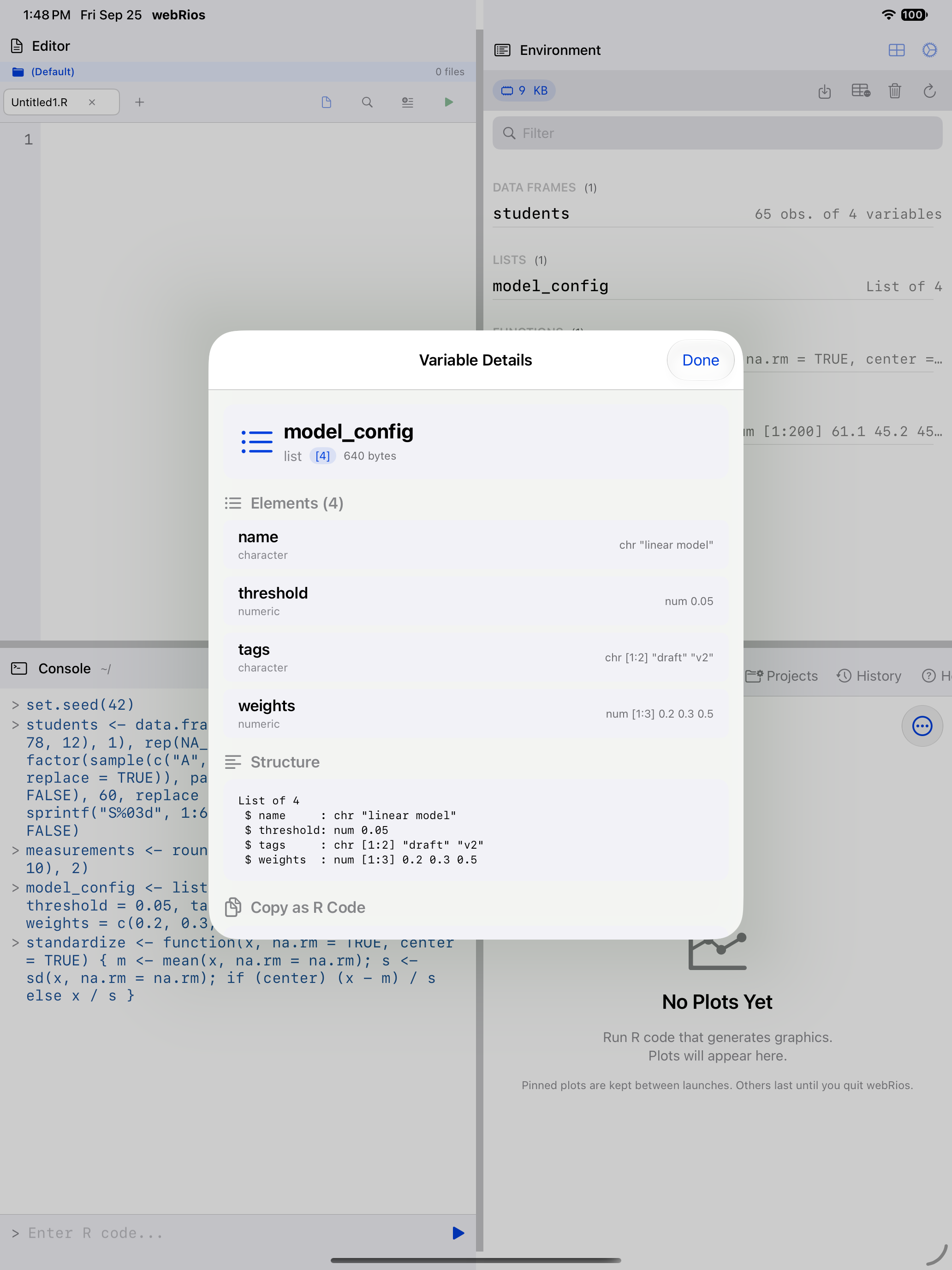
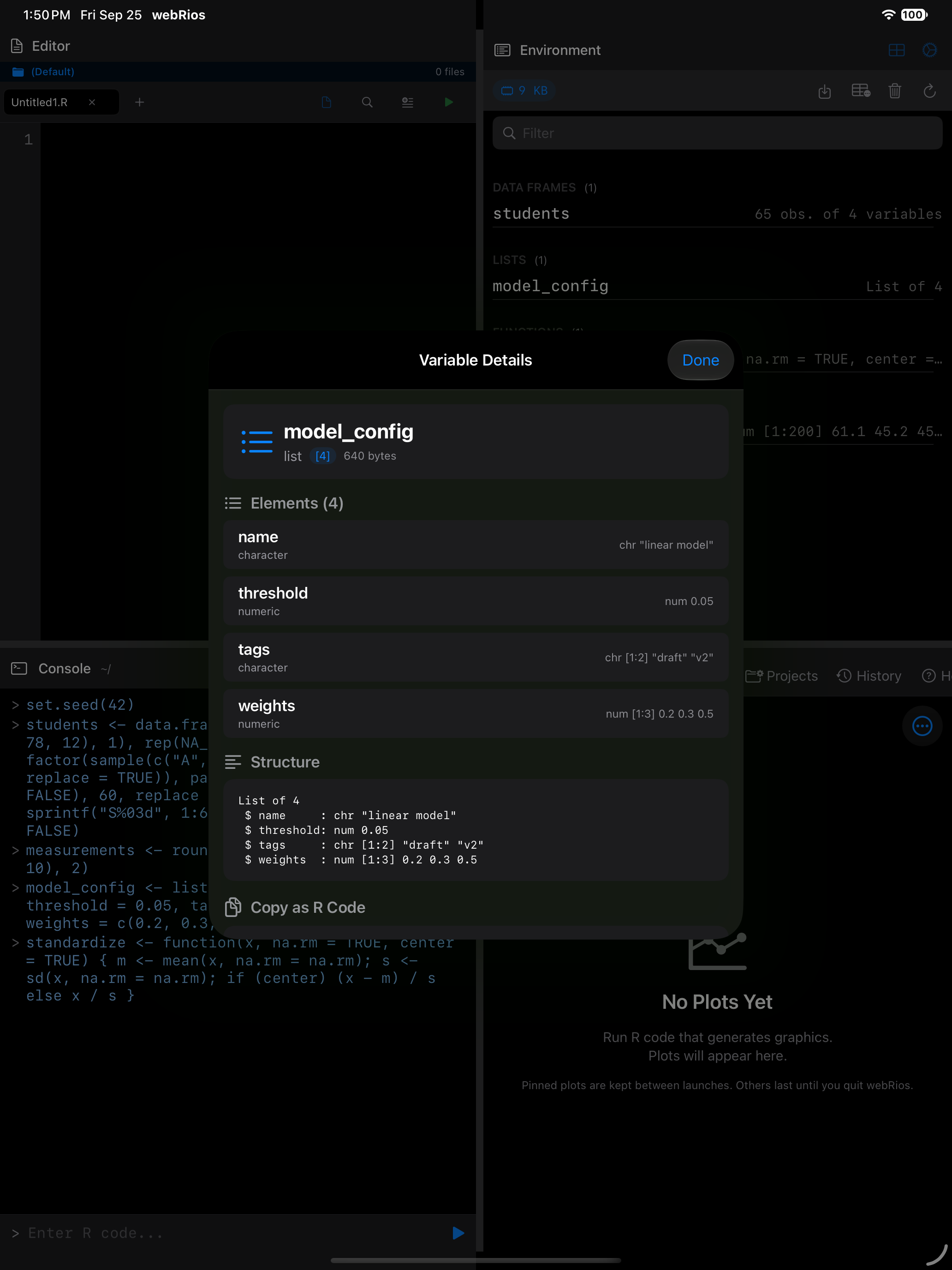
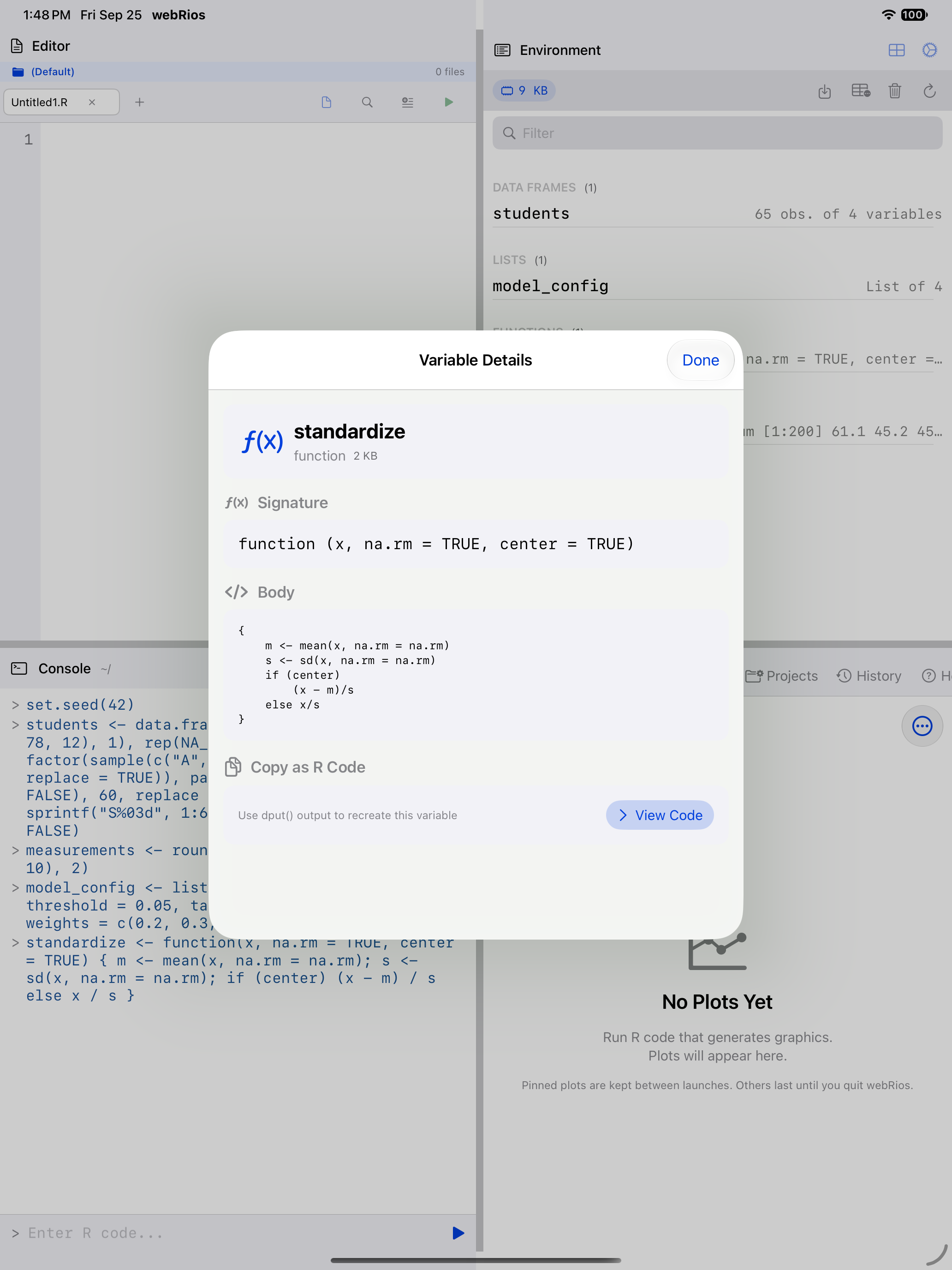
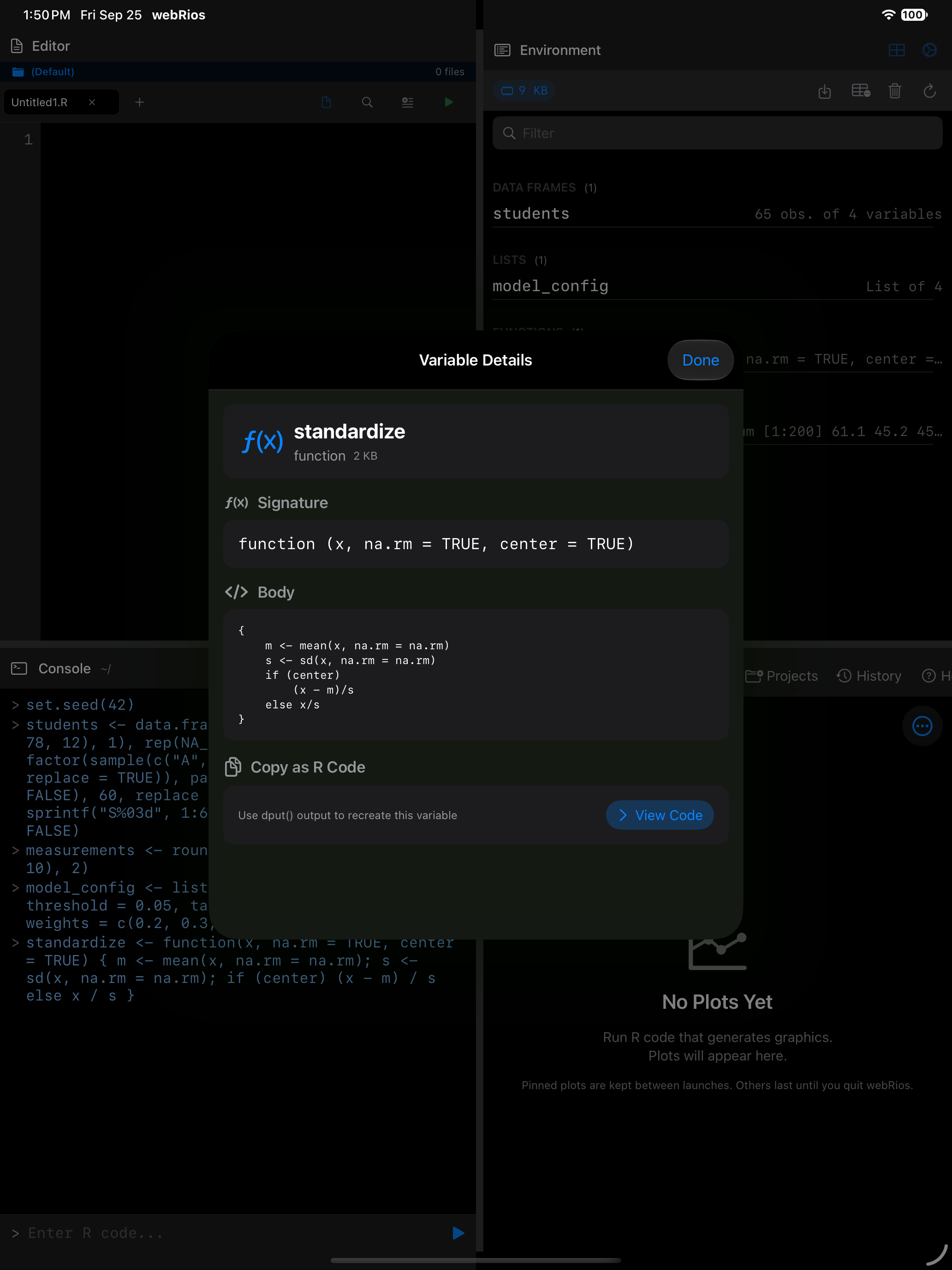
What you are seeing above: the Variable Details sheet adapts to the type of variable you tap.
- Data frame: every column with its type and sample values, plus a preview of the first rows
- Numeric vector: a summary and the first elements
- List: the
str()-style structure and a preview of each element - Function: the function’s signature (arguments) and its body
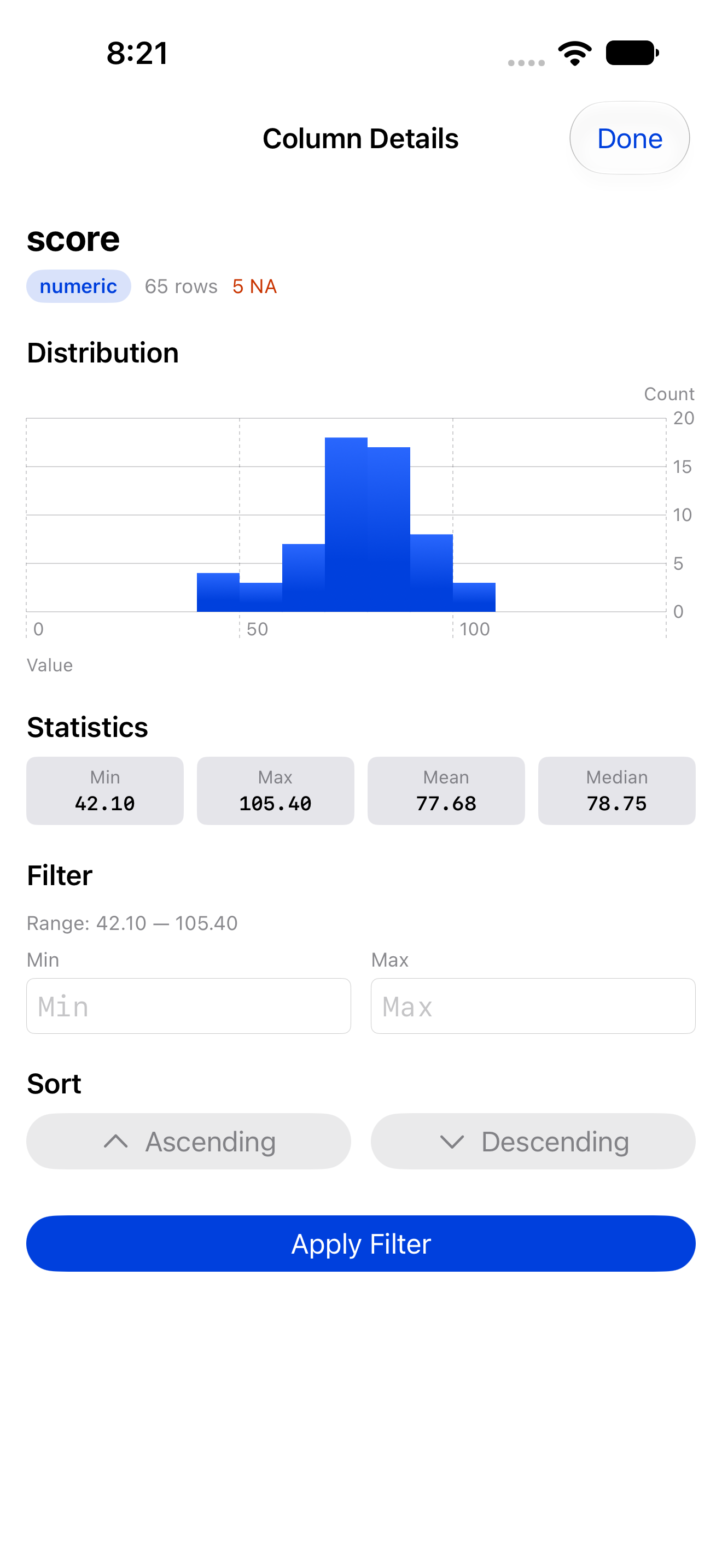
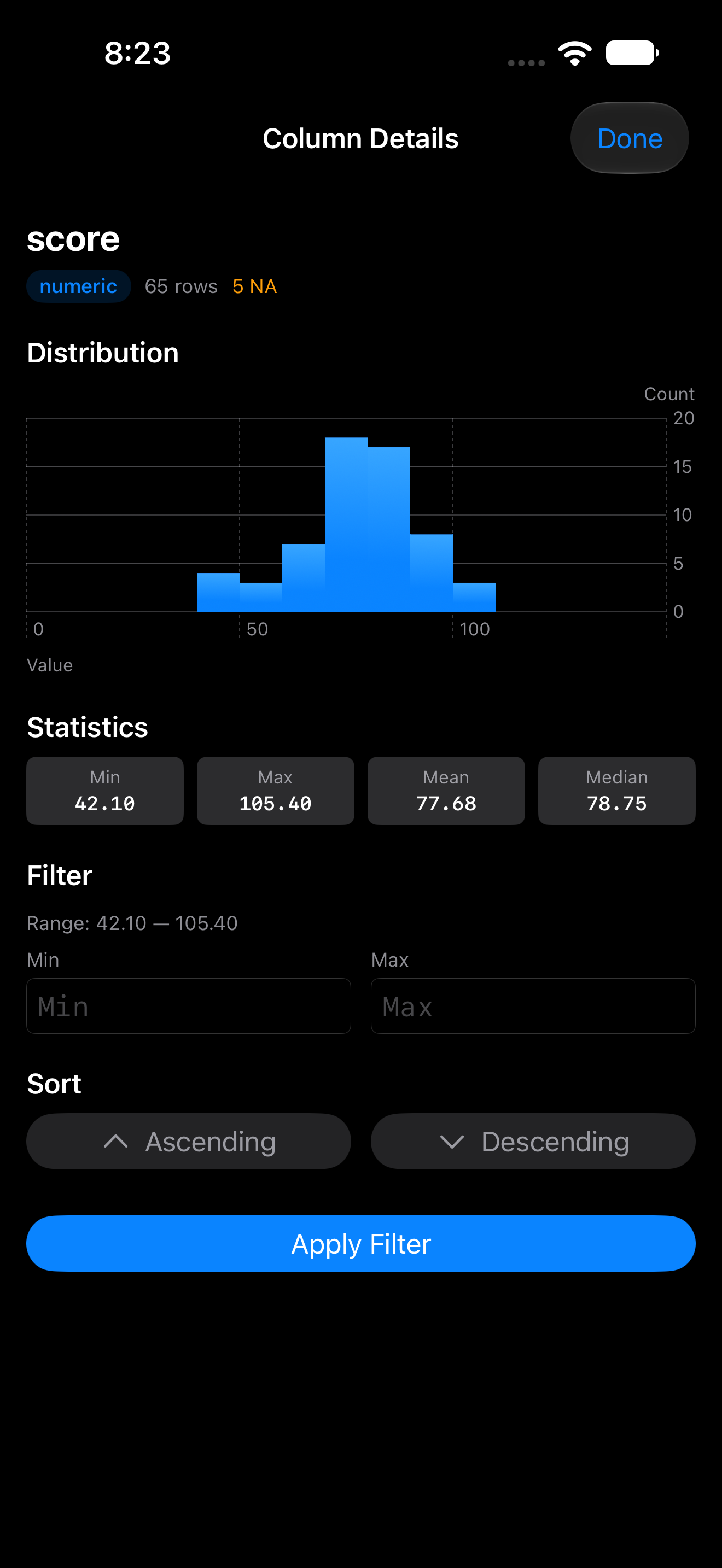
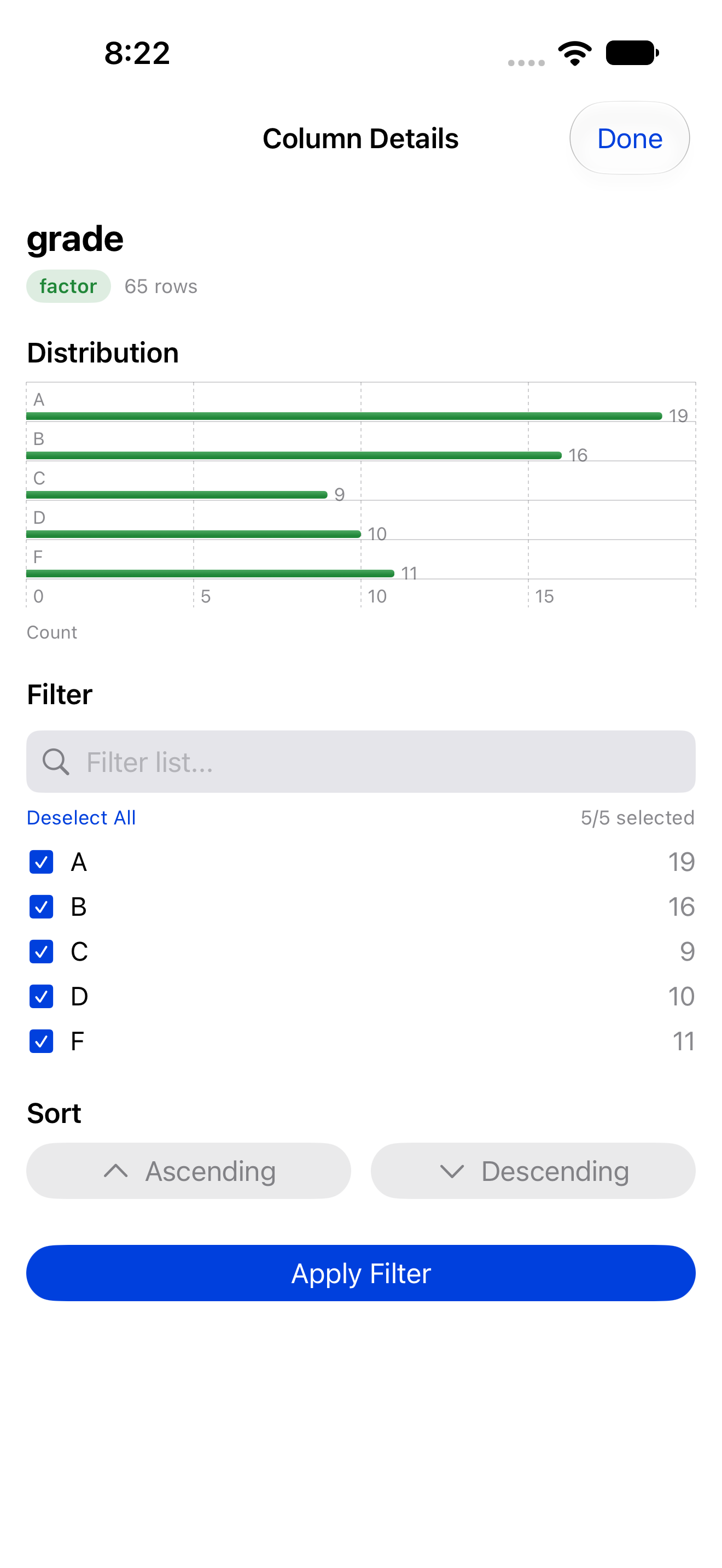
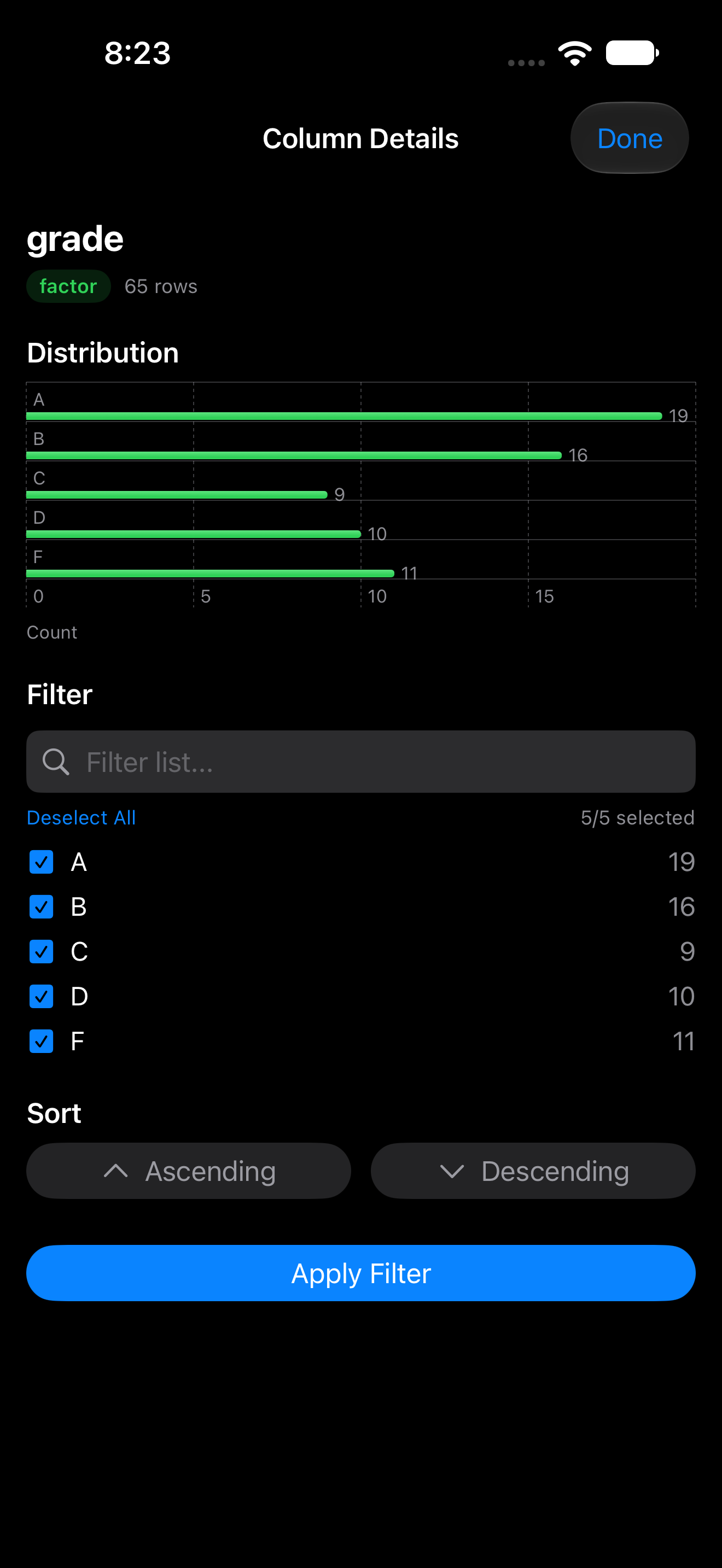
Column details
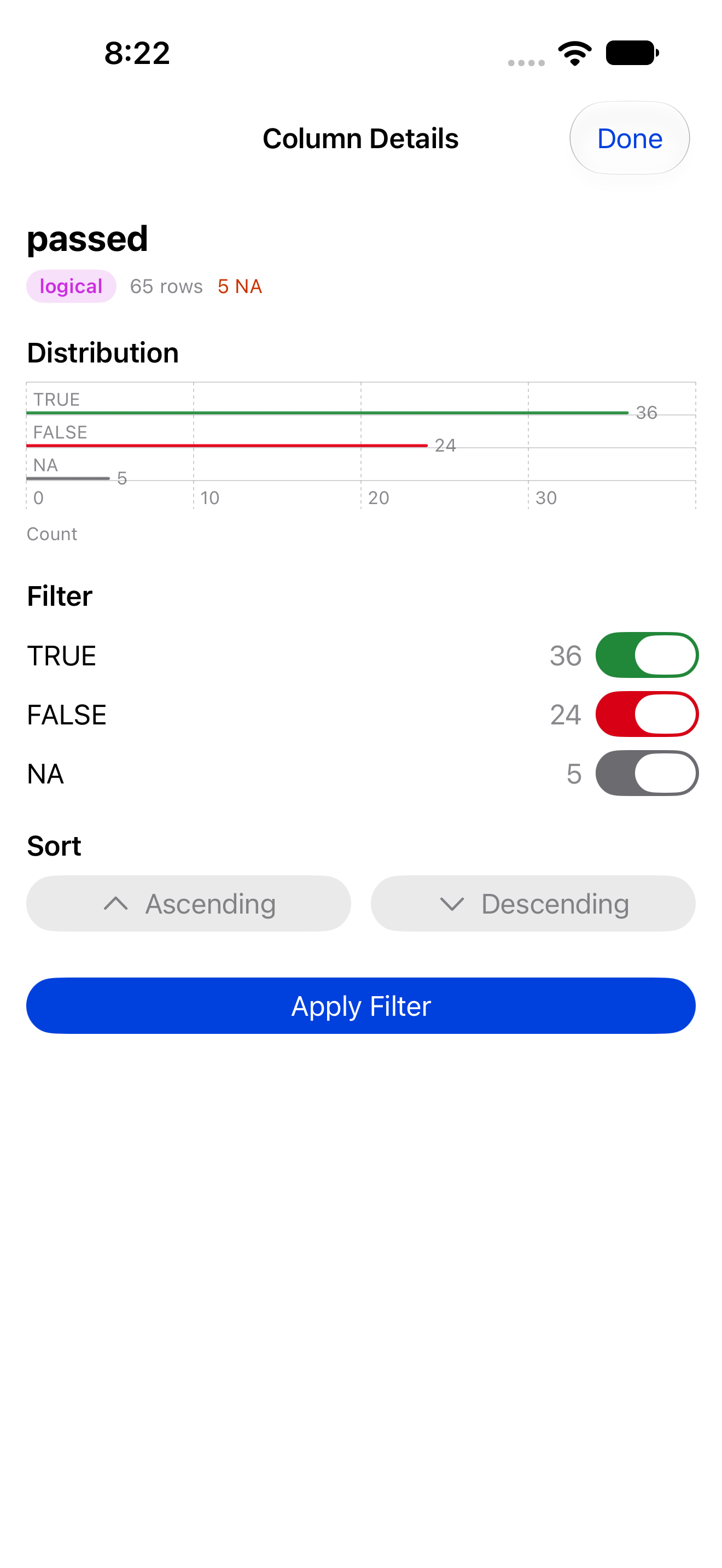
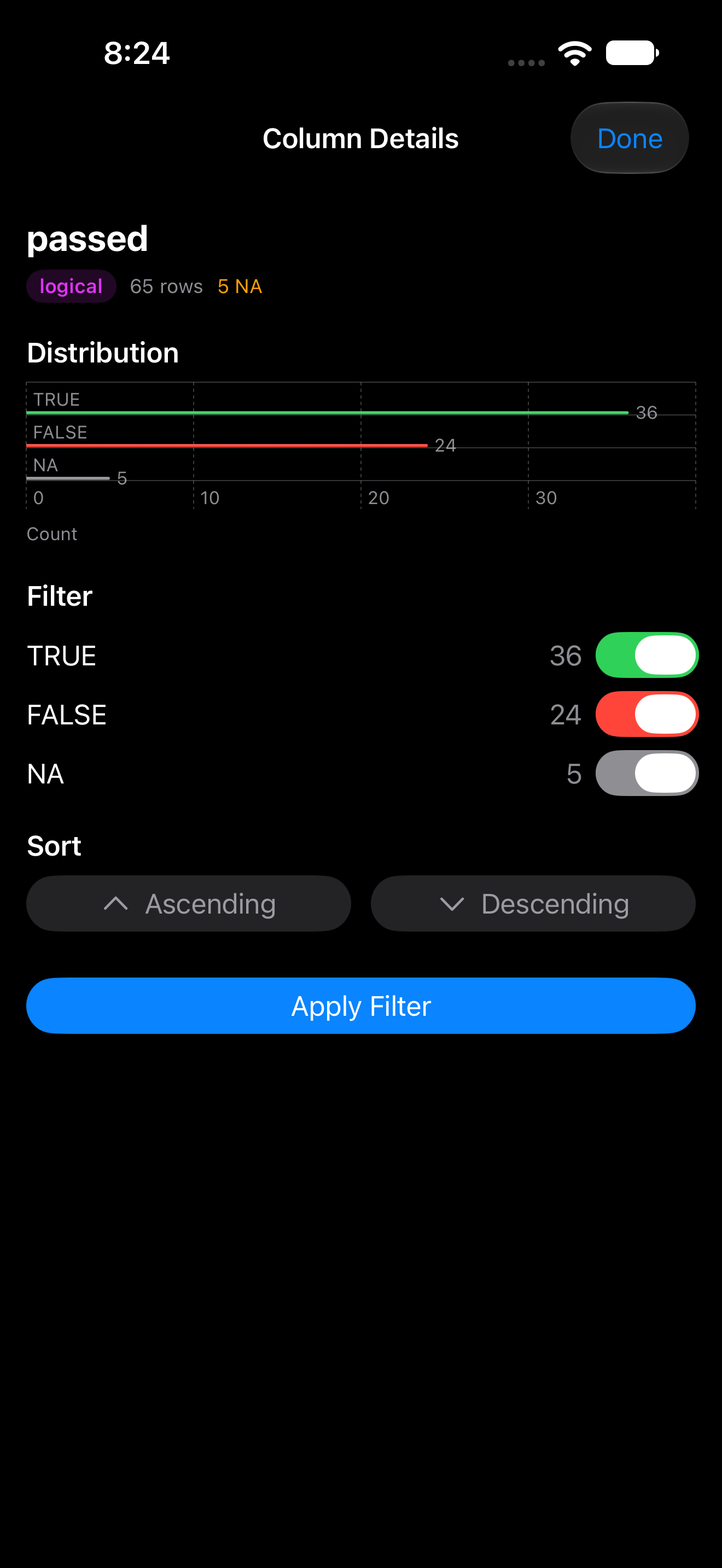
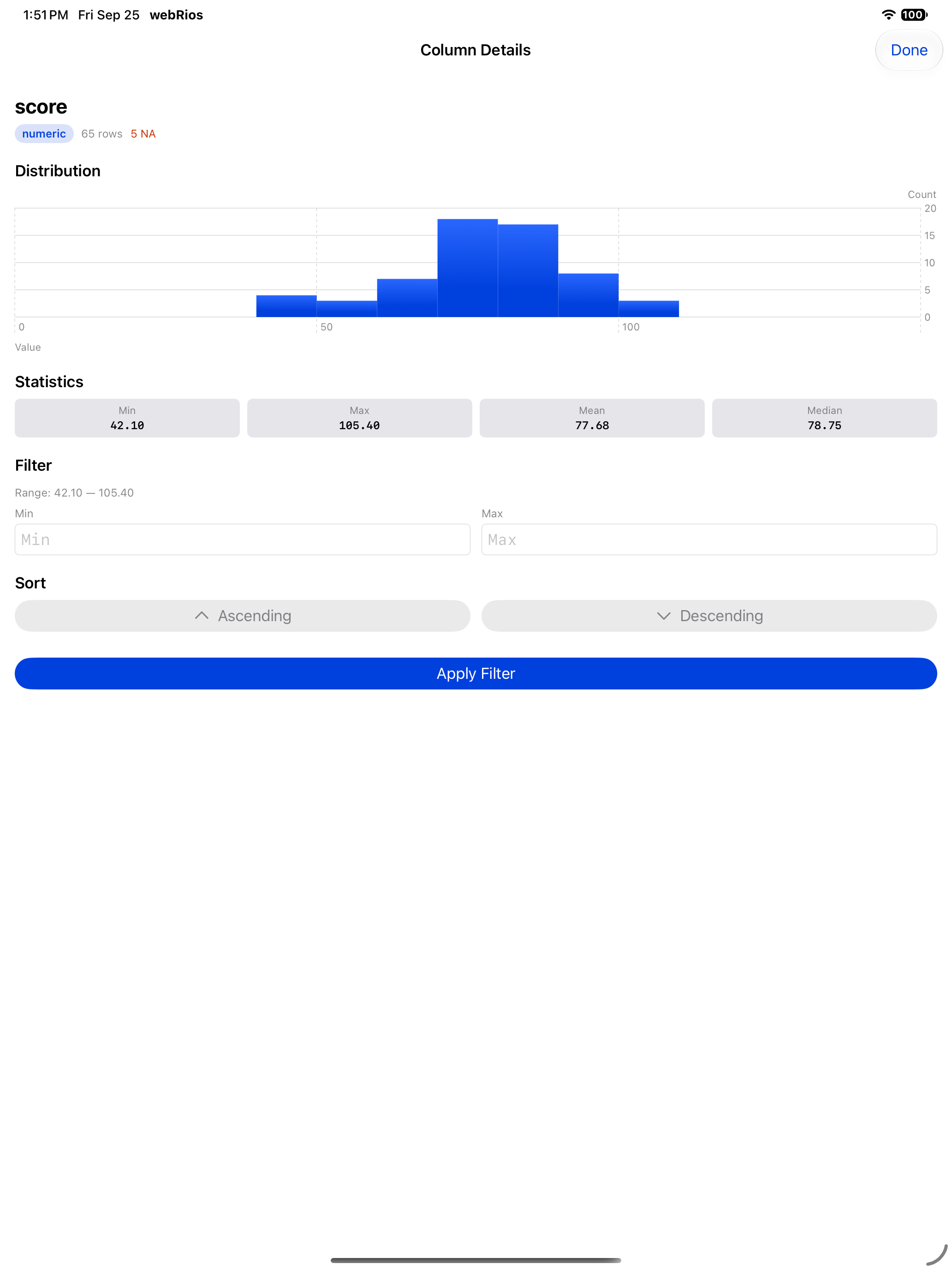
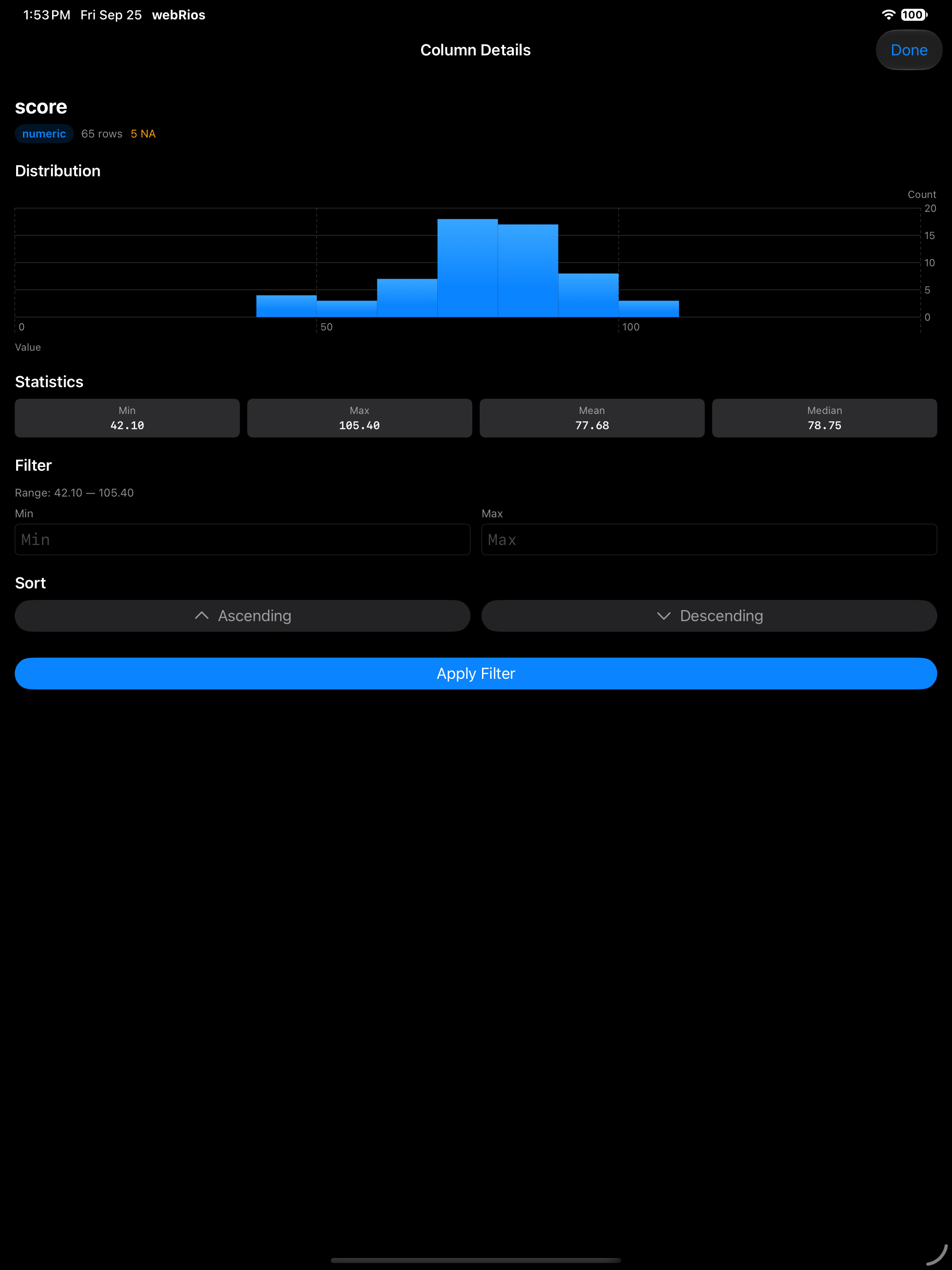
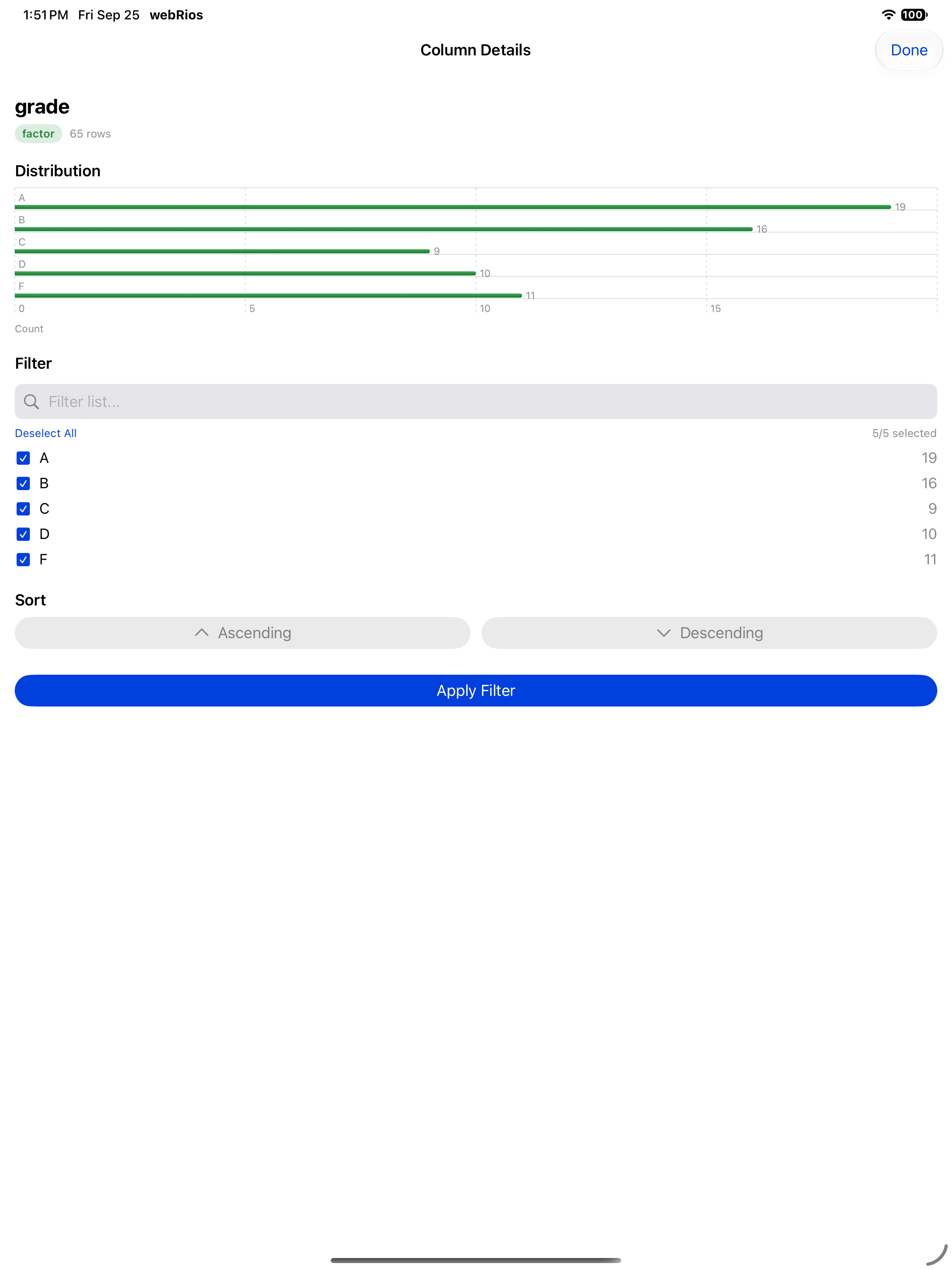
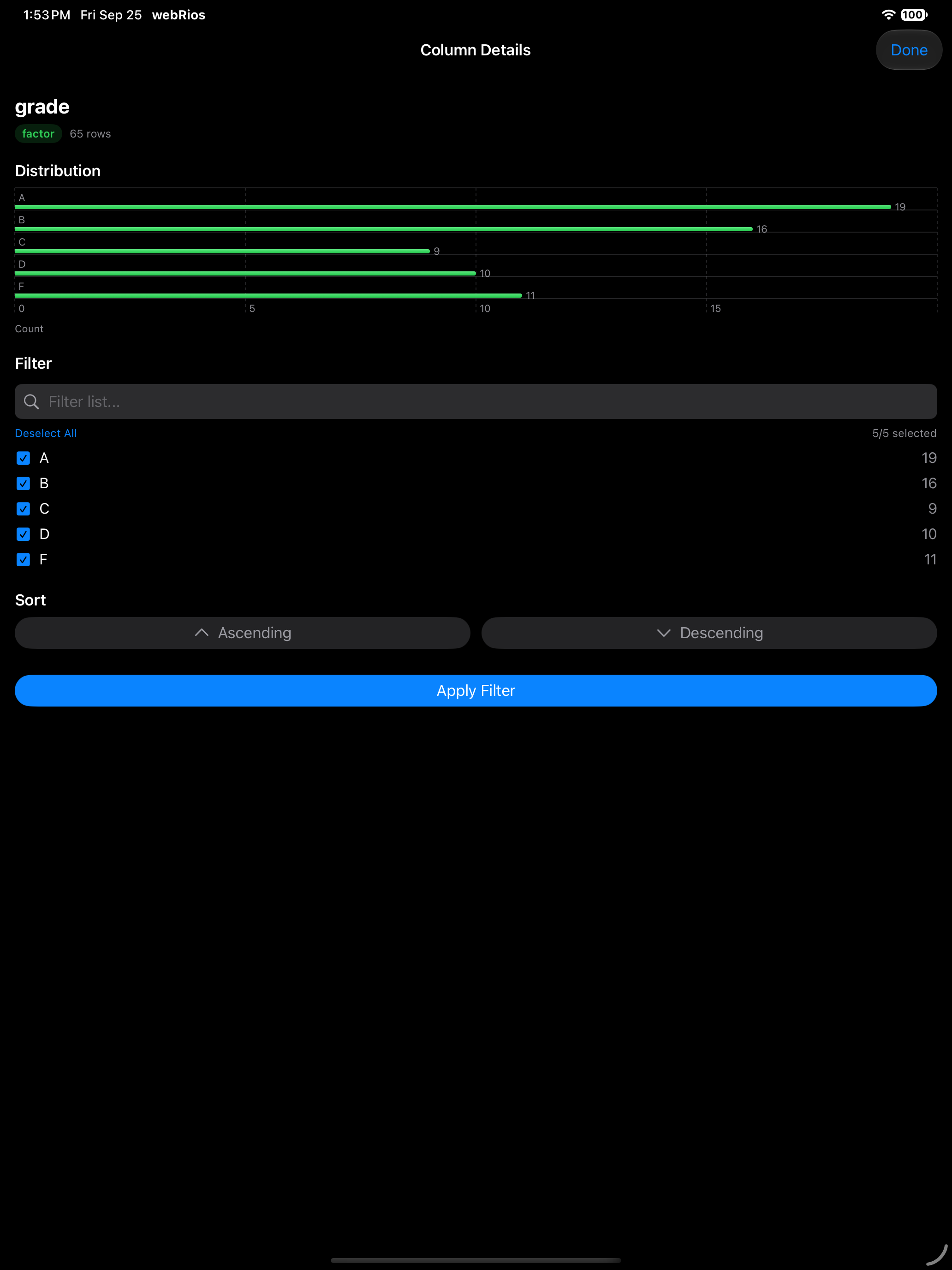
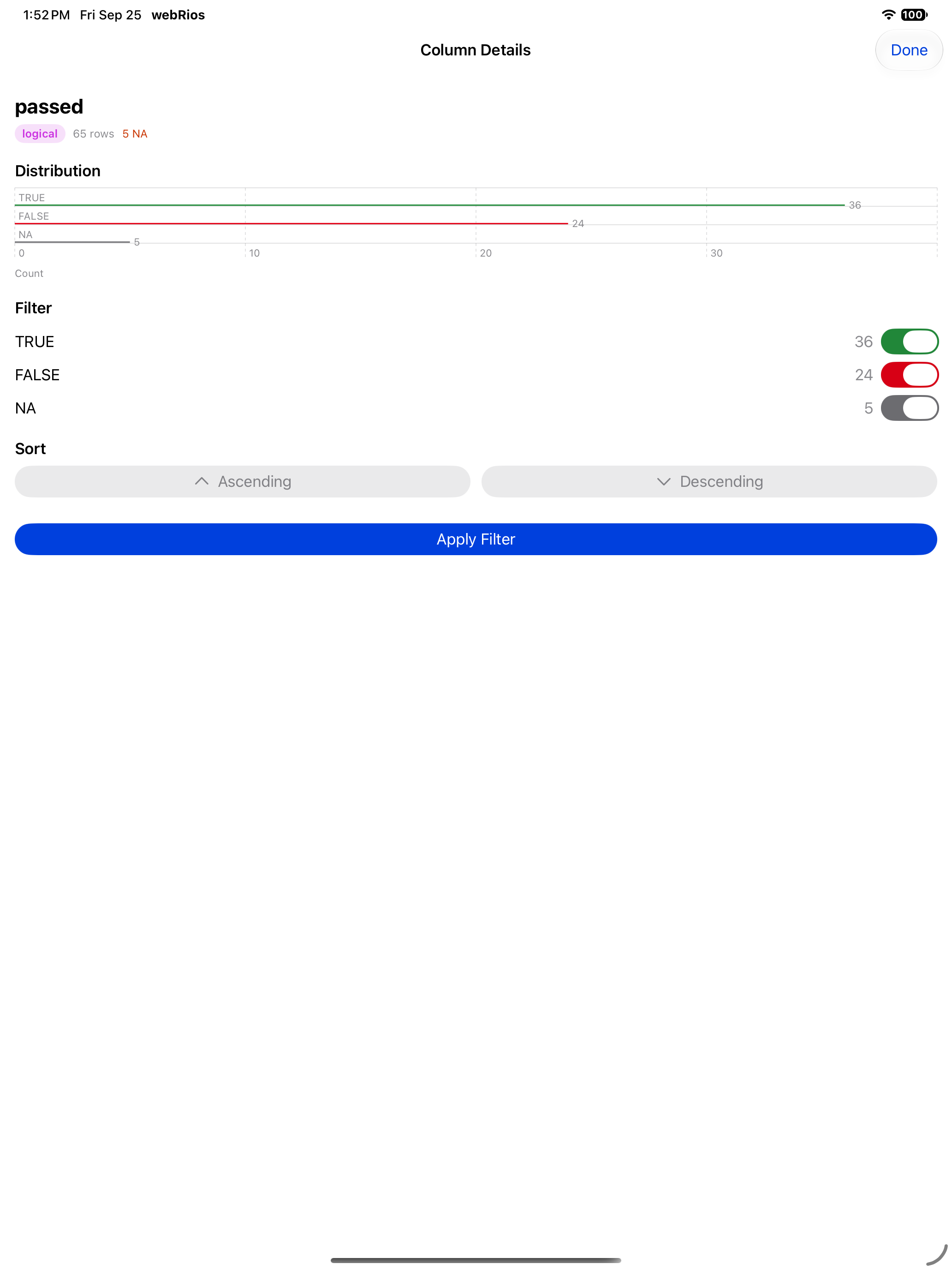
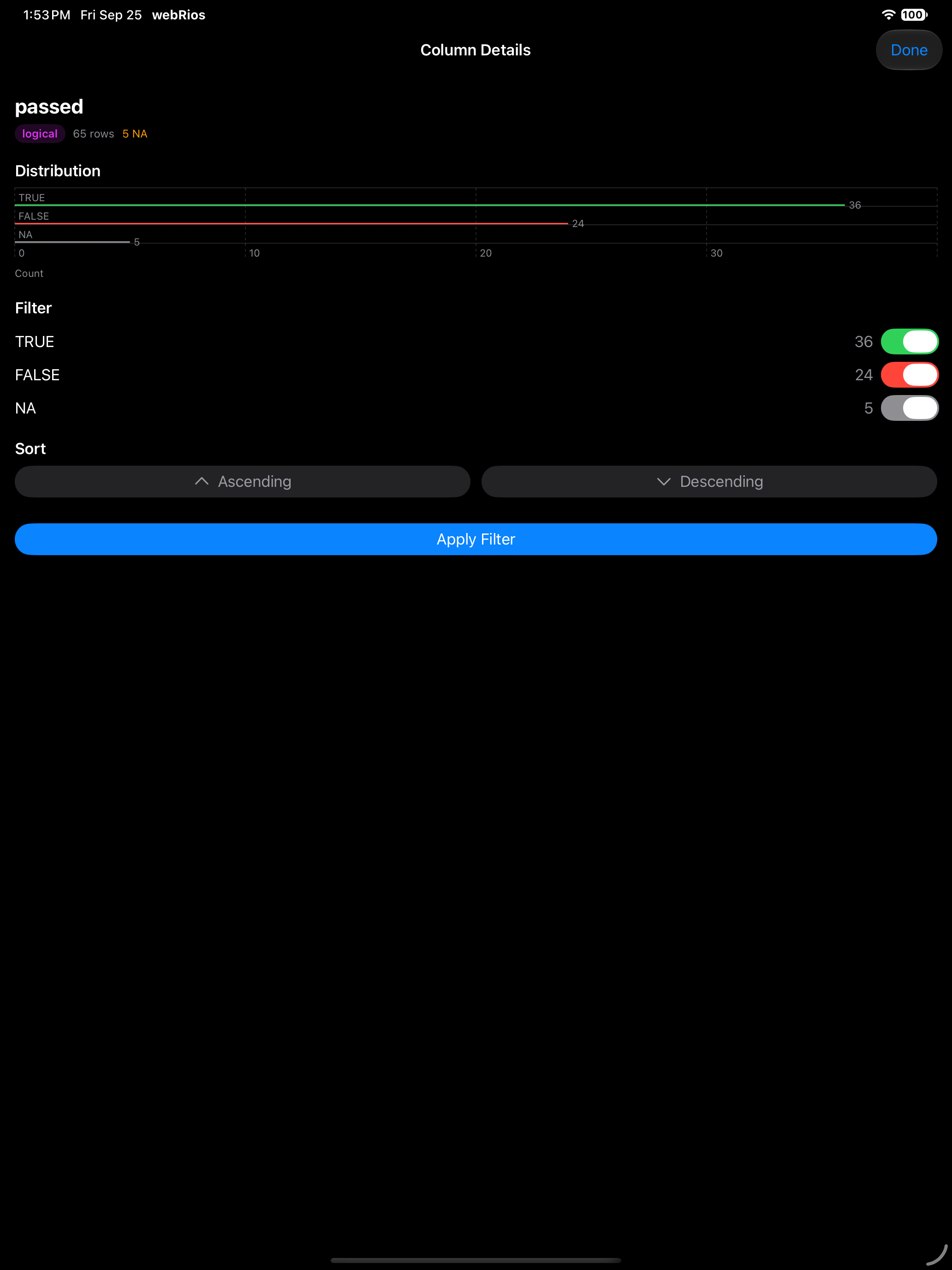
In the Data Frame Viewer, tap any column header for a column detail sheet:
- Distribution chart: a histogram for numeric columns, a bar chart for categorical or logical columns.
- Summary statistics (numeric): min, max, mean, and median.
- Value counts (categorical): the top values and their frequencies.
- NA count: shown prominently if the column contains missing values.
Filtering and sorting
The column detail sheet also lets you filter and sort directly:
- Numeric columns: set a min/max range to filter rows. Negative numbers and your locale’s decimal separator work; Apply Filter stays disabled until the range is valid
- Categorical columns: search values and check/uncheck which ones to keep, with “Select All” and “Deselect All” buttons
- Logical columns: toggle which values to show (TRUE, FALSE, NA)
- Sort controls: tap ascending or descending to reorder the entire data frame by that column
Apply Filter updates the viewer; filters and sorts apply together.
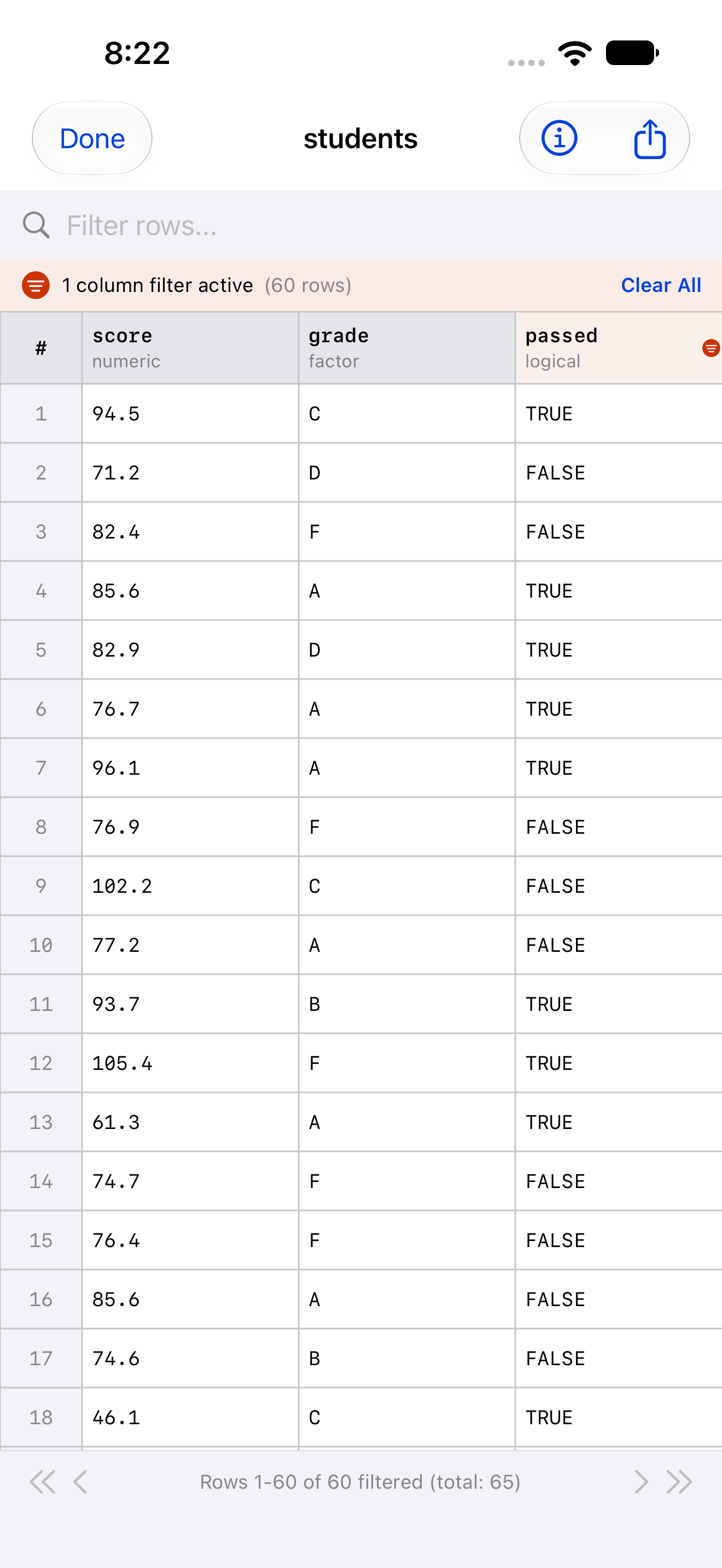
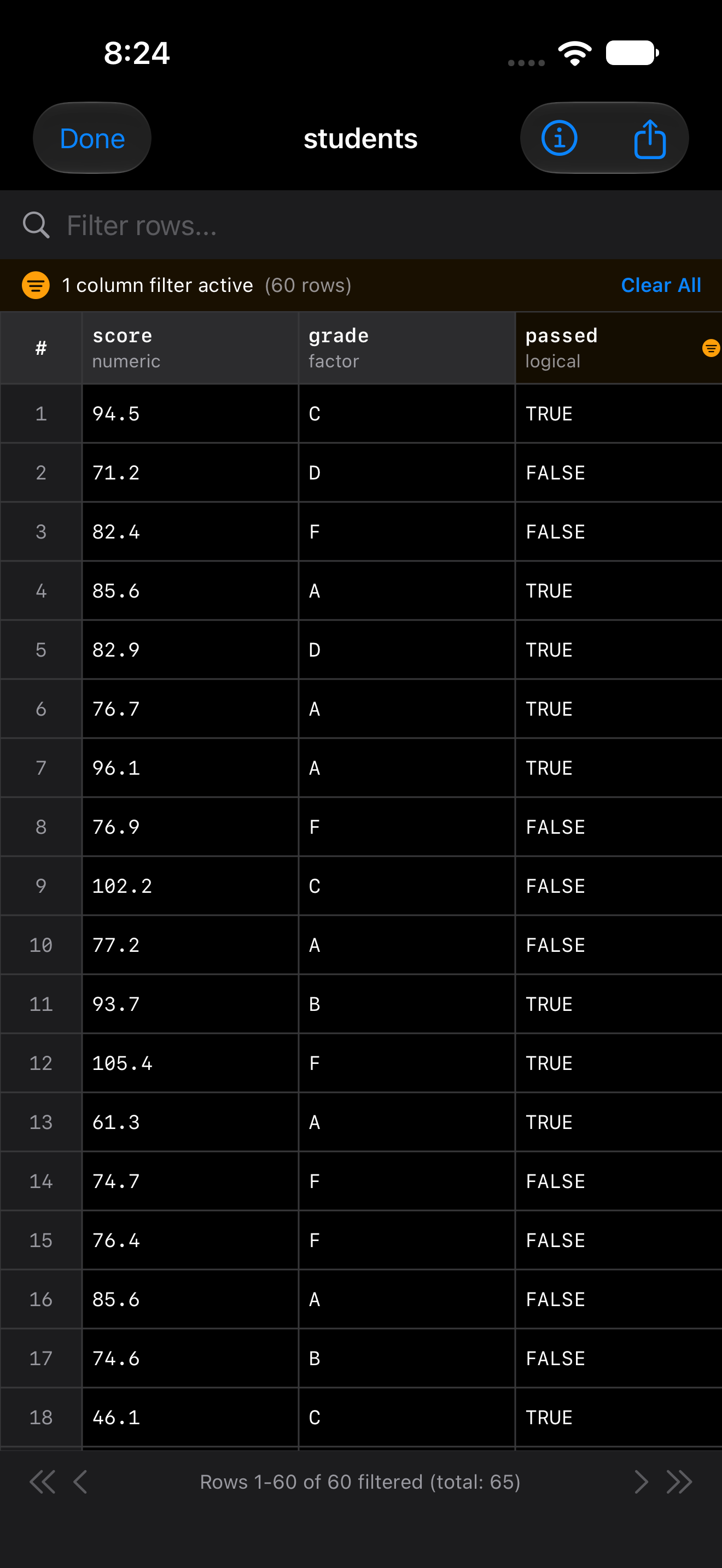
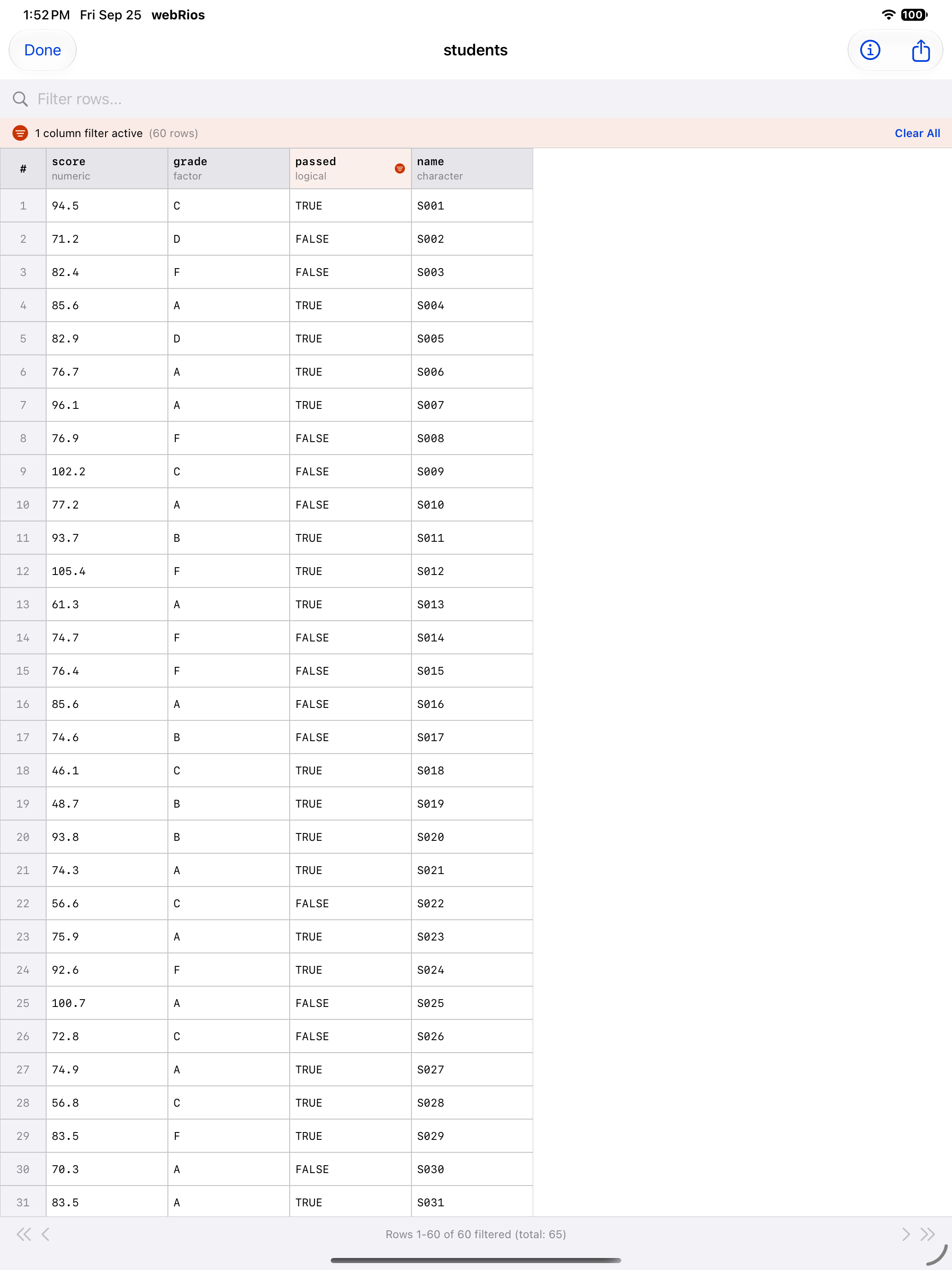
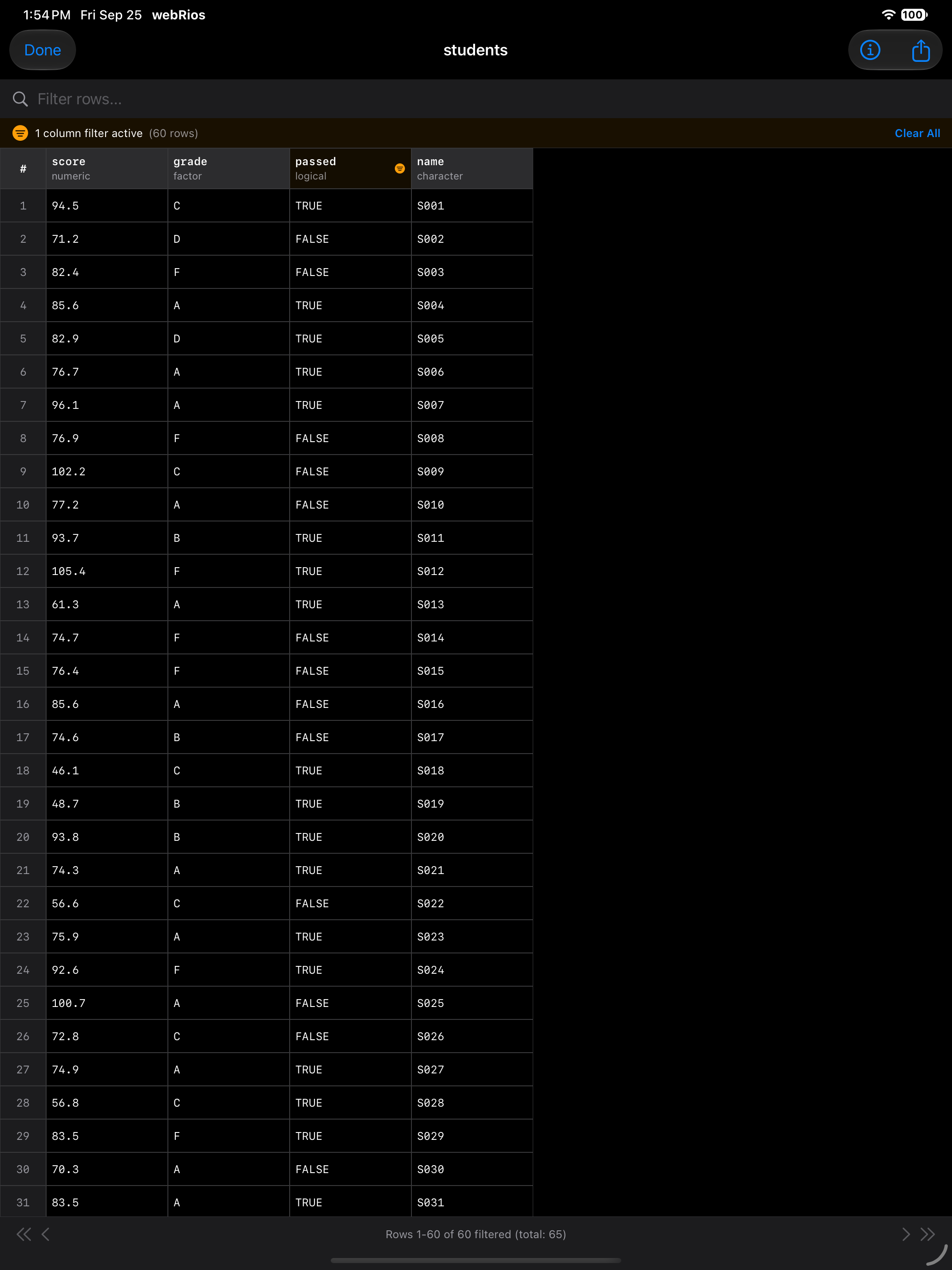
R does the filtering, sorting and searching, 100 rows at a time, so large data frames open quickly. The sort is R’s own order(), so a text column of numbers sorts as text, “10” before “9”; convert it with as.numeric() for numeric order. A page that fails to load can be retried.
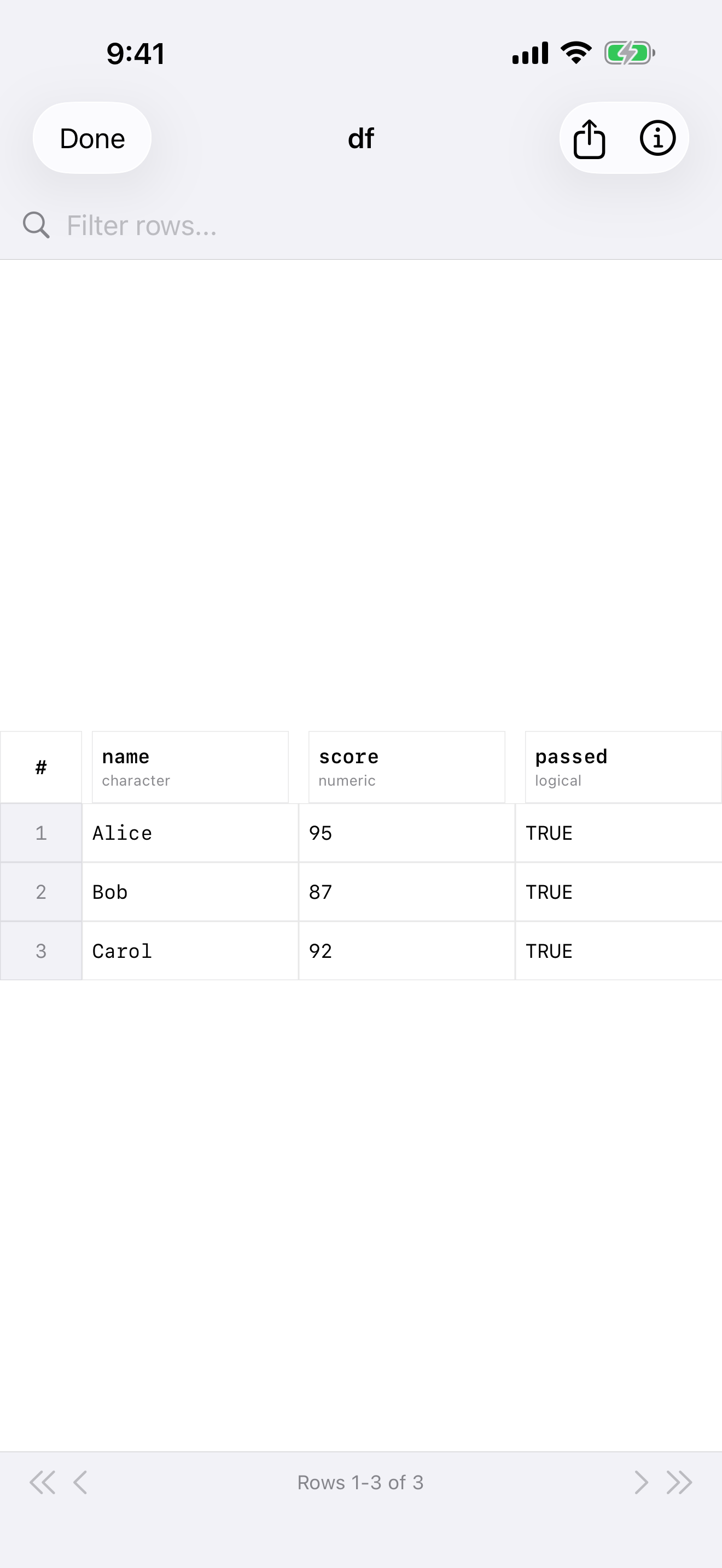
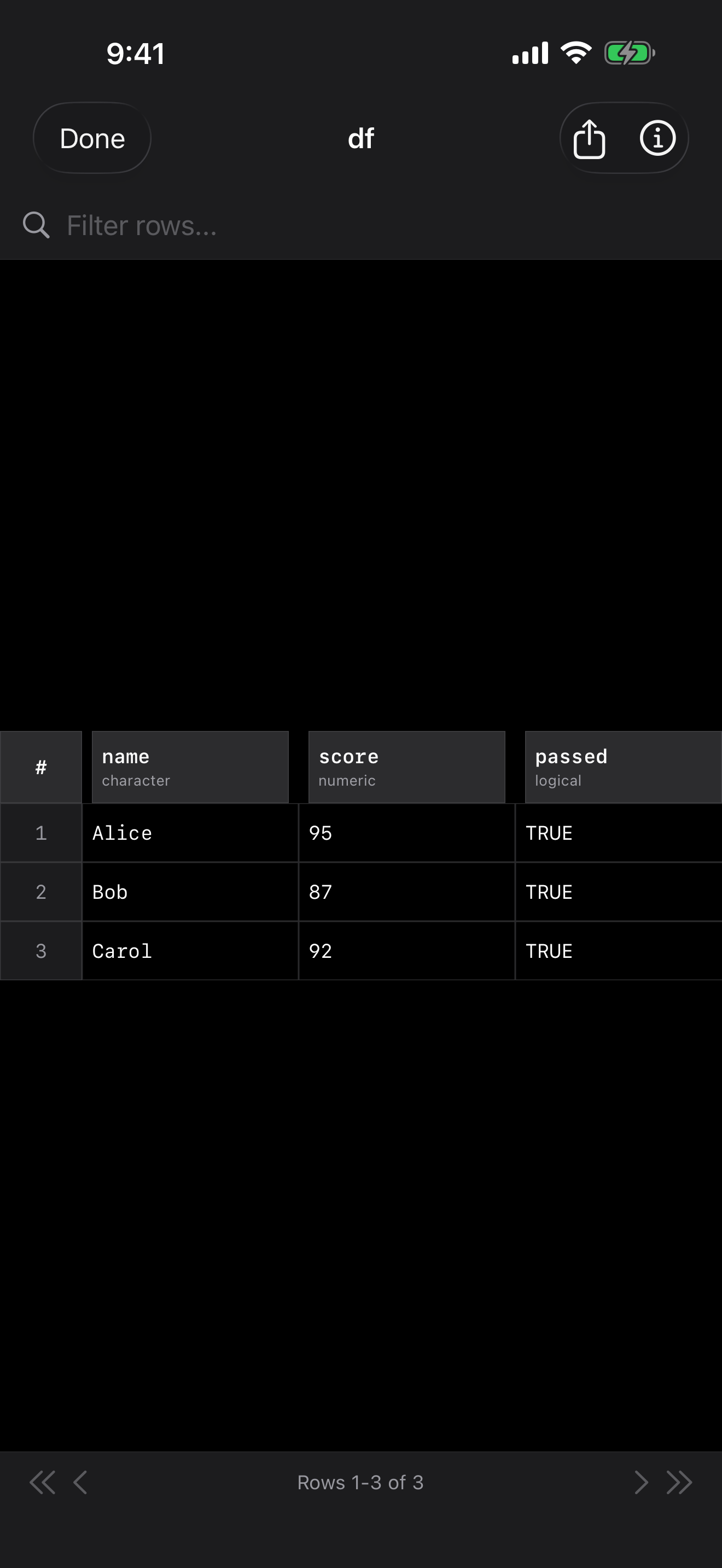
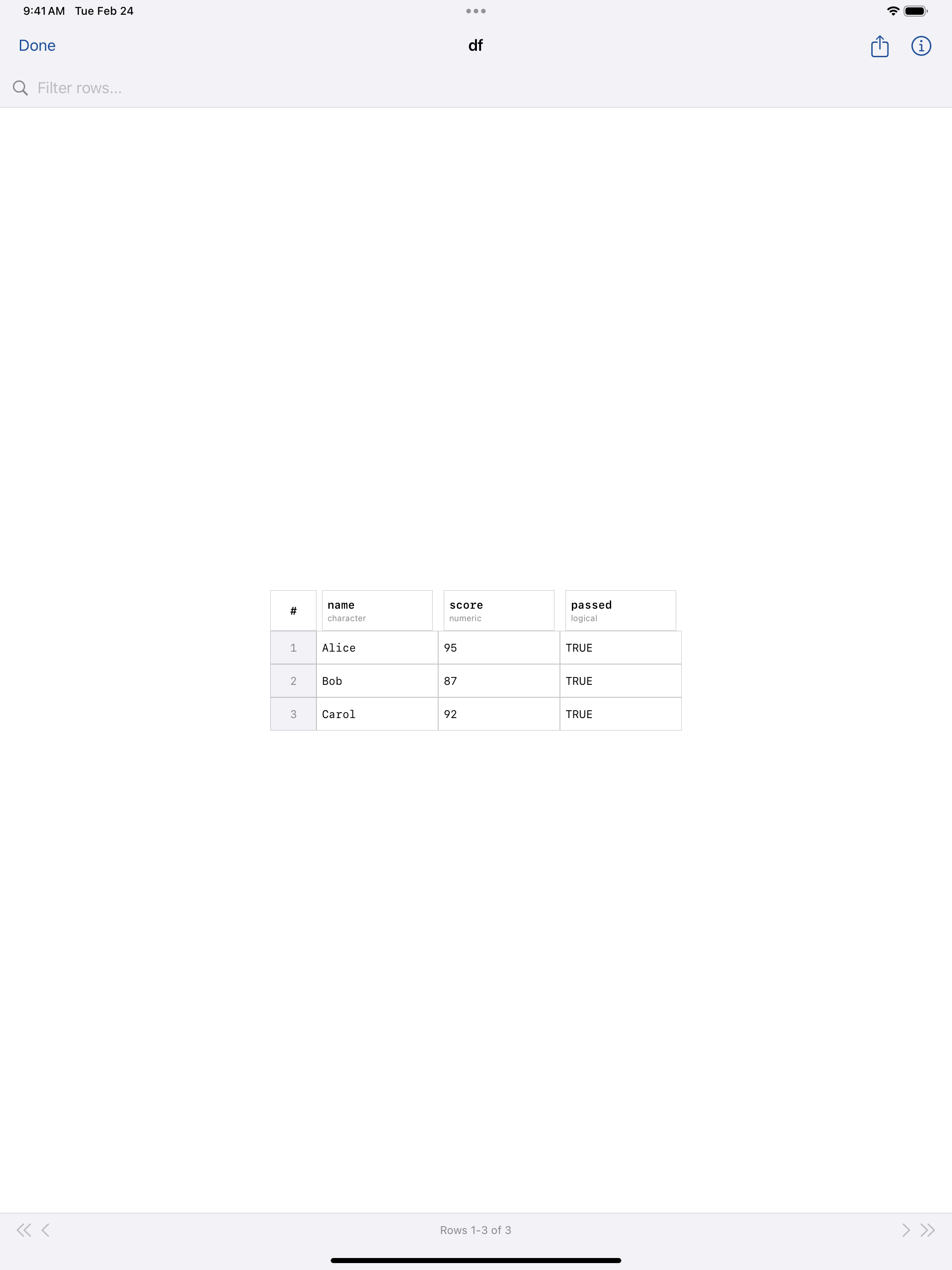
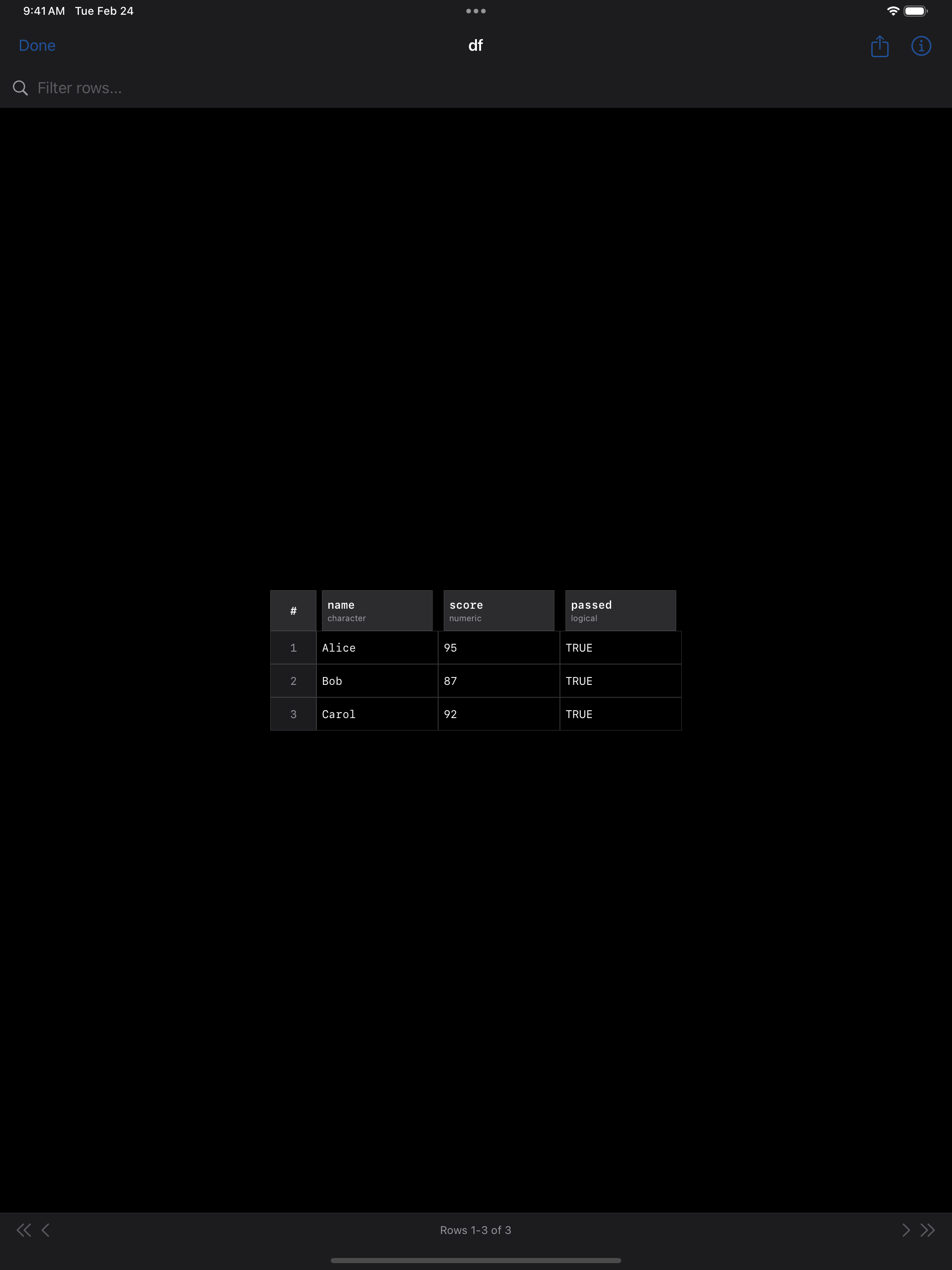
The Data Frame Viewer
- Row names: a data frame’s own row names fill the first column, so
mtcarslists its cars. Otherwise the first column is each row’s number, which stays with the row when you filter or sort. - Search: finds rows whose row name or any cell contains what you type, ignoring case. Missing values match “NA”.
- Changes in R: if the number of rows or columns changes in R while the viewer is open, it reloads with your filters and says why.
- Export: the share button’s Export as CSV saves the whole data frame to the current project and opens the share sheet. With a filter or sort applied and no search, Export Current View as CSV saves only the rows shown, in order. Copy View as R Code copies code that selects the same rows.
With VoiceOver, column headers read their name, type, sort and filter state, and cells name their row and column (“Mazda RX4, mpg, 21”) and offer Copy Value.
Comparing data frames
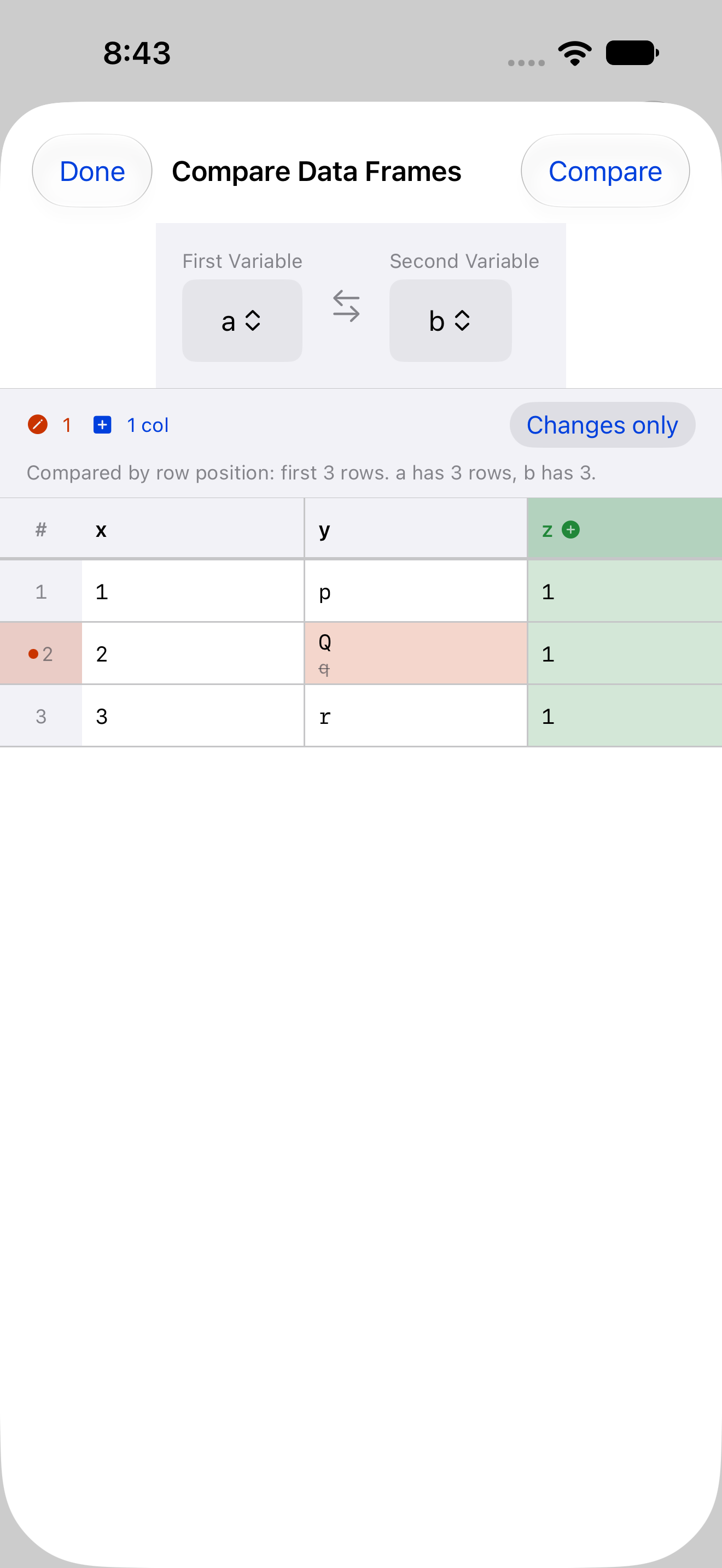
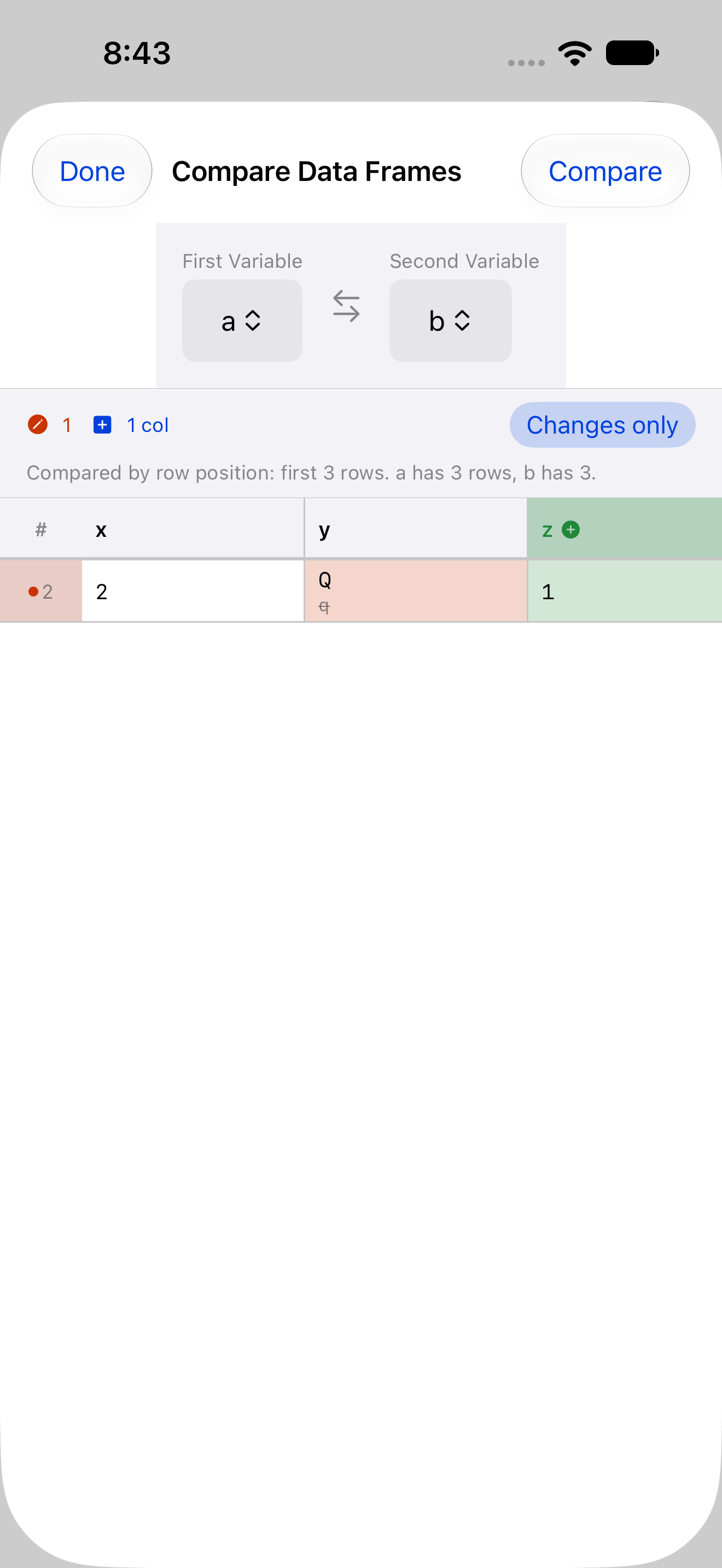
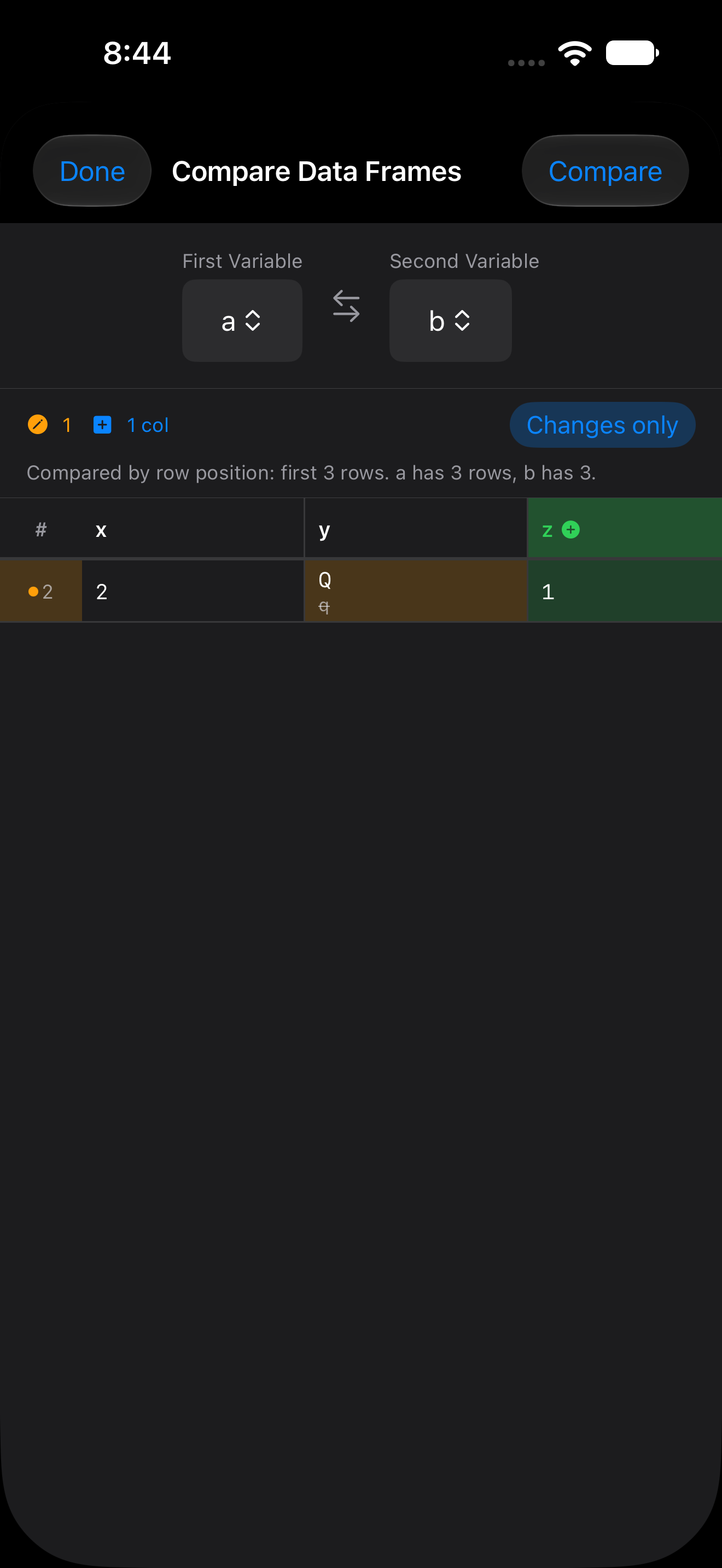
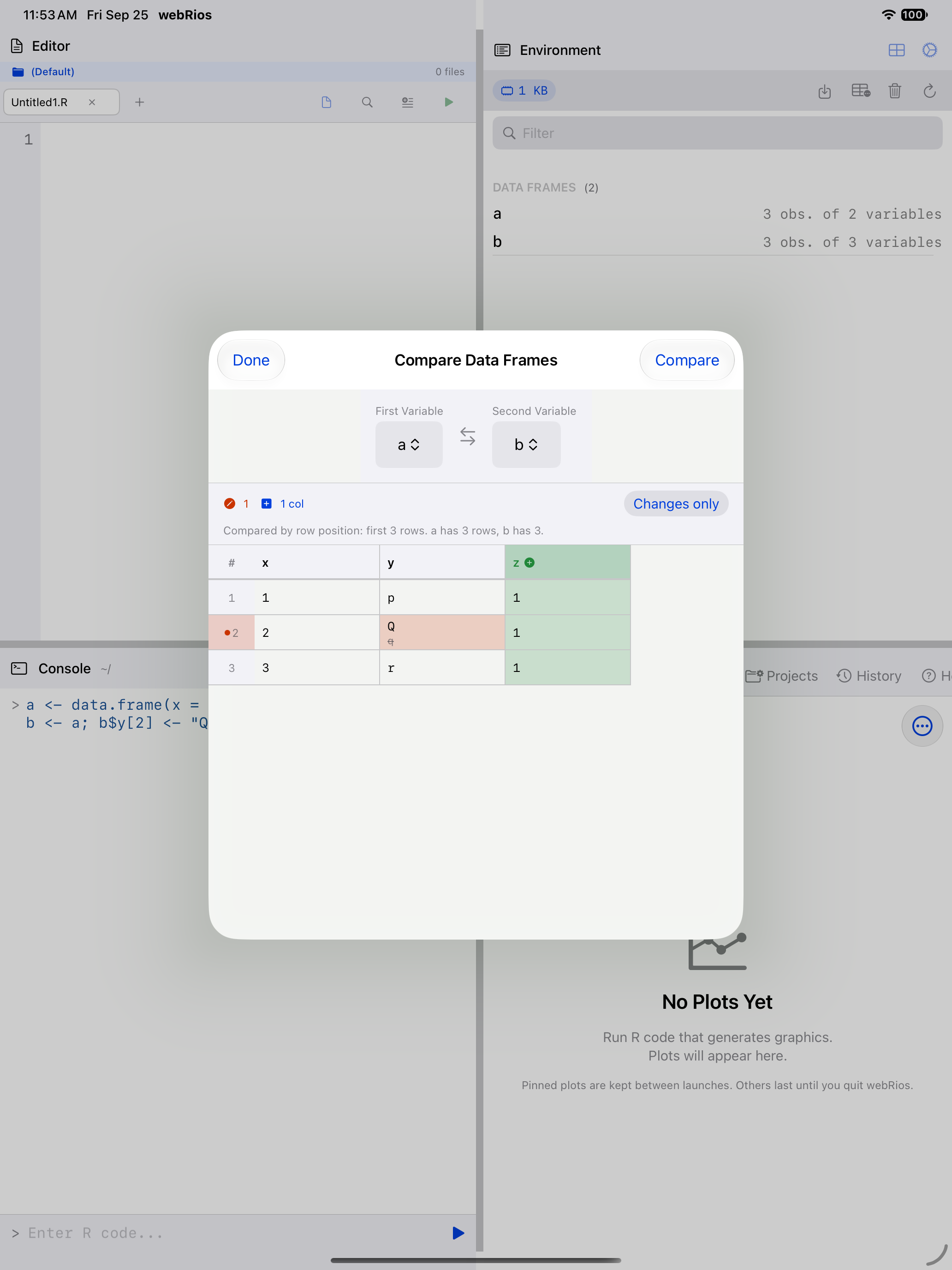
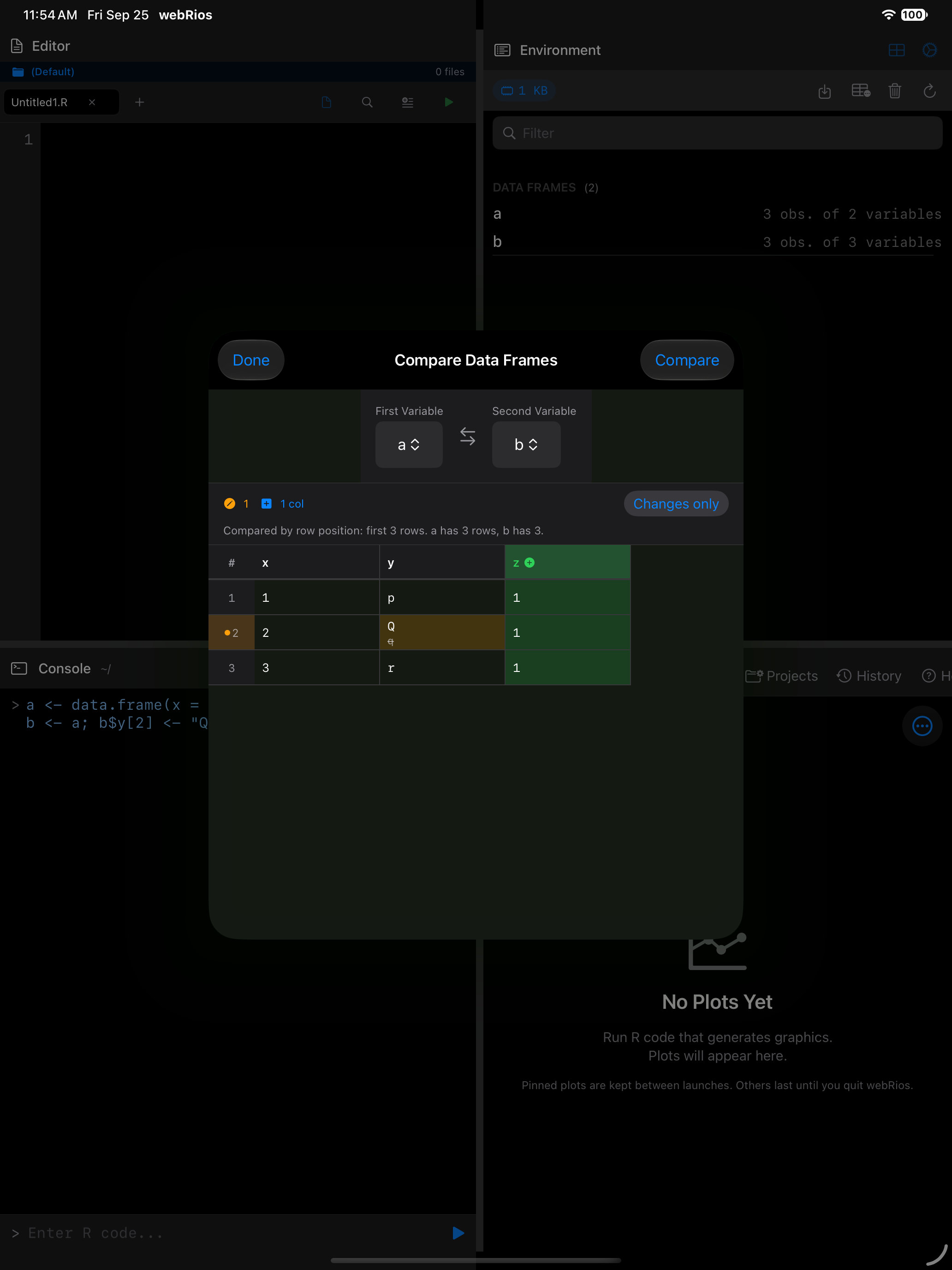
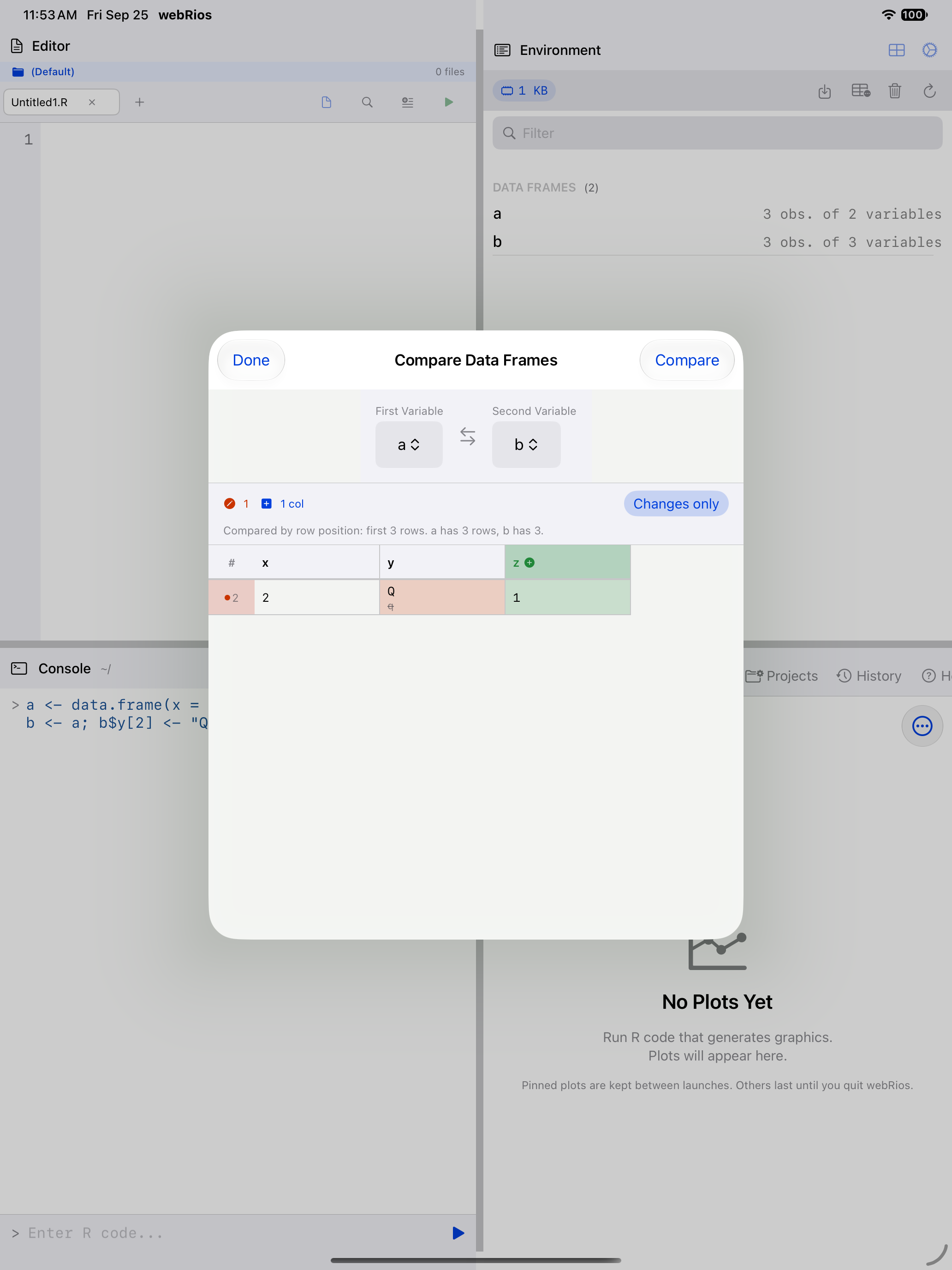
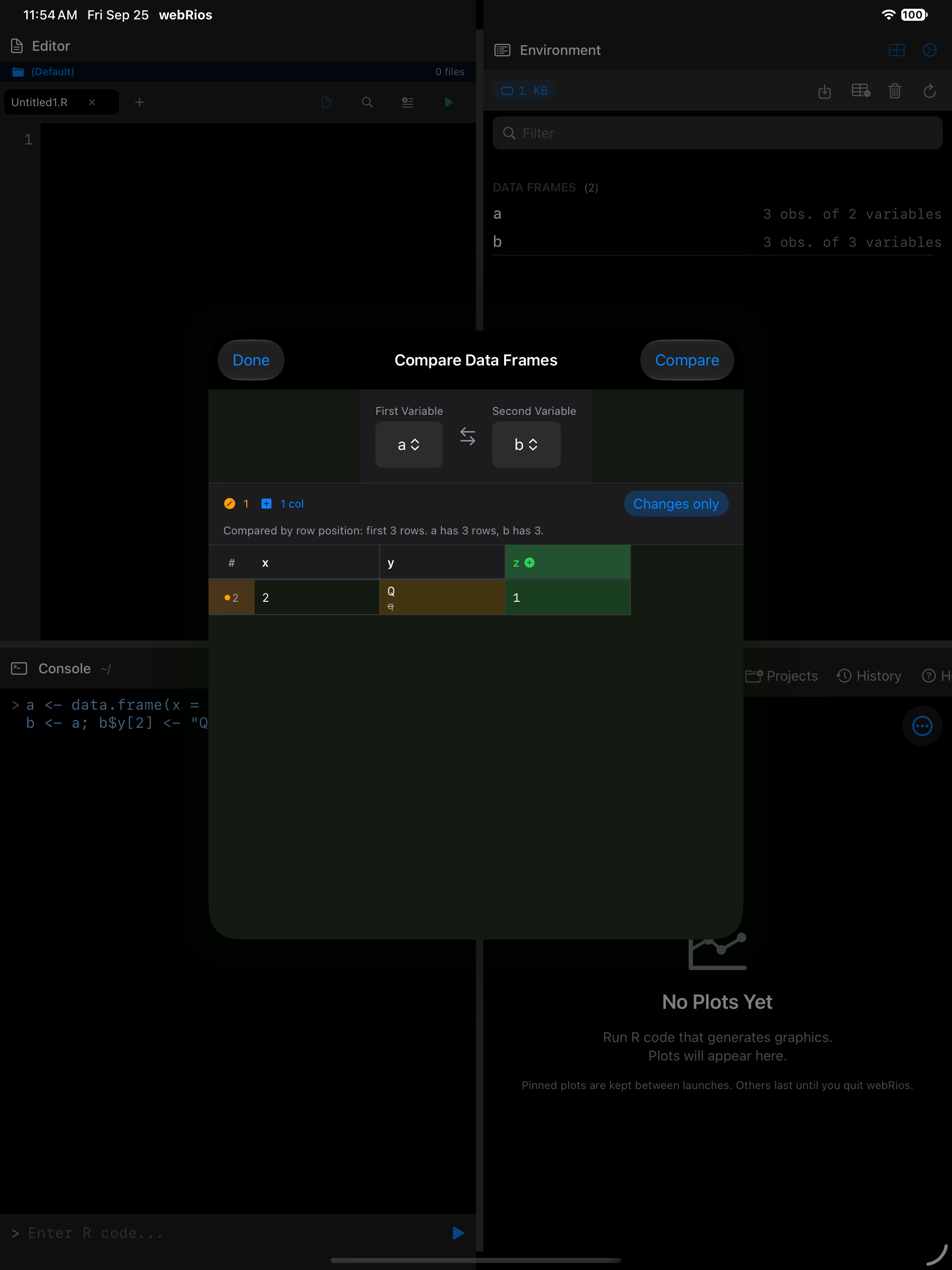
Choose Compare Data Frames in the Environment … menu, pick two data frames (with exactly two, they are preselected), and tap Compare.
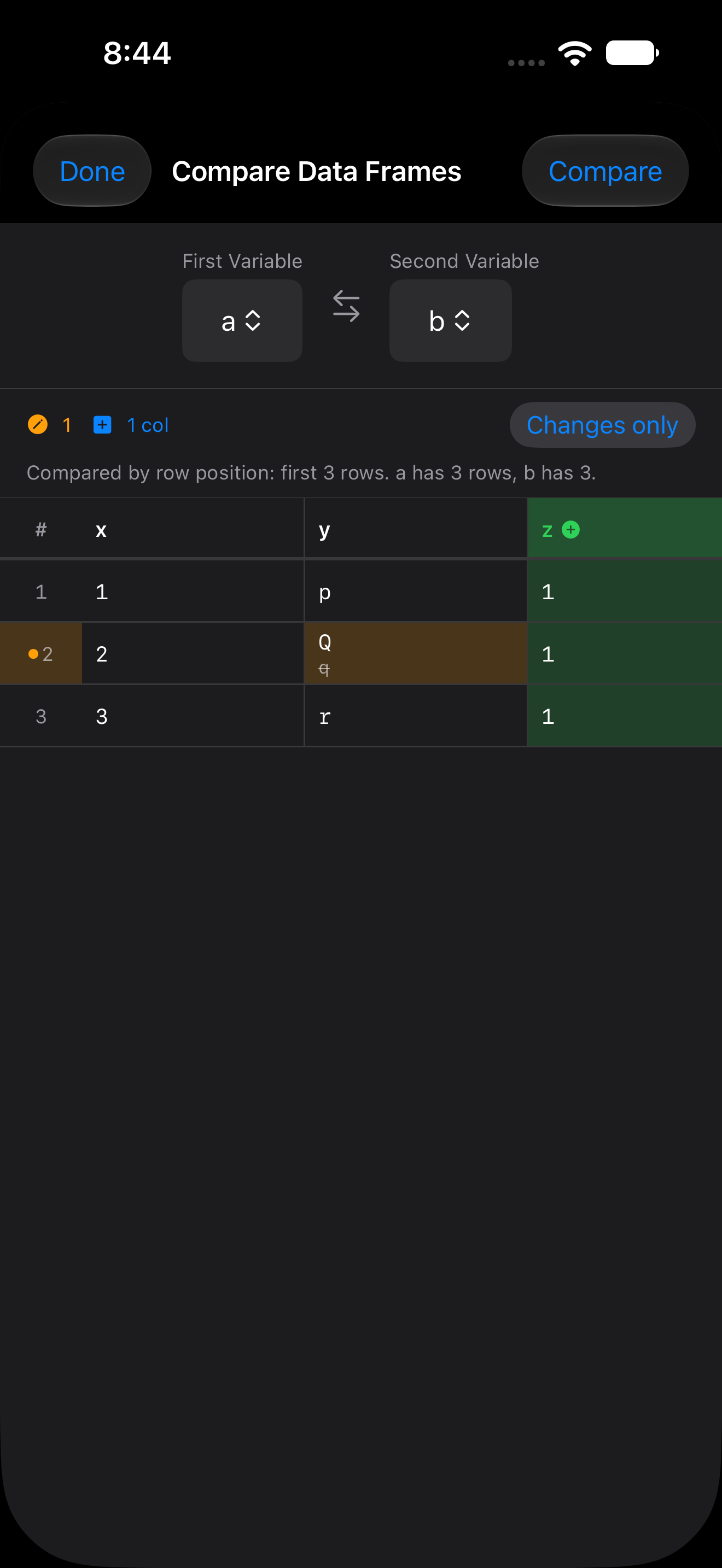
Rows are compared by position, up to 1,000 of each, and columns by name. A changed value shows the new one over the old, struck through. Rows and columns in only one data frame are marked added or removed, and a column whose type changed is flagged. Changes only hides unchanged rows. VoiceOver reads each change, as in “changed from q to Q”.
Quick actions with long press
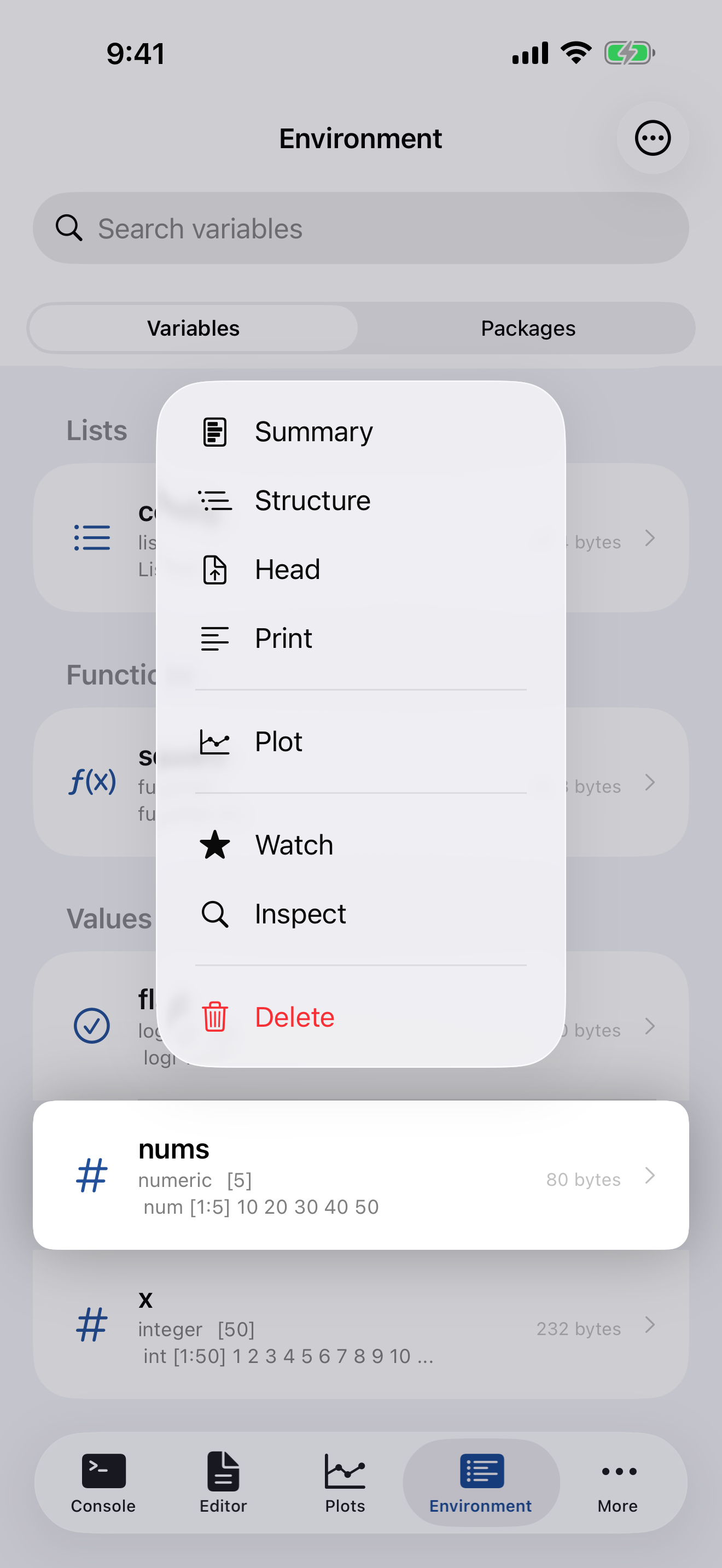
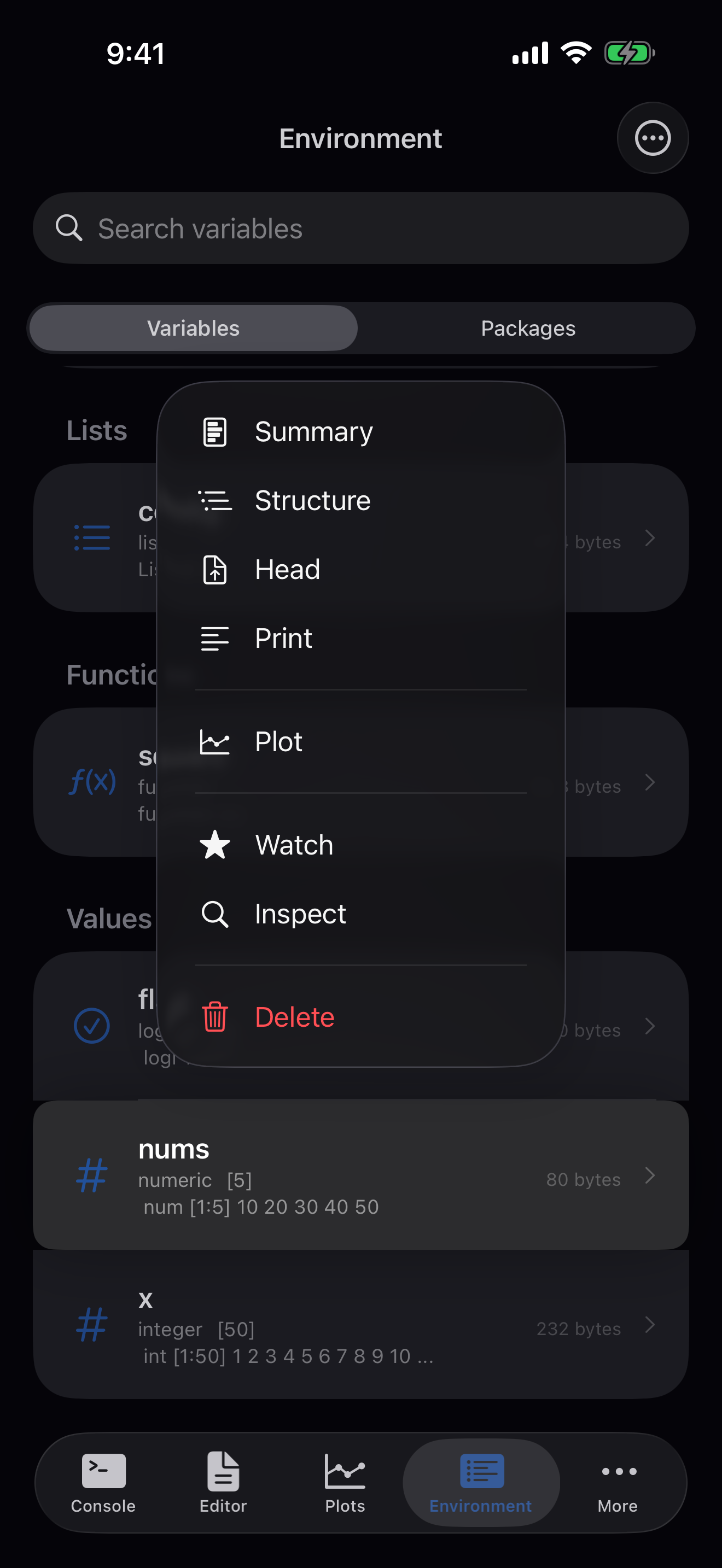
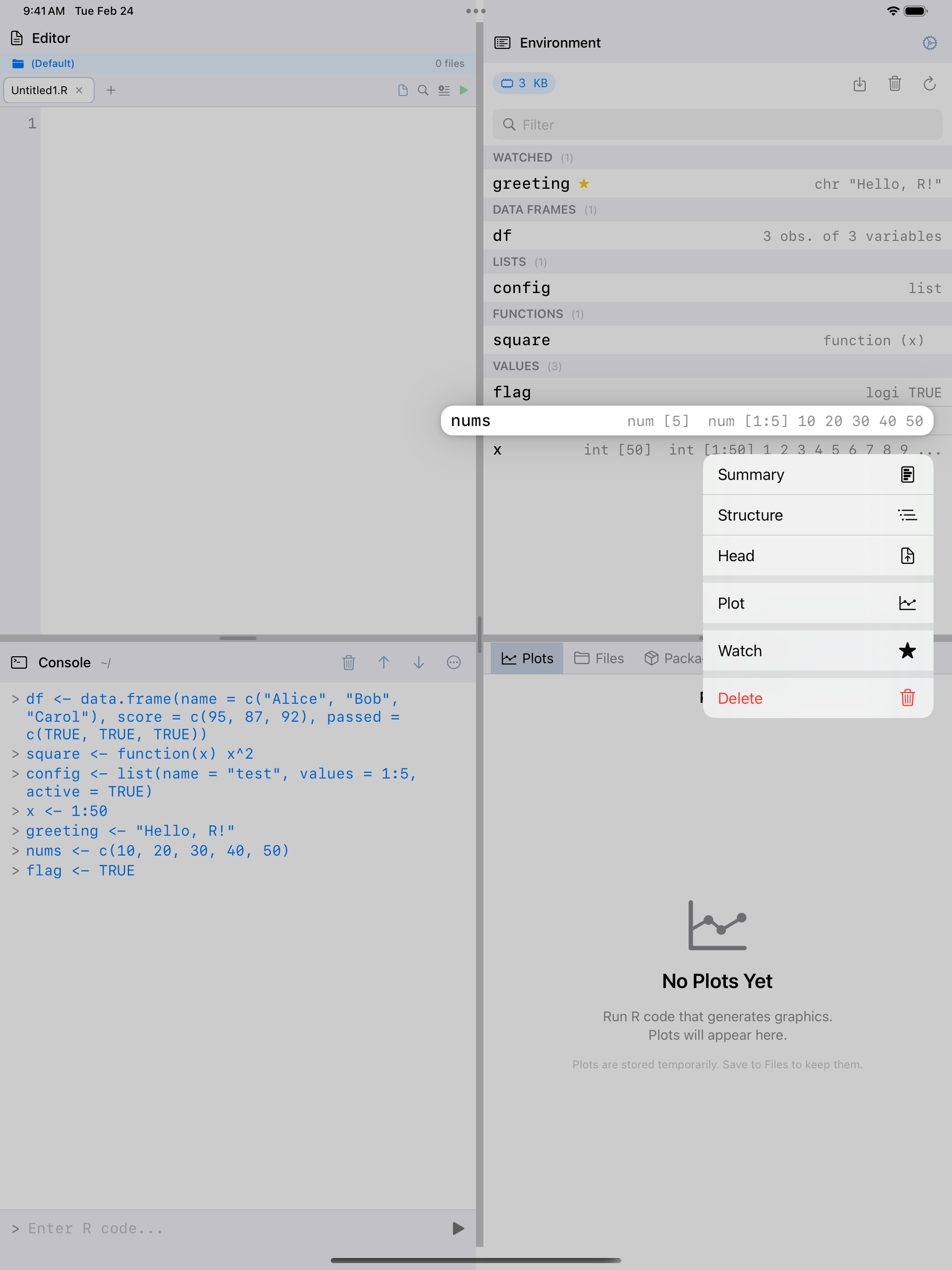
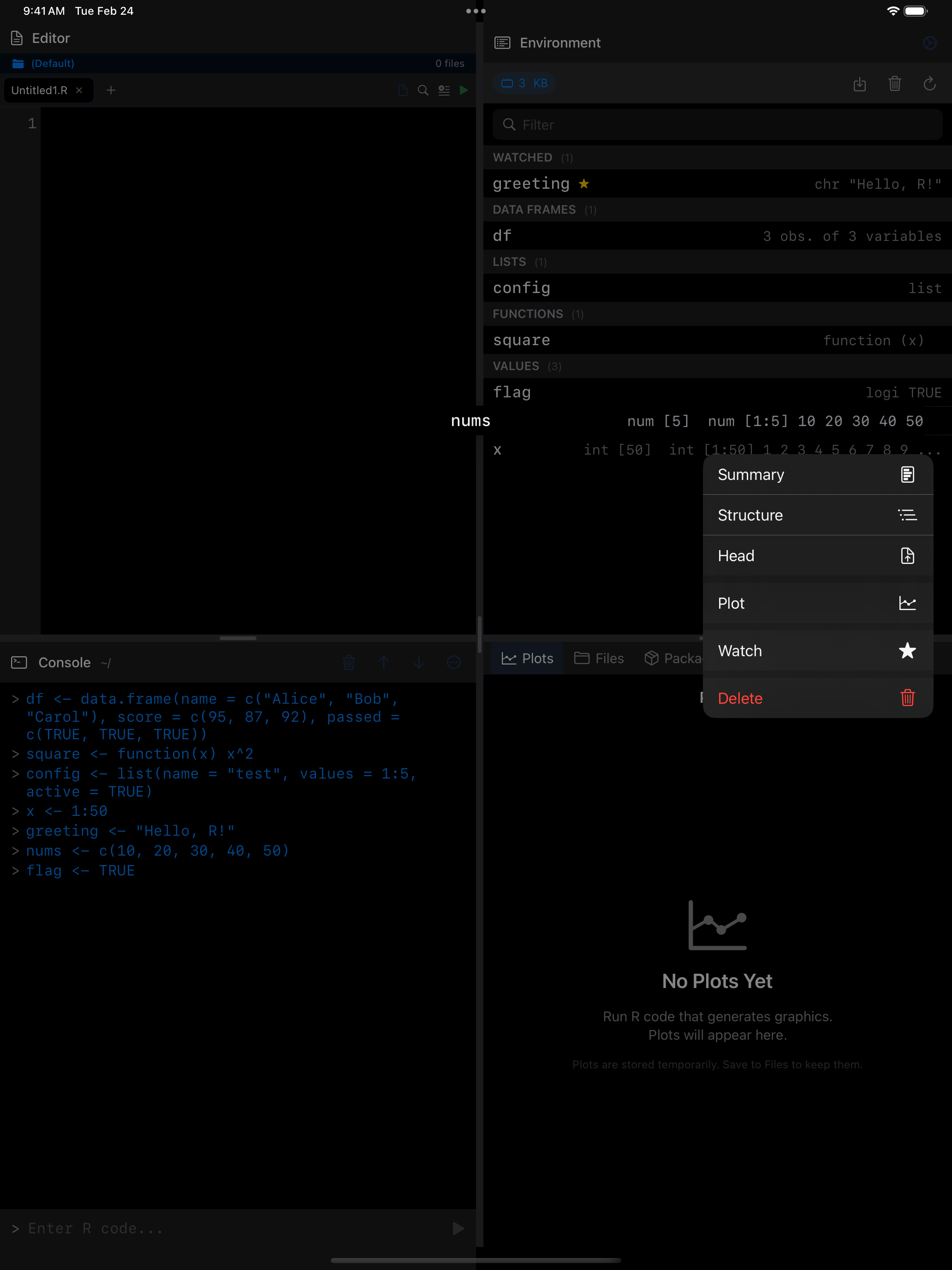
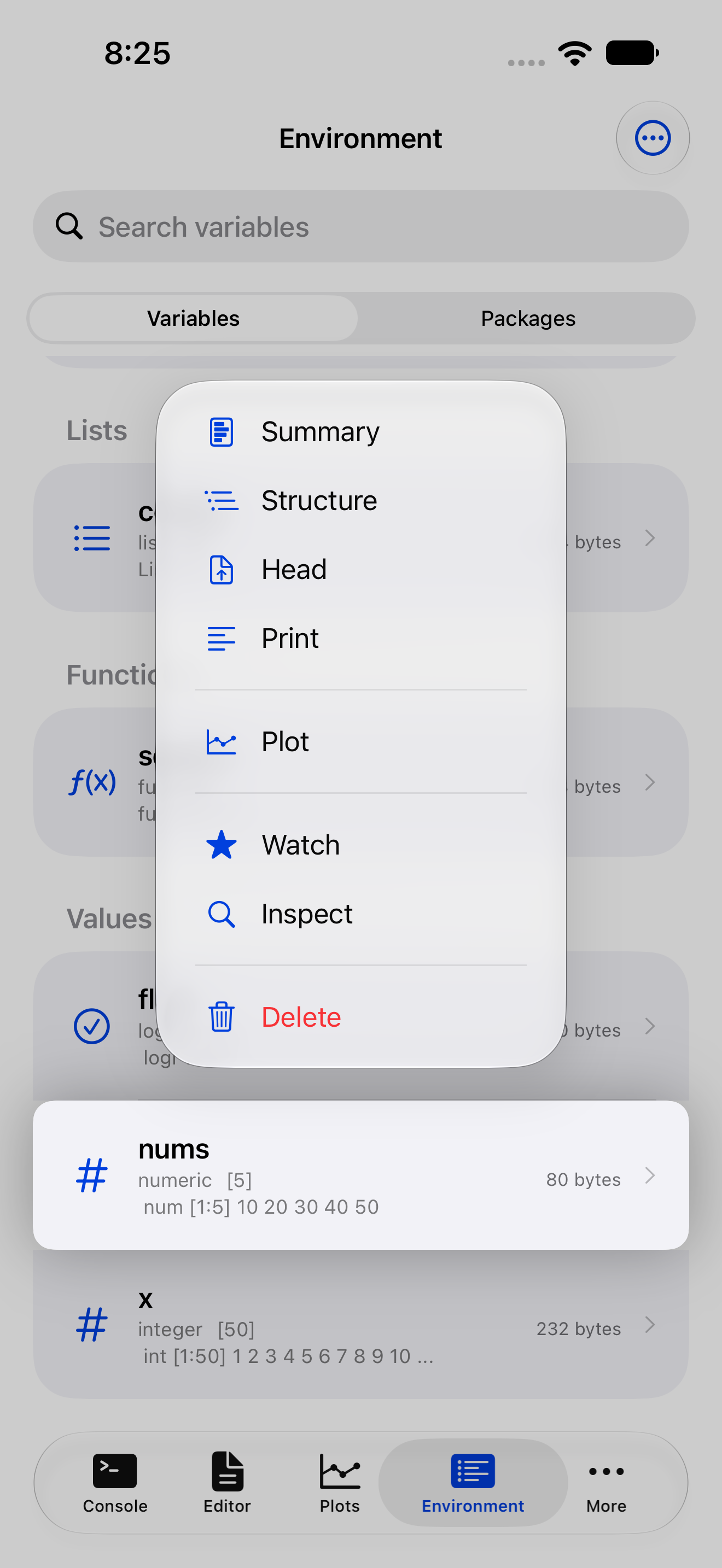
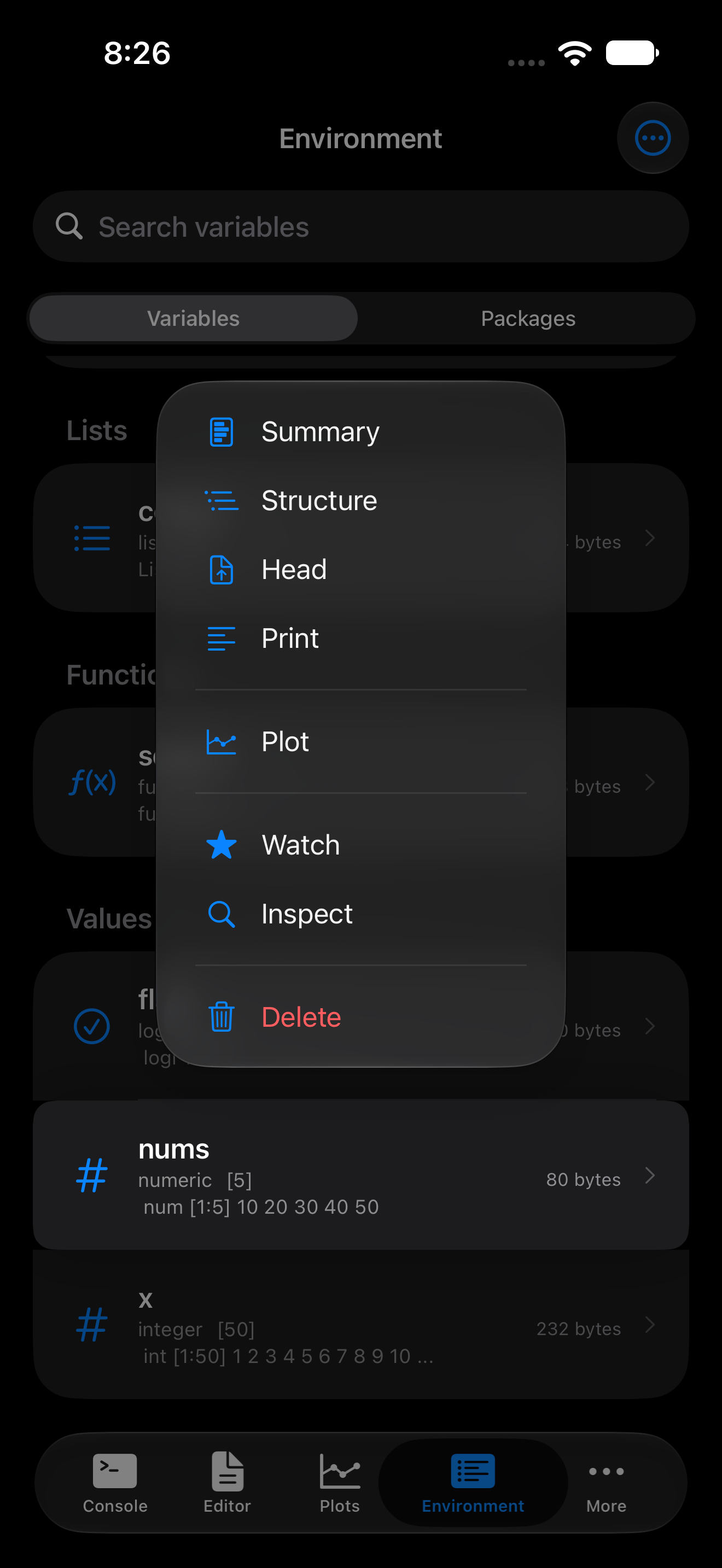
Long-press any variable (or right-click on iPad) for a context menu of quick actions:
- Summary: runs
summary()and shows the result in a popup - Structure: runs
str()so you can see the internal structure - Head: shows
head()output (the first few rows or elements) - Print: runs
print()for the full output - Plot: generates a quick plot of the variable (the plot appears in the Plots tab)
Watching variables
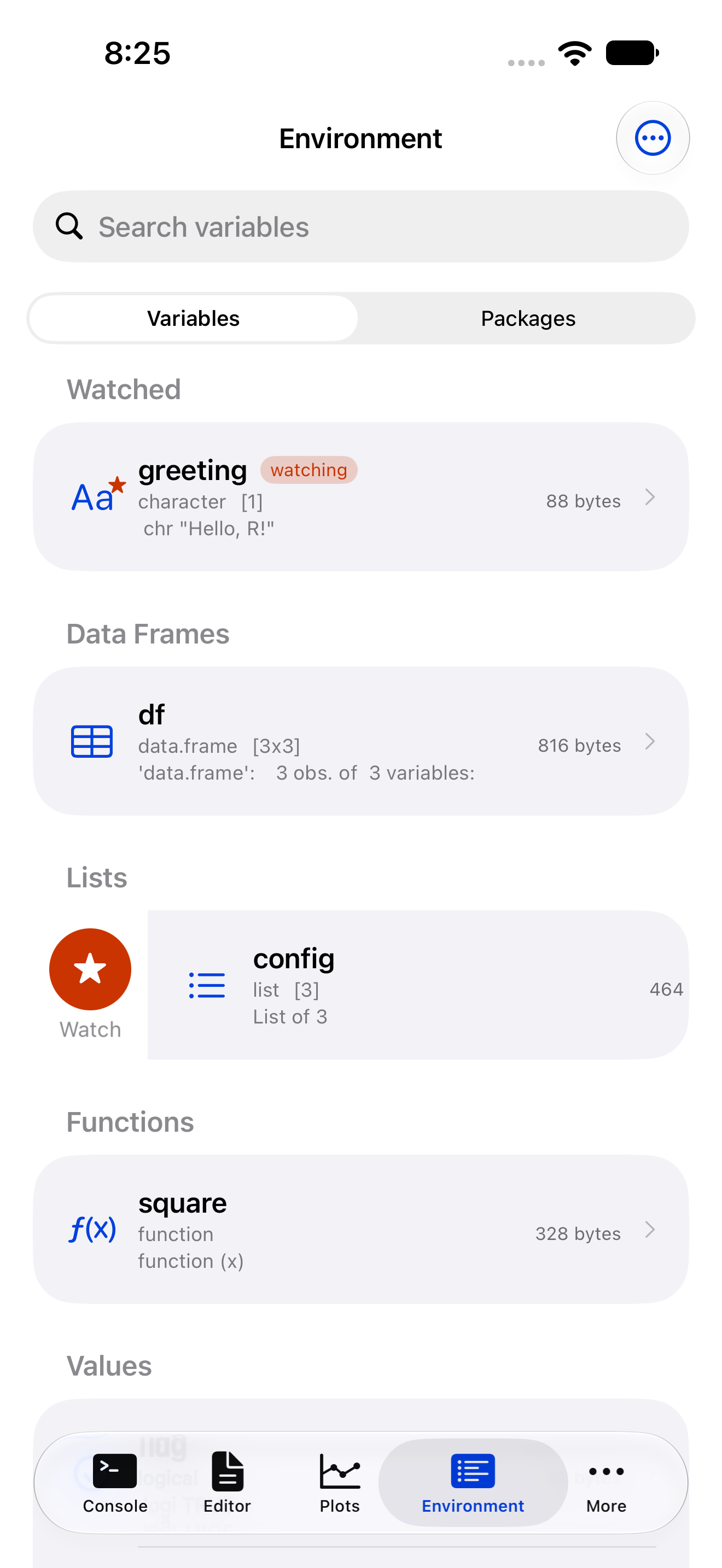
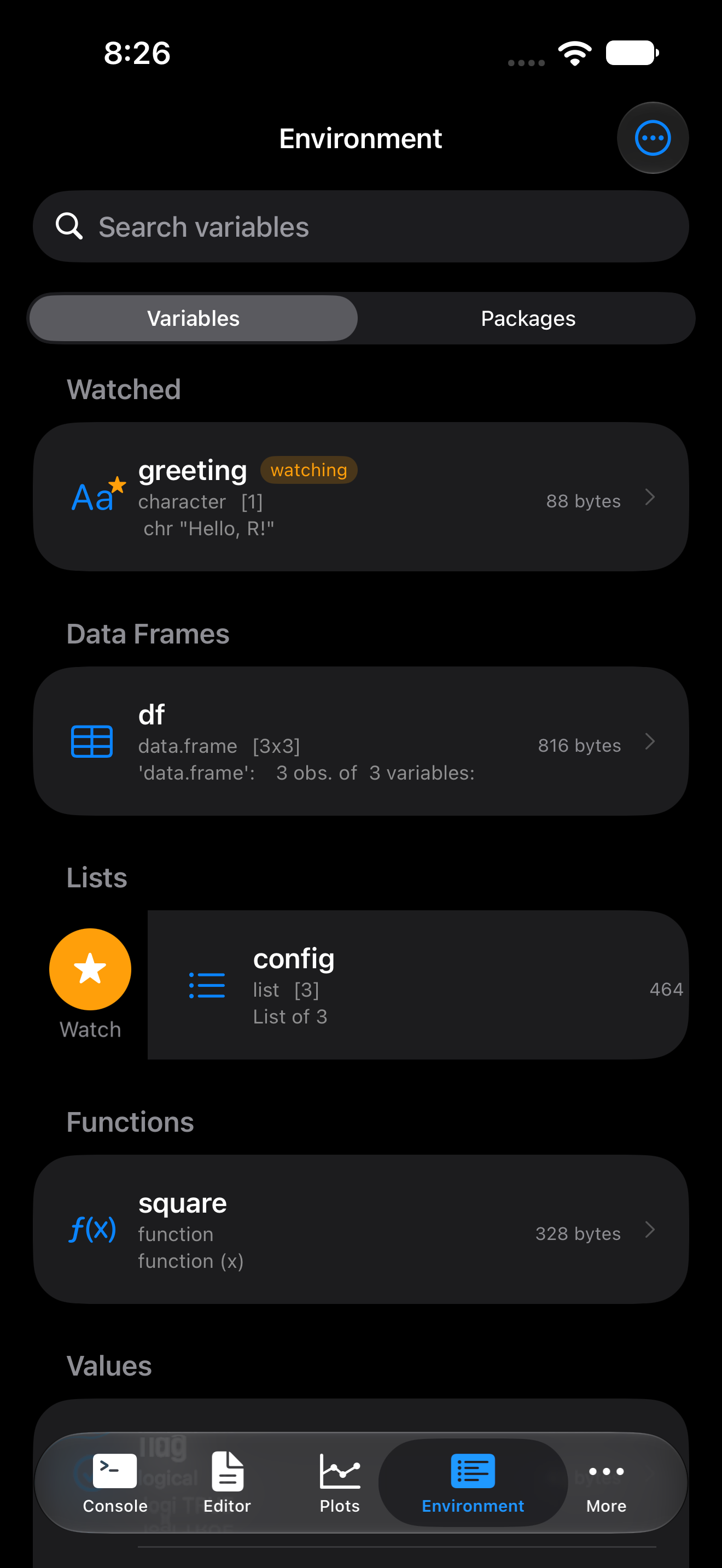
Add variables to your watch list to pin them at the top of the Environment. Useful for running totals or data frames you are building incrementally.
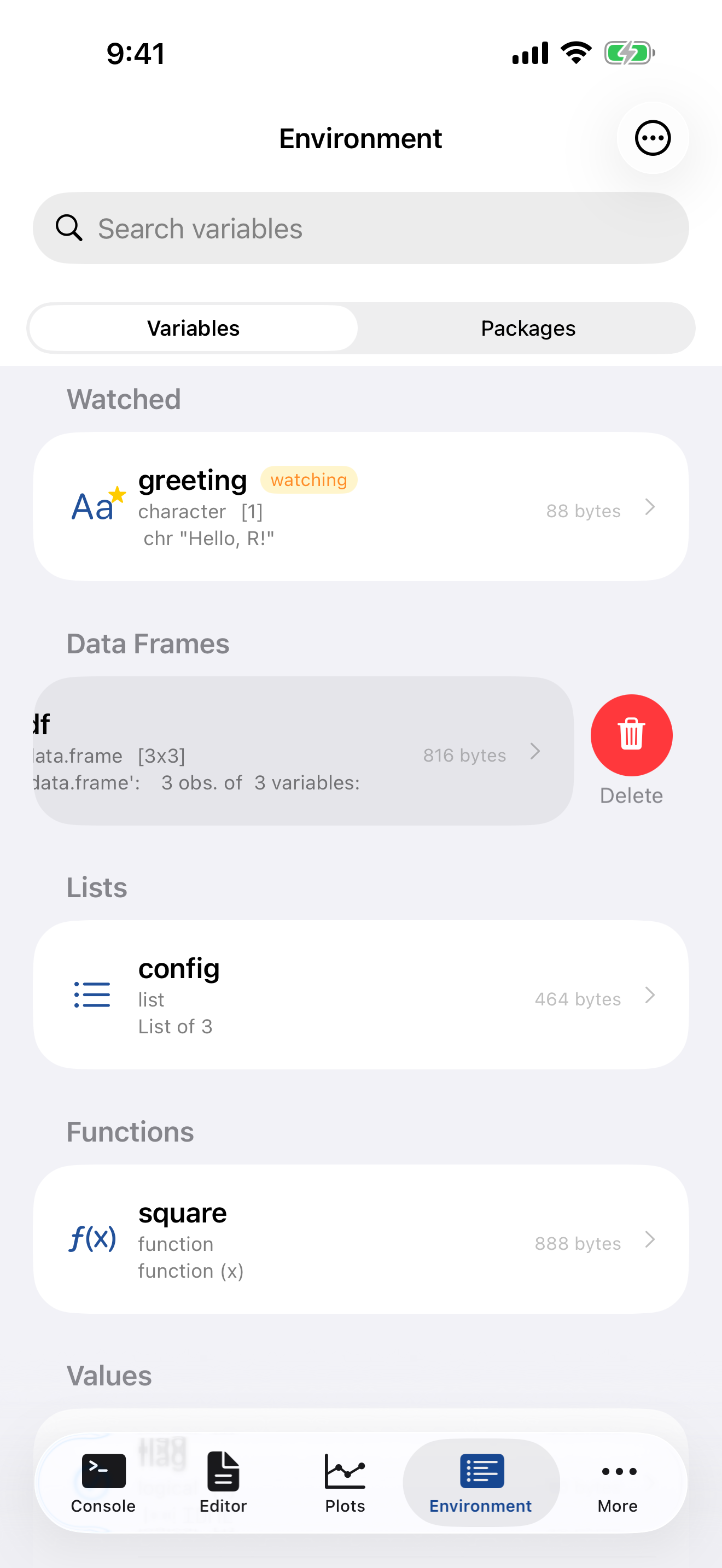
To watch a variable, swipe right on it and tap Watch. You will see a small star badge appear next to the name. To stop watching, swipe right again and tap Unwatch, or use the long-press menu.
You can clear the entire watch list at once from the menu (the ... button in the toolbar).
Searching and filtering
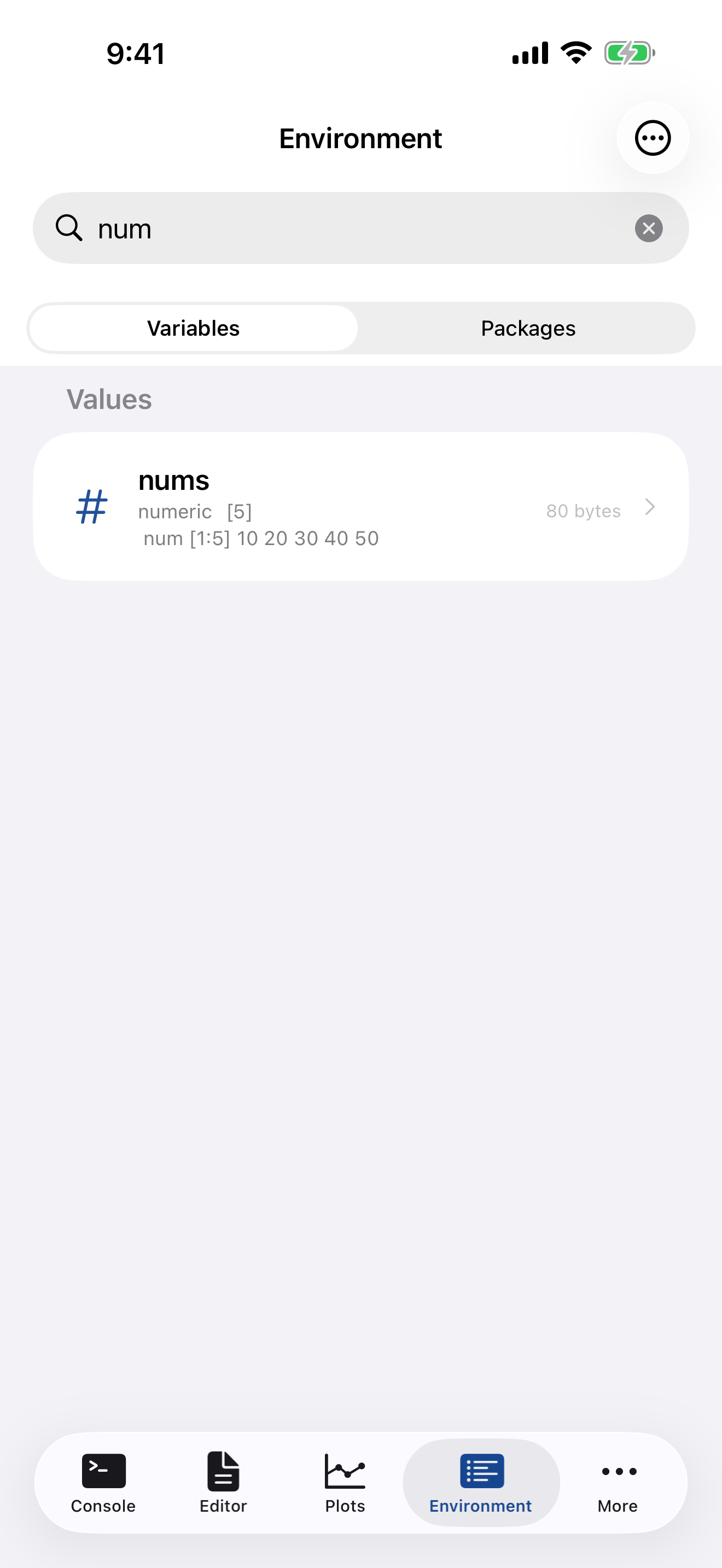
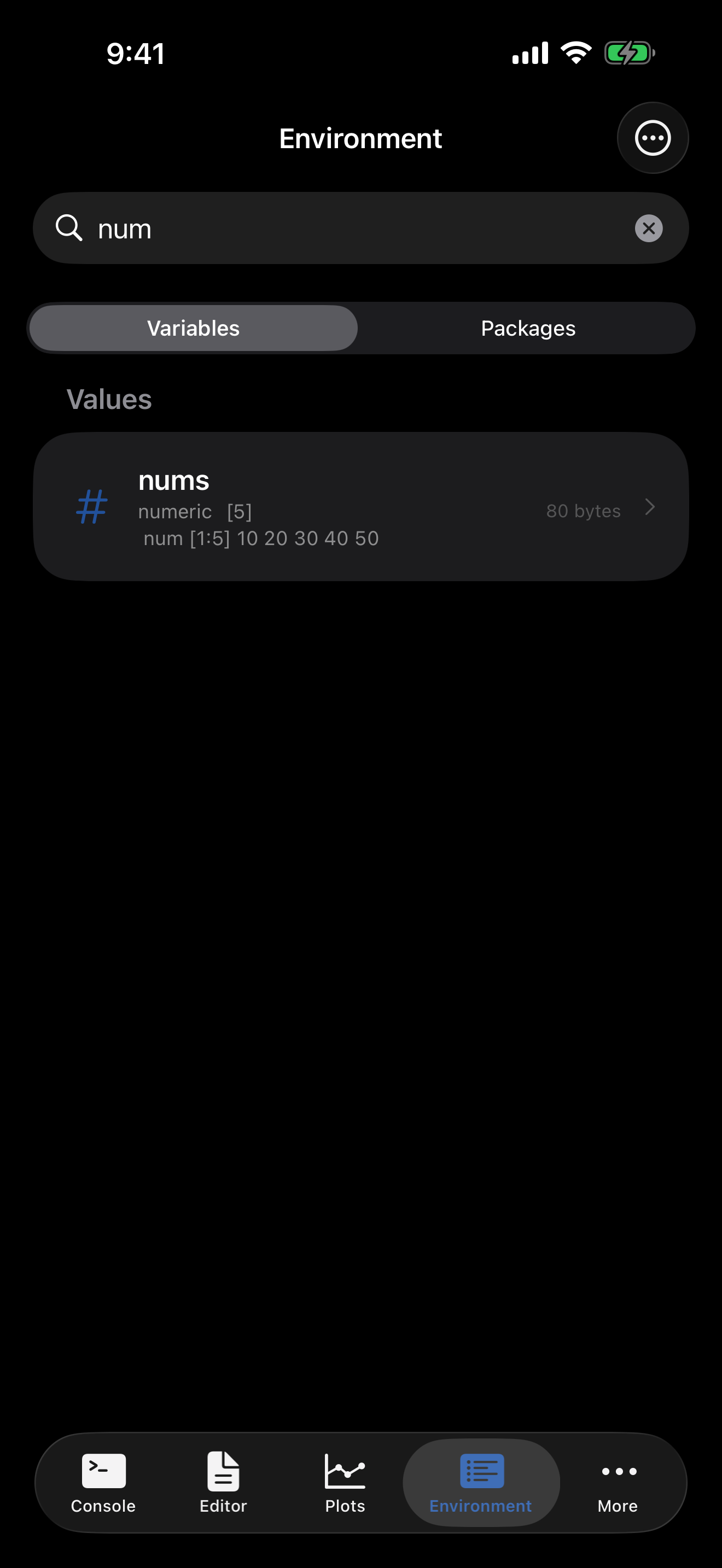
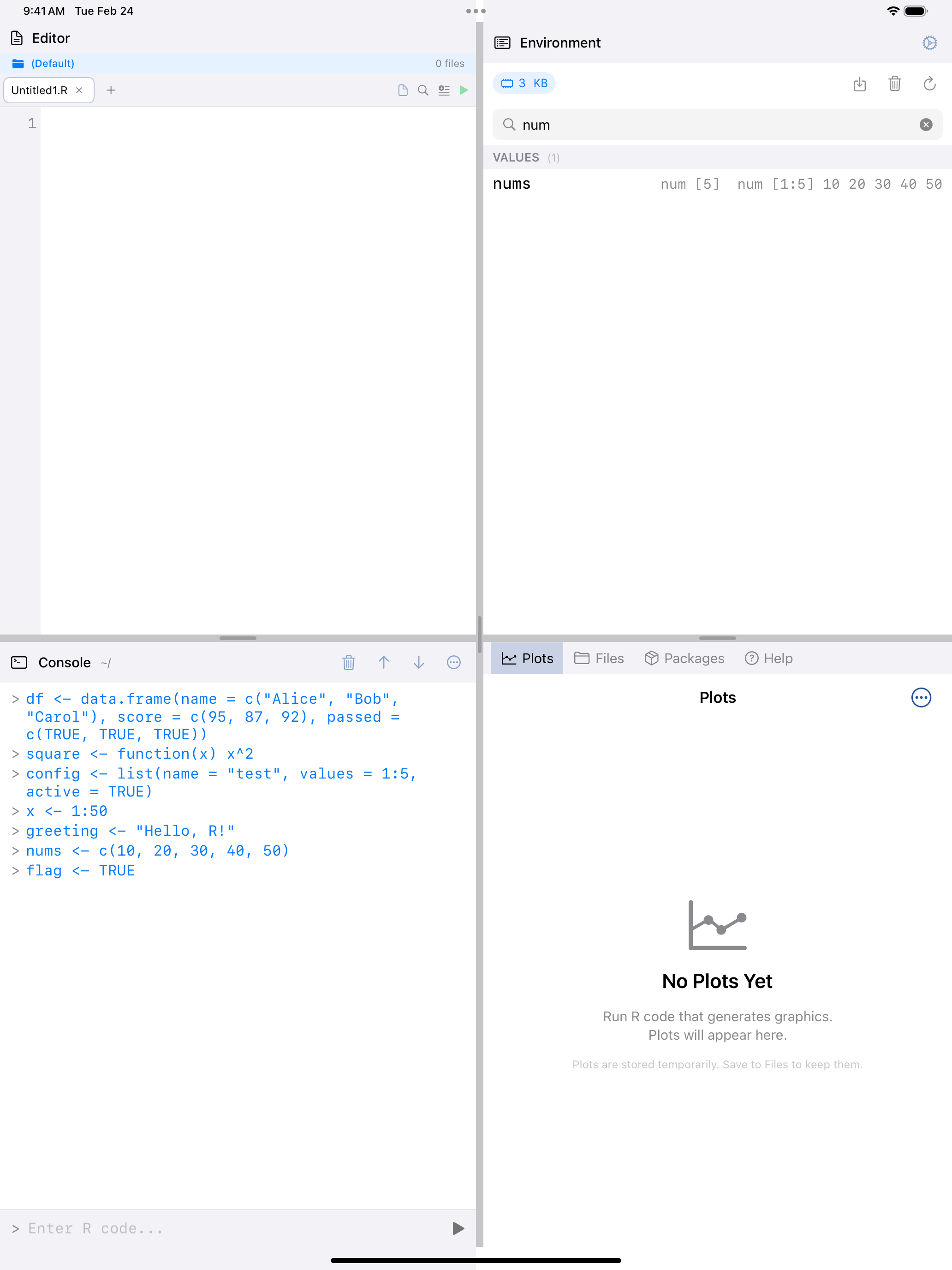
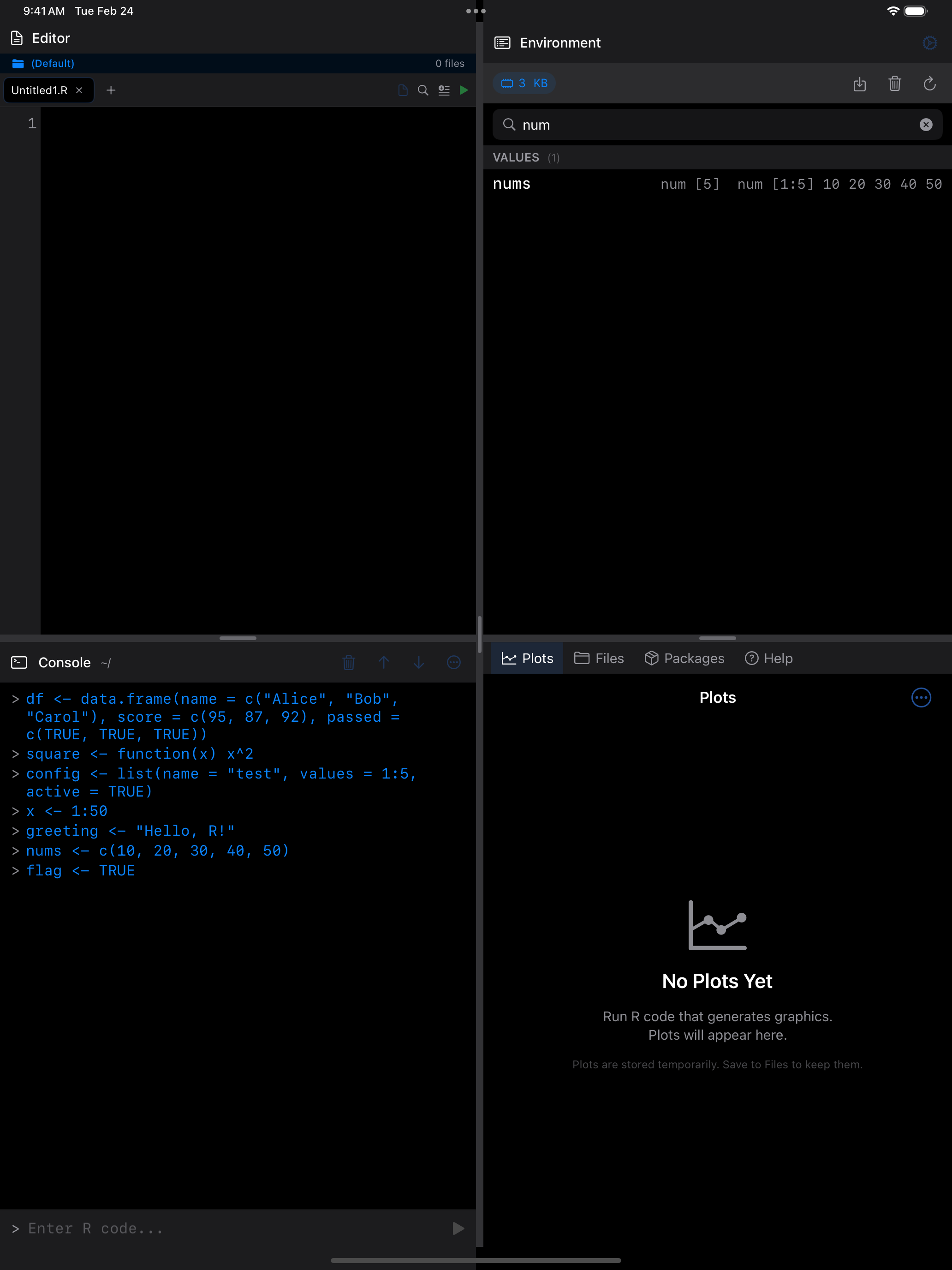
Use the search bar to filter variables by name. The list narrows as you type.
Deleting variables
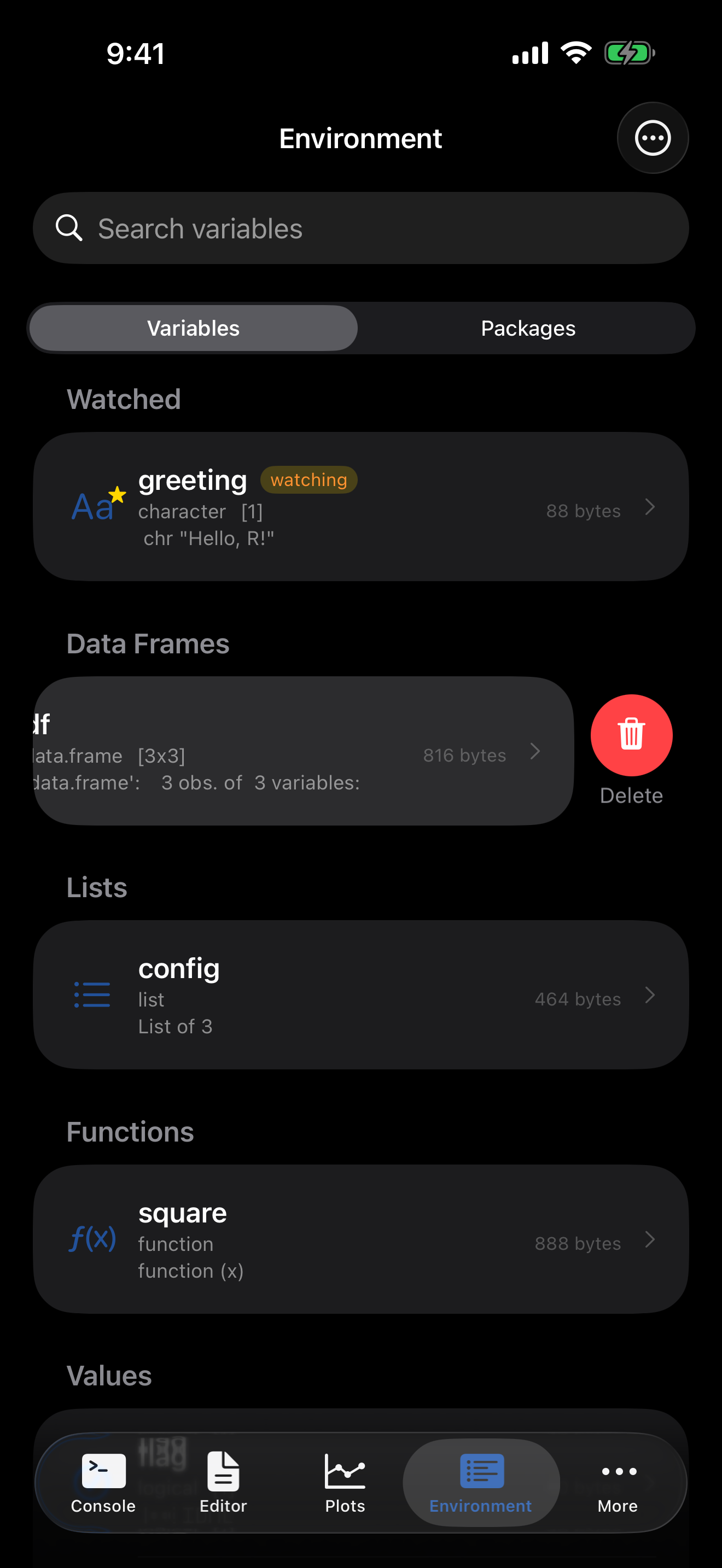
Swipe left on a variable and tap Delete to rm() it. webRios asks first, and says if it fails.
To remove everything, tap the menu (...) and choose Clear Environment. This clears .GlobalEnv entirely. A confirmation prompt appears first.
The Packages tab
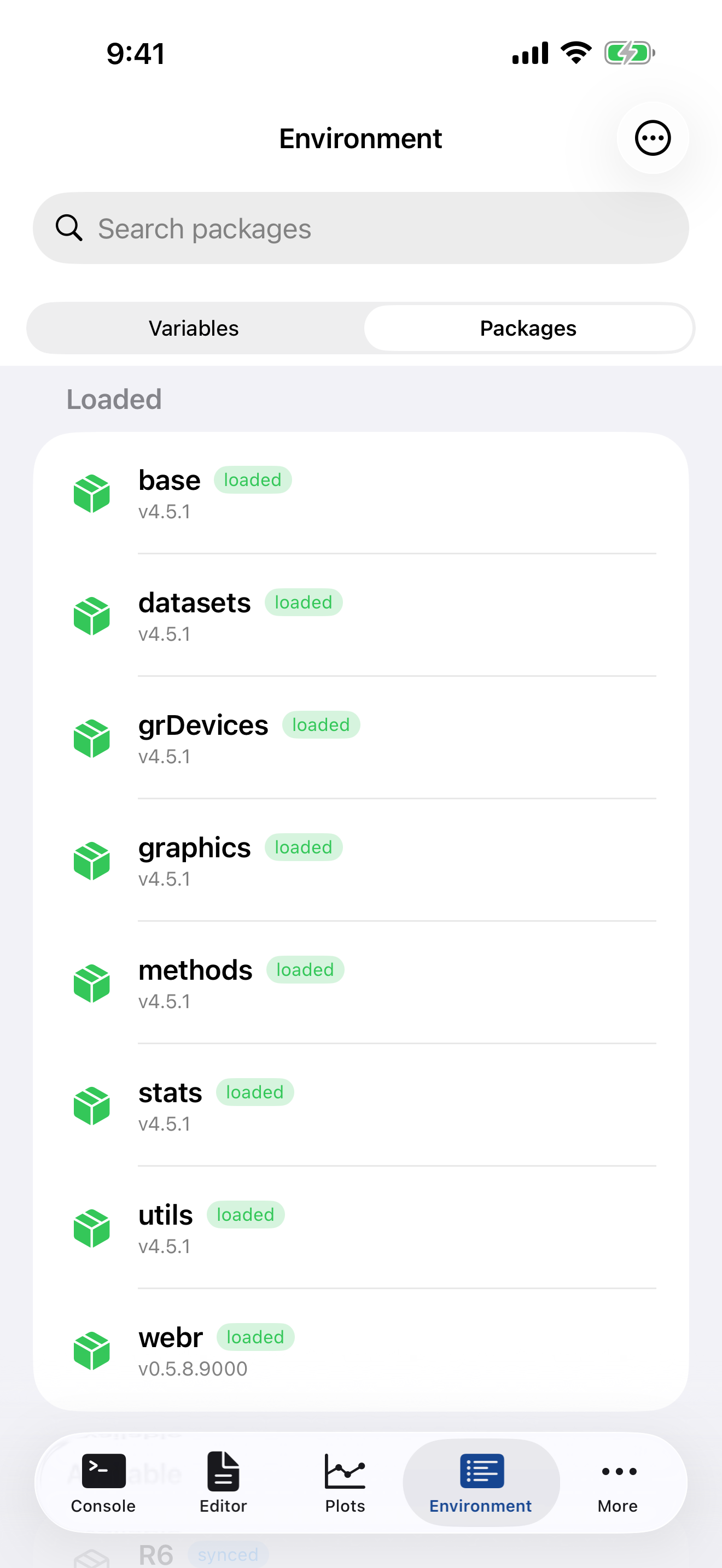
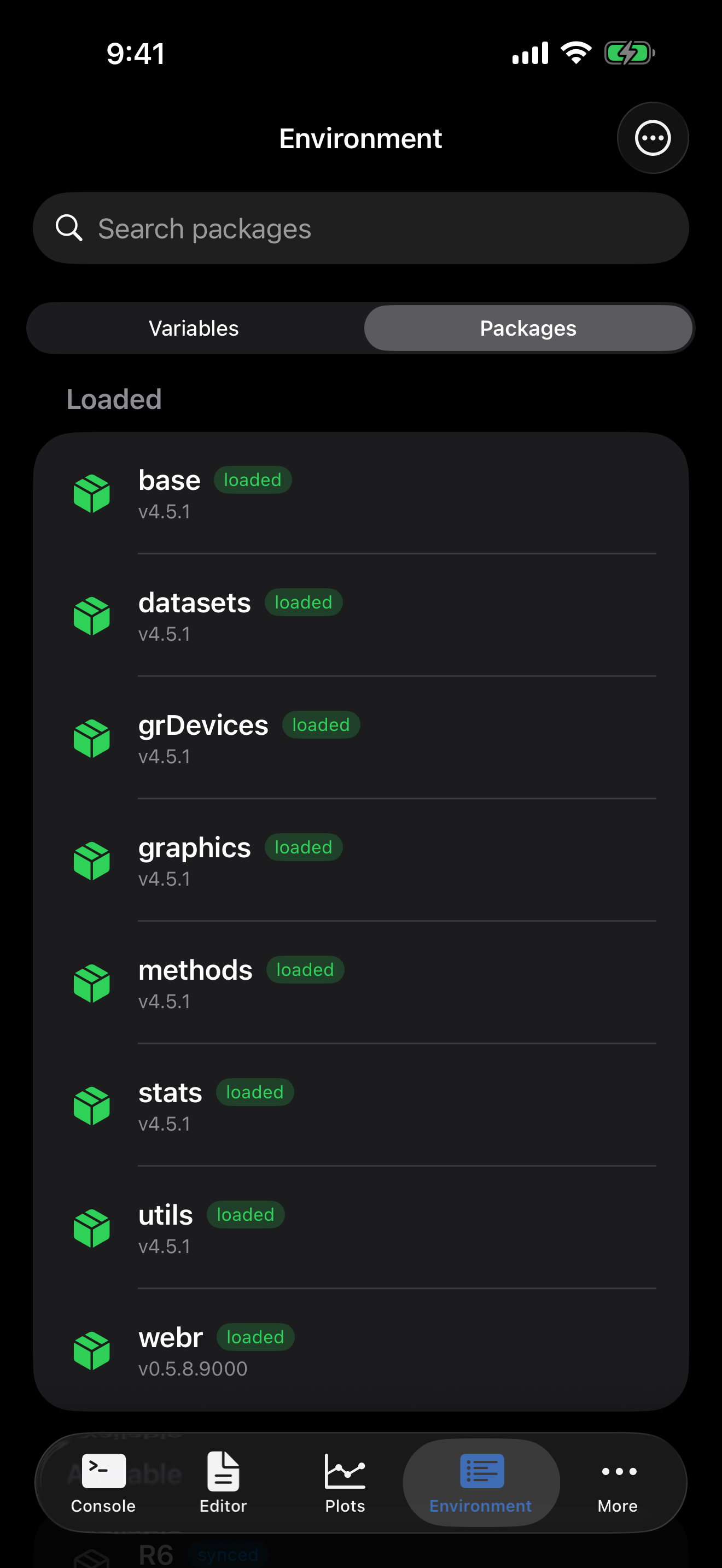
The segmented control at the top also has a Packages tab showing your installed R packages. See the Packages guide for details.
Pull down on the list to refresh manually, or tap Refresh in the menu.