Console
The Console is the quickest way to try an idea without writing a script.
Your R Command Line
Type an expression in the field at the bottom and tap play, or press Return on a keyboard. The result appears above.
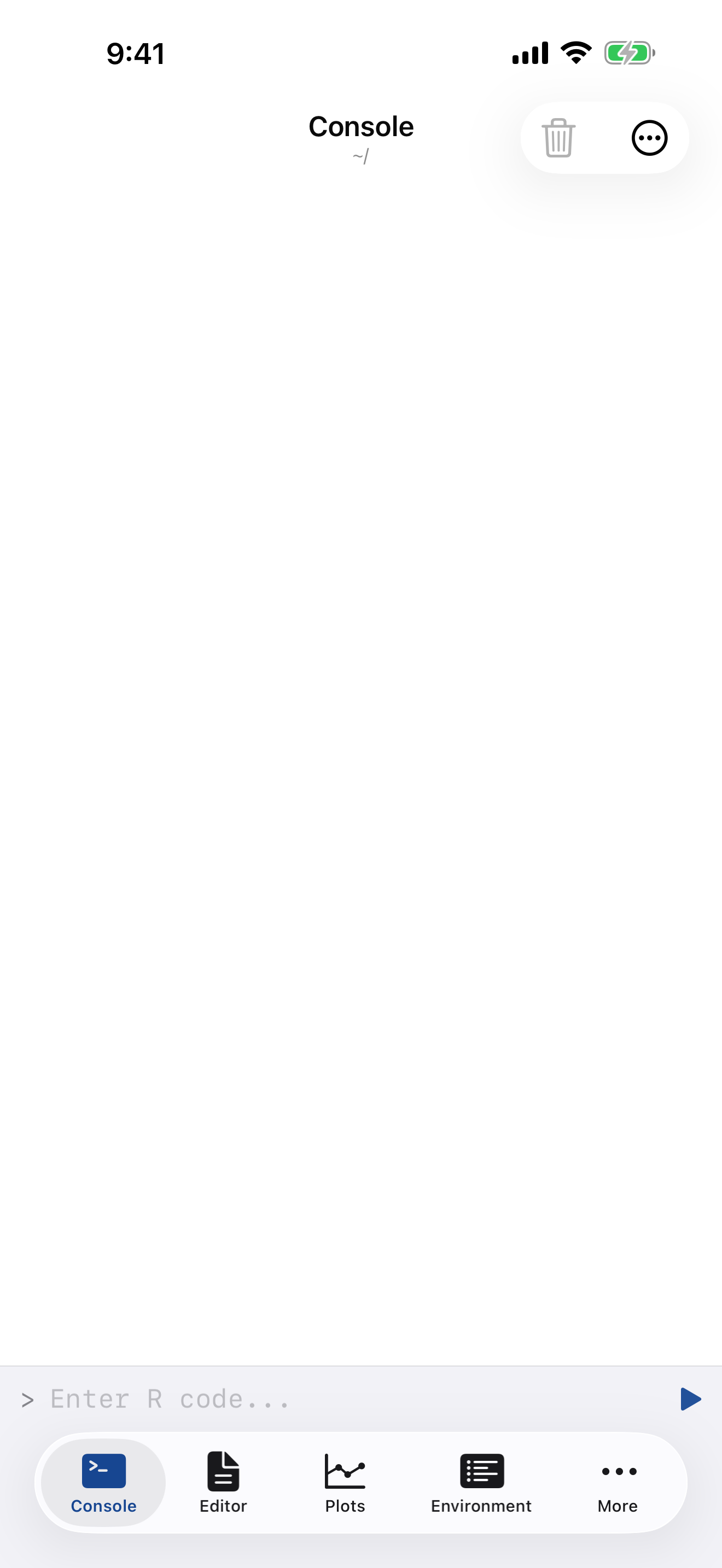
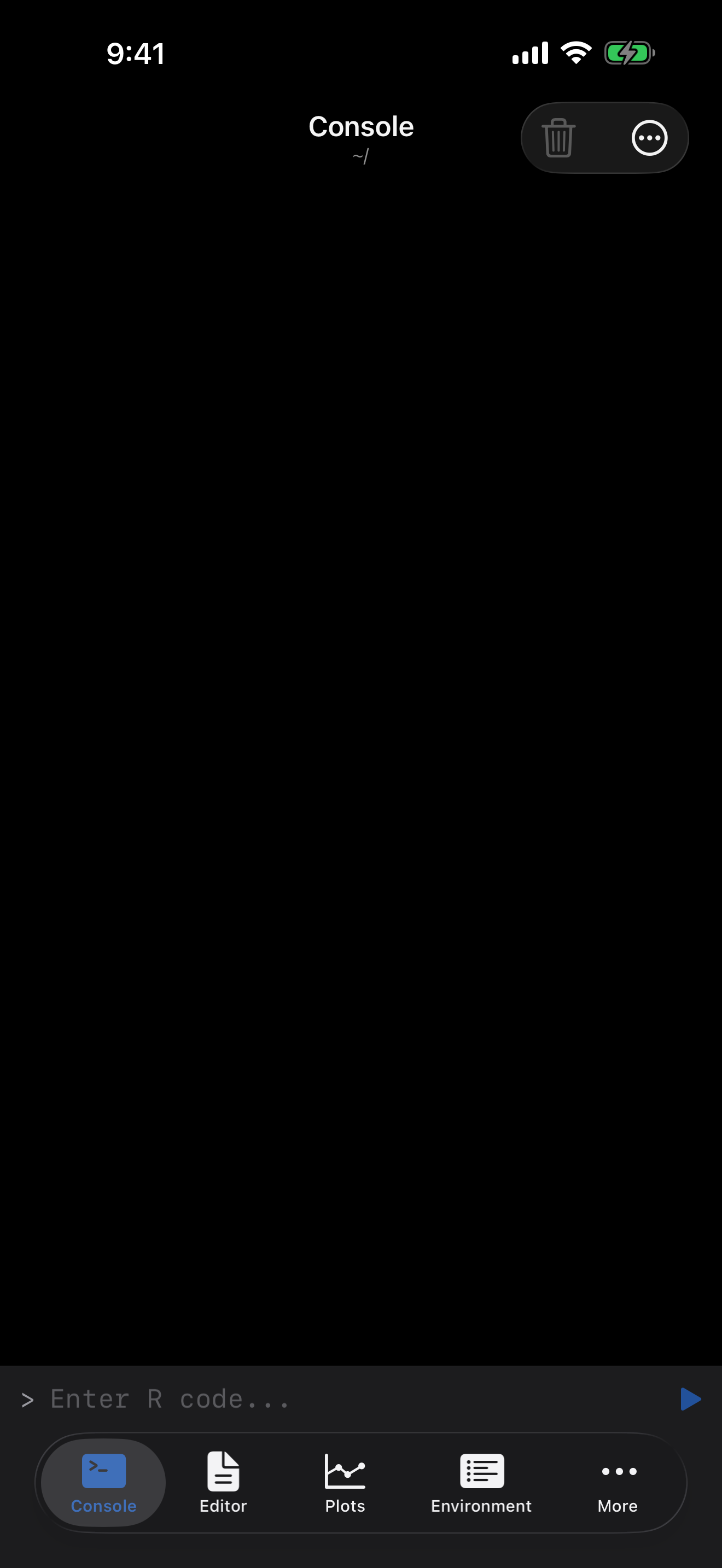
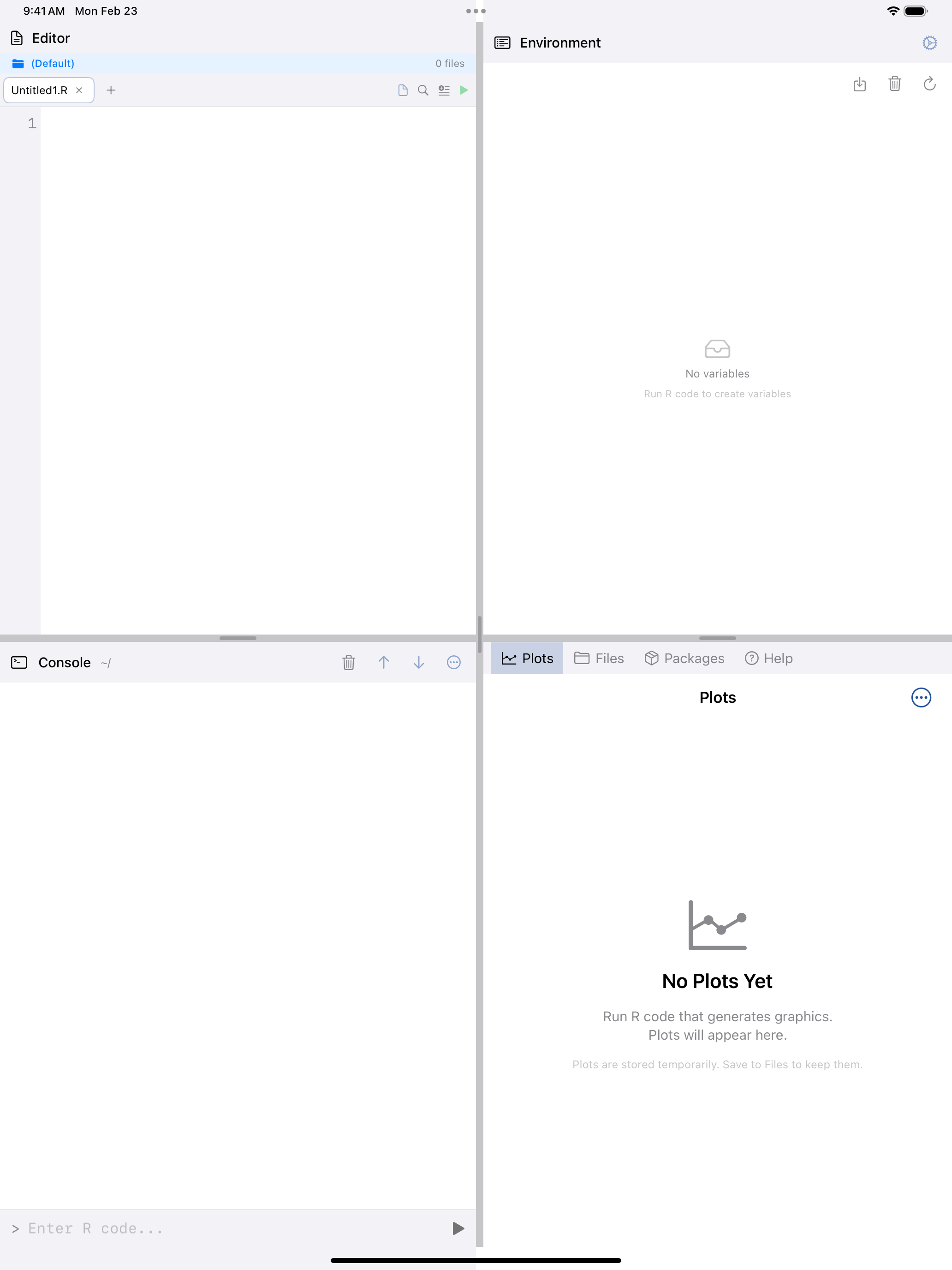
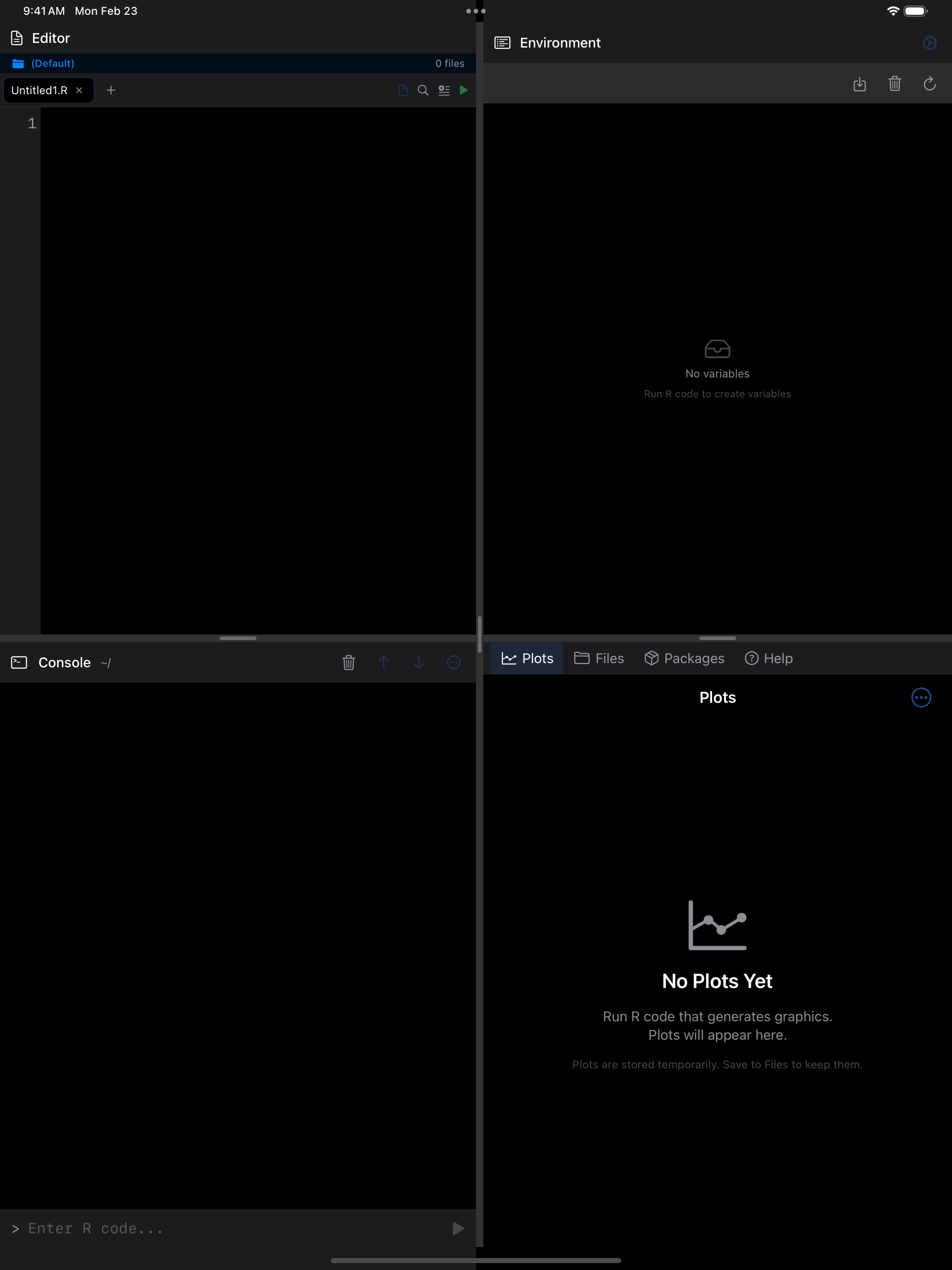
Parts of the screen
- The output area scrolls through everything R has printed, color-coded by kind
- The input field at the bottom, after the
>, is where you type R code - The Run button, a blue play icon, runs what is in the input field
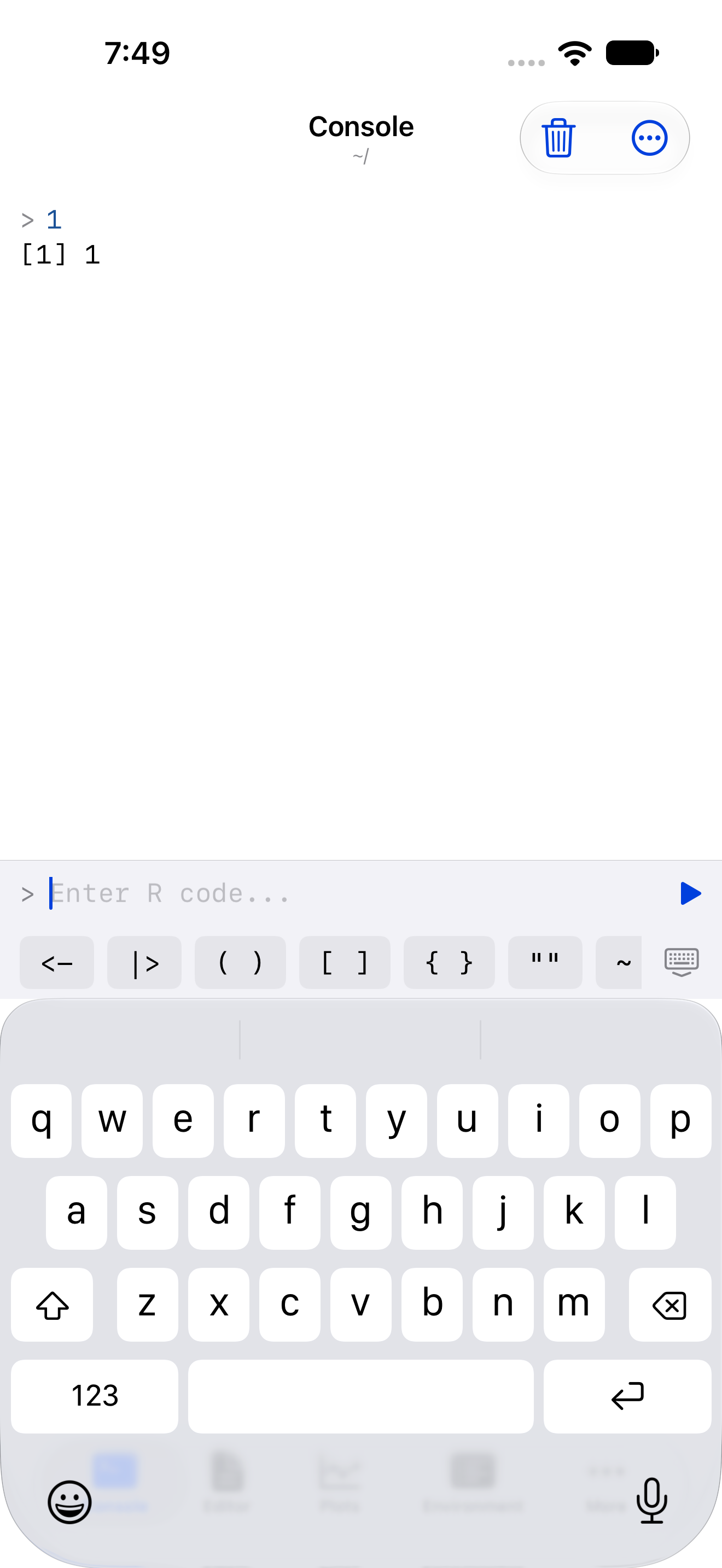
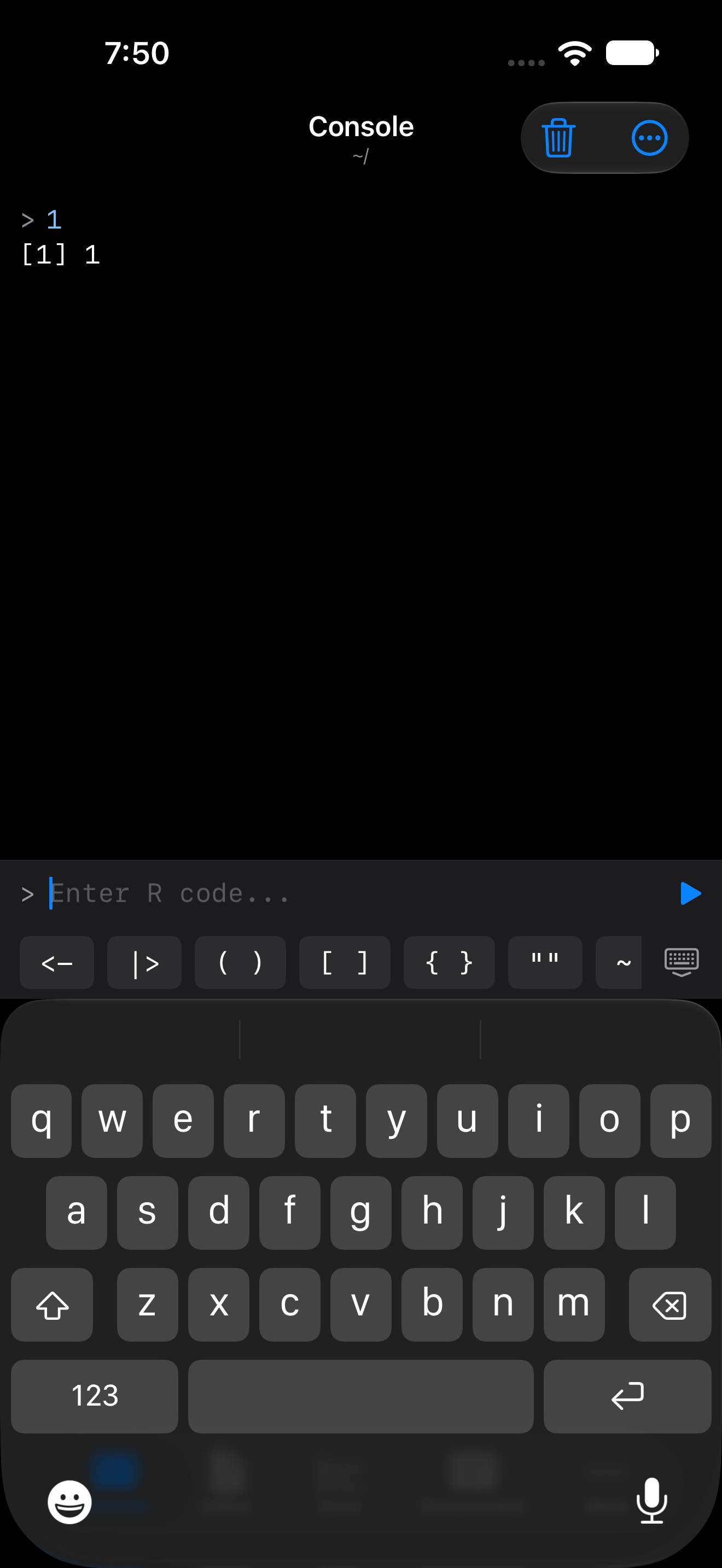
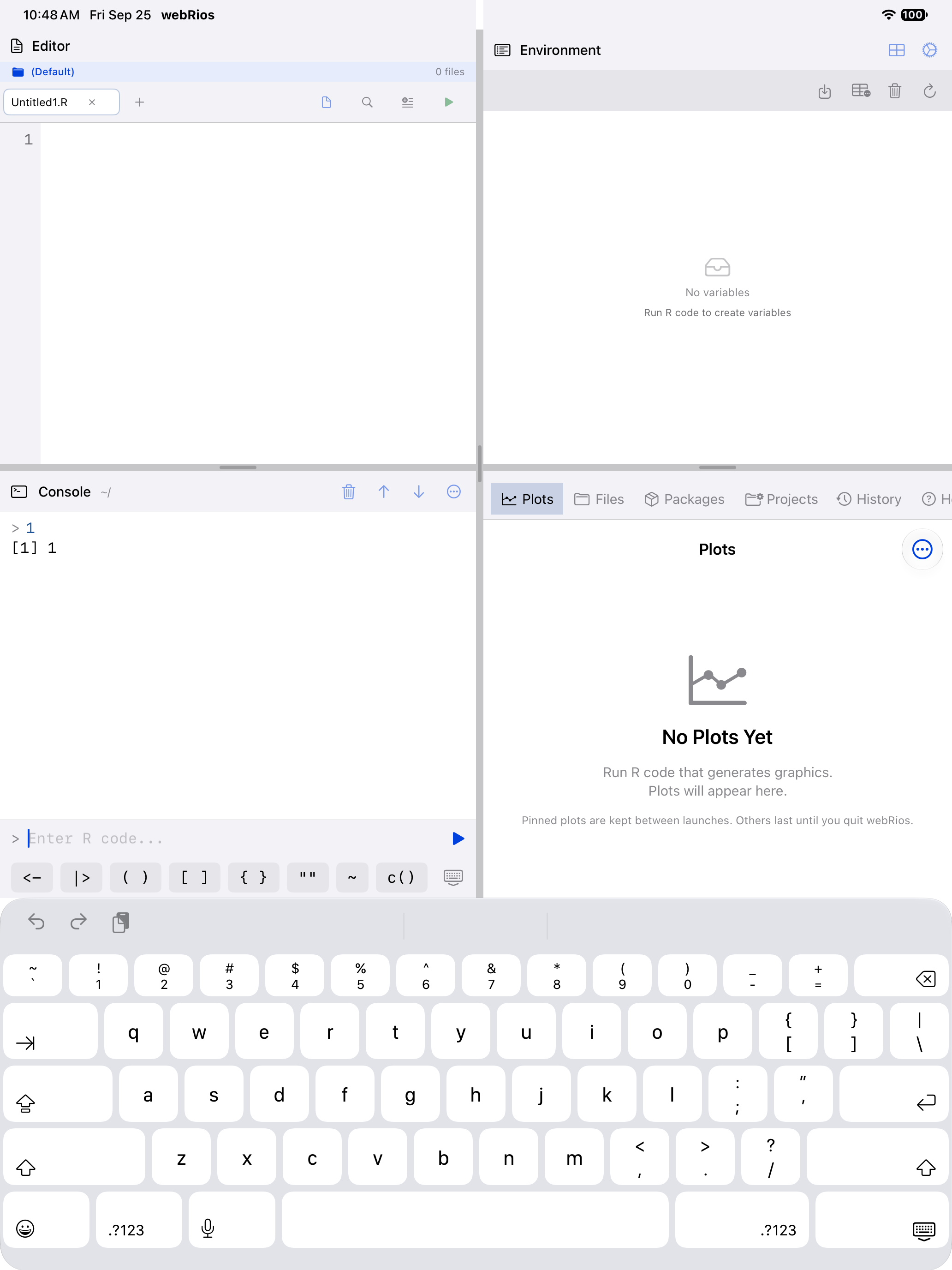
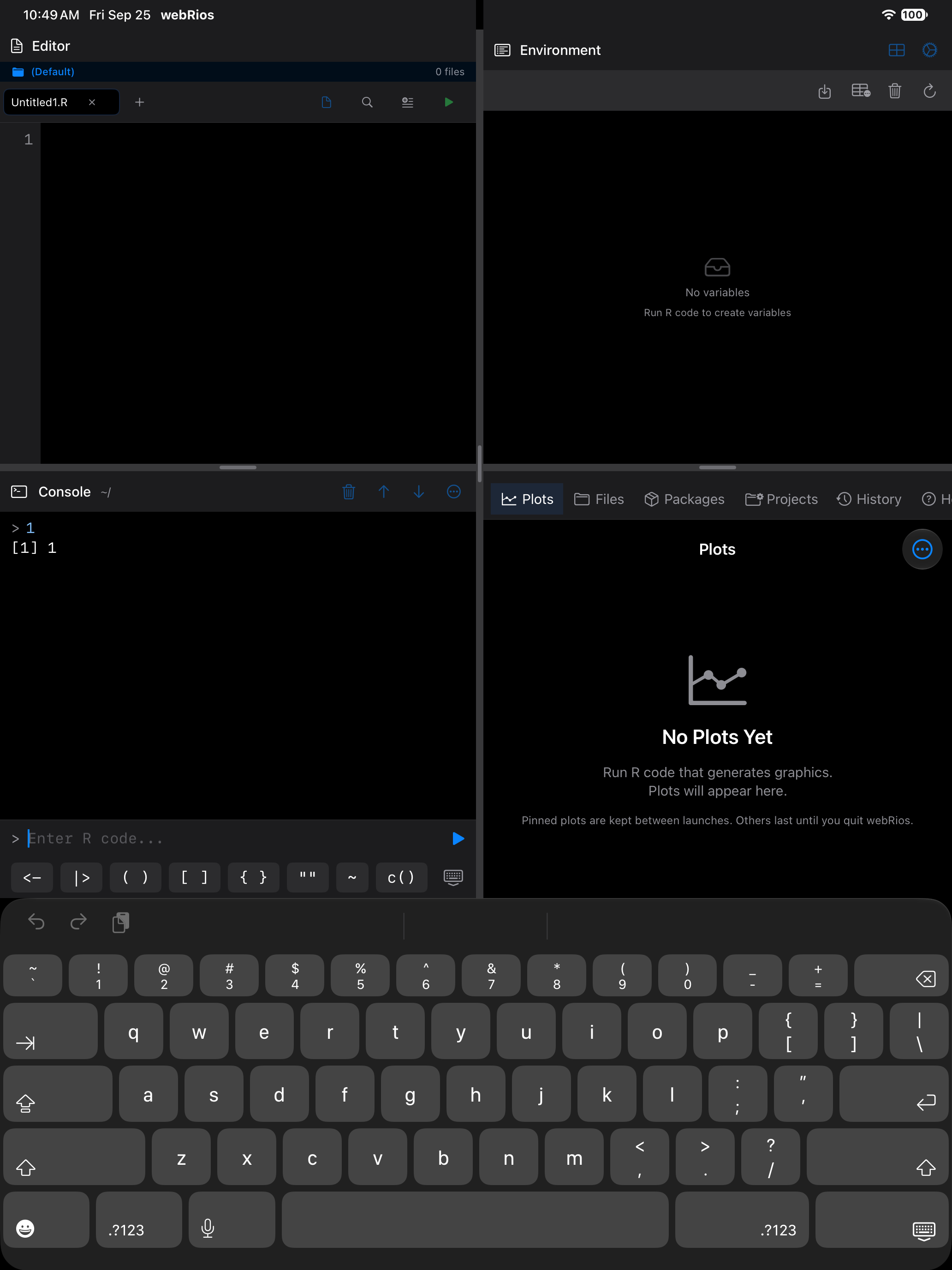
- The R keyboard toolbar is a strip of common R operators above the open keyboard
Until you finish or close it, the Getting started checklist sits at the top of the Console. Getting Started walks through it. The screenshots here show the Console without it.
An empty Console shows the R version, four commands to run with a tap, and Open an example script, which opens one in the Editor. The card goes once you run something.
Paste or type several lines at once and R runs them in order, printing every visible result.
While you are at the end of the output, the Console follows new lines, however fast they arrive. Scroll up, or tap the Console tab again to jump to the top, and it stays put. Scroll back to the end, or run something from the Console, and it follows again.
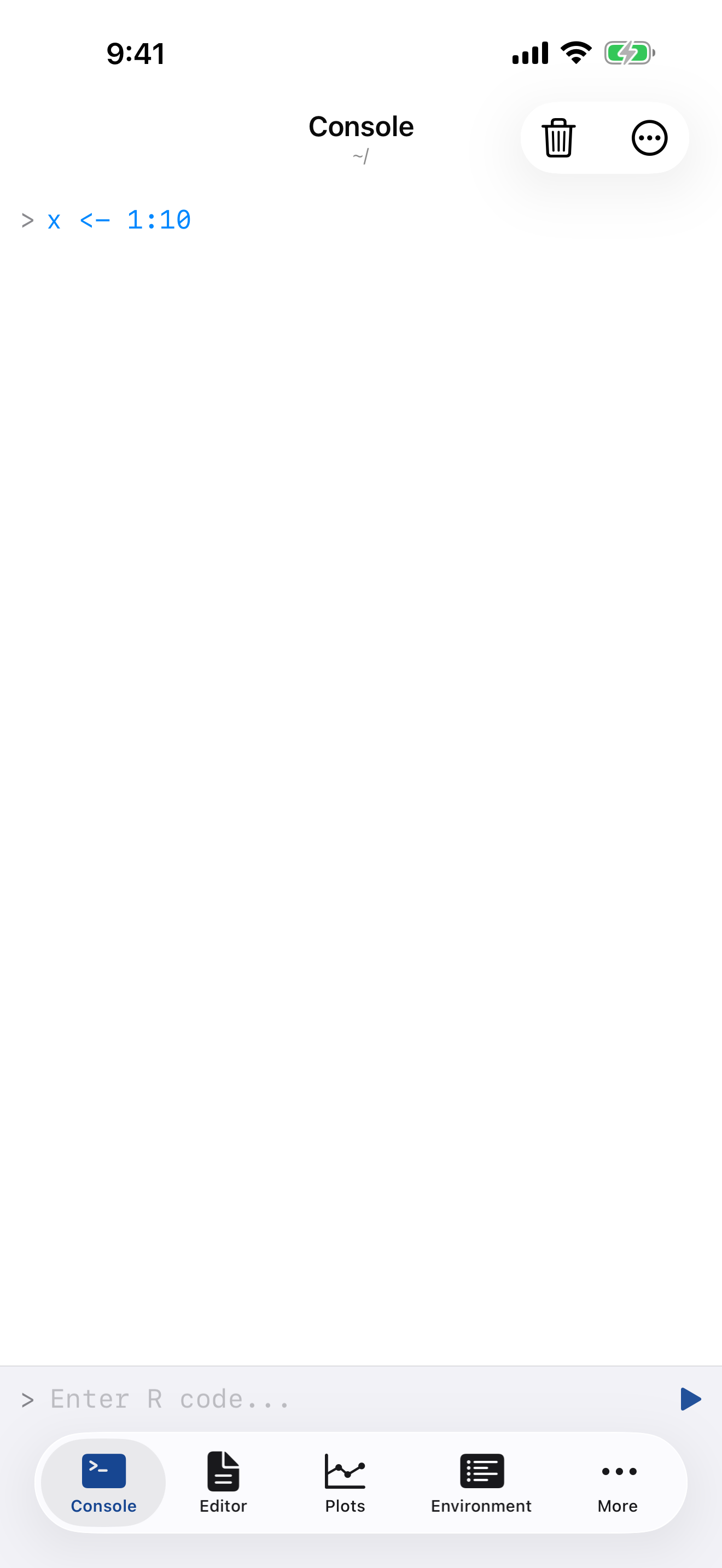
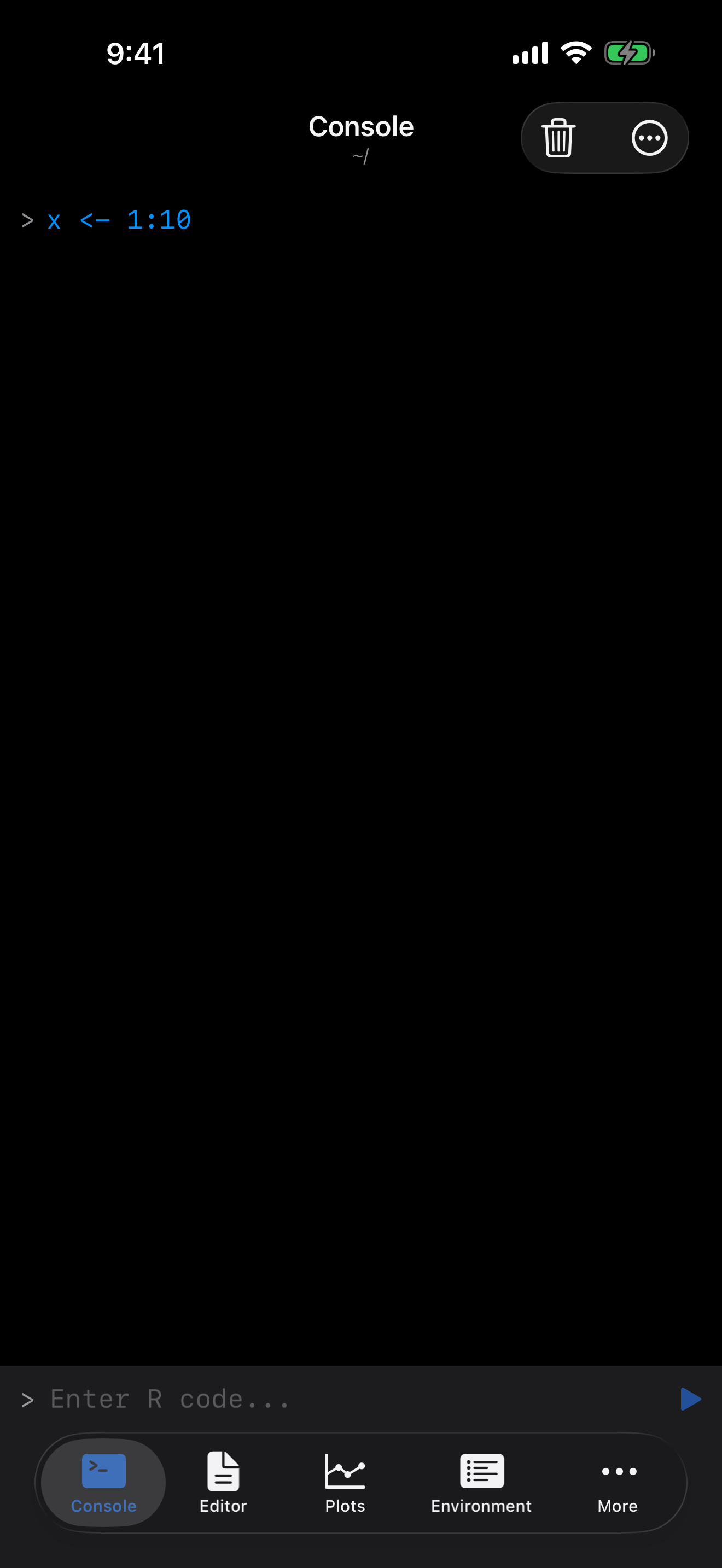
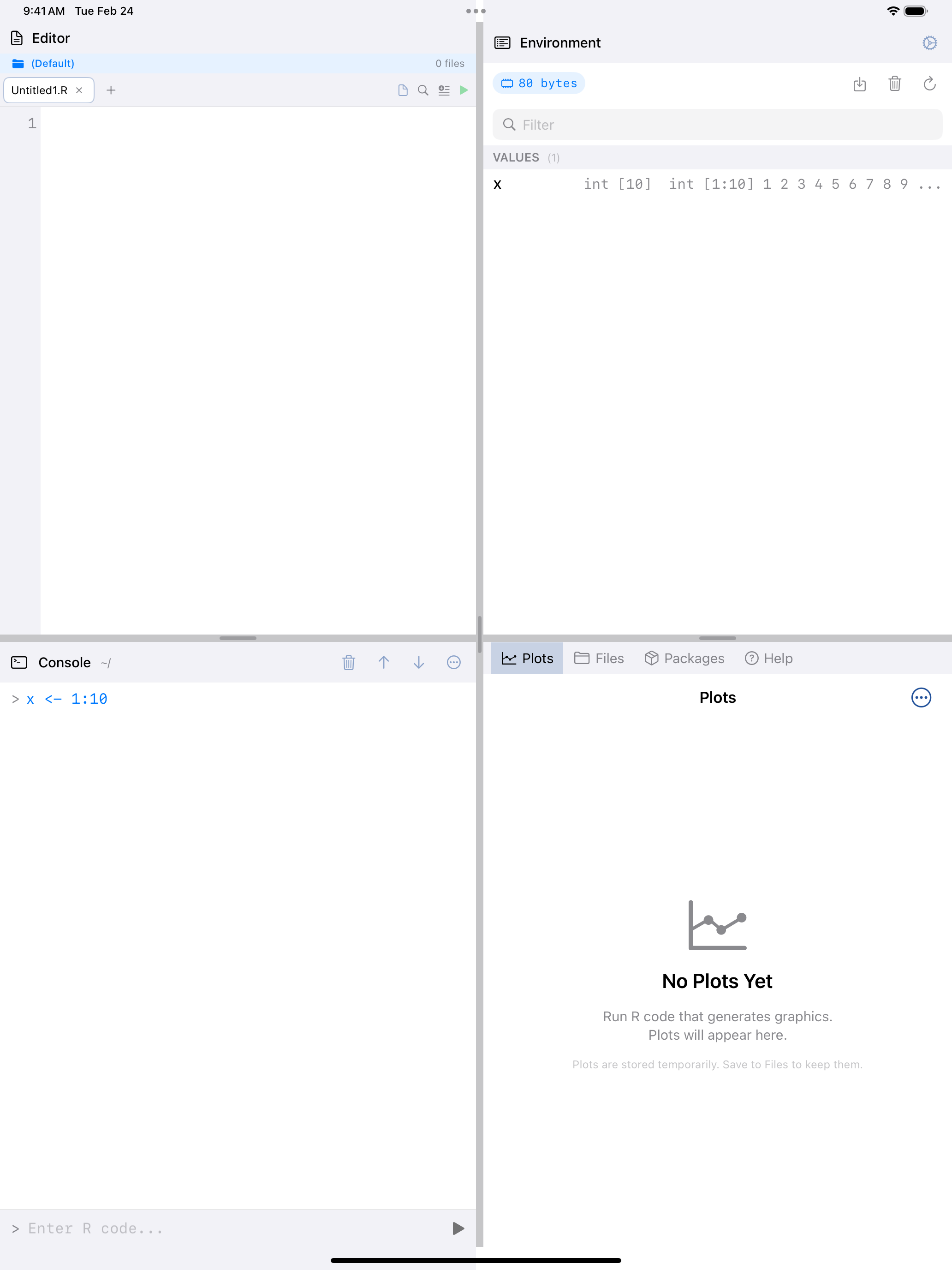
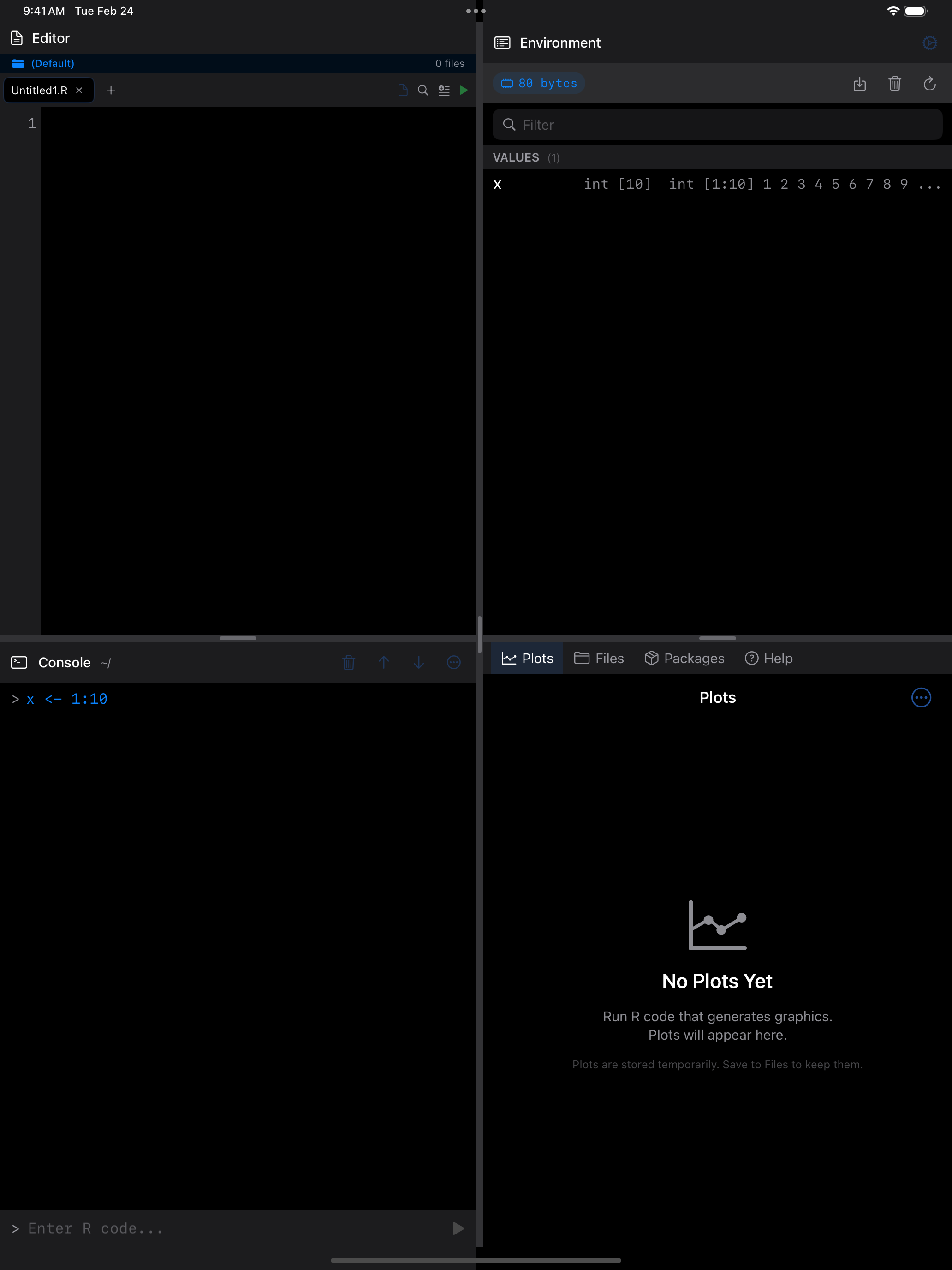
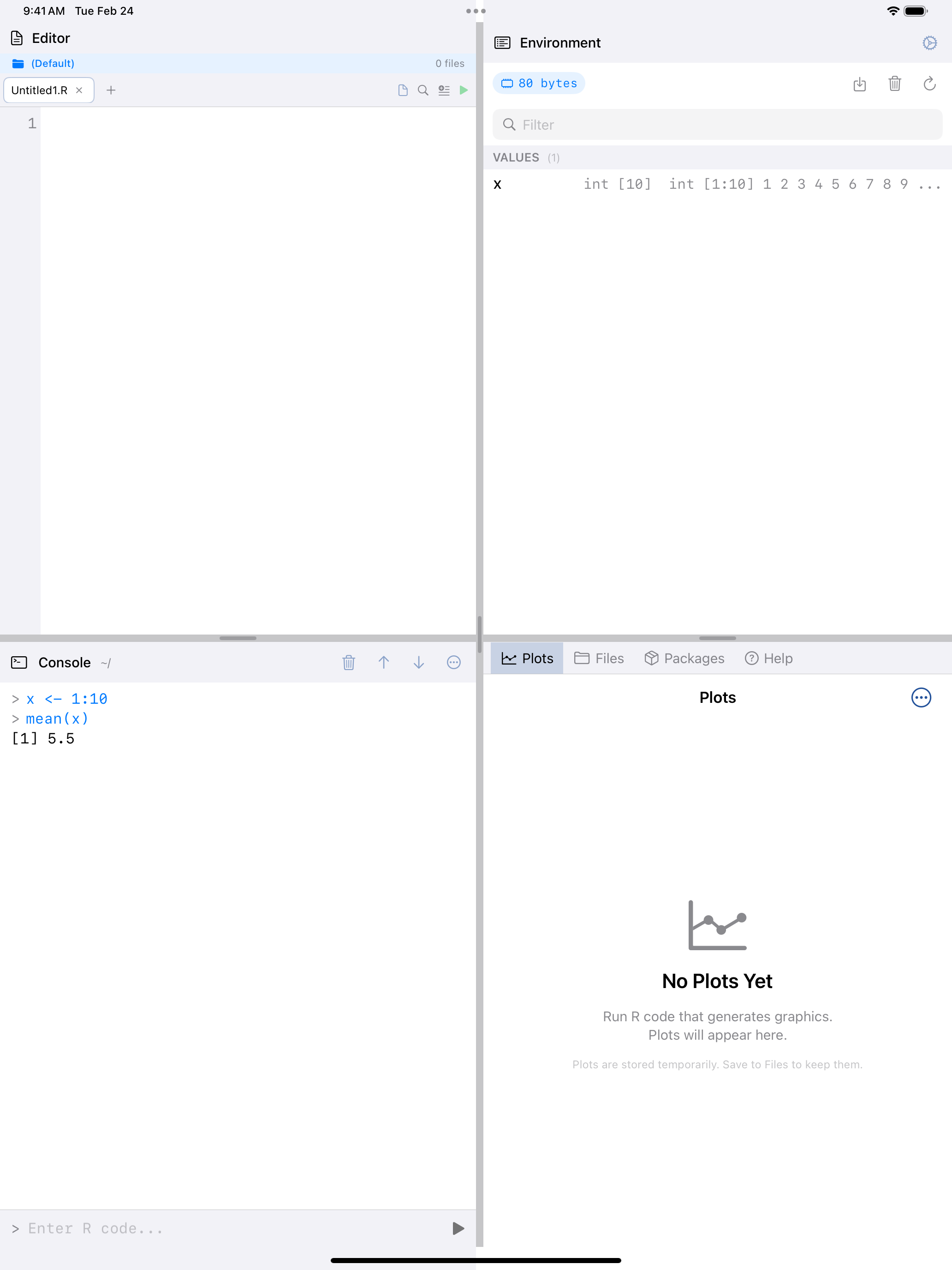
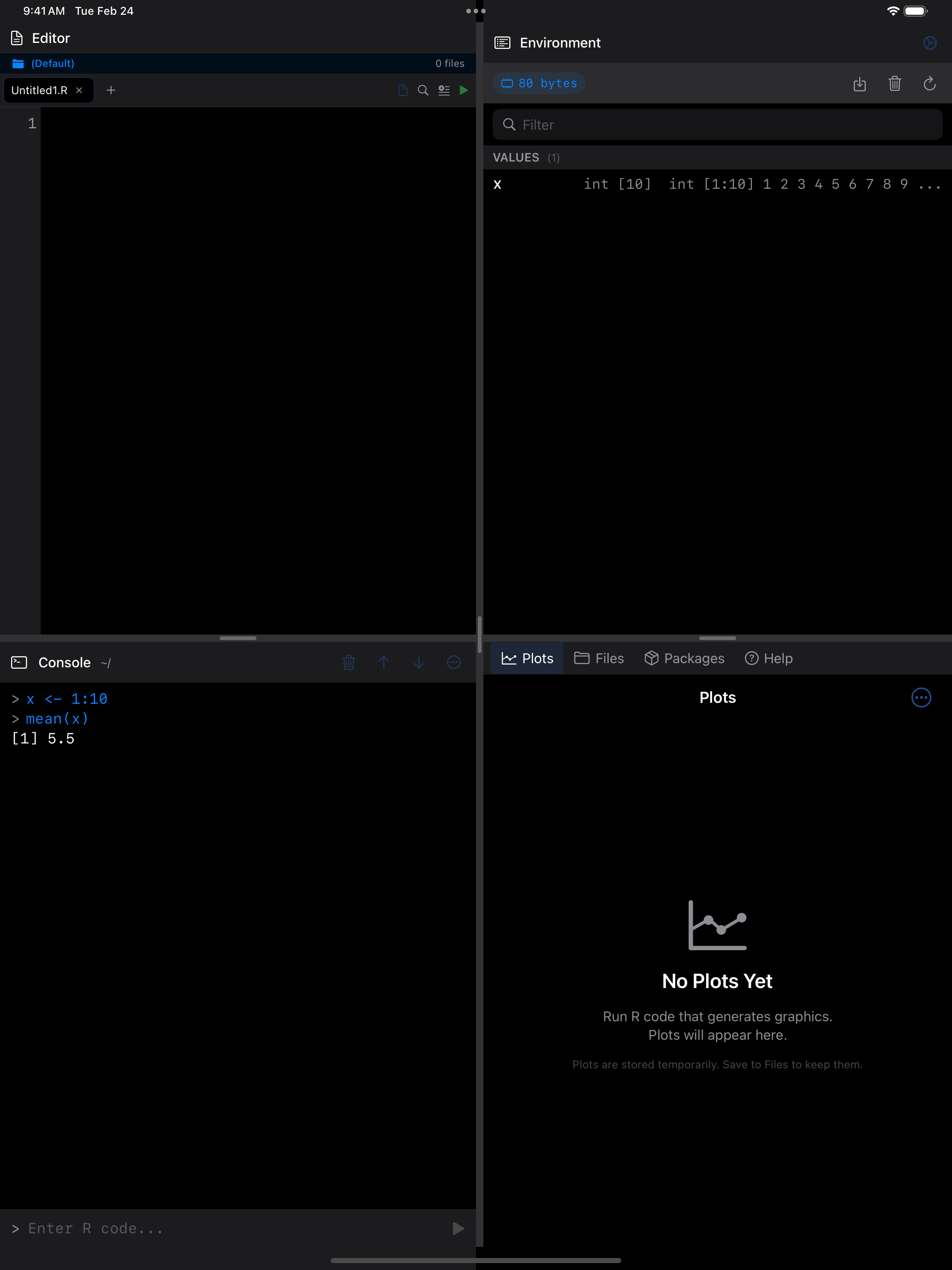
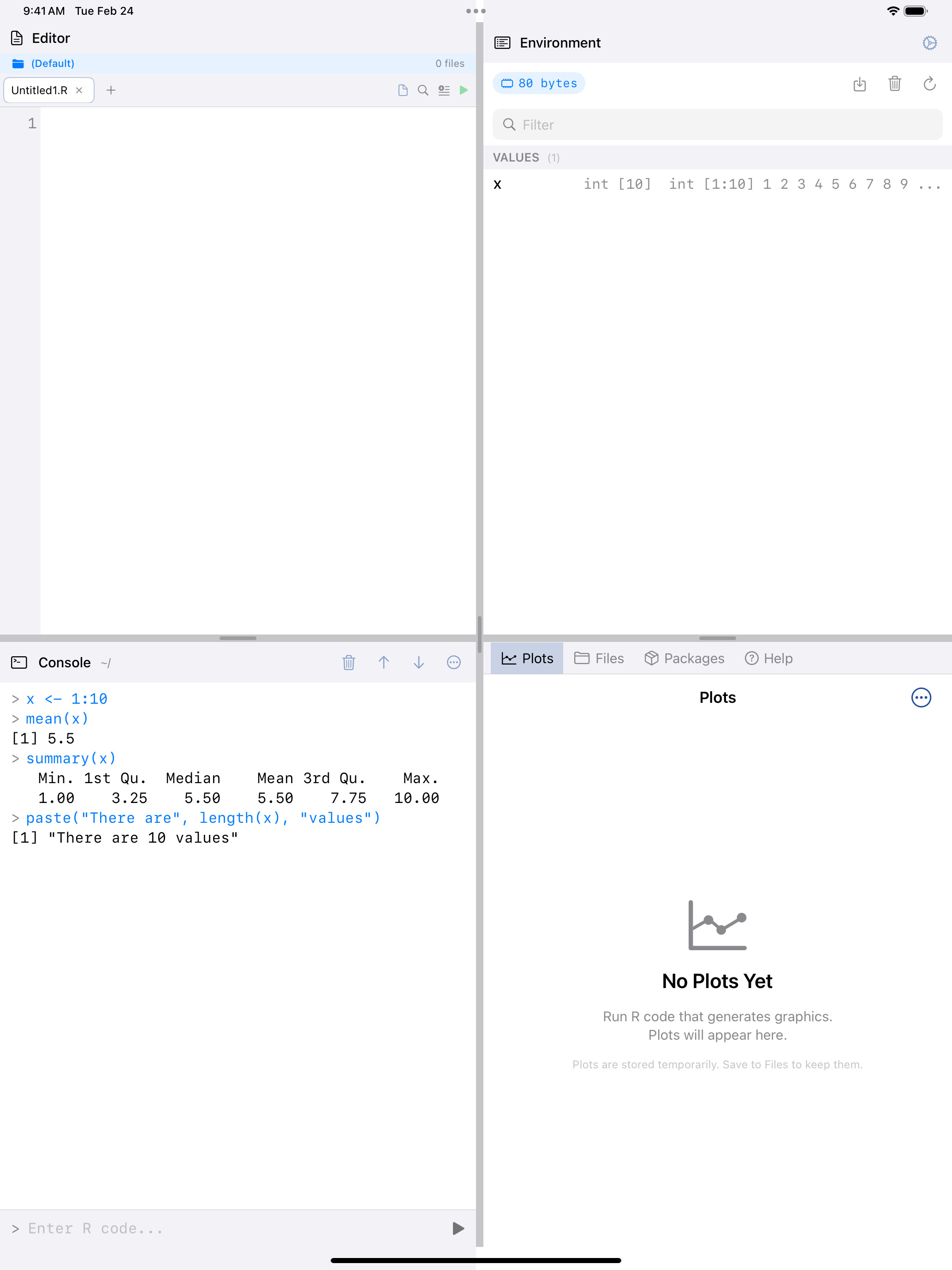
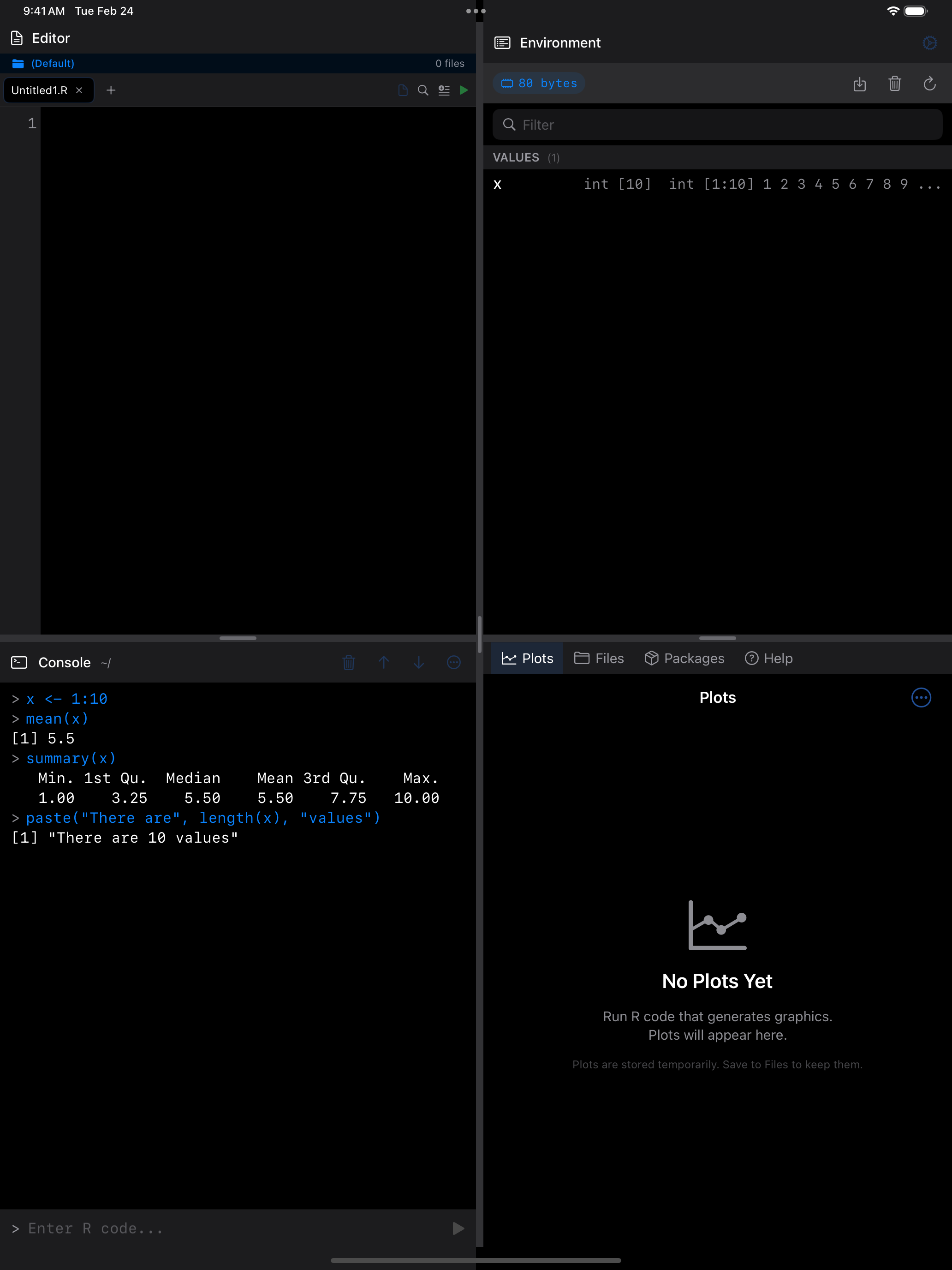
Here is a short session, one line at a time.
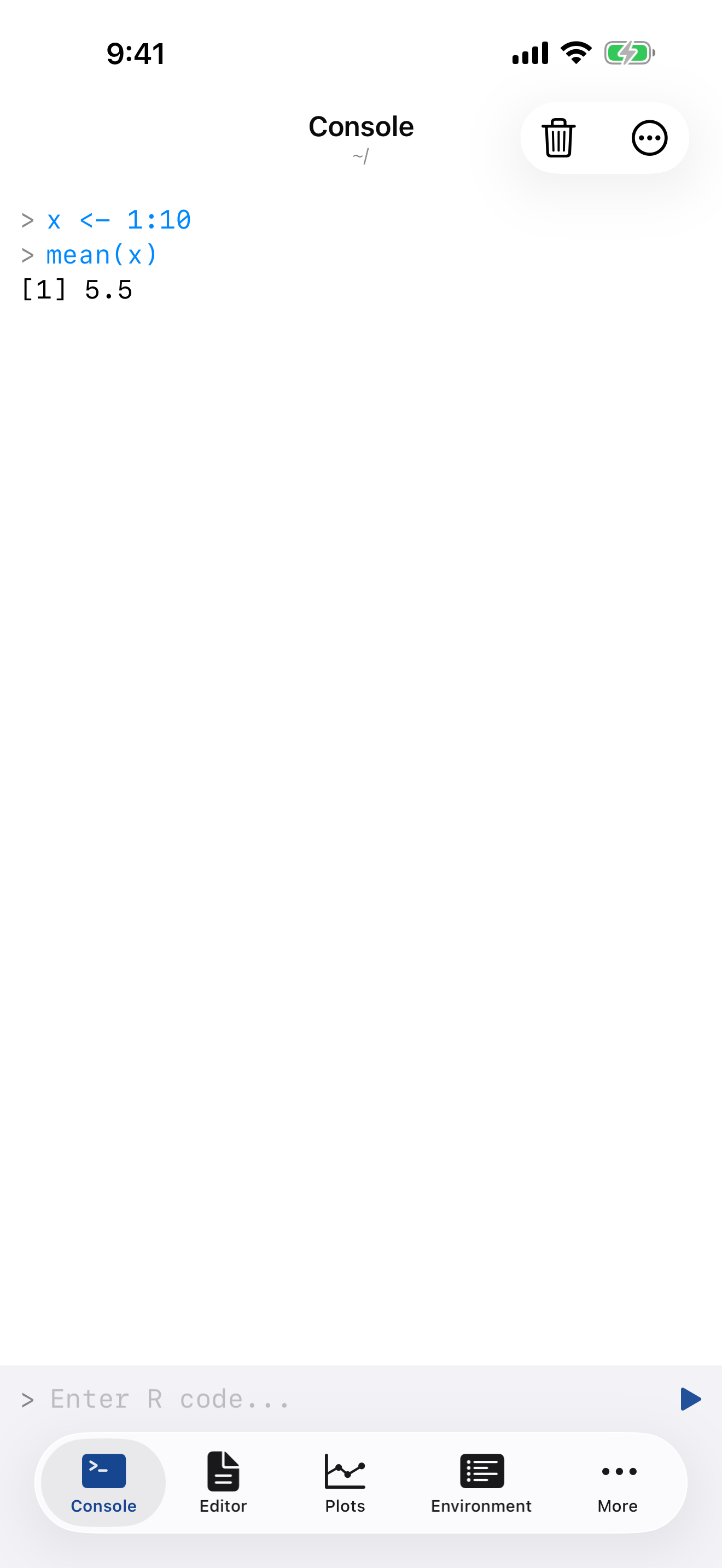
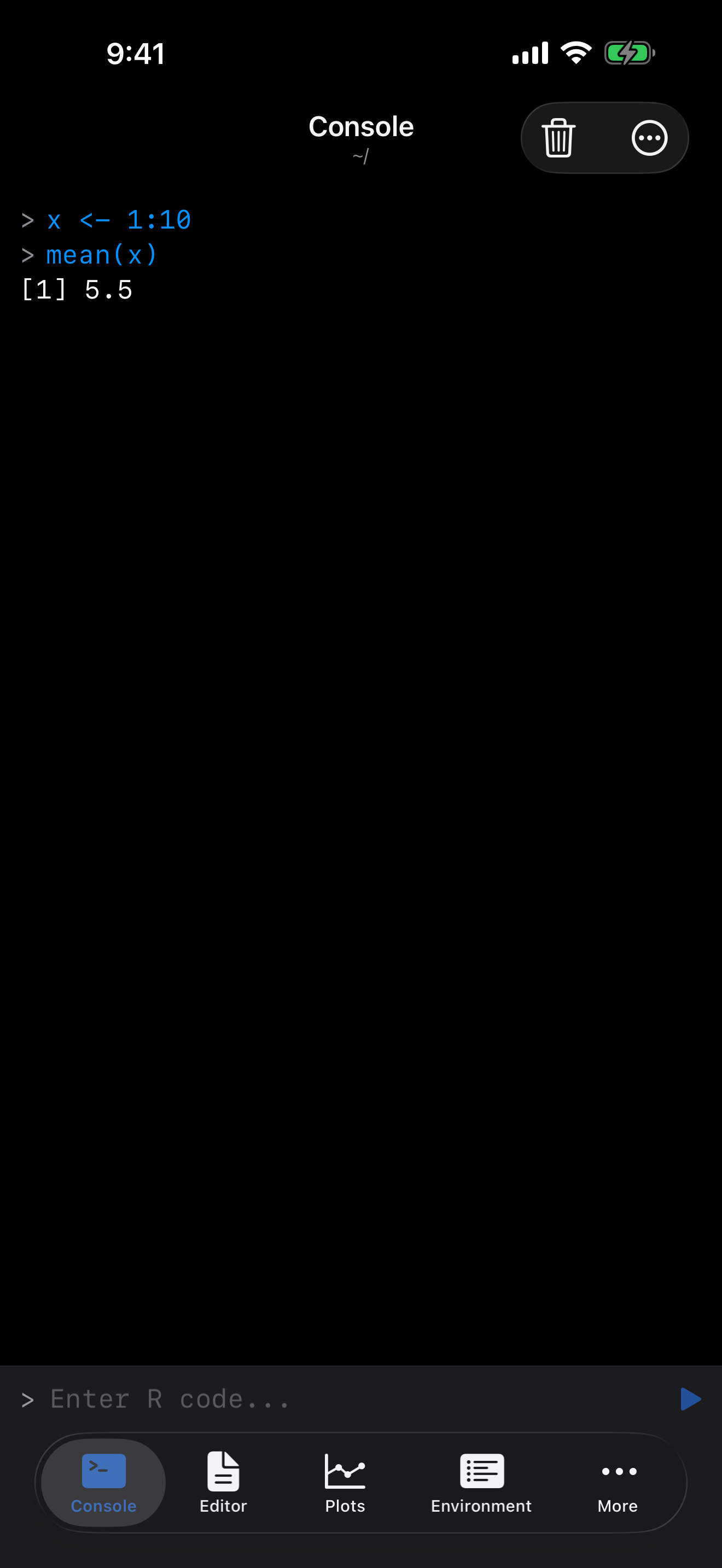
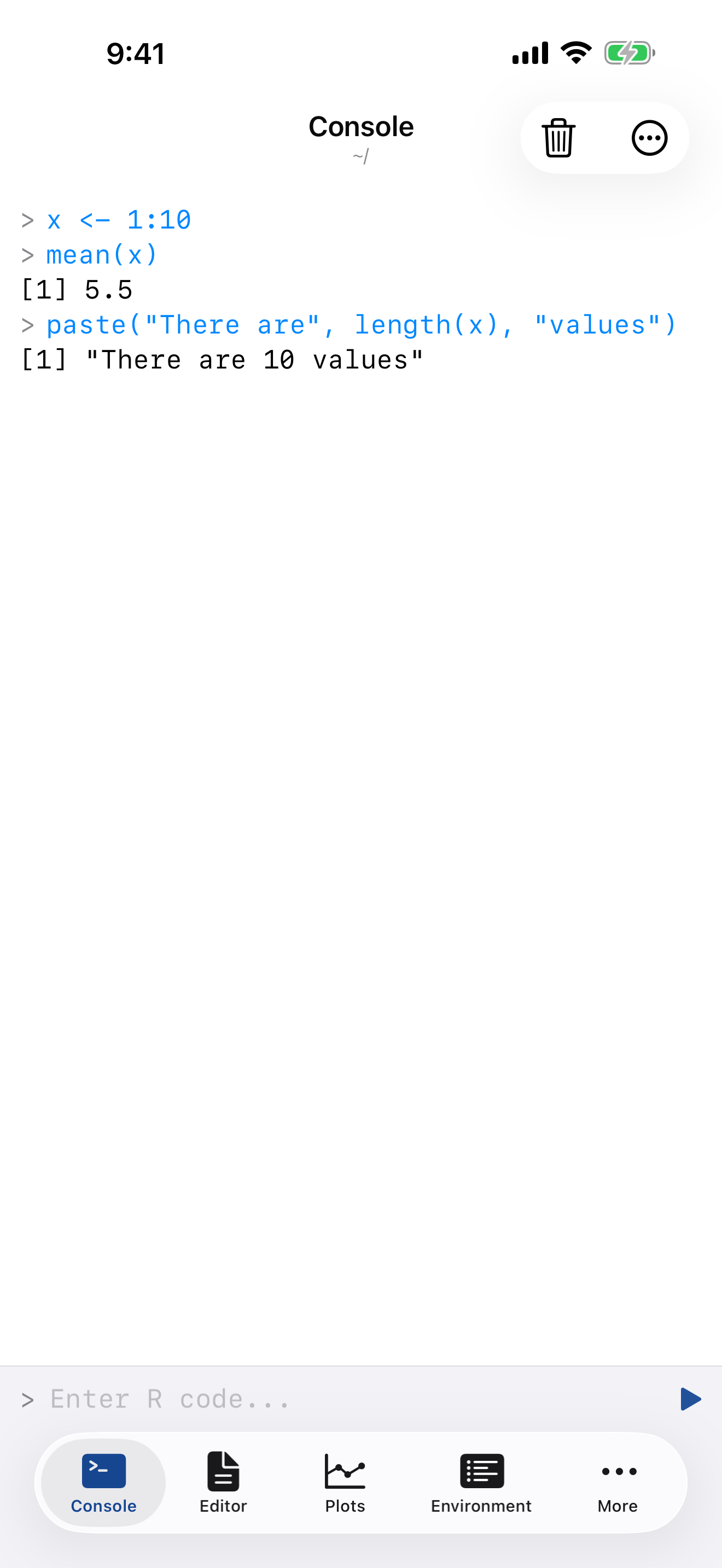
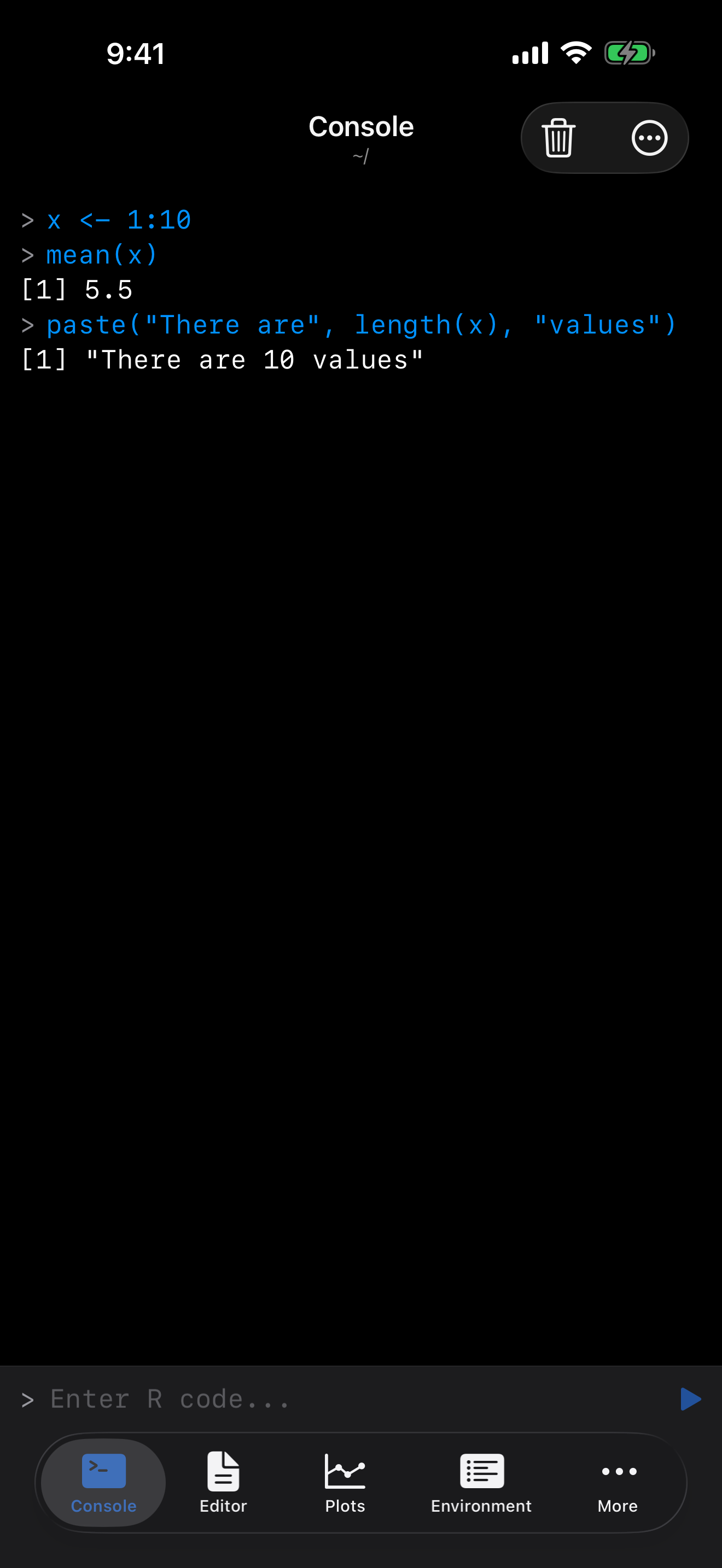
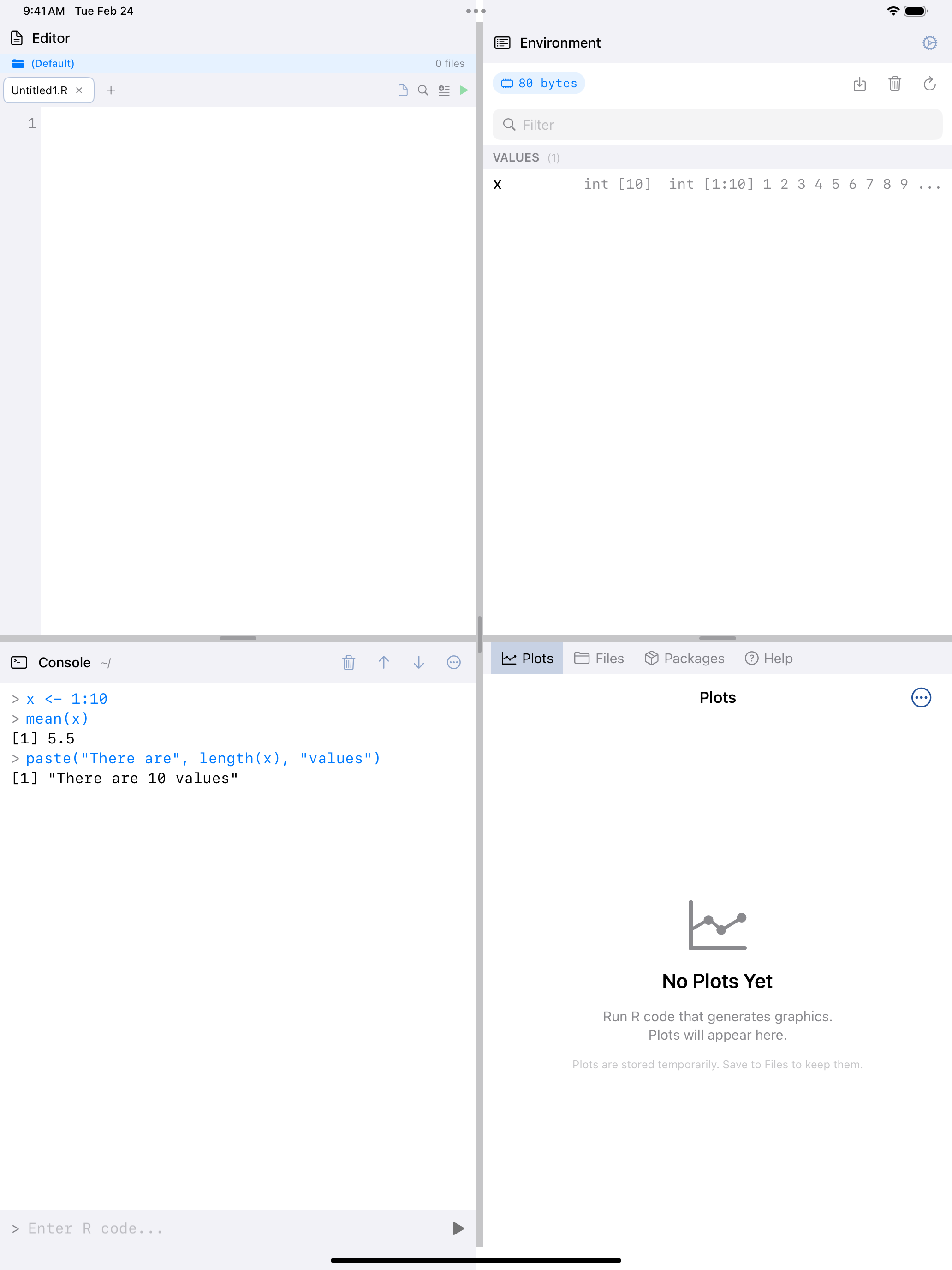
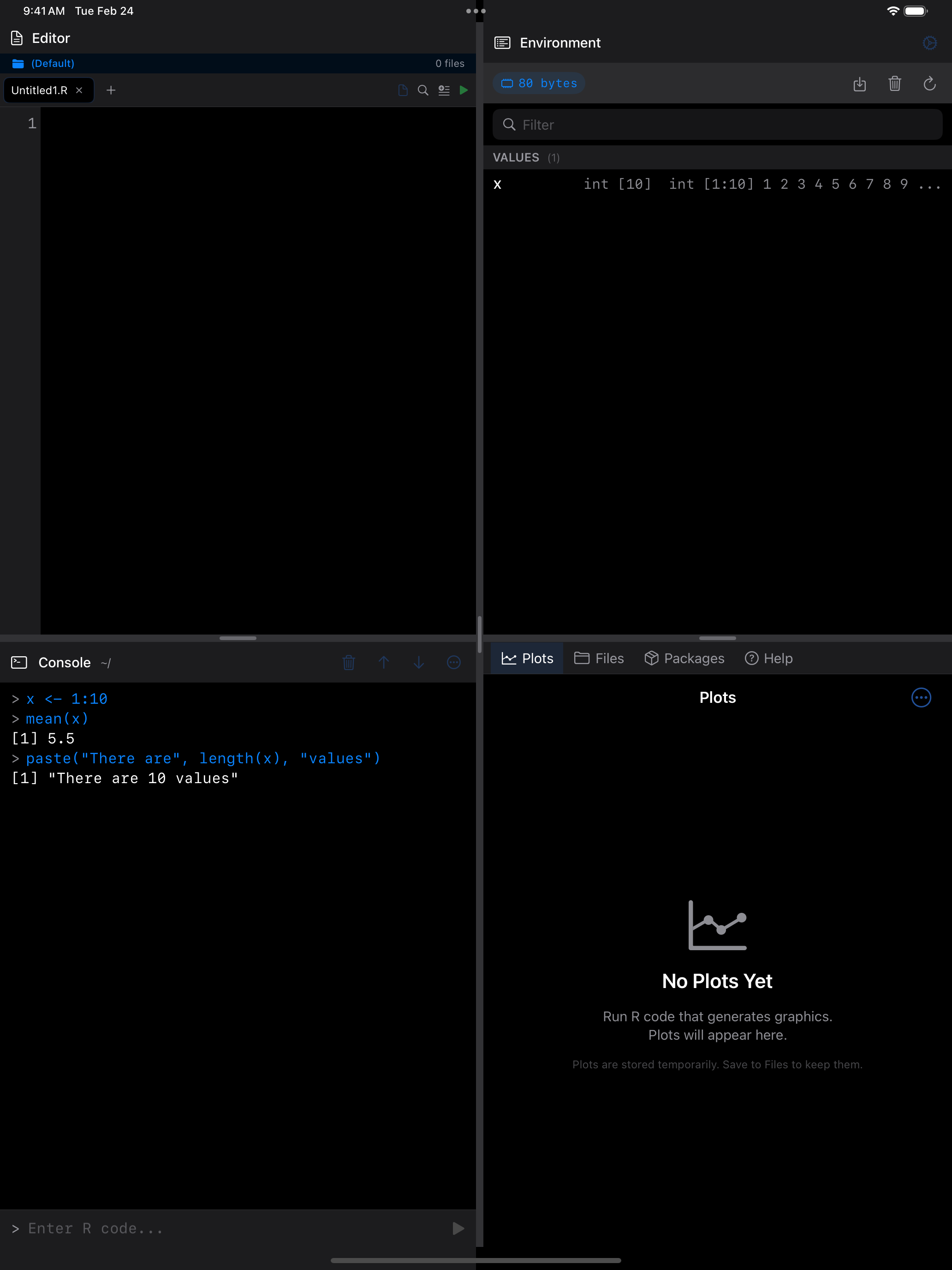
Understanding Output Colors
Output is color-coded by kind.
| Color | Kind of output |
|---|---|
| Blue | Your input, prefixed with > |
| Default text color | Normal R output (standard output) |
| Green | Result values returned by expressions |
| Red | Errors |
| Orange | Warnings |
| Gray | Informational messages from R or from packages |
Run these one at a time to see each kind:
x <- 1
x
print("hi there!")
message("hello")
warning("uh-oh")
stop("an error appears!")
y
The last two lines fail on purpose. y was never created.
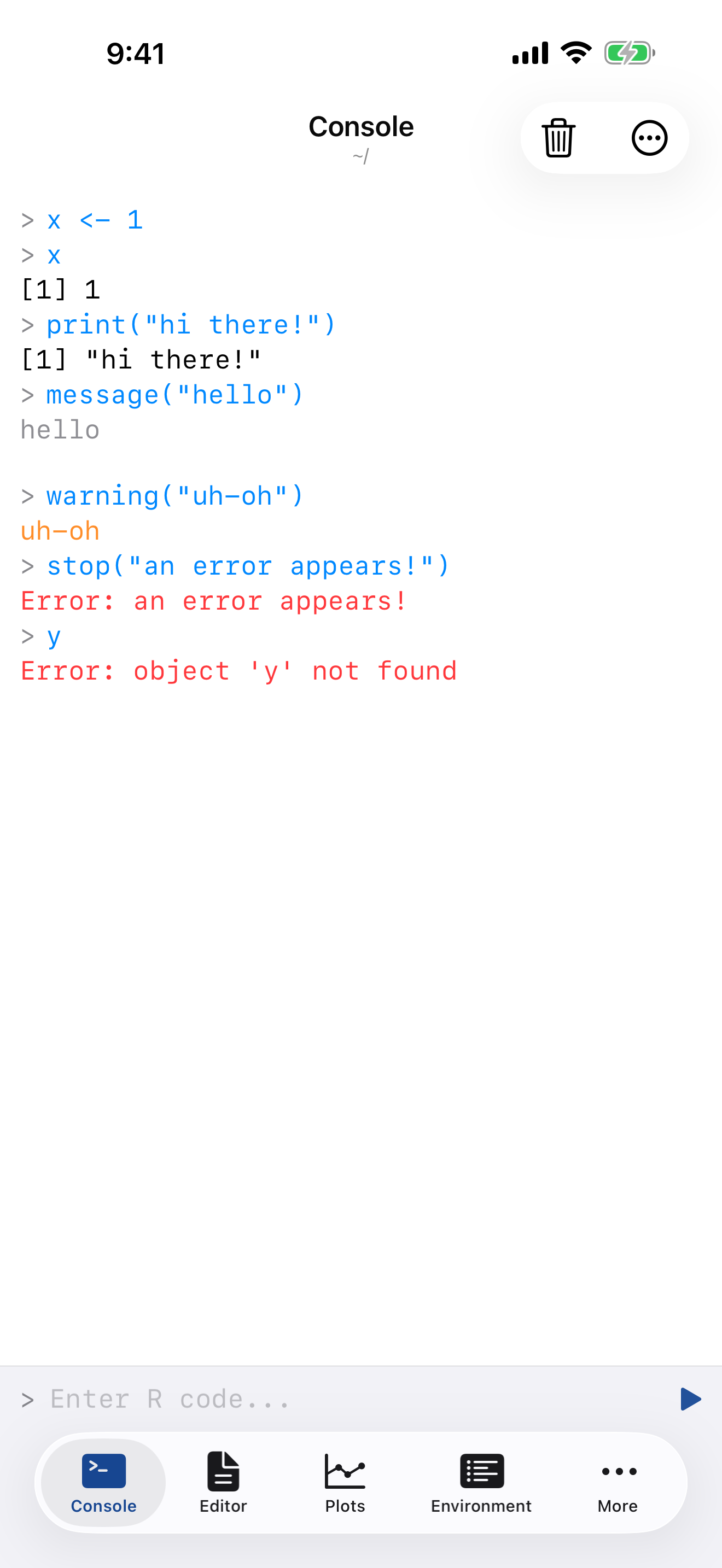
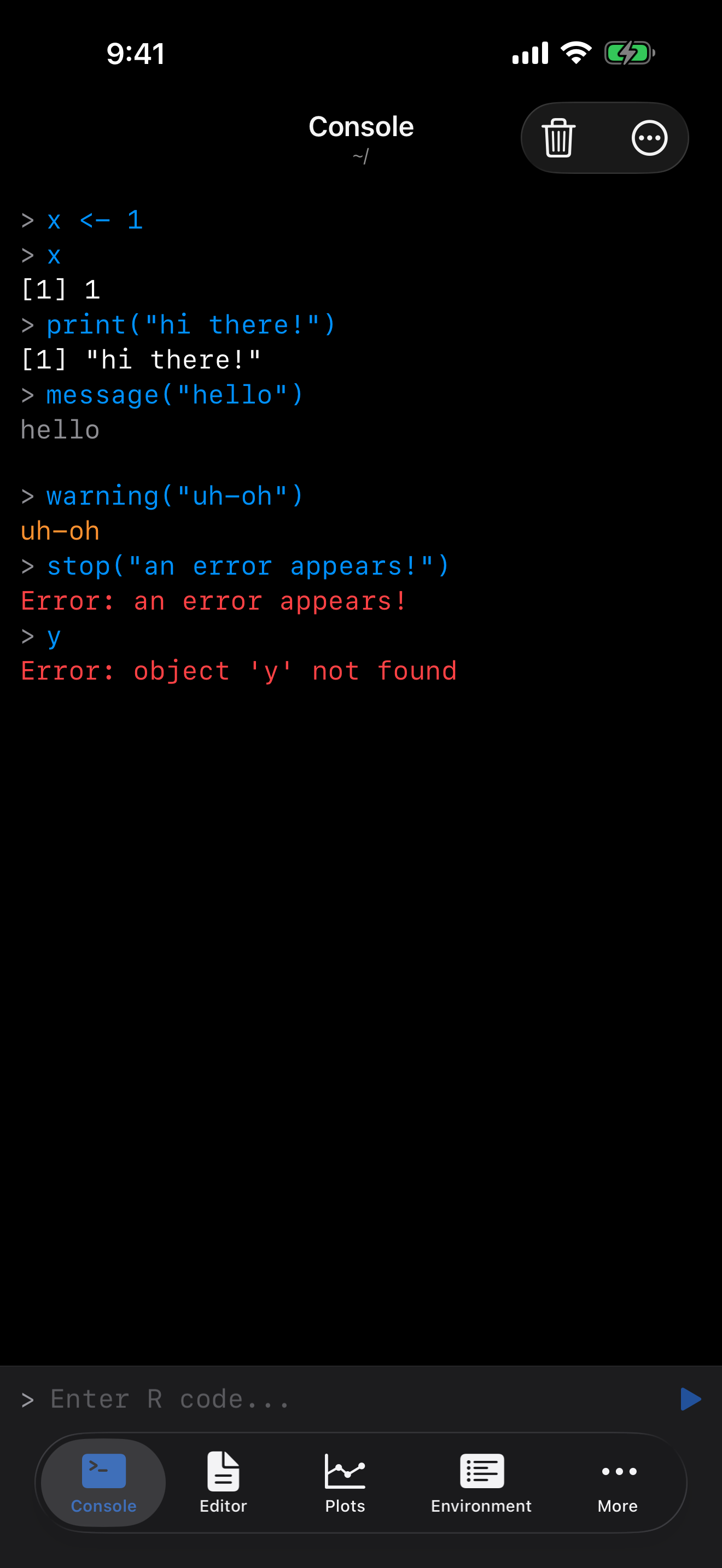
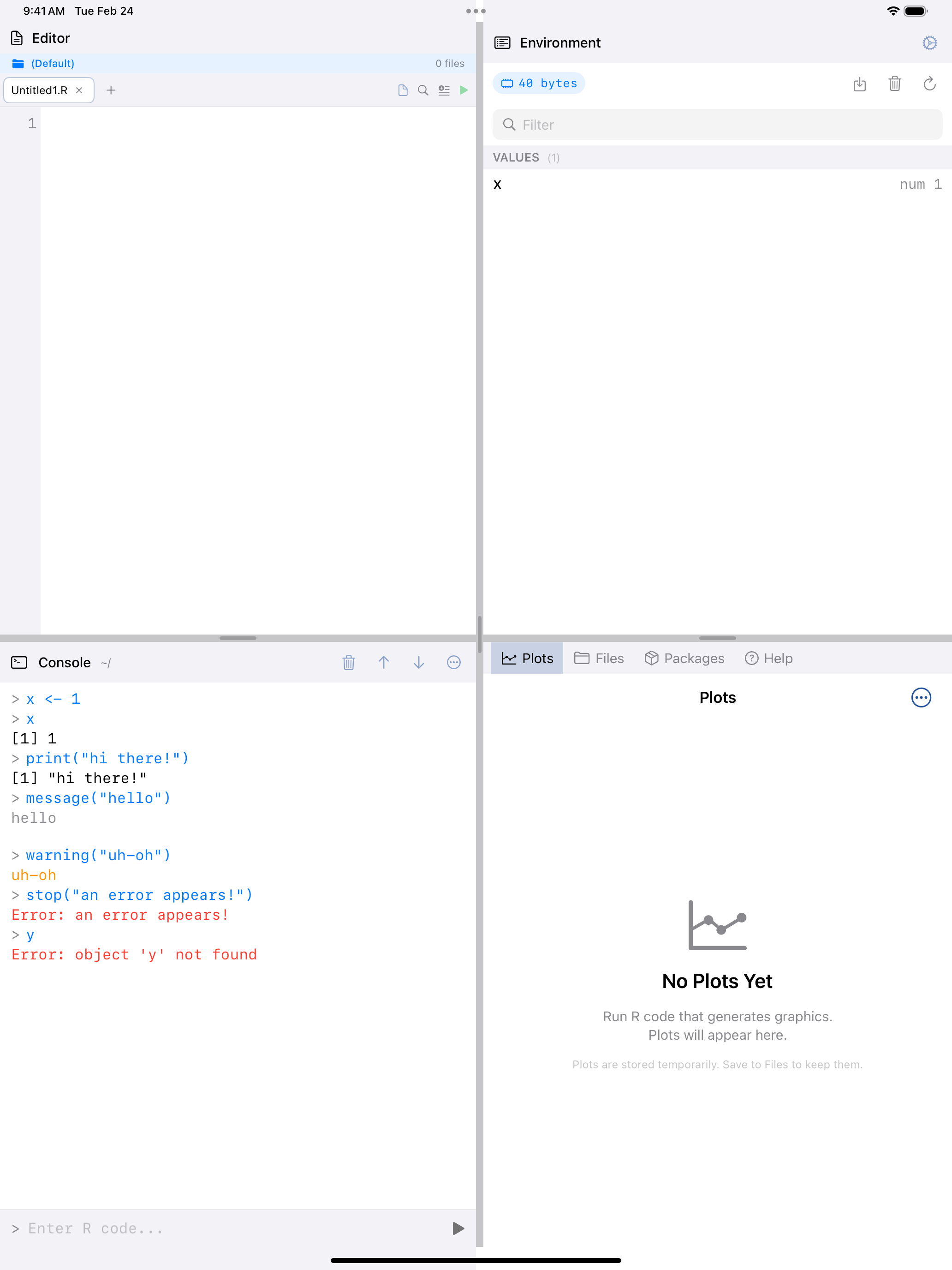
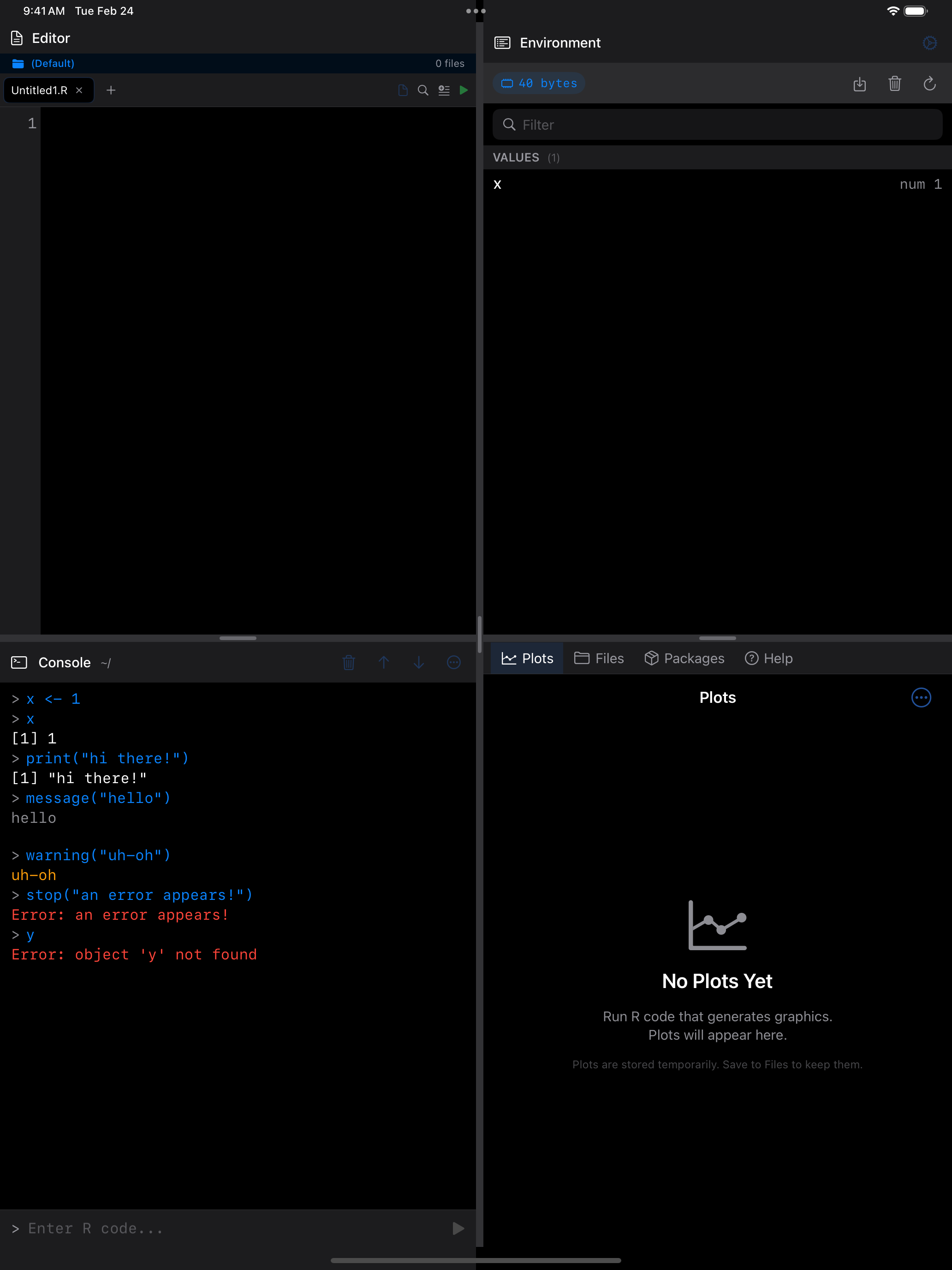
An error appears in red, under the call that caused it.
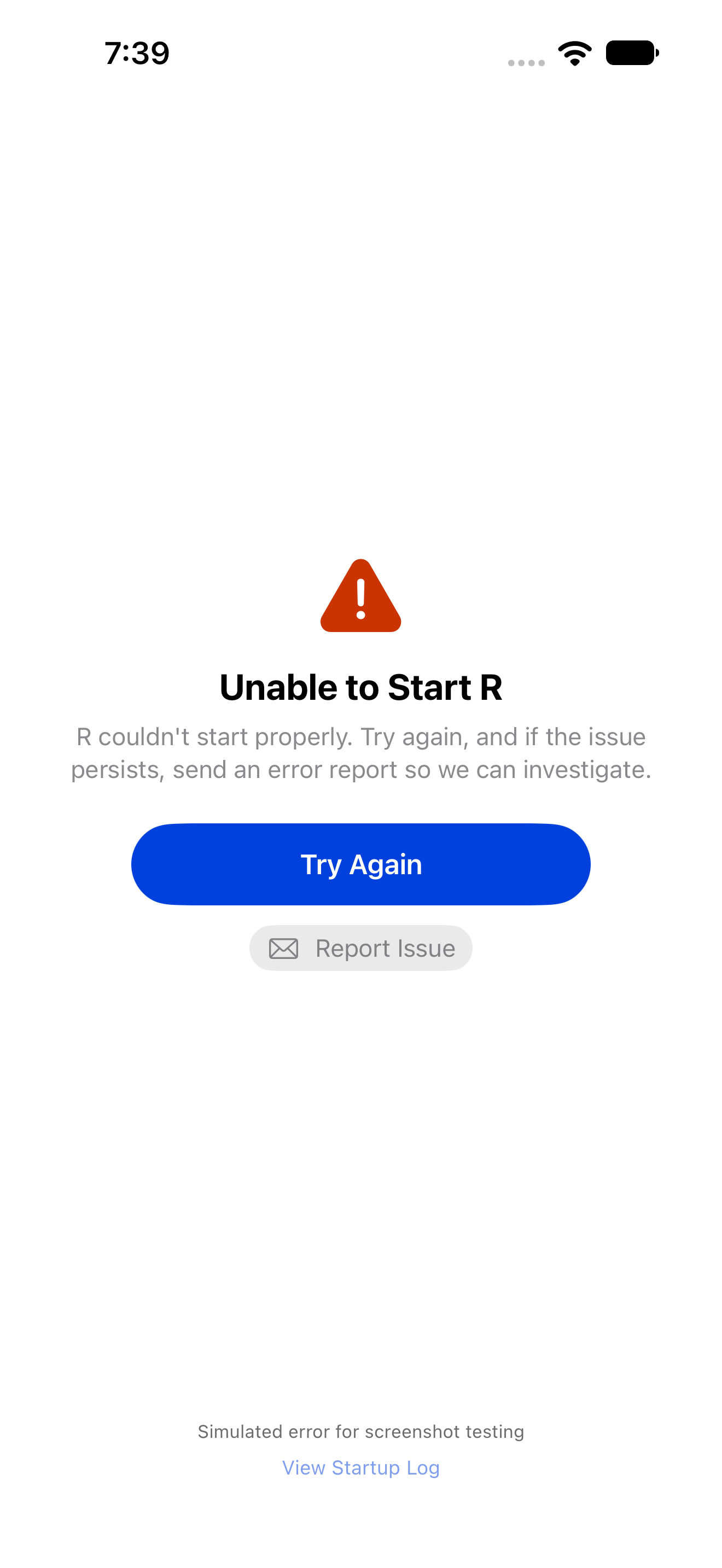
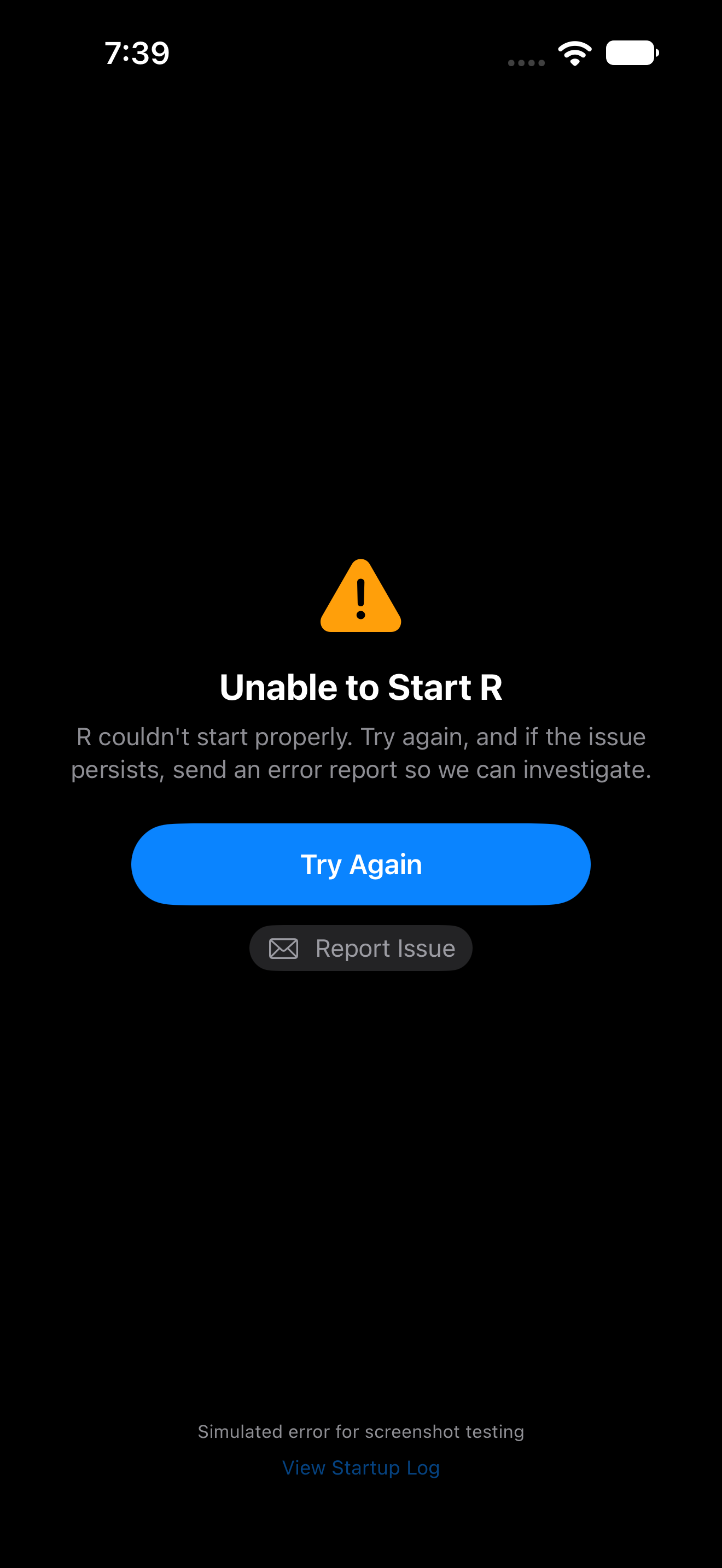
R’s error messages are usually informative. Error: object 'y' not found means exactly what it says.
When an error says a package is missing (there is no package called 'dplyr'), the error row offers Install dplyr. It runs install.packages() in the Console, where you can watch the download, and saves the package and its dependencies for later launches. Anything you had typed is put back afterward.
Stopping Running Code
While R runs, a progress indicator and Stop appear beside the input field, whether the code started in the Console, the Editor, Files, History or a Help example. Tap Stop, or press Cmd+., and R stops where it is. The run ends with one “Interrupted” line, and your variables are kept.
R runs one thing at a time. While it is busy, Run is disabled. A command you submit anyway stays in the input field, and the Console says R is busy.
Most code stops at once. Some compiled code, such as a very large matrix product, notices Stop only when its current step returns. A banner below the input field says what is happening:
| Banner | Meaning |
|---|---|
| R has been running for over a minute | The run passed the time set in Settings > R Session > Suggest Stopping After, which the banner names. Offers Stop and Restart R. |
| R is still finishing a step it can’t interrupt. It stops when that step ends. | Stop reached R, but the current step must finish first. Wait, or tap Restart R, which clears your variables and loaded packages. |
| Stopped before it ran. | Your code was waiting behind other work, such as a package install, and was canceled before it started. The other work carries on. |
| R ran out of stack space. | Deep recursion in compiled code exhausted the stack. Later commands may fail until R restarts, so it offers Restart R (after asking) or Not Now. See Known Issues. |
A long run is not a stuck one. A large model can take minutes. Change when the suggestion comes, or turn it off, in Settings > R Session.
The Editor and iPad editor windows show the same banner. If R stops answering after a Stop, webRios restarts it and says why in the Console. Plots are kept.
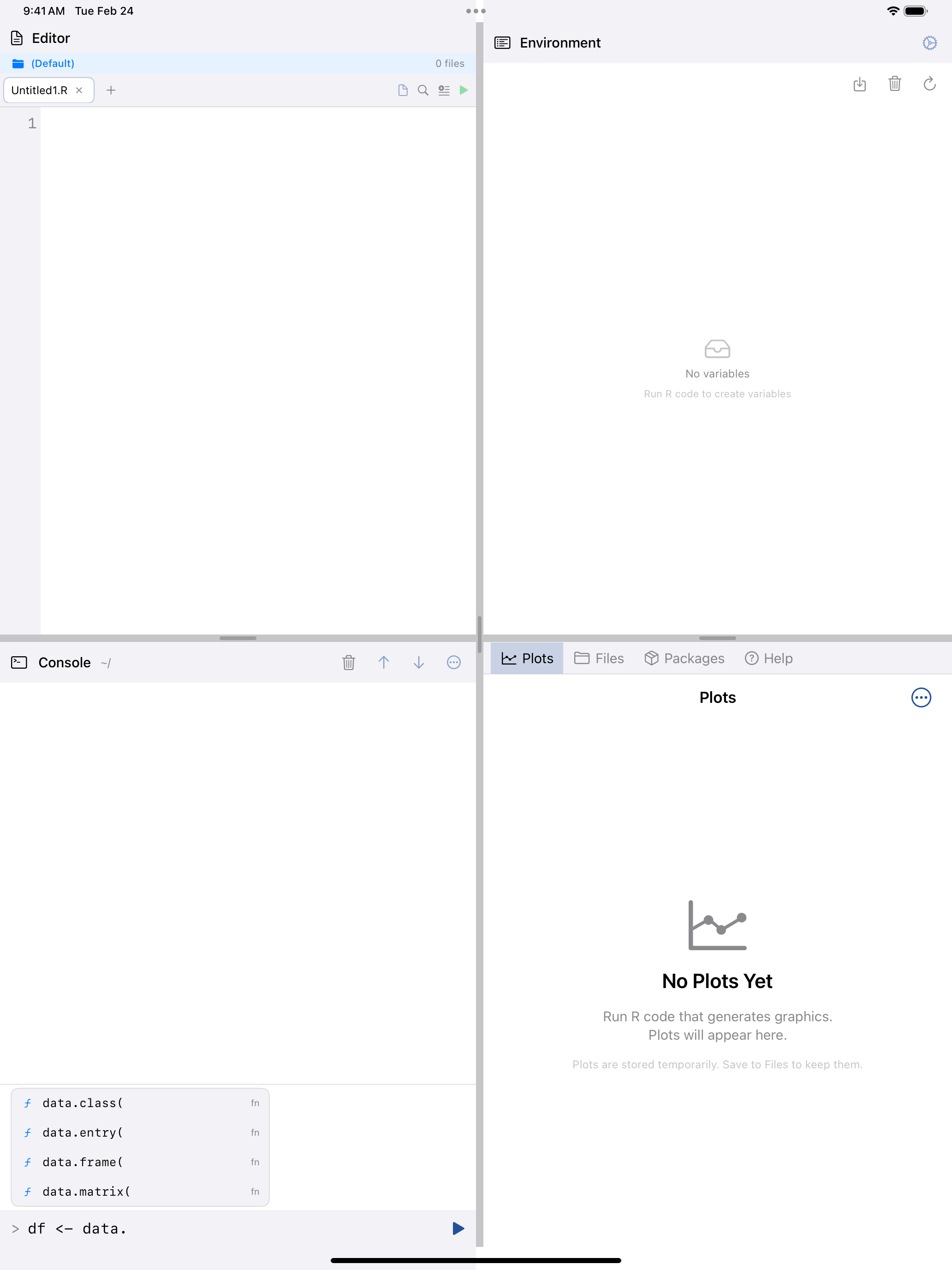
In the iPad 4-Pane Workspace, Stop is in the Console pane’s header and stops code from the Editor pane too.
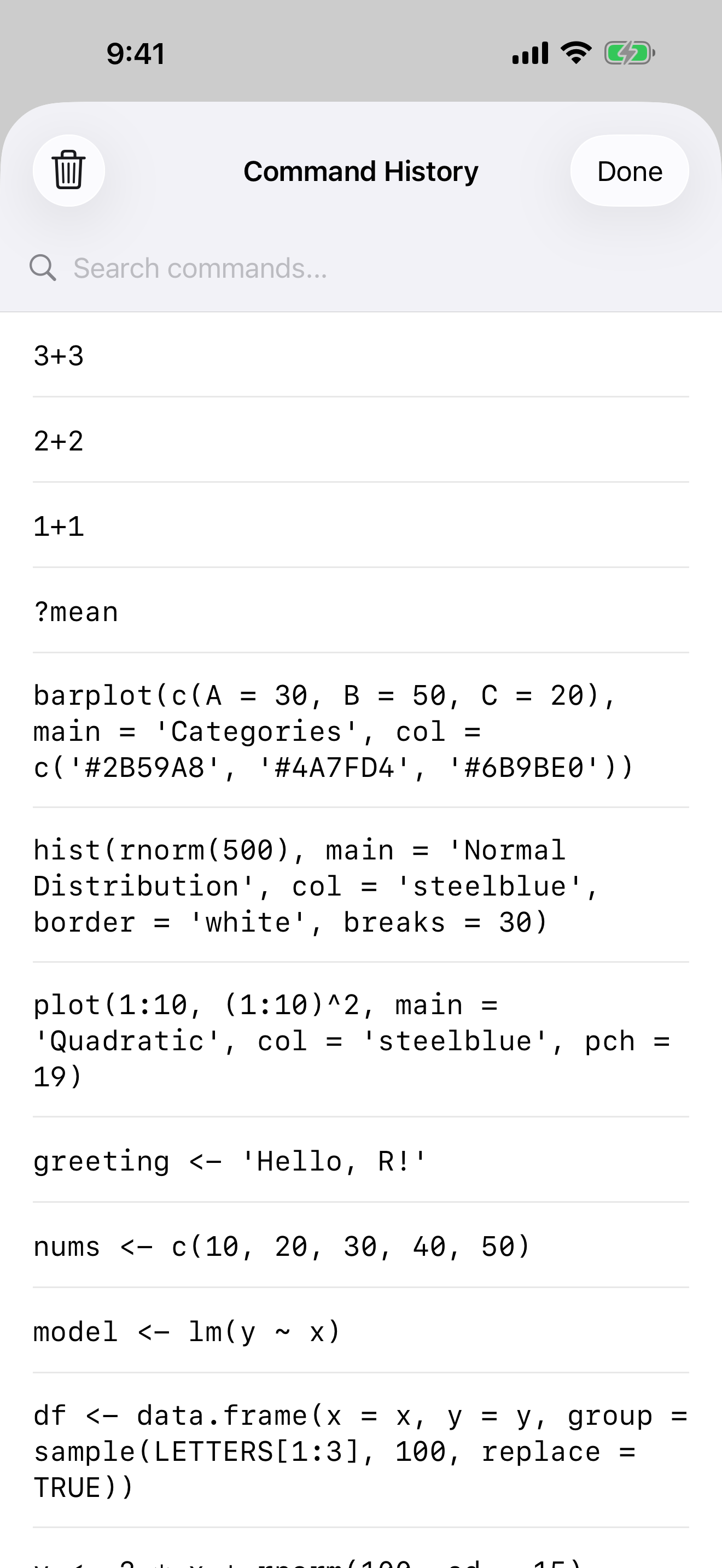
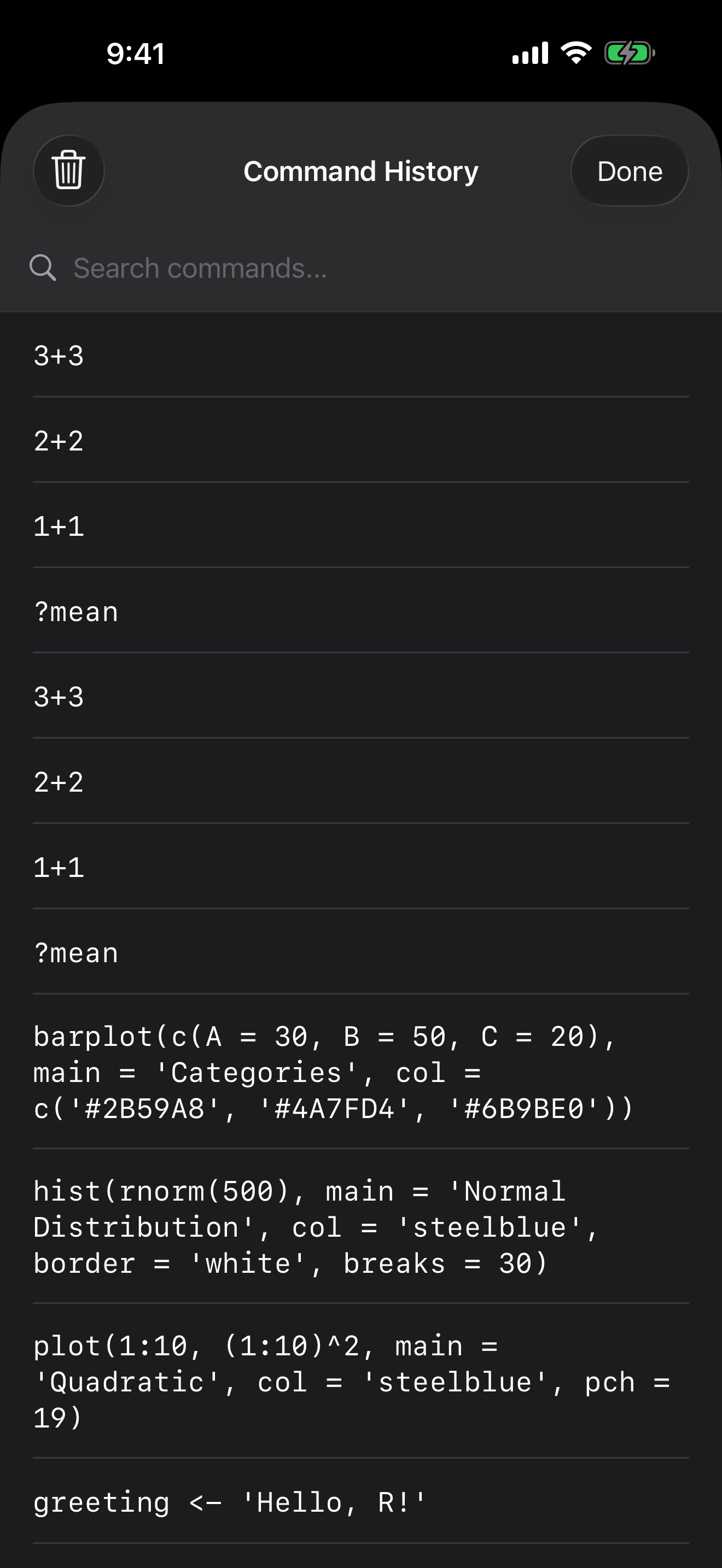
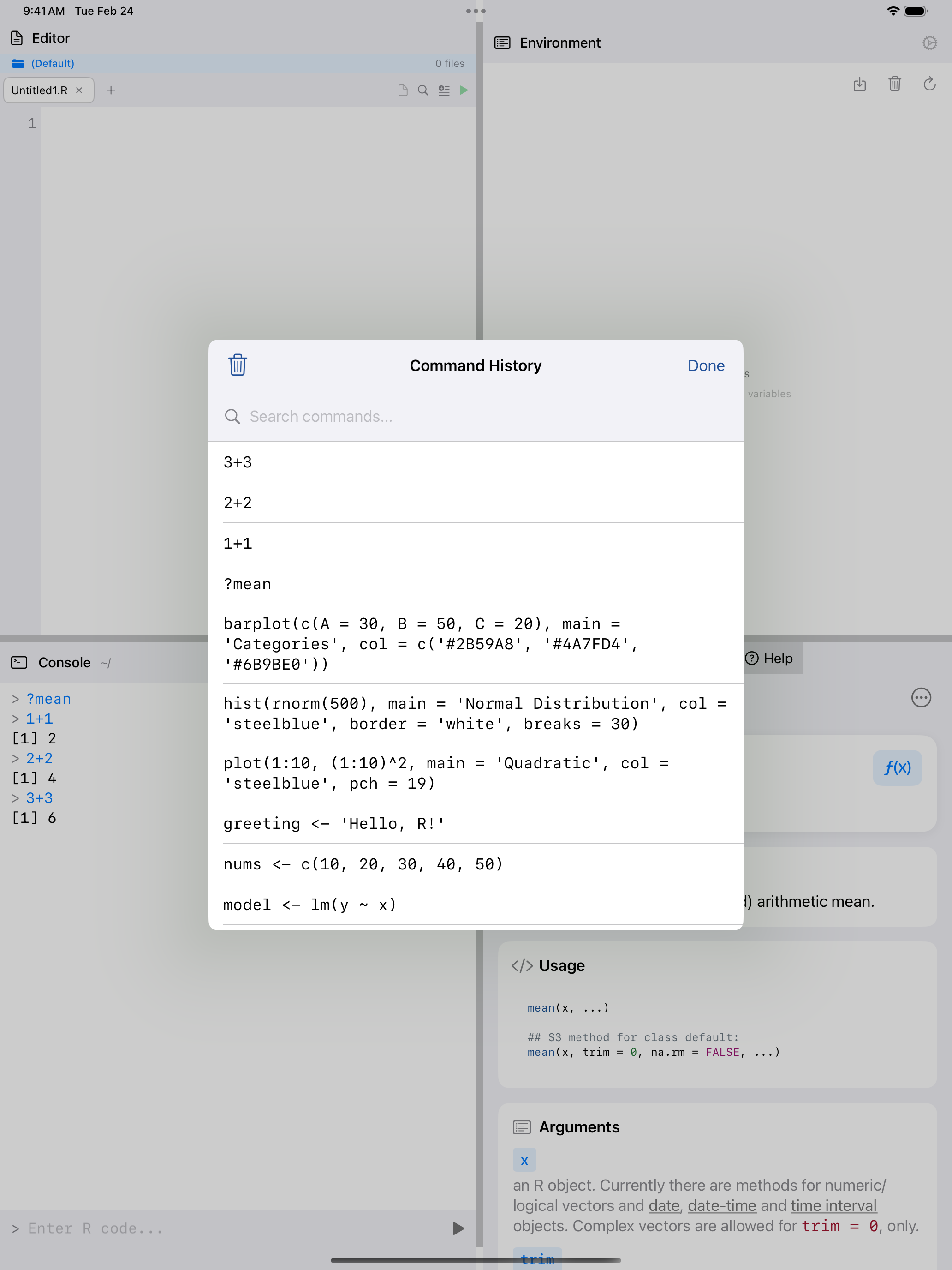
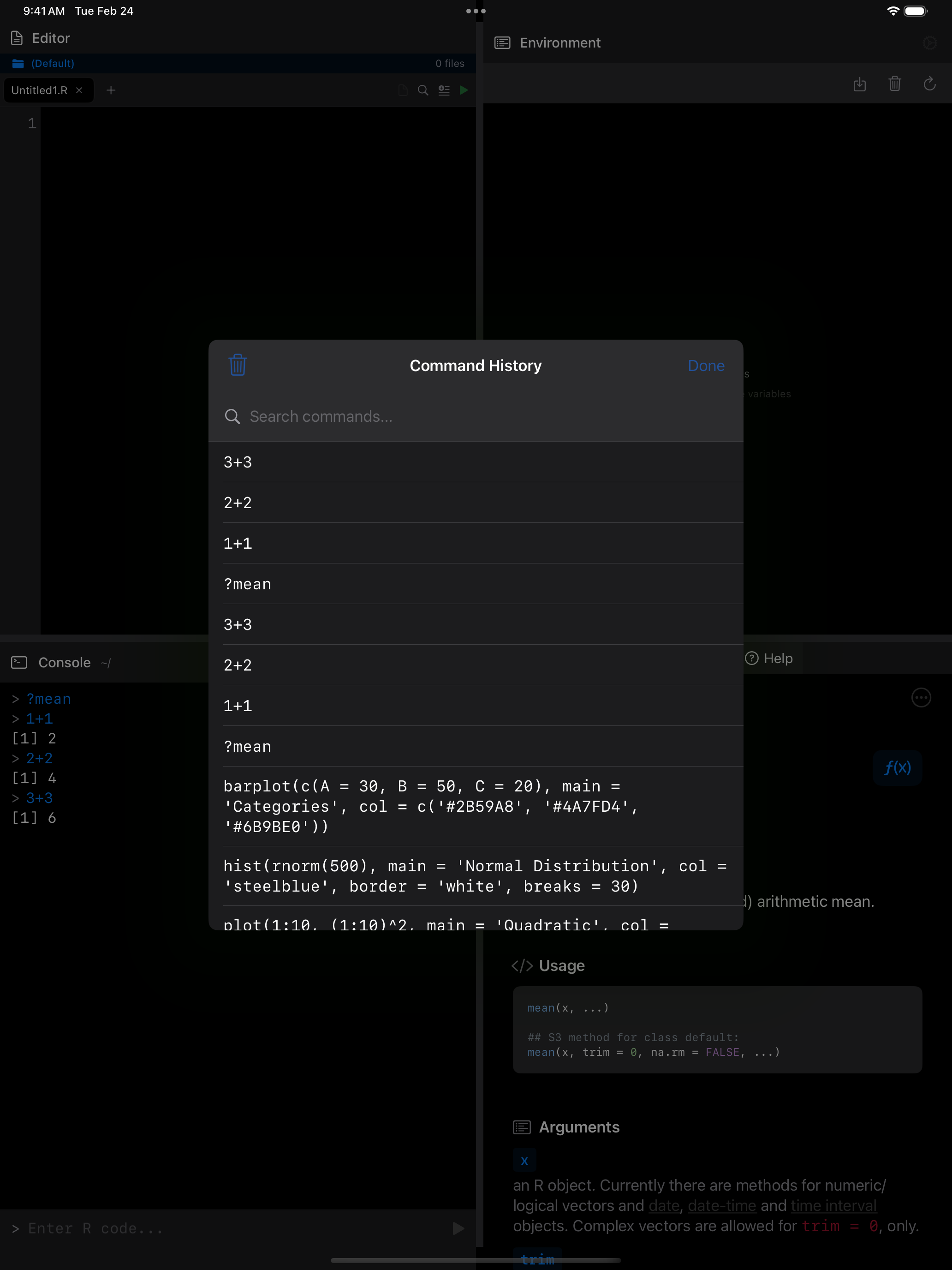
Command History
Previous and next command. In the … menu, or Cmd+Up and Cmd+Down. The command lands in the input field, cursor at its end.
Search history. Also in the … menu. Tap a result to put it back in the input field.
History Tab
The History tab logs your commands, across sessions, each with its time, duration and result.
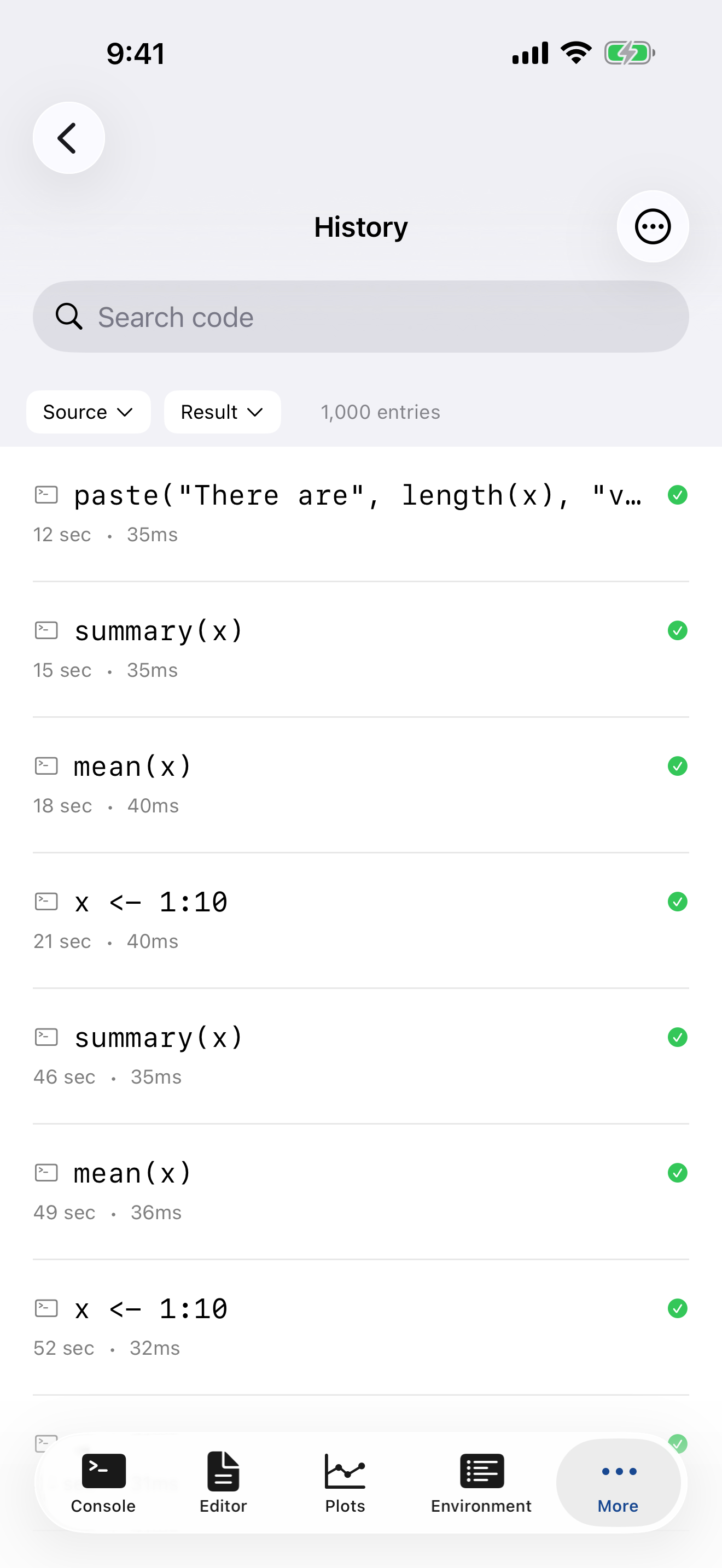
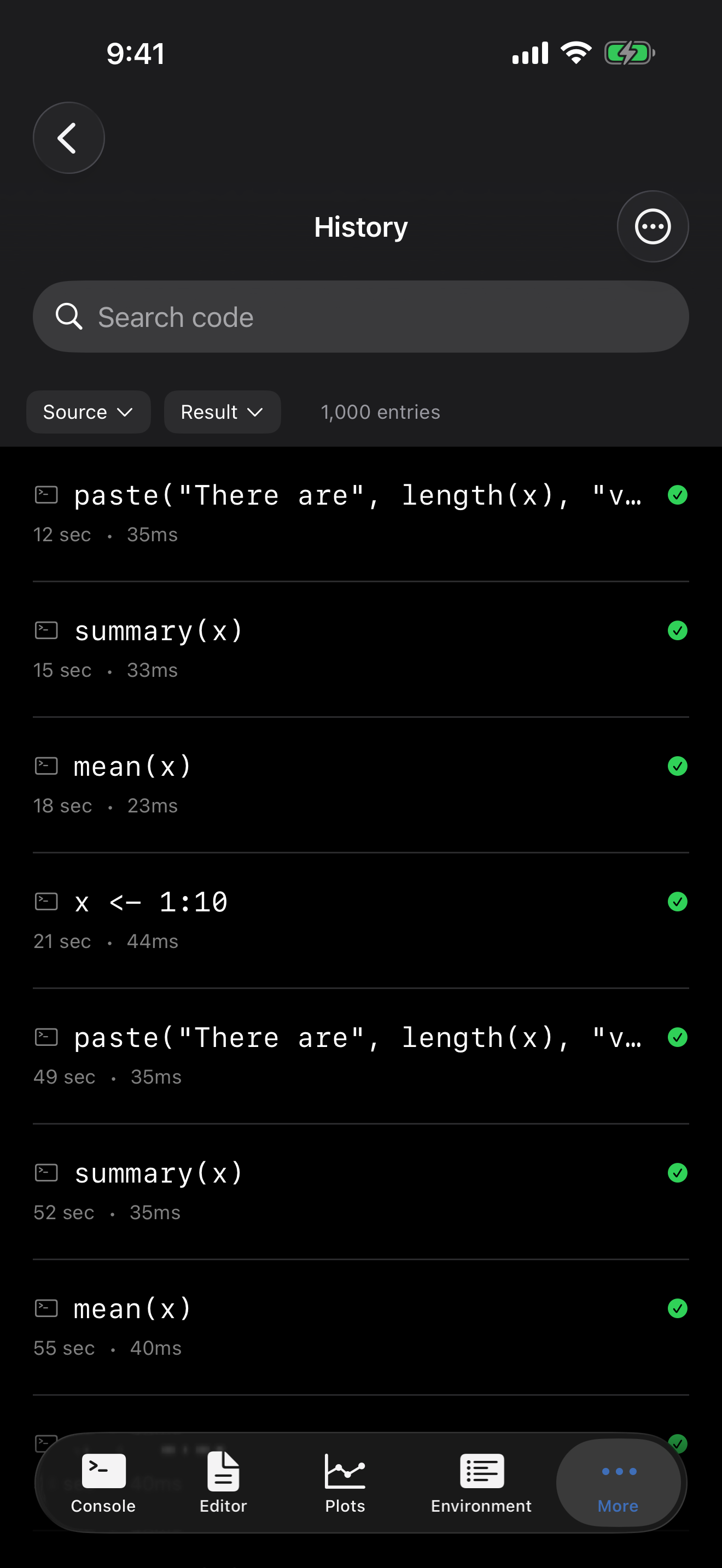
Each entry shows its source (Console, Editor or Script), the code, when it ran, how long it took, and a checkmark or X. A failure also shows the first line of its error.
Filtering and searching
The filter bar narrows the list by source (Console, Editor or Script) and by result (Success Only or Failed Only). The search bar matches code, output and error messages.
Re-running and managing entries
- Swipe right to run an entry again
- Swipe left to delete it
- Tap it for the full code, an output preview and Run Again
A re-run is echoed in the Console and can be stopped like any run. If R is busy, it is refused, not queued.
History is saved a second after each run and when you leave the app.
Export and statistics
The ⋯ menu has:
- Statistics, with total runs, success rate, average duration and last run
- Export as Text or Export as JSON
- Clear All
Running the same commands again and again? Put them in an Editor script.
The R Keyboard Toolbar
When the keyboard is open, a scrollable toolbar of common R symbols appears above it. The Editor uses the same one.
| Button | Inserts |
|---|---|
<- |
The assignment operator |
|> |
The native pipe |
( ) [ ] { } "" |
A matched pair, both characters at once |
~ |
The formula operator |
c() |
A quick vector wrapper |
:: $ @ |
Namespace, list and slot access |
%in% ! & | |
Logical operators |
# |
A comment prefix |
| Tab | Two spaces of indentation |
Each button inserts at the cursor or over the selection, leaving the cursor inside brackets and quotes. Settings > Keyboard > Toolbar Buttons chooses which appear. The button at the far right hides the keyboard.
Code Completion
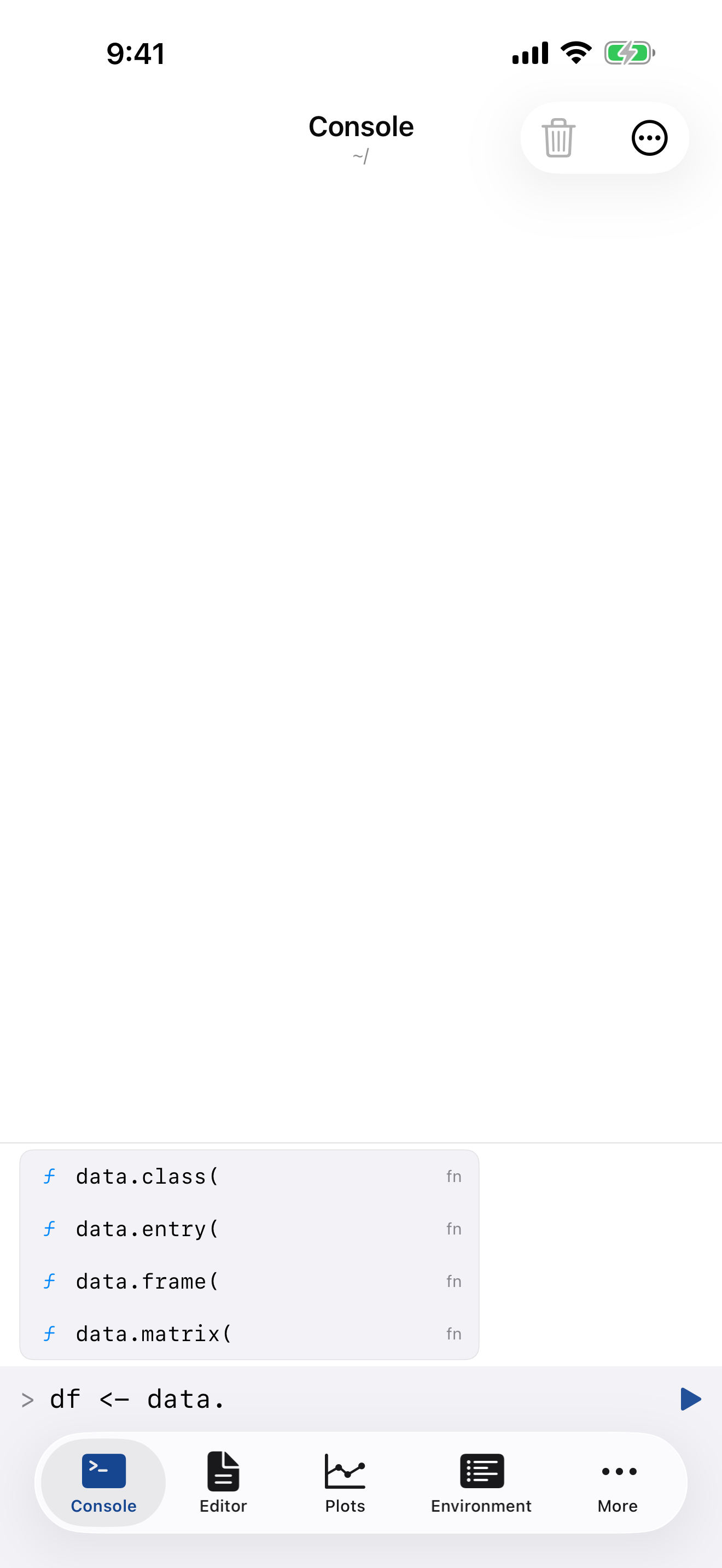
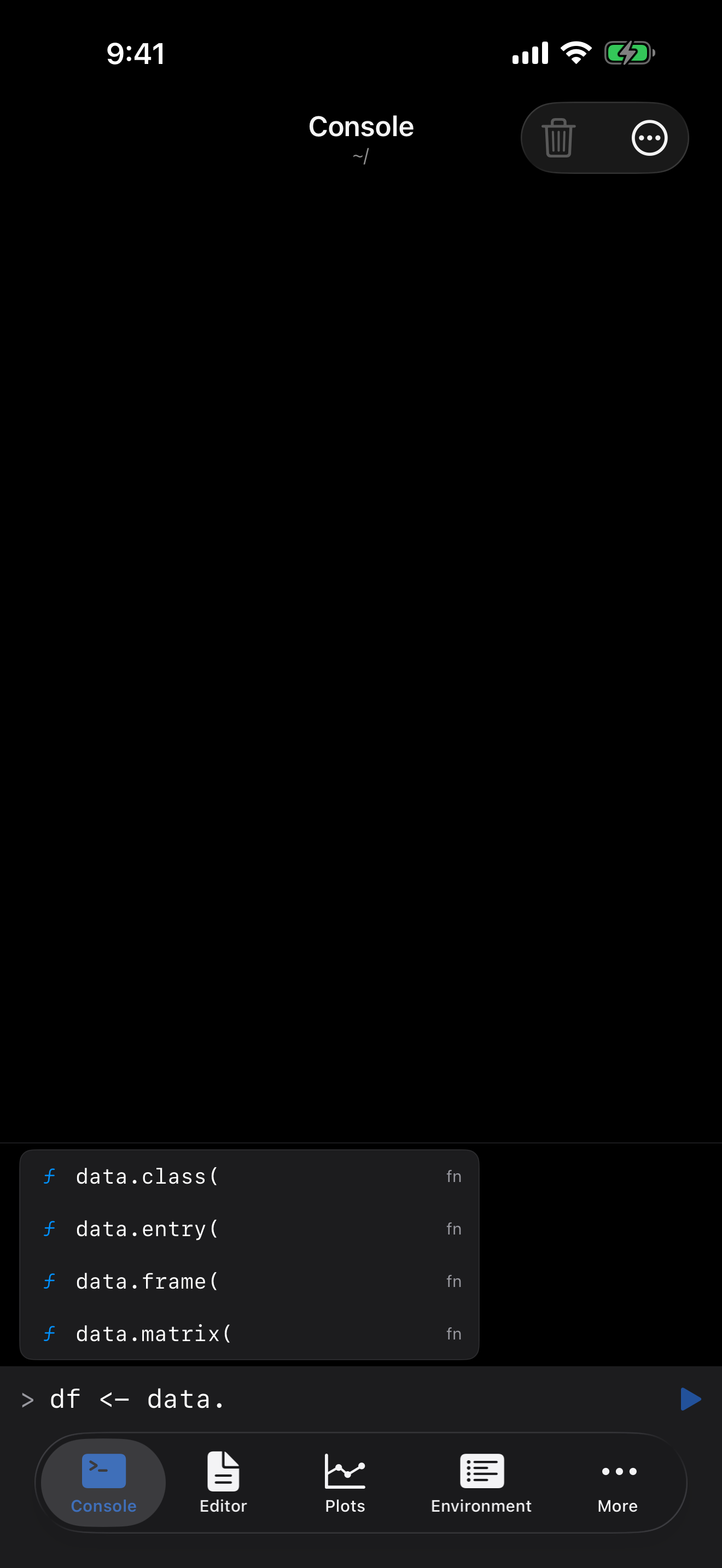
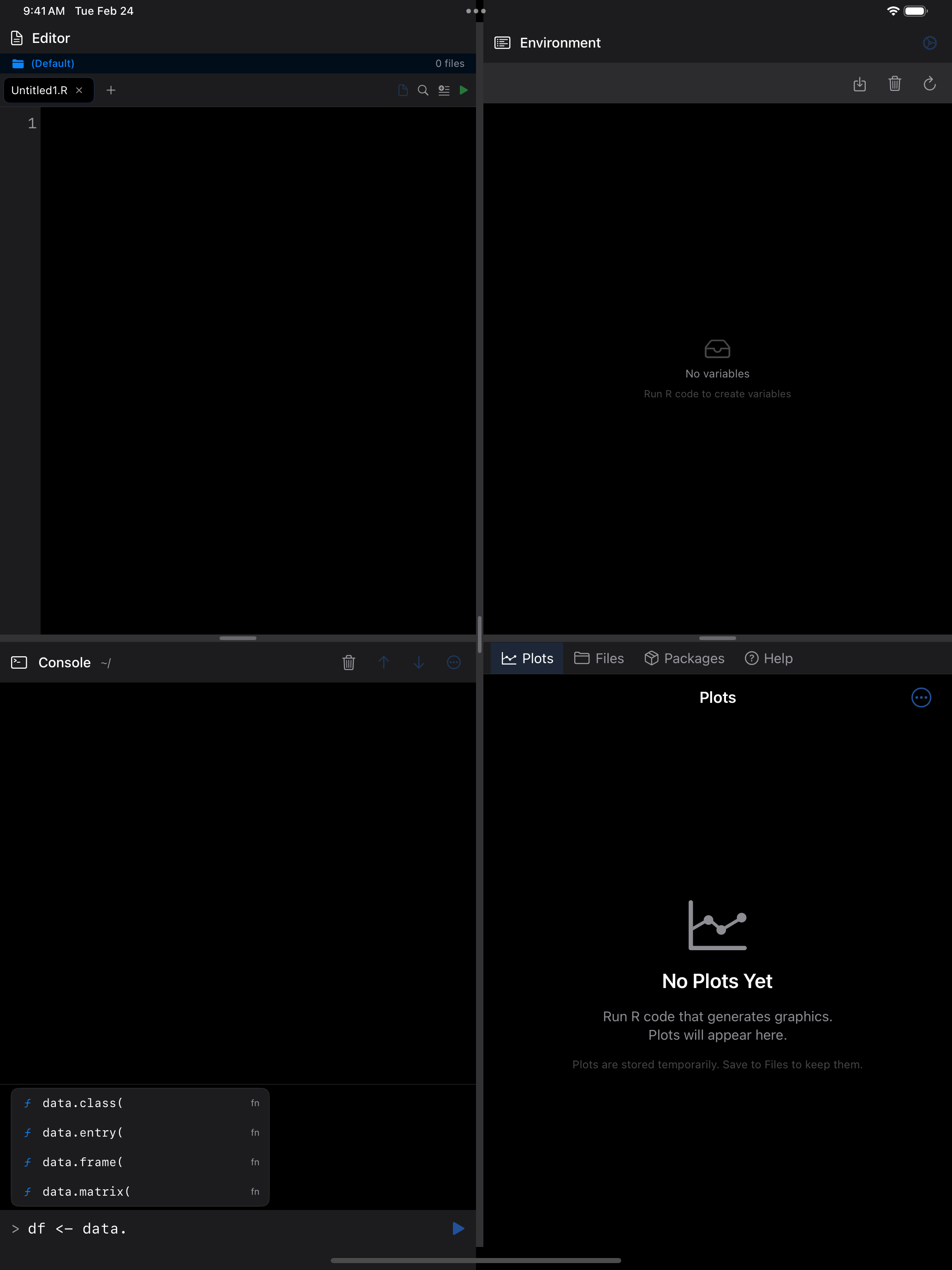
As you type, the Console suggests functions, variables and package members in a list just above the input field. The list floats over the end of the output, at most four rows tall, so nothing moves. Tap a row to insert it.
The list narrows with each letter, including the first after $ (columns), :: (a package’s exports), ( (arguments) or a comma. A name may continue with digits, as in write.csv2. A token that starts with a digit is a number and gets no list. R’s ... is never offered. Left alone, the list closes after three seconds, but not under VoiceOver or Switch Control.
With a hardware keyboard, Up and Down move a highlight, Tab inserts it (or the first row), and Escape closes the list. The Run button always runs the line as typed. Return inserts a row only once you’ve moved the highlight. The list grows with the console font, and VoiceOver announces how many completions there are.
Clearing the Console
To clear the output:
- Tap the trash icon in the top-right toolbar
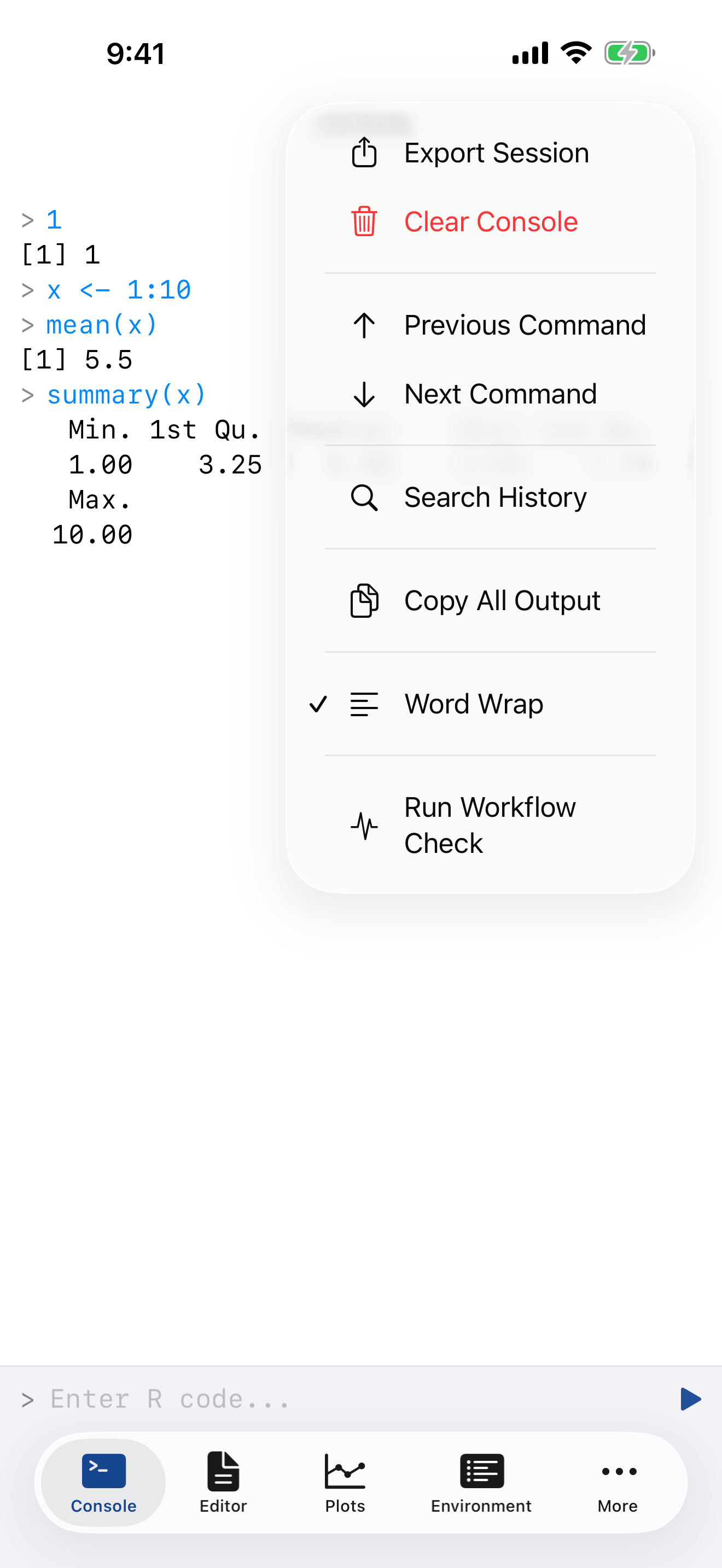
- Tap the … menu and choose Clear Console
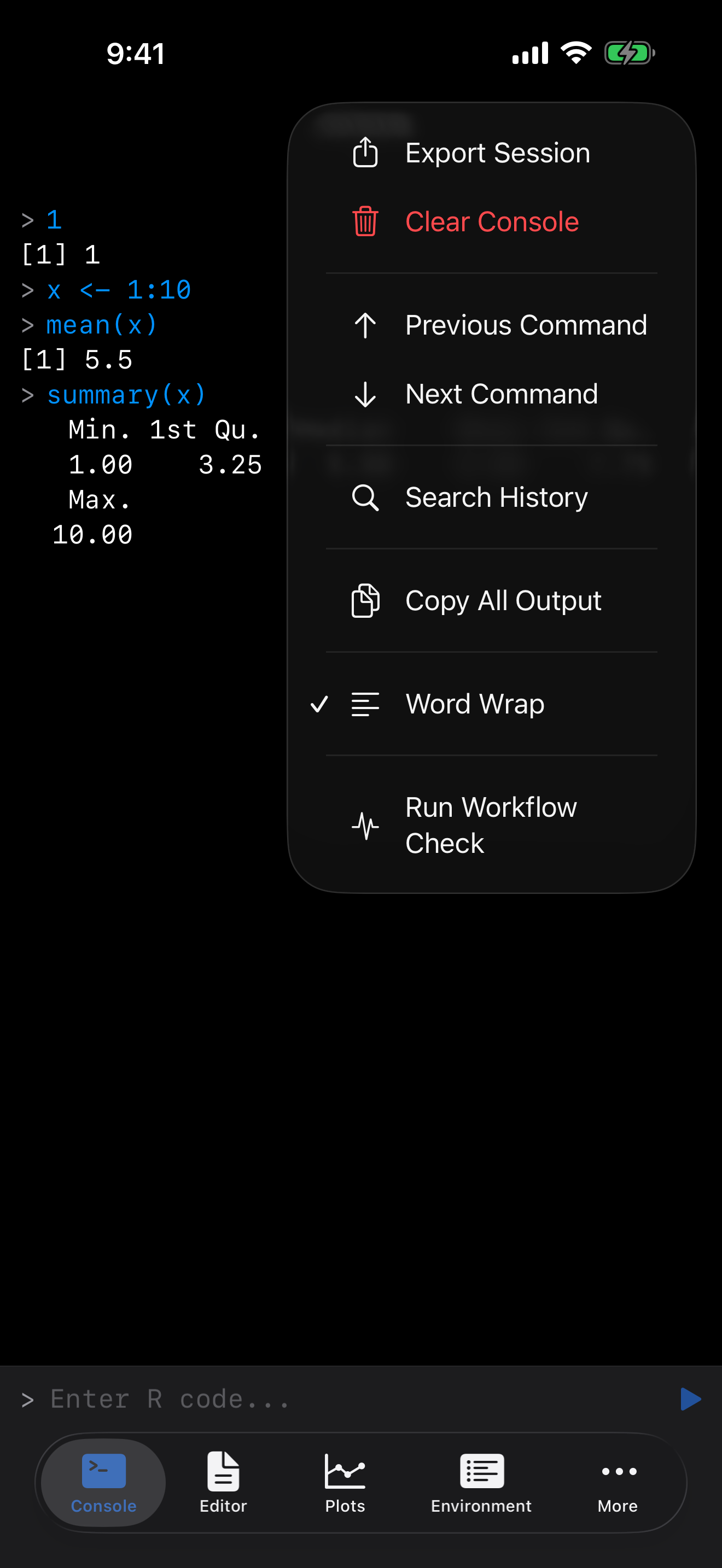
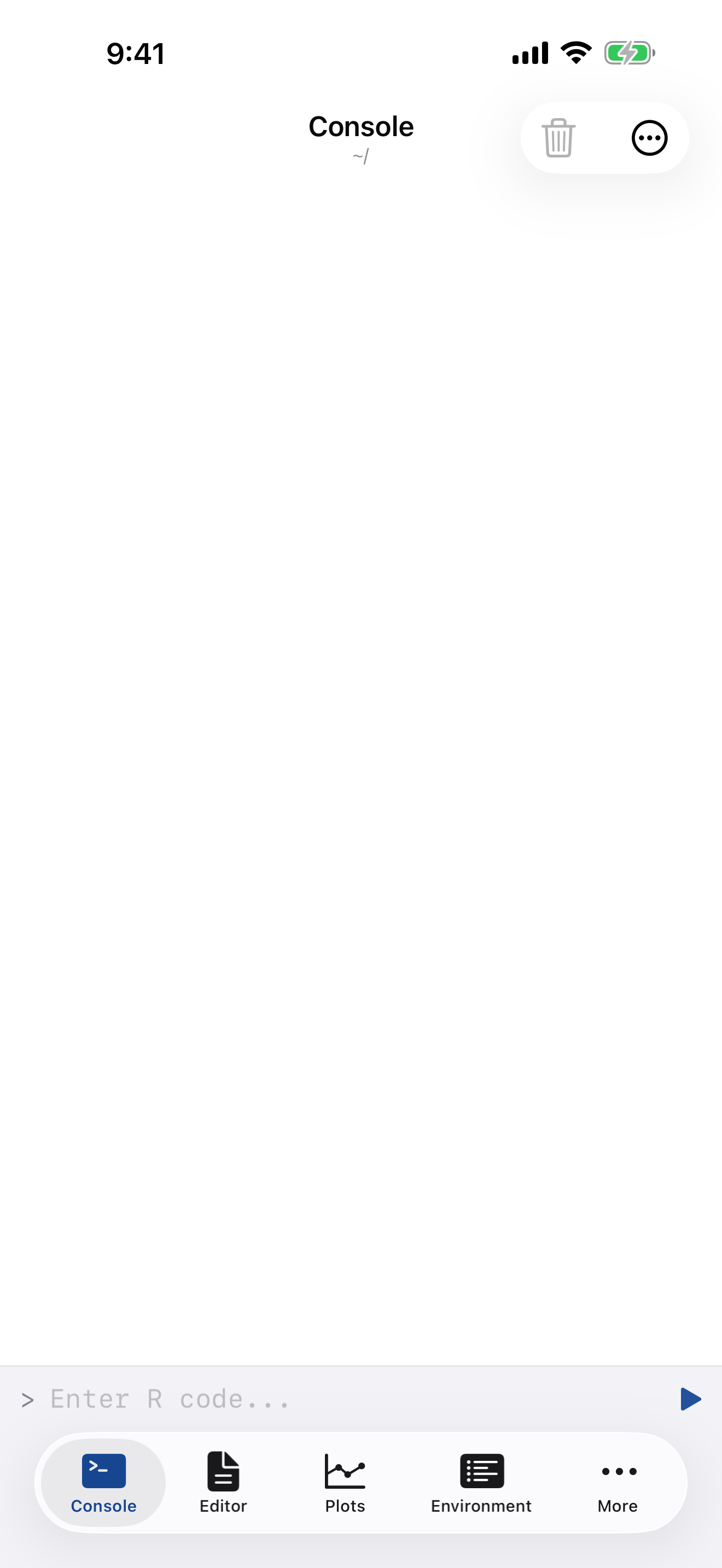
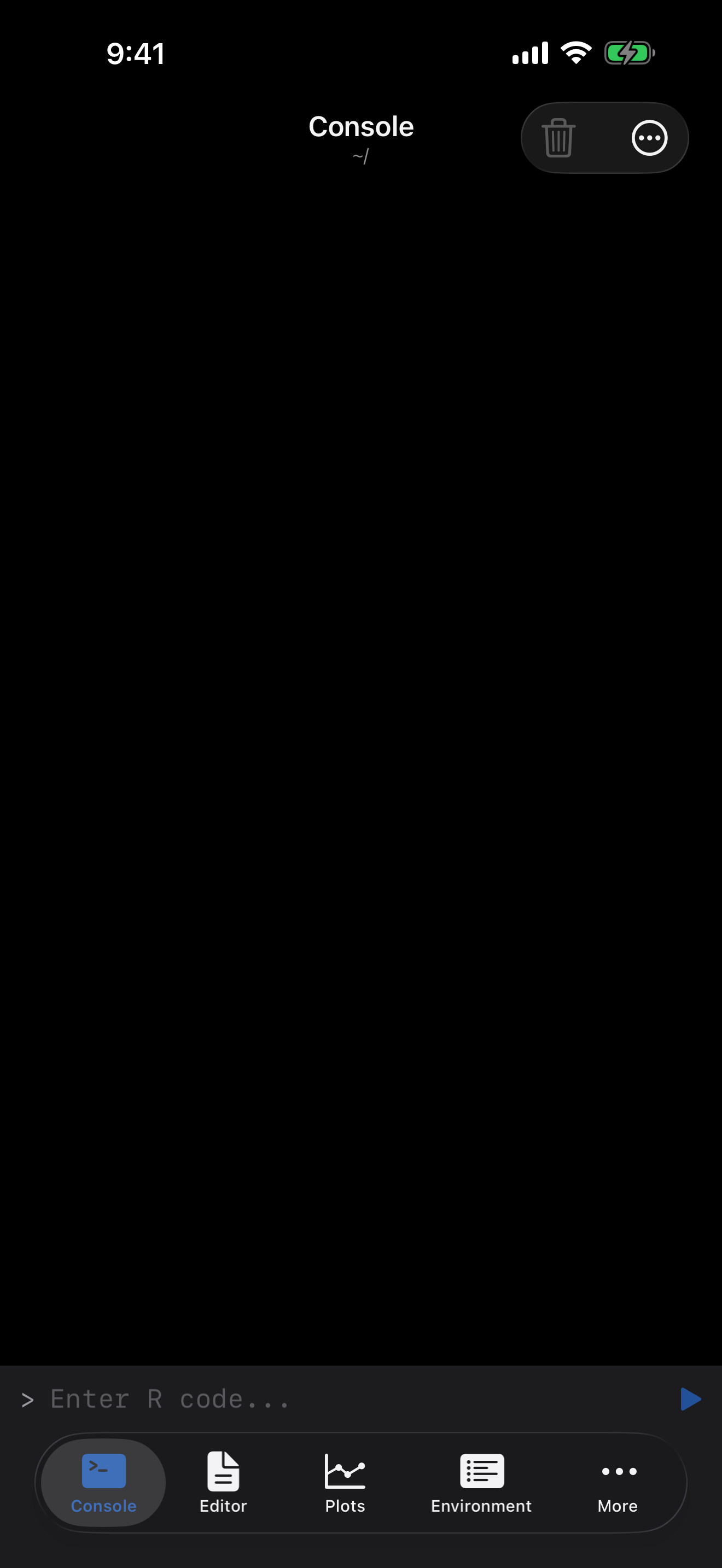
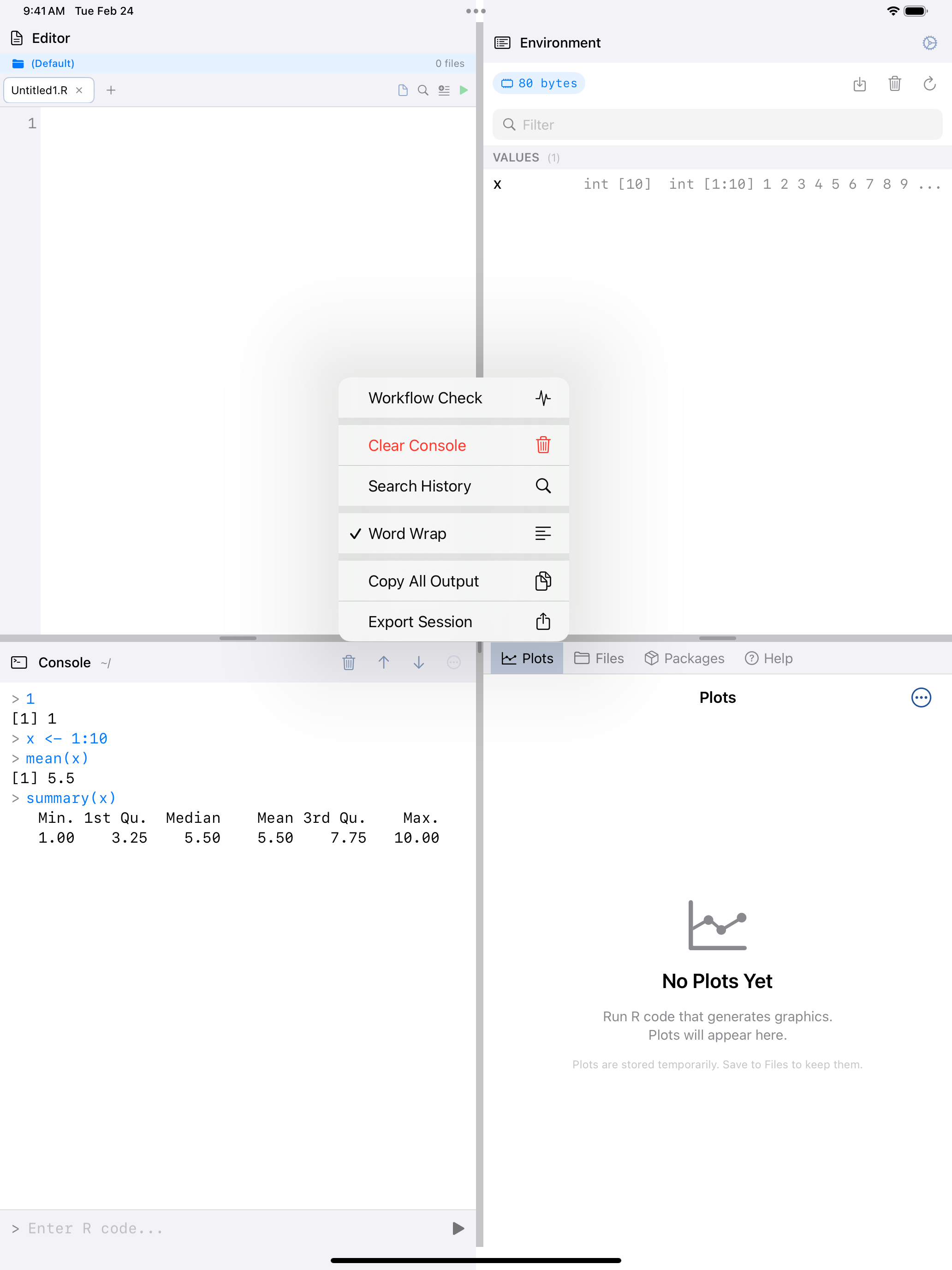
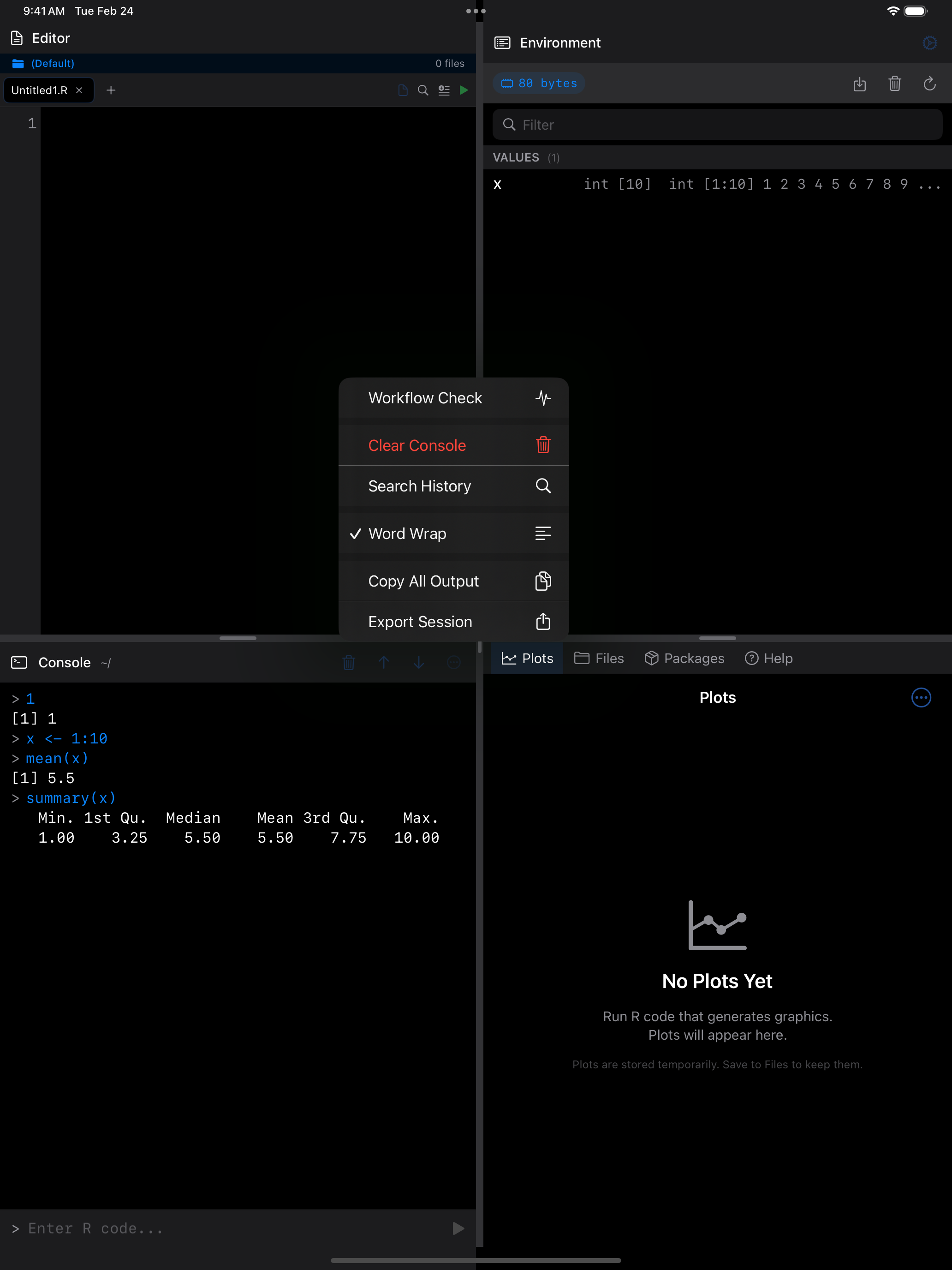
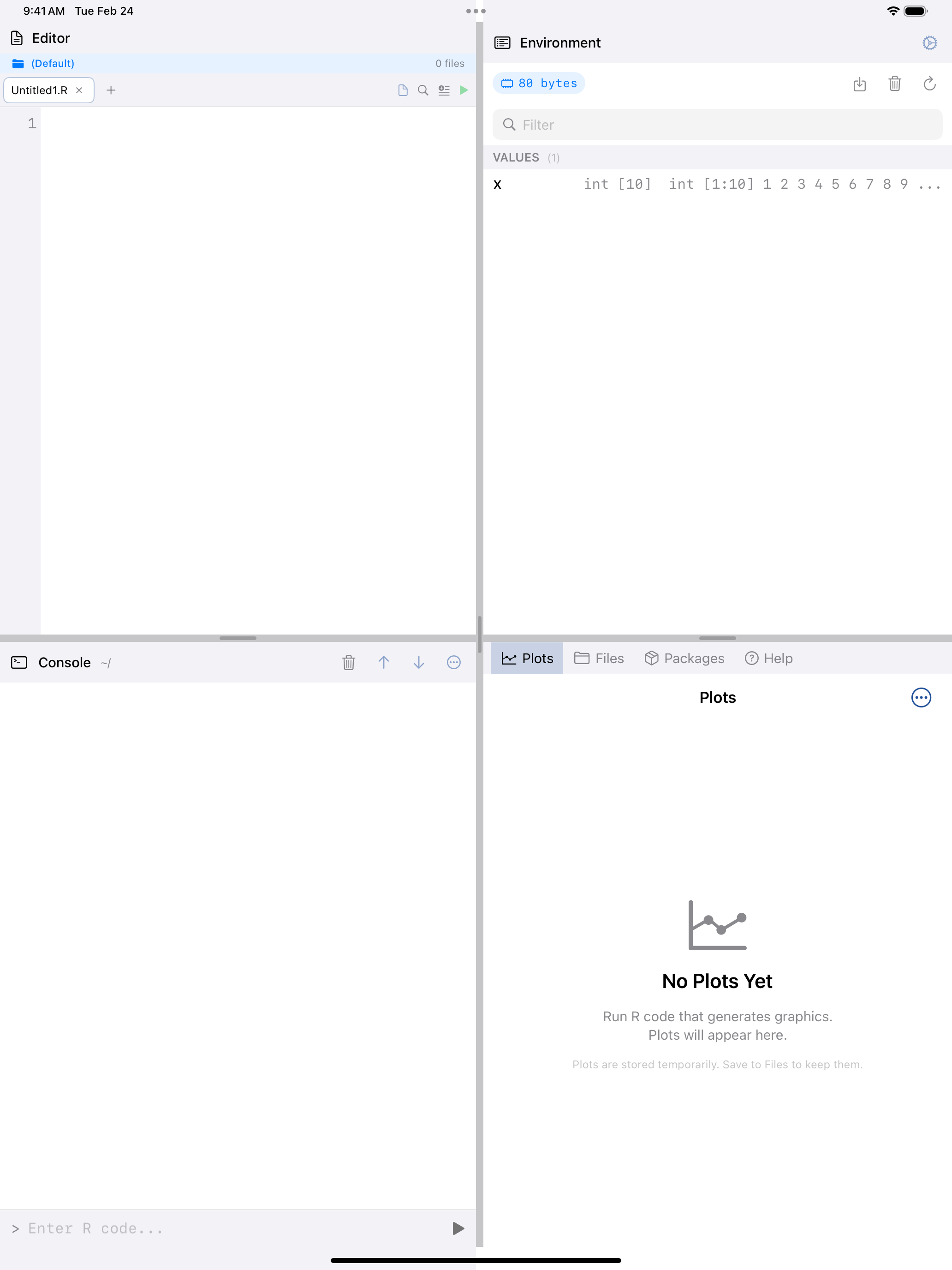
Clearing removes only the text. Variables, packages and data stay.
More Console Features
The … menu also has:
- Export Session saves the whole session as text
- Copy All Output copies the whole output area to the clipboard
- Word Wrap toggles line wrapping for long output
- Previous/Next Command step through your command history
- Inline Plots also draws each plot under the command that made it (Settings > Appearance > New Plots)
R’s output width follows the Console, so output wraps to fit your font size, down to 20 columns.
Acting on a Line of Output
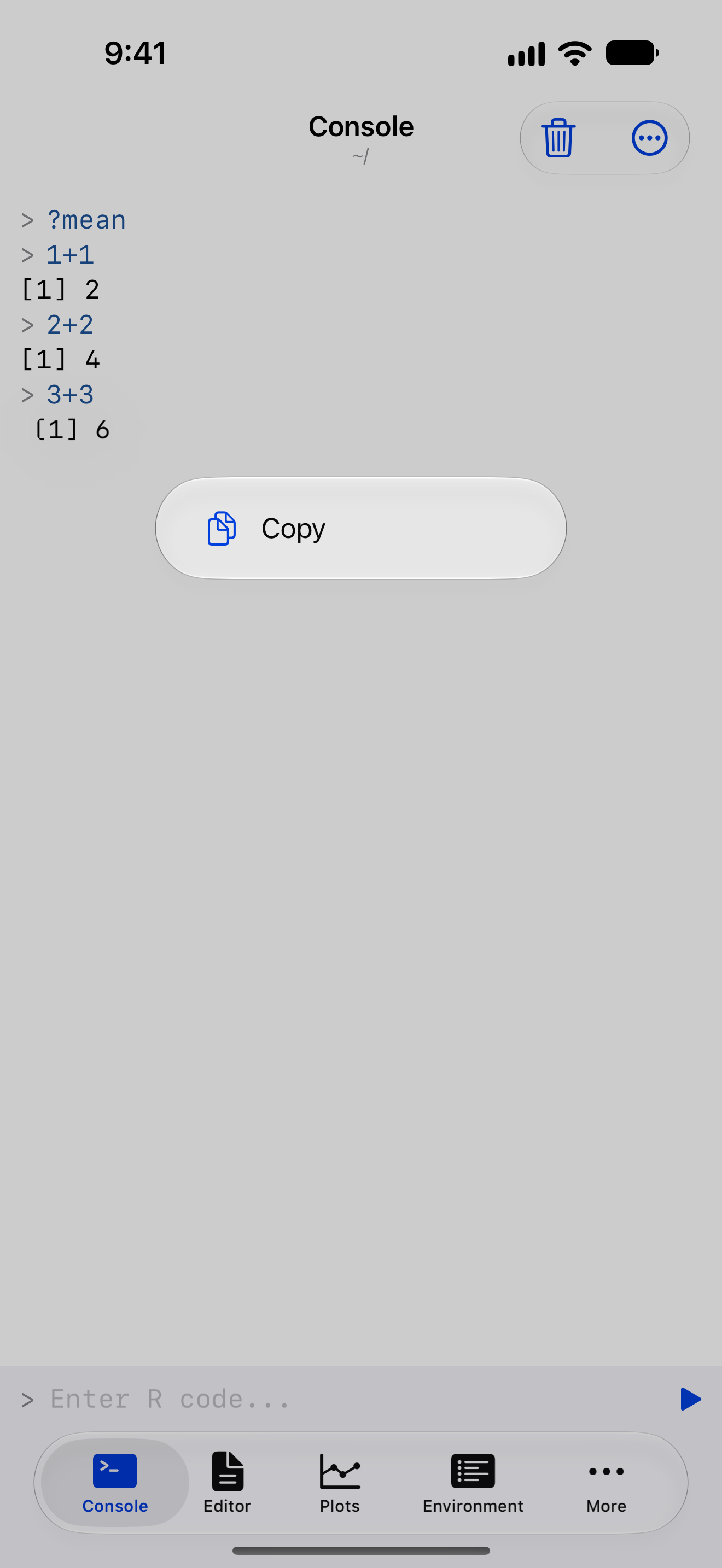
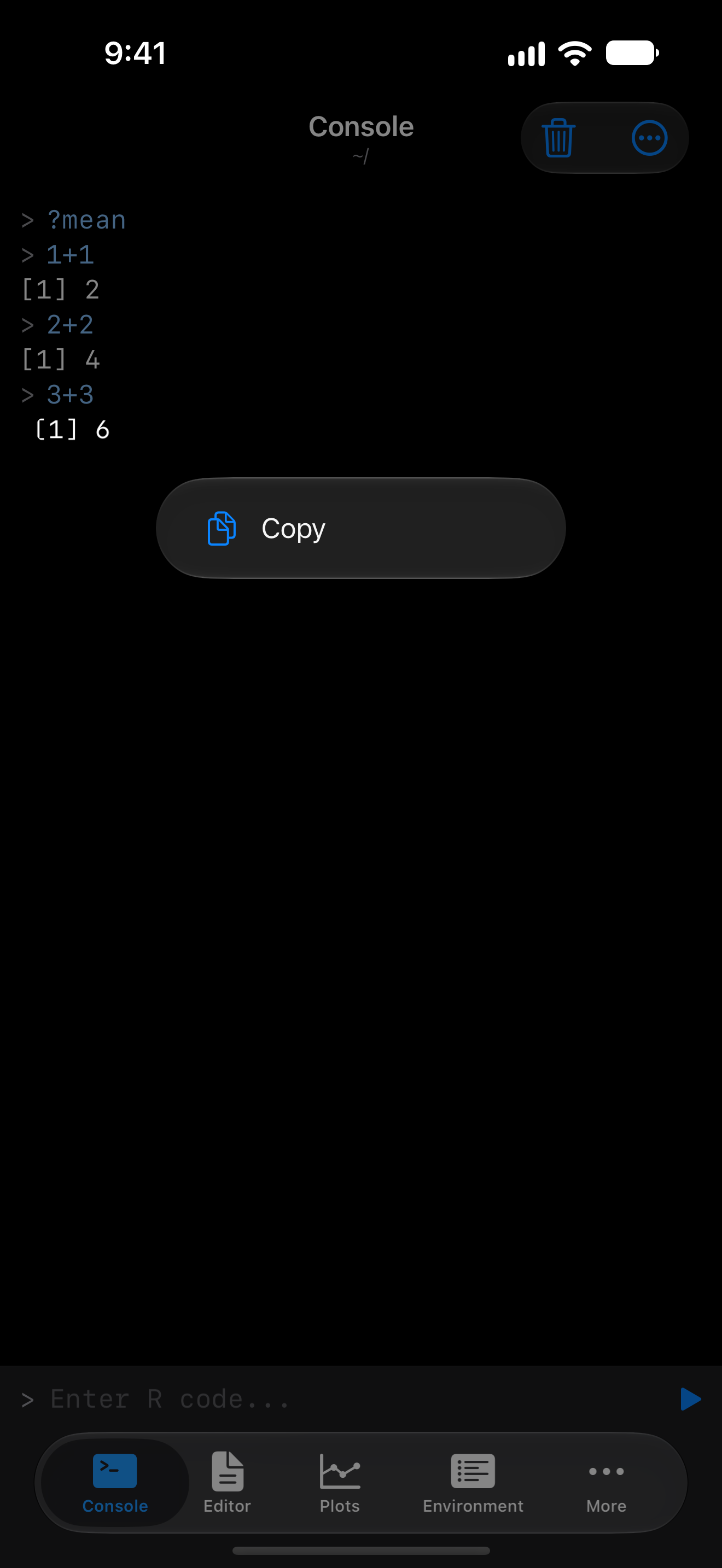
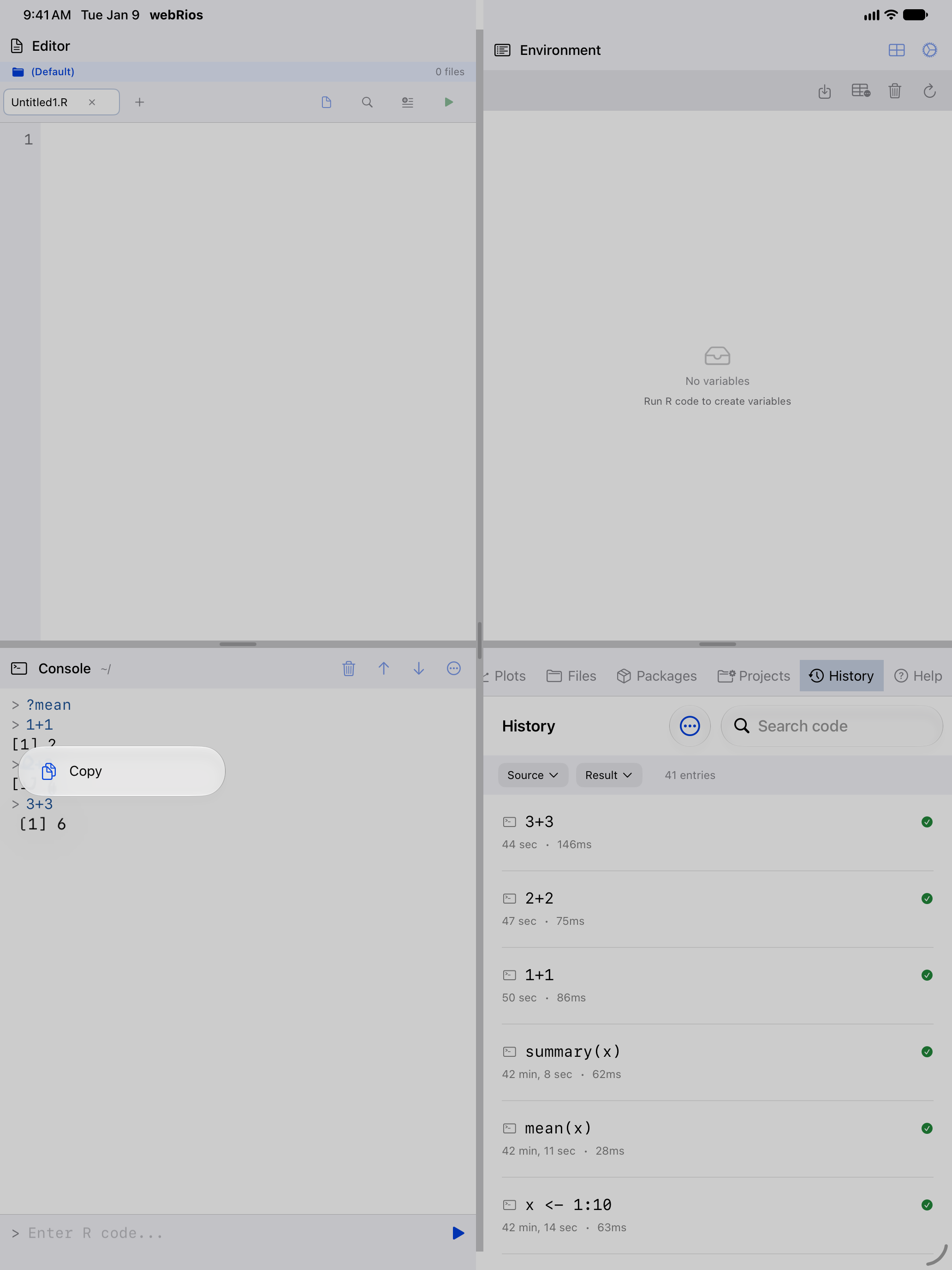
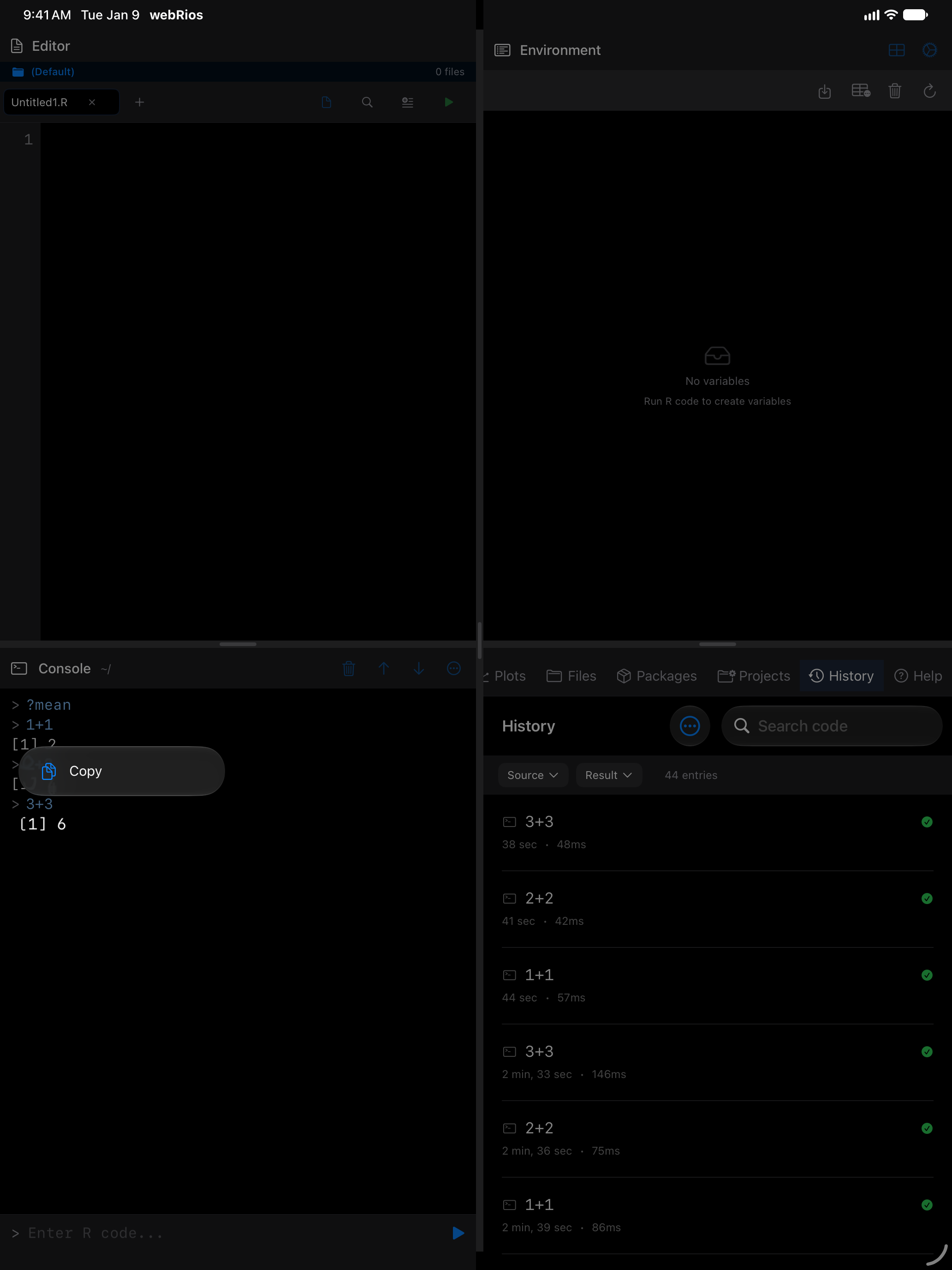
Long-press a line of output and choose Copy to copy that line.
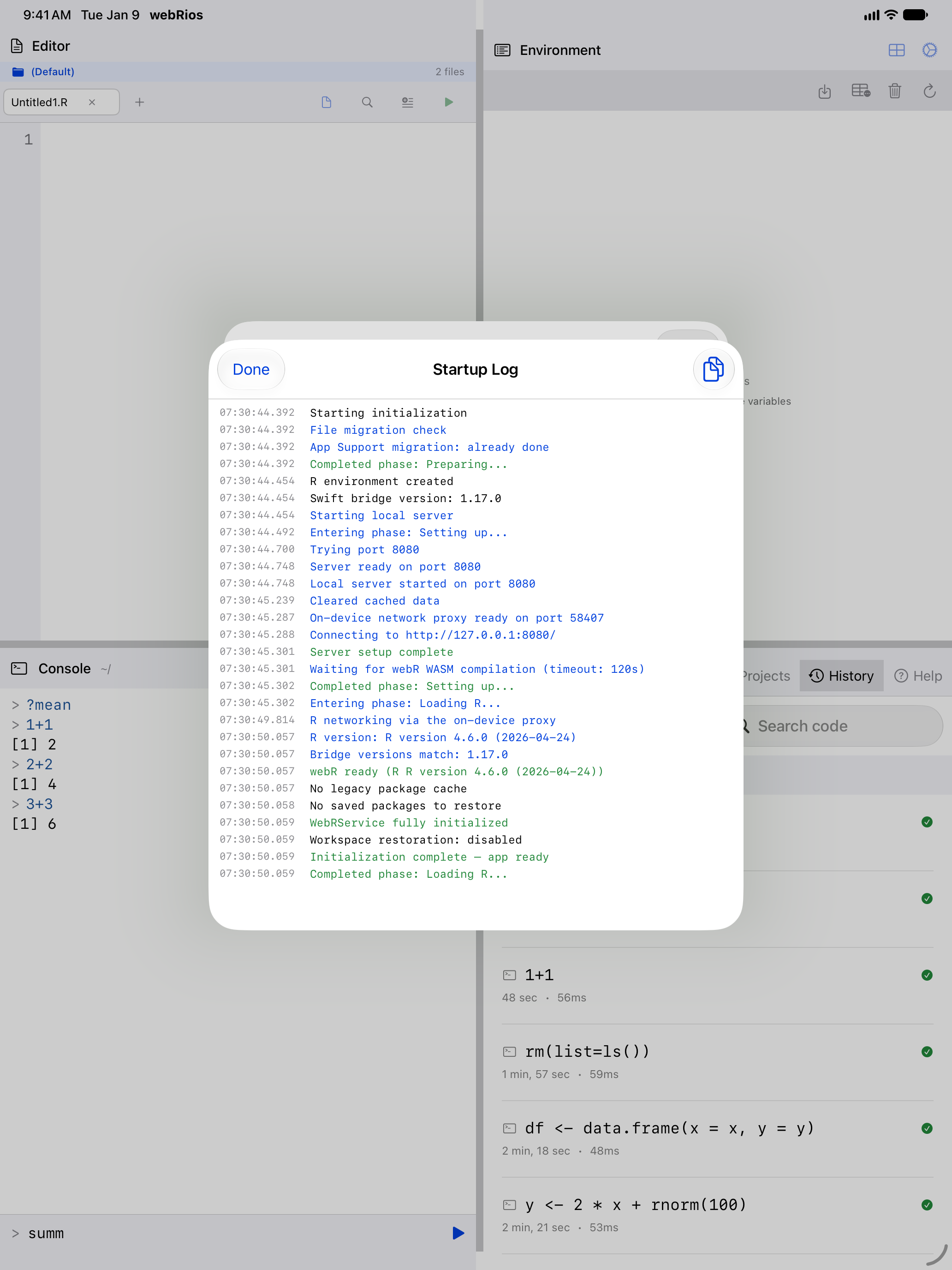
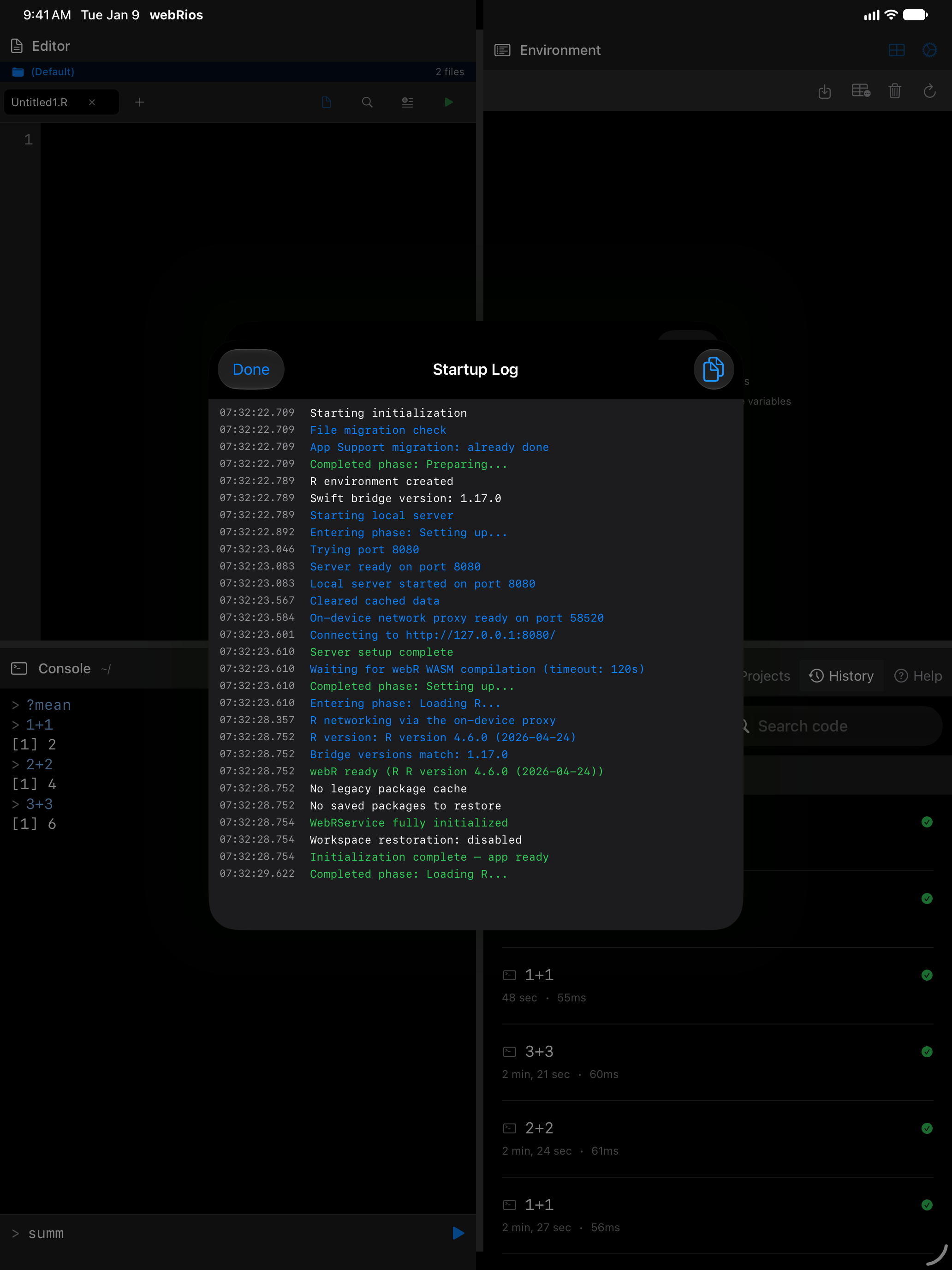
The Startup Log
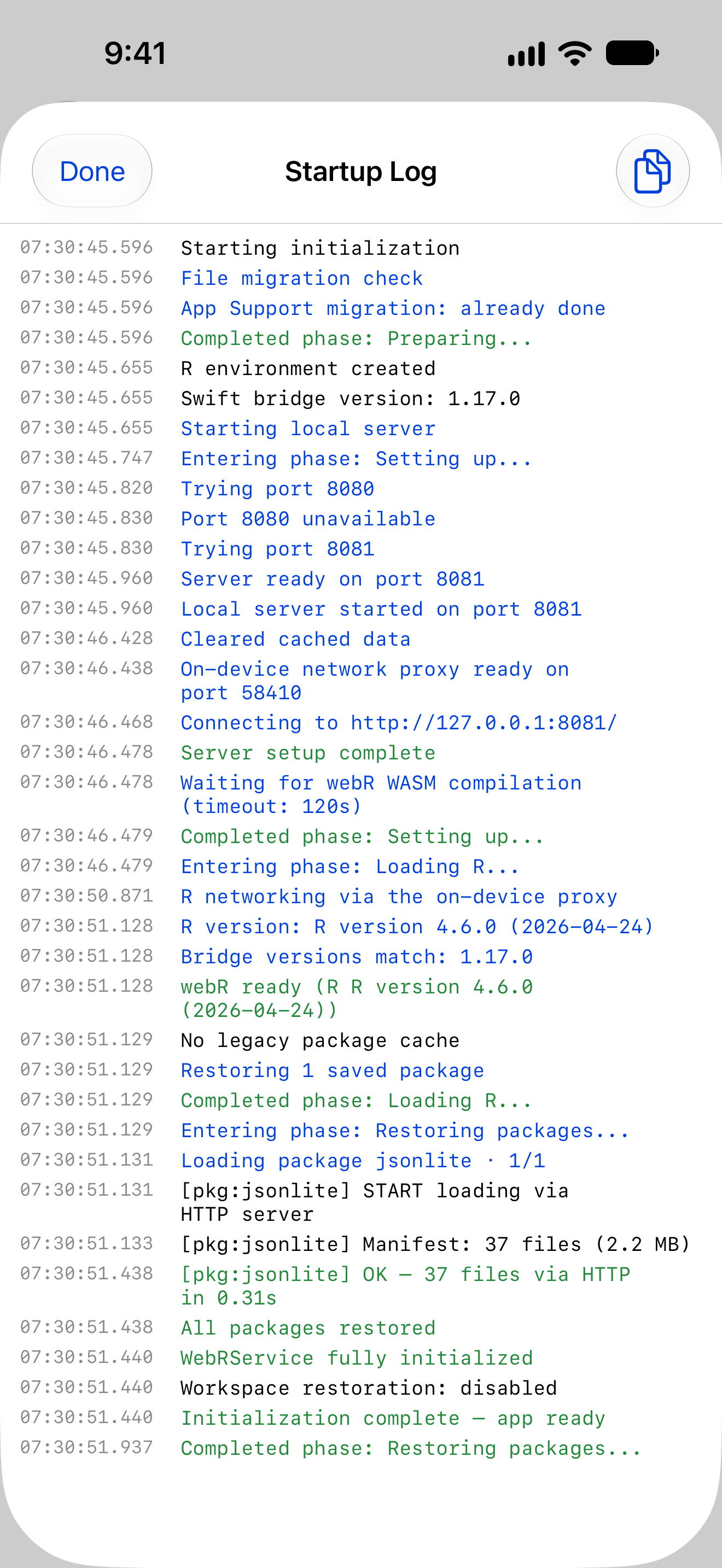
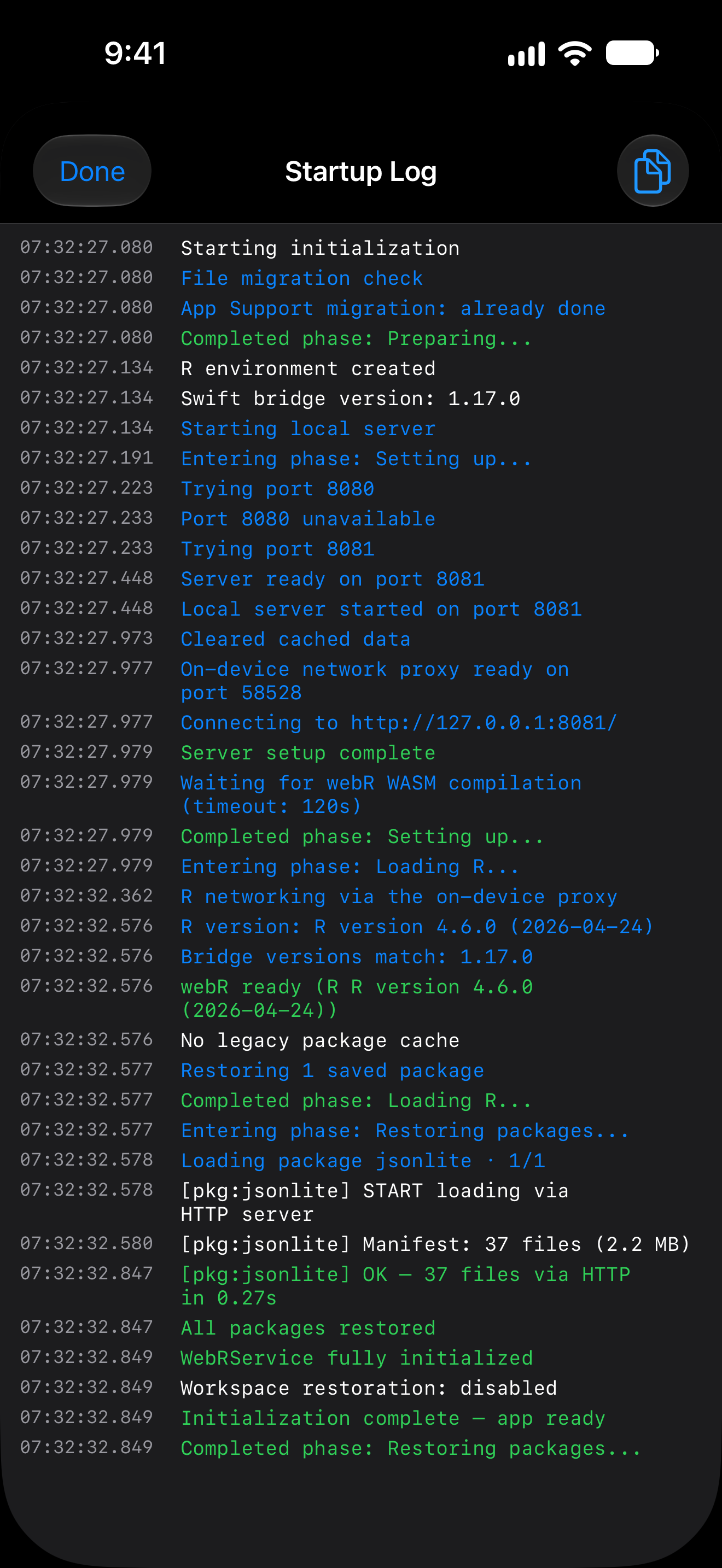
If R is slow to start, or fails to, Settings > Help & Resources > Startup Log records each stage with timings. Attach it to a bug report.
With a keyboard, Cmd+K clears the Console, Cmd+Up/Down steps through history, Cmd+F searches it, Cmd+. stops R and Ctrl+Cmd+0 restarts it. On iPad they are also in the menu bar. See Keyboard Shortcuts.