Editor
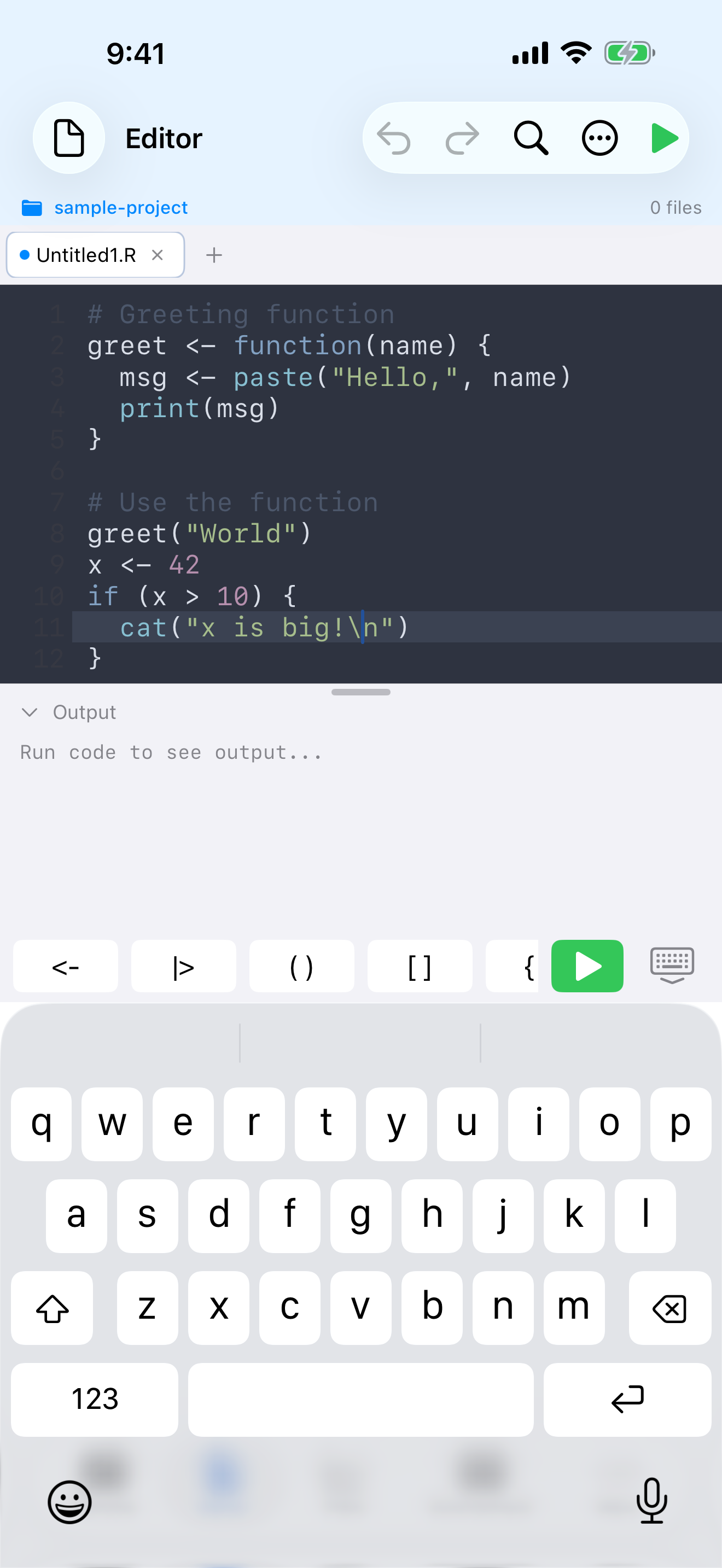
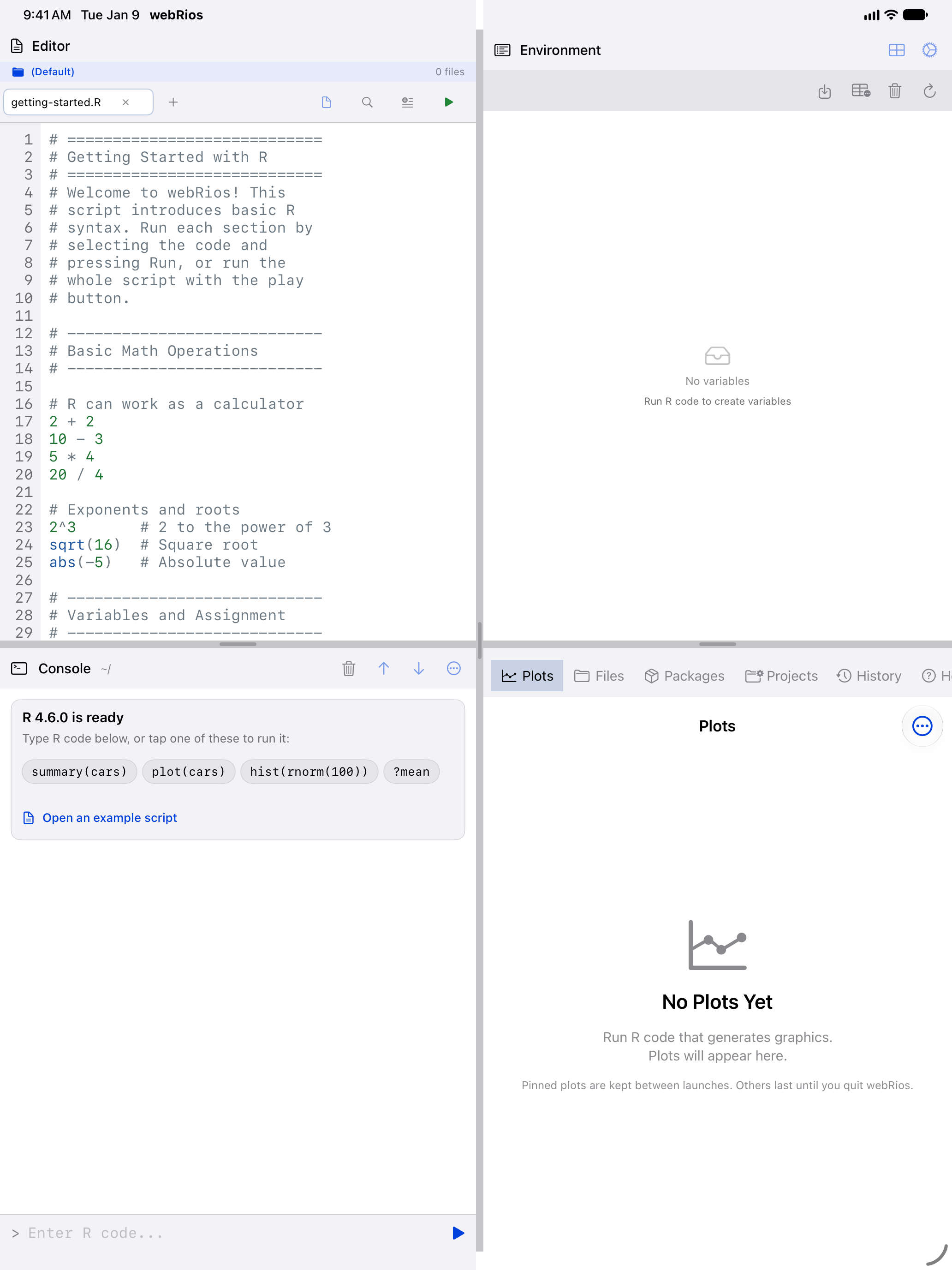
For anything longer than a line or two, use the Editor: syntax highlighting, line numbers, tabs, and .R files you can save.
Writing R Scripts
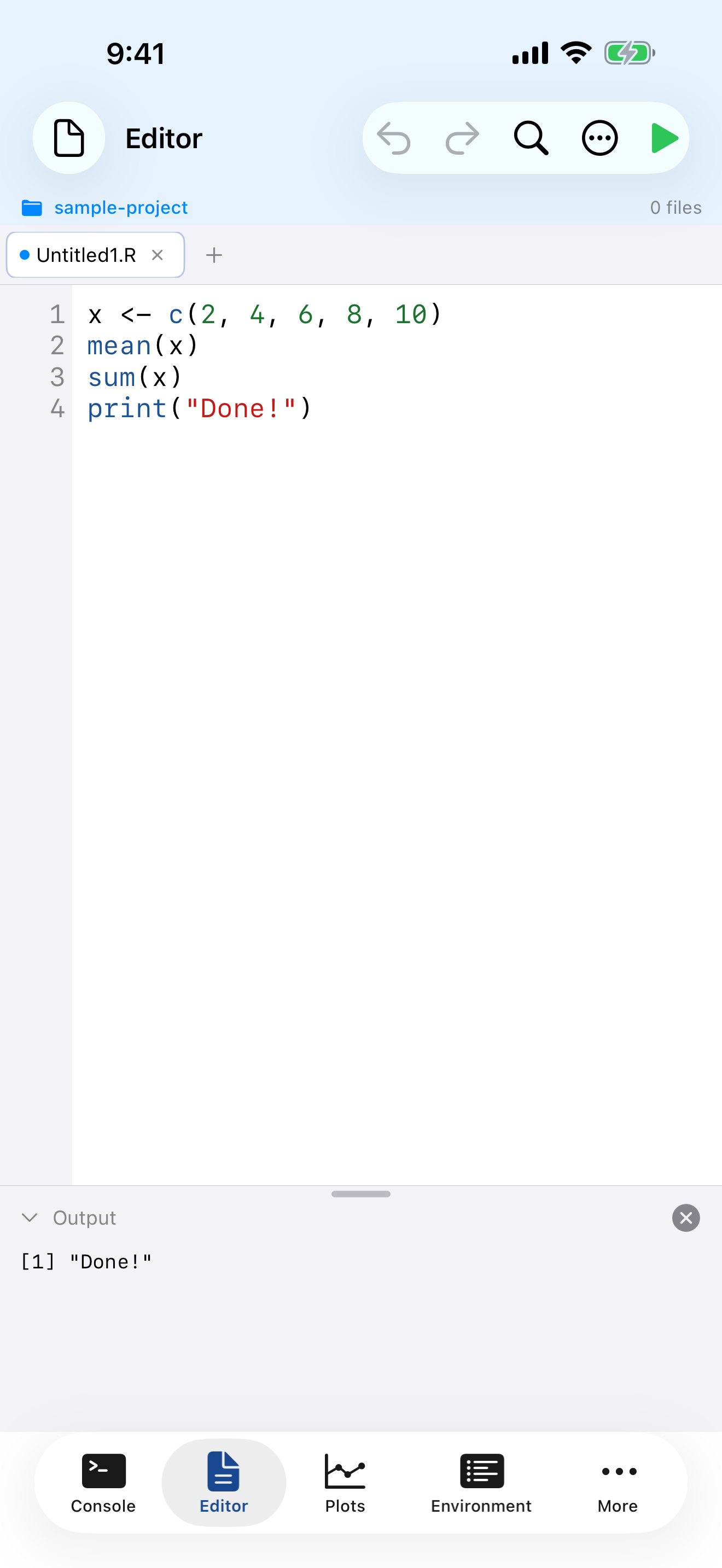
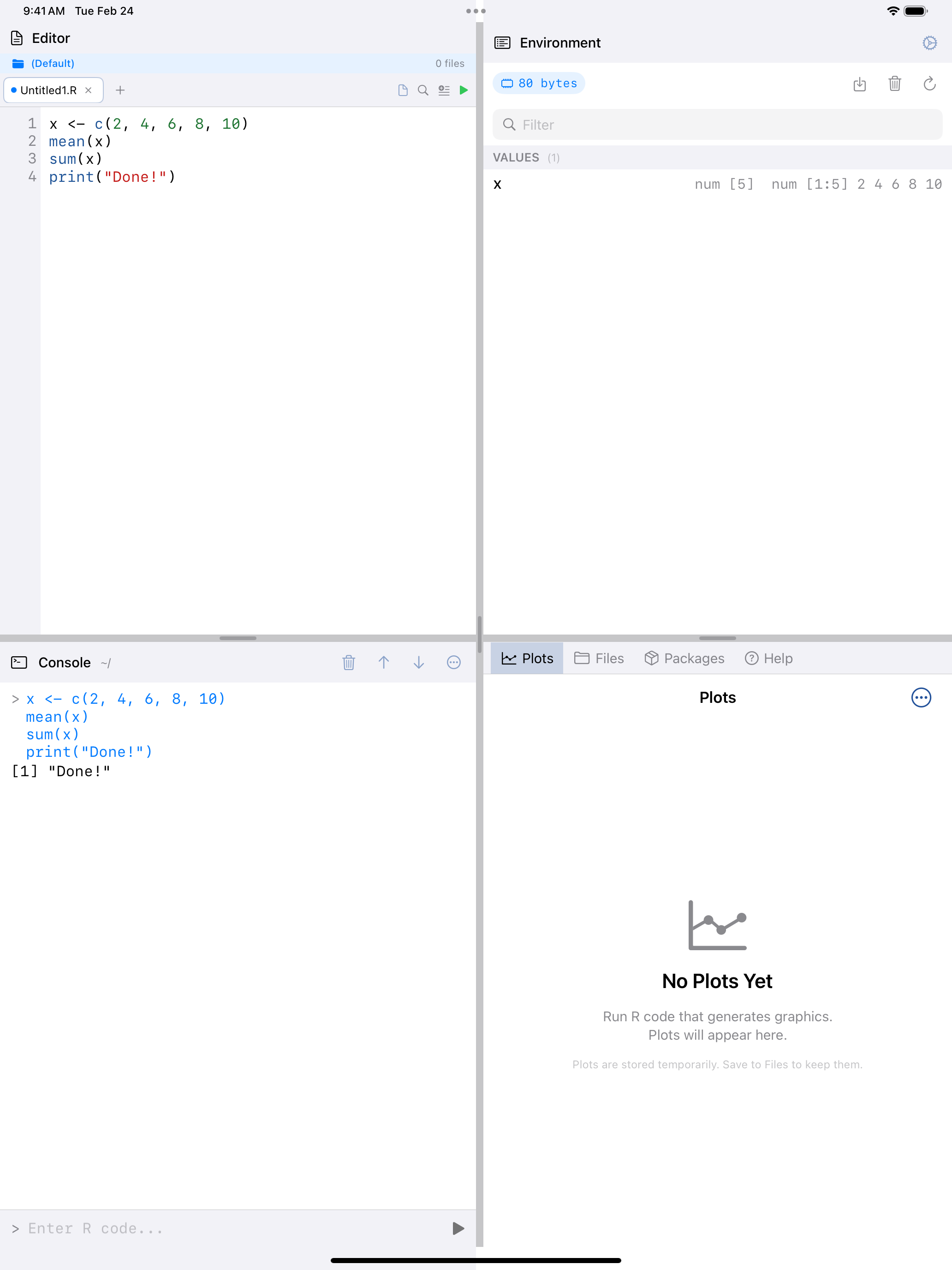
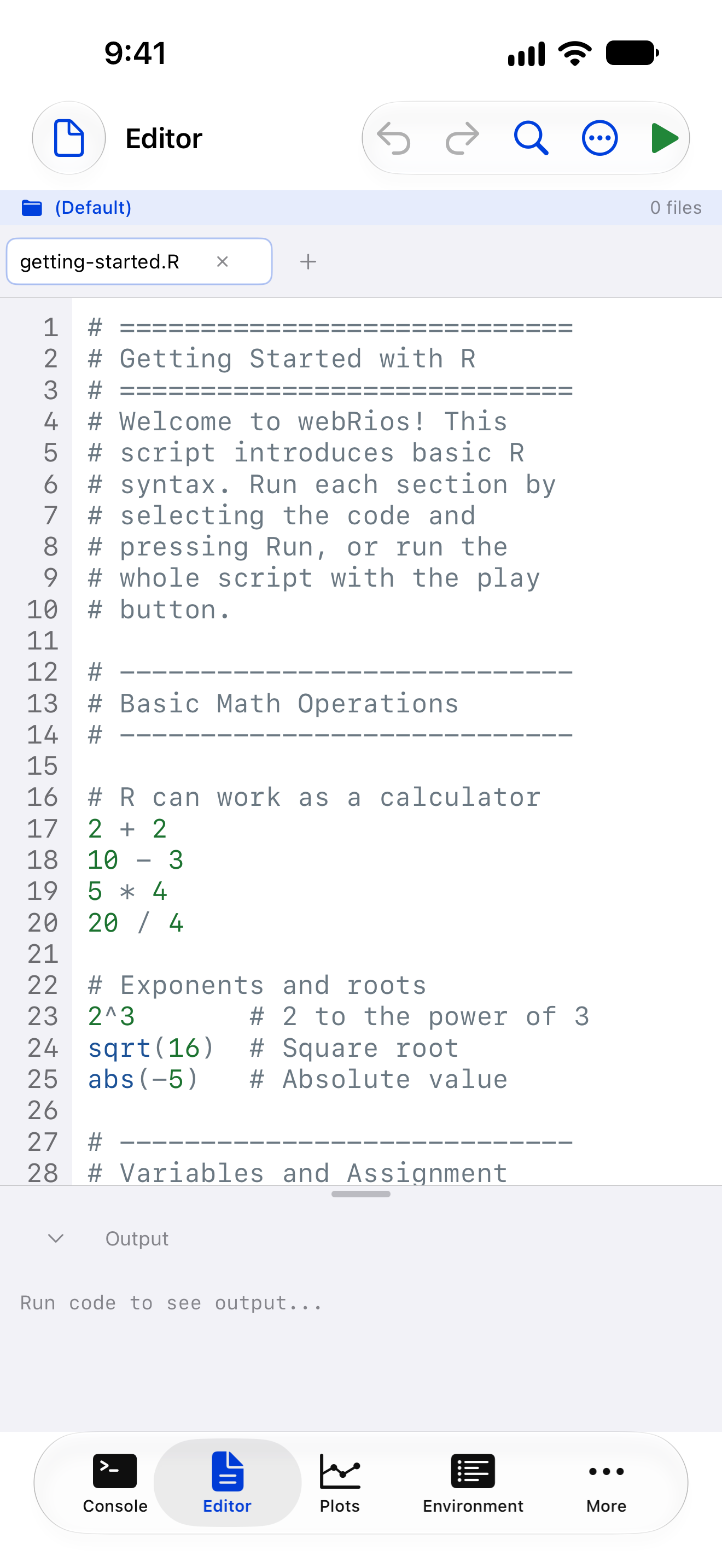
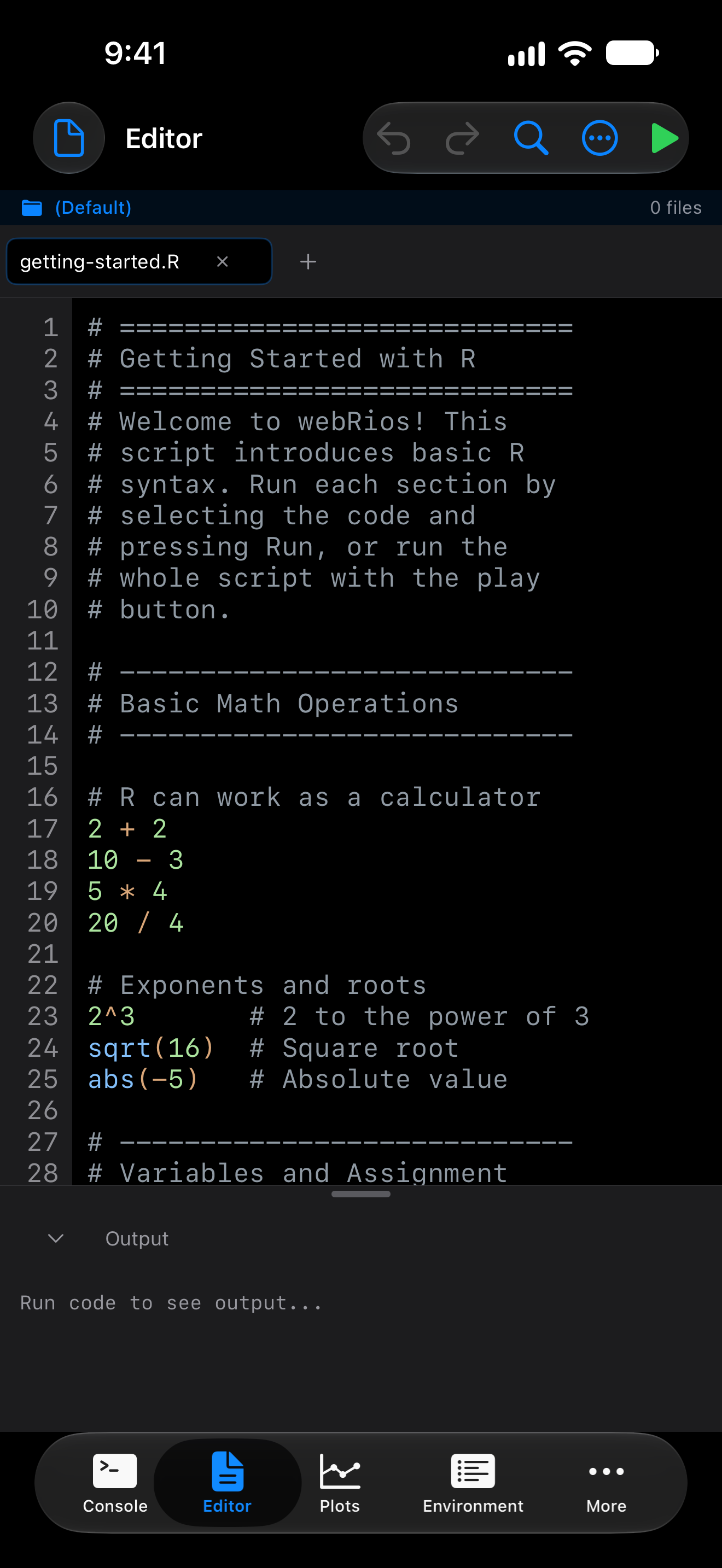
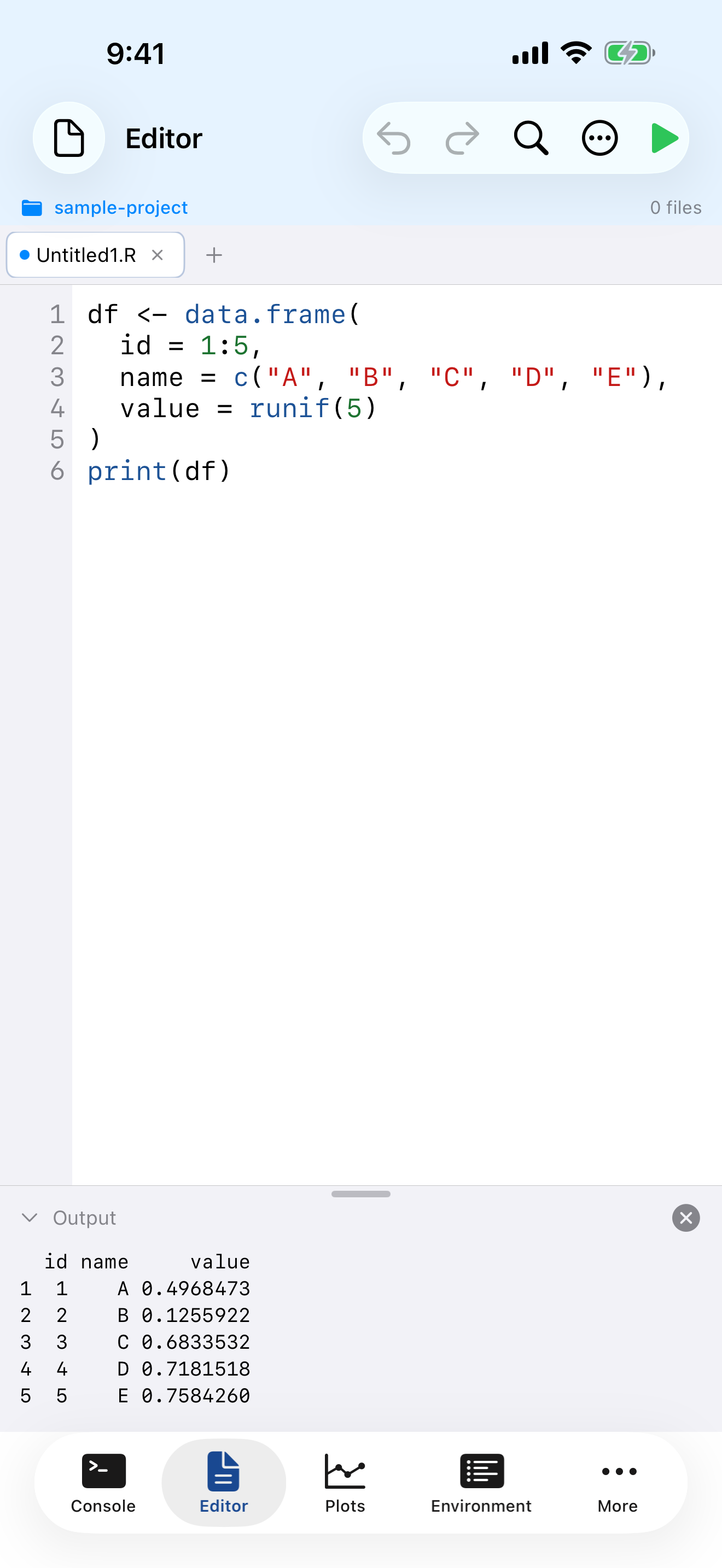
Write a script, then run all of it or just a selection.
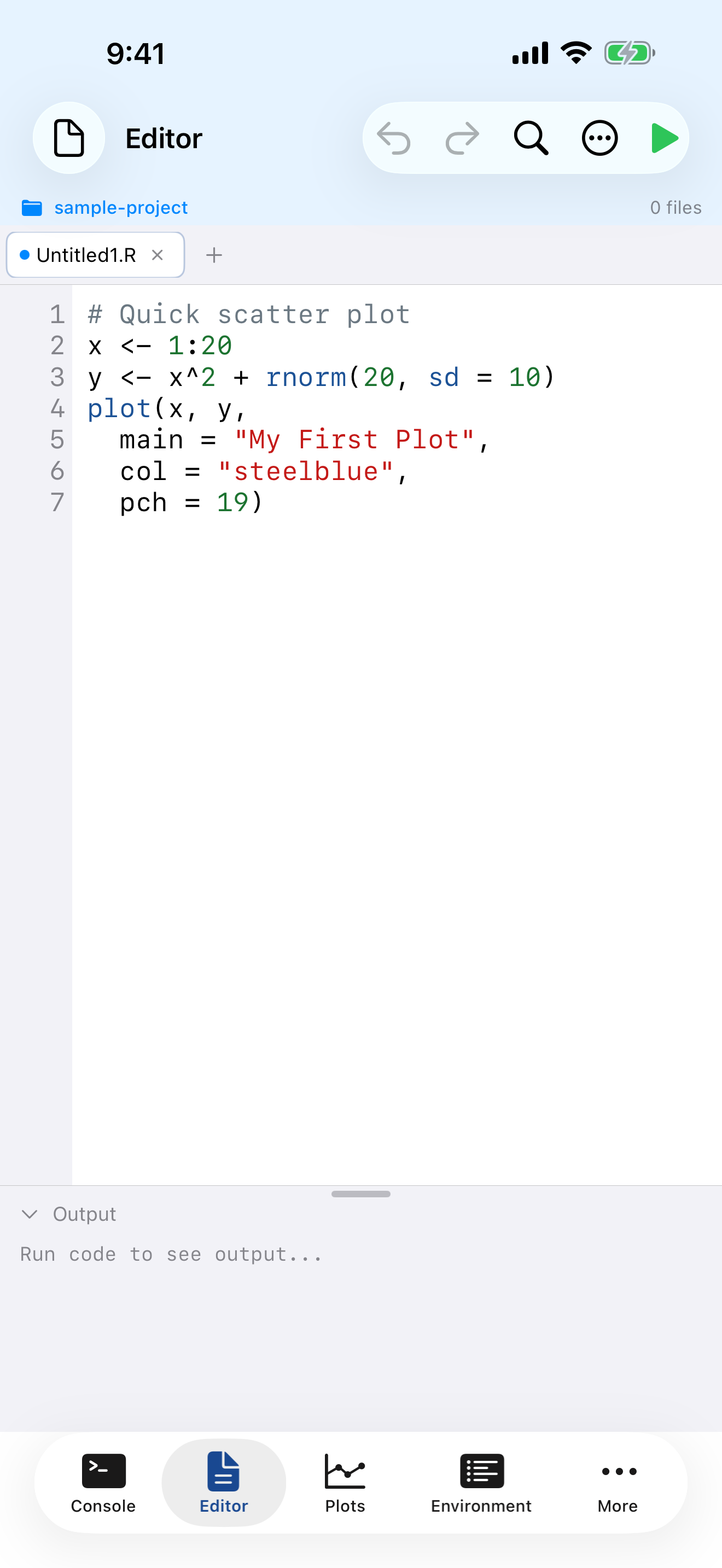
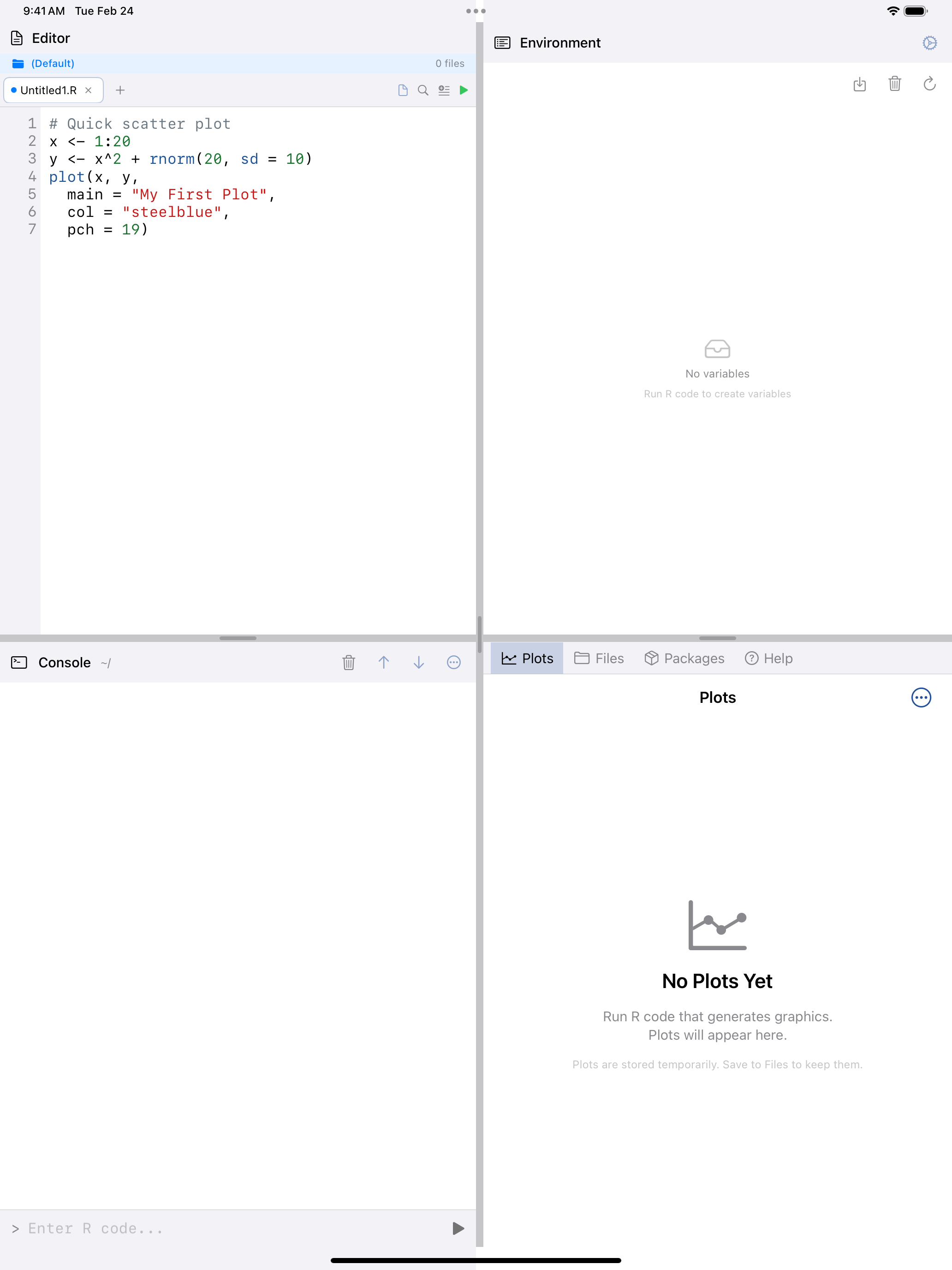
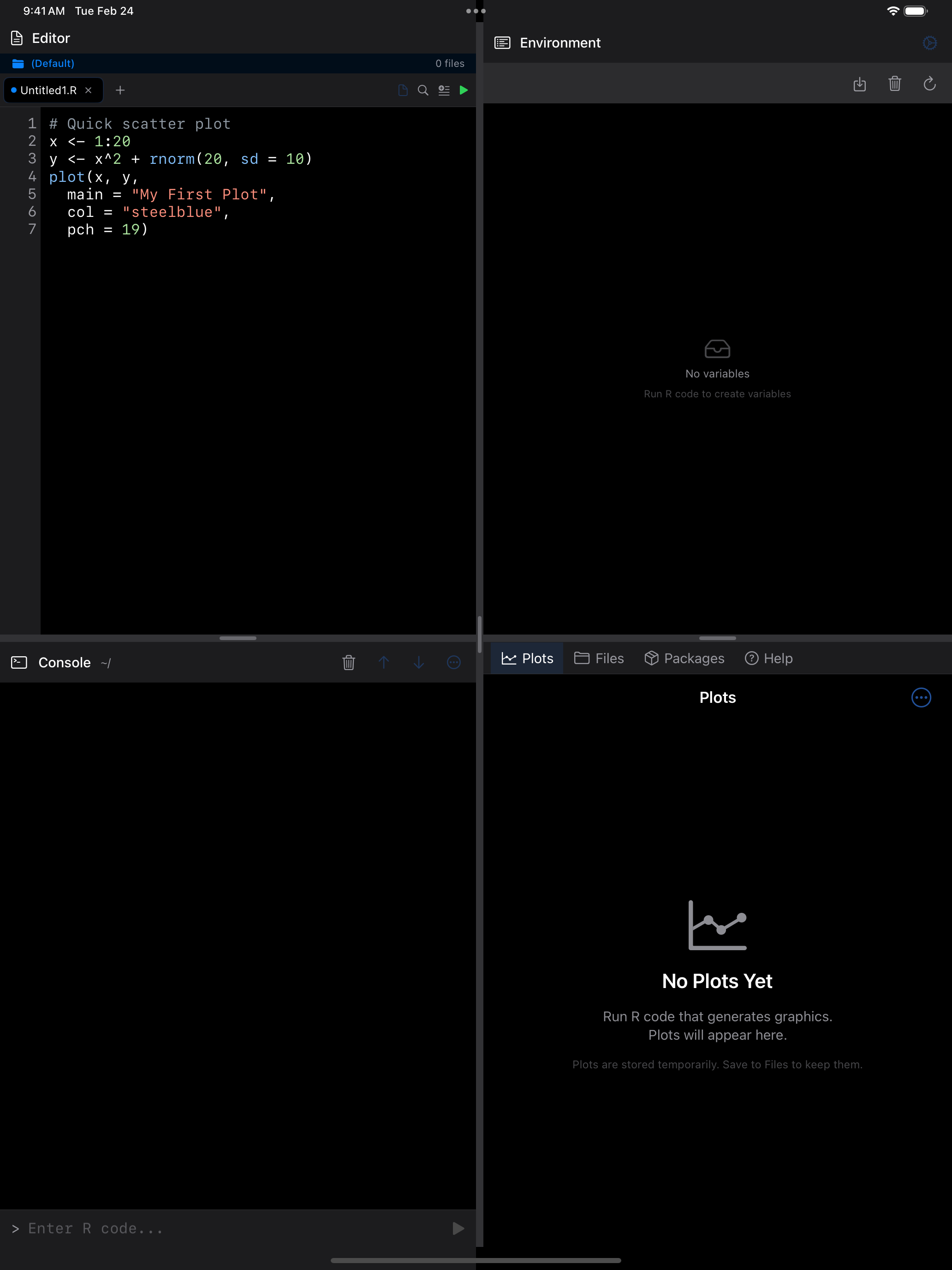
What you are seeing above:
- Tab bar: shows your open files. Tap the + button to create a new tab
- Line numbers: displayed in the left gutter for easy reference and debugging
- Syntax highlighting: R code is color-coded so keywords, strings, functions, and comments are visually distinct
- Output panel: at the bottom, shows results when you run your script
- Toolbar: contains undo/redo, find, editor actions menu, and the run button
Syntax Highlighting
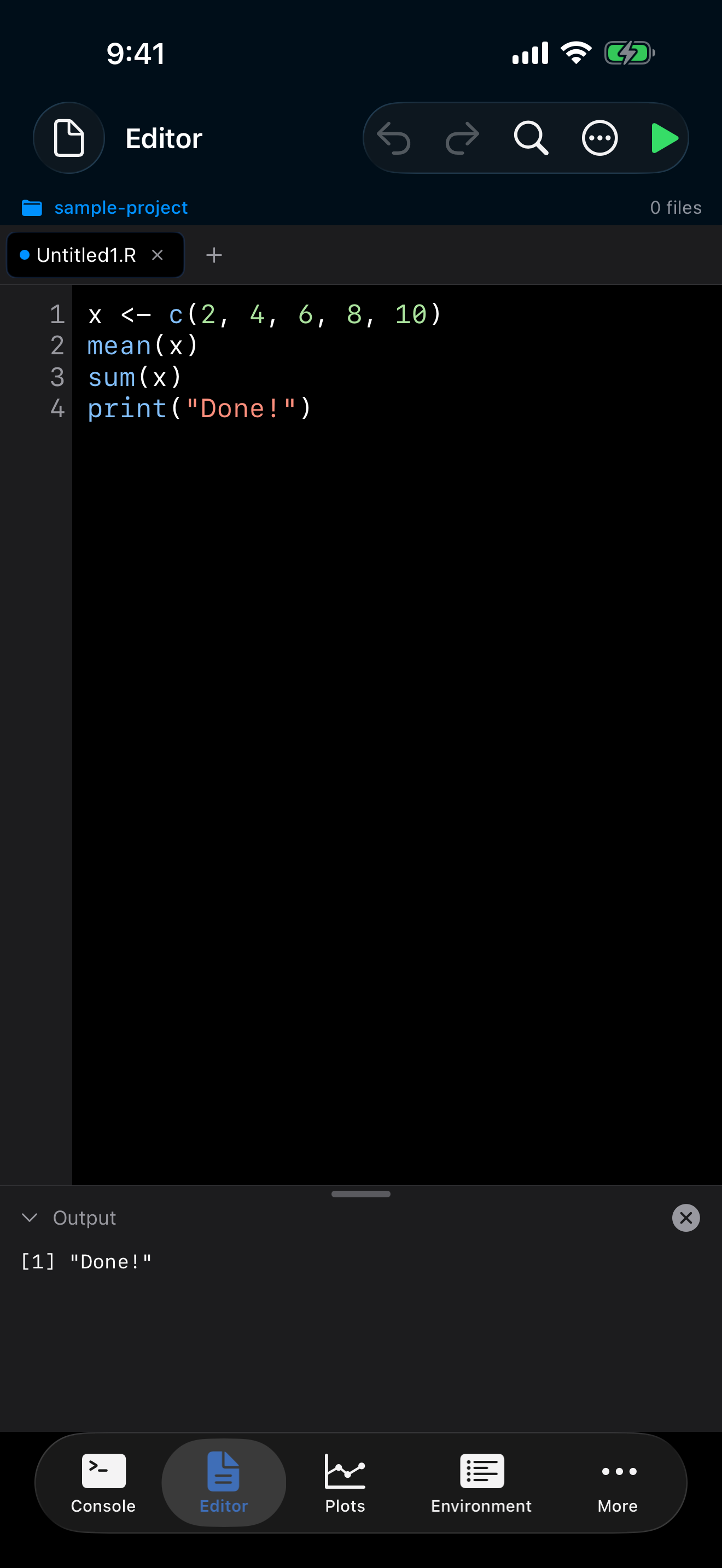
Code is colored as you type:
- Keywords like
if,for,function,return, shown in purple - Functions like
print(),mean(),ggplot(), shown in blue - Strings like
"hello world", shown in red/coral - Numbers like
42,3.14, shown in green - Comments starting with
#, shown in gray
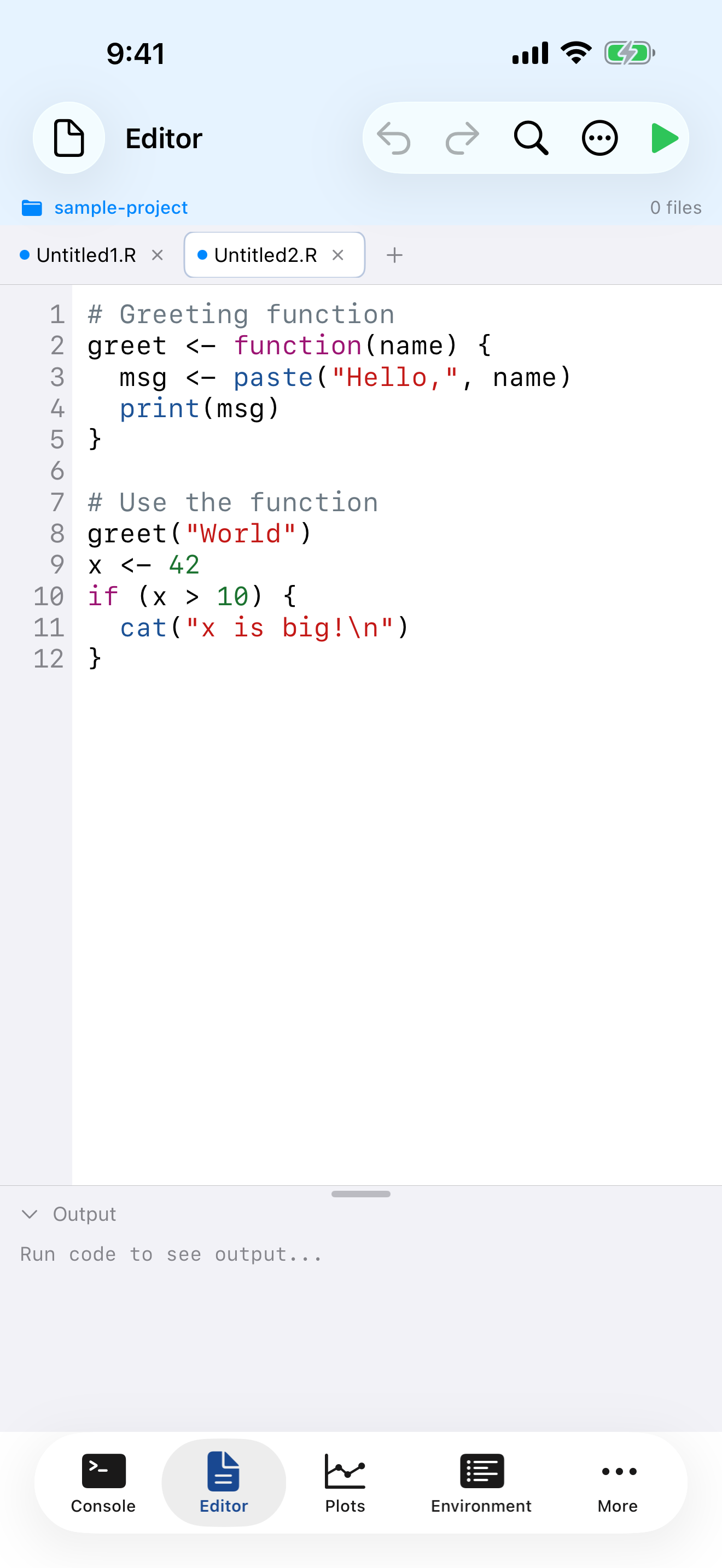
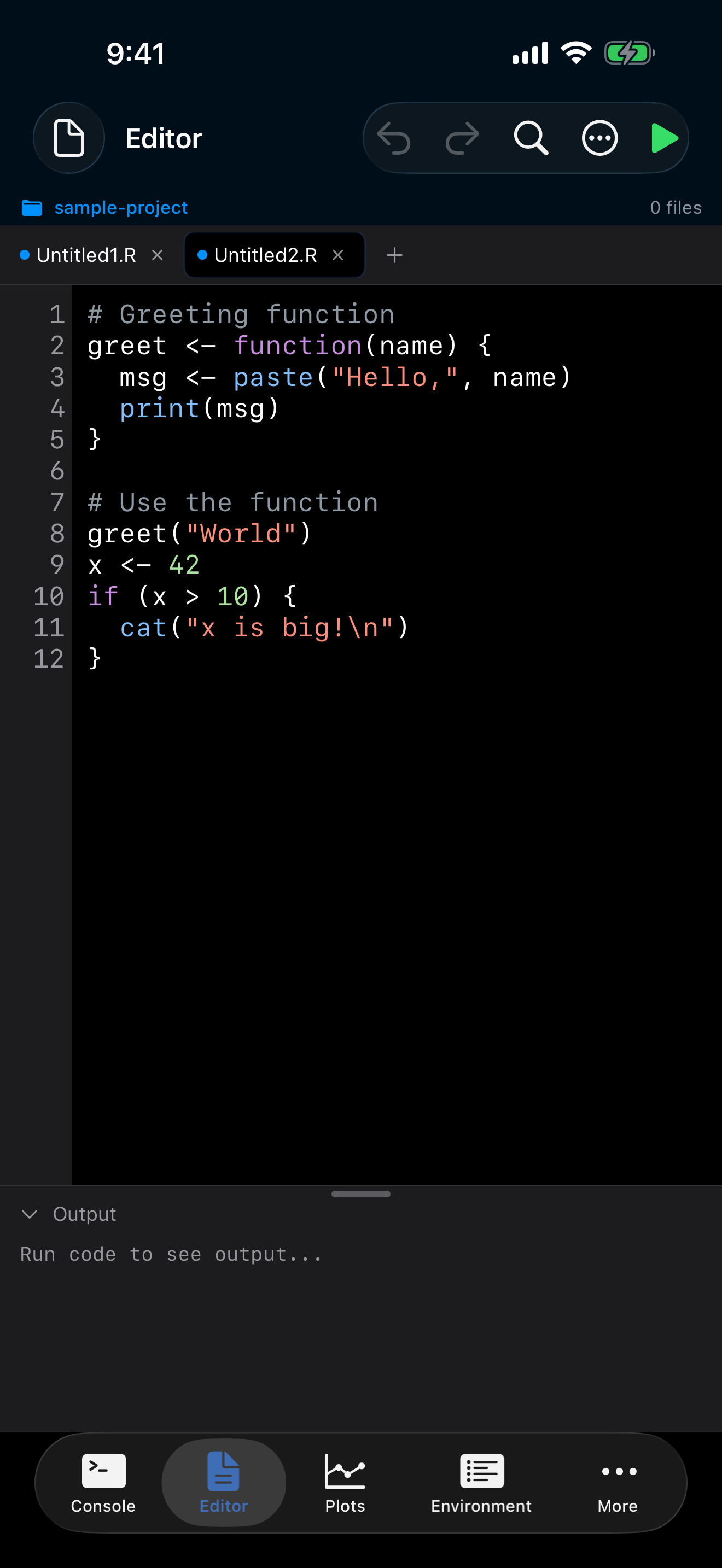
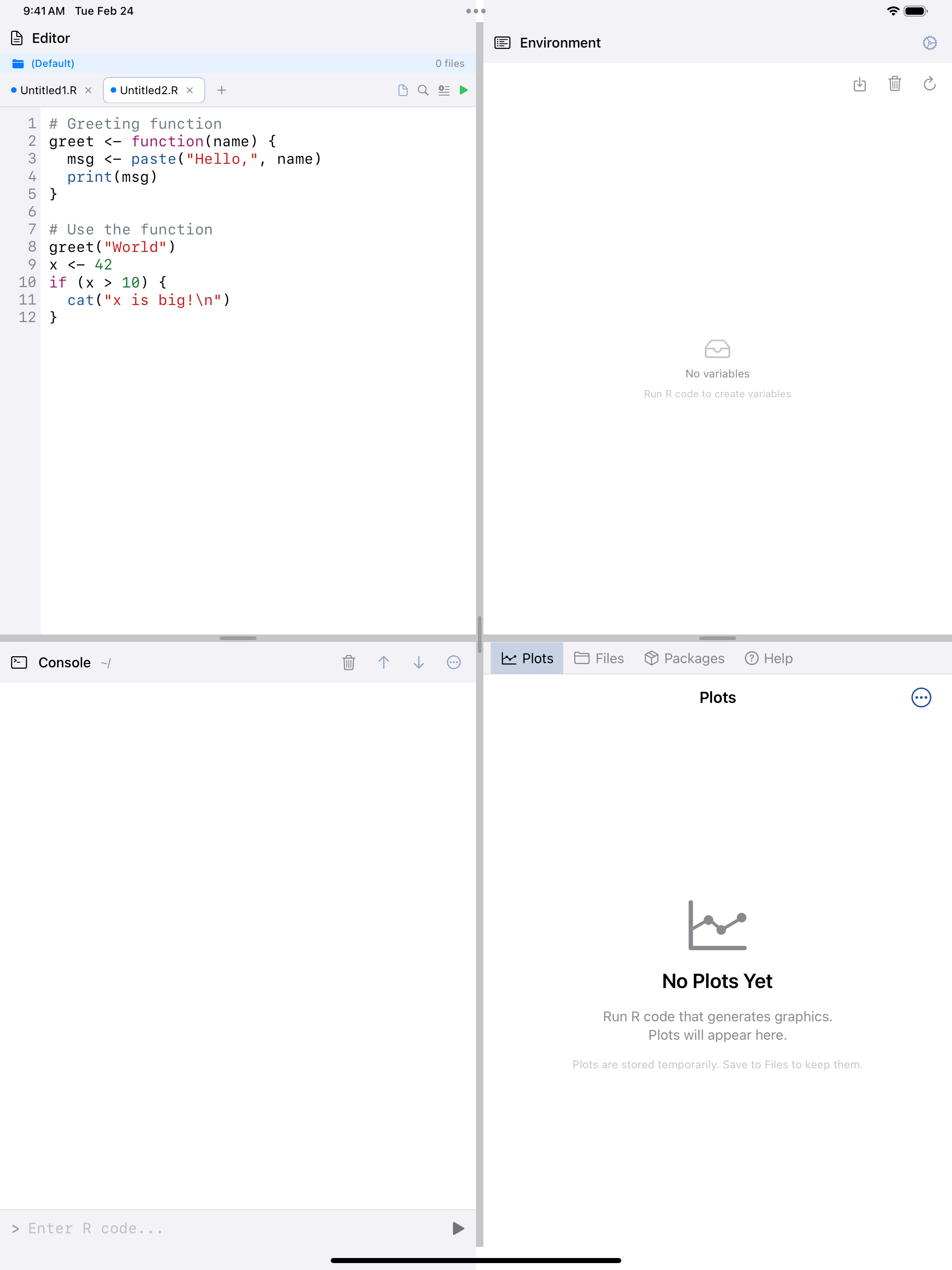
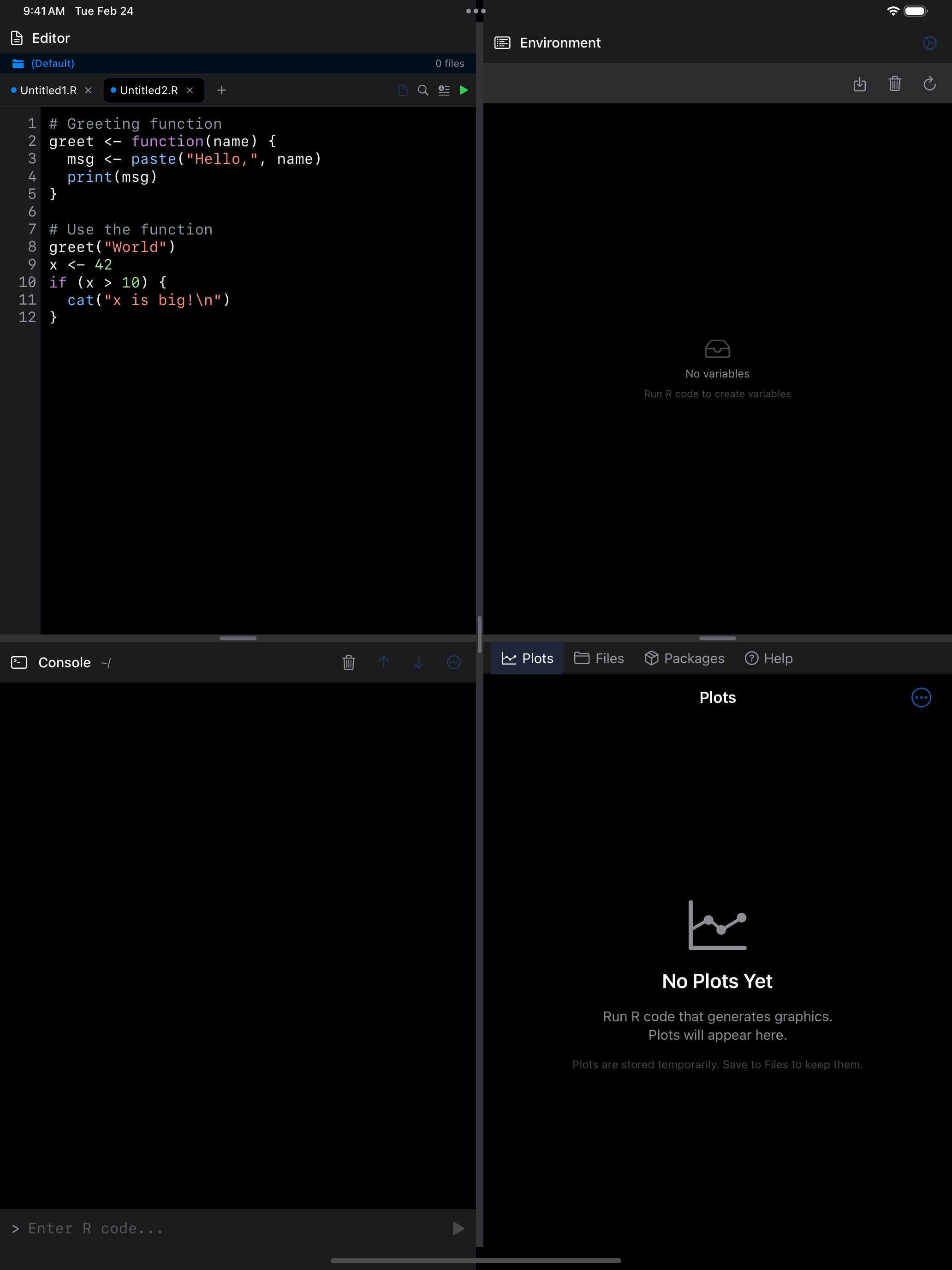
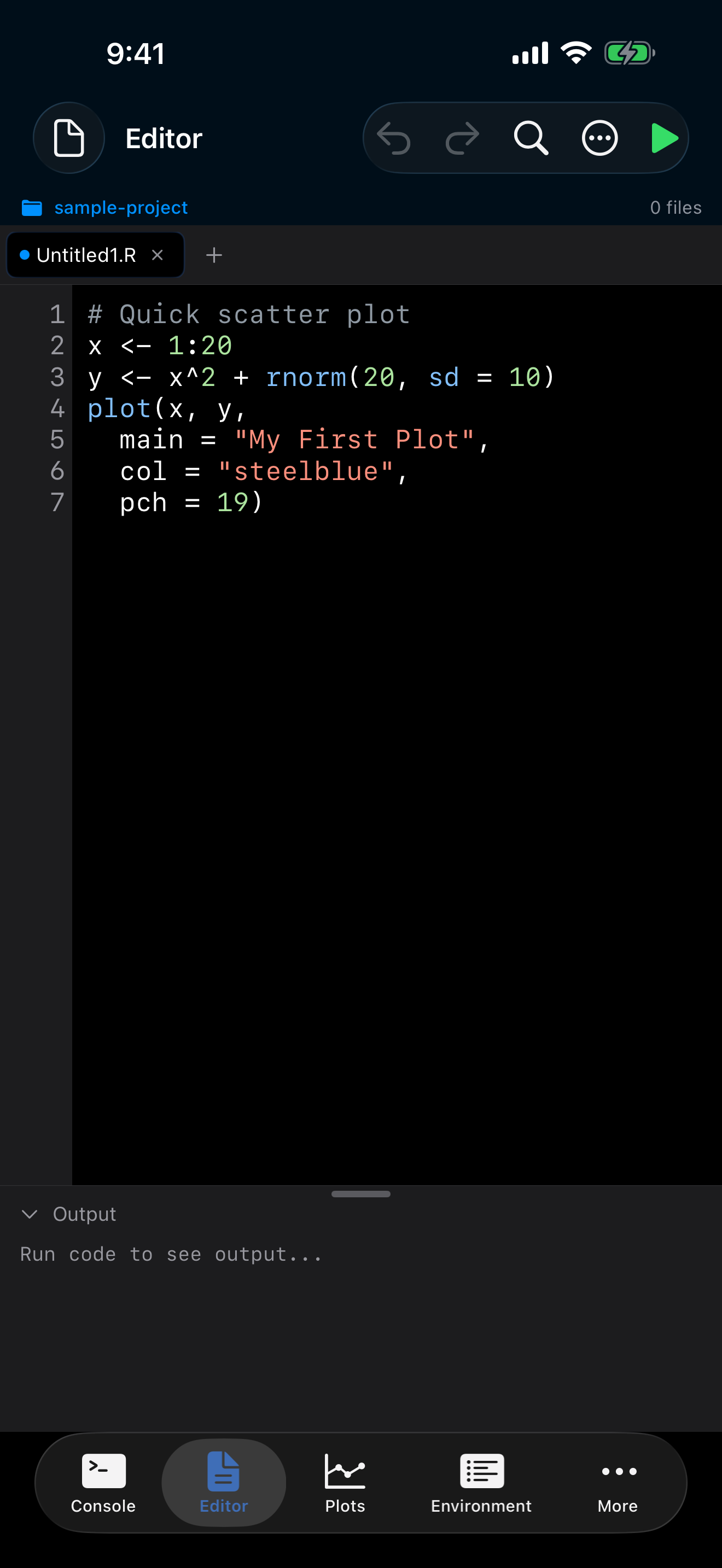
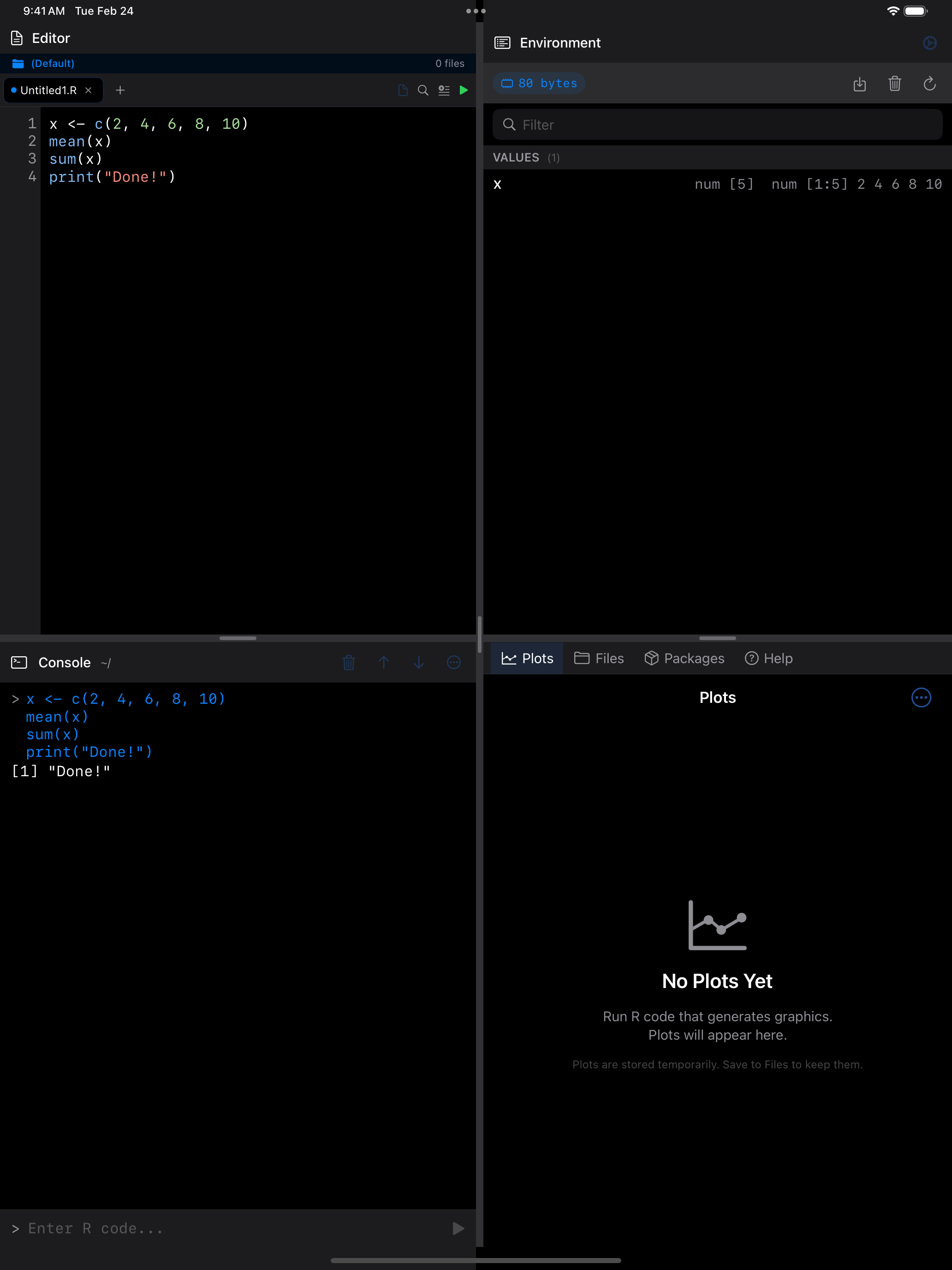
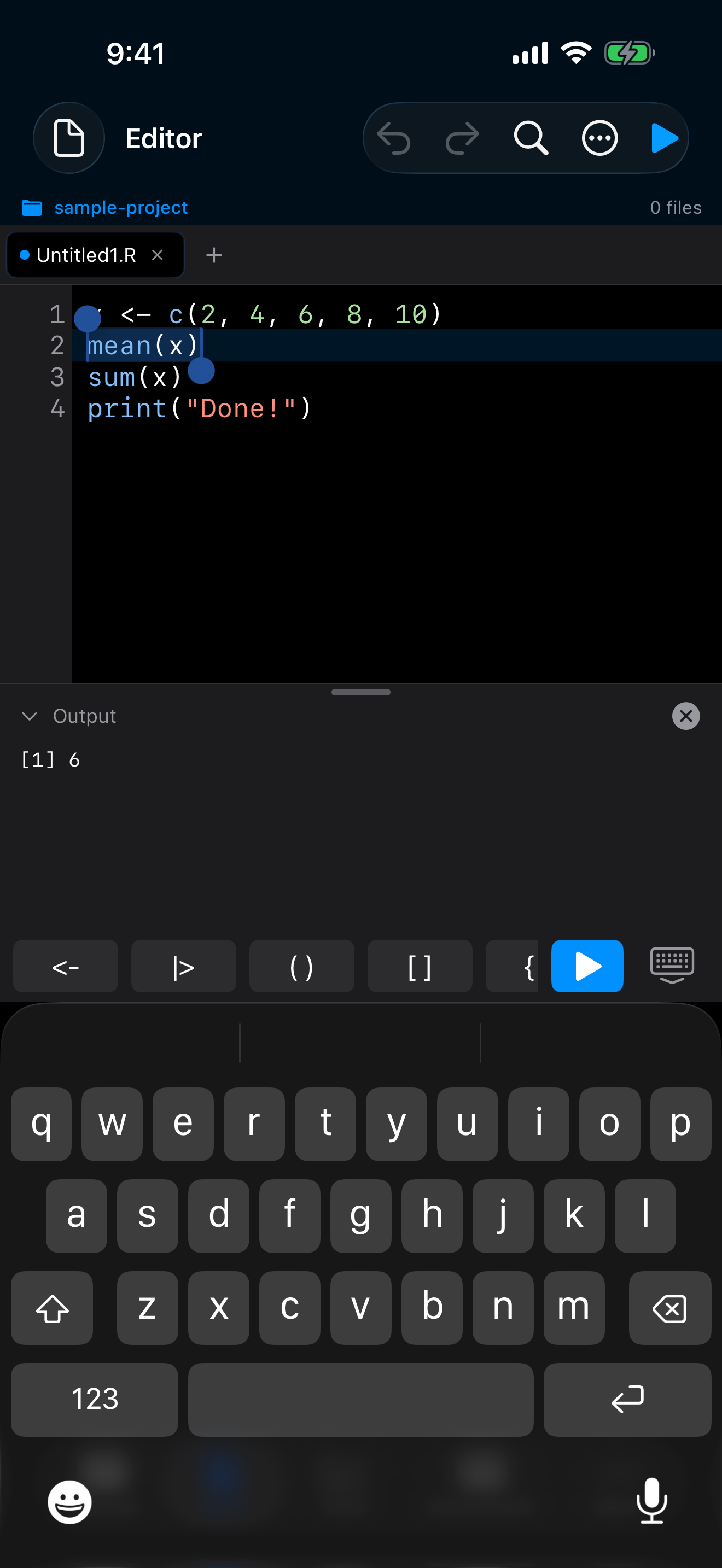
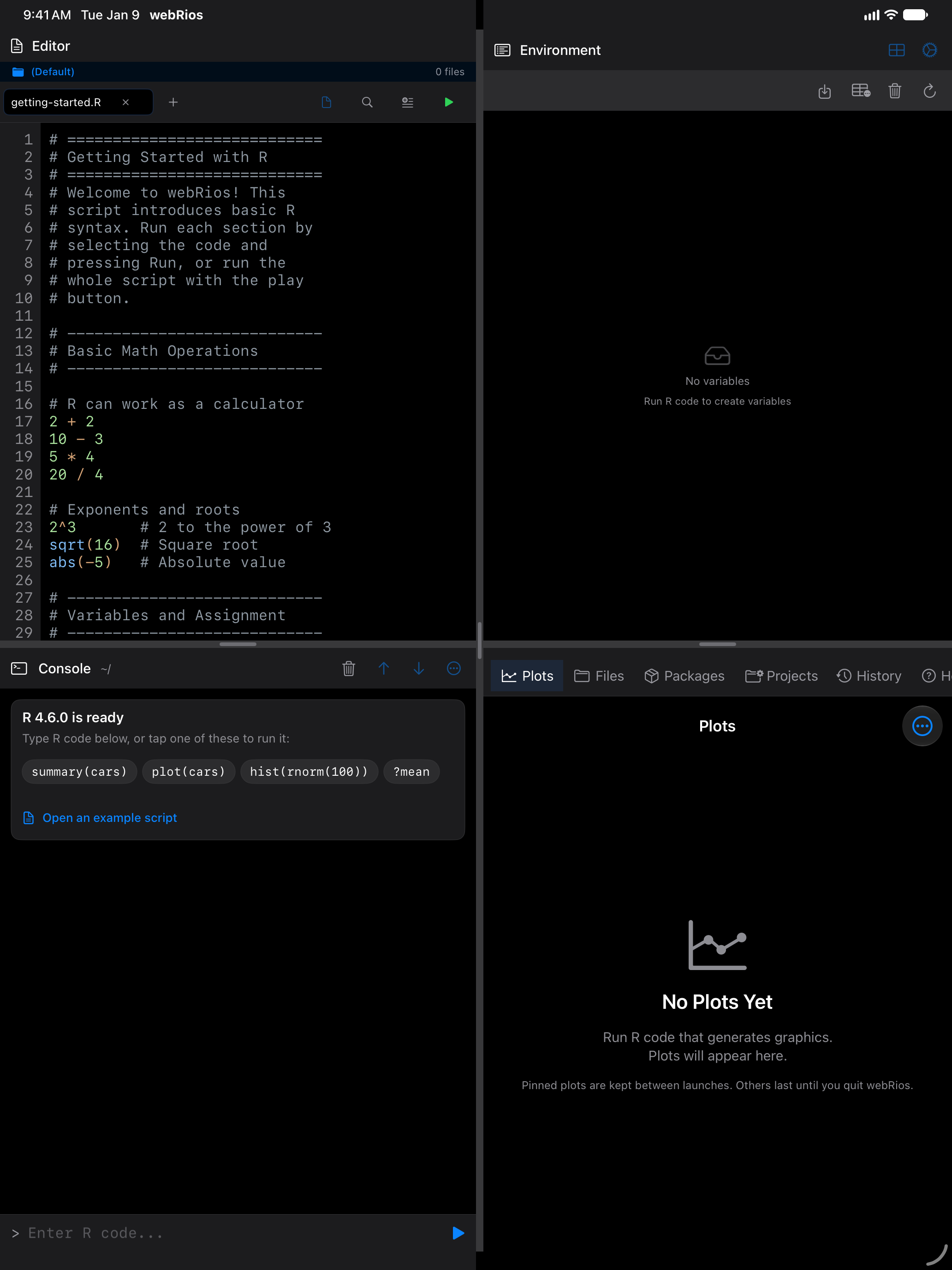
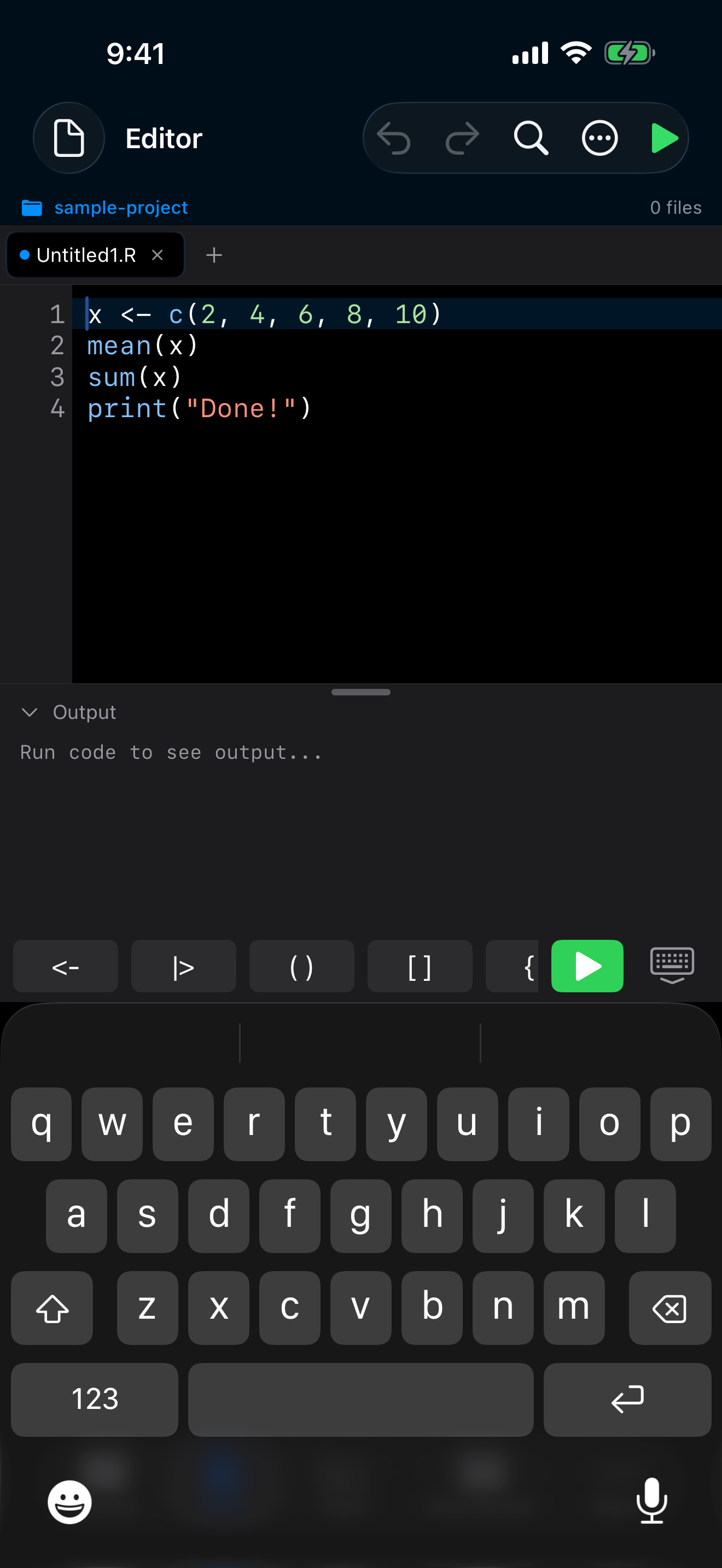
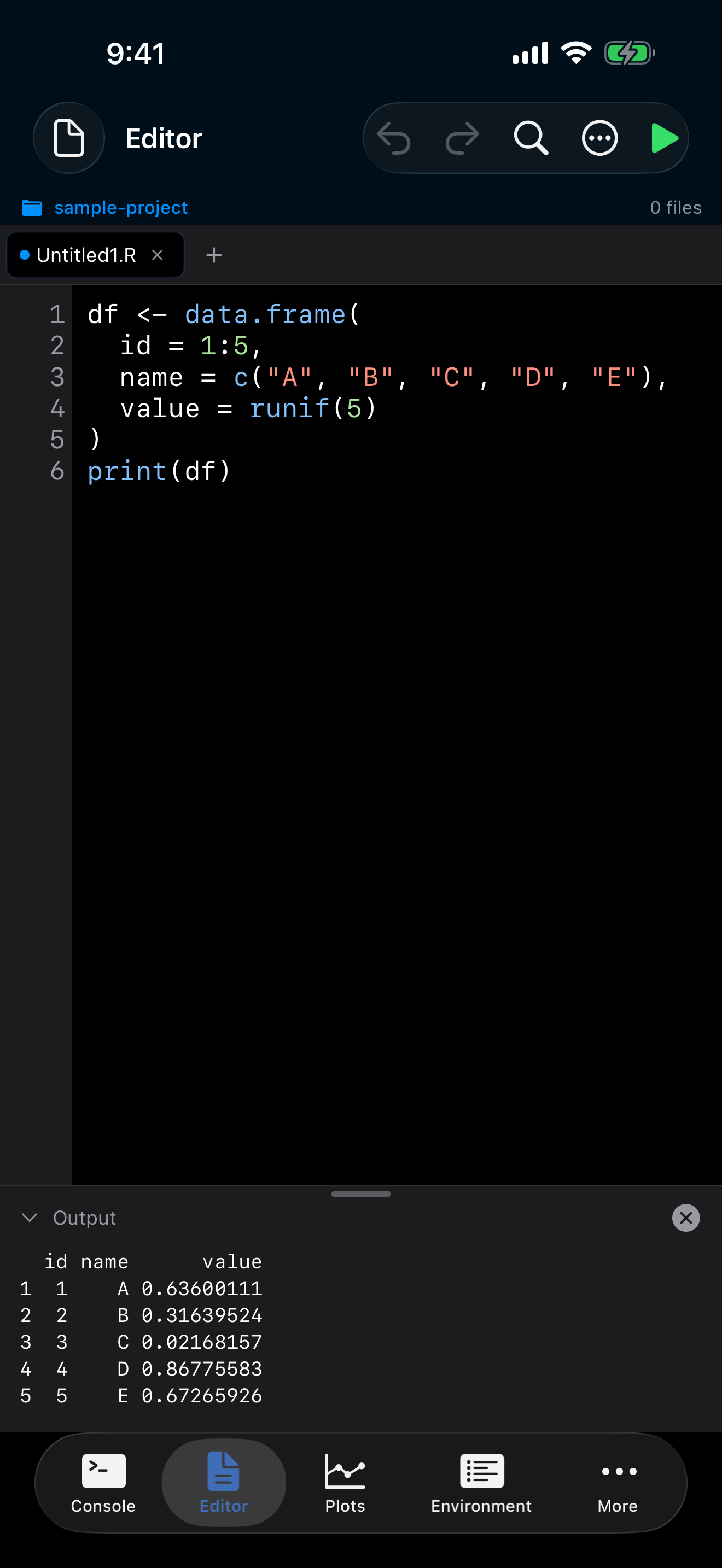
Colors follow light and dark mode, and keep up even in scripts thousands of lines long.
Editor Themes
Nine built-in themes color the whole app as well as your code. Four of them:
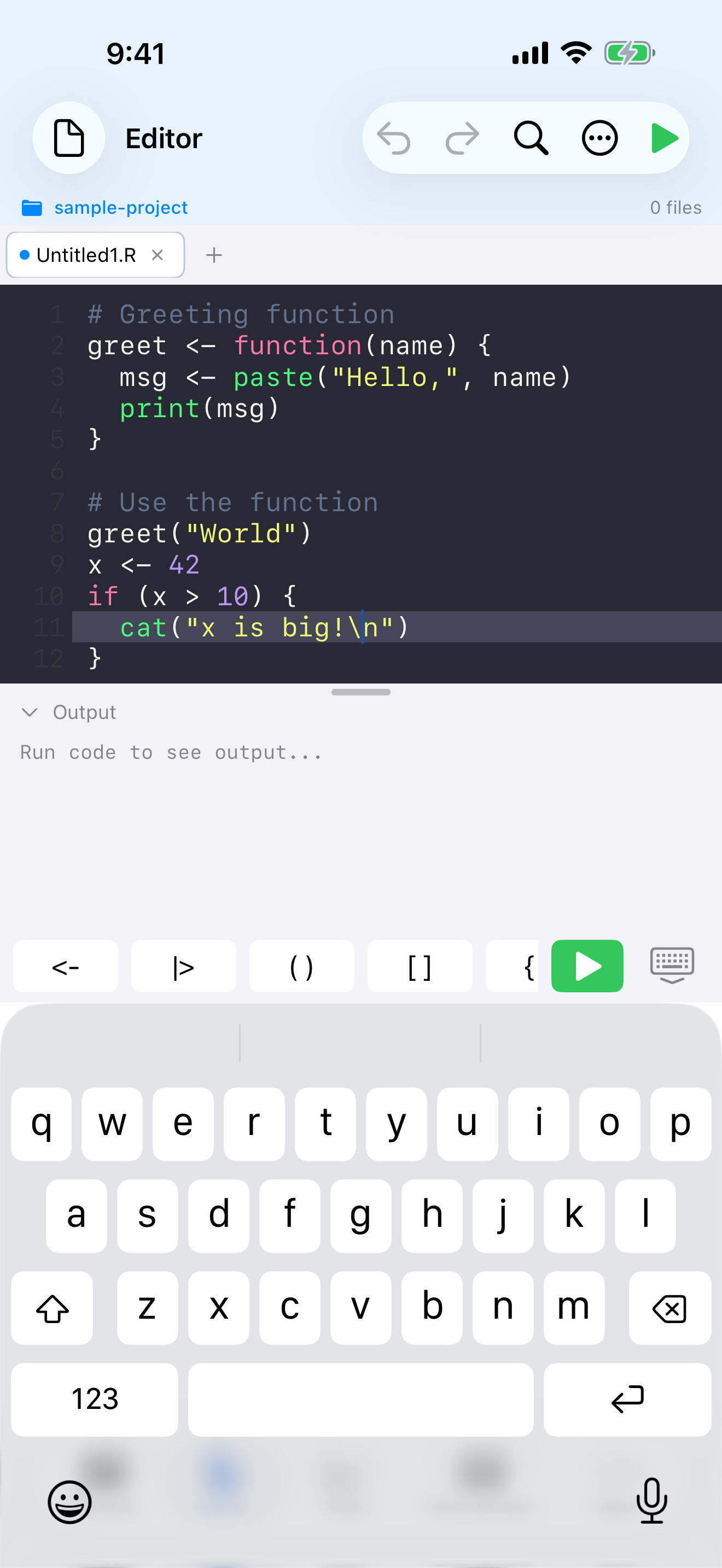
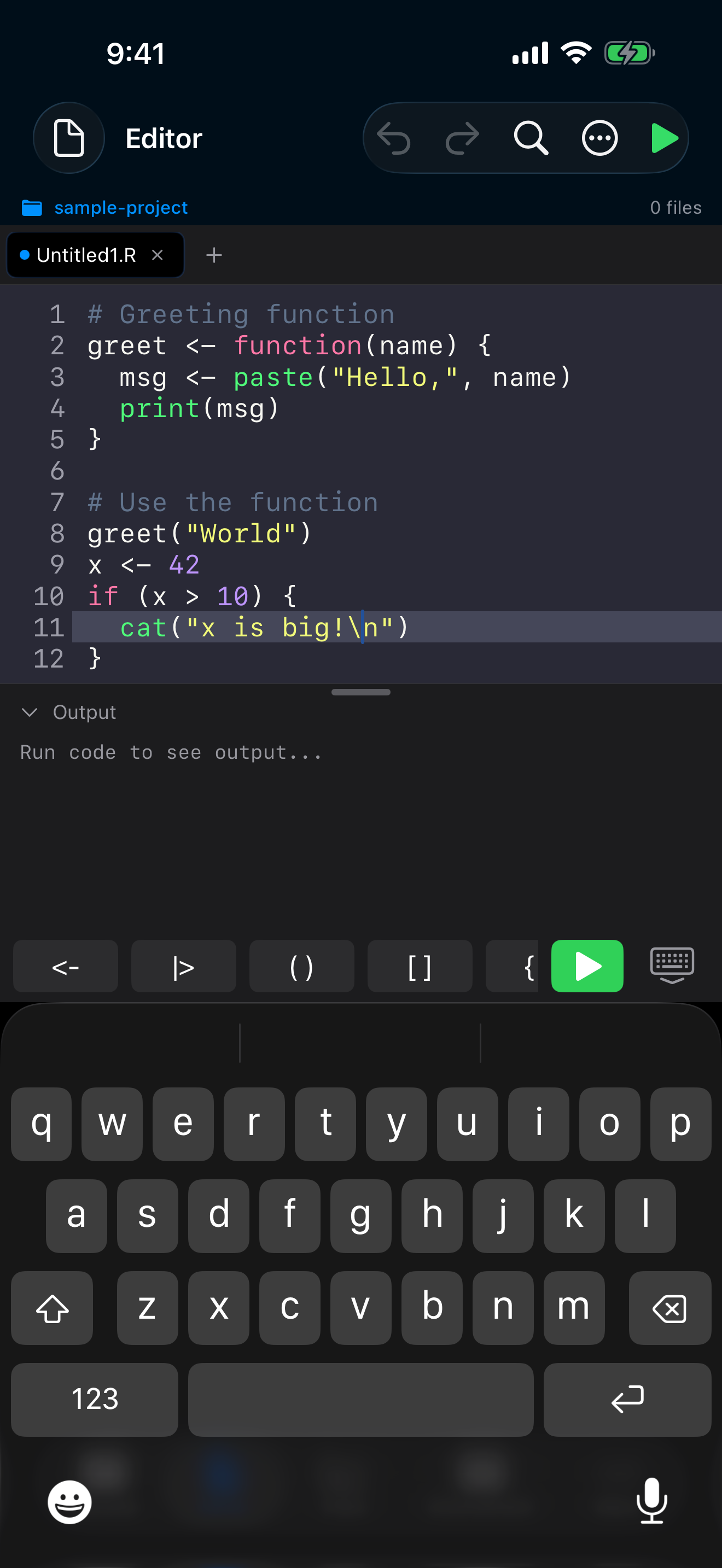
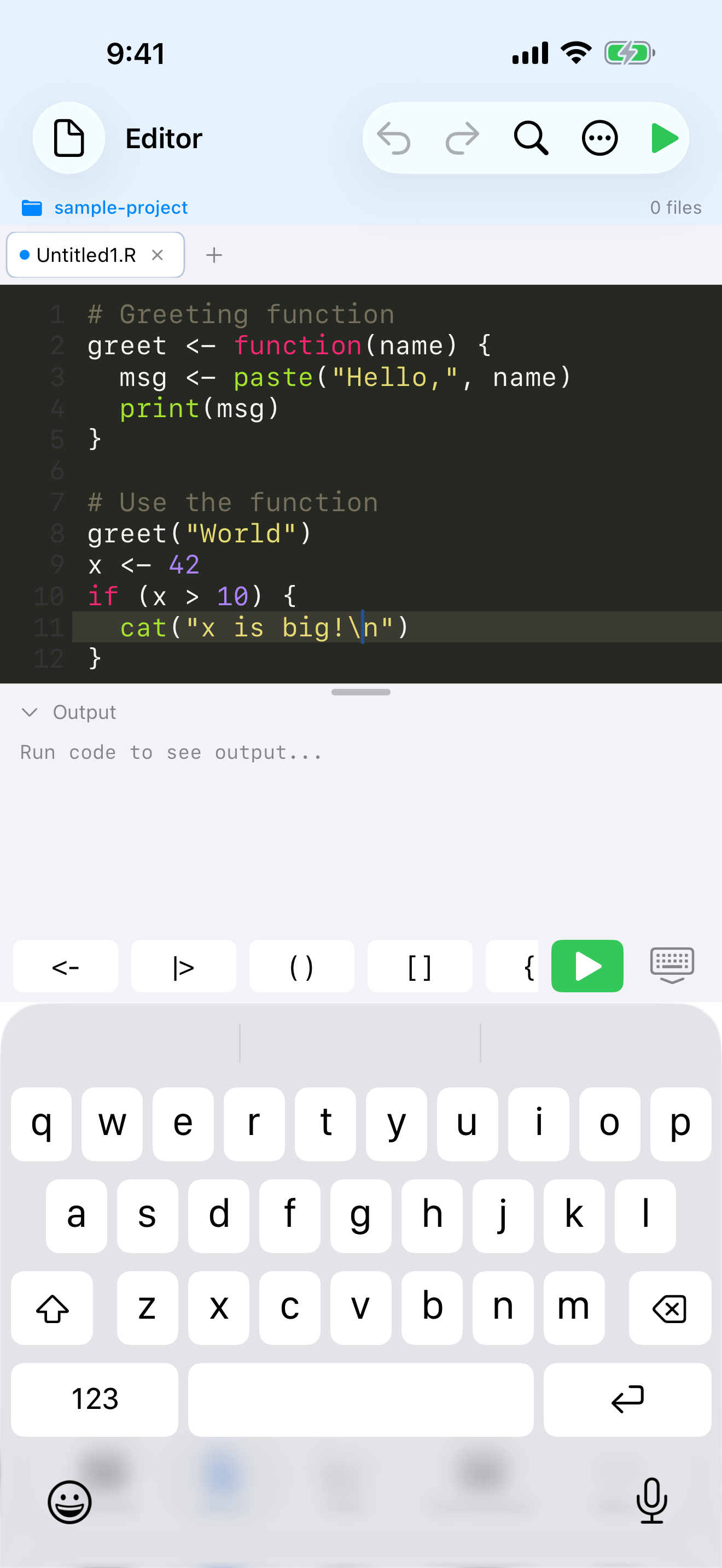
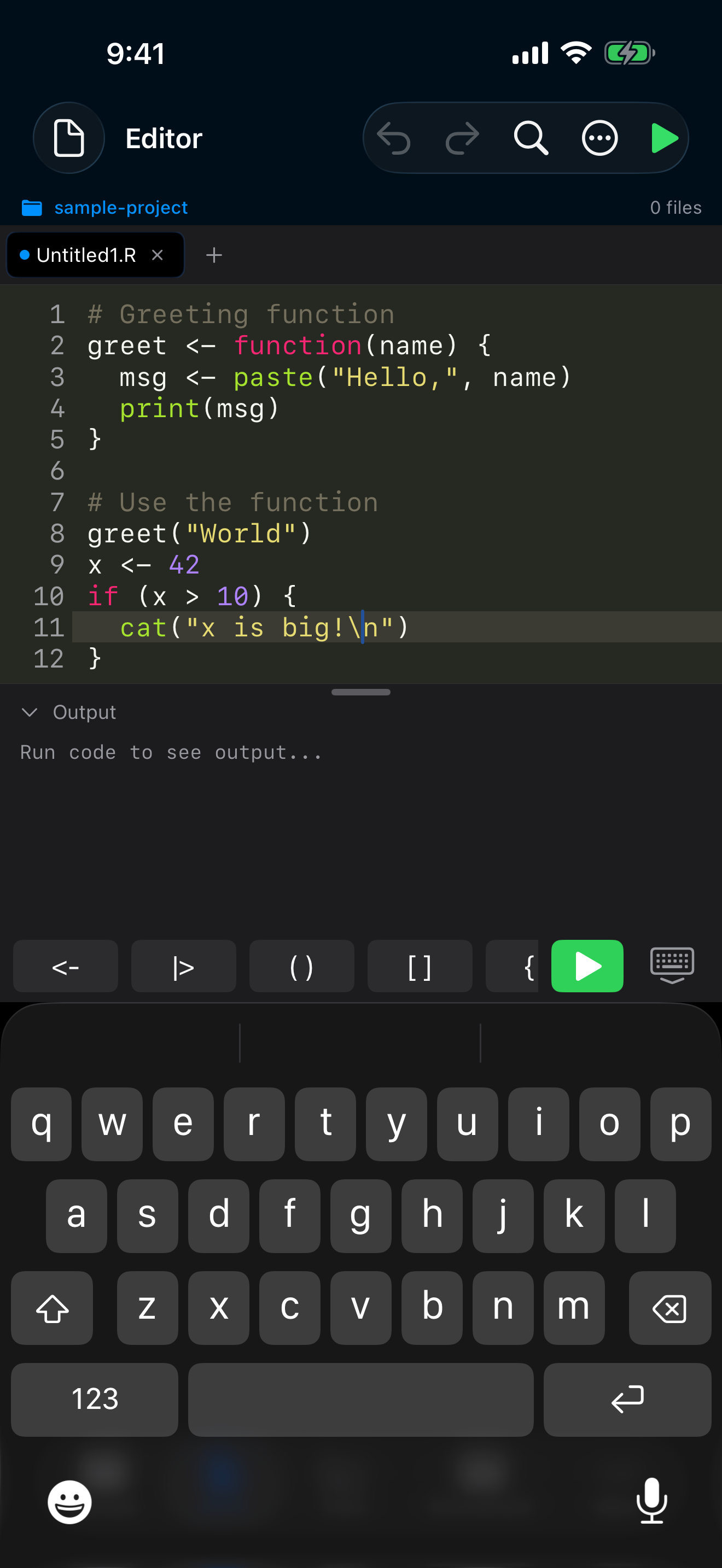
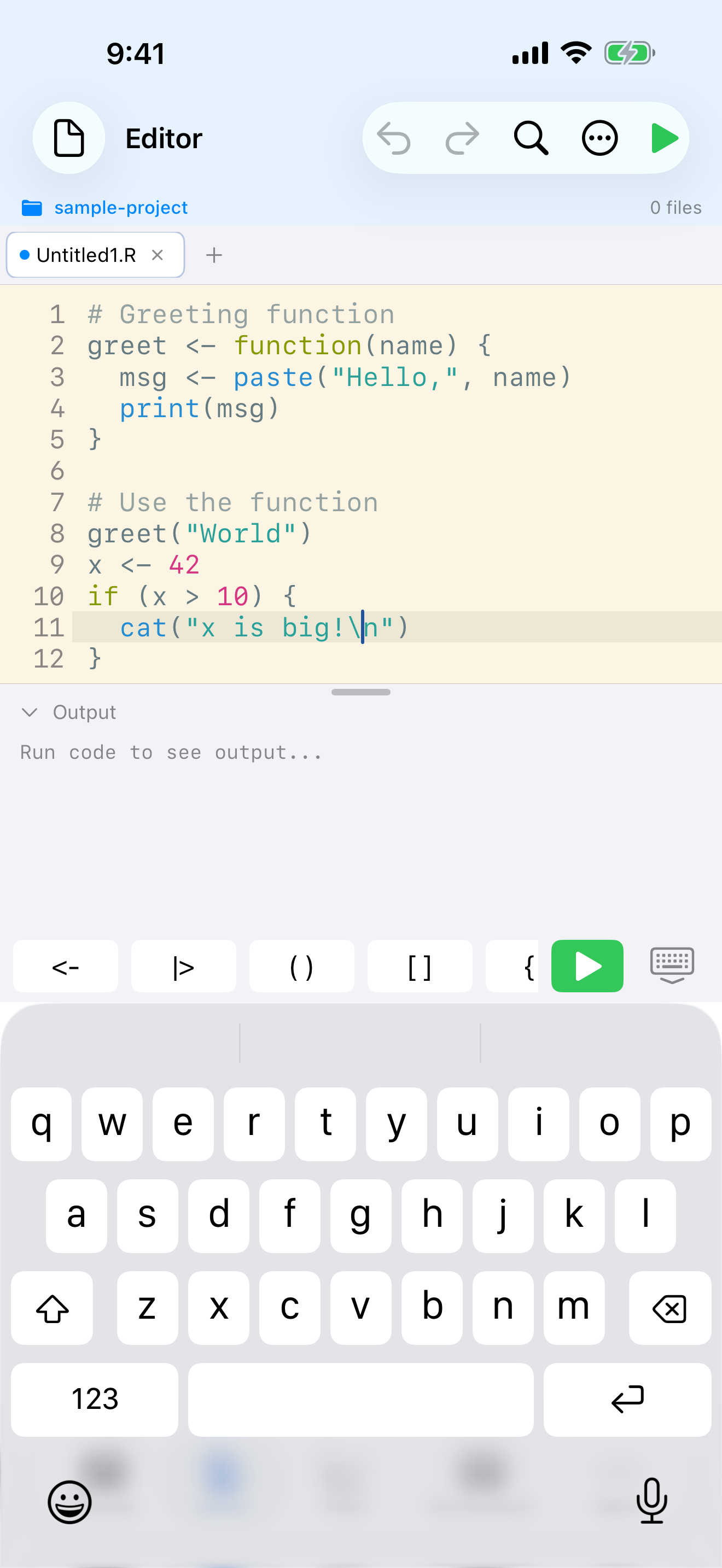
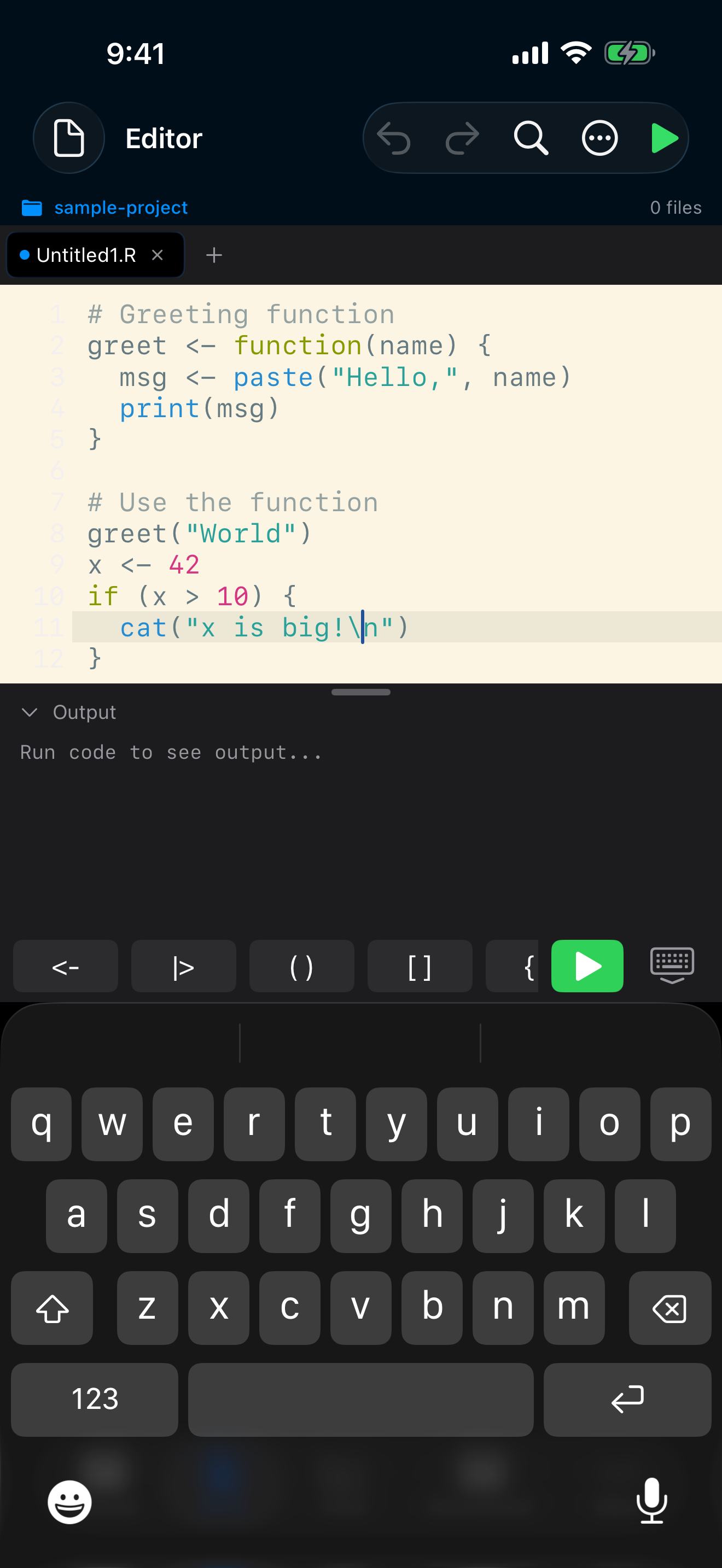
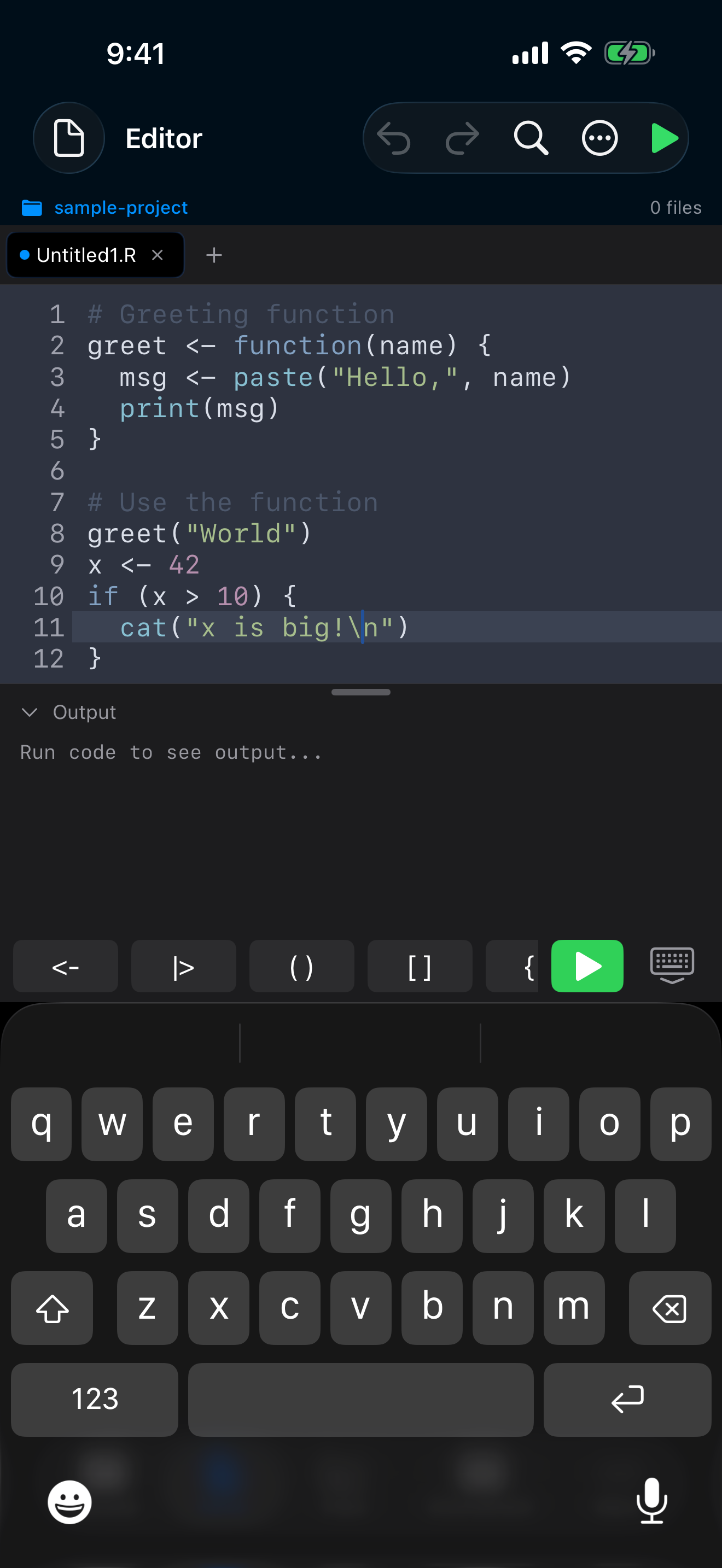
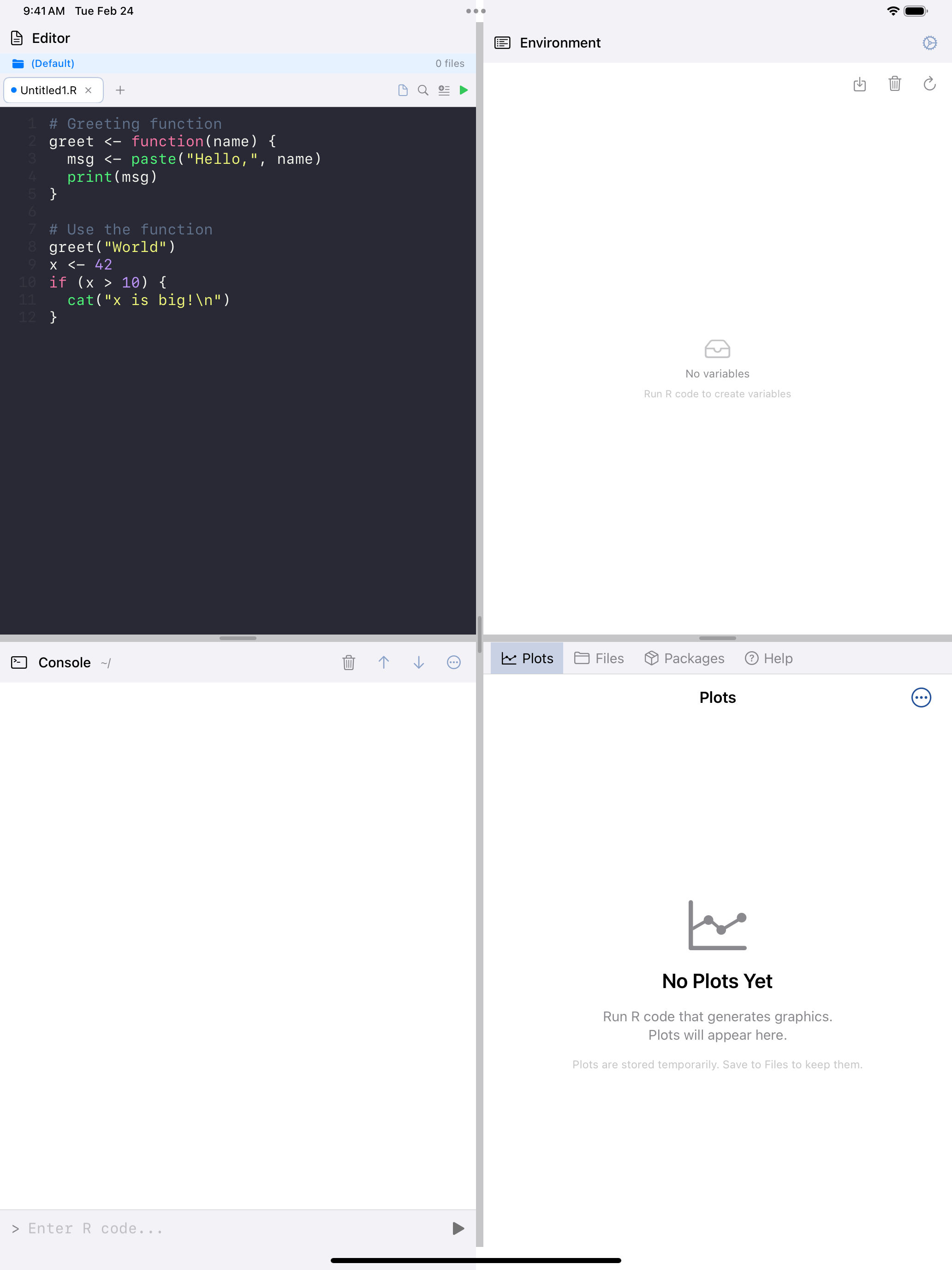
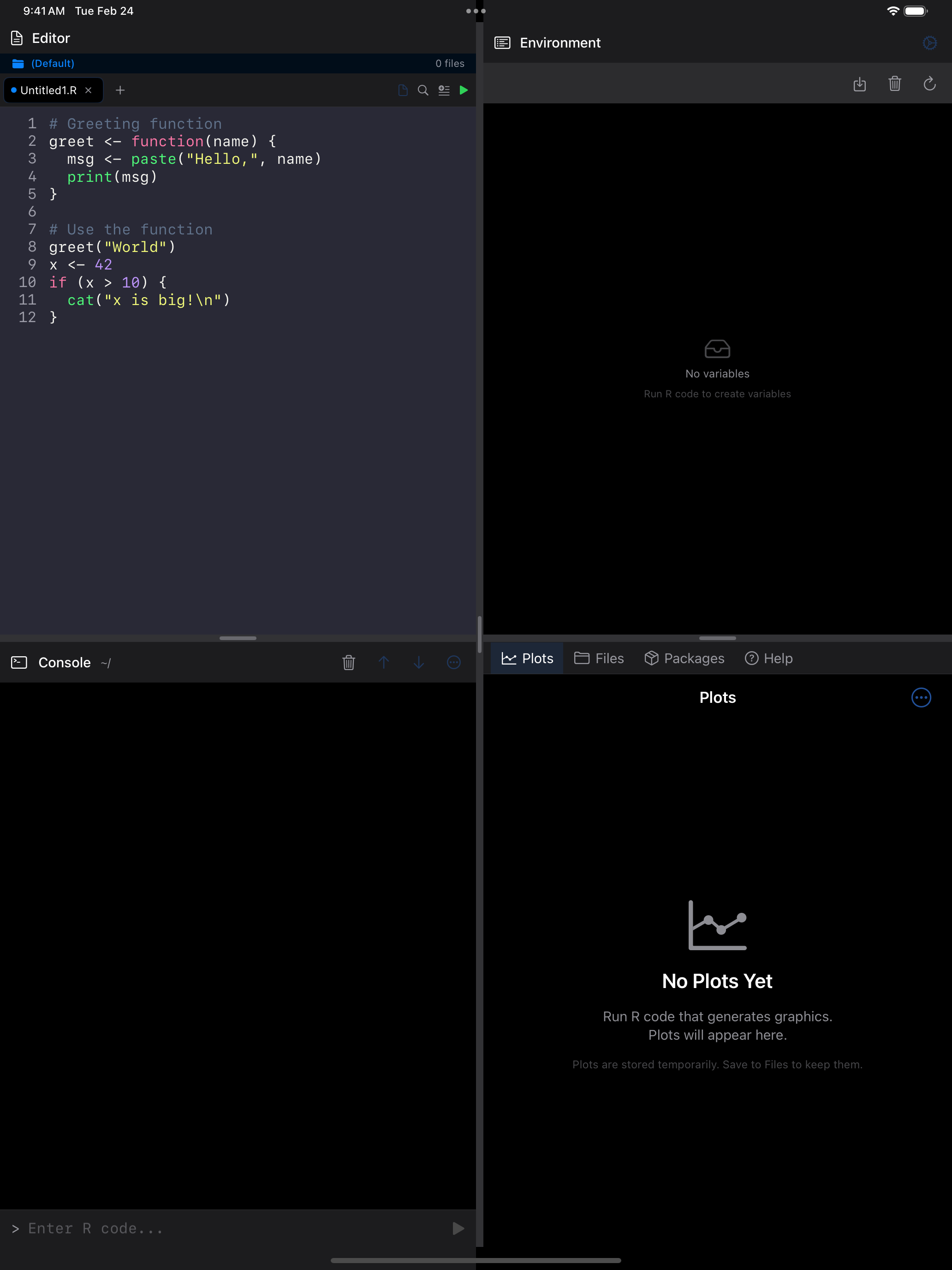
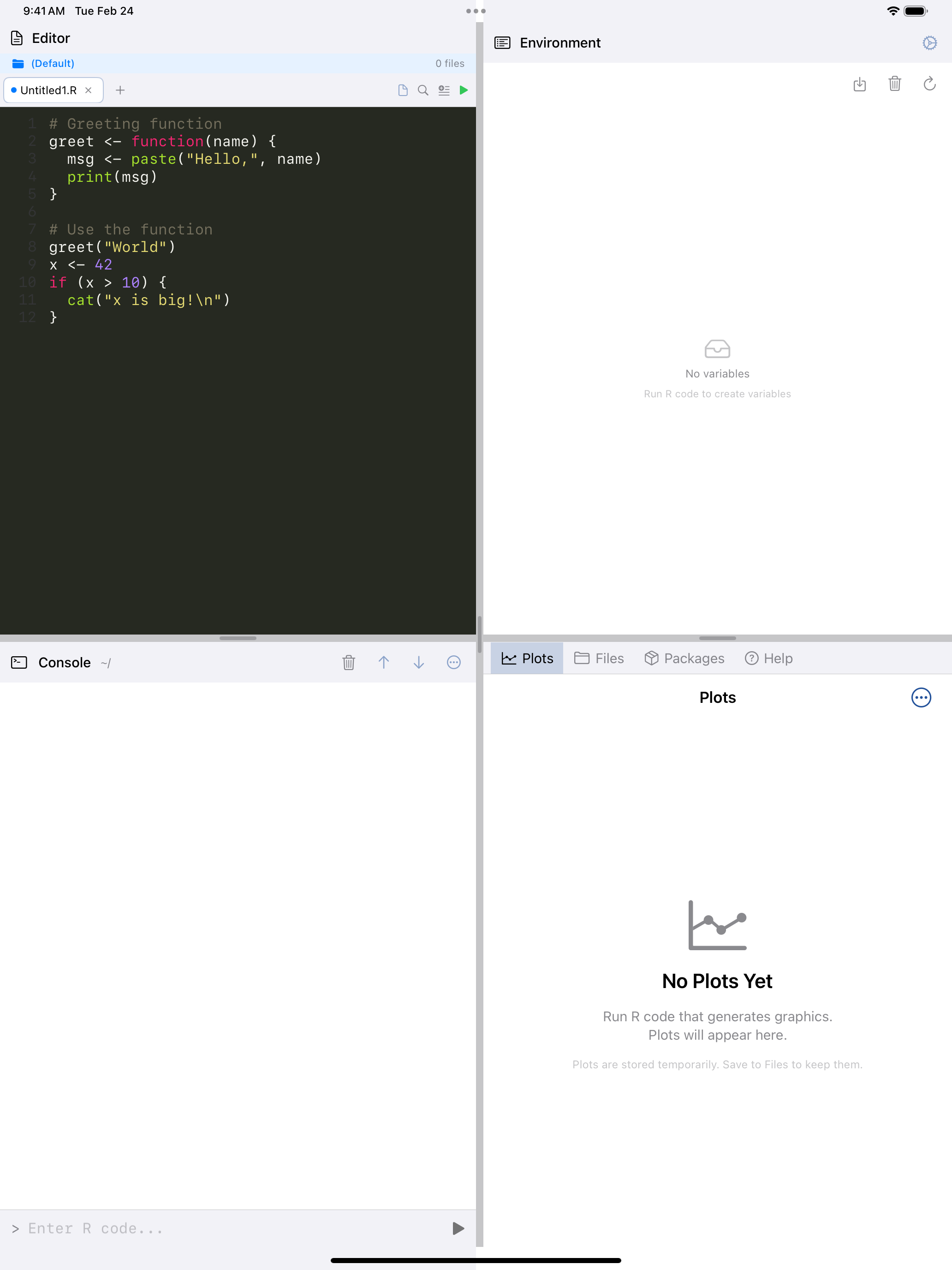
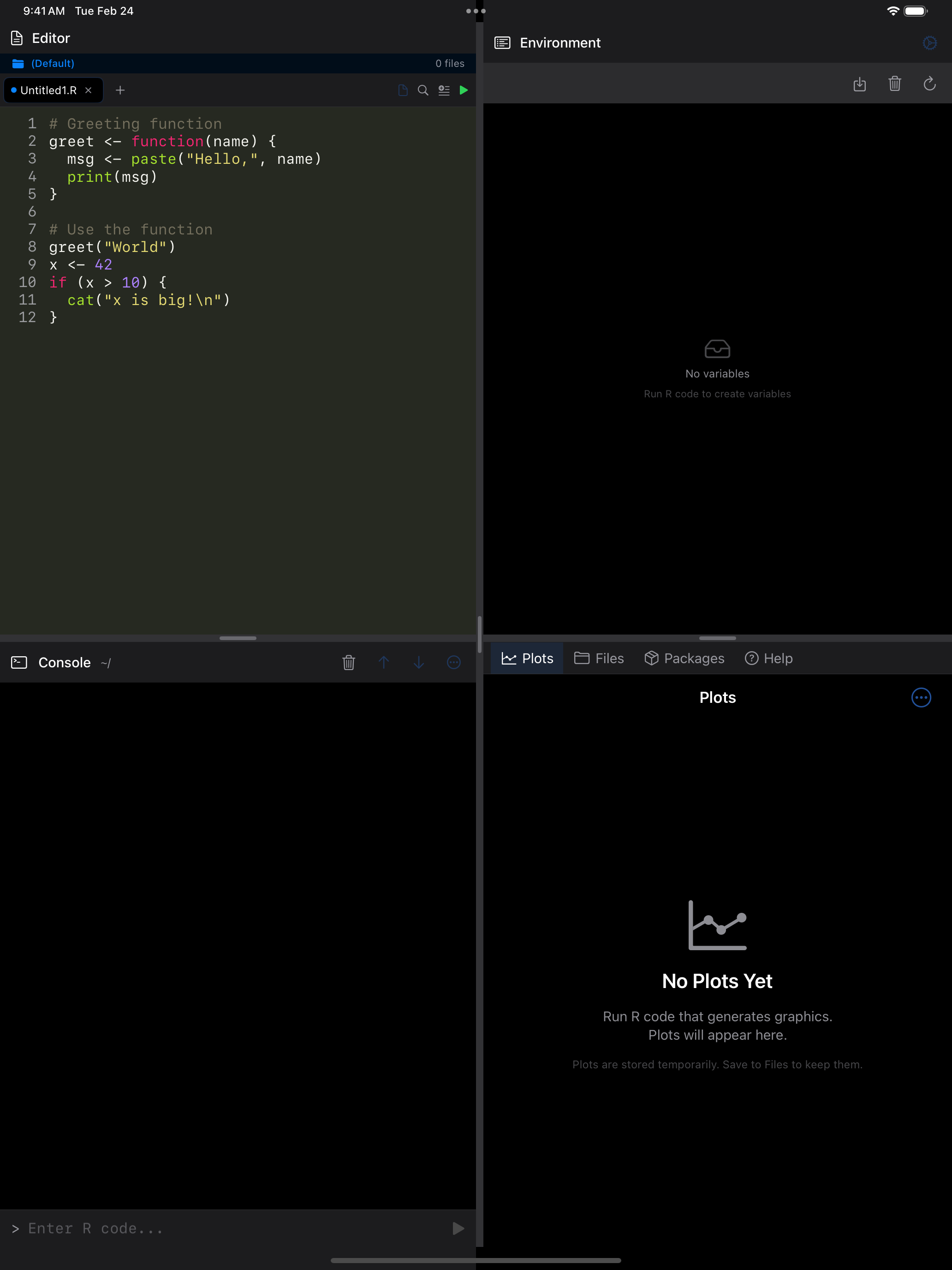
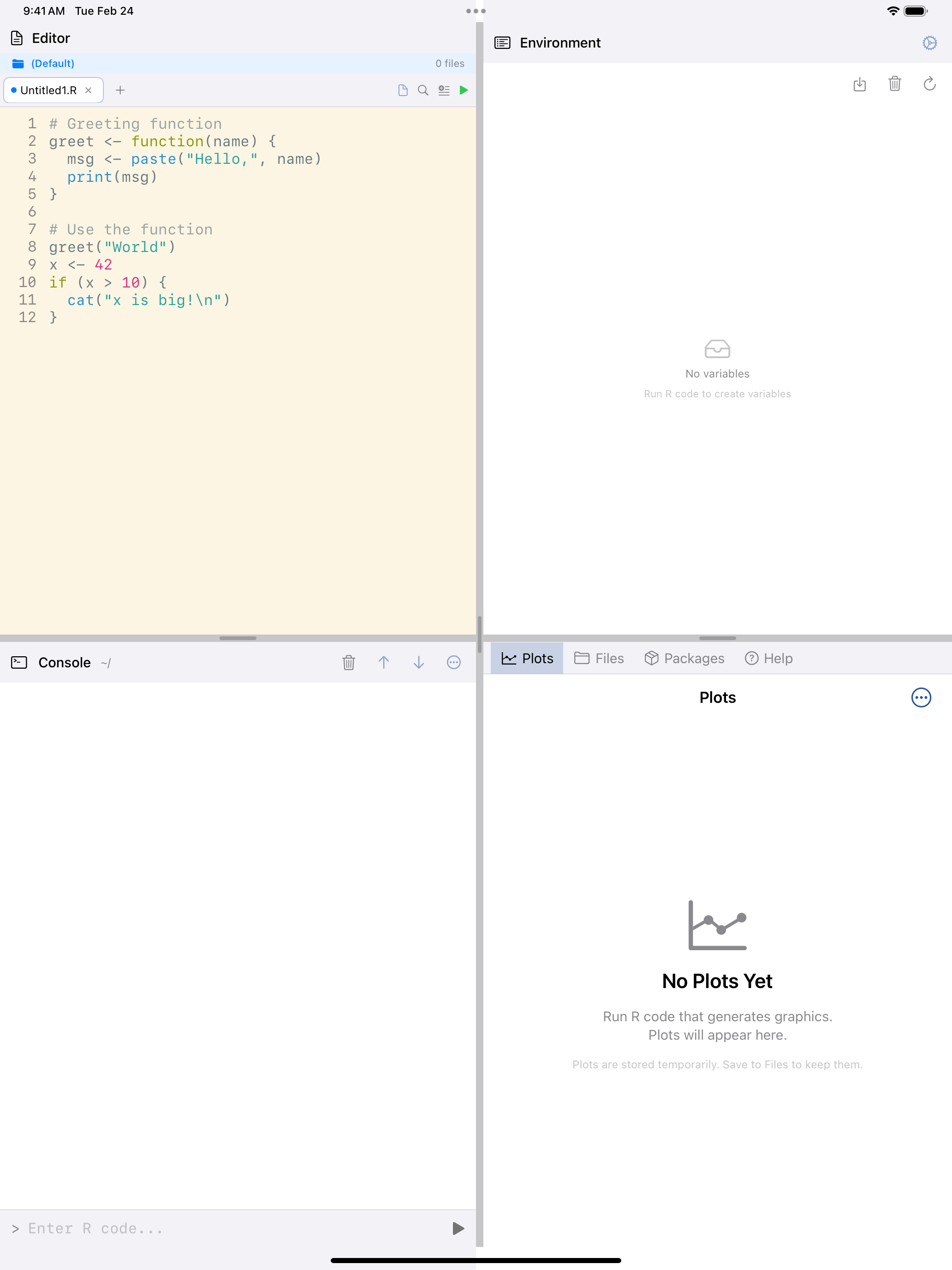
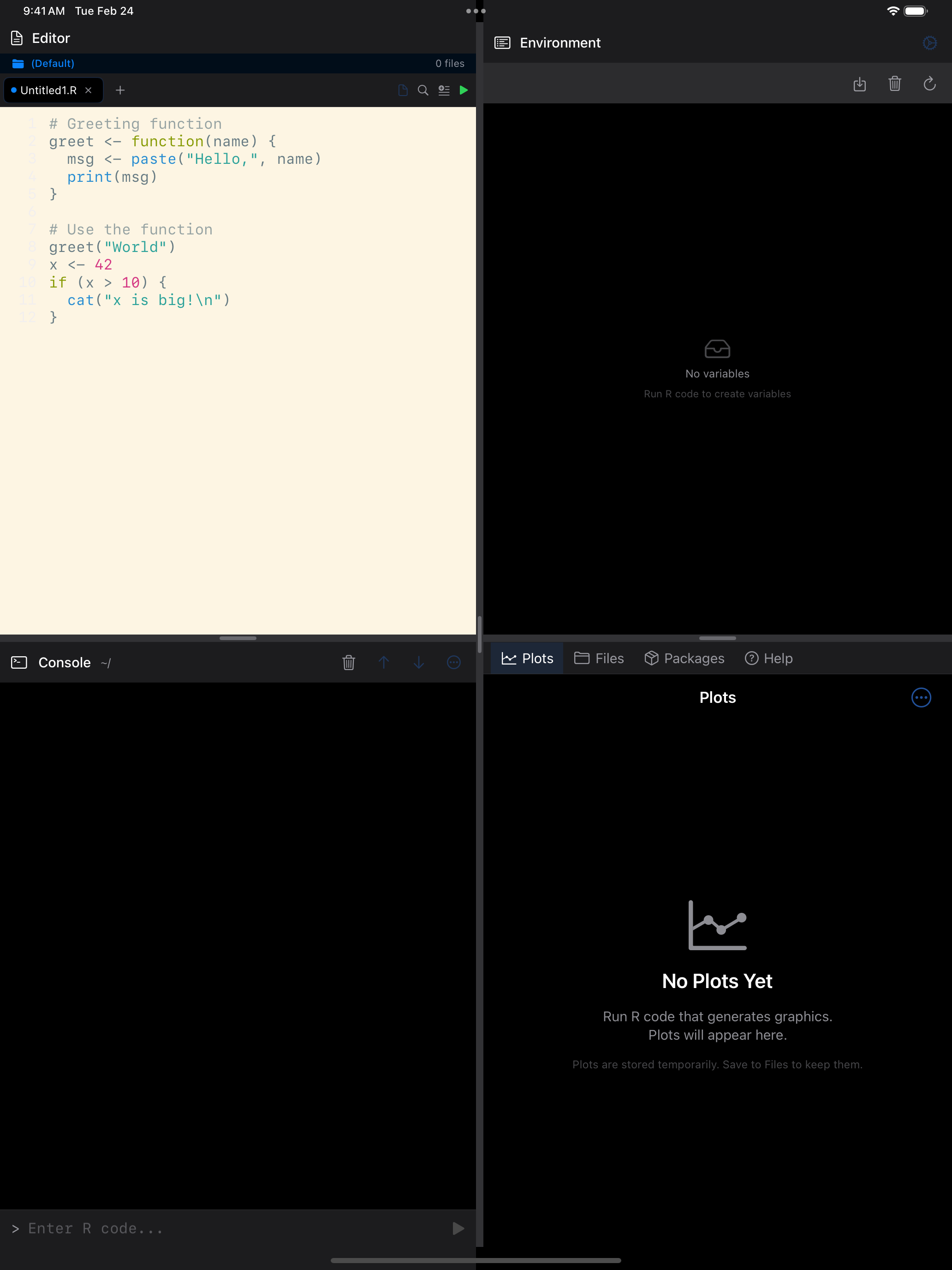
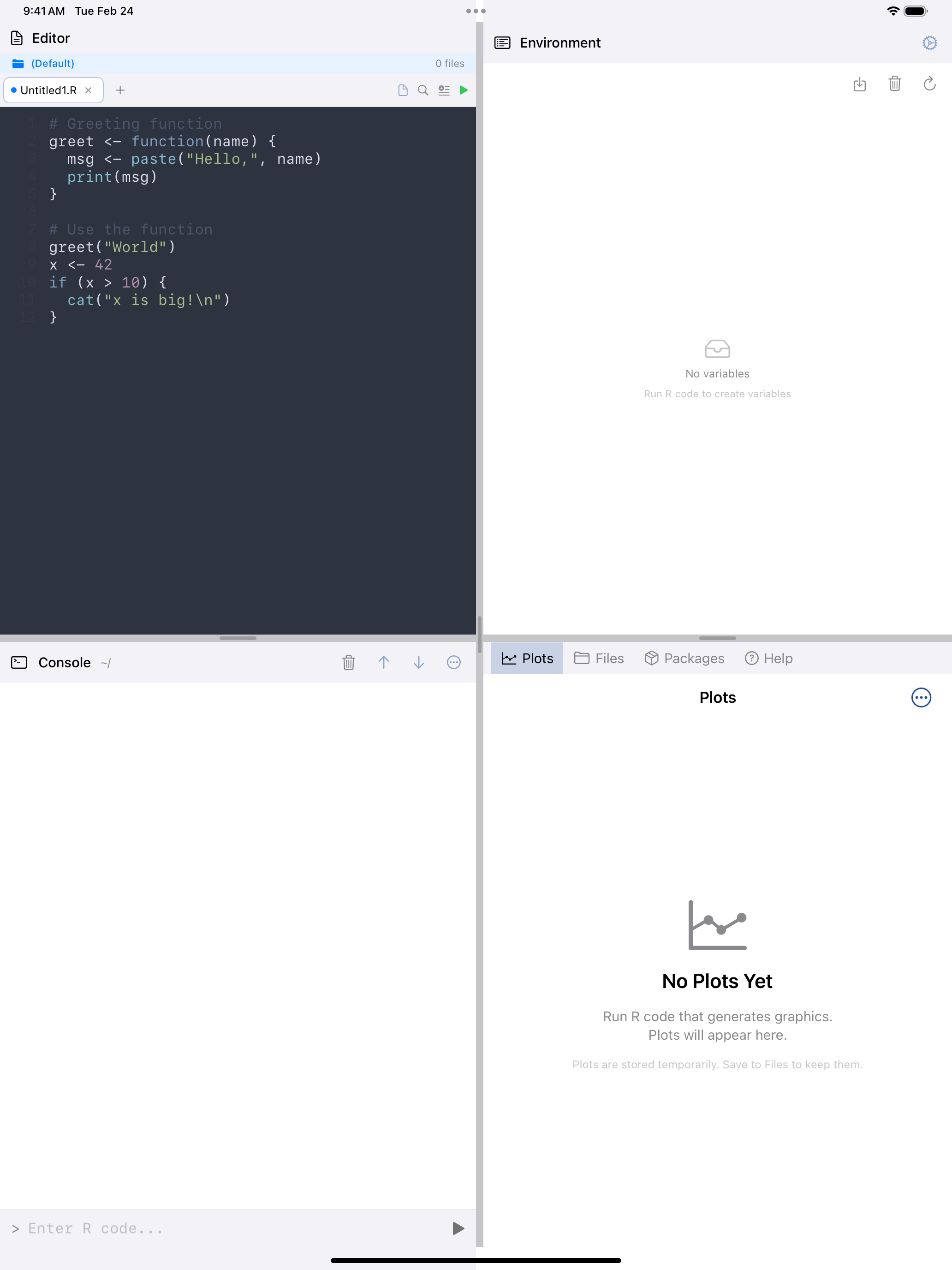
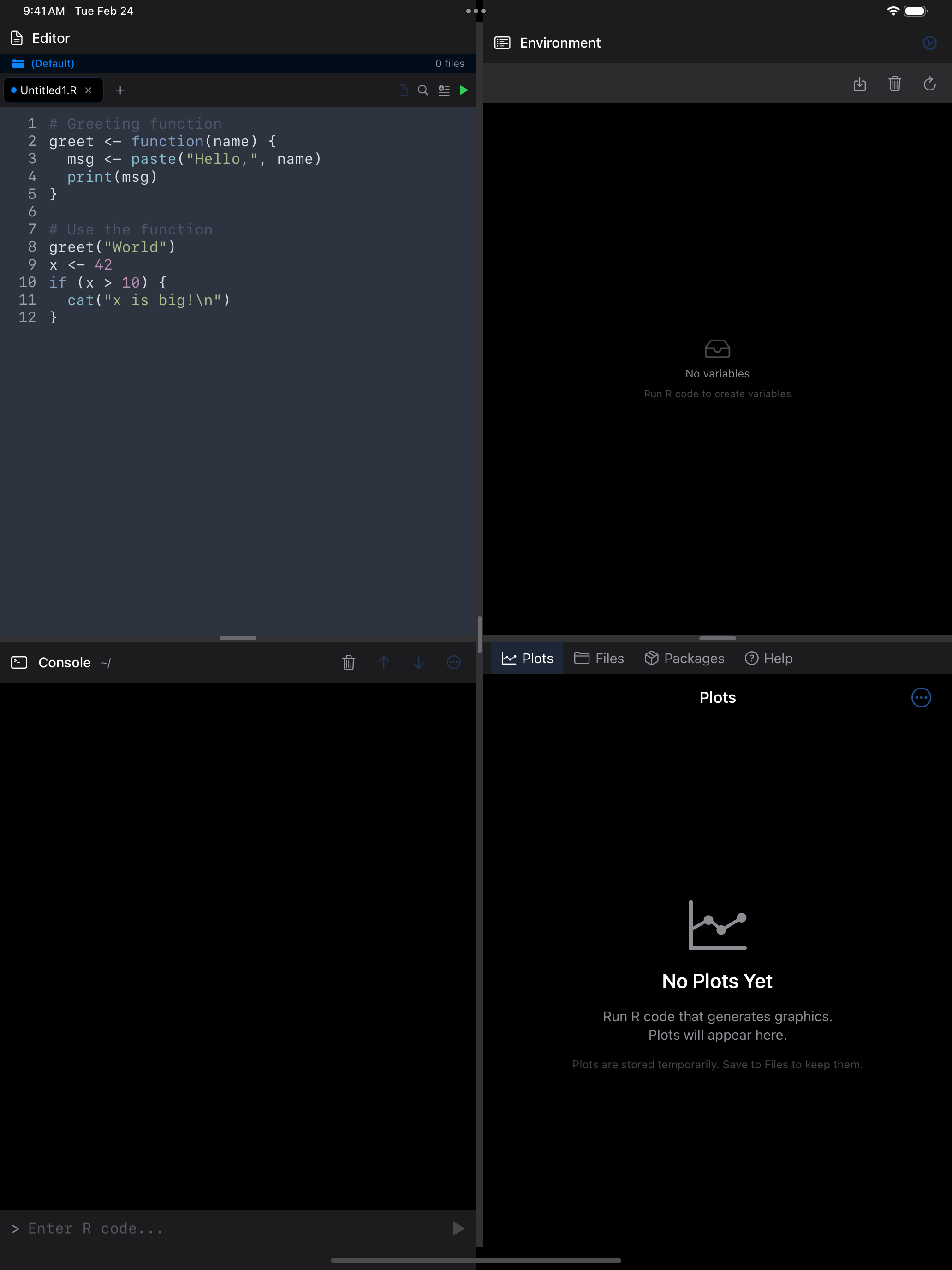
Above: Dracula, Monokai, Solarized Light and Nord. Pick one theme for light mode and one for dark in Settings > Appearance, where you can also create, import and export your own.
Running Your Code
The play button’s color says what it will run:
- Green: nothing is selected, so it runs the whole script.
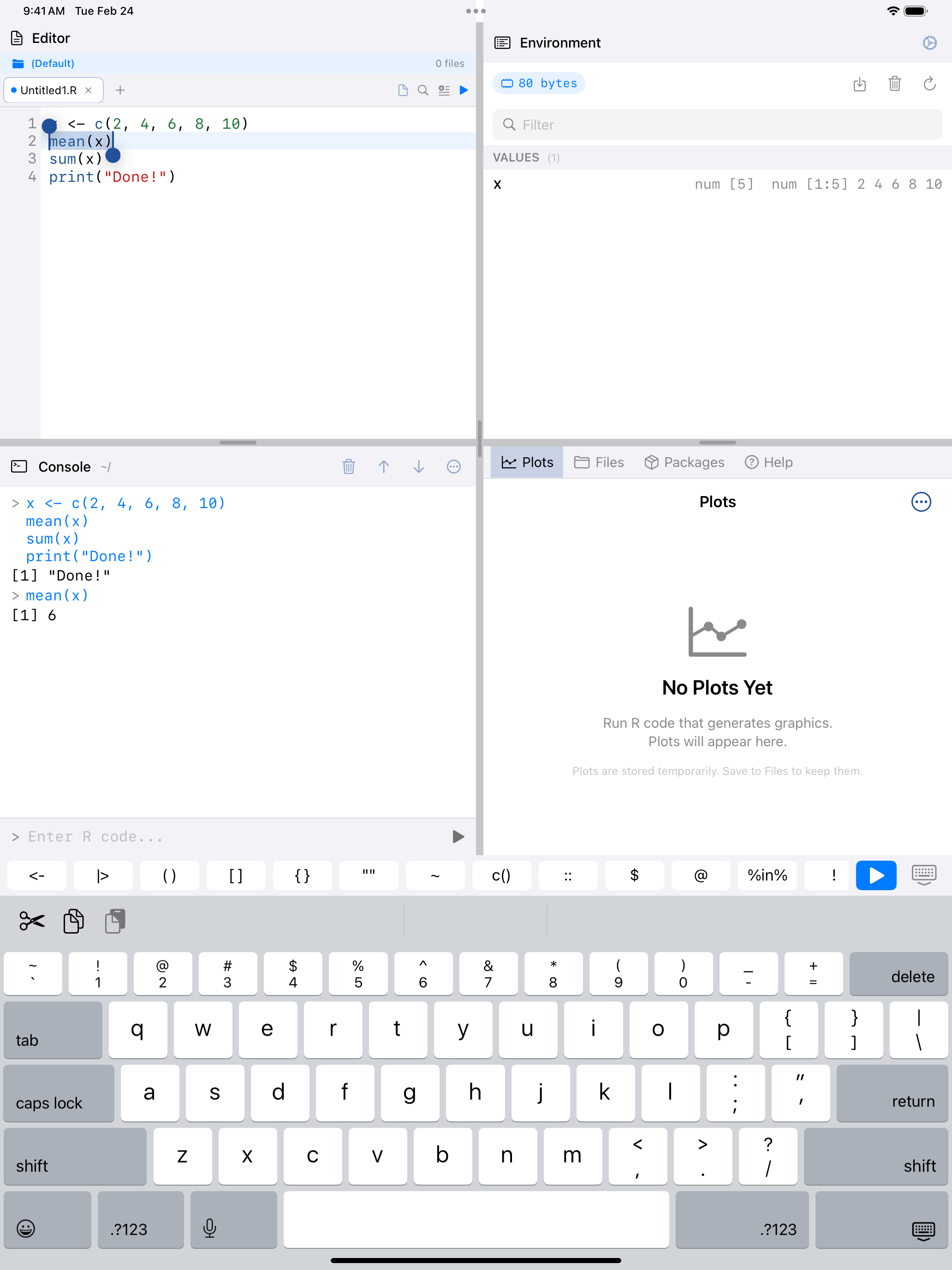
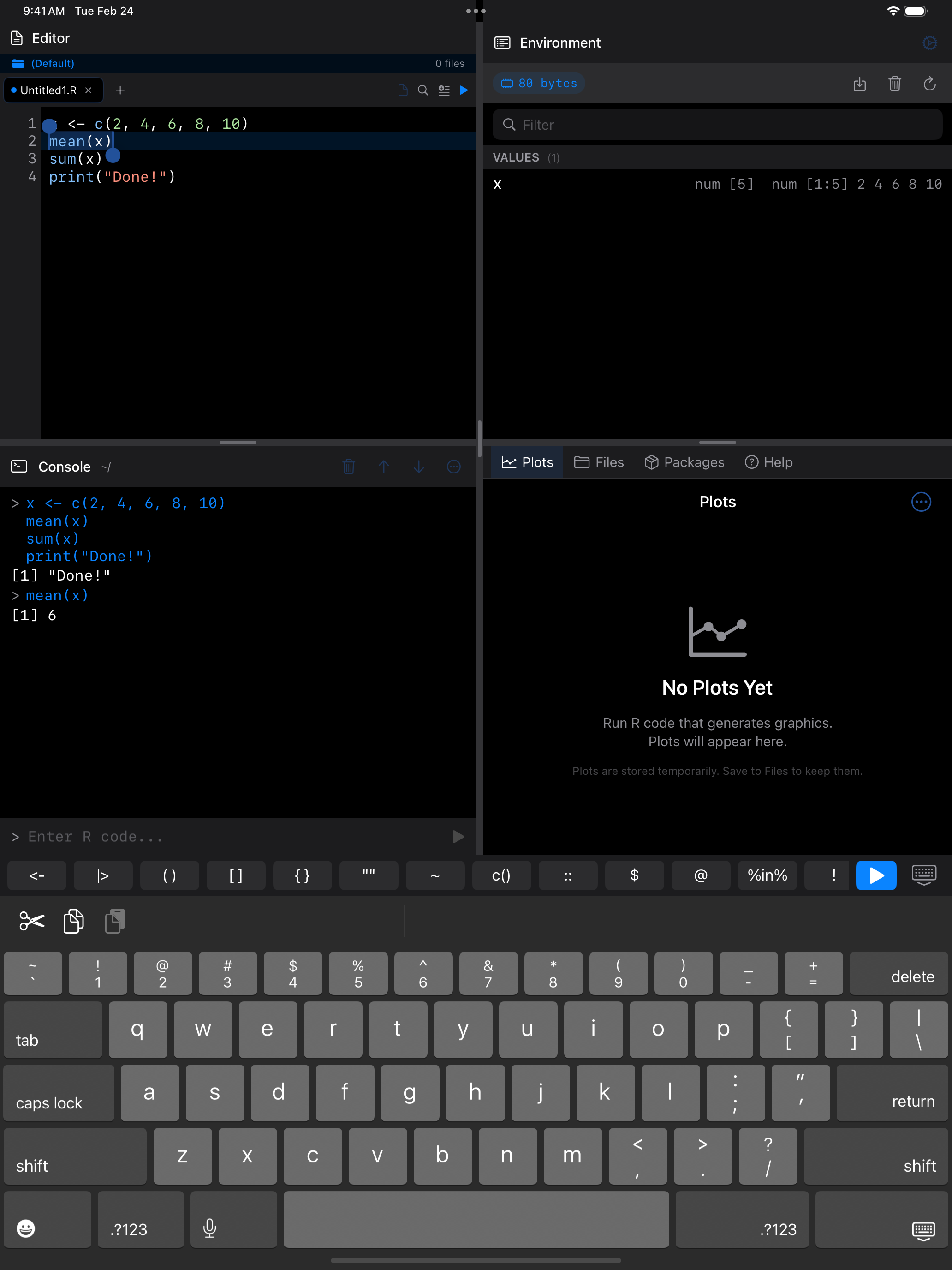
- Blue: it runs only the selected text. Long-press and drag to select.
 1 2
1 2
 1 2
1 2
 1 2
1 2
 1 2
1 2
- Green play button: no text is selected, so tapping runs the entire script
- Output panel: results appear here after execution. Drag the handle to resize
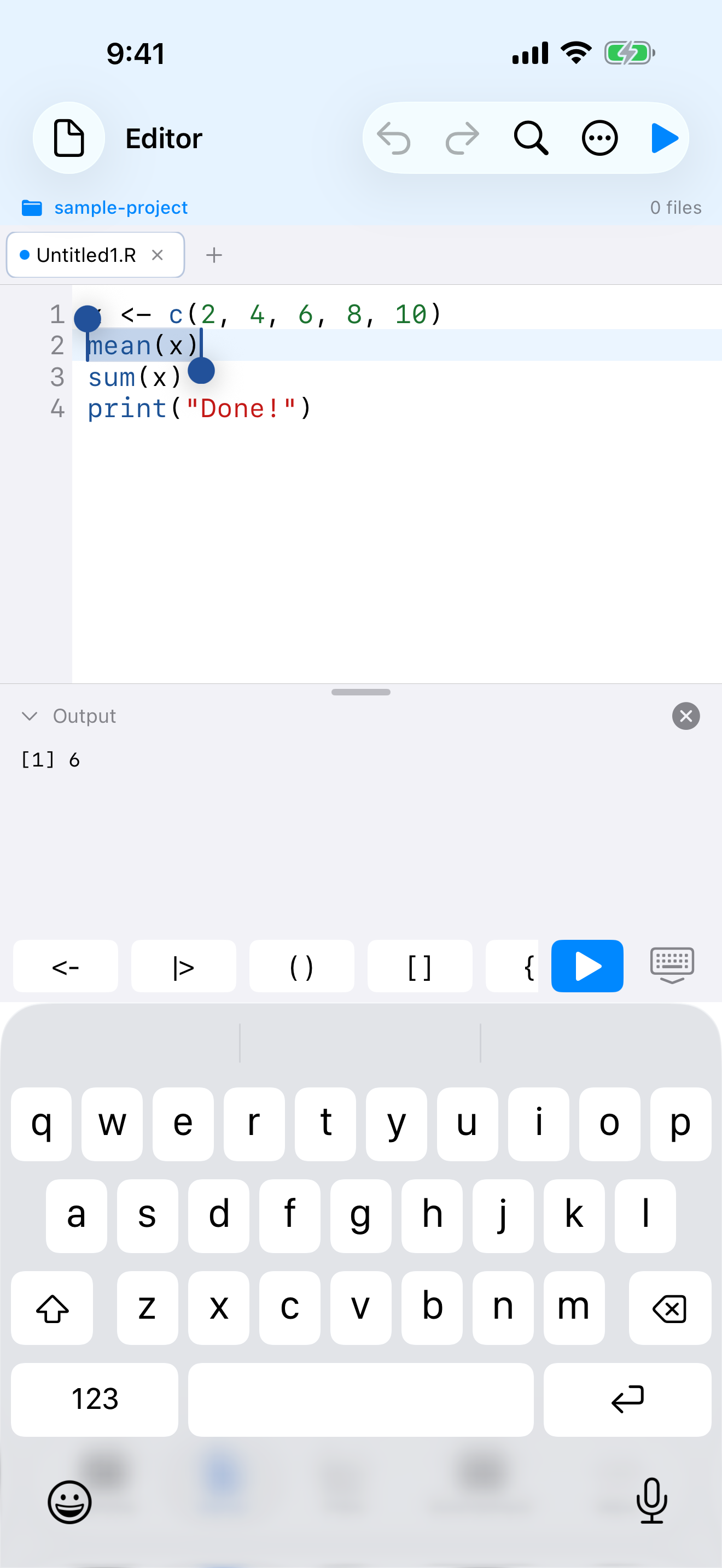
With a selection:
 1 2
1 2
 1 2
1 2
 1 2
1 2
 1 2
1 2
- Blue play button: text is selected, so tapping runs only the selection
- Selected text: the highlighted code that will be executed
Output appears in the Output panel at the bottom. Drag its handle to resize it, tap the chevron to collapse it, or double-tap the divider to toggle it.
To find where a script goes wrong, run it a section at a time.
Running one statement at a time
With a keyboard, Cmd+Return runs the selection or, with nothing selected, the whole statement on the cursor’s line, as RStudio does. On the first line of a call written over several lines, it runs the whole call. Inside a loop or function body it runs that line’s statement, so you can step through the body; on the line with the for, the function or a brace, it runs the whole block. A comment line runs by itself; a blank line runs nothing.
The cursor then moves to the next statement, past blanks and comments, so pressing Cmd+Return again walks the script a statement at a time. A selection stays selected. While R is busy it runs nothing and the cursor stays put. On iPad it is also Run > Run Line or Selection in the menu bar.
A plot() and the abline(), legend() or grid() after it are separate statements: run one at a time, the second reports “plot.new has not been called yet”. Select them together, or use Run All.
How a script runs
A run sends the script, or the selection, to R as one piece, as source() would, and R prints every visible result in order. So:
- A plot and the calls that add to it, such as
abline(),legend()orpar(mfrow = ...), draw on one plot, blank lines or not. - The run stops at the first error, and a syntax error points at the line you wrote.
- In the iPad 4-Pane Workspace, the script is echoed in the Console pane as one block and logged in History as one entry. Anything half-typed in the Console stays.
Scripts with Windows (CRLF) line endings run as they are; the file keeps its line endings.
Stopping a run
While R runs, the Run button becomes Stop. Tap it, or press Cmd+., and R stops where it is, variables kept. A long run, or a step that can’t be interrupted at once, brings the Console’s banner between the script and its output, with Restart R. Long means over a minute, unless you change it in Settings > R Session > Suggest Stopping After.
Example scripts
Examples, in the document icon’s menu, opens one of three built-in scripts (Getting Started, Data Analysis, Plotting) as an unsaved copy. At the default text size their lines don’t wrap on any iPhone, and Cmd+Return steps through them.
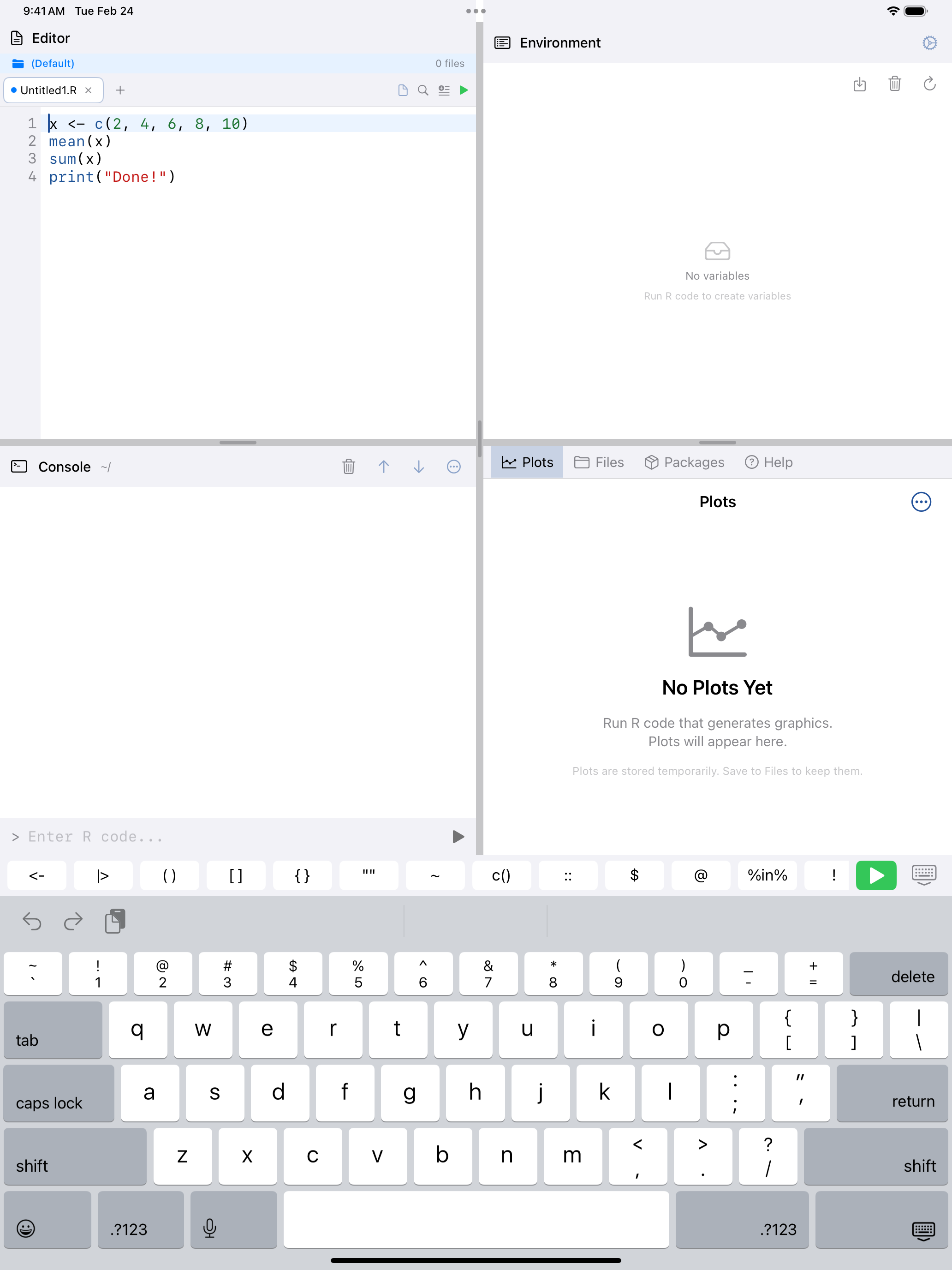
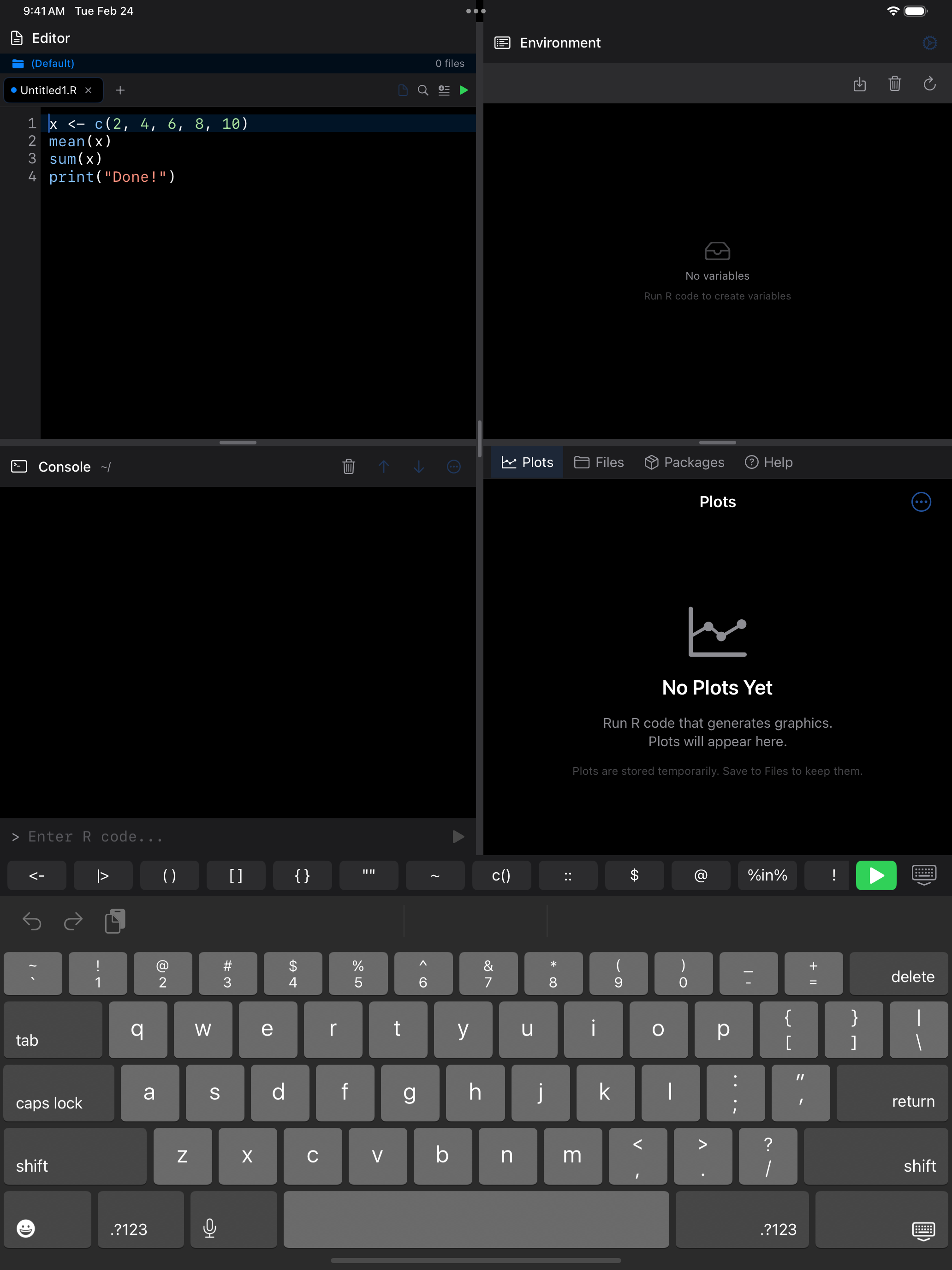
The R Keyboard Toolbar
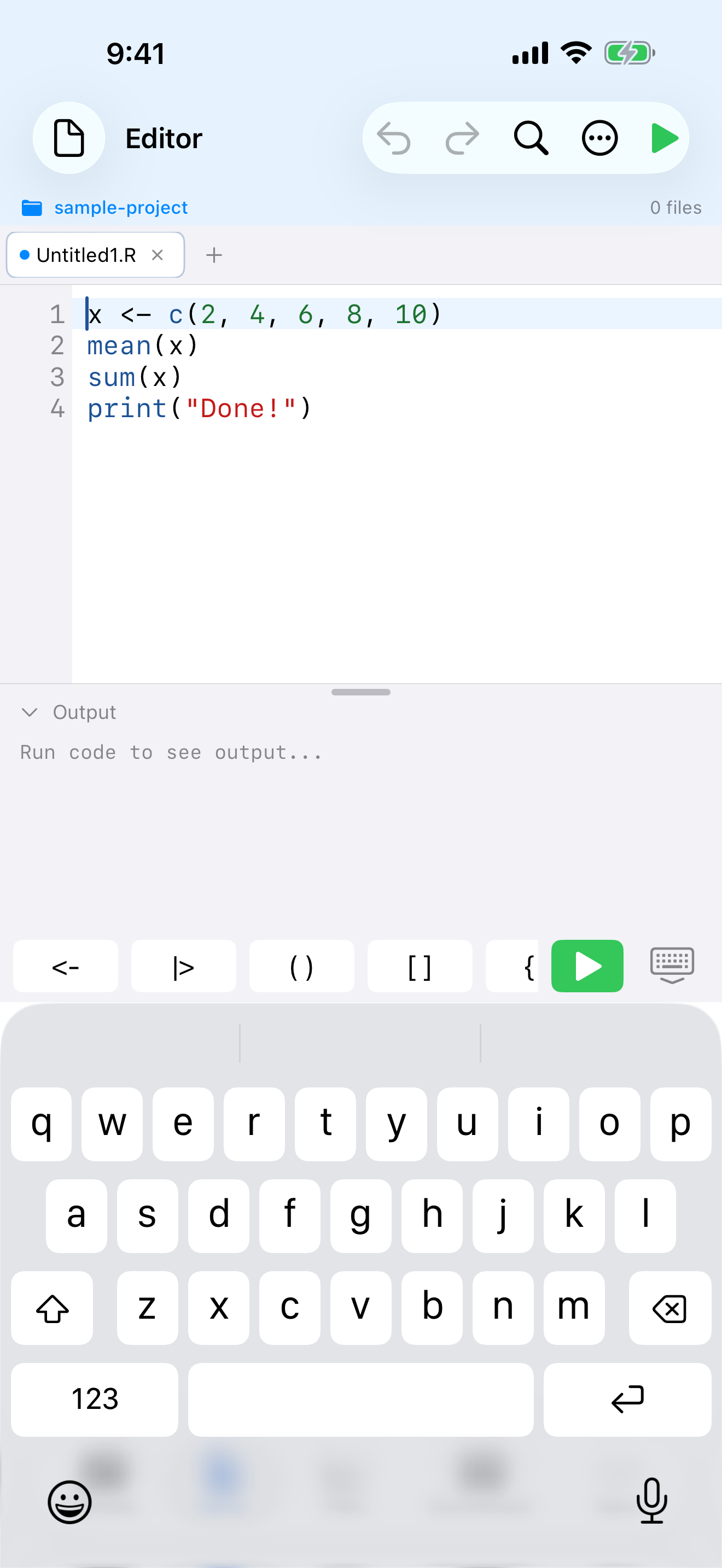
The Editor has the Console’s toolbar of R operators above the keyboard, so <-, |>, brackets and the rest are one tap away.
 1 2
1 2
 1 2
1 2
 1 2
1 2
 1 2
1 2
- R operator buttons: scrollable row of
<-,|>,(),[],{},"",~,c(),::,$,@,%in%,!,&,|,# - Dismiss keyboard: hides the keyboard so you can see more of your code
Tabs and File Management
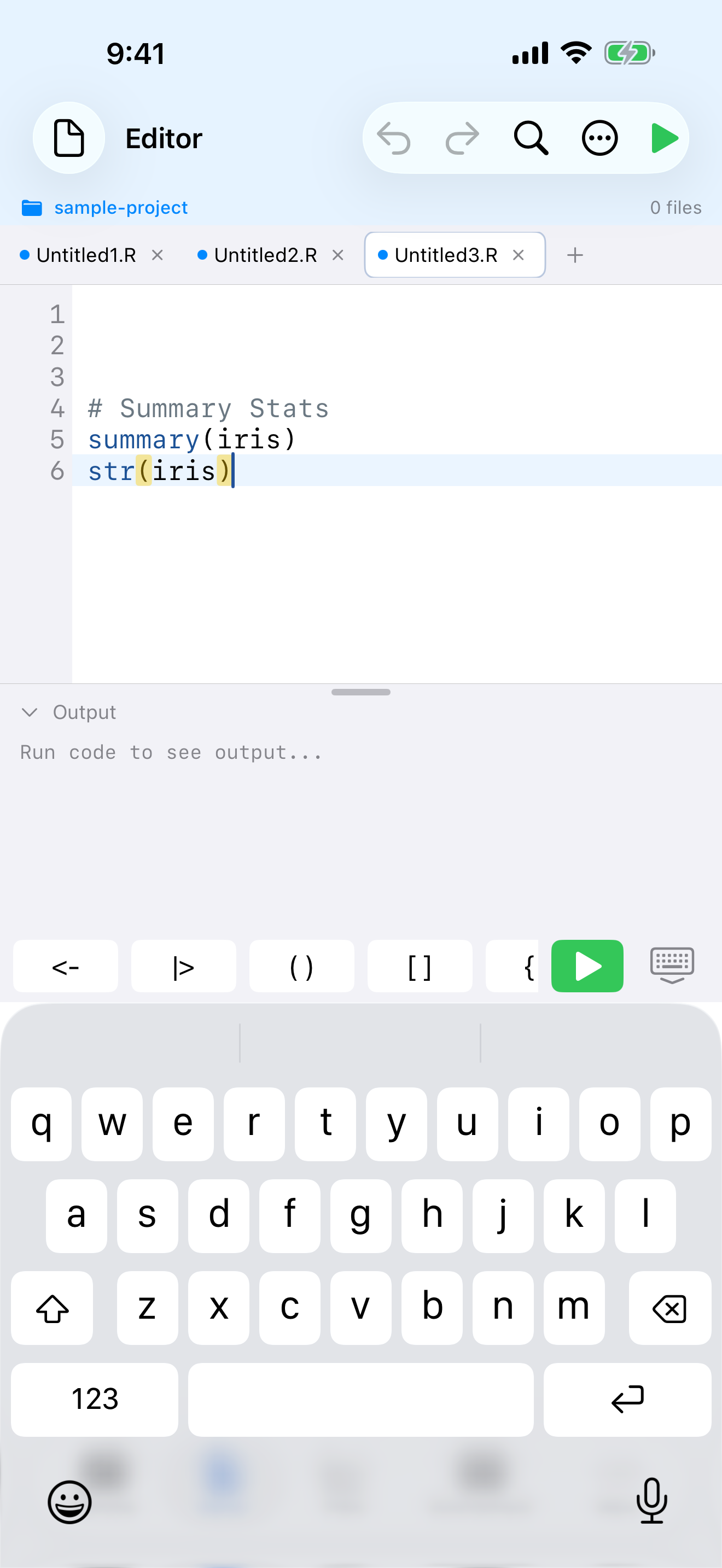
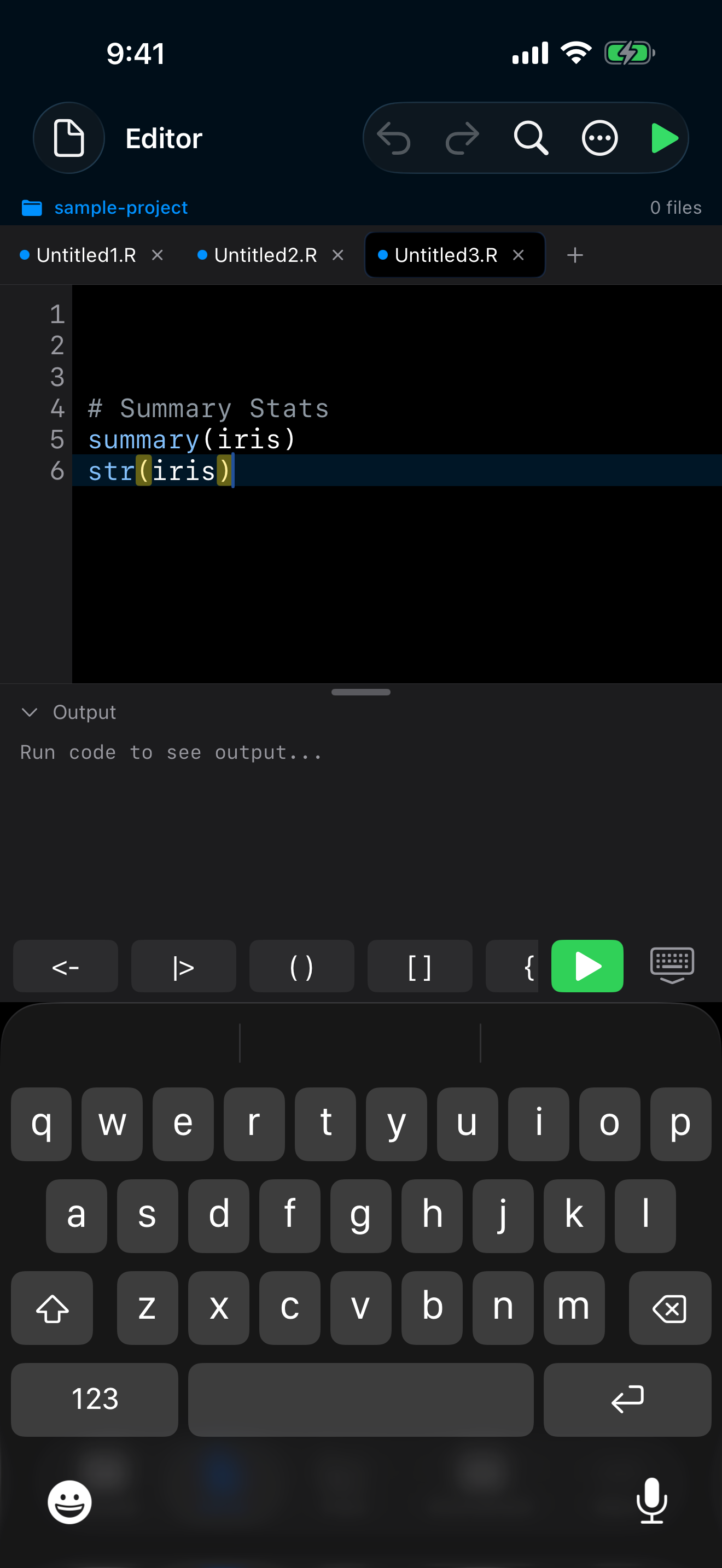
Open files sit in tabs along the top:
 1 2 3 4
 1 2 3 4
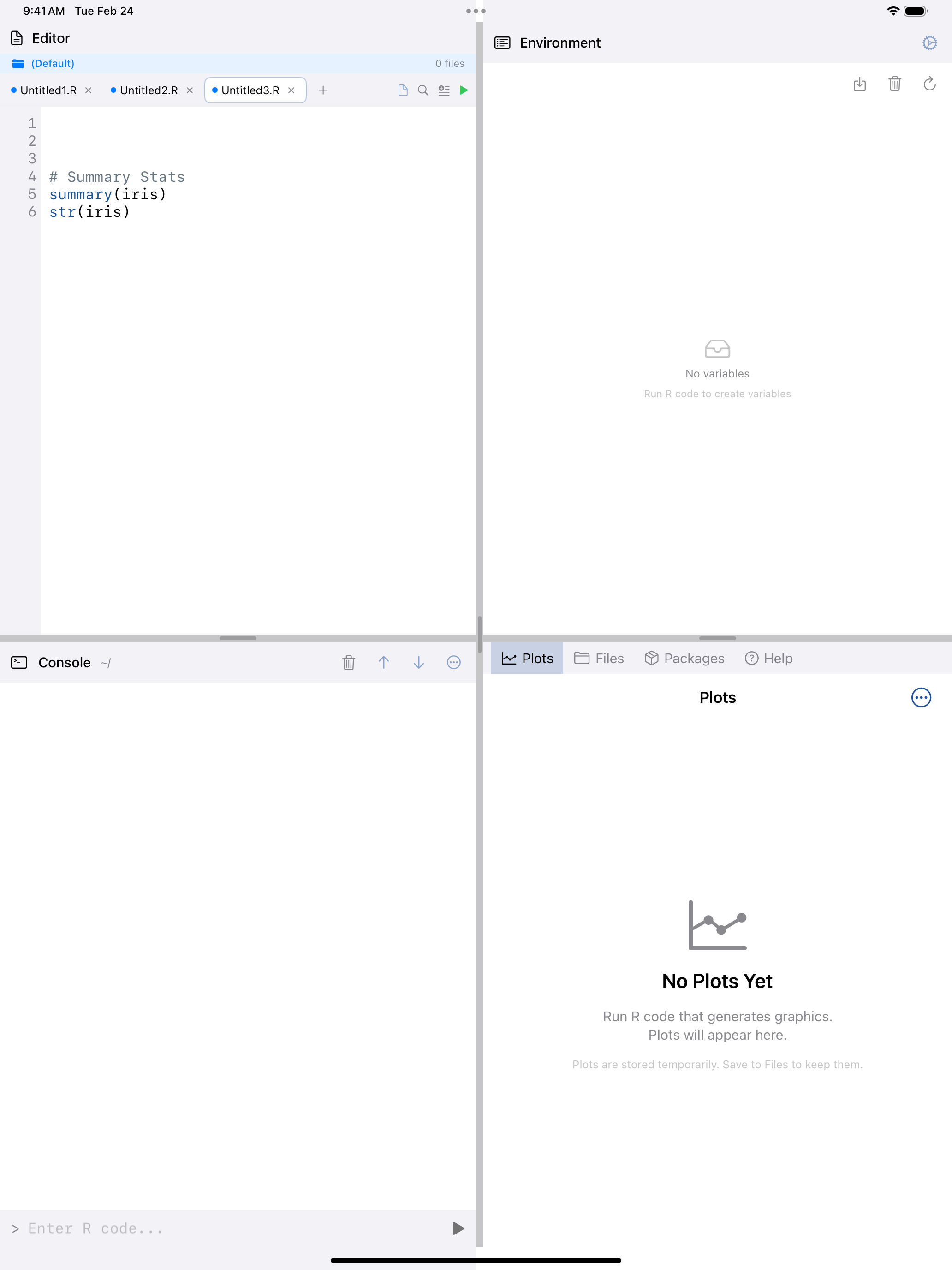 1 2 3 4
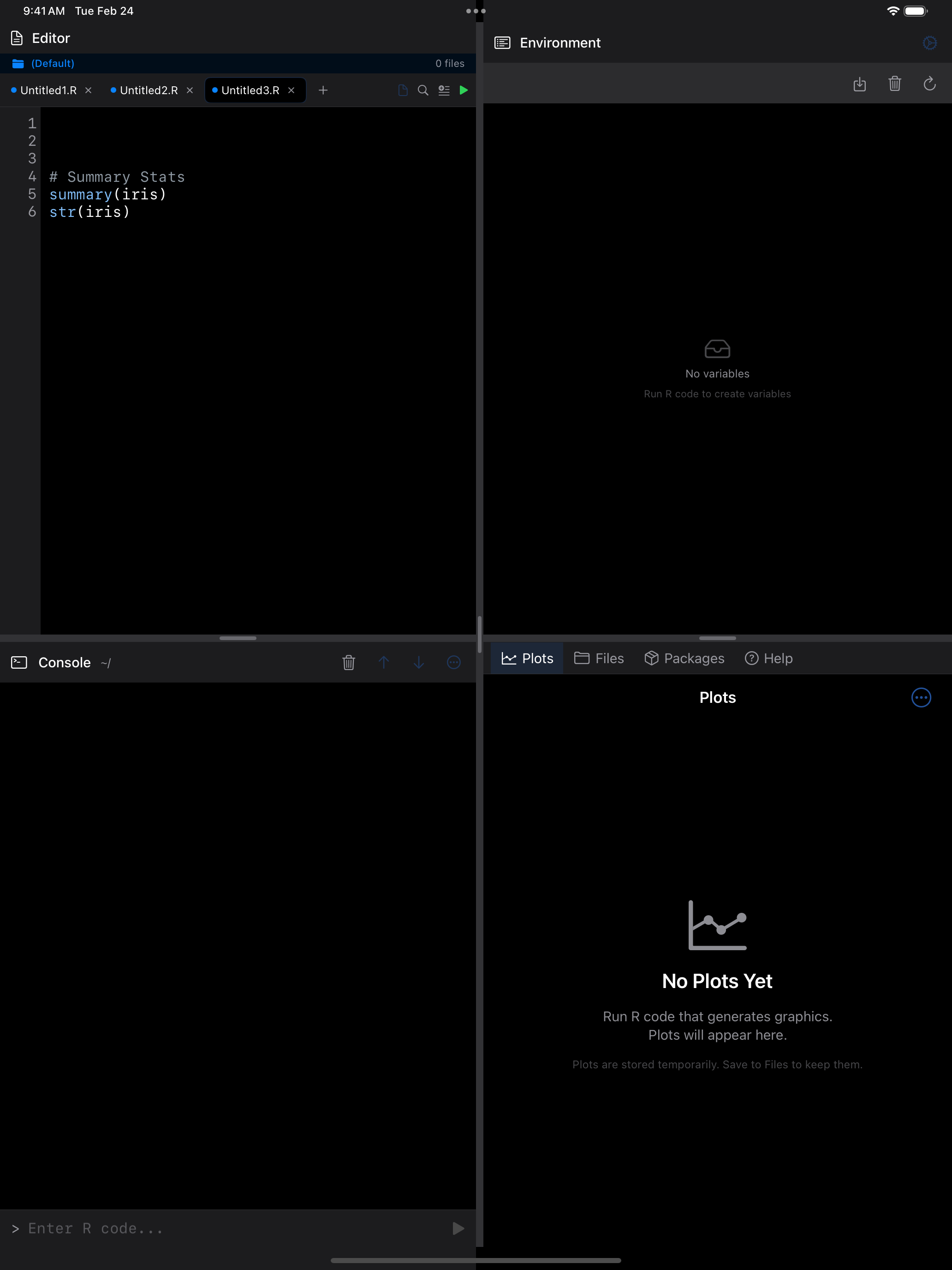 1 2 3 4
- Tab bar: shows all open files. Tap a tab to switch to it
- Blue dot: indicates the tab has unsaved changes
- Close button: tap the x on a tab to close it
- New tab button: tap + to create a fresh editor tab
The document icon at the top left opens the File menu:
- New Tab: creates a fresh, empty editor tab
- Open…: opens the iOS file picker so you can load any
.Ror text file from Files, iCloud Drive, or other storage providers - Open Recent: reopens a recent file
- Save: saves the current tab (you will be prompted for a filename if the file is new)
- Examples: opens one of the built-in example scripts as an unsaved copy
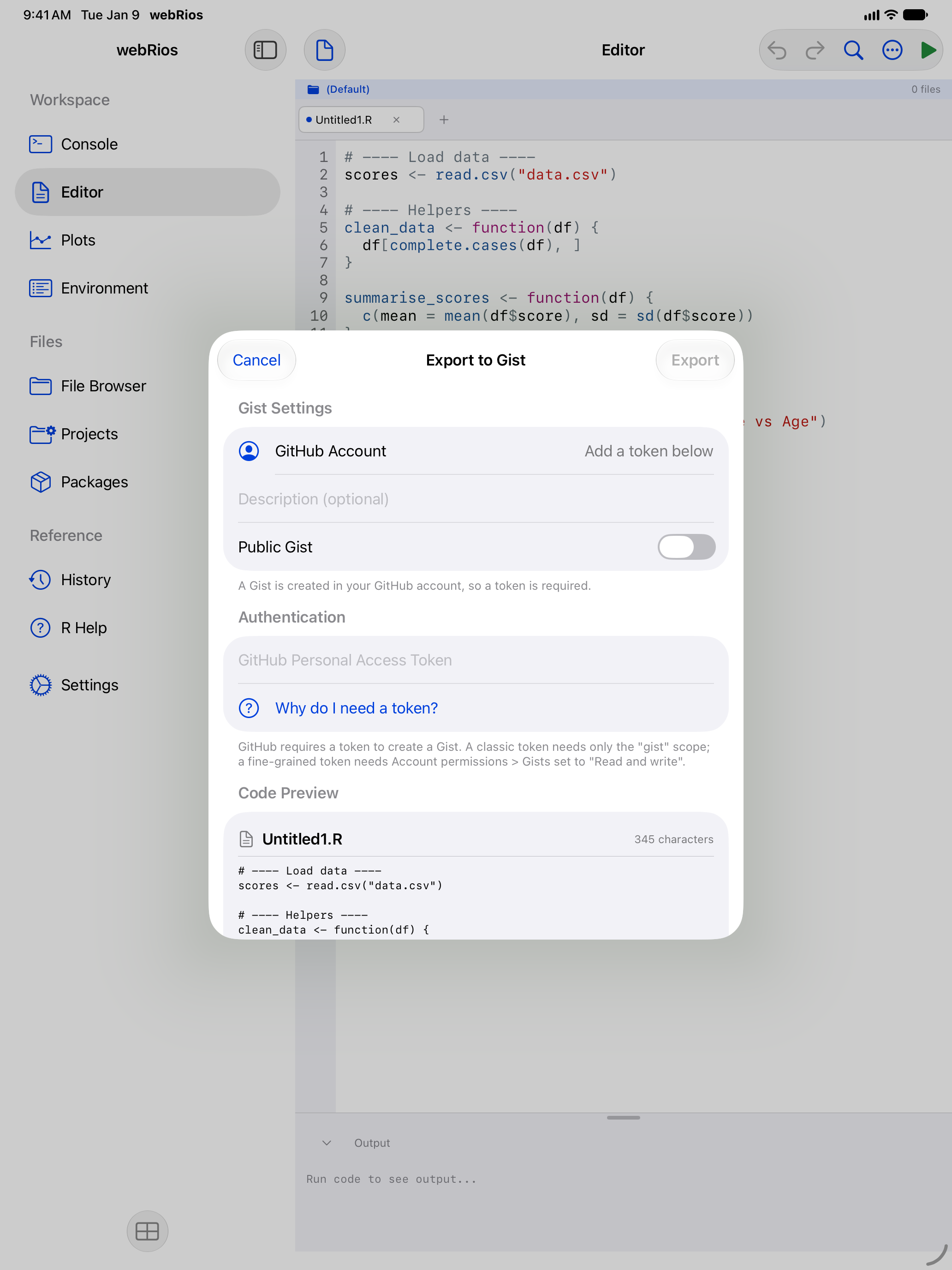
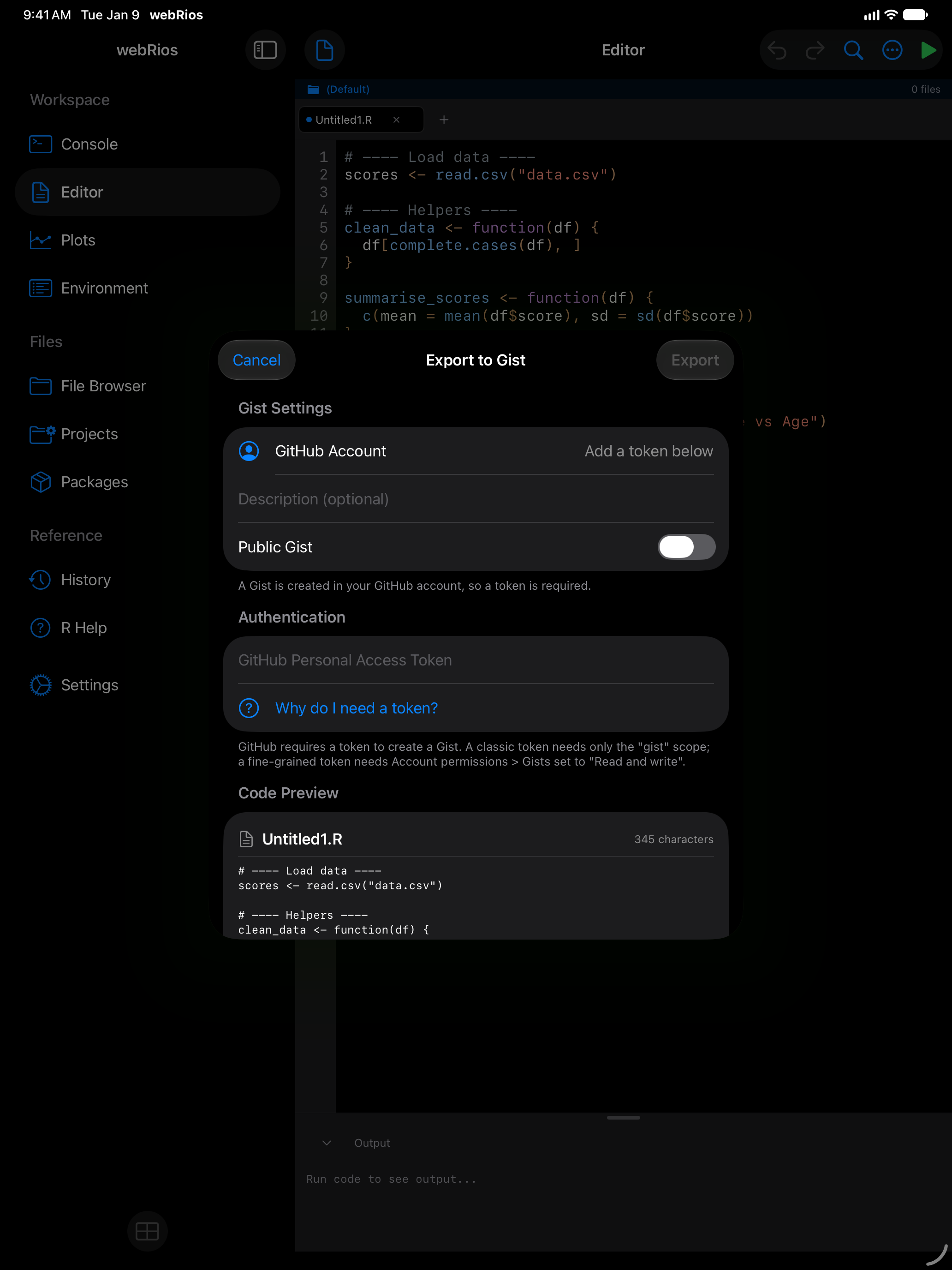
- Export to Gist: shares your code as a GitHub Gist
Scripts are saved as .R files in the current project and appear in Files.
Saving safely
Open tabs are saved a moment after each change and whenever you leave the Editor or the app, so restarting R or a relaunch never loses your typing. Tabs, split view, the output panel and Undo survive a trip to another screen.
Before Save writes over a file, the Editor checks whether something else, such as an iPad editor window or another app, changed it. If so, choose Overwrite or Keep Both, which saves yours beside it as, say, analysis 2.R. A tab you haven’t edited picks up the newer file.
Files keep their text encoding: a Windows-1252 script opens correctly and saves back the same way. Type a character the encoding can’t hold and the Editor offers to save as UTF-8.
Rename or move a file in Files or Projects and its tab follows, so Save writes to the new name. A tab whose file was deleted keeps its text and asks where to save it.
Code Snippets
Snippets, in the … menu, holds templates for common R patterns by category: data frames, plotting, models, functions and more.
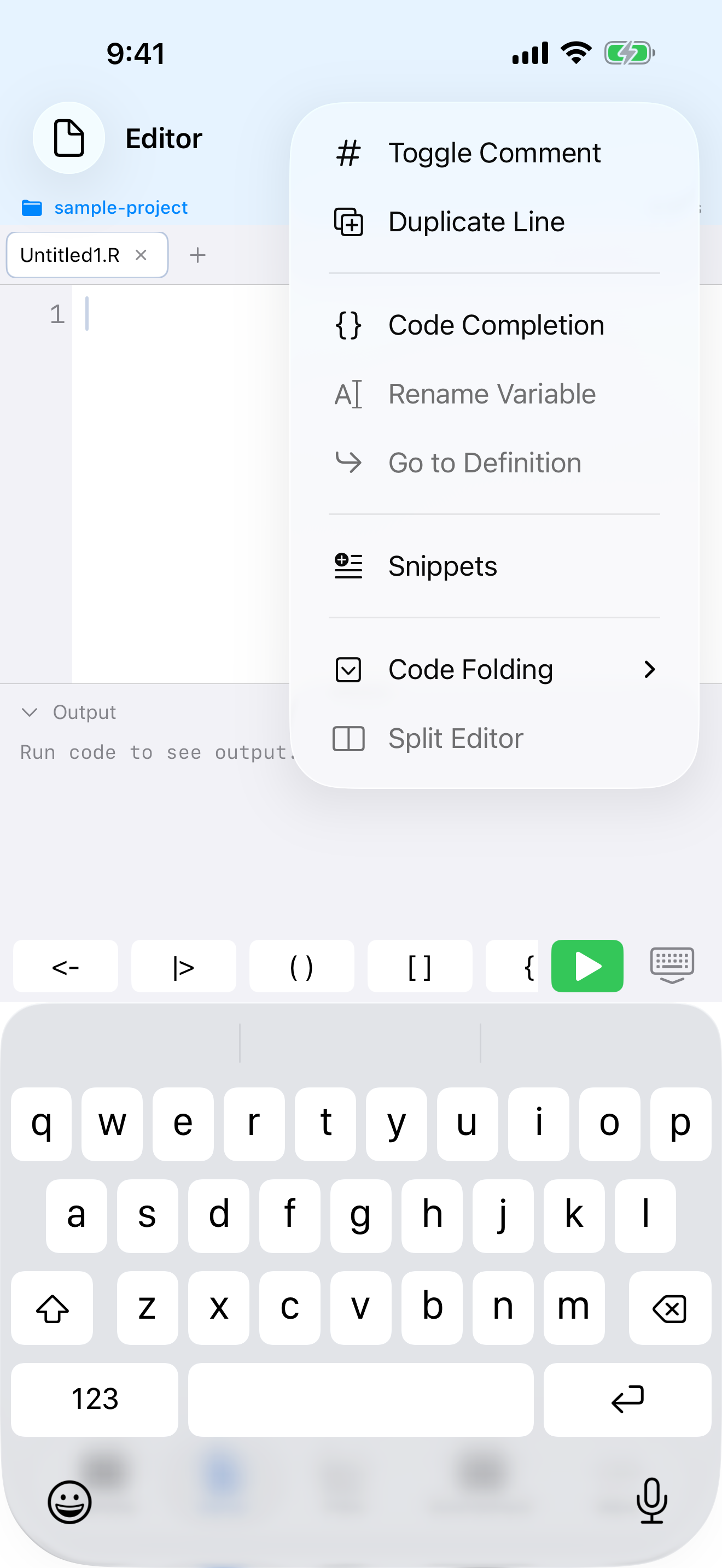
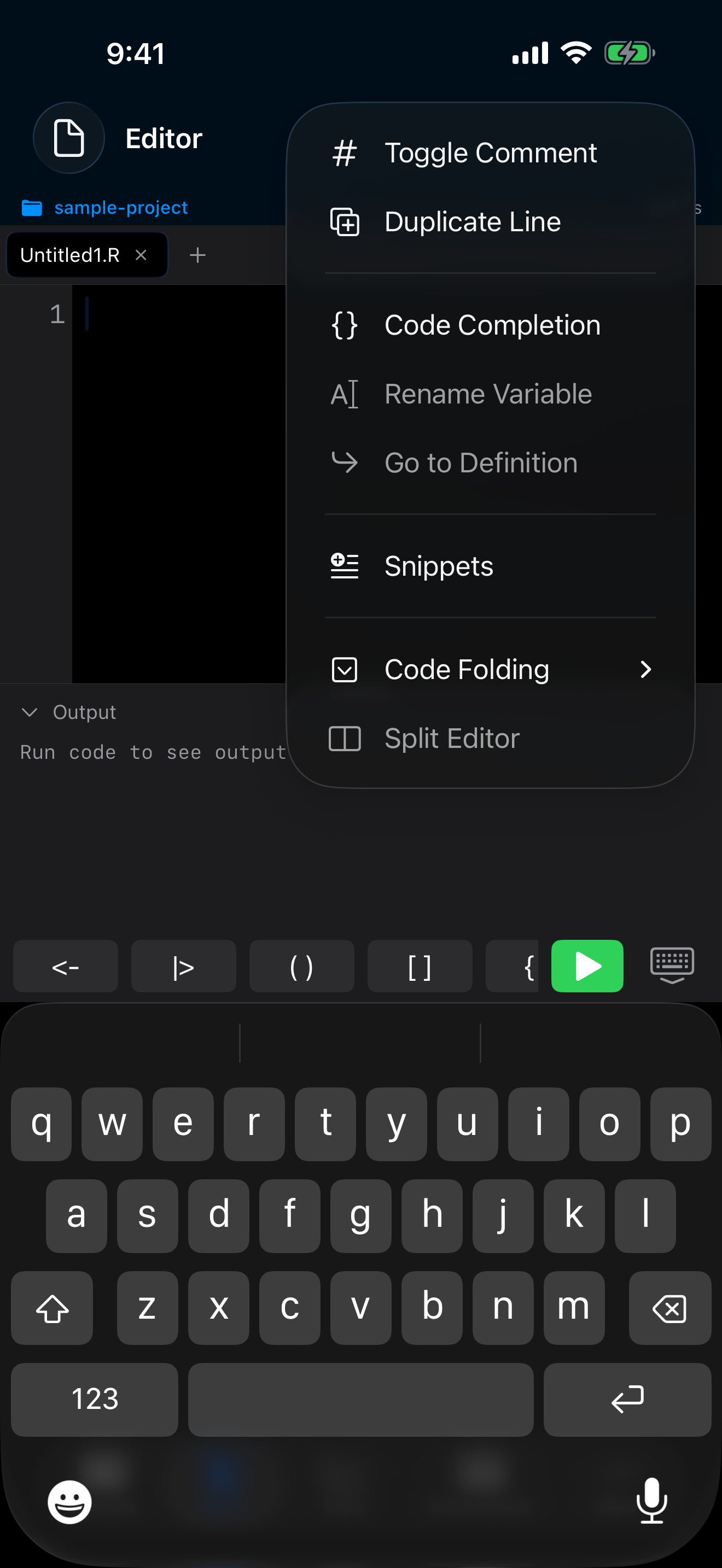
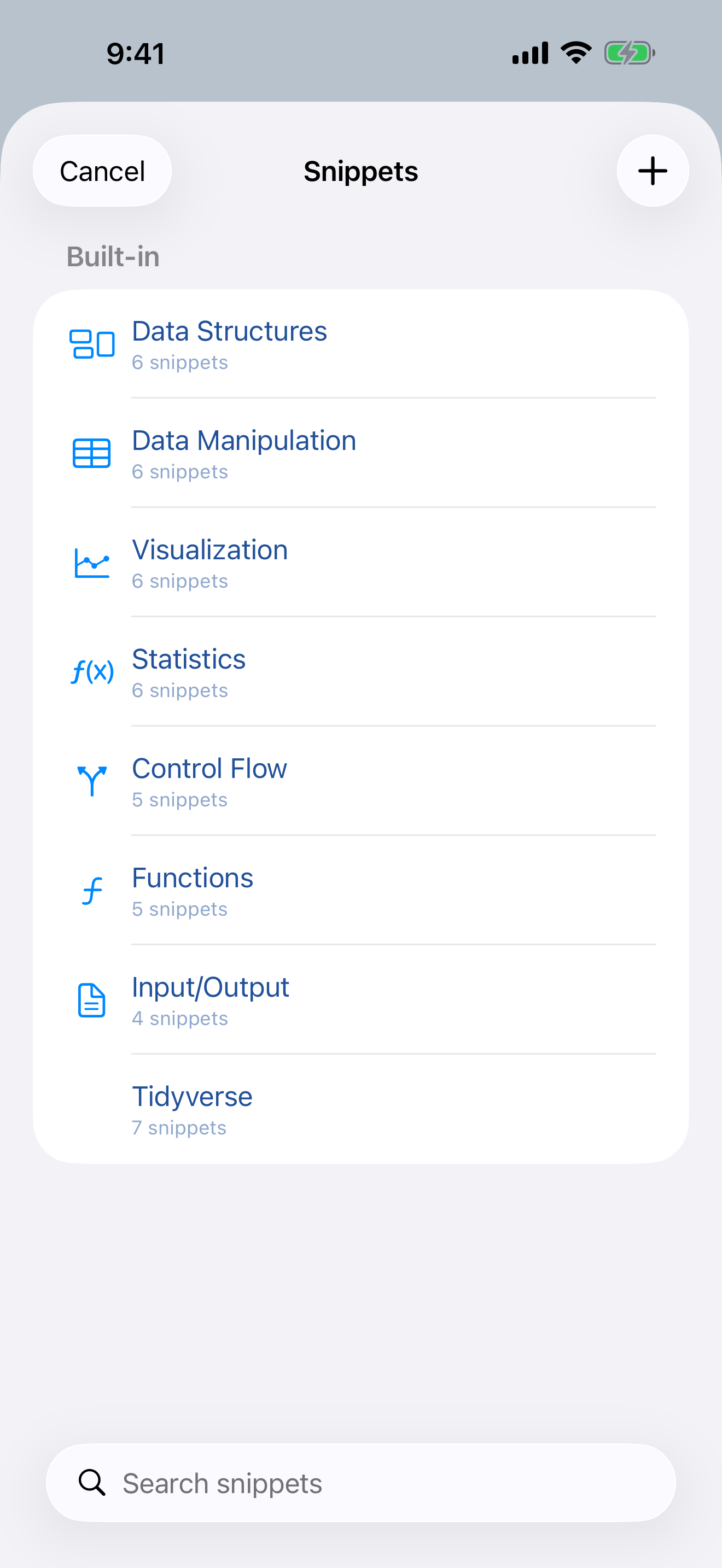
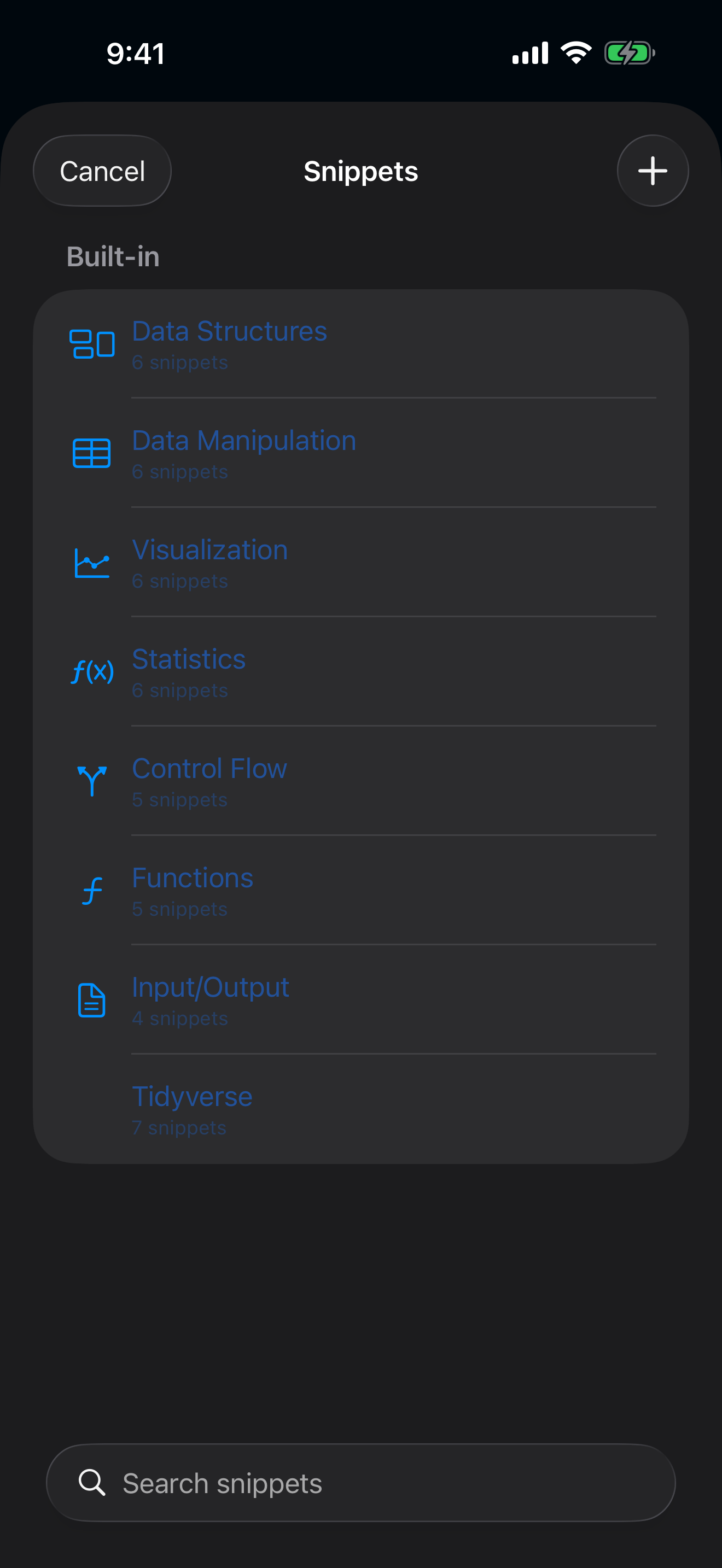
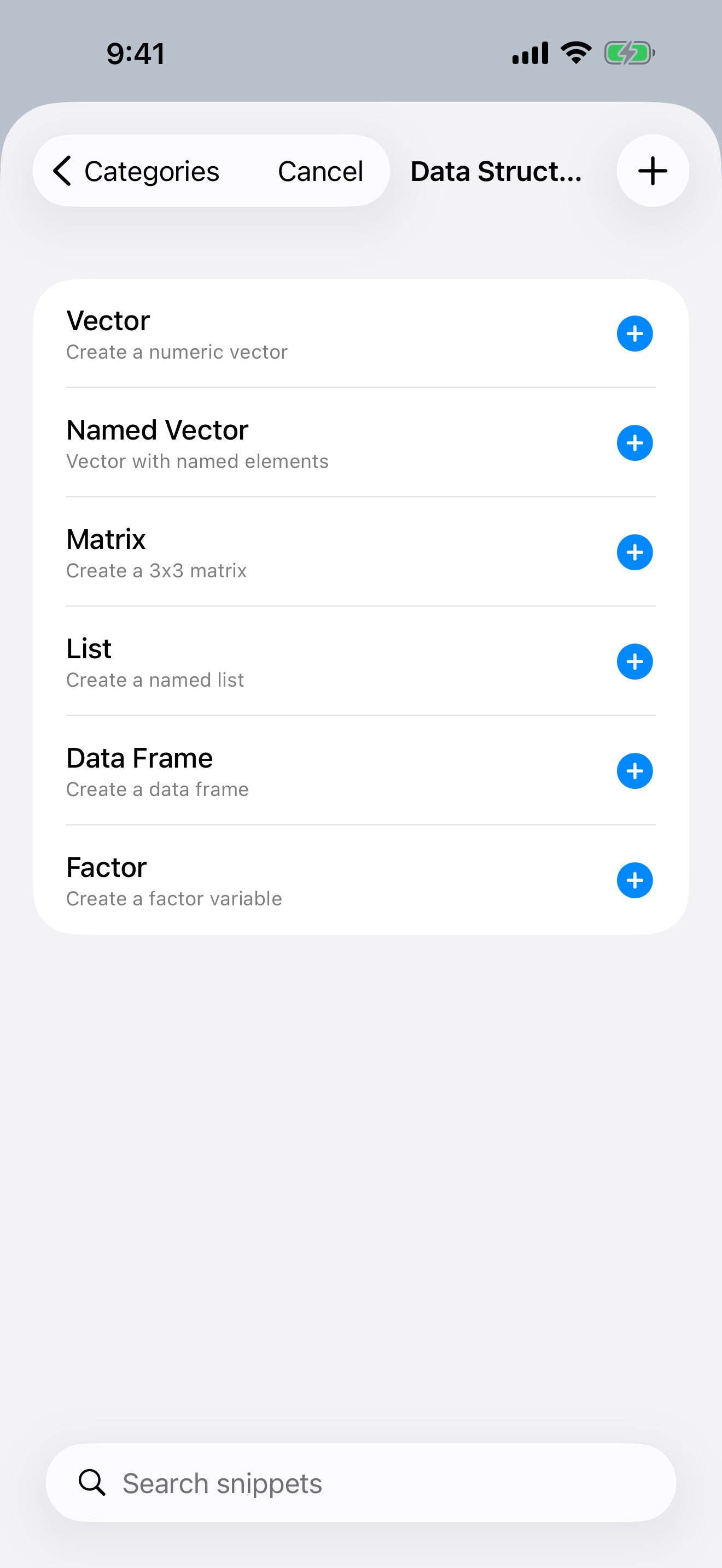
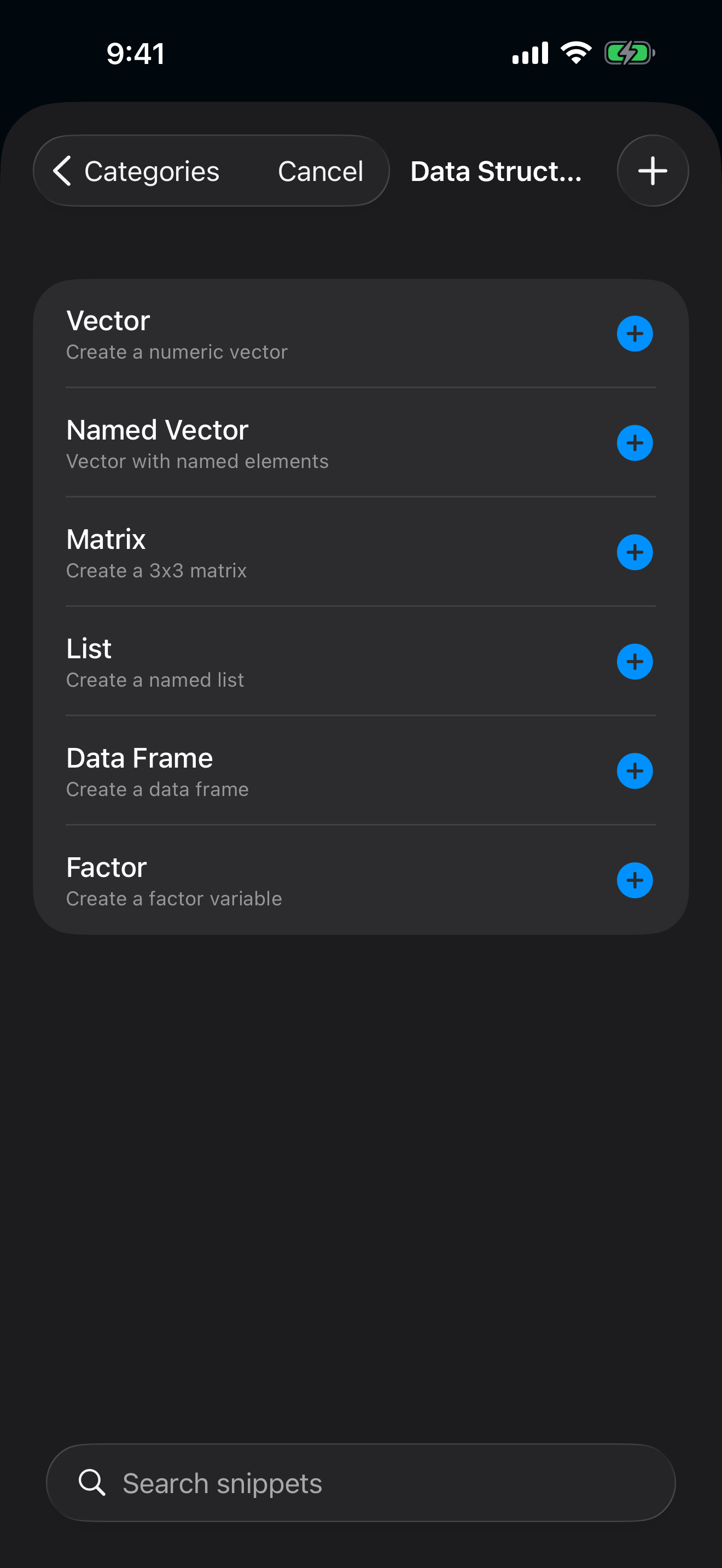
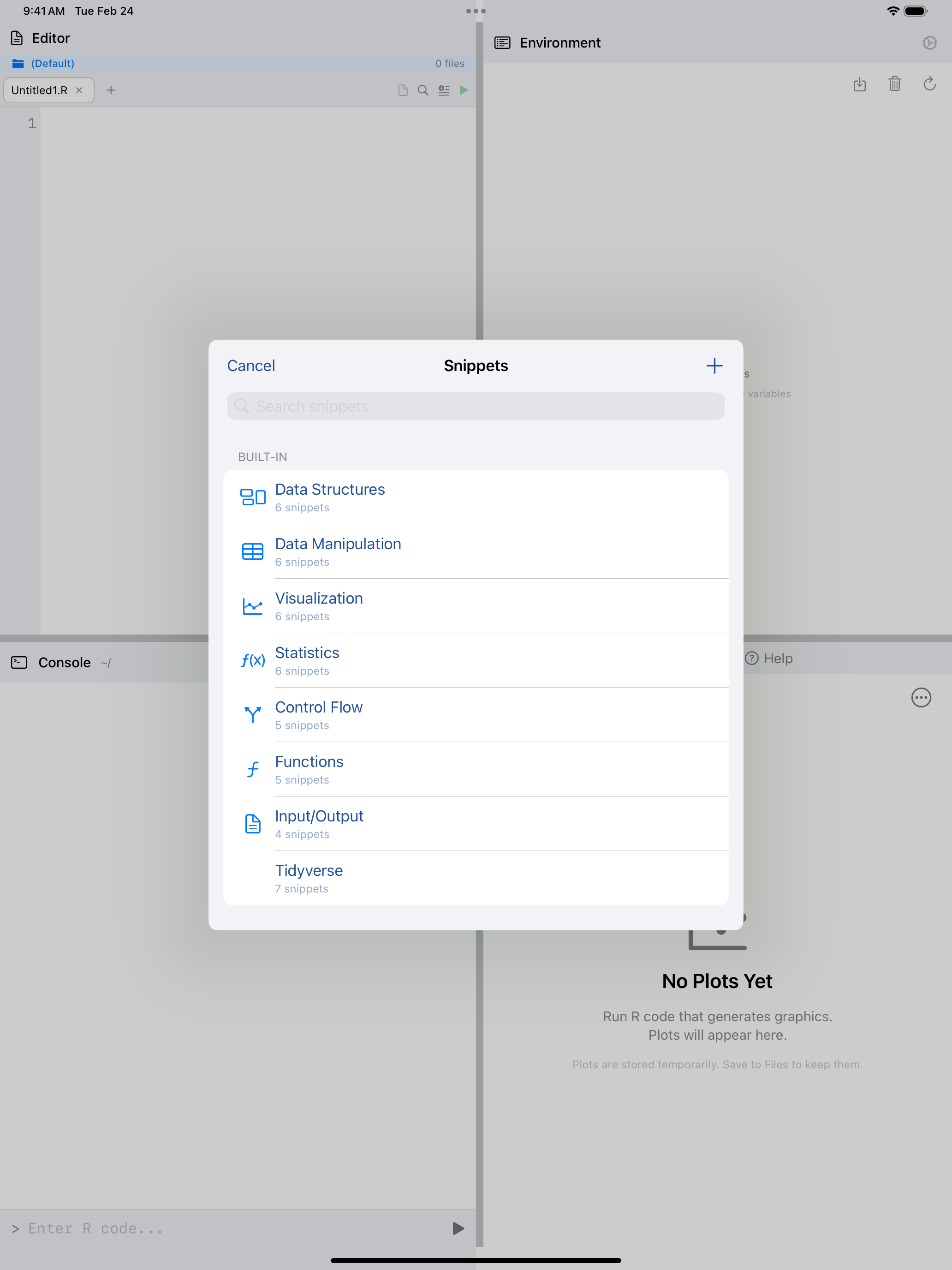
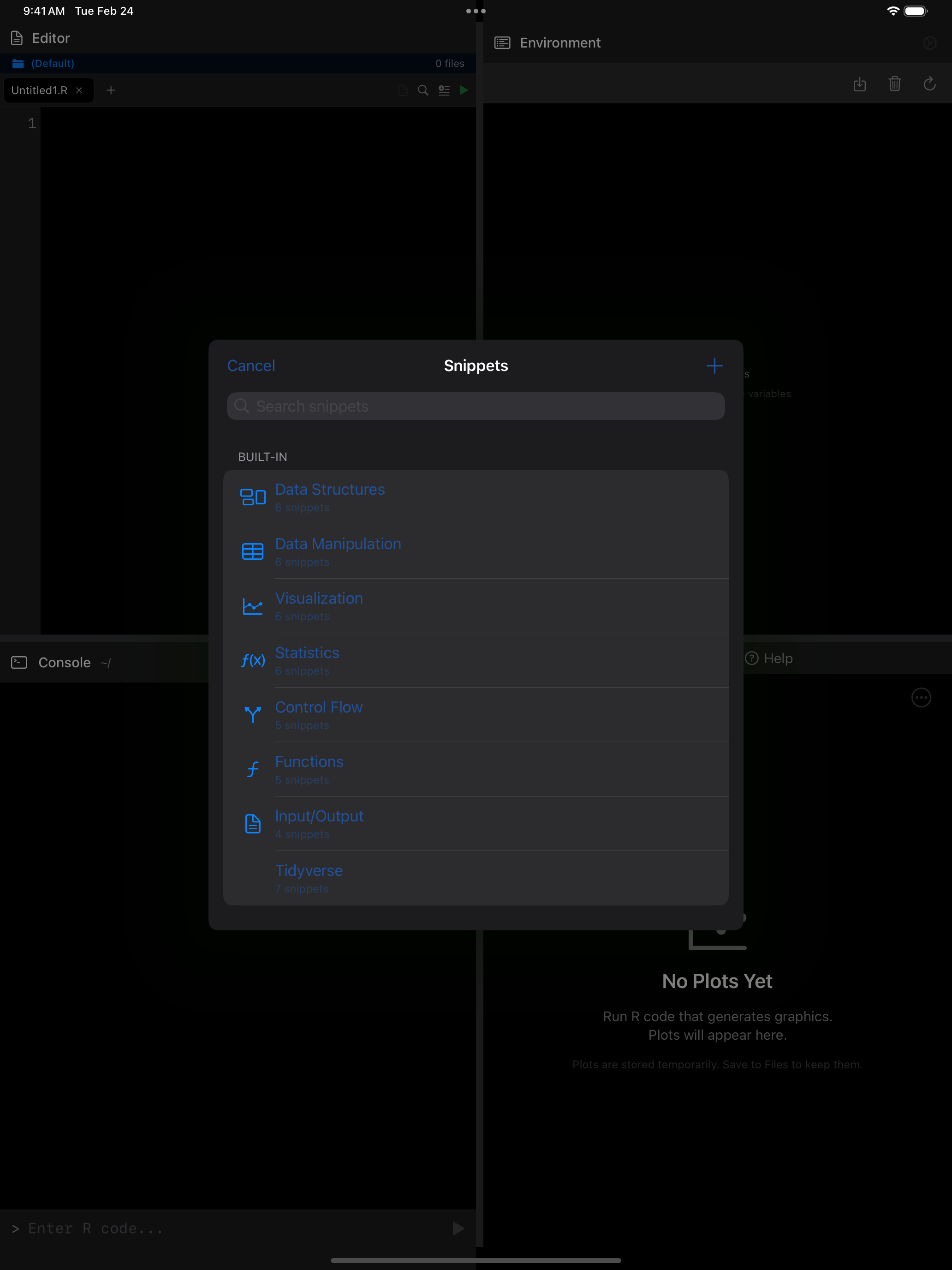
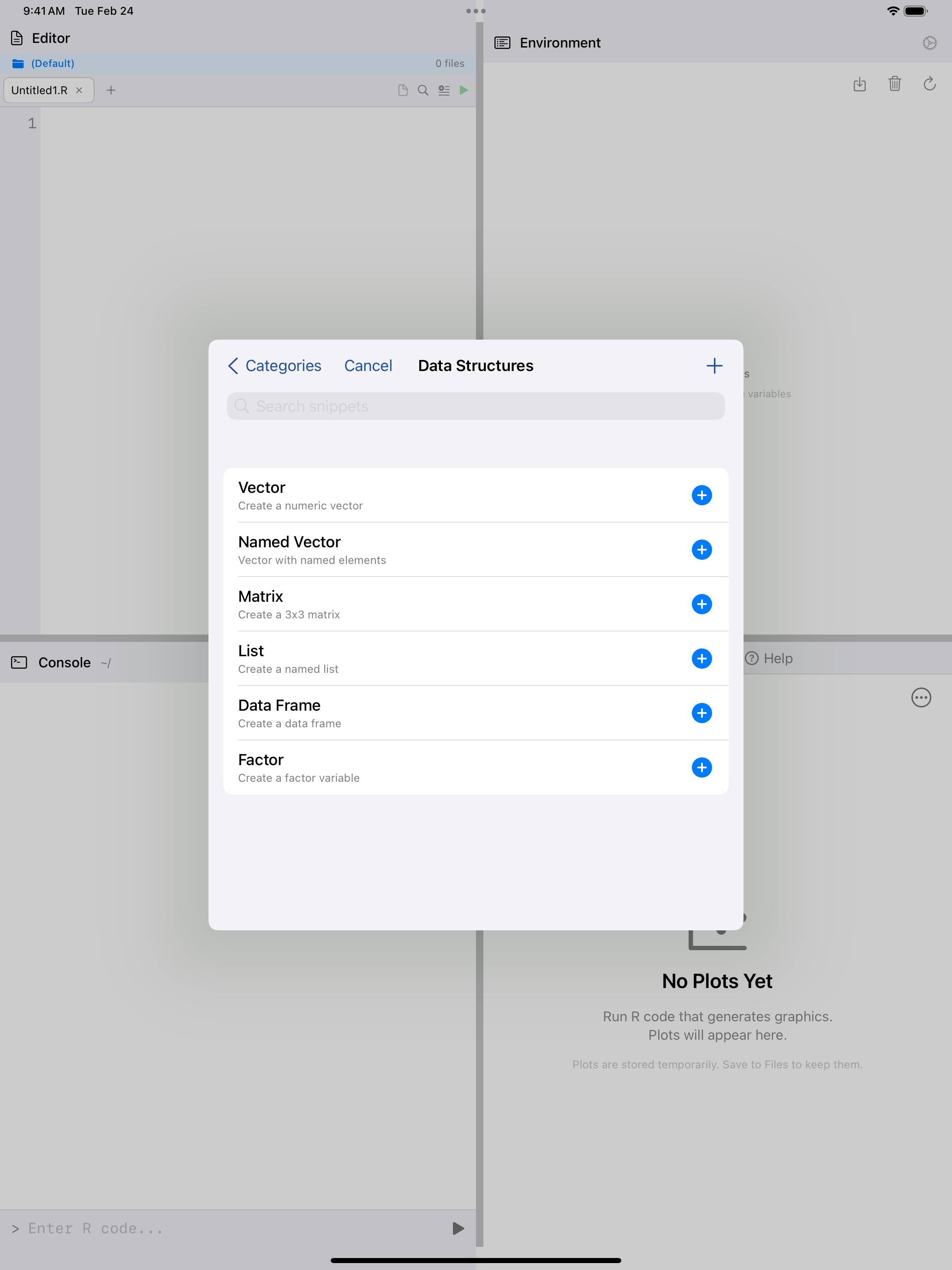
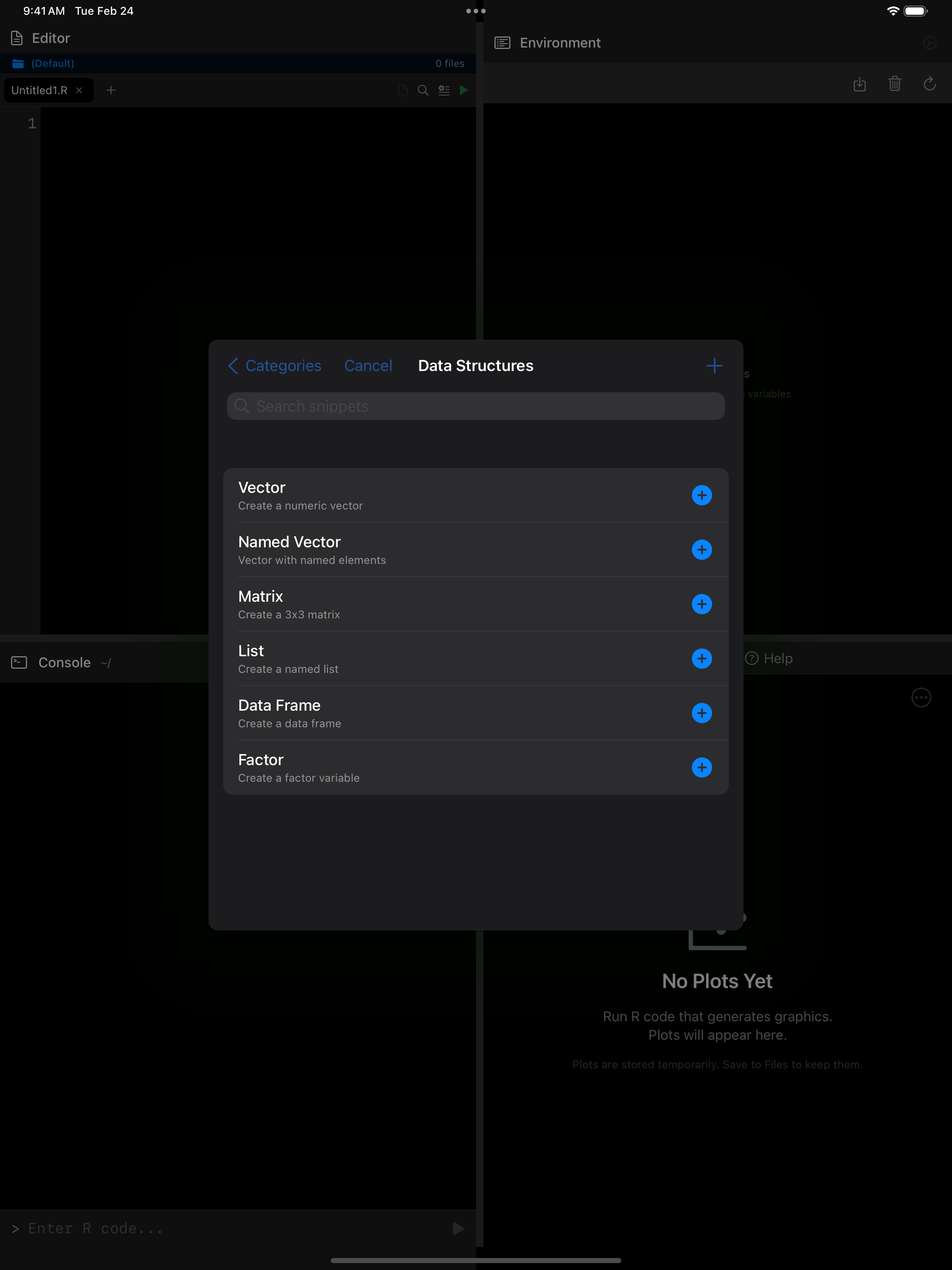
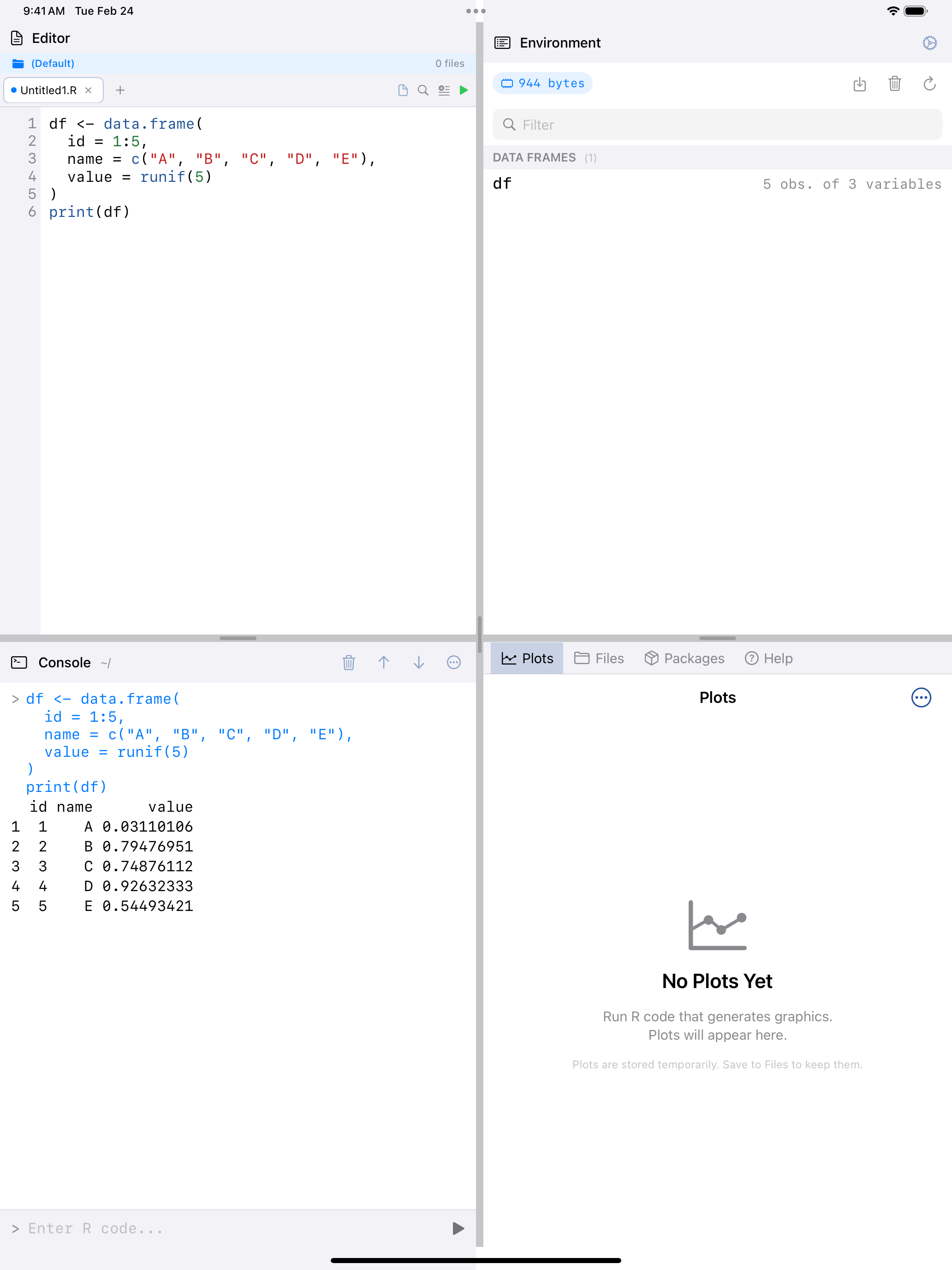
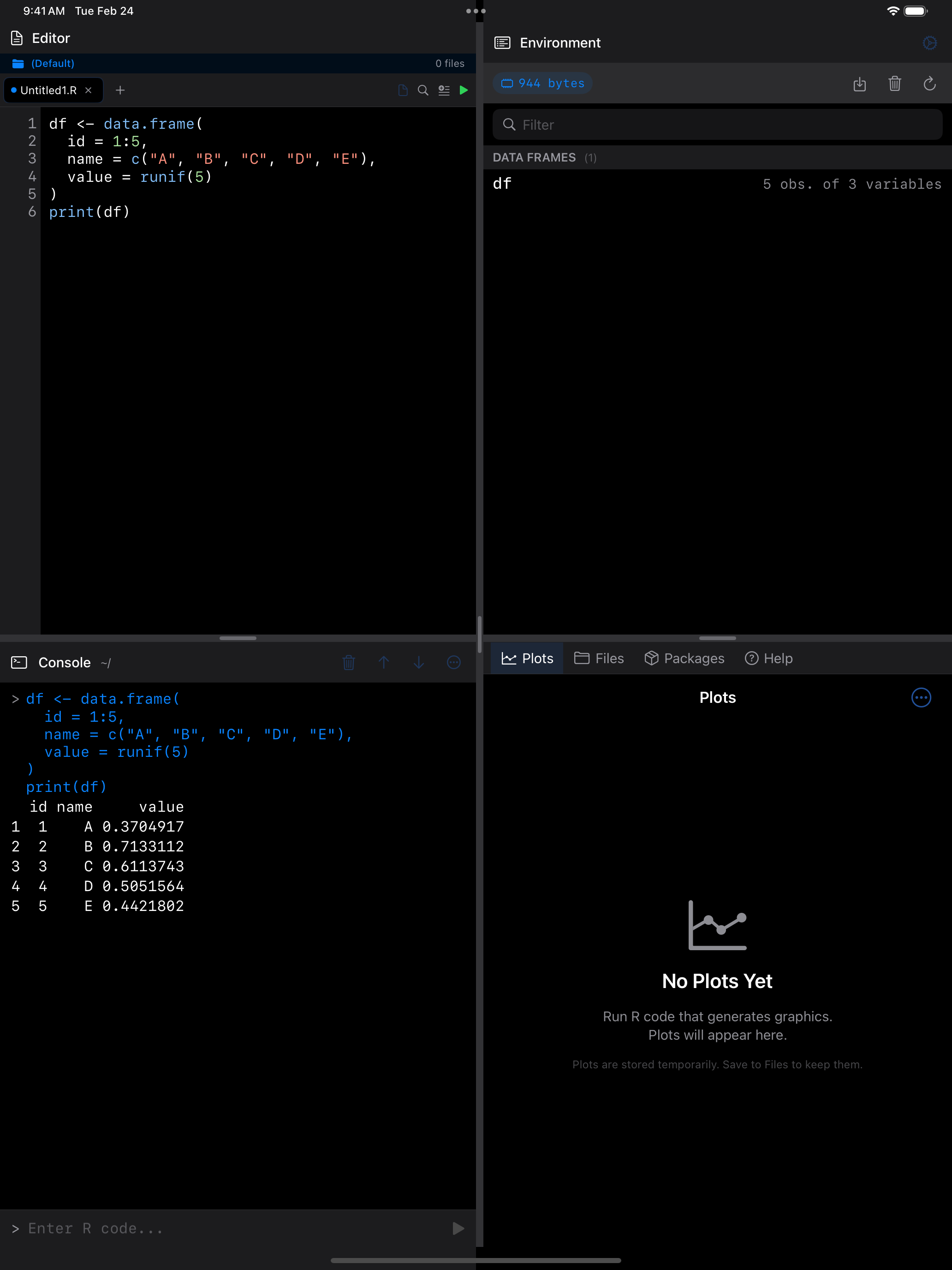
Top-left: The … menu reveals Snippets along with other editor actions. Top-right: Snippet categories, including Data Structures, Visualization, Statistics, and more. Bottom-left: Browsing the Data Structures category with templates for vectors, matrices, and data frames. Bottom-right: A Data Frame snippet inserted into the editor and executed, showing the output.
Snippets have placeholders for your own names and values, and you can add snippets of your own.
Snippets double as worked examples. Insert one, read through it, and modify it to see what changes.
Code Completion
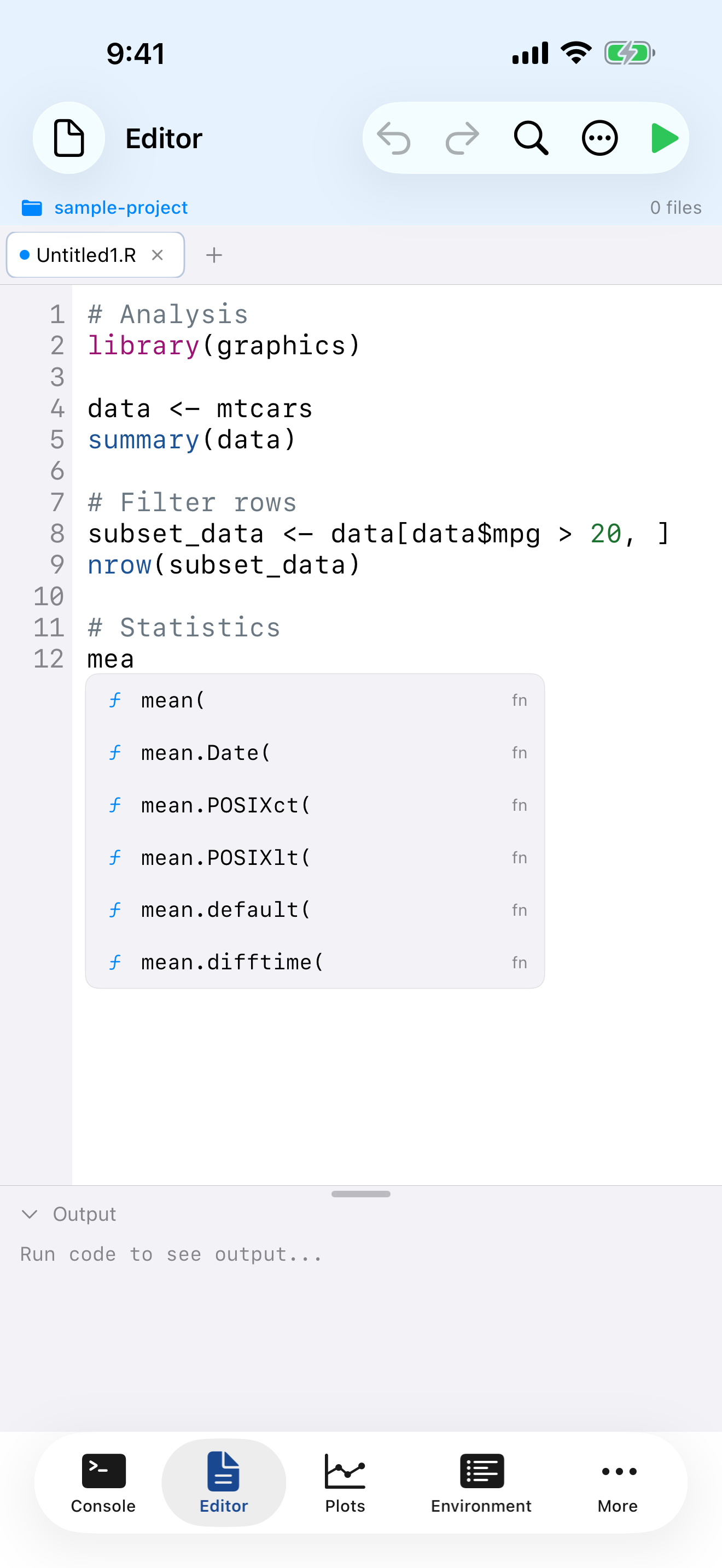
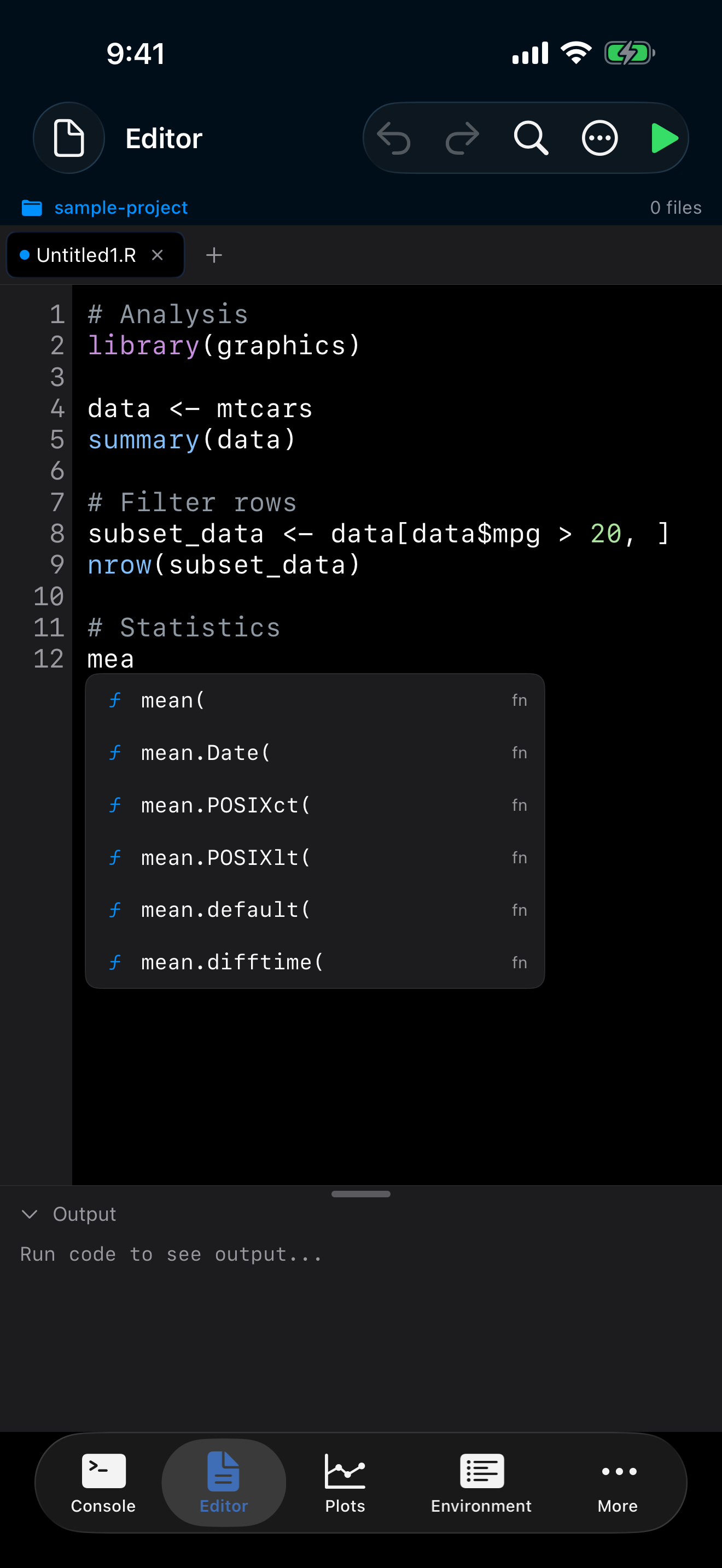
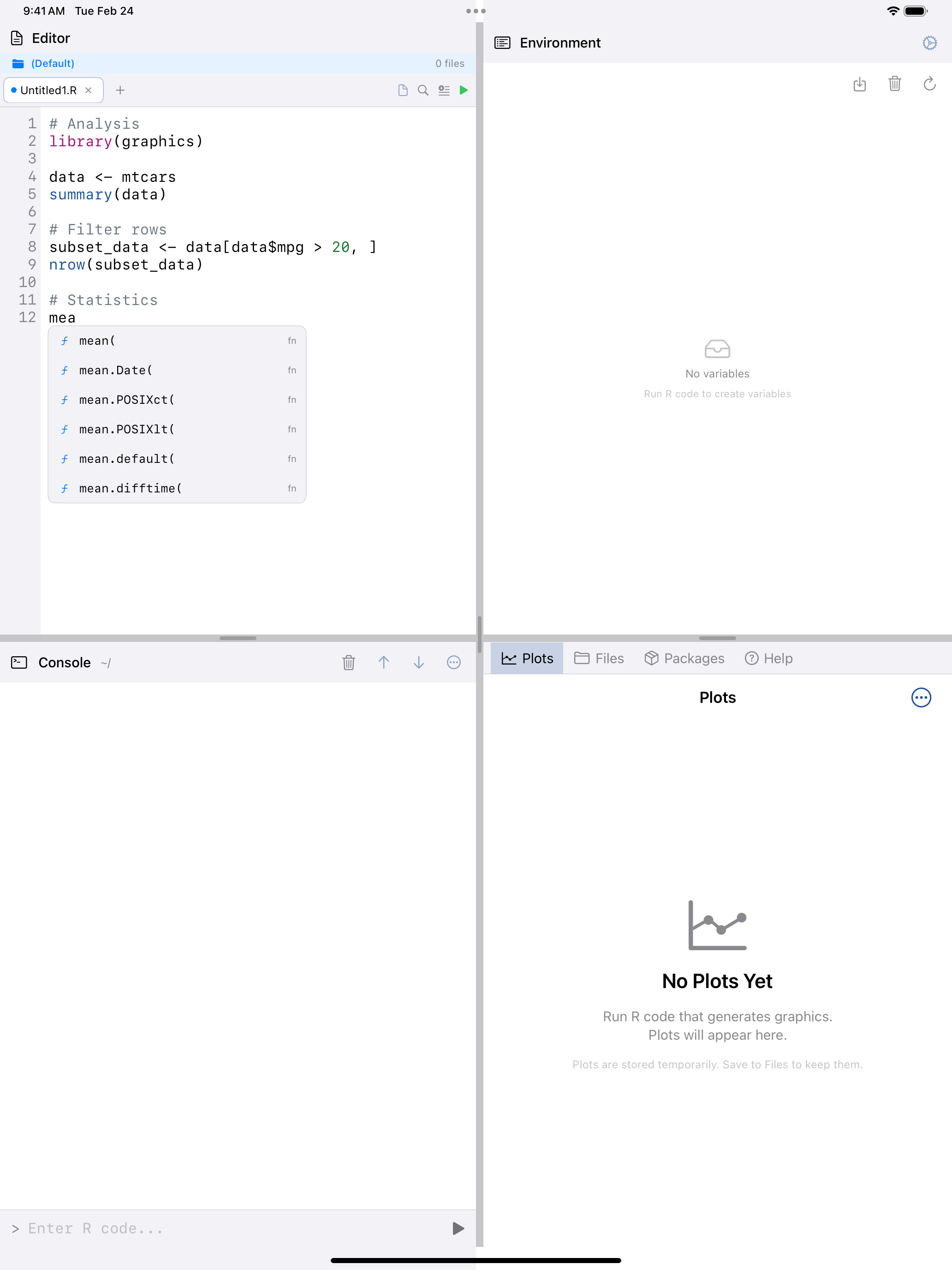
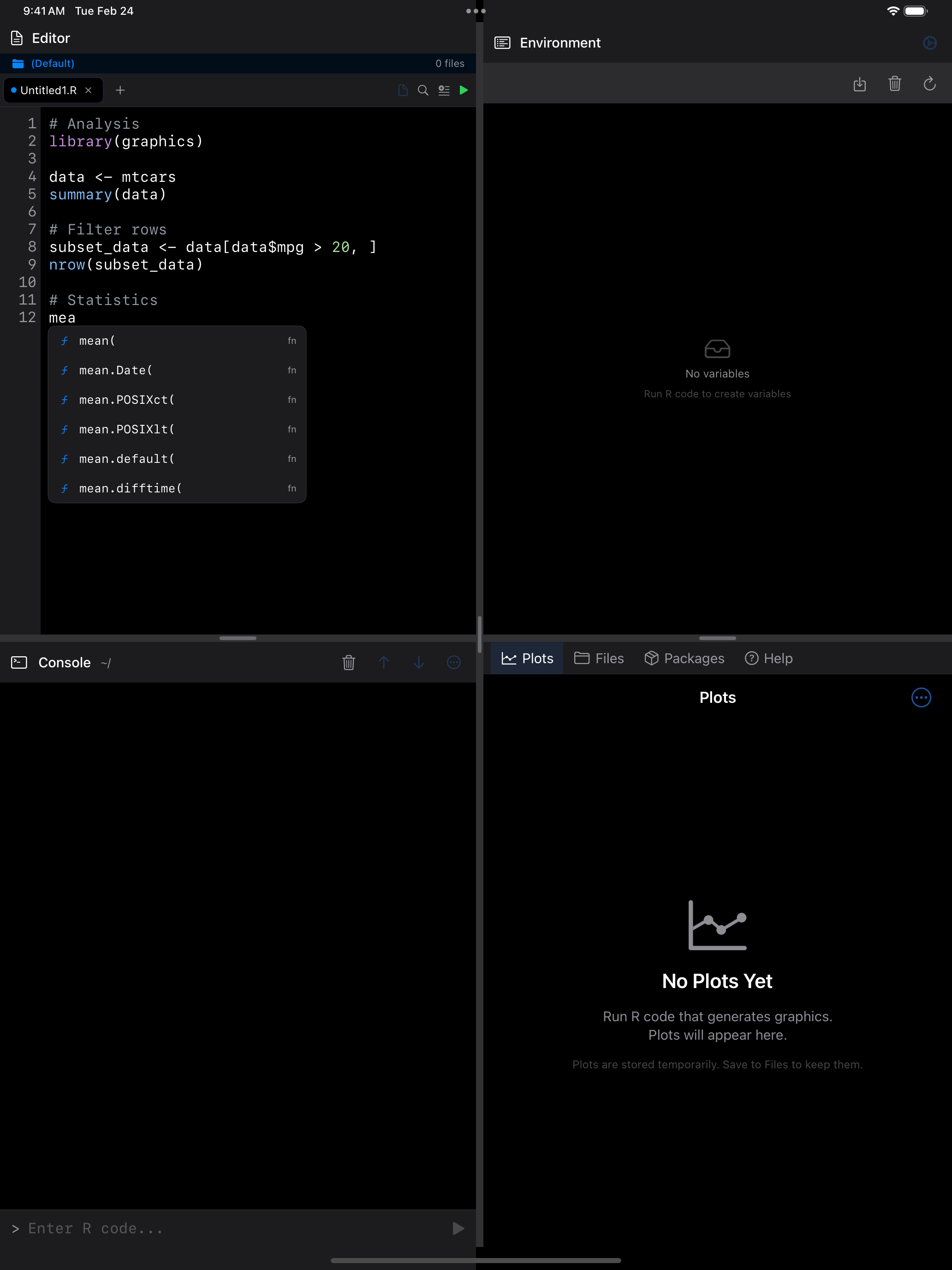
As you type, the Editor suggests functions, variables and package members in a list below the cursor, or above it when there is more room there. It shows up to six rows before it scrolls. Tap one to insert it; Undo takes it back out. Typing ( after a function name shows its parameters (signature help), and Ctrl+Space asks for suggestions at the cursor.
The list narrows as you type, as in the Console: through the first letter after $, ::, ( or a comma, and through the digits of a name such as log1p. A token that starts with a digit gets no list, and R’s ... is never offered. Left alone, the list closes after three seconds, but not under VoiceOver or Switch Control.
With a hardware keyboard, while the list is open:
- Up and Down move a highlight
- Tab inserts the highlighted row, or the first if you haven’t moved the highlight
- Return inserts the highlighted row once you have moved the highlight; otherwise it starts a new line
- Escape closes the list
The list grows with the editor font. VoiceOver announces how many completions there are and reads each row as, for example, “mean, function”.
Find and Replace
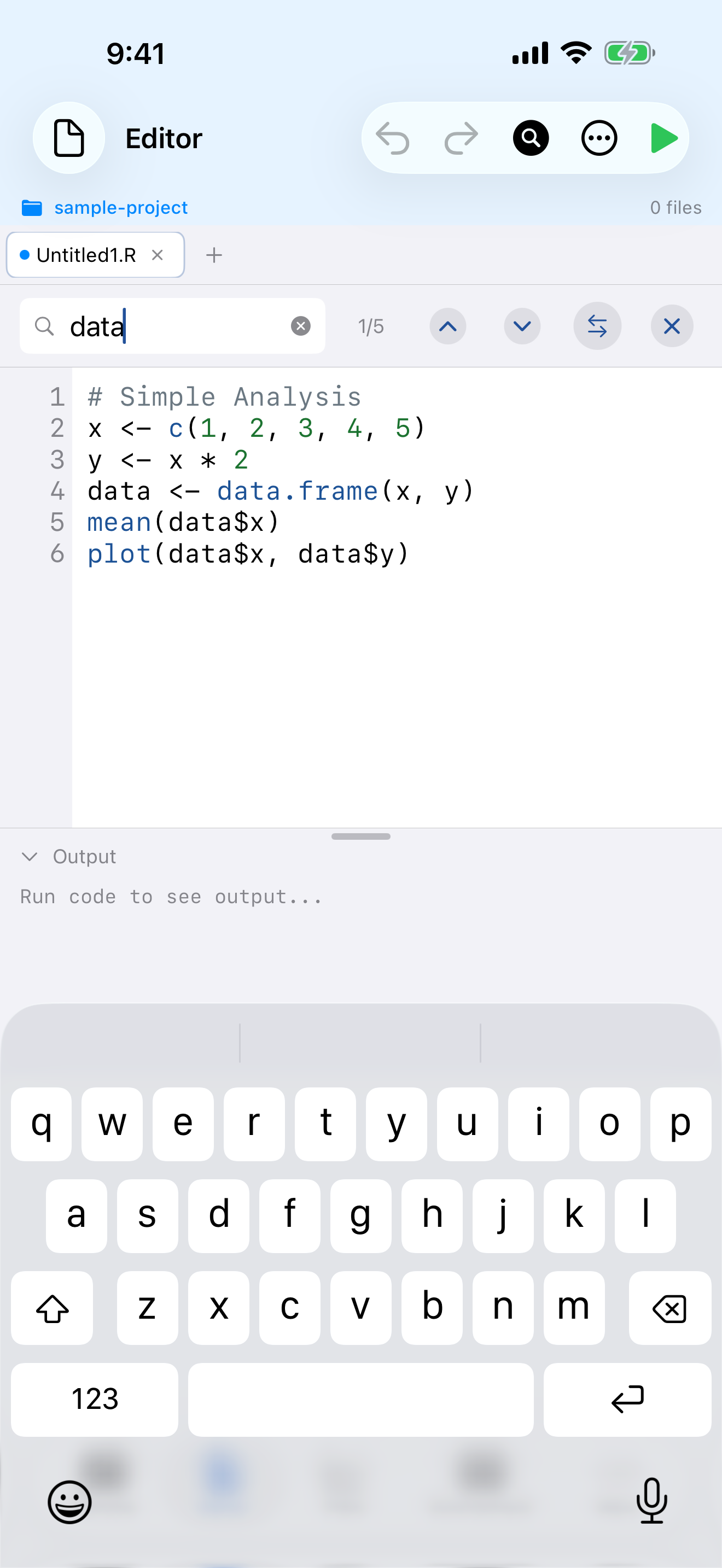
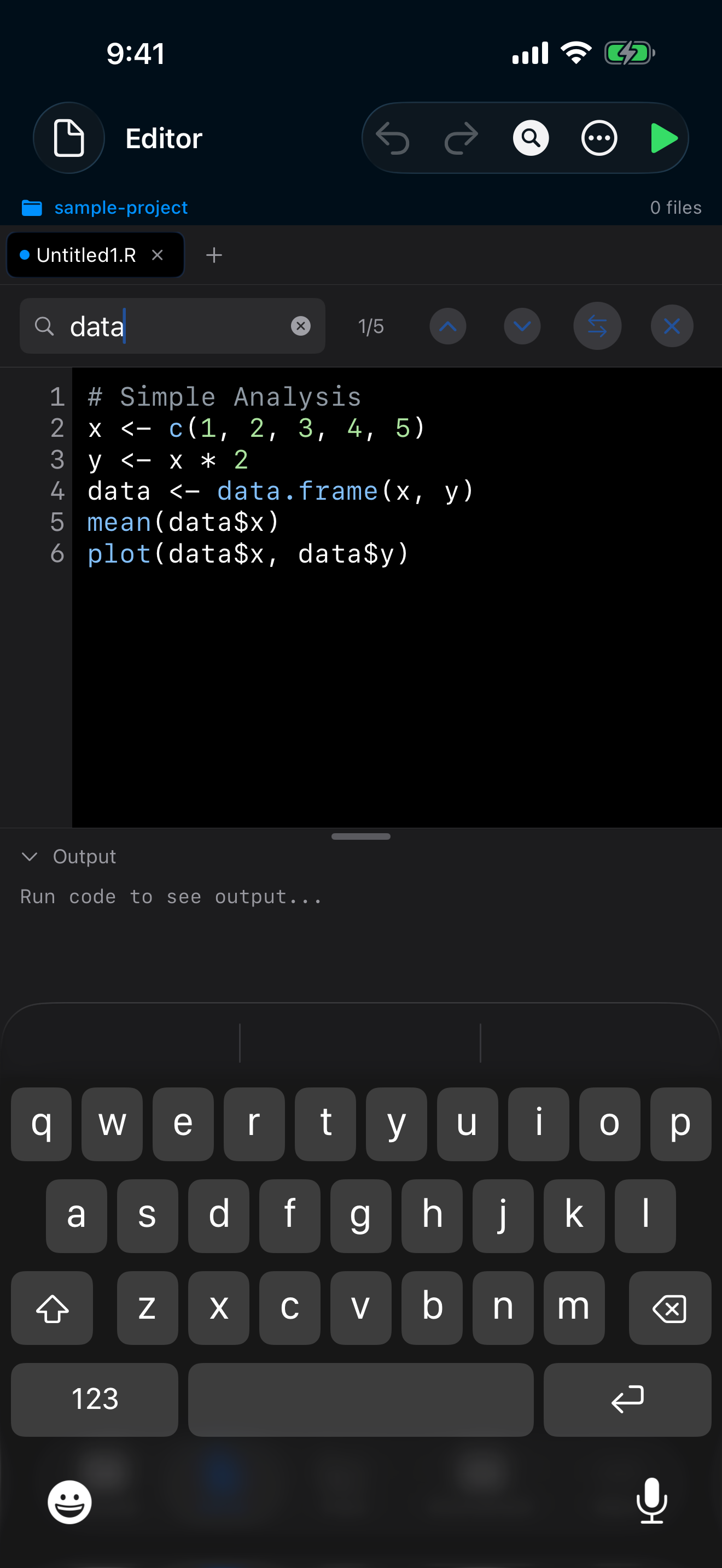
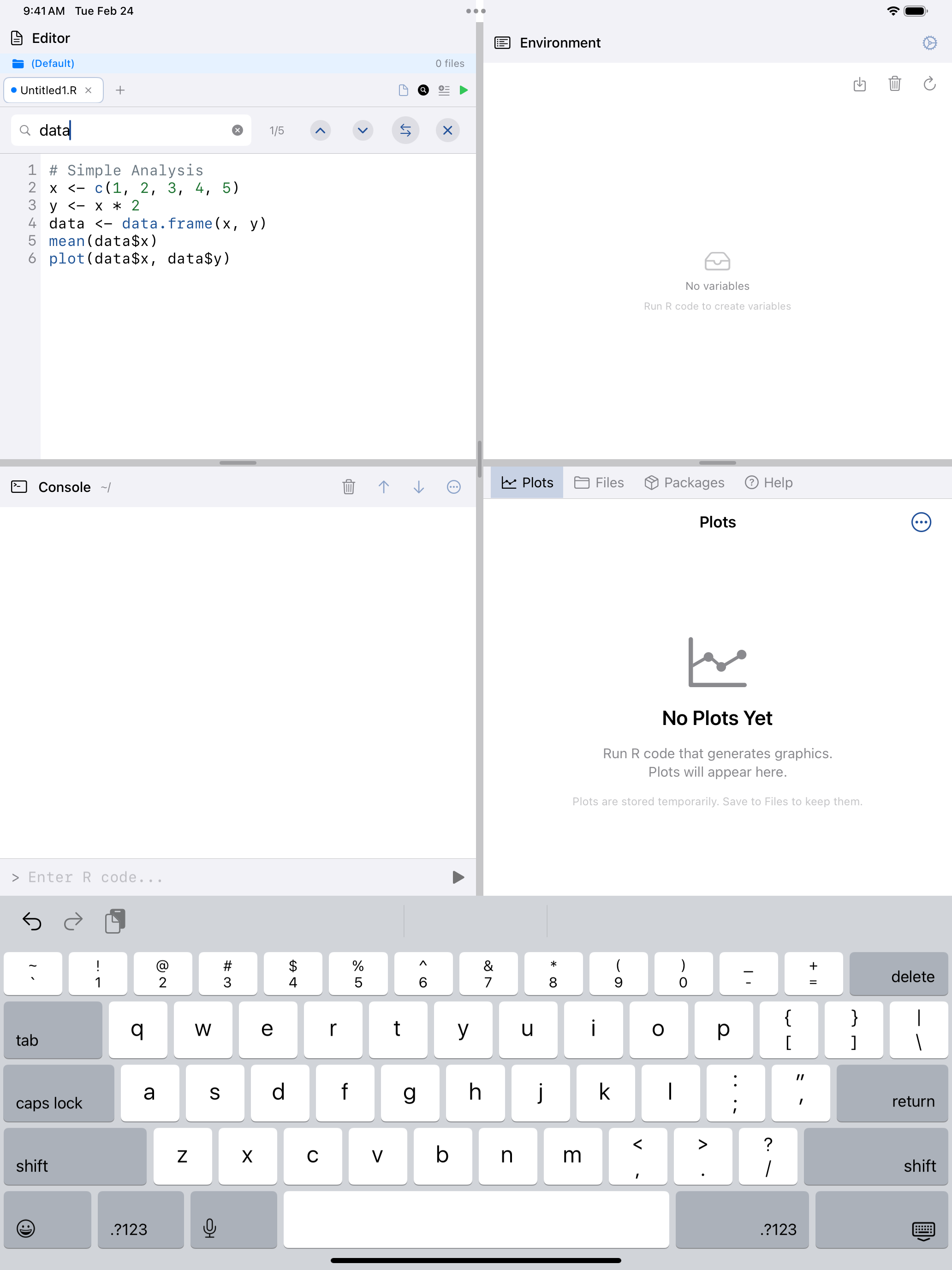
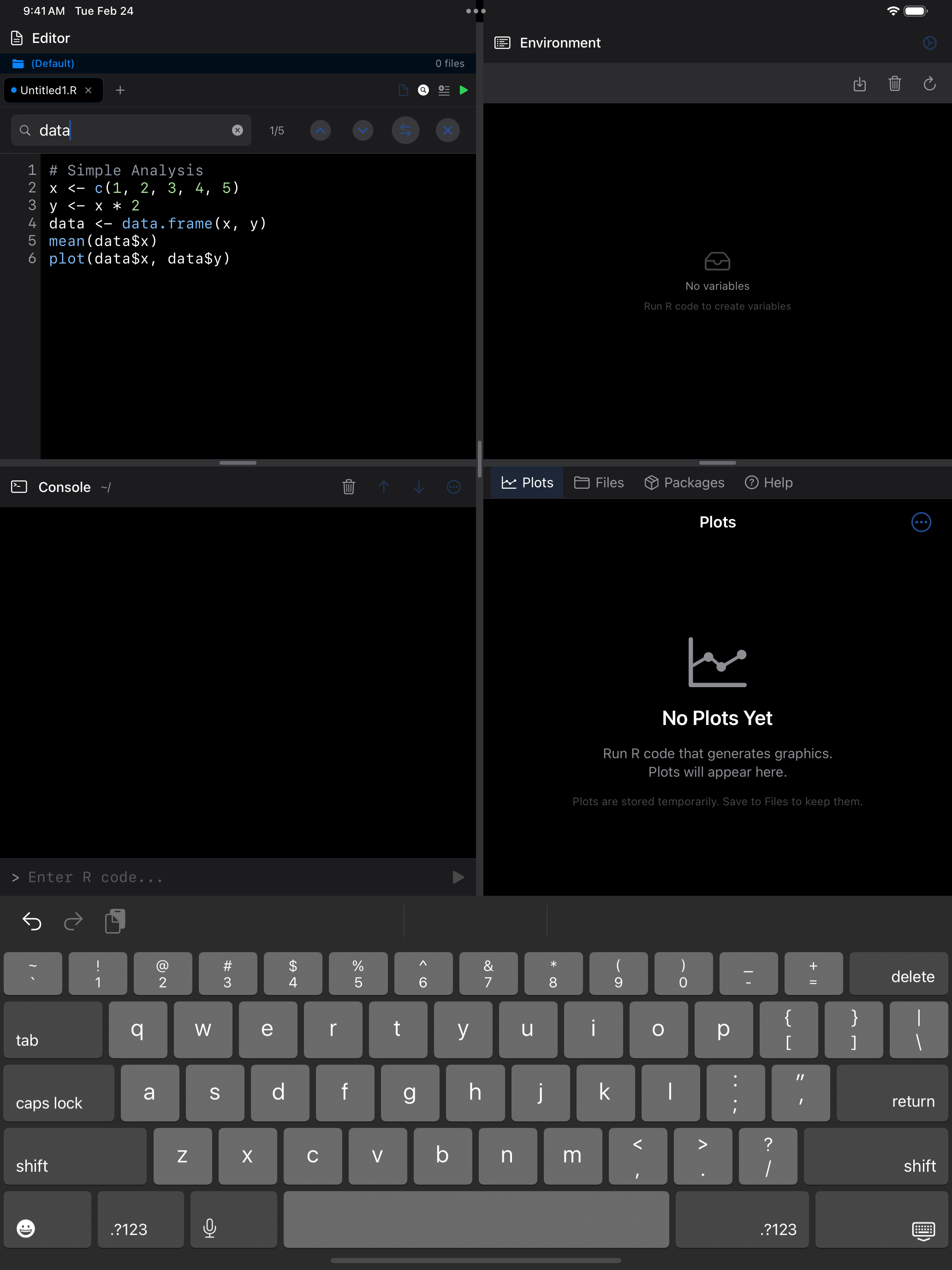
The magnifying glass, or Cmd+F, opens the system Find bar in the pane you are working in. Matches are highlighted, the arrows step through them, and Replace changes one or all. Replacements can be undone.
 1 2 3
1 2 3
 1 2 3
1 2 3
 1 2 3
1 2 3
 1 2 3
1 2 3
- Search field: type a term to find all matches in your code
- Match counter: shows how many matches were found and which one is selected
- Replace: reveals the replace field for find-and-replace operations
Code Folding
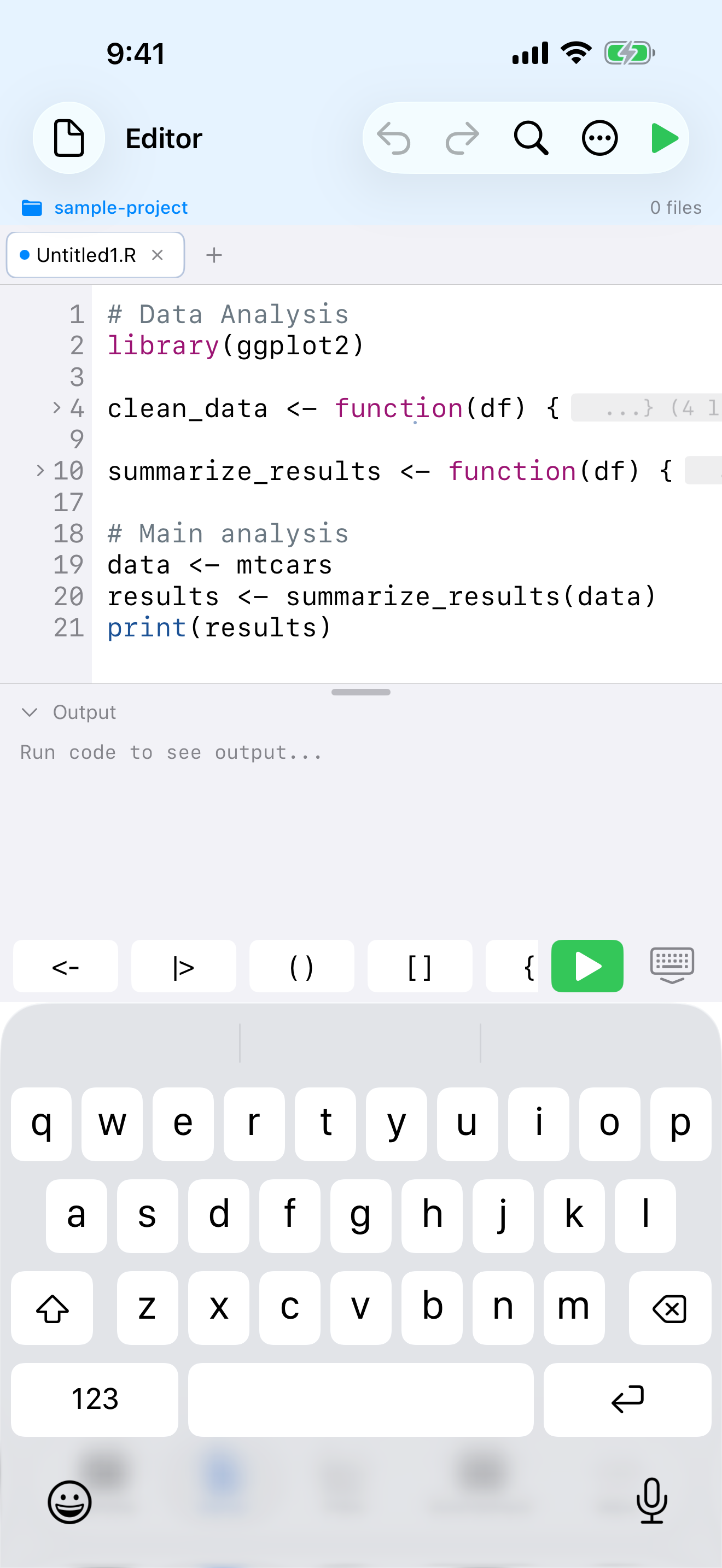
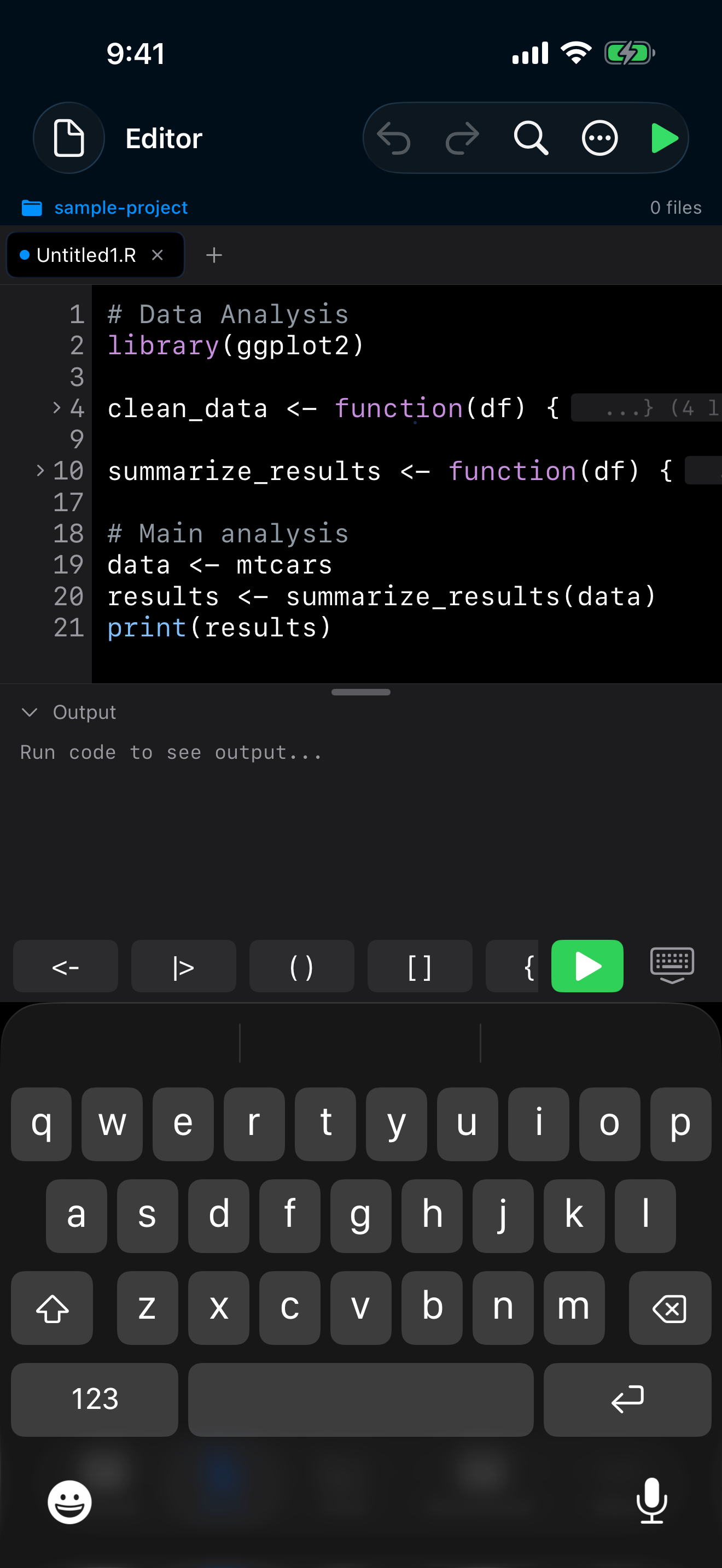
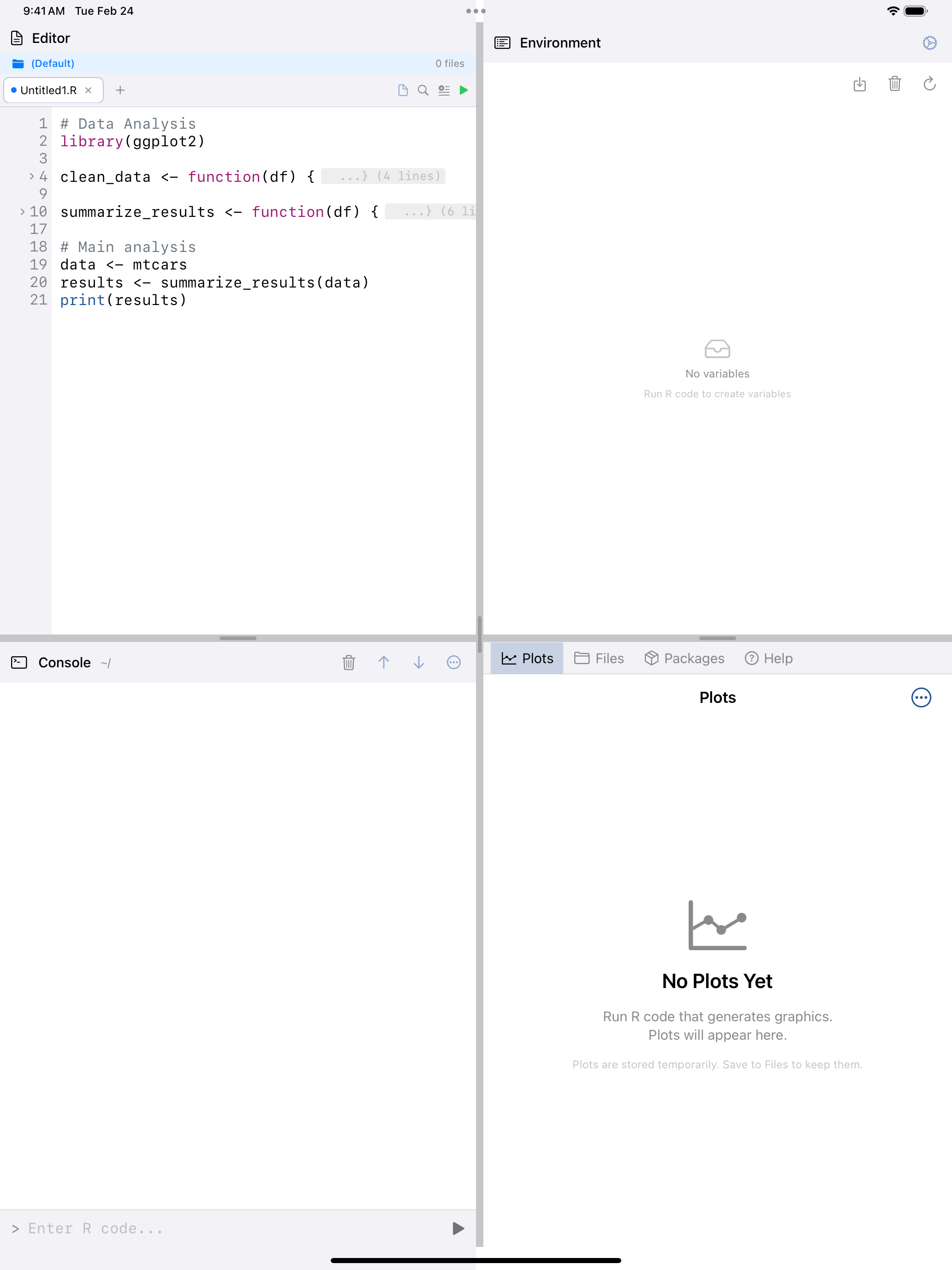
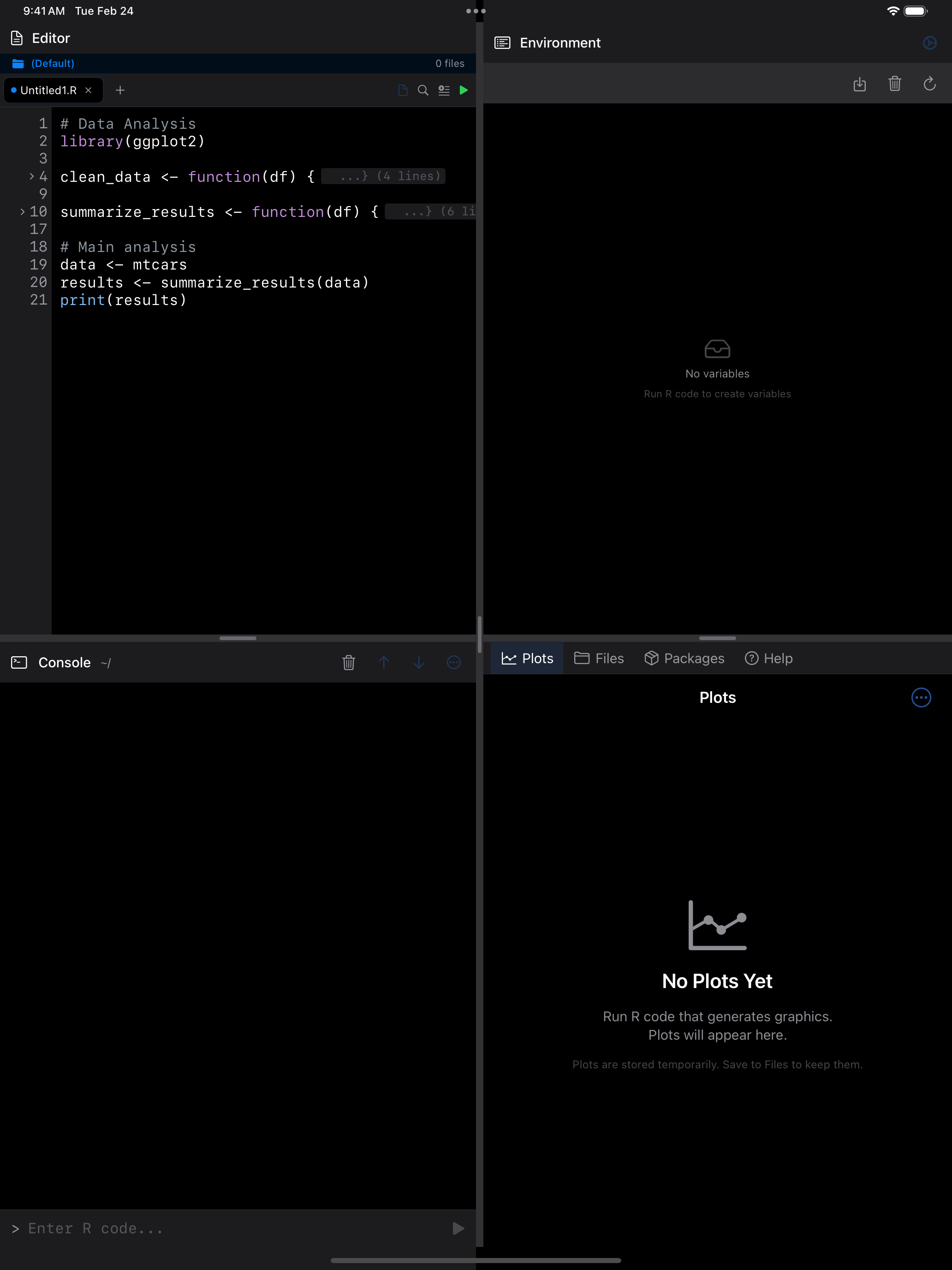
Turn on folding in the … menu to collapse functions, loops and other blocks.
 1 2
1 2
 1 2
1 2
 1 2
1 2
 1 2
1 2
- Fold chevron: tap the arrow in the gutter to collapse or expand a code block
- Folded region: collapsed code is hidden and replaced with a summary indicator
Tapping a fold’s line number works too. A fold stays with its function when lines change above it. Fold All and Unfold All are under Code Folding in the … menu, and folding works in both panes of the split editor.
Split Editor
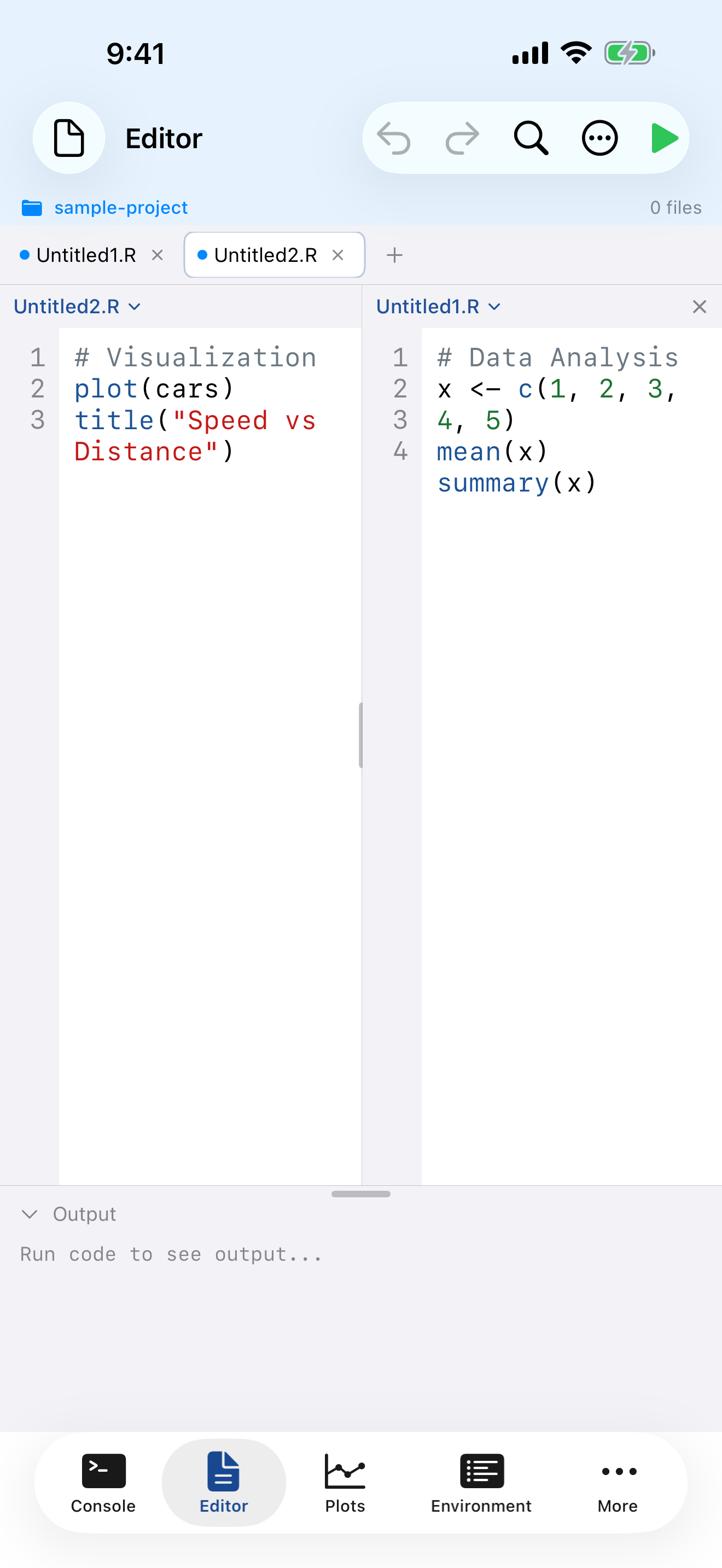
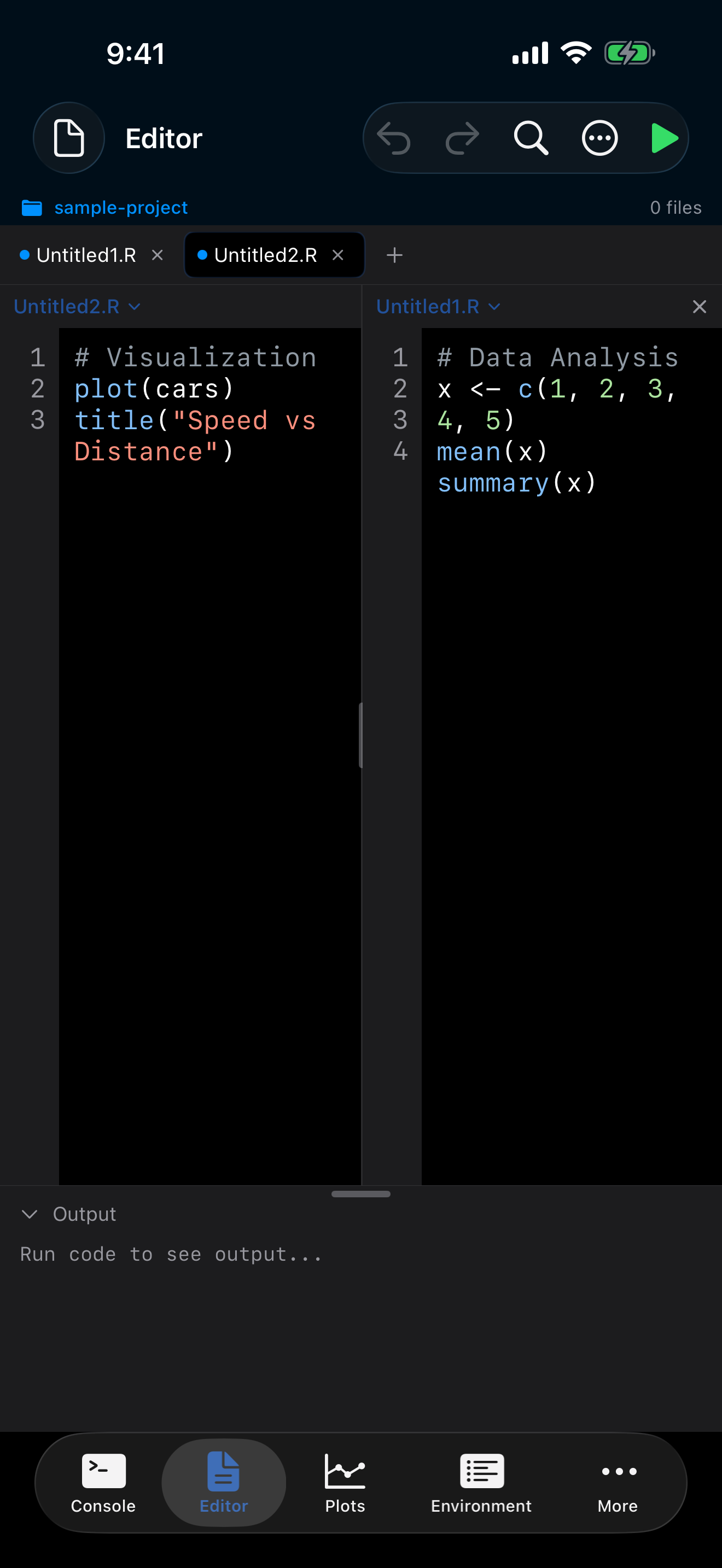
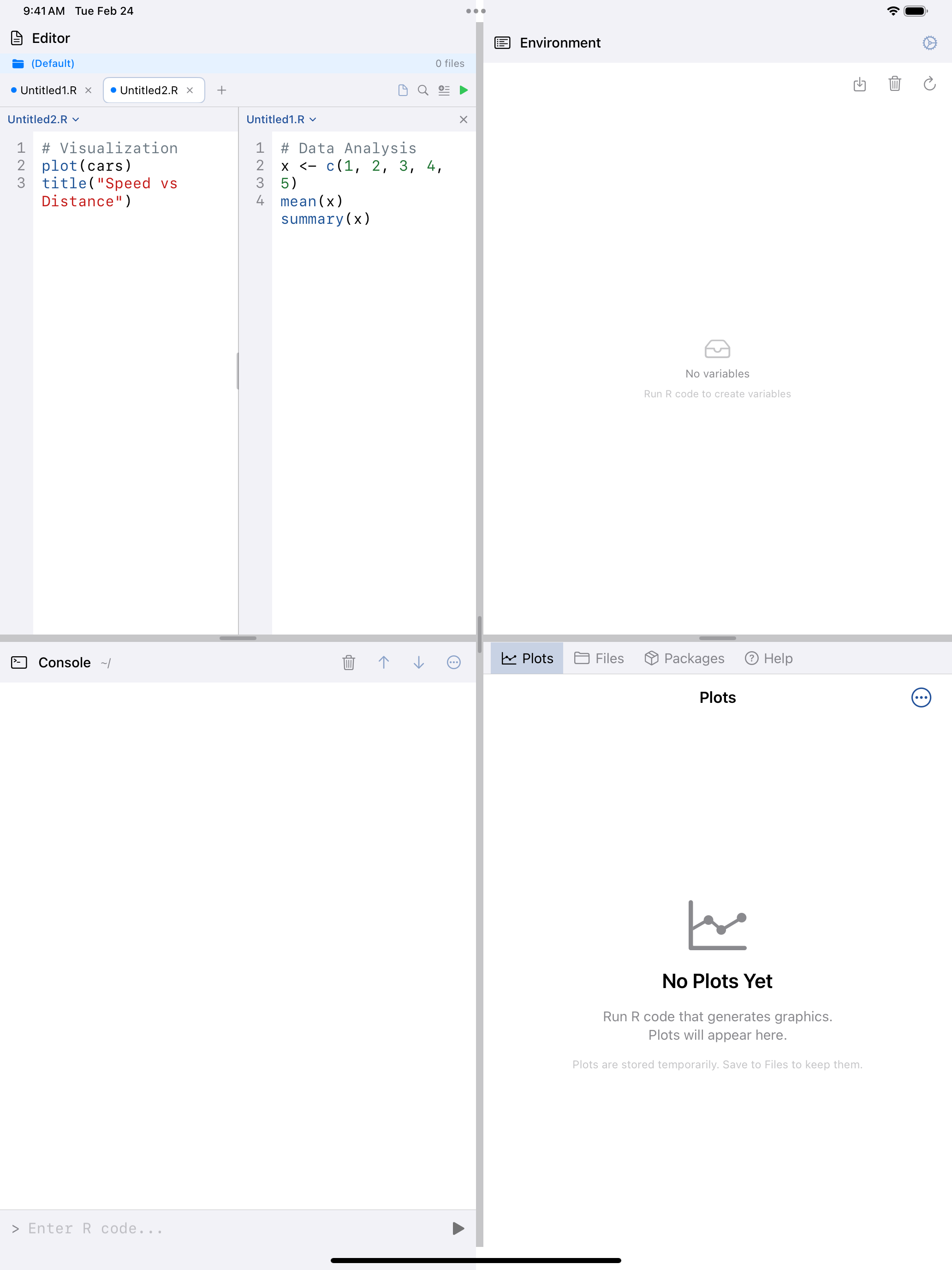
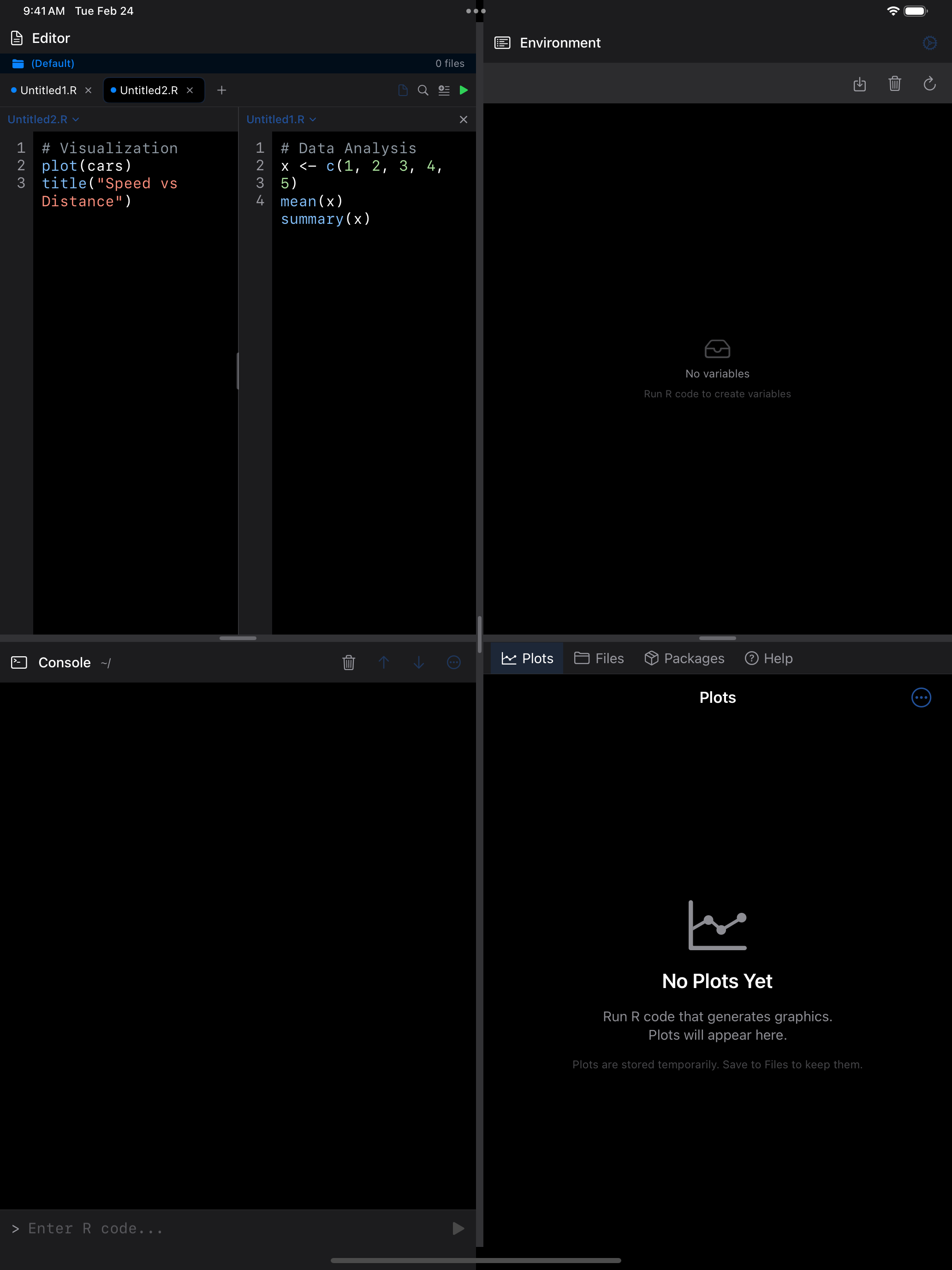
With two or more tabs open, Split Editor in the … menu shows two files side by side.
 1 2 3
1 2 3
 1 2 3
1 2 3
 1 2 3
1 2 3
 1 2 3
1 2 3
- Left pane: displays one file (the primary tab)
- Right pane: displays a second file side by side
- Split divider: drag to resize the panes
The panes always show different tabs; picking the right pane’s tab on the left swaps them. Save, Close, Run, the … menu and shortcuts act on the pane you last typed or tapped in. Choosing a tab from the tab bar, or opening or closing the split, makes the left pane current. Jump to Line, Code Outline and Export to Gist act on whichever pane was current when you opened them.
Drag the divider anywhere between a quarter and three quarters of the width; VoiceOver adjusts it as “Left and right editor”. The output panel’s handle works the same way.
iPad windows
Each iPad window has its own editor, tabs and autosave, so two windows never overwrite each other. A new window starts with an empty Untitled tab. Open in New Window in Files opens one file in its own editor window, which saves with Cmd+S and asks before closing with unsaved changes.
More Editor Features
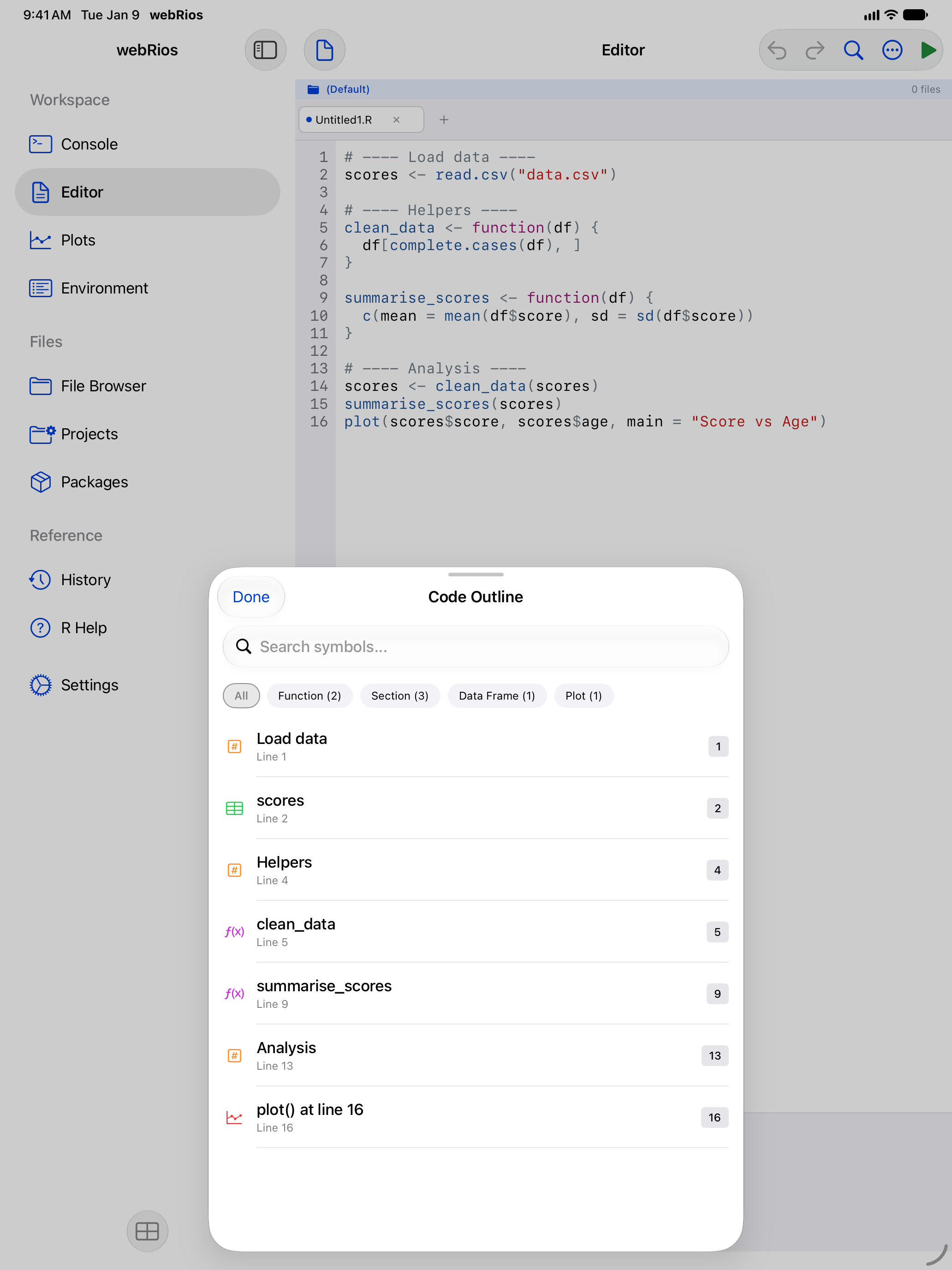
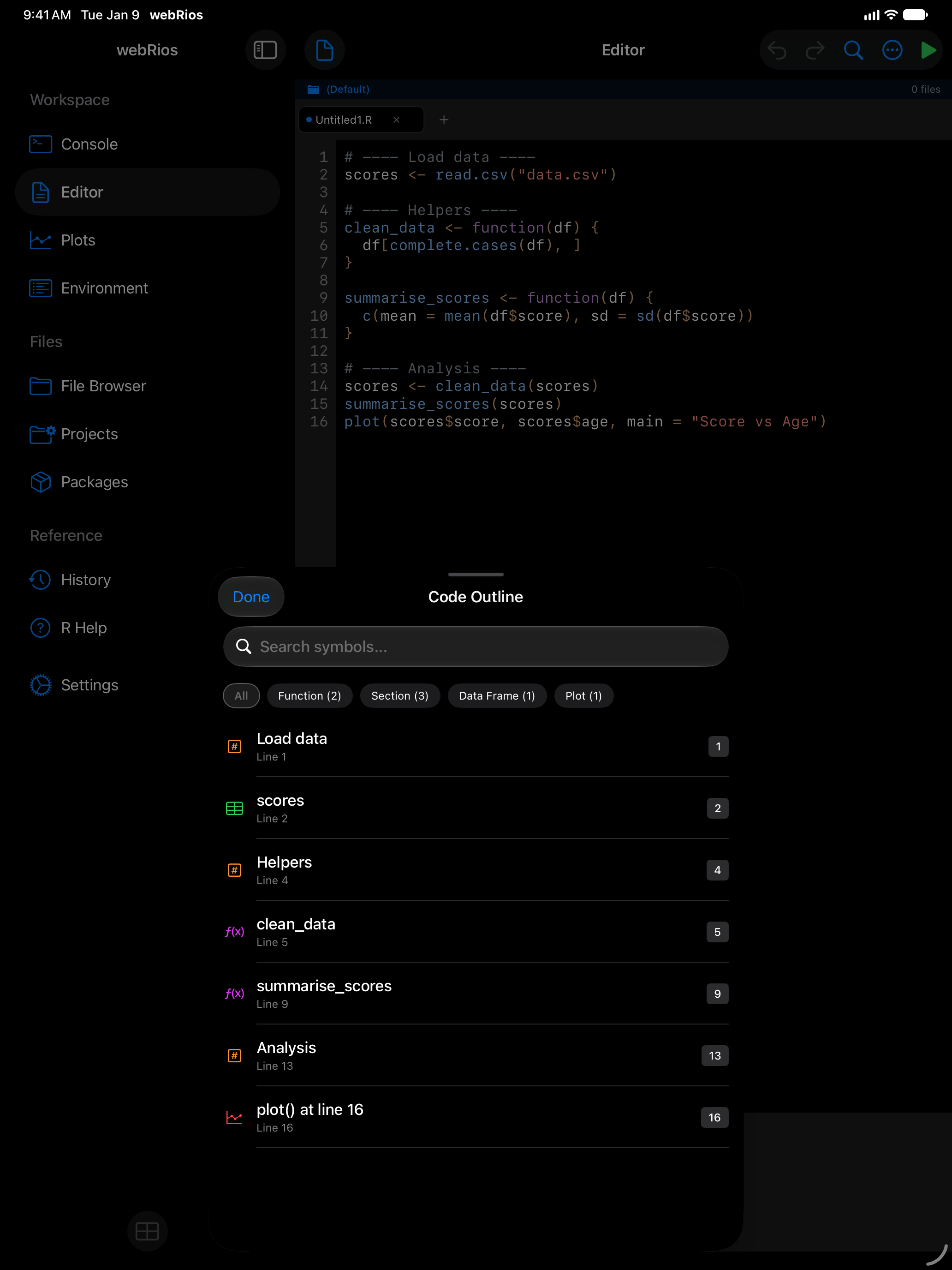
Code Outline
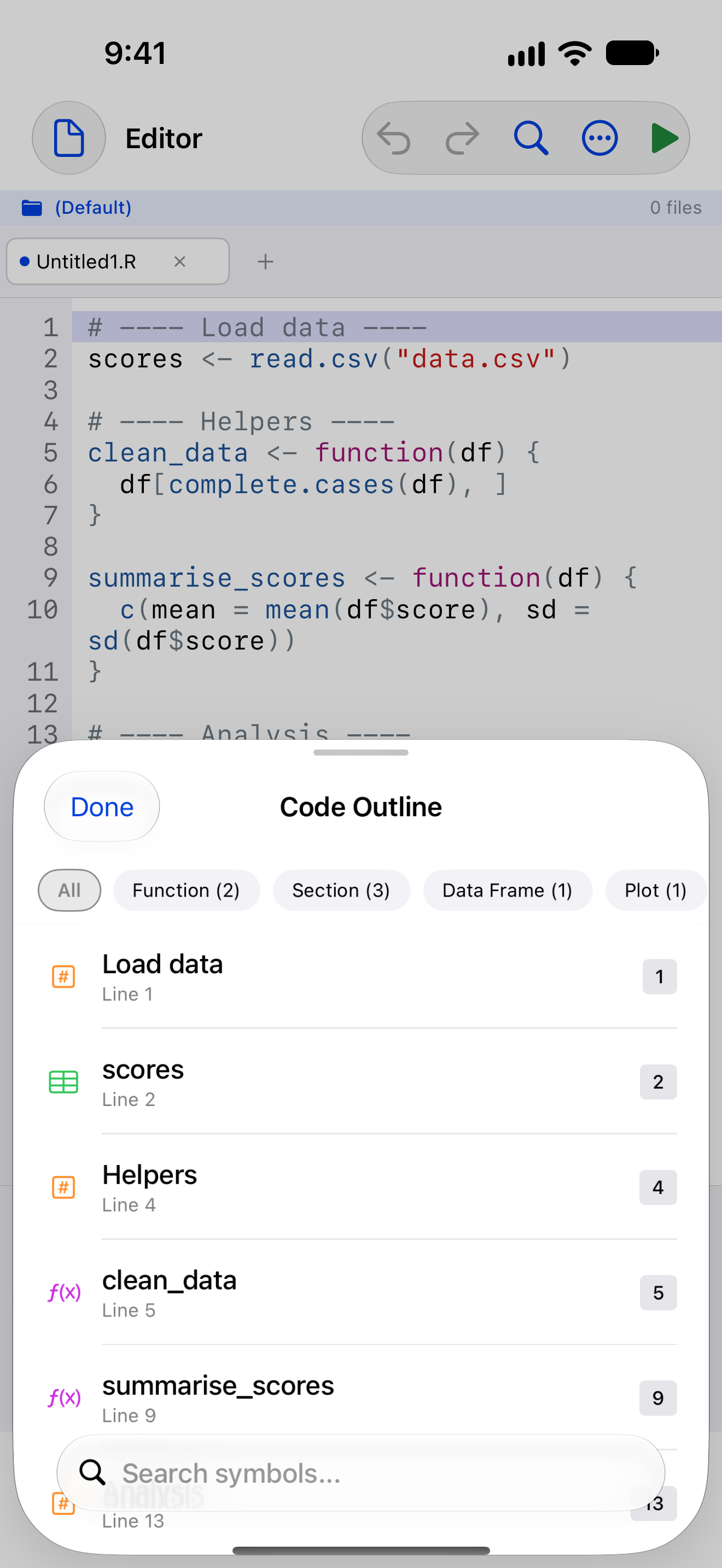
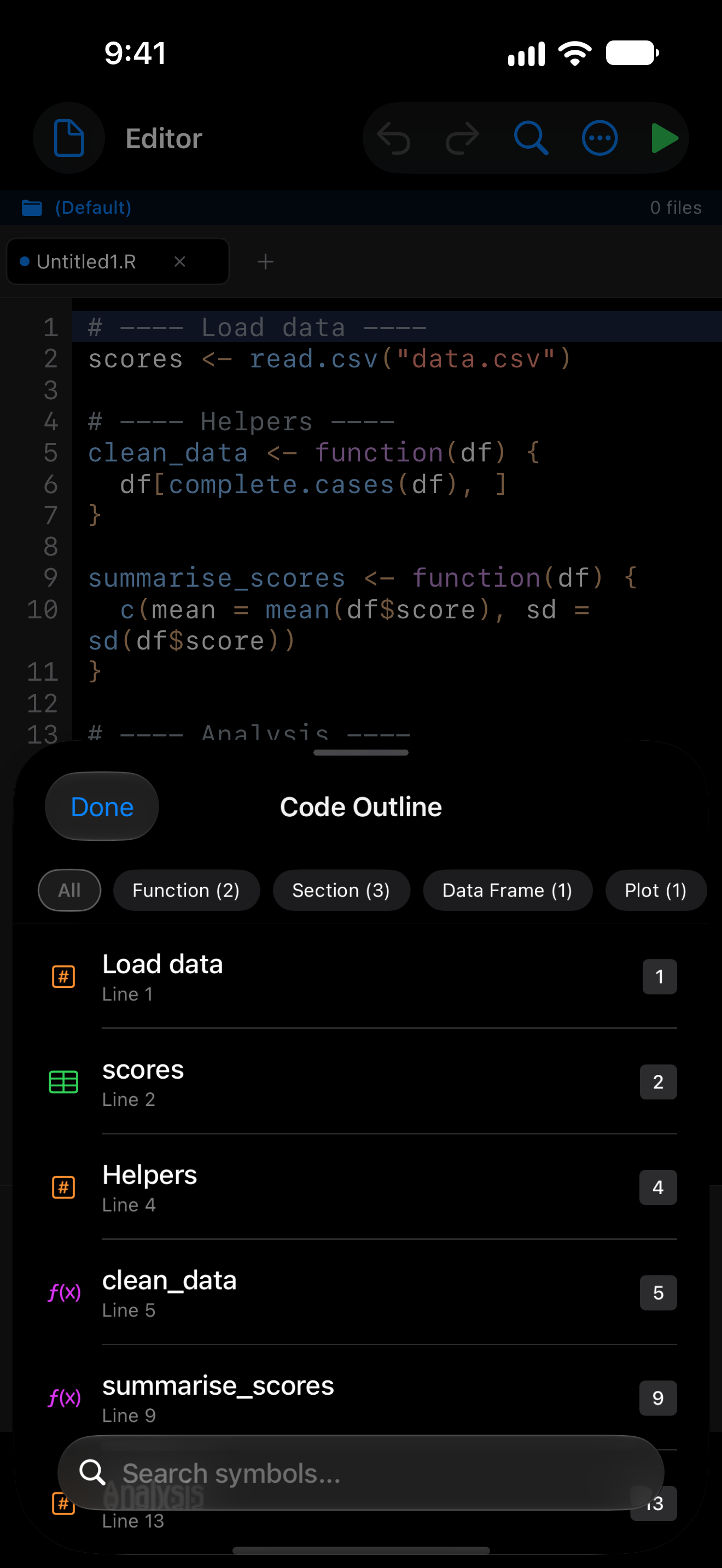
The outline lists every function and section heading. Tap one to jump there.
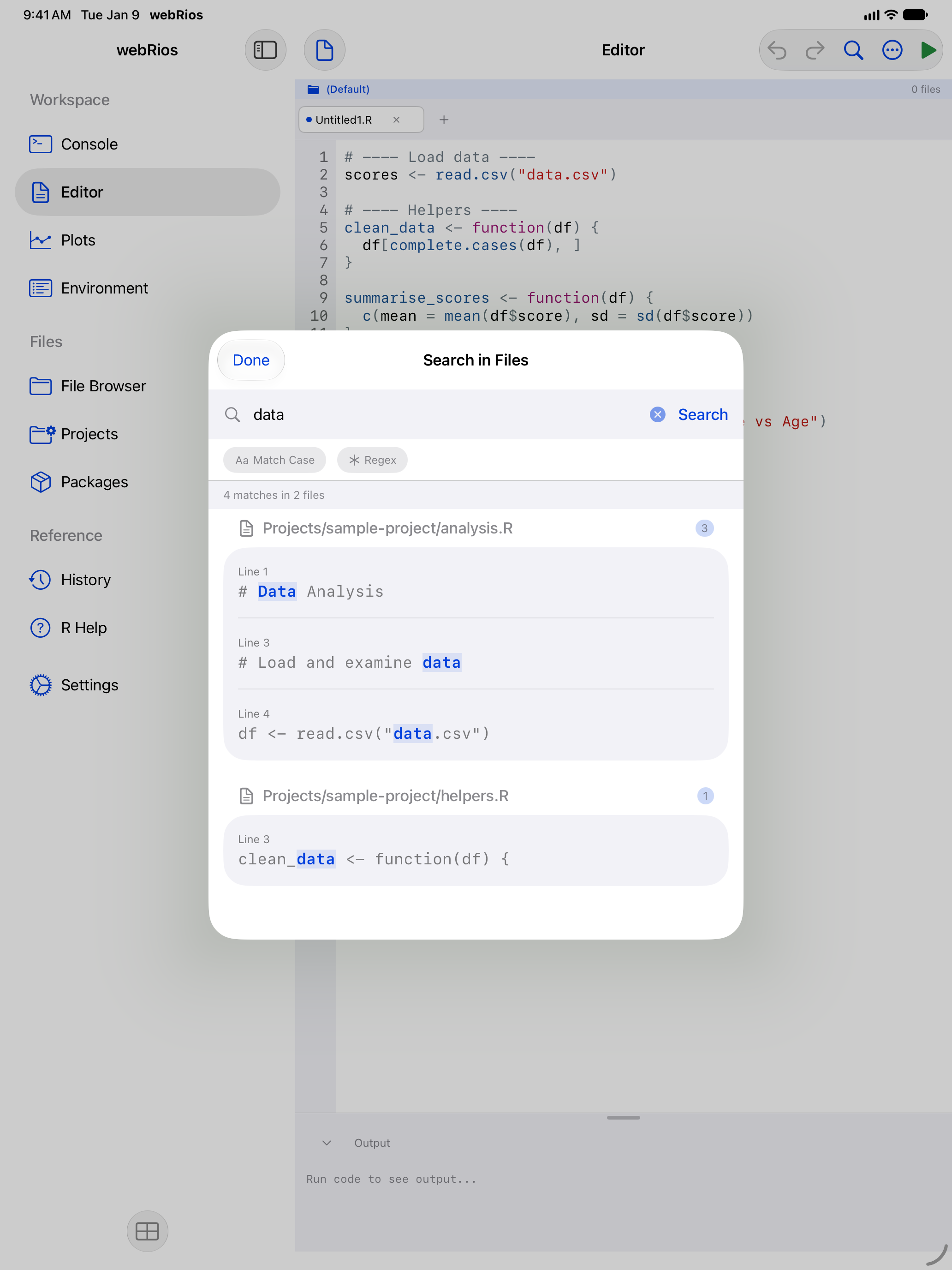
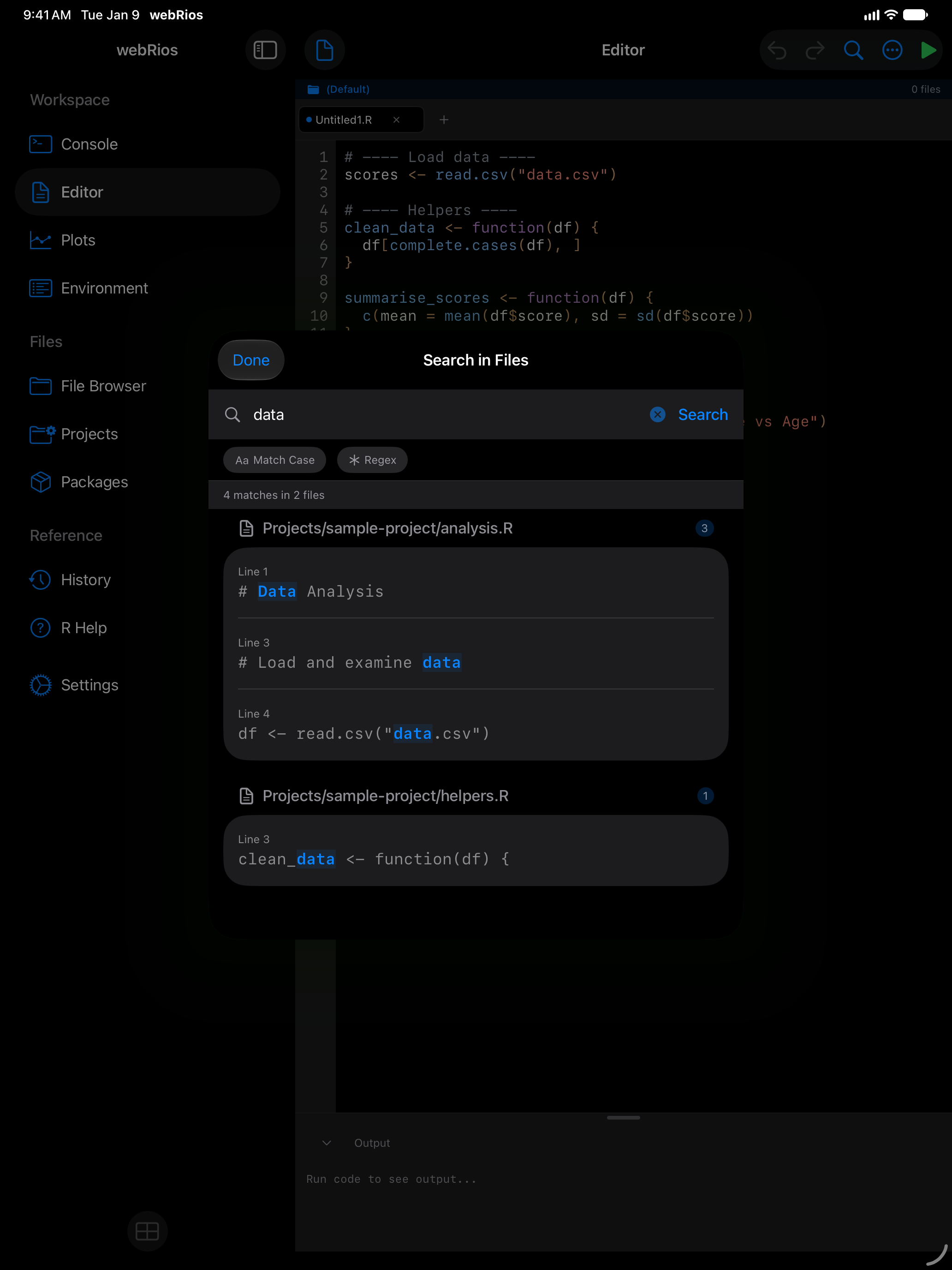
Search Across Files
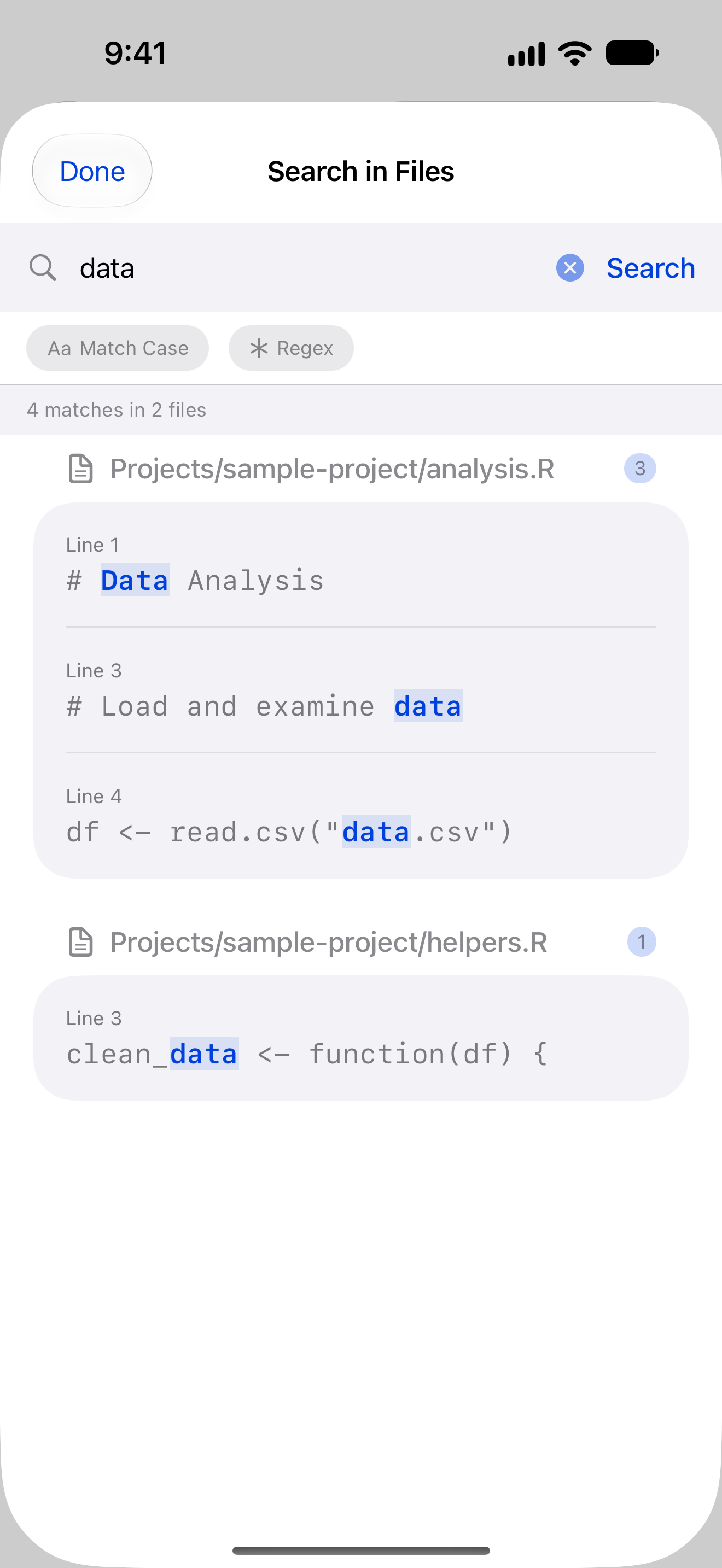
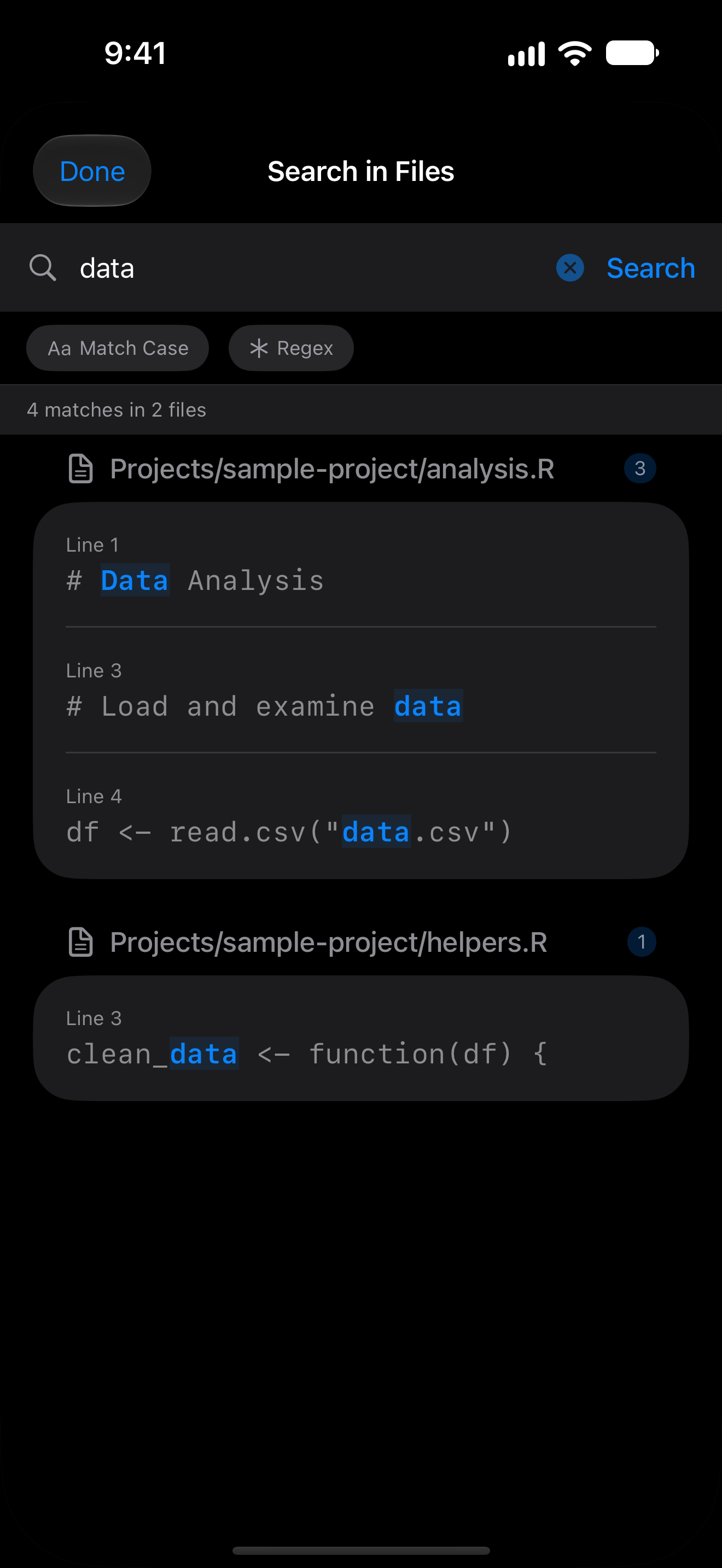
Search in Files (File menu > Navigate, or Cmd+Option+F when the editor text isn’t focused) searches every .R and .Rmd file in Documents.
The options are Match Case and Regex. Tap a result to open the file at that line.
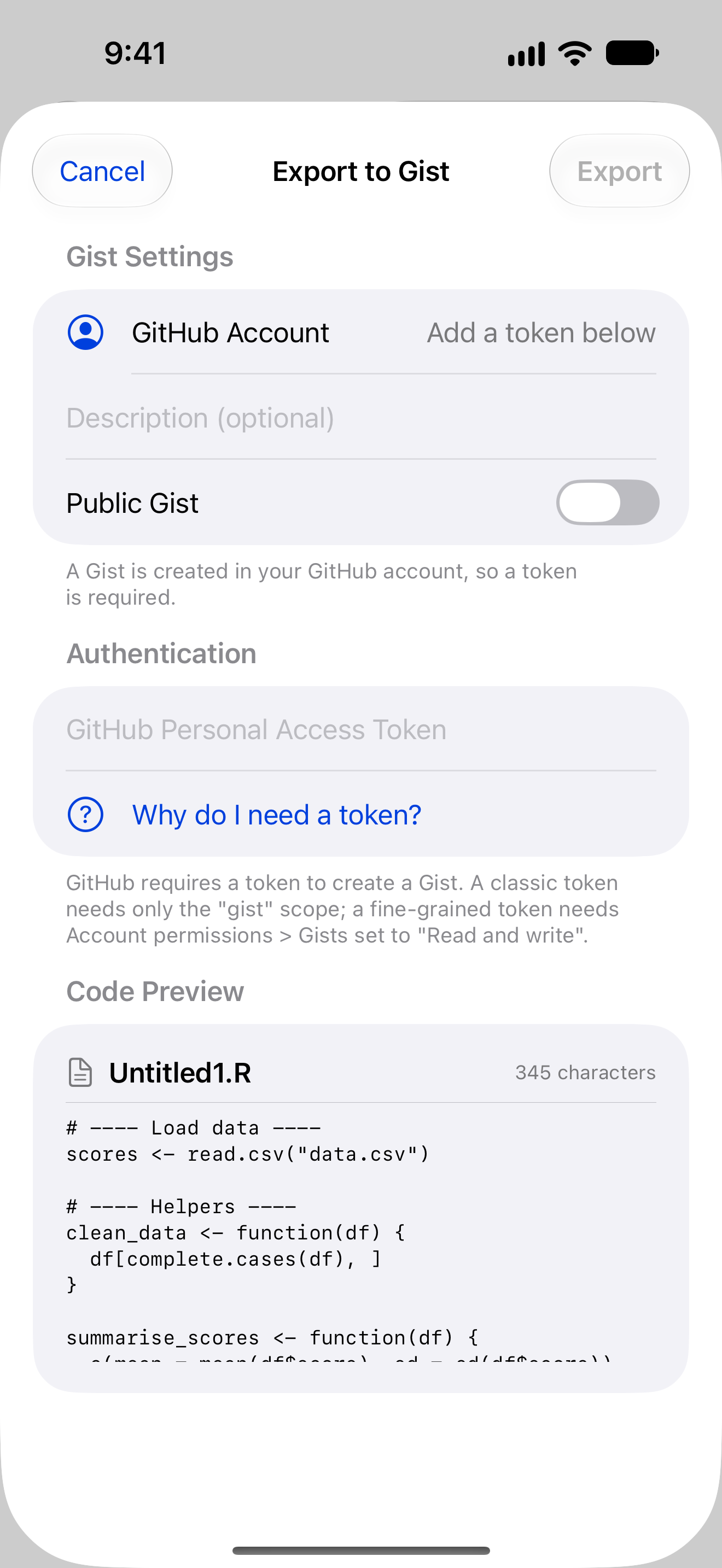
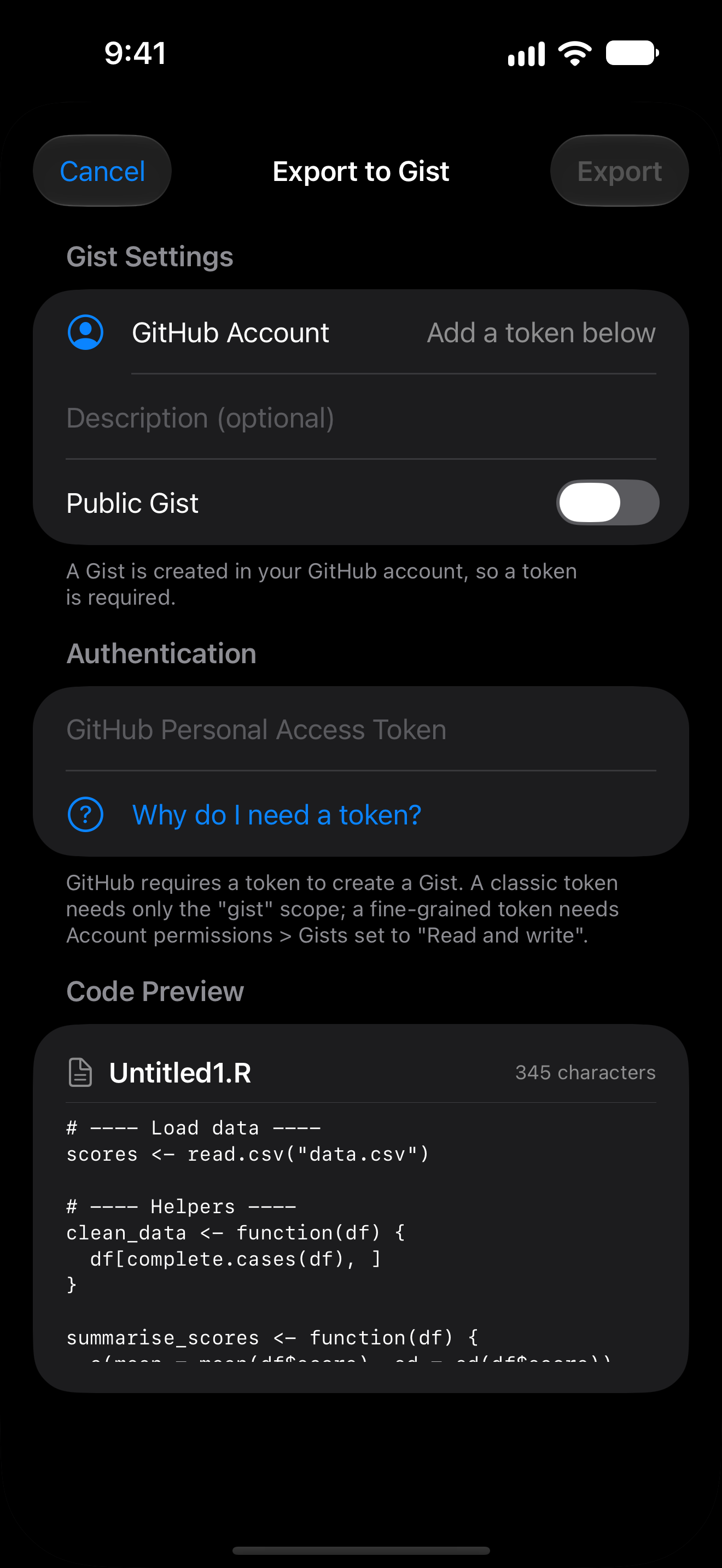
Export to a GitHub Gist
Publishes the current file as a gist and gives you the link. It needs a GitHub token, which is kept in the Keychain.
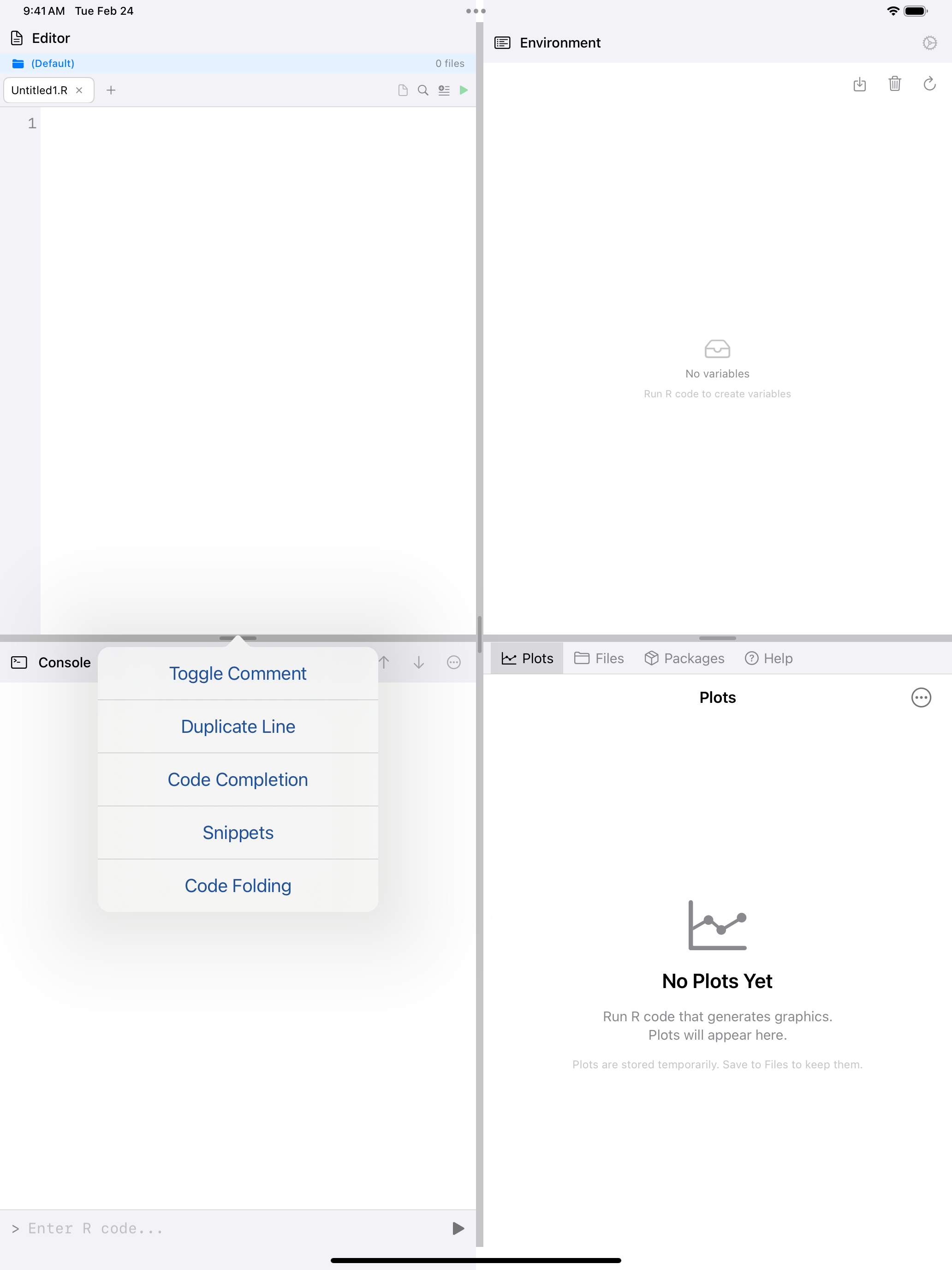
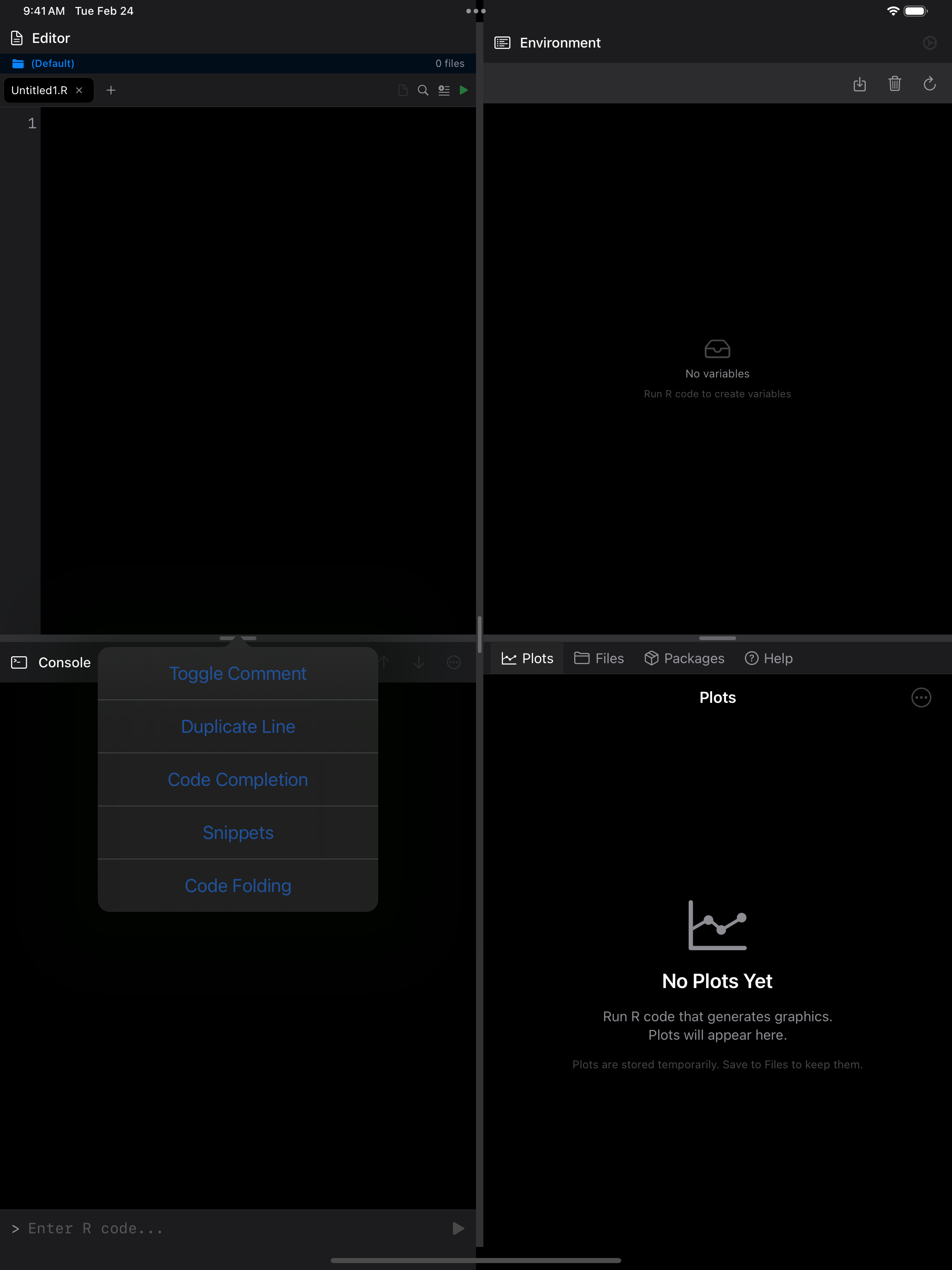
Editor Actions Menu
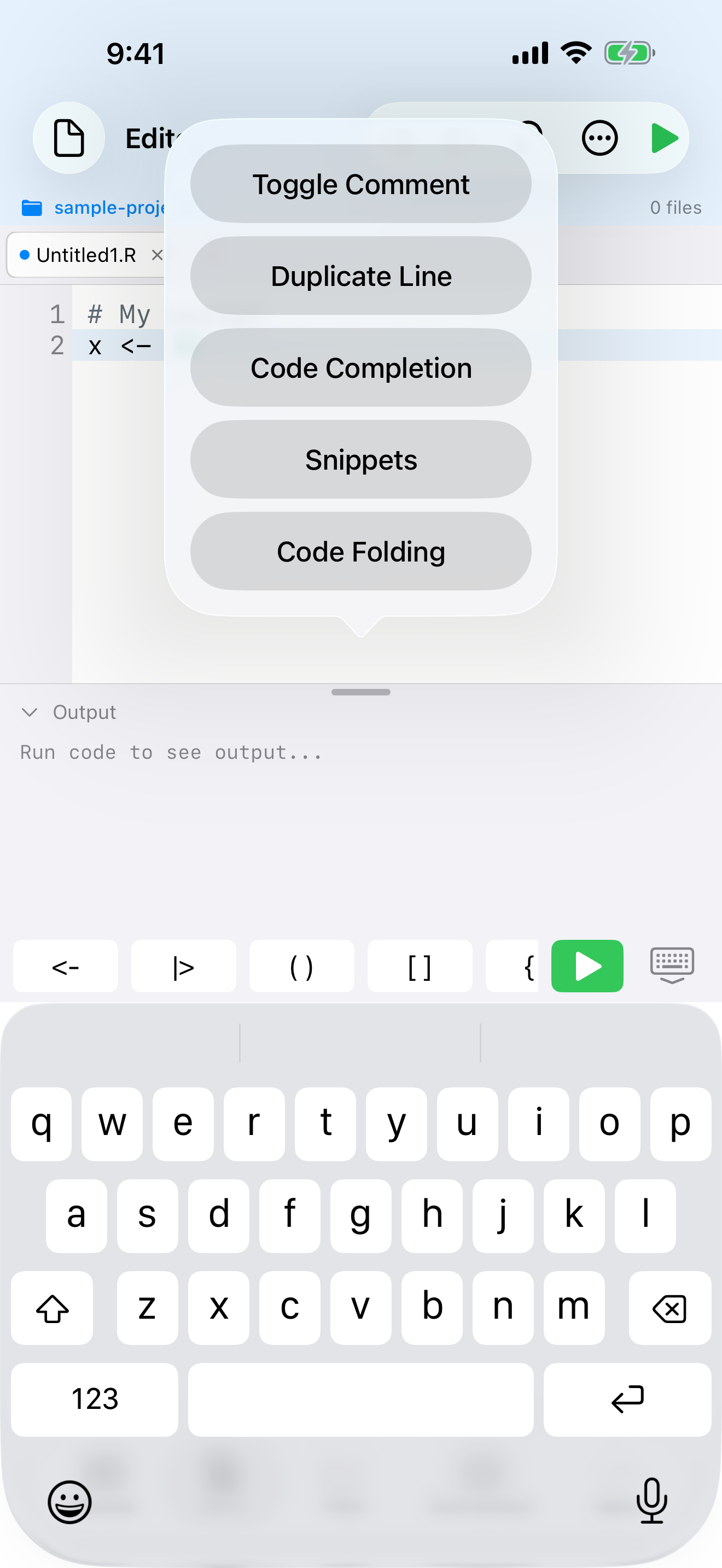
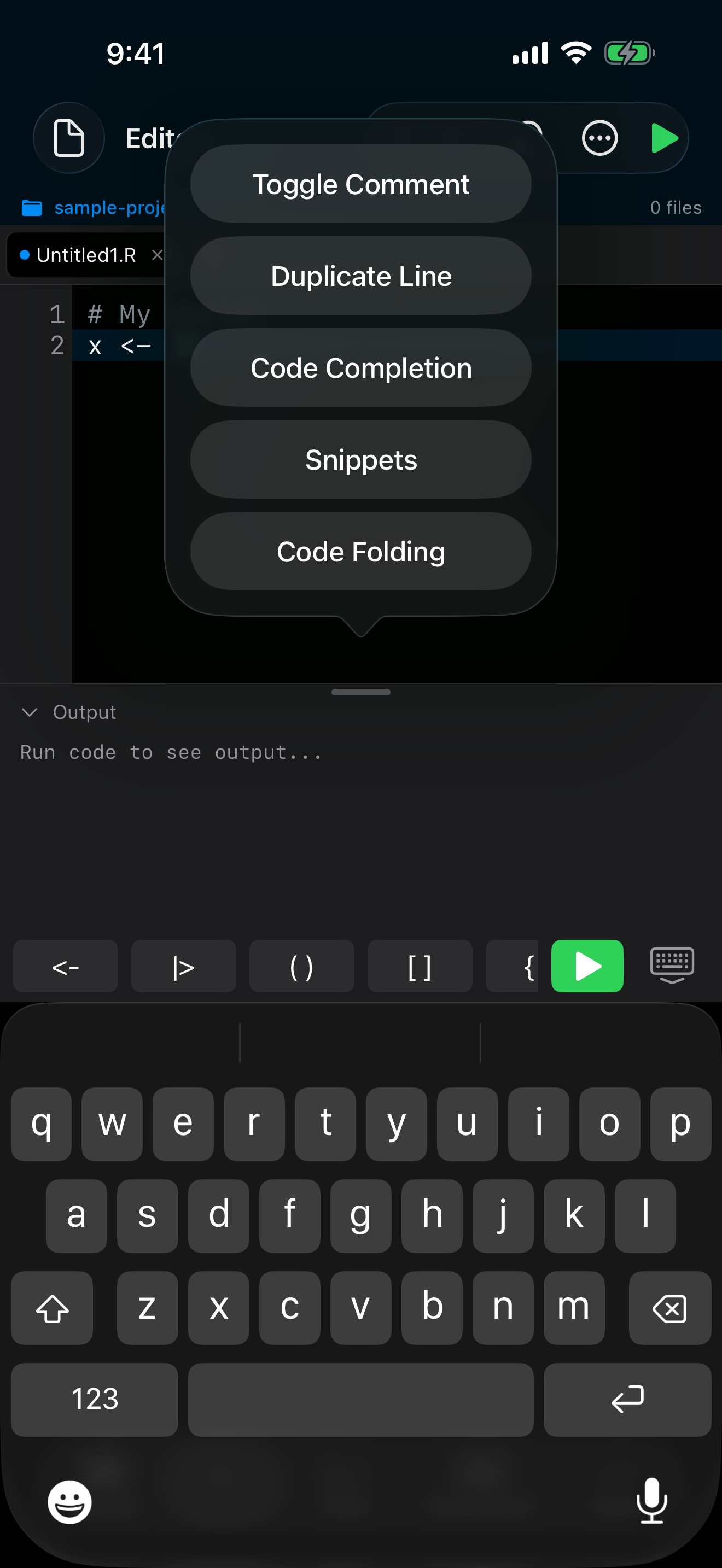
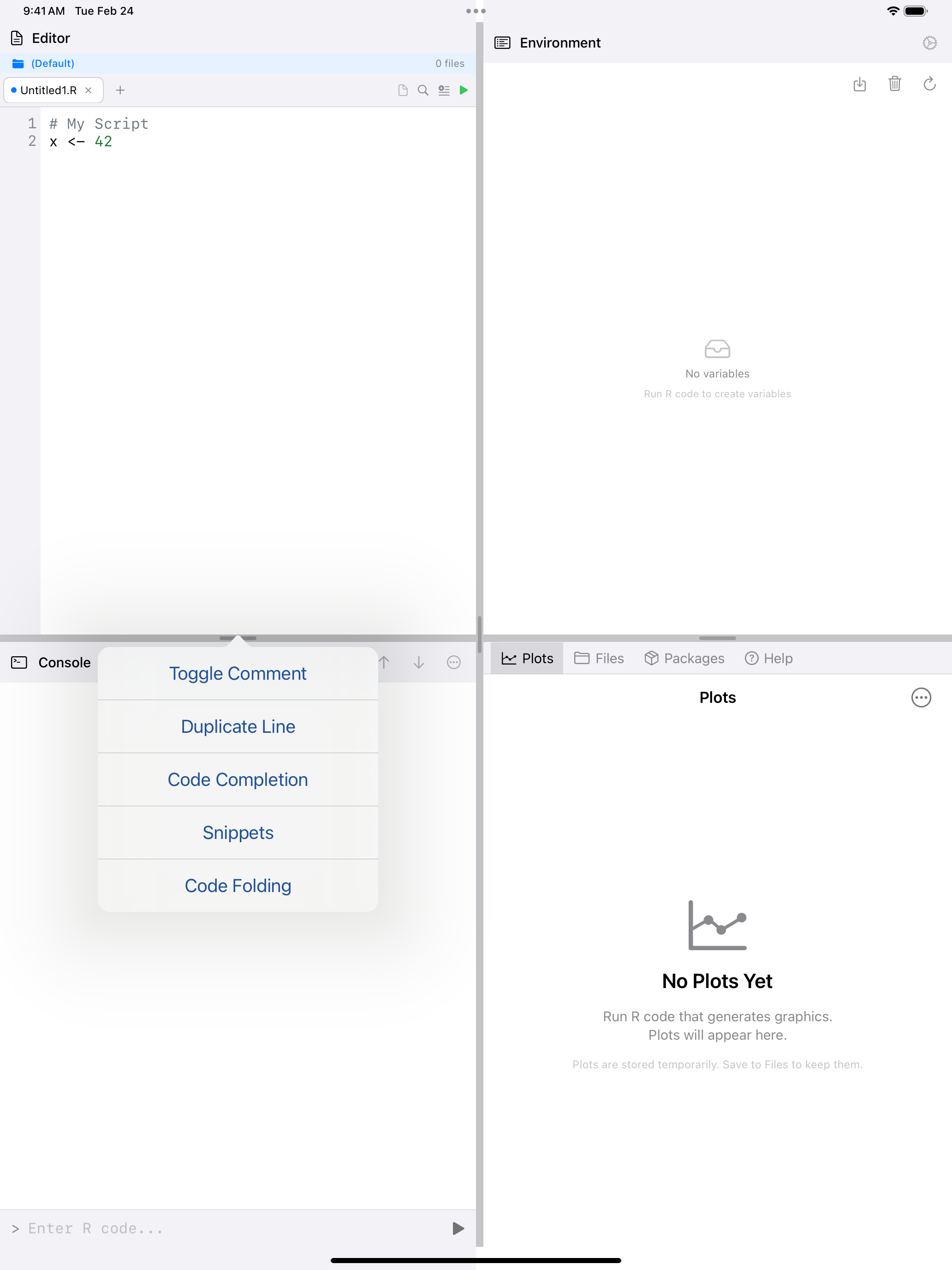
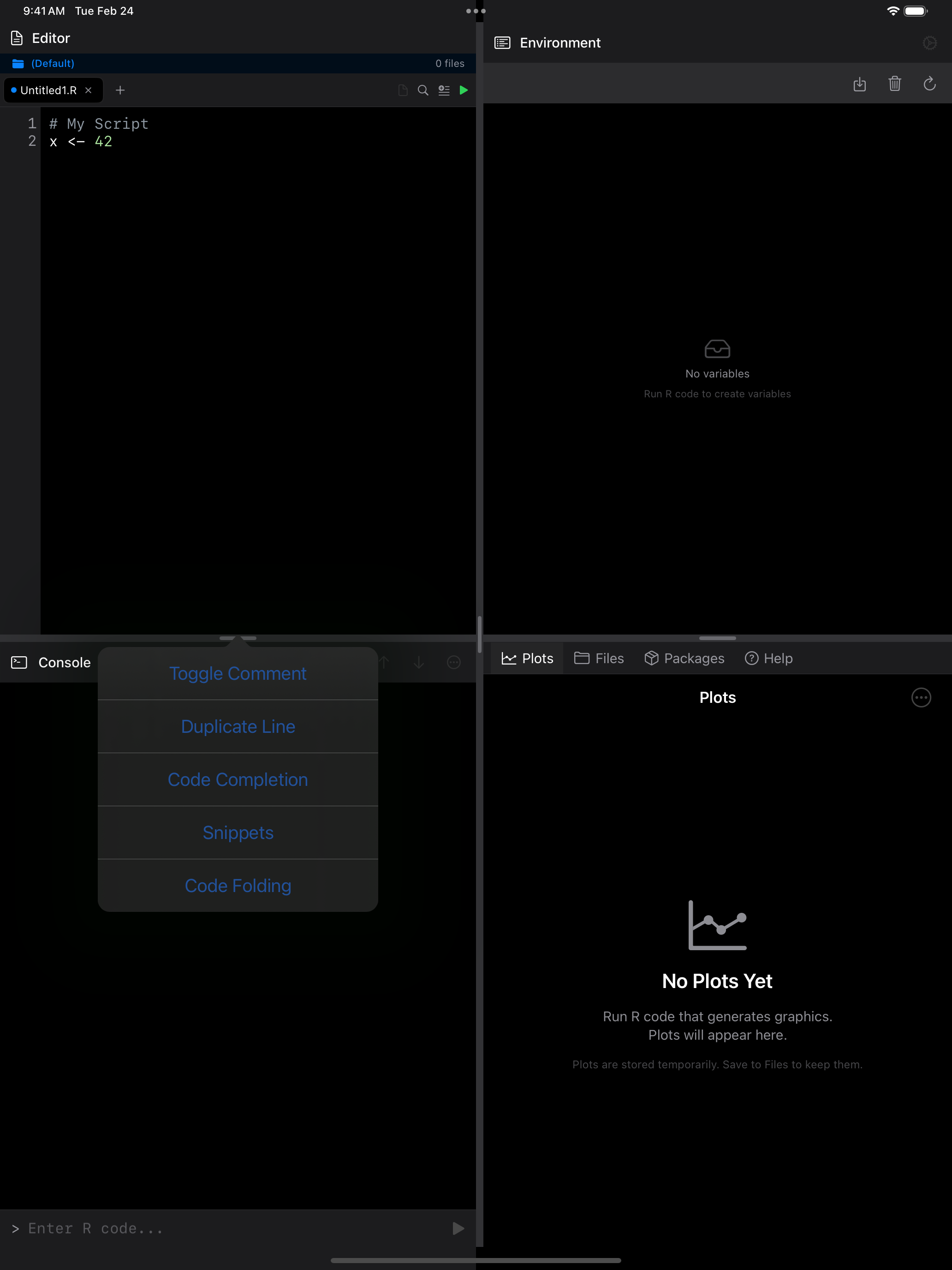
Most of these are in the … (Editor actions) menu:
 1
1
 1
1
 1
1
 1
1
- Editor actions button (the … icon): opens the menu with Toggle Comment, Duplicate Line, Code Completion, Rename Variable, Go to Definition, Snippets, Code Folding, and Split Editor
Also:
- Undo and Redo: toolbar buttons, or Cmd+Z and Cmd+Shift+Z. Each tab keeps its own history, across screen changes. Replace, Toggle Comment, Duplicate Line, snippets, completions and Rename Variable can all be undone.
- Toggle Comment and Duplicate Line: act on the selected lines, or the line with the cursor
- Rename Variable: select a name and rename it throughout the file. Strings, comments,
$members,pkg::names and argument names such asdata =are left alone. - Go to Definition (Ctrl+Cmd+J): select a function name to jump to where your project defines it
- Code Outline: File menu > Navigate > Code Outline, or Cmd+Shift+O
- Jump to Line: File menu > Navigate > Jump to Line, or Cmd+L. A fold around the line opens.
- Pinch to Zoom: pinch to resize the editor text, or set Editor Zoom in Settings > Appearance. Fonts go up to 30 pt.