Settings
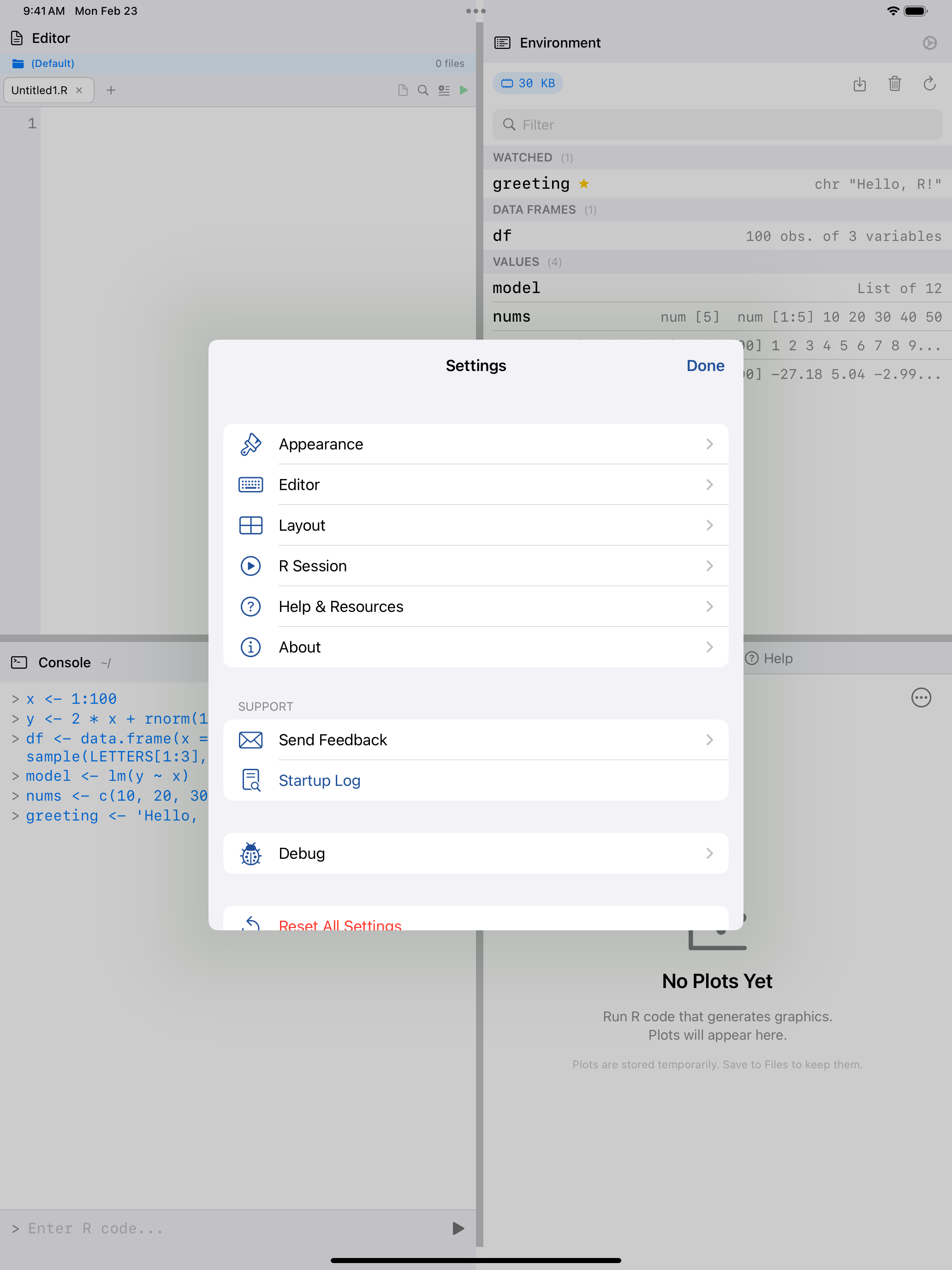
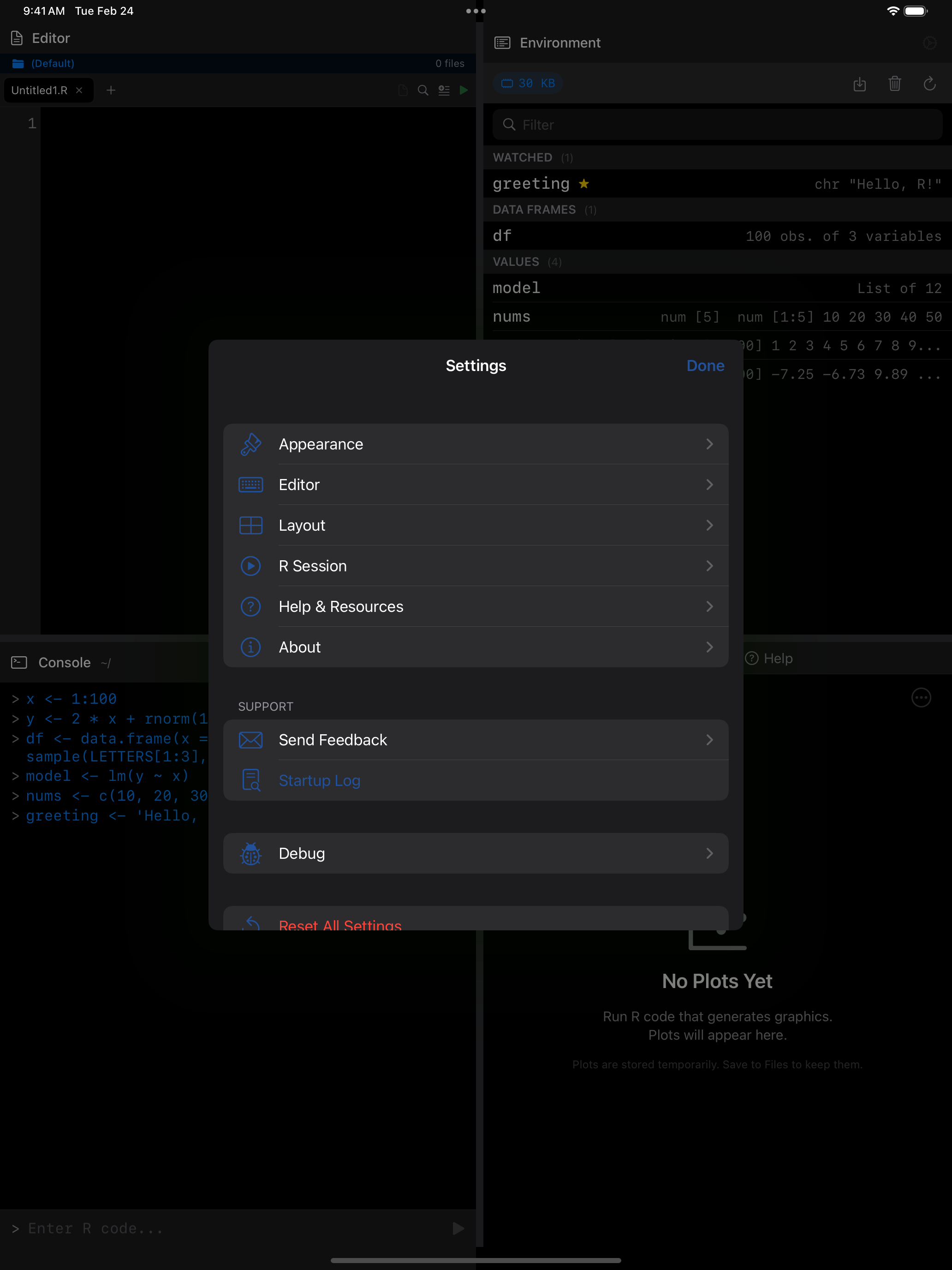
Appearance, editor behavior, layout and R session options, plus help and diagnostics.
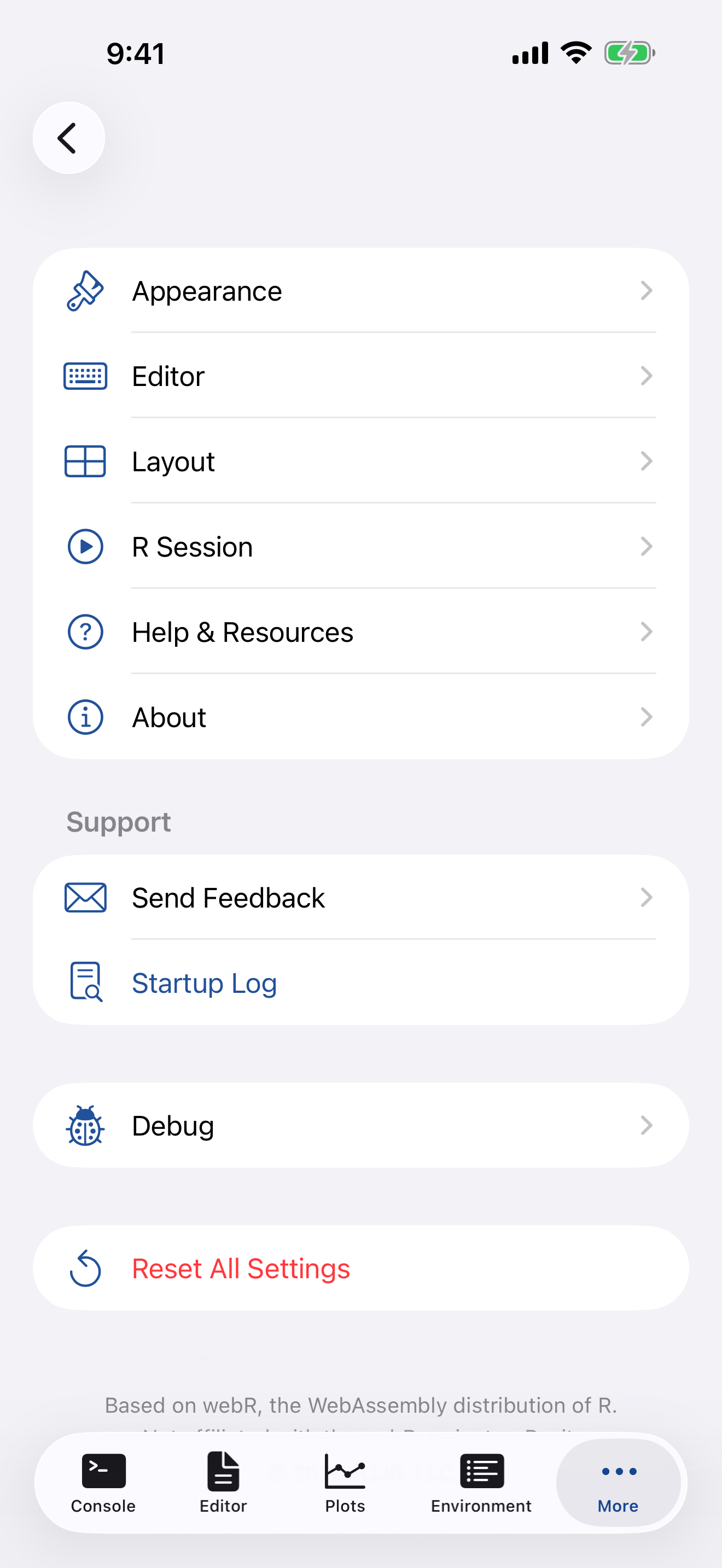
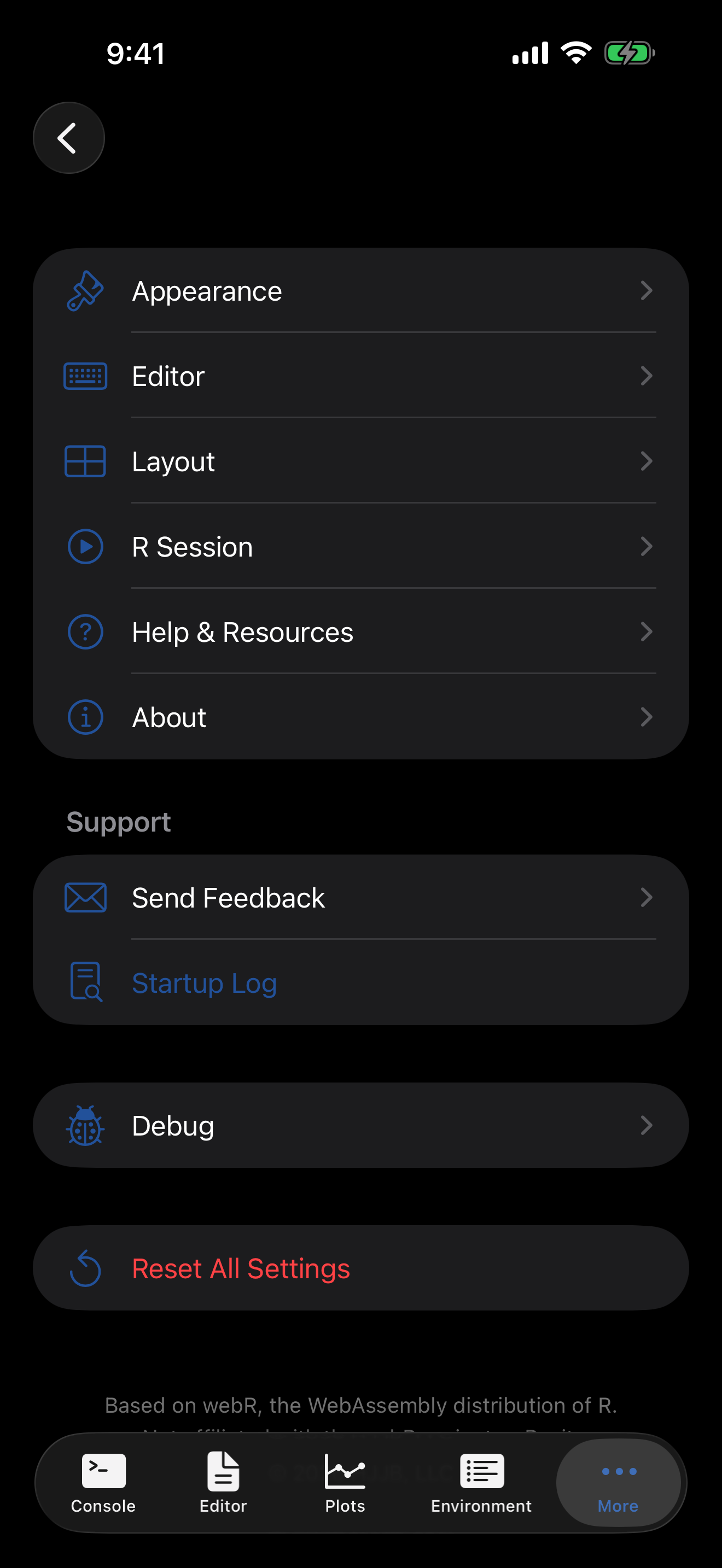
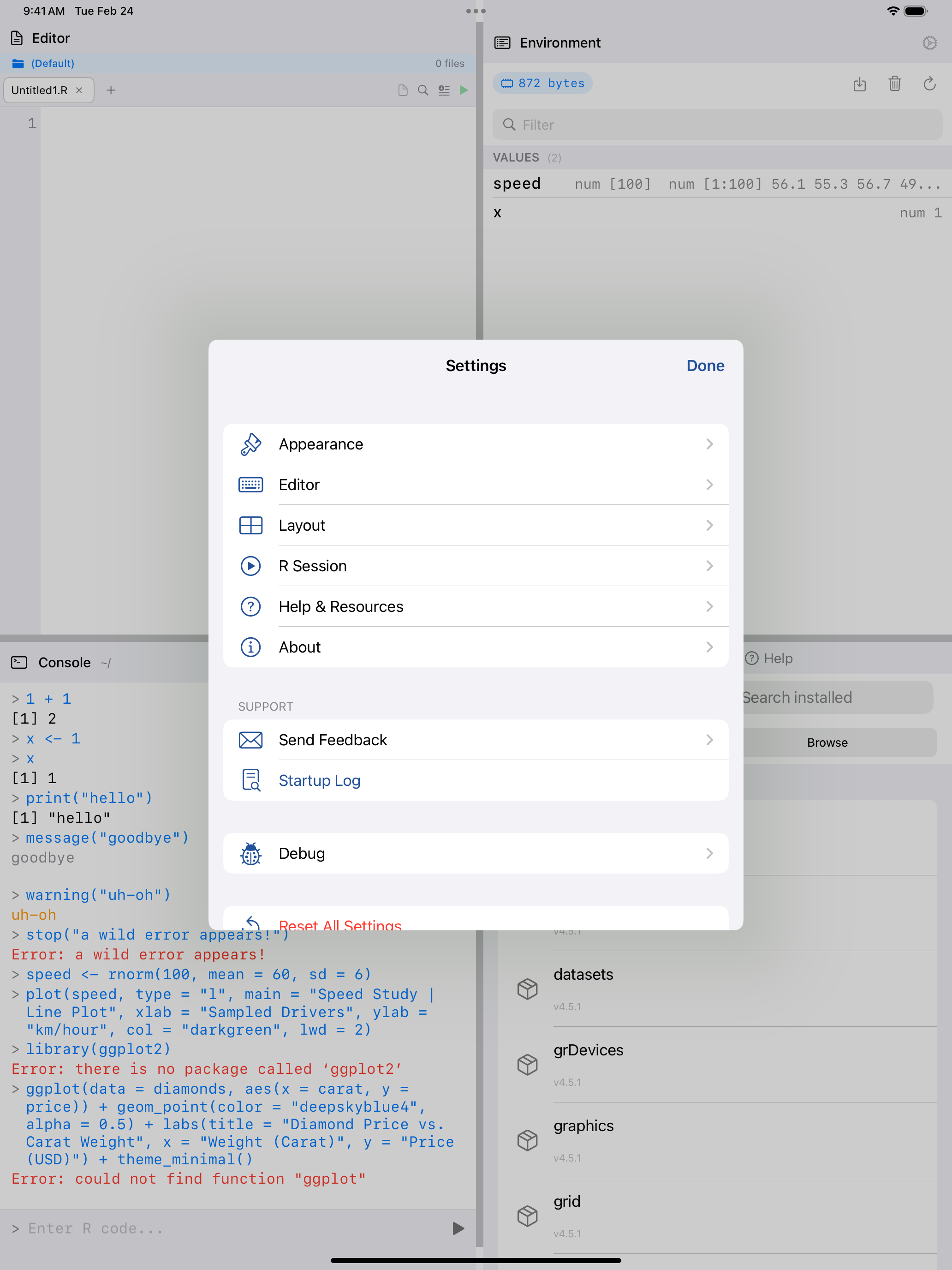
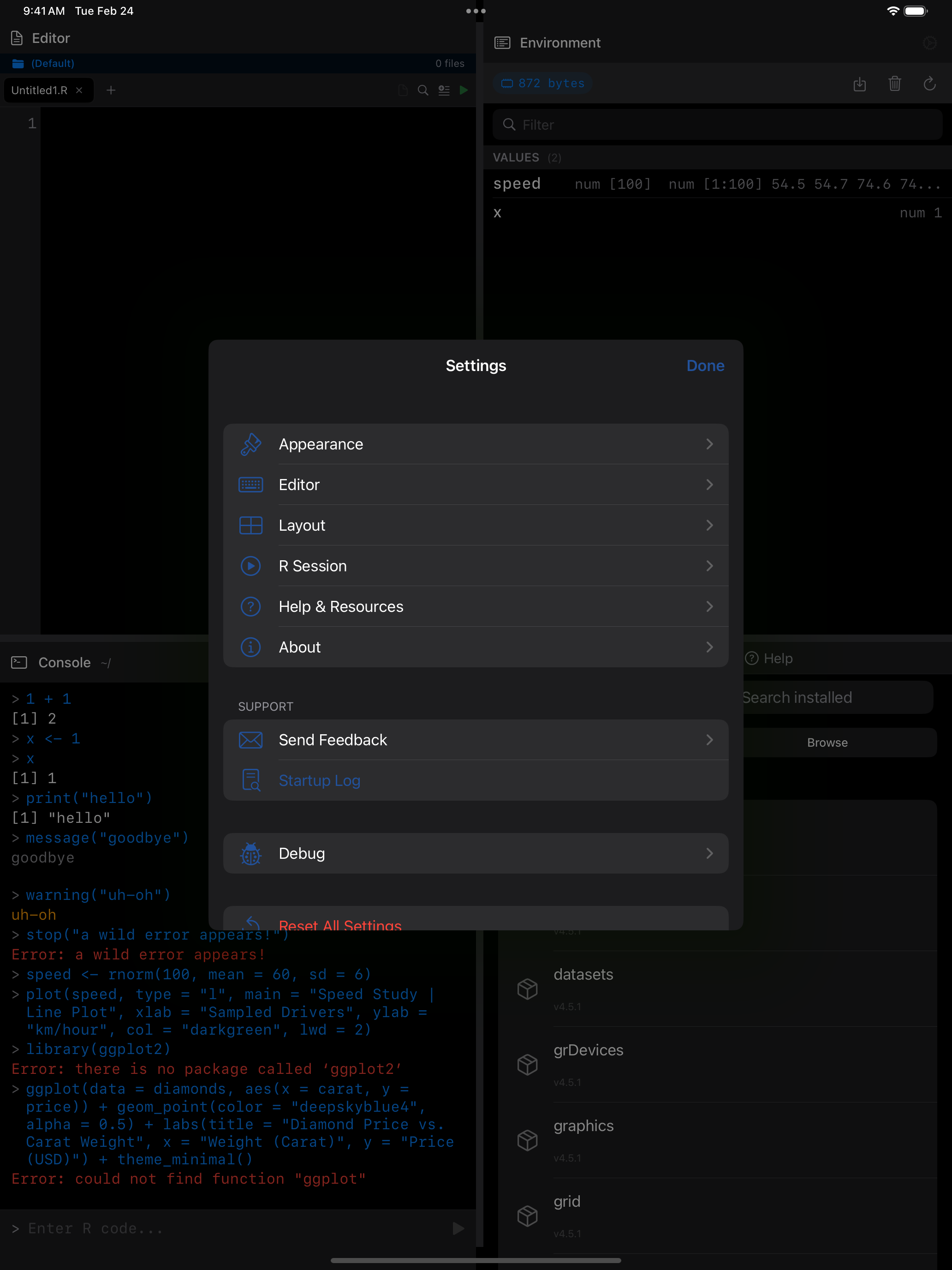
What you are seeing above:
- Appearance: theme, fonts, plot graphics, and sound
- Editor: auto-indent, auto-close brackets, line numbers, and current-line highlighting
- Layout: choose between Tab Bar, Sidebar, or 4-Pane Workspace (iPad)
- R Session: package restoration, workspace saving, copying files back from R, network proxy, when to suggest stopping a long run, and memory management
- Help & Resources: the Getting started checklist, keyboard shortcuts, iCloud sync, and external links
- About & Support: version info, feedback form, and diagnostic logs
Appearance
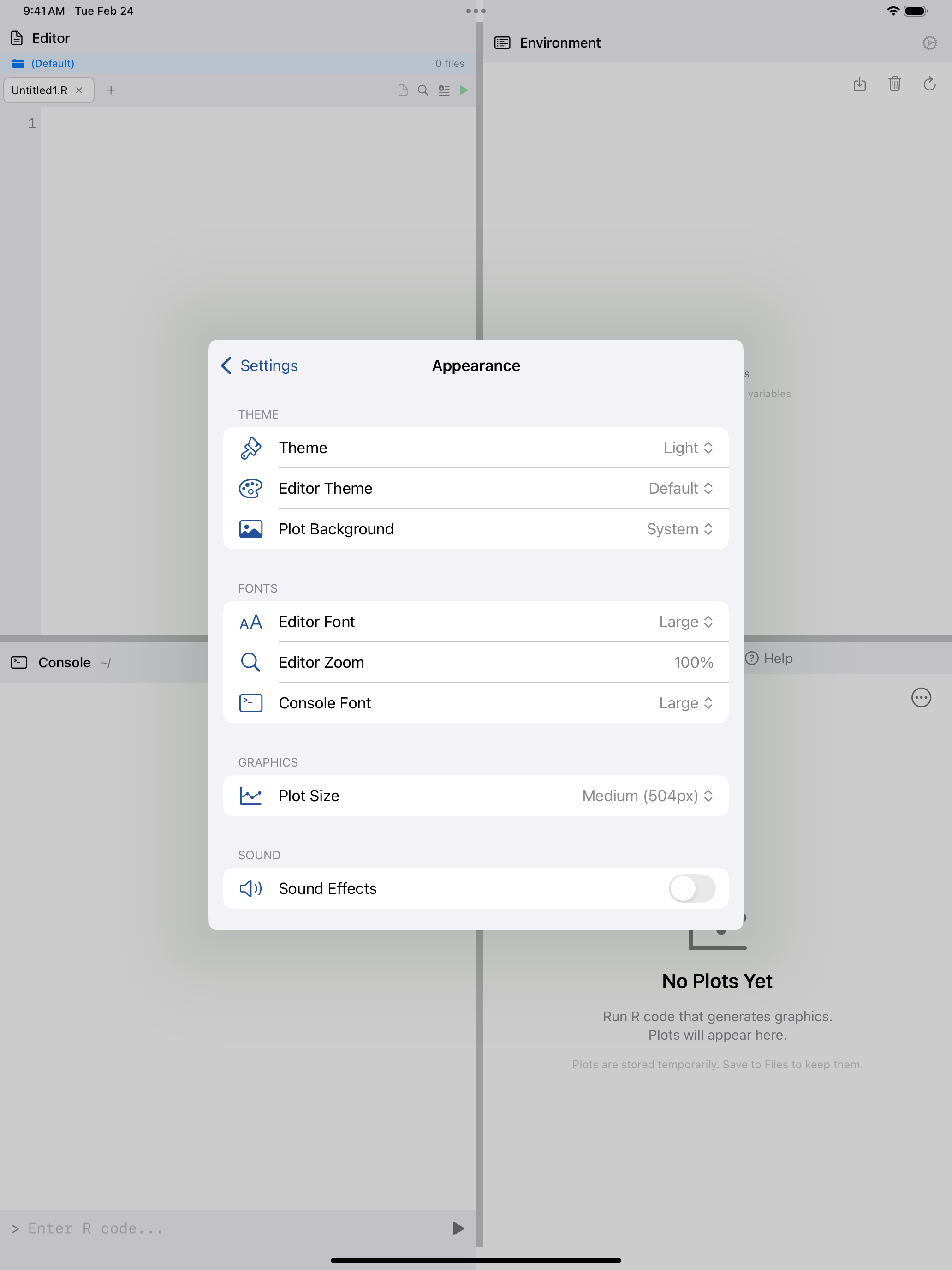
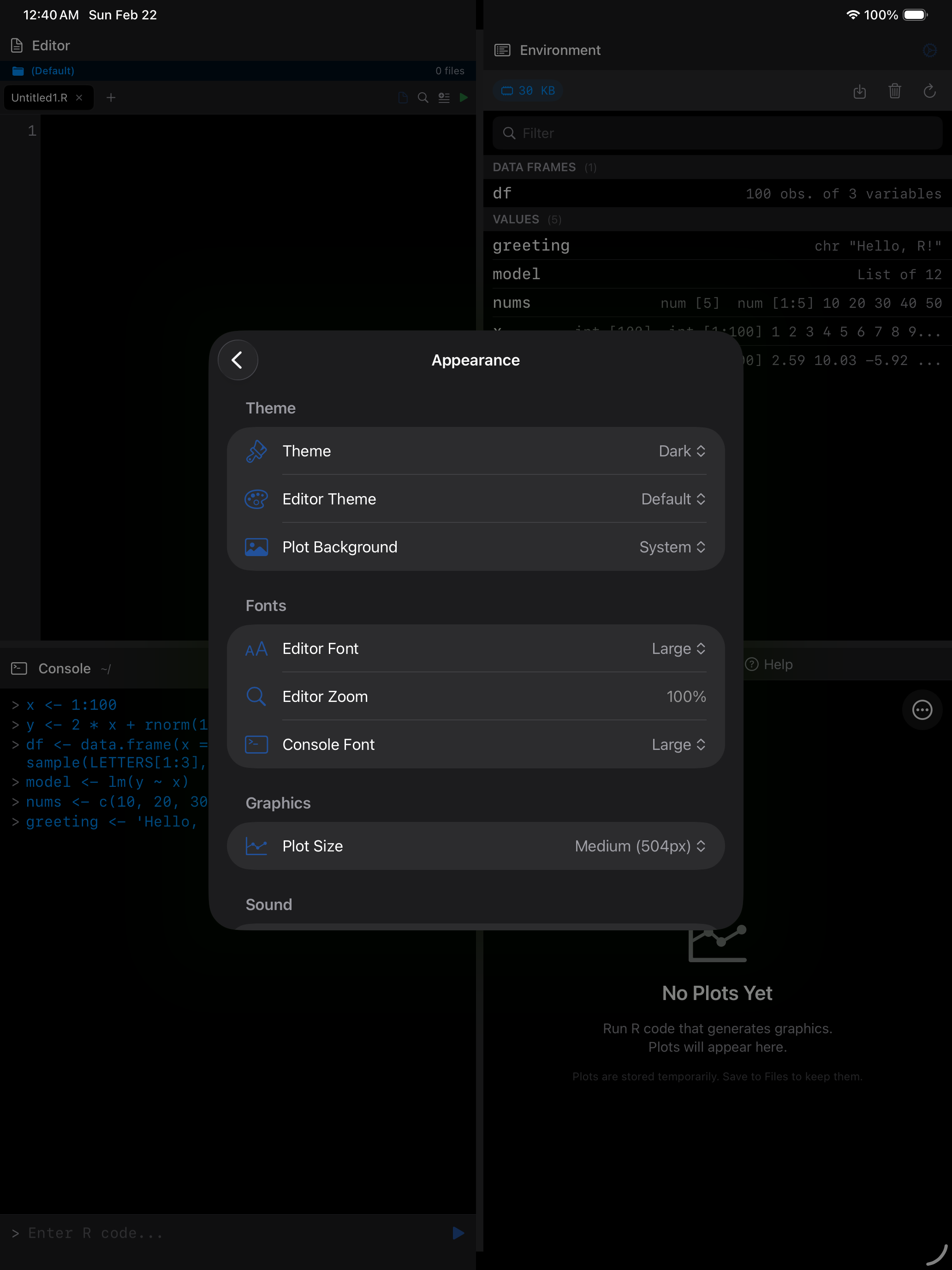
Pick a theme, tune font sizes, set plot resolution, and toggle sound effects. Changes take effect immediately, no restart needed.
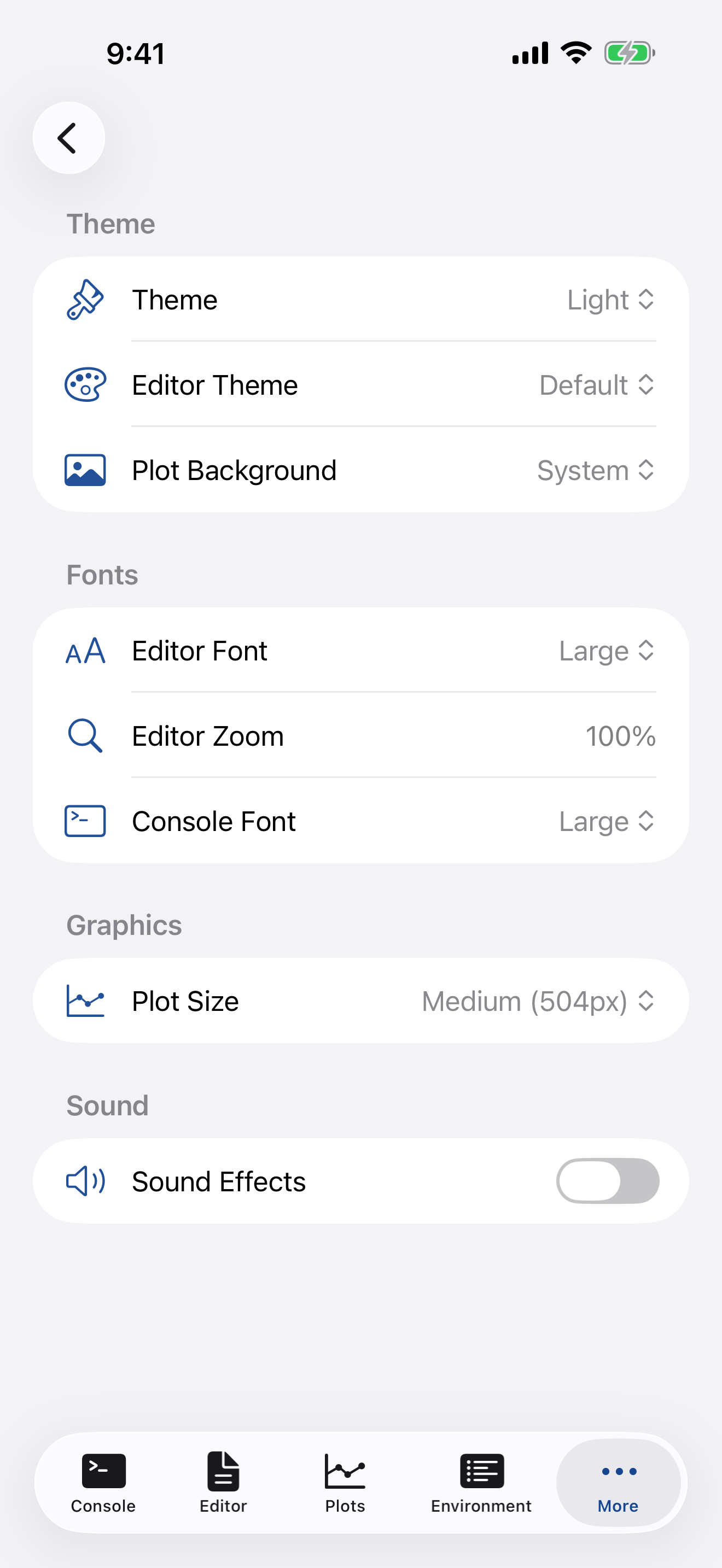
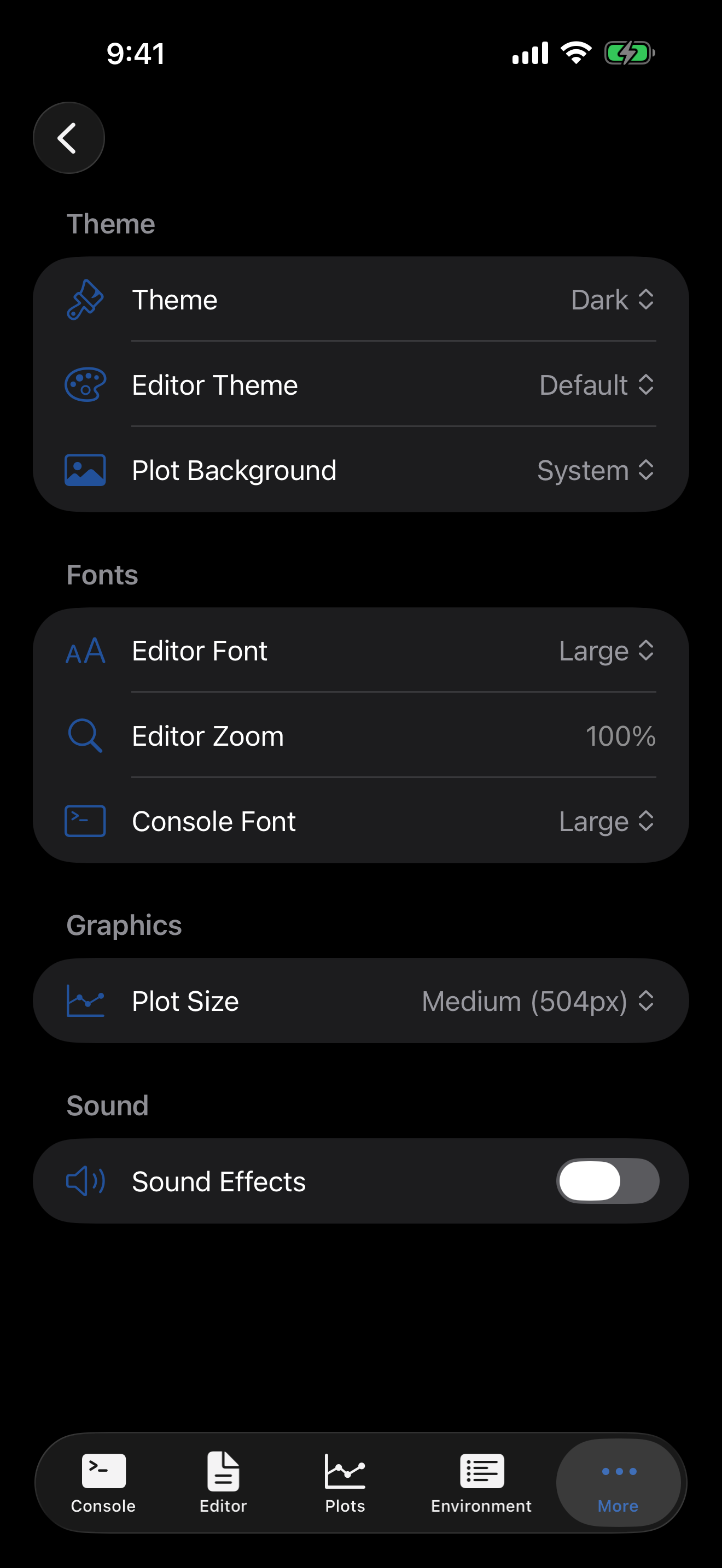
Theme
| Setting | Options | Description |
|---|---|---|
| Appearance | System, Light, Dark | Follows your device setting, or force light/dark. |
| Light Theme / Dark Theme | Default Light, Default Dark, Dracula, Solarized Light, Solarized Dark, Monokai, One Dark, GitHub Light, Nord, or a custom theme | The theme used in light mode and in dark mode. A theme colors the whole app as well as your code. |
| Plot Background | White (default), System, Light Gray, Dark Gray, Transparent | The mat around a plot shown full size, Compare included. The plot itself stays white. System is white in light mode and dark gray in dark; Transparent leaves no mat. |
Custom themes
Create Theme opens the theme editor: pick a few key colors and the rest are derived, with every color under Advanced Colors and a live preview. A color you set there stays put when you change a key color or Dark Theme. Import Theme… reads a VS Code theme (.json, comments and trailing commas allowed), a webRios export or an RStudio .rstheme, from Files or the clipboard. Unzip a .vsix first.
To share a custom theme, tap Export in the theme editor, or long-press it in the list, which also offers Delete. You get a .json file to AirDrop, mail or save, which Import Theme… reads back. Built-in themes can’t be exported.
Fonts
| Setting | Options | Description |
|---|---|---|
| Editor Font | Small (12pt), Medium (14pt), Large (16pt), Extra Large (18pt), Huge (22pt), Giant (26pt), Maximum (30pt) | Text size in the code editor. |
| Console Font | Same choices as the editor | Text size in the console. R’s output width follows it, so output wraps to fit. |
| Editor Zoom | 50% to 200%, in 10% steps | Fine-grained zoom for the editor, also set by pinching. A Reset button appears when zoom is not at 100%. |
Code is set in these sizes rather than following the system text size; see Accessibility.
Graphics
| Setting | Options | Description |
|---|---|---|
| New Plots | Gallery Only, Gallery and Console | Every plot goes to the Plots tab. Gallery and Console also draws it in the console where you typed the command. |
| Plot Size | Small (400px), Medium (504px), Large (800px), Extra Large (1200px) | Resolution of generated plots. Higher values produce sharper plots but use more memory. |
Sound
| Setting | Options | Description |
|---|---|---|
| Sound Effects | On / Off | Audio feedback for actions like running code. |
Editor
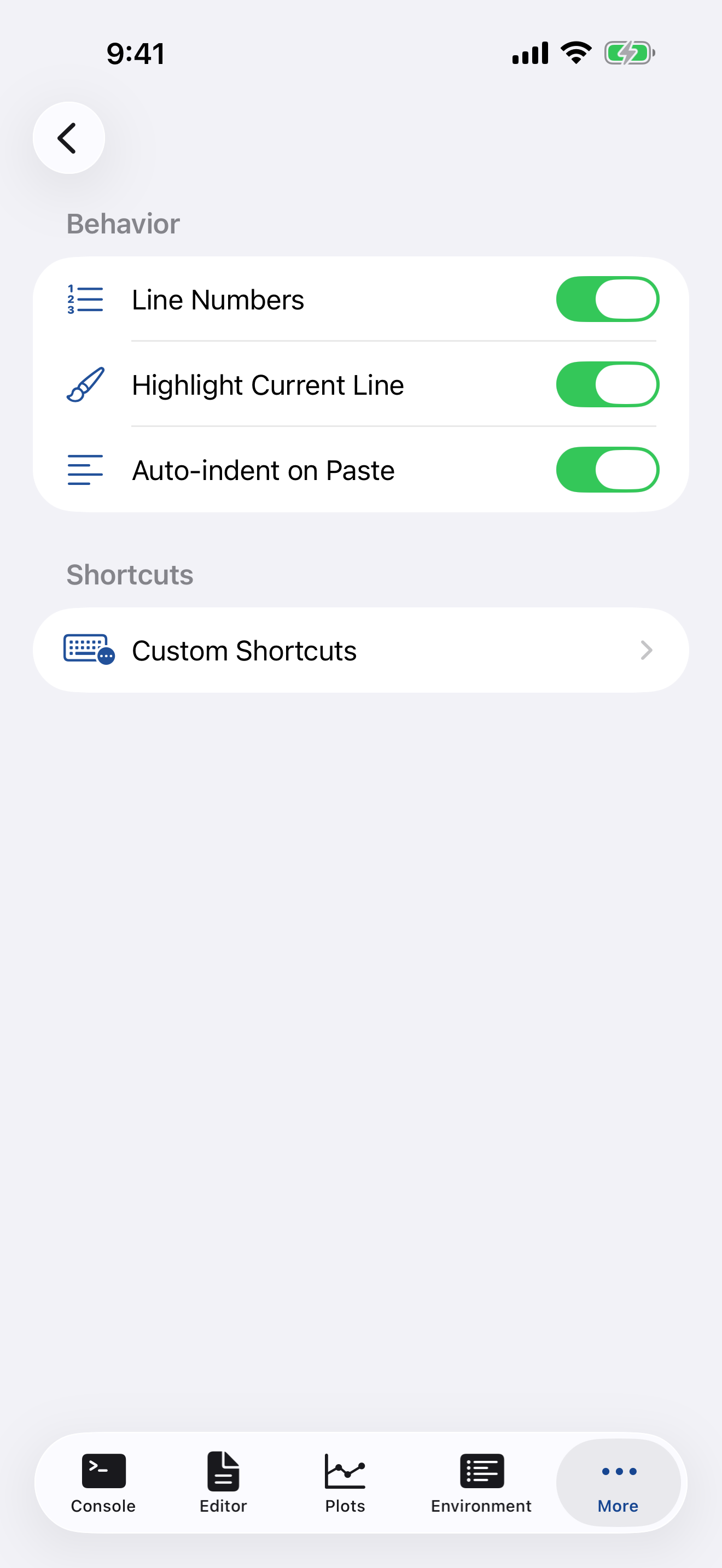
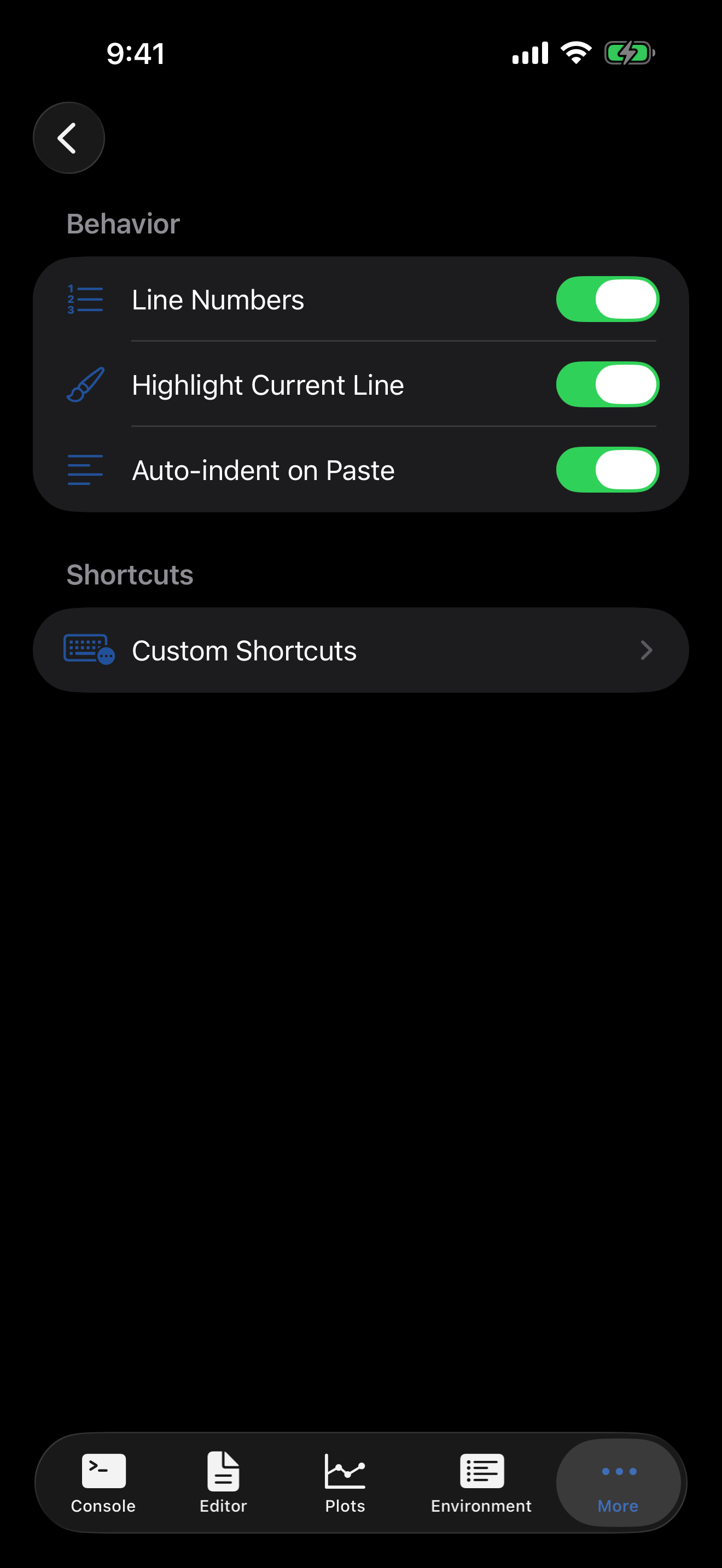
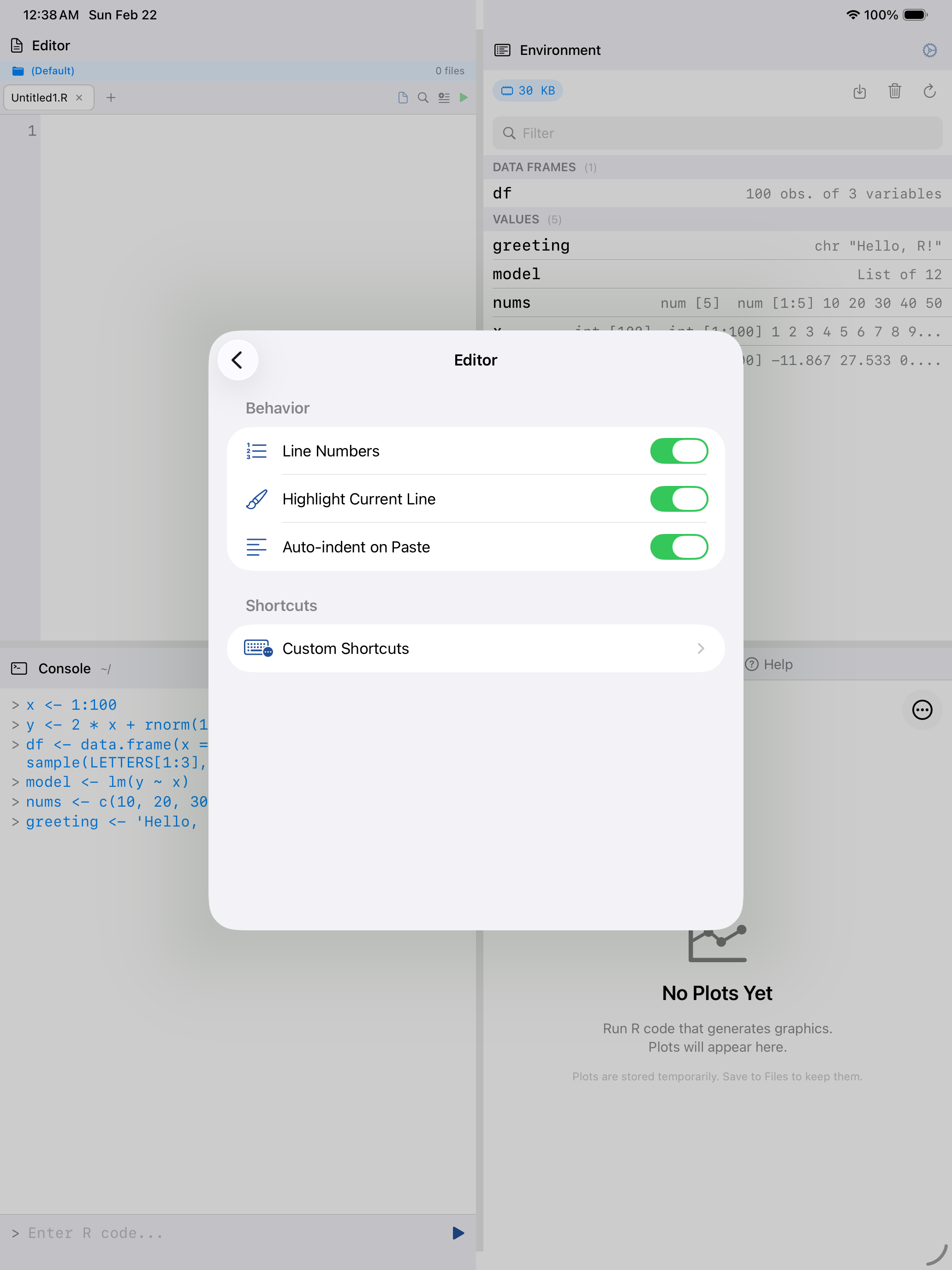
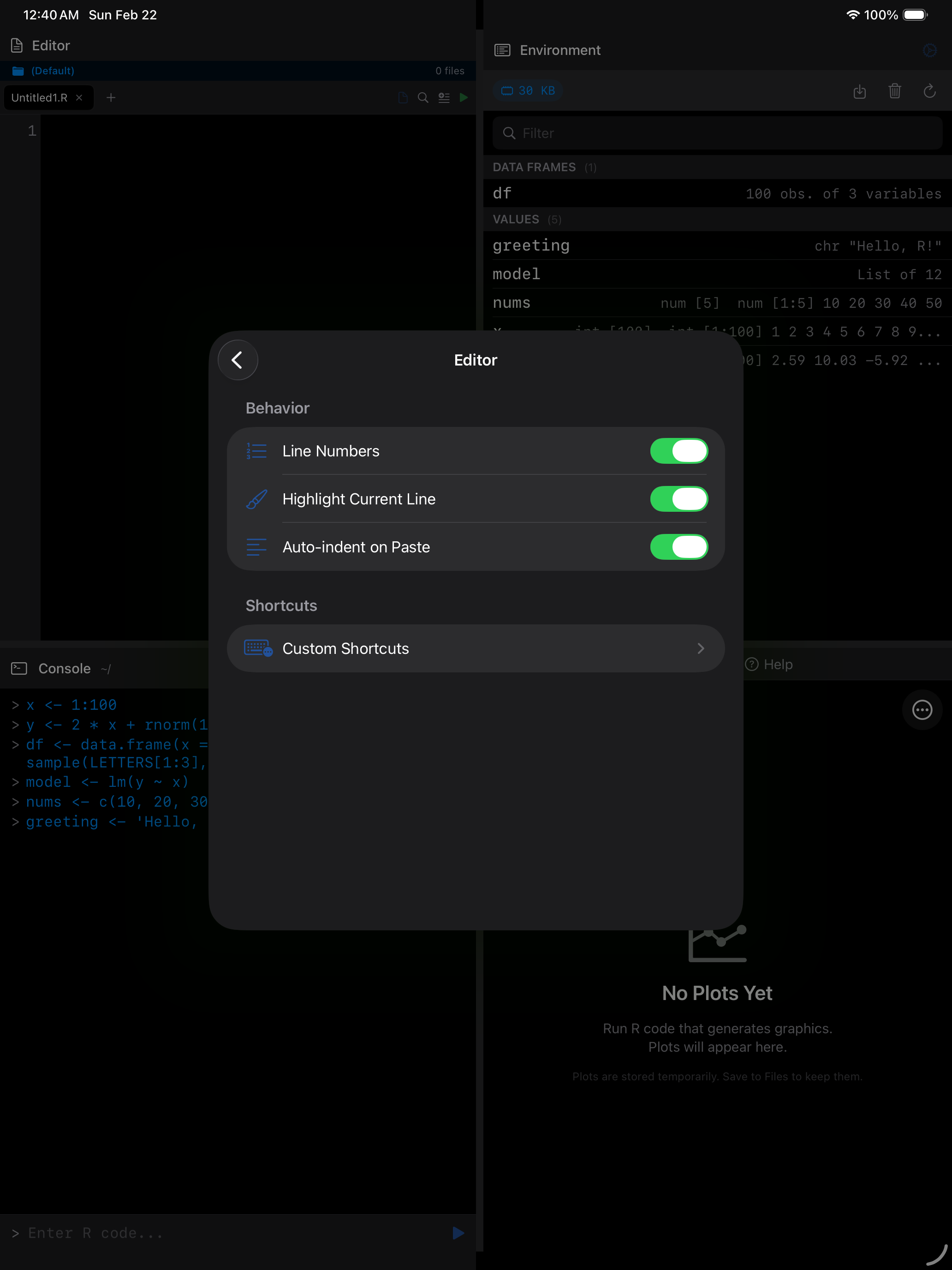
How the code editor looks and behaves as you type or paste.
| Setting | Description |
|---|---|
| Line Numbers | Displays line numbers in the left gutter. |
| Highlight Current Line | Adds a subtle background highlight to the cursor’s line. Helps you track your position in longer scripts. |
| Auto-indent on Paste | Reformats pasted code to match your current indentation level. Useful when copying code from the web that has inconsistent indentation. |
| Auto-indent on Return | Indents a new line to match the one above, and expands and dedents braces. |
| Auto-close Brackets | Typing (, [, { or a quote inserts its closing partner, typing the closer steps over it, and Backspace between an empty pair deletes both. |
Layout
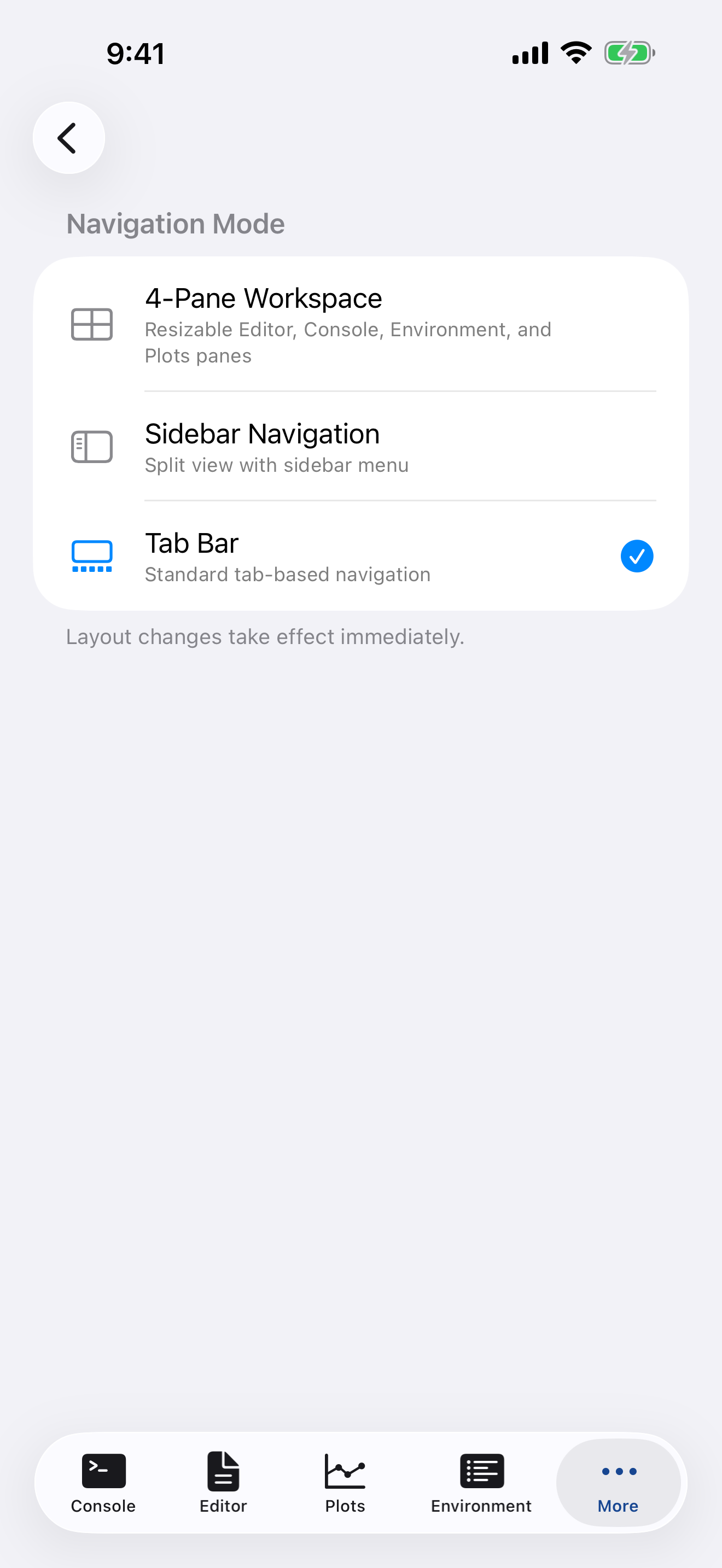
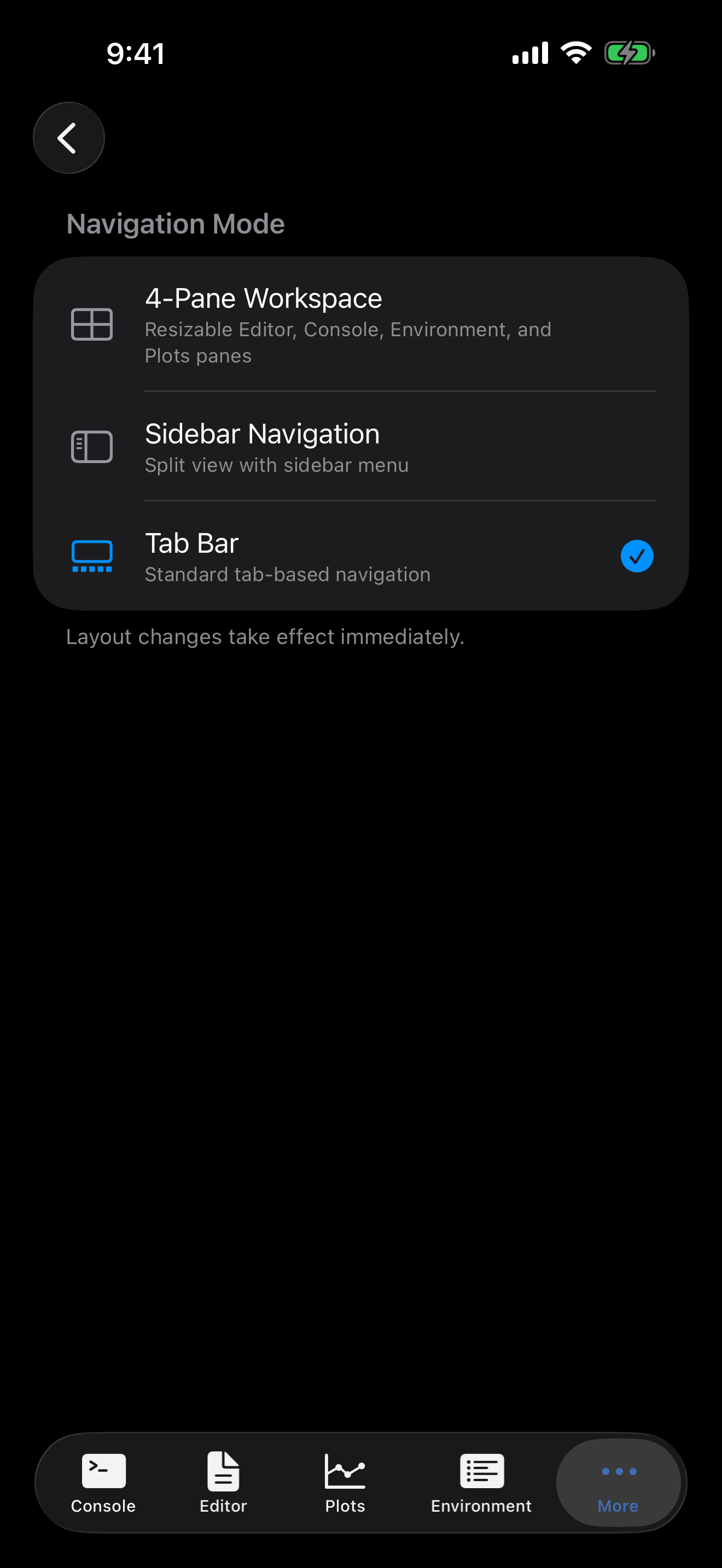
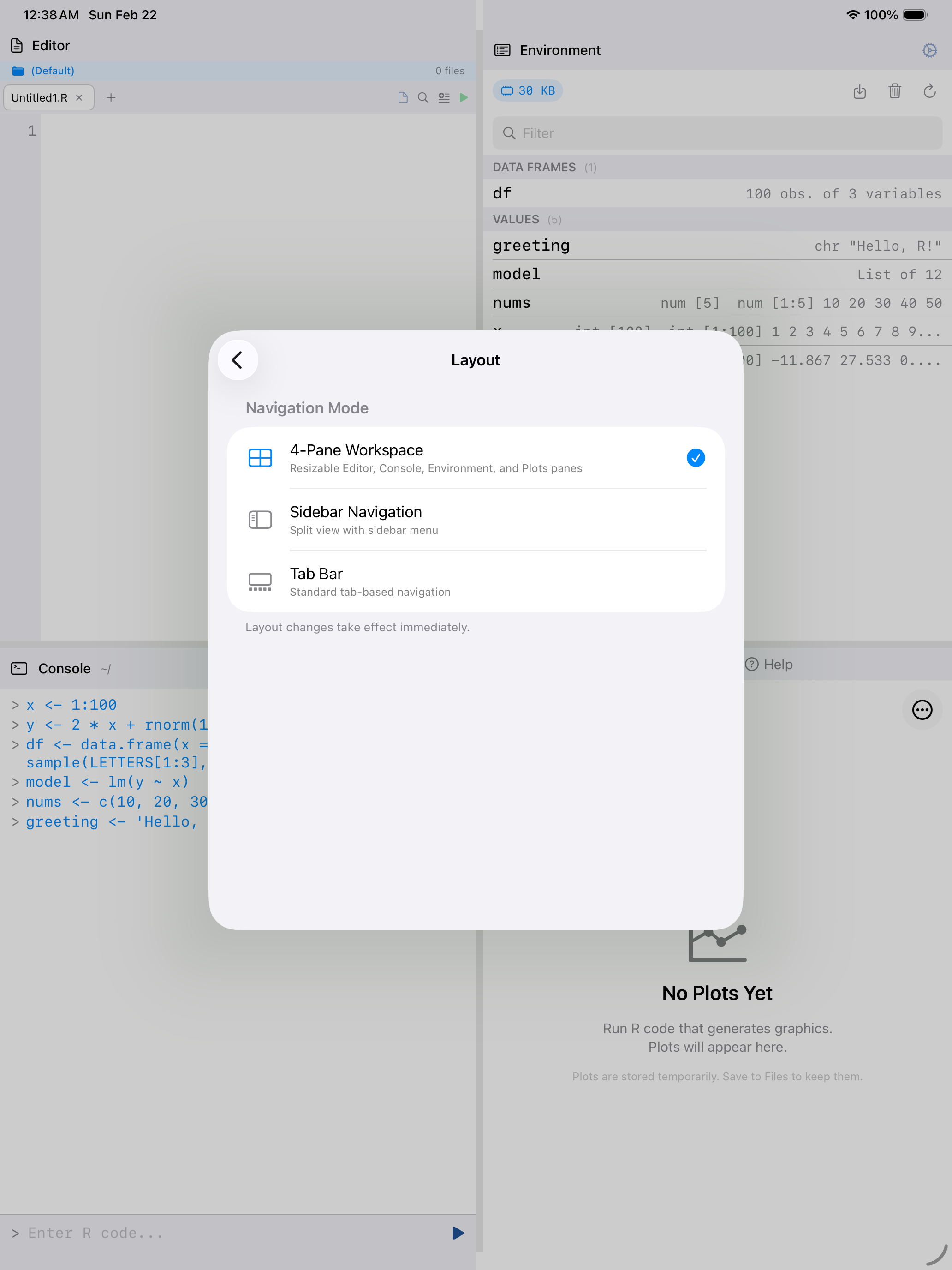
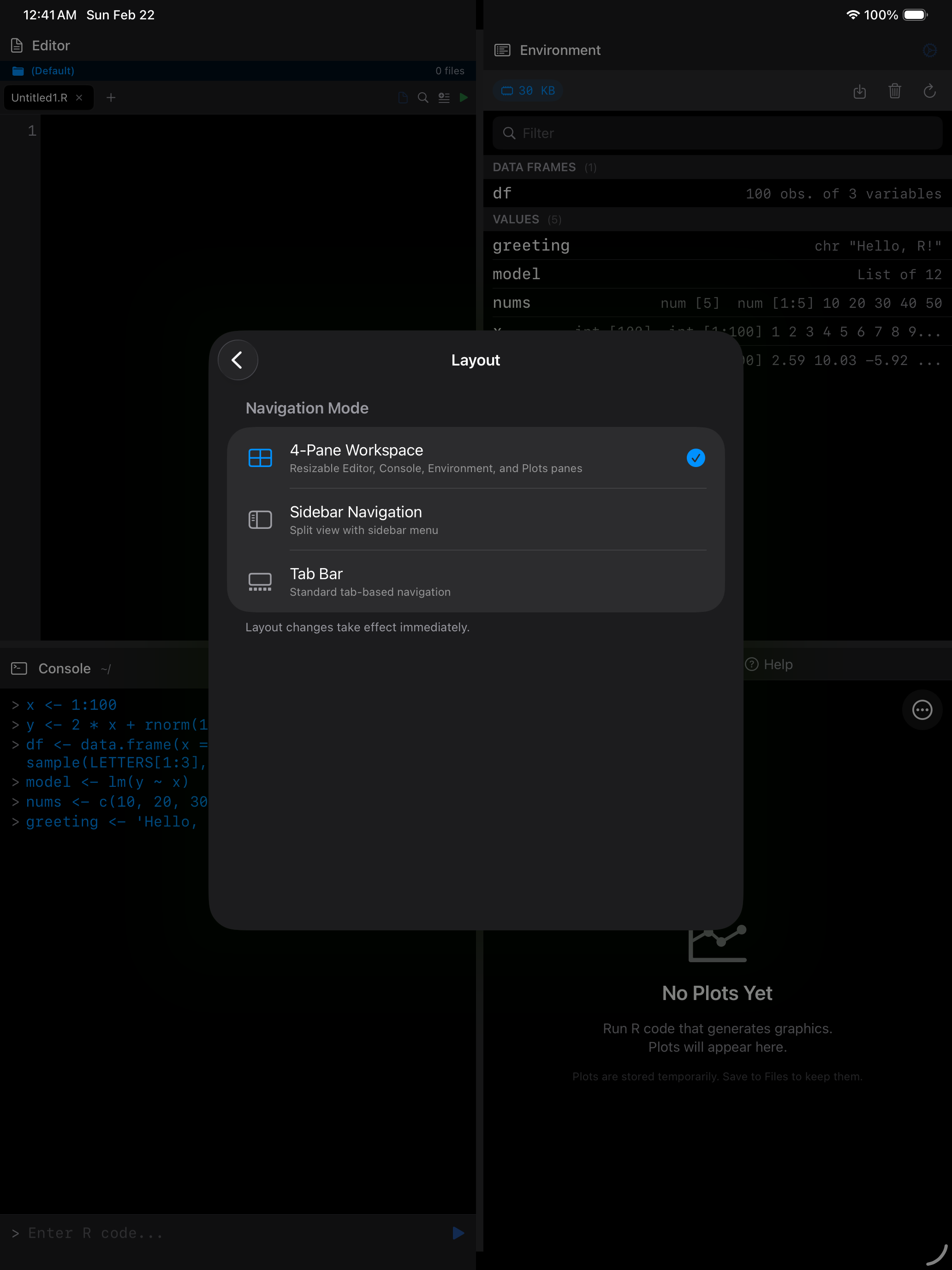
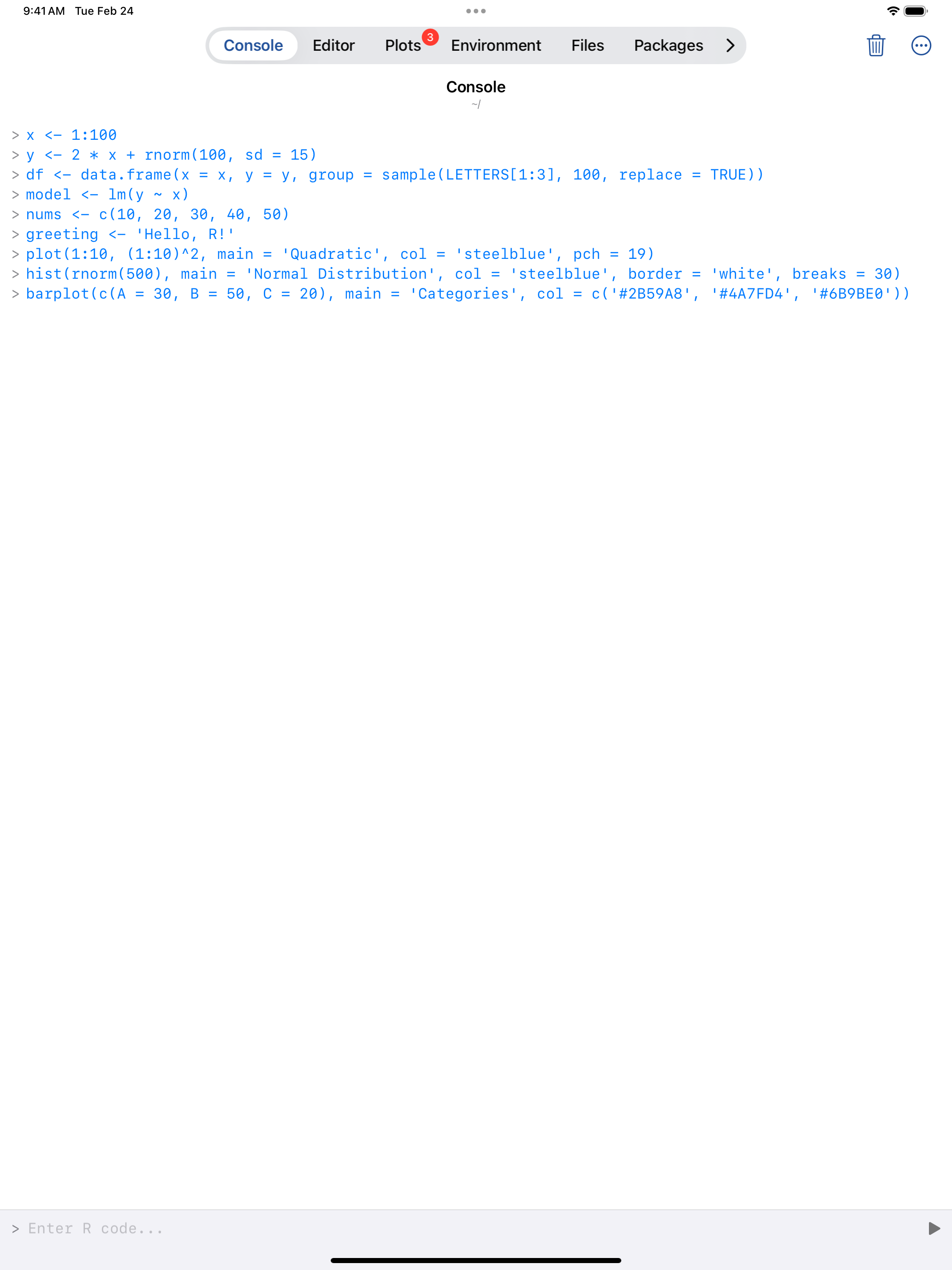
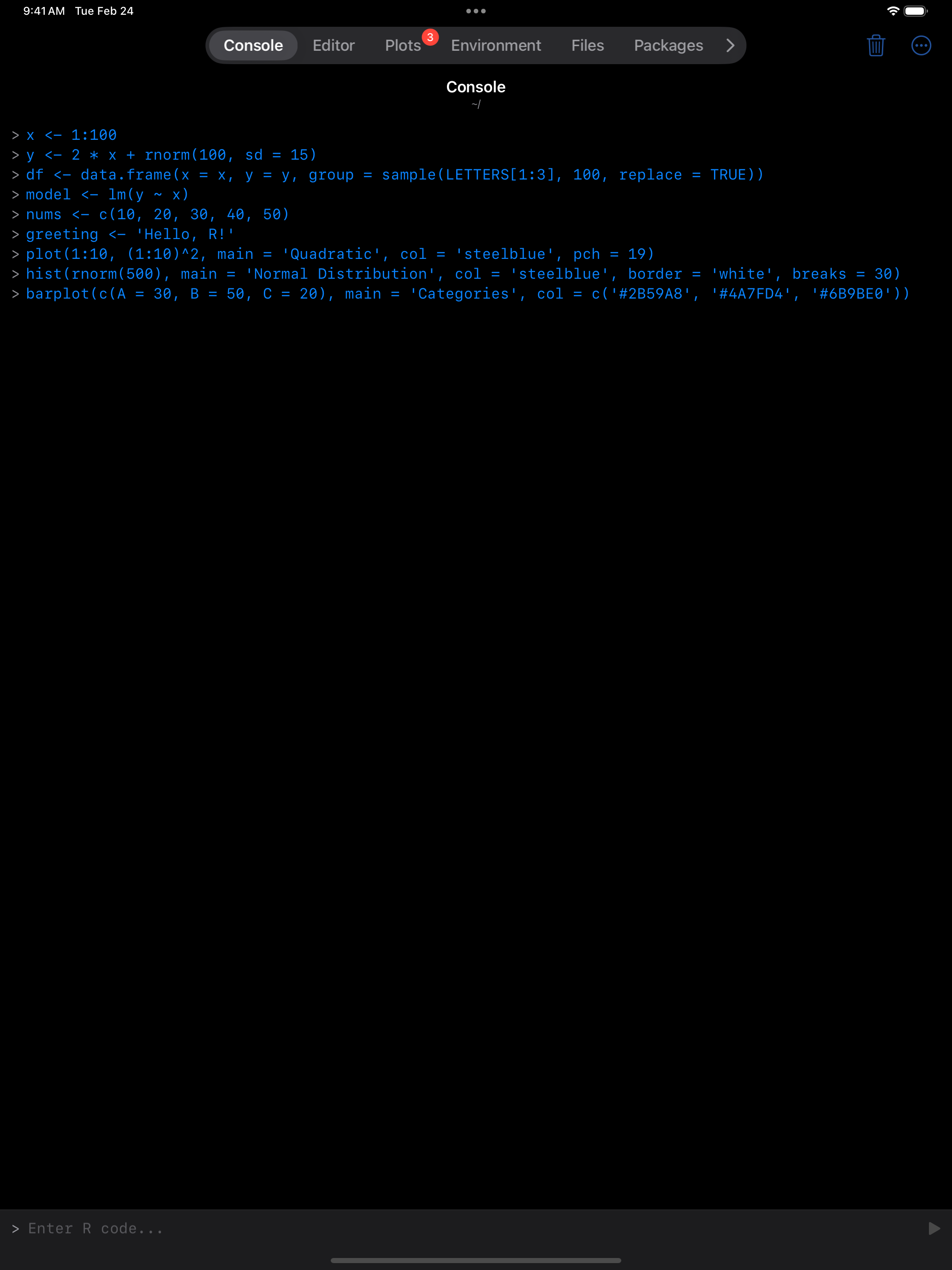
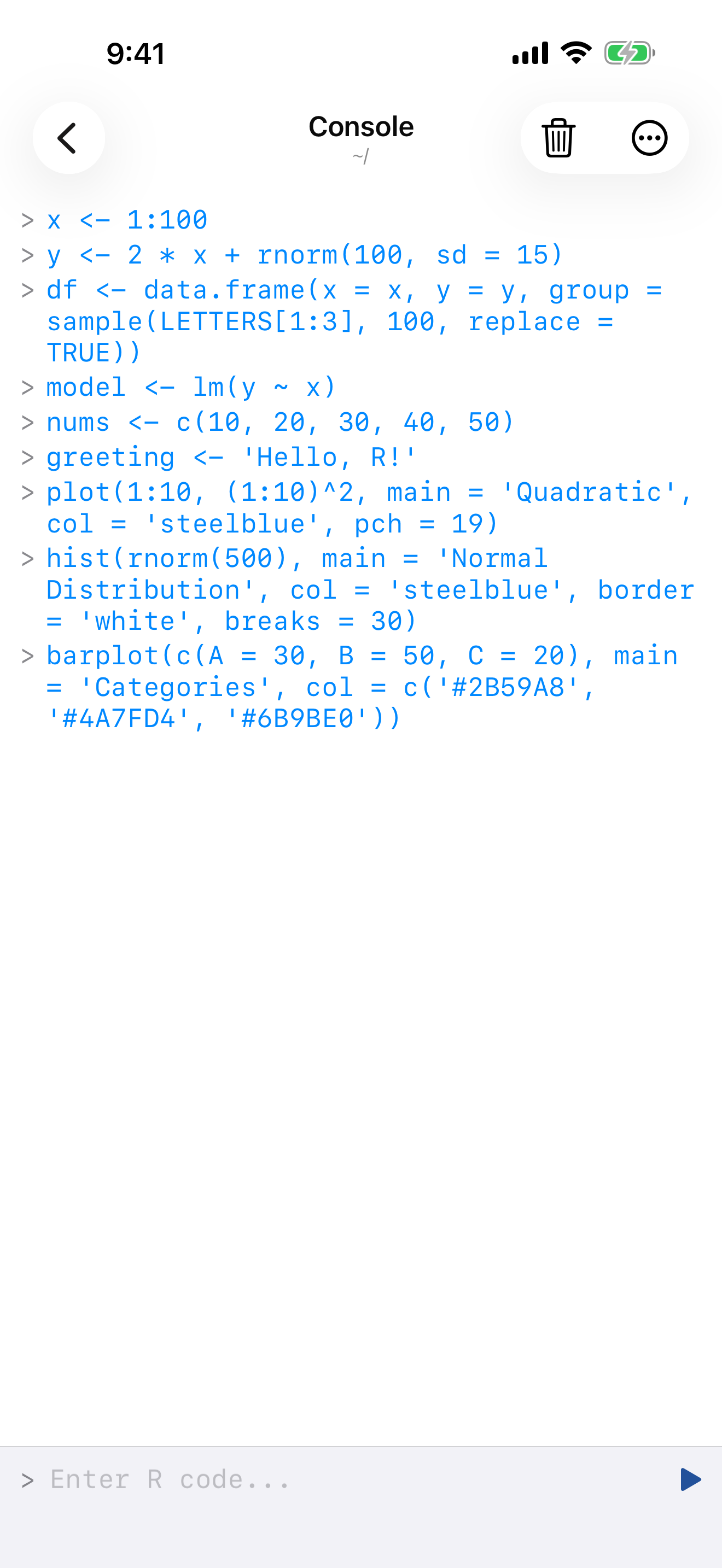
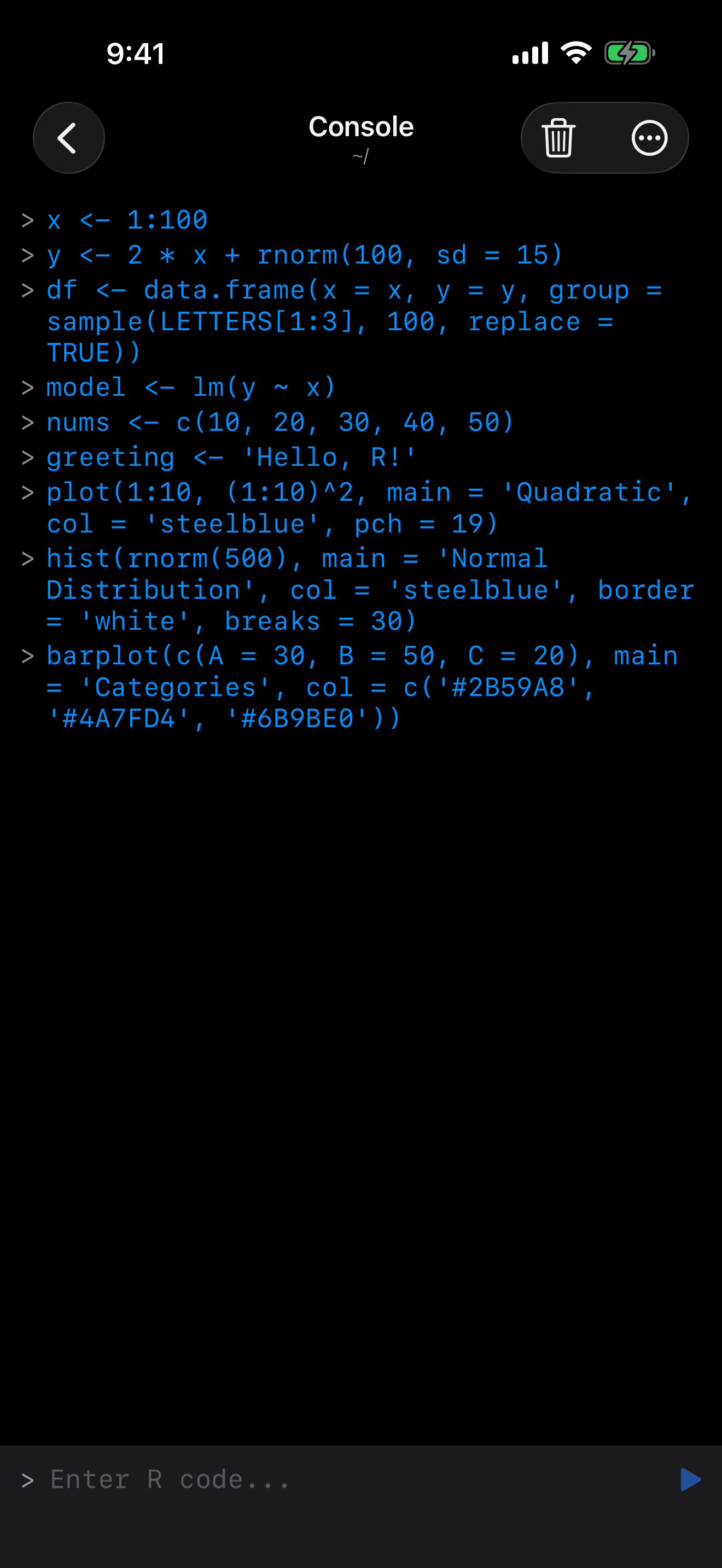
Layout controls how you navigate between the Console, Editor, Plots, and other sections. All three modes are available on both iPhone and iPad, each offering a different balance of screen space and quick access.
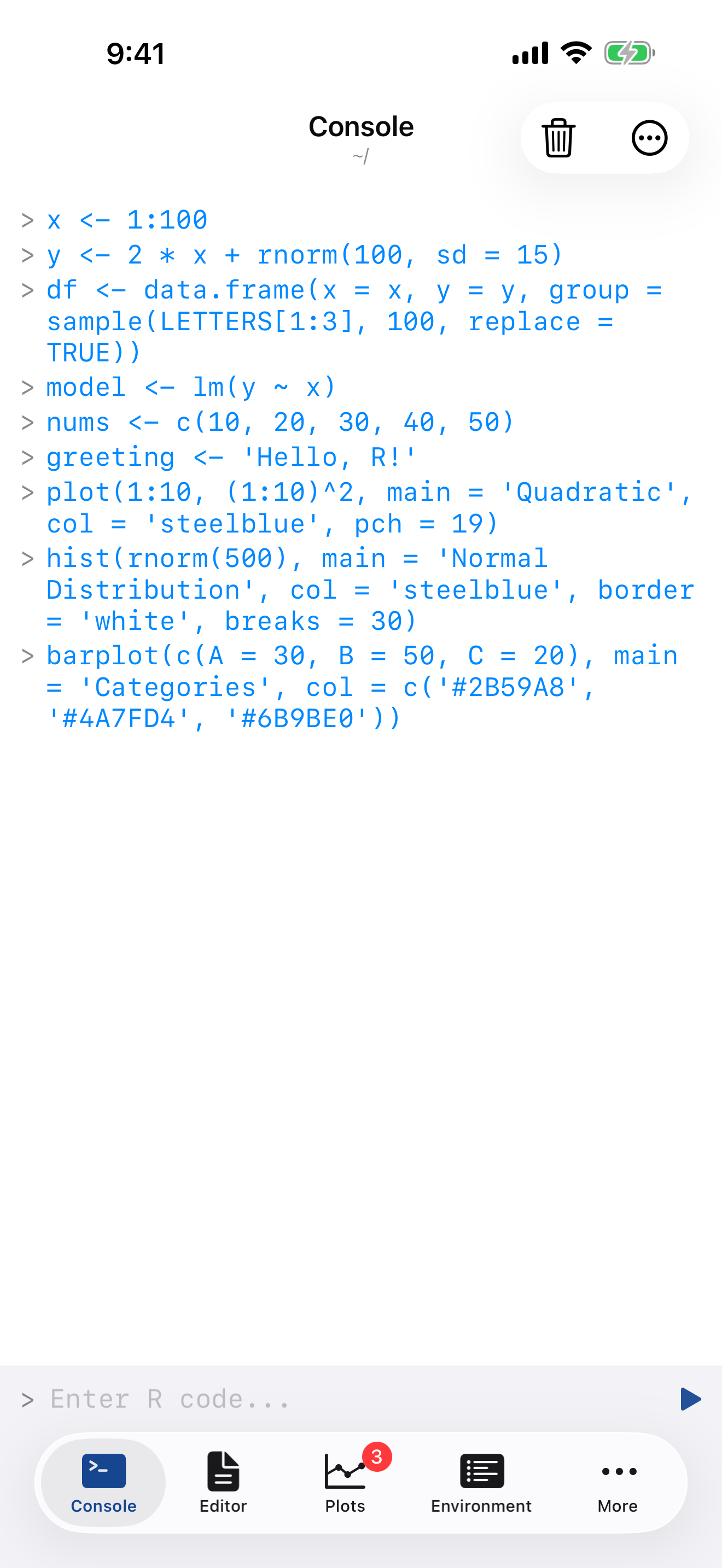
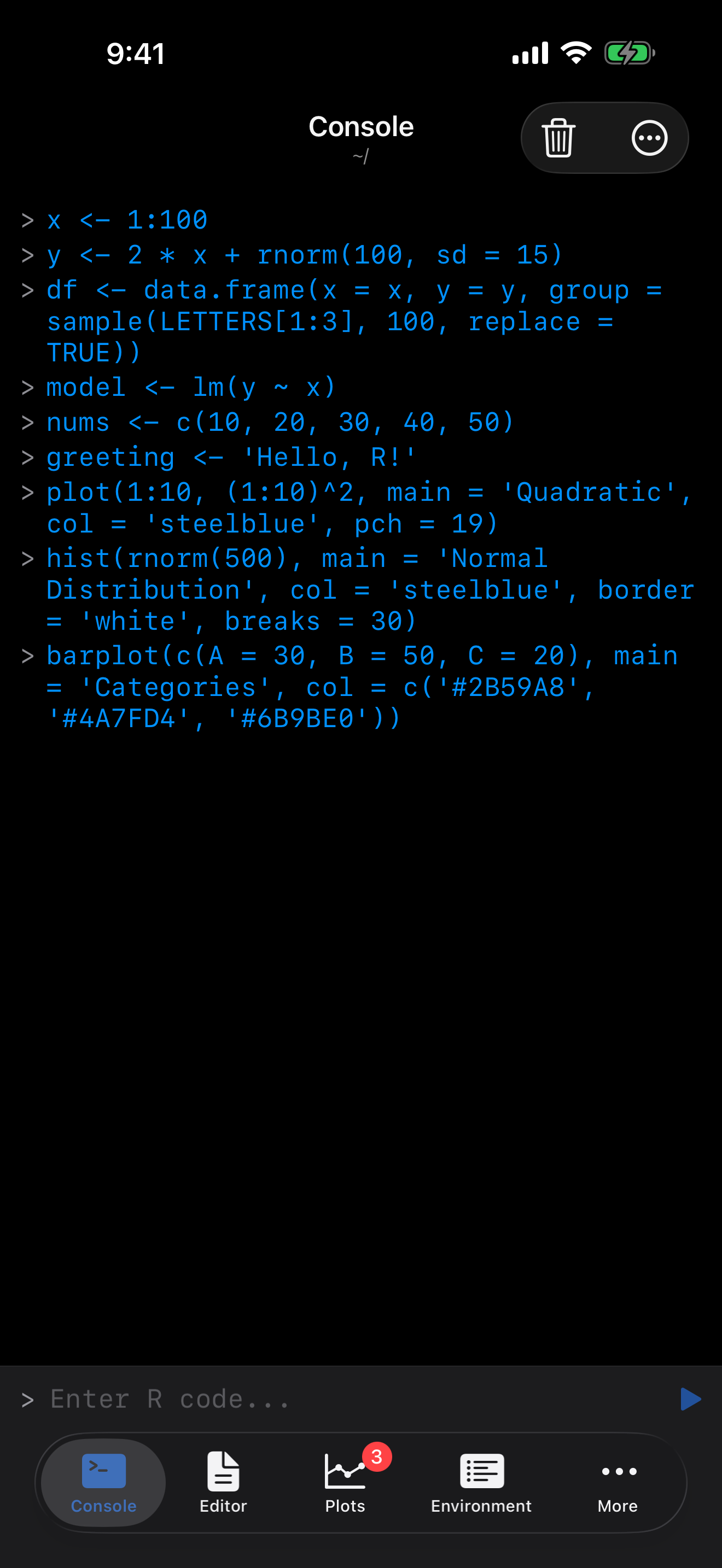
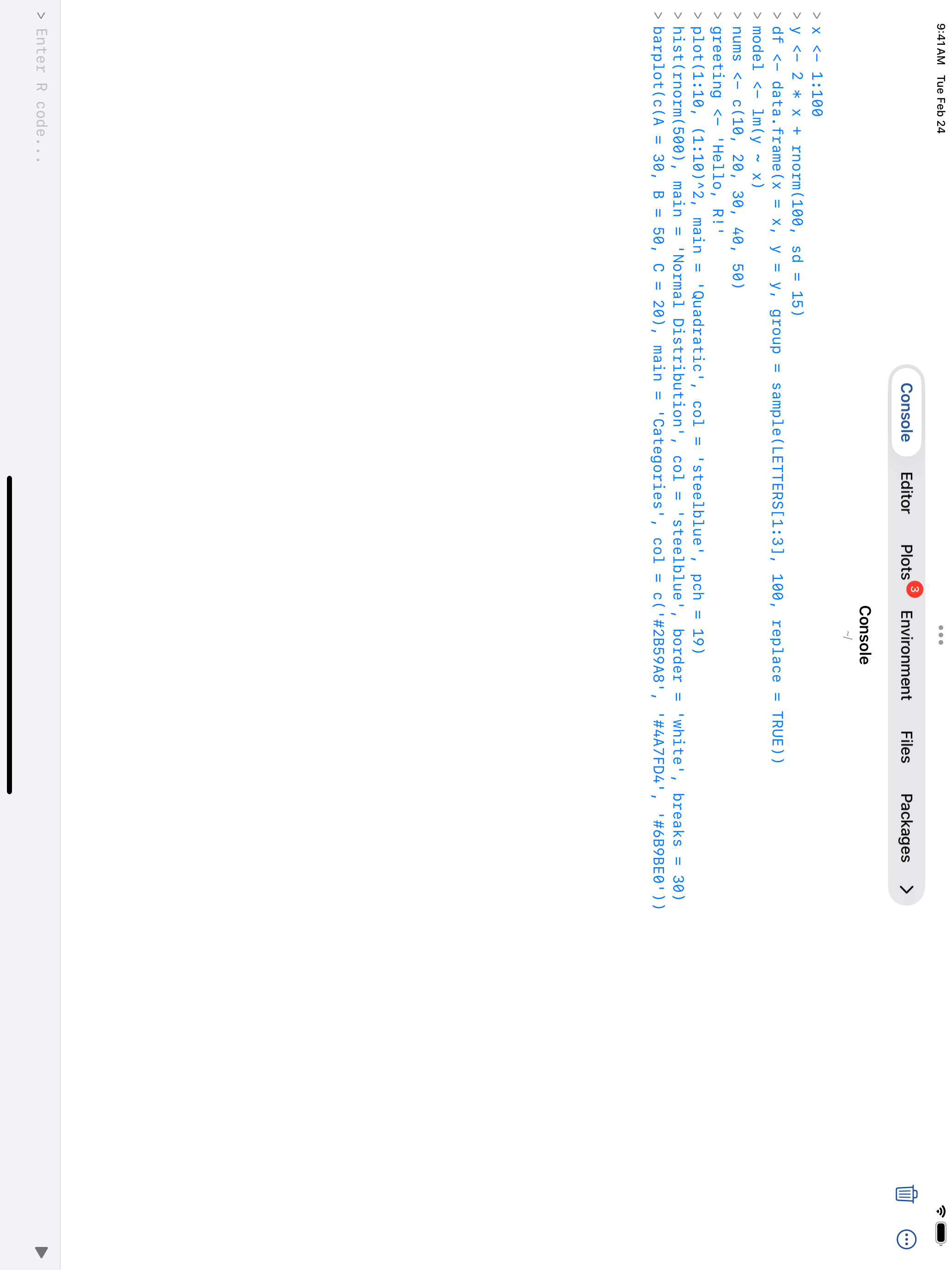
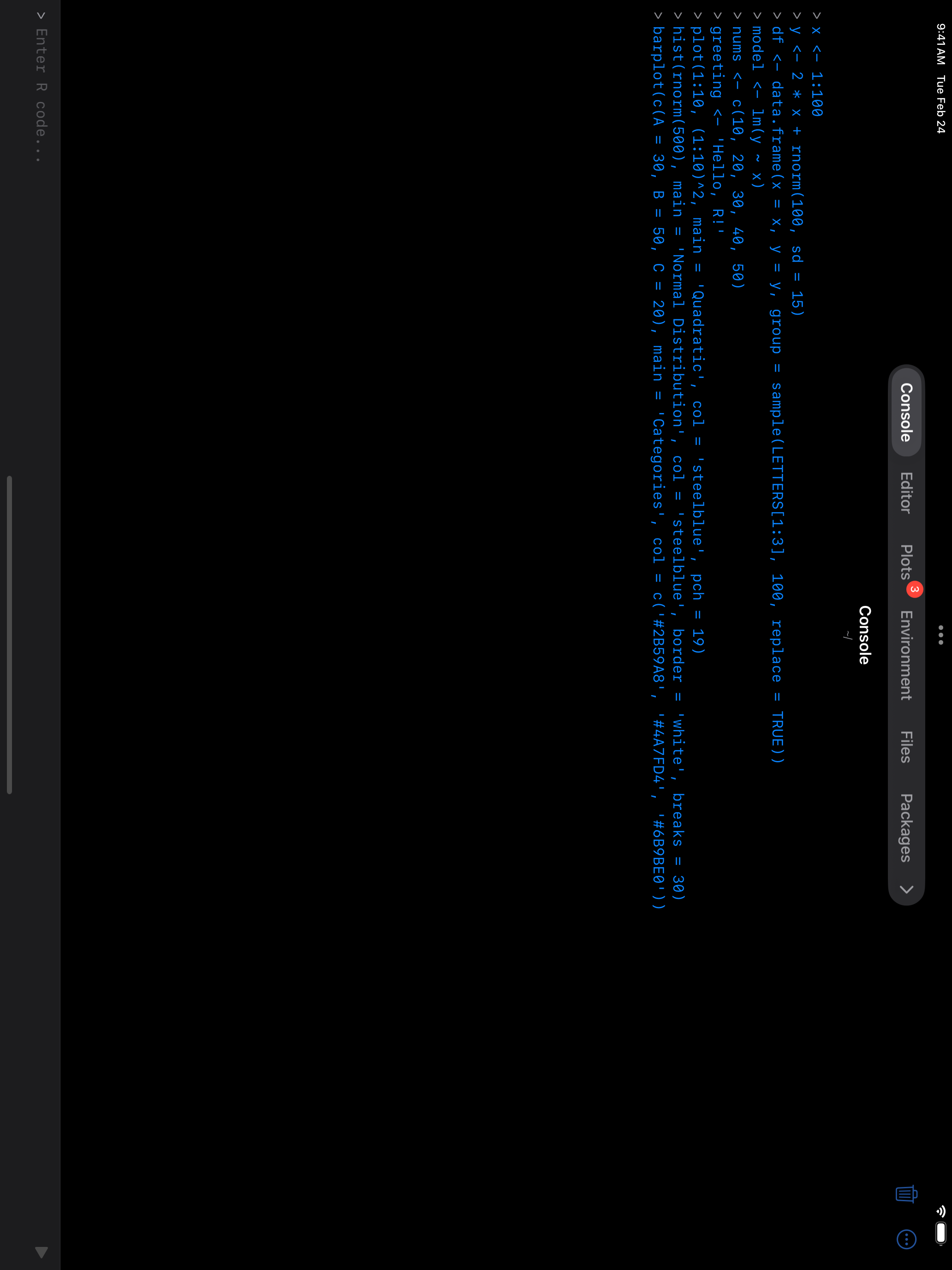
Tab Bar
The default on iPhone. Tabs along the bottom put each section one tap away, full screen.
On iPhone, and on iPad in a narrow window or Slide Over, there are five tabs: Console, Editor, Plots, Environment and More, which lists Files, Packages, Projects, History, Help and Settings and holds the Layout button. On a full-width iPad every section has a tab, and Layout sits at the leading edge of the Console’s bar. Files is badged when shared files are waiting to be imported.
Sidebar Navigation
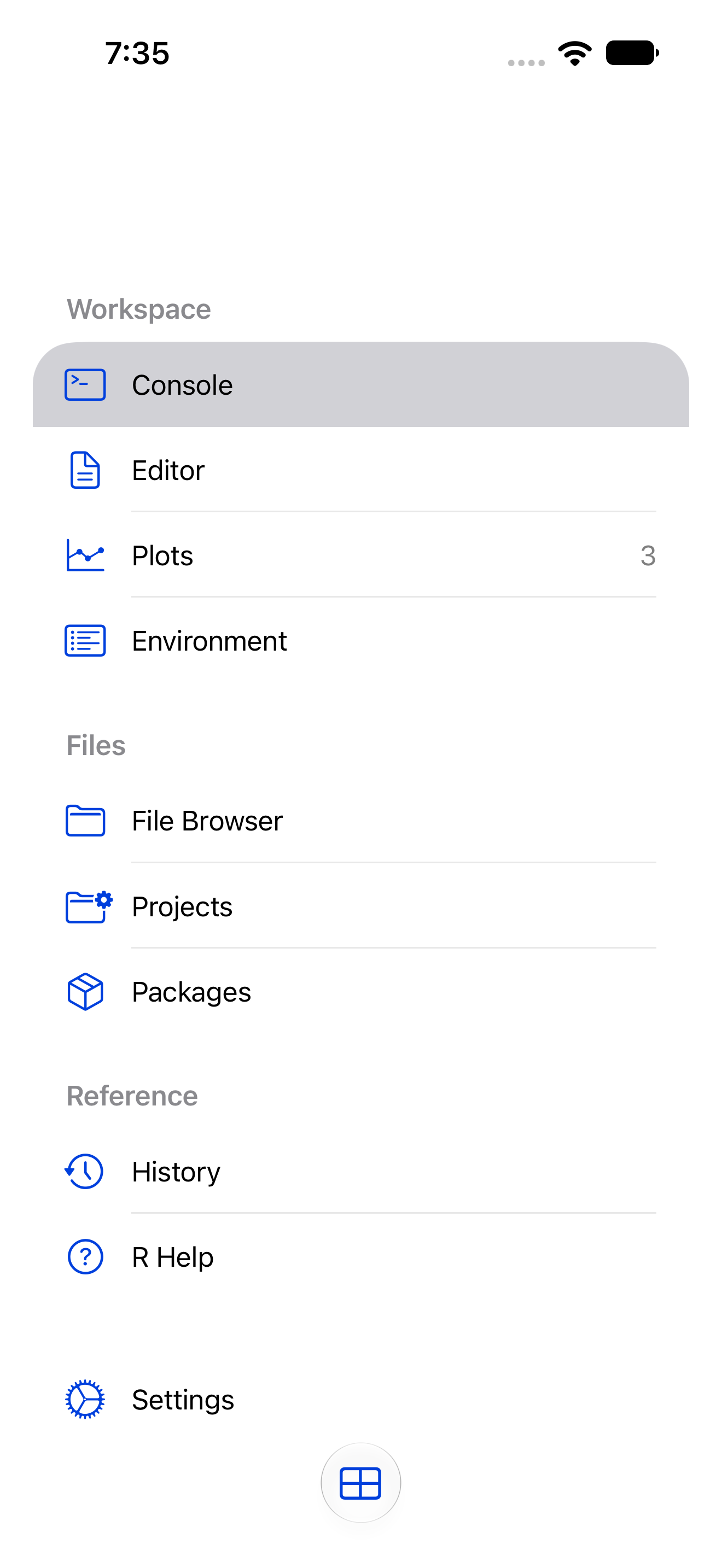
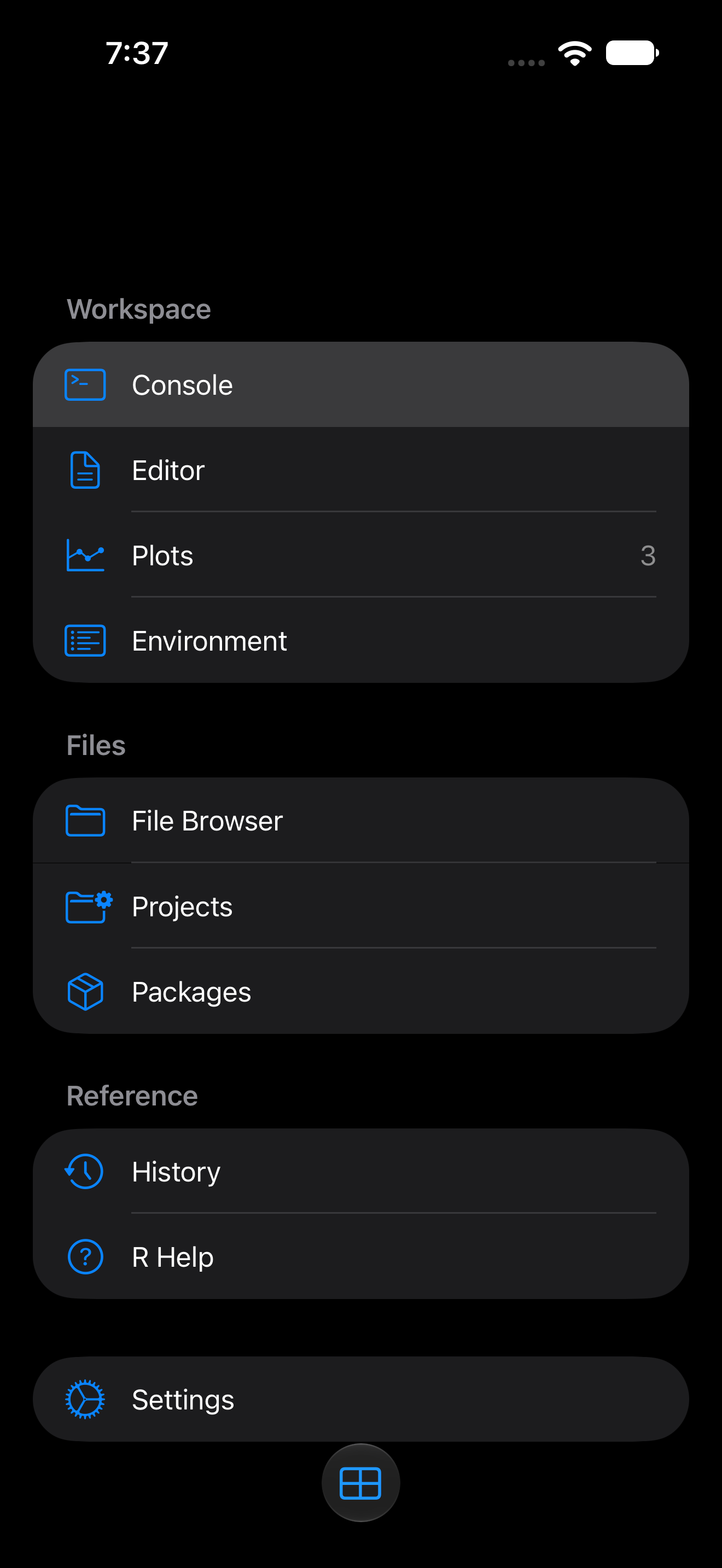
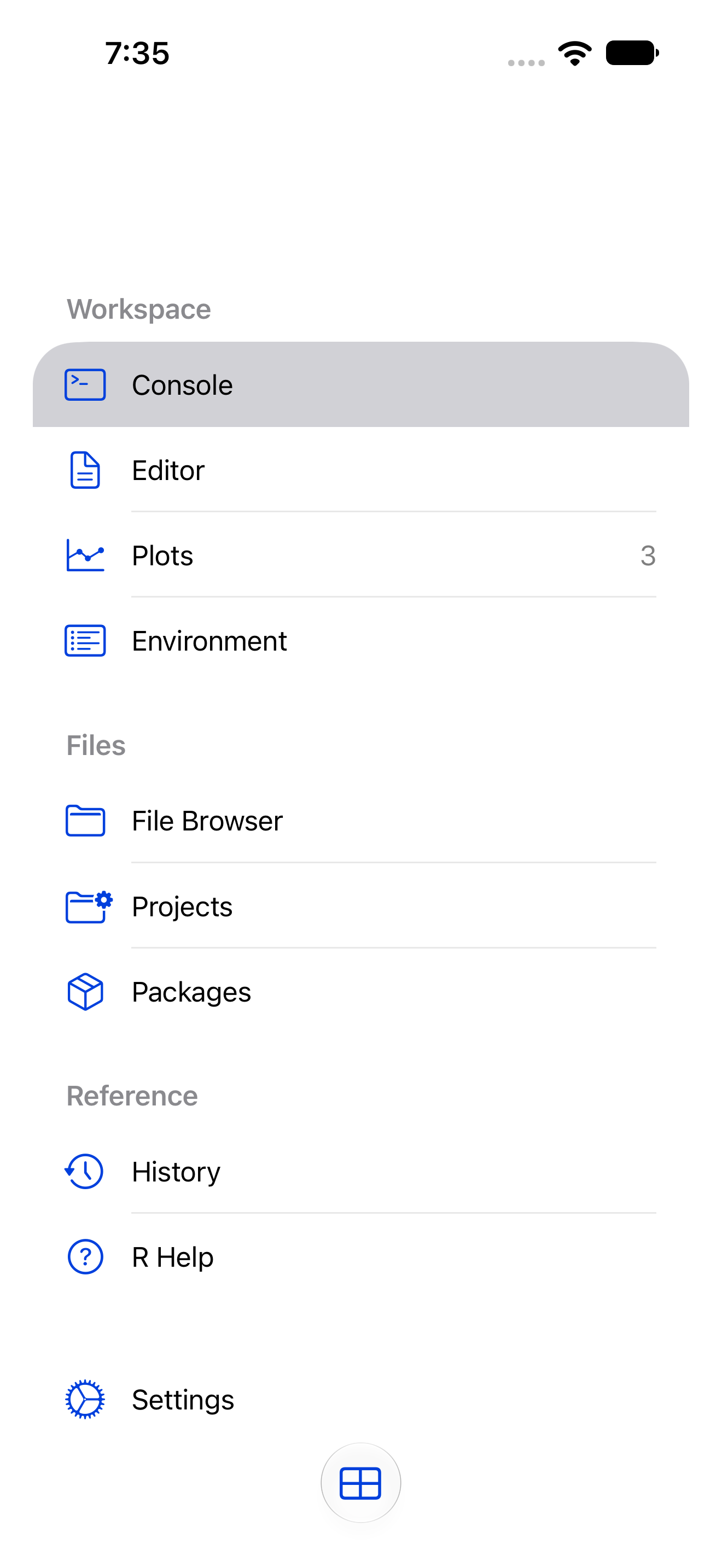
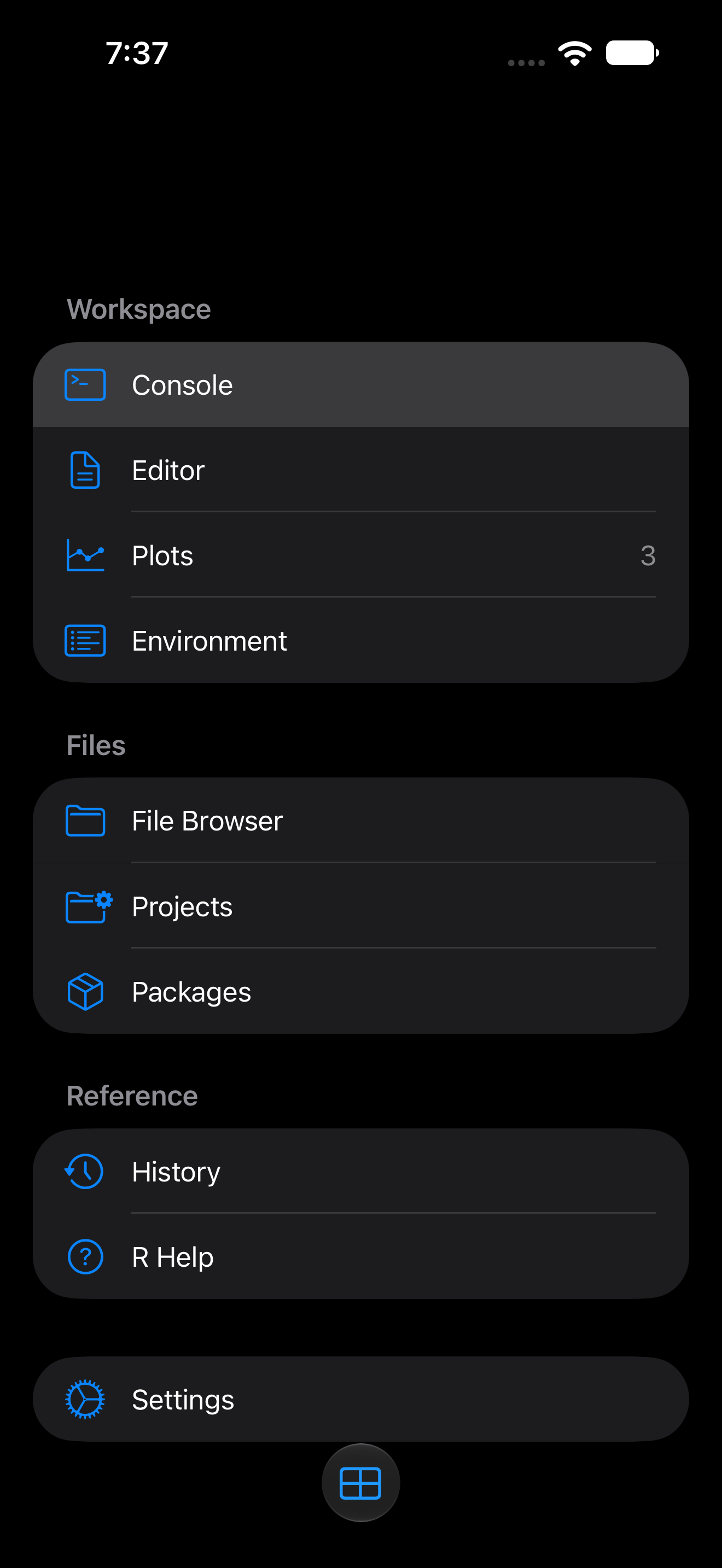
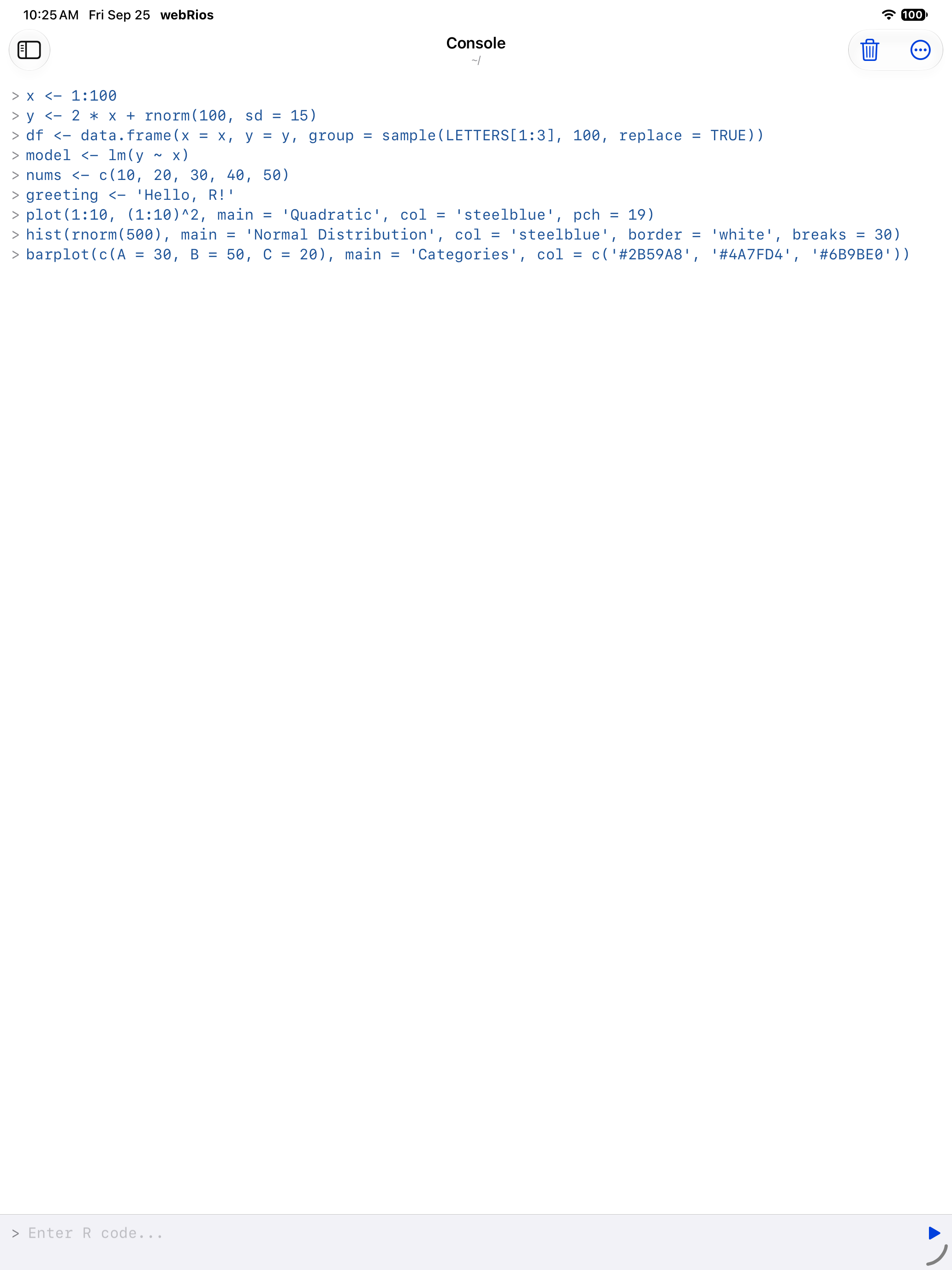
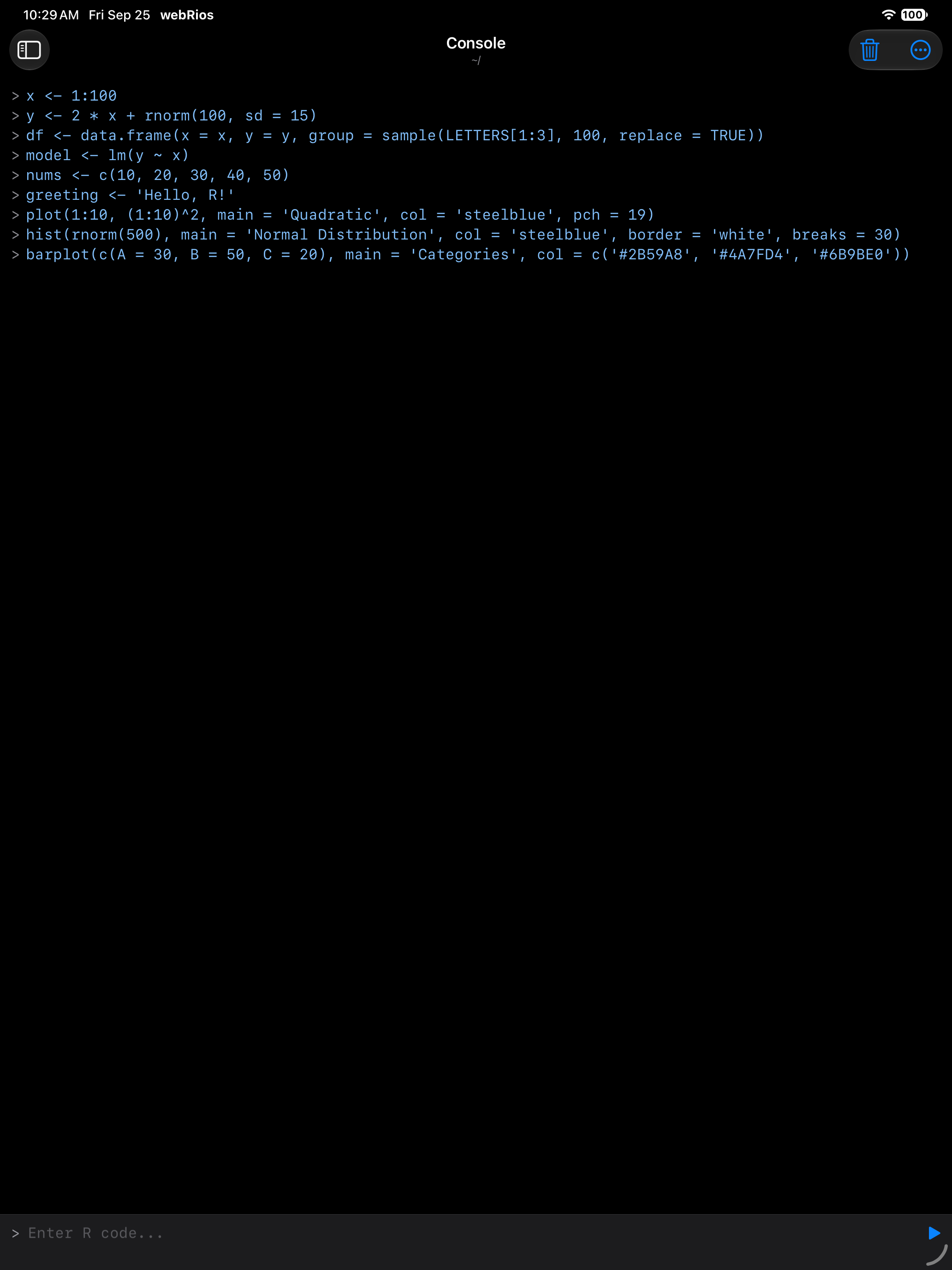
The default on iPad: a collapsible sidebar, its rows grouped as Workspace, Files, Reference and Settings. In landscape it sits beside the content; in portrait it overlays it, and a tap dismisses it.
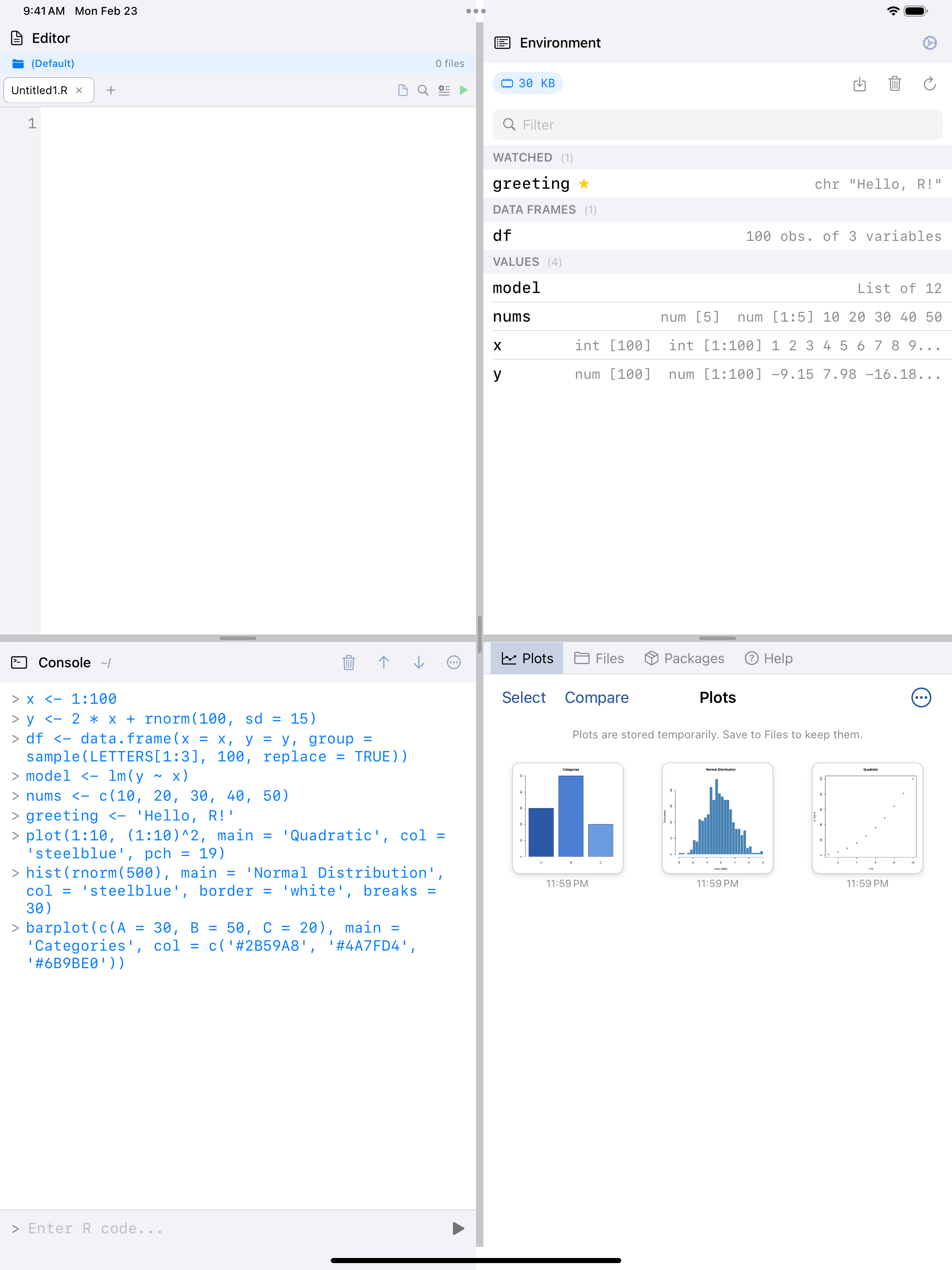
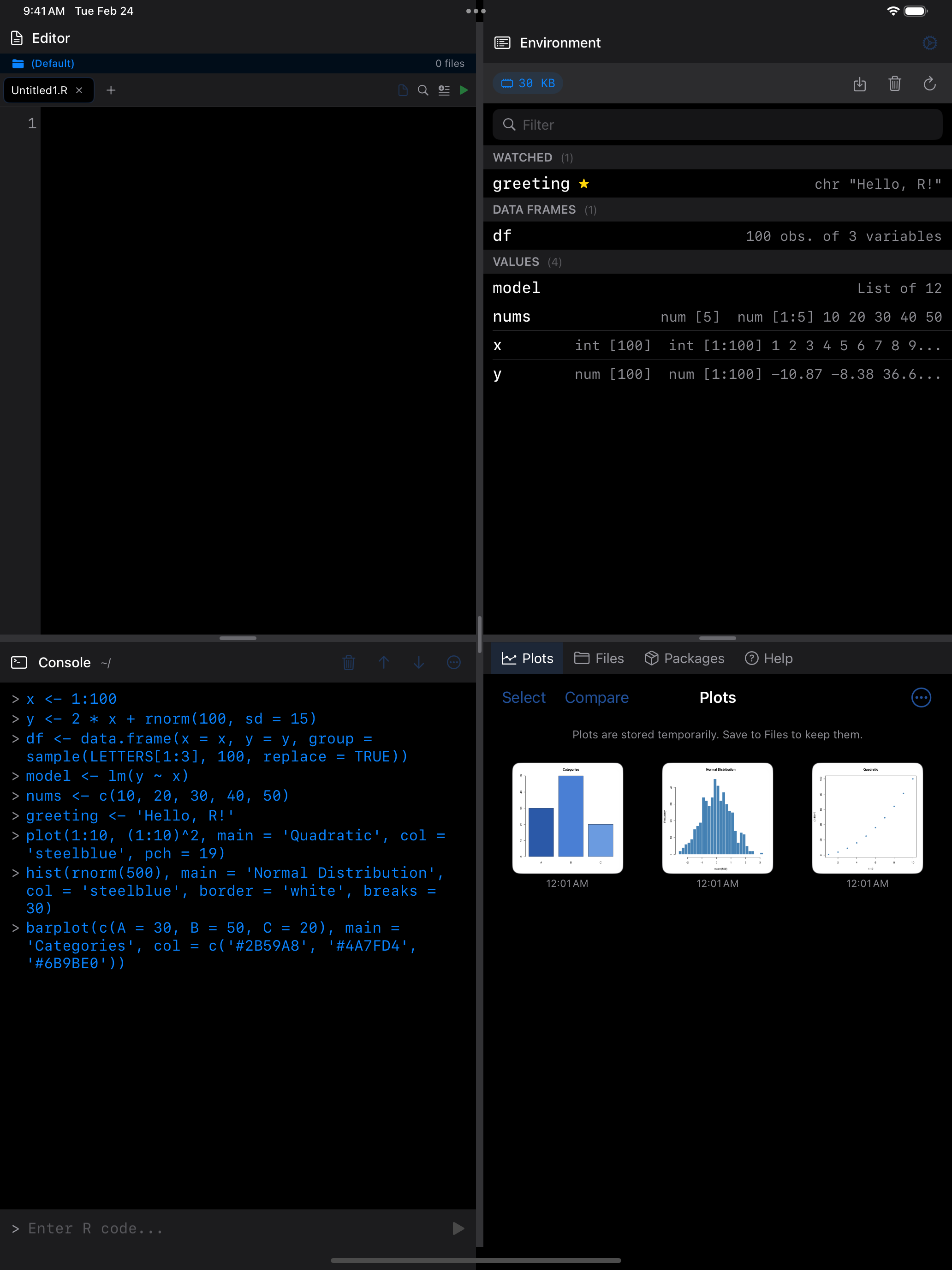
Showing and hiding the sidebar
The toggle in the navigation bar shows the sidebar when you want to jump somewhere and hides it to give the content the full width. On iPad the content resizes around it.
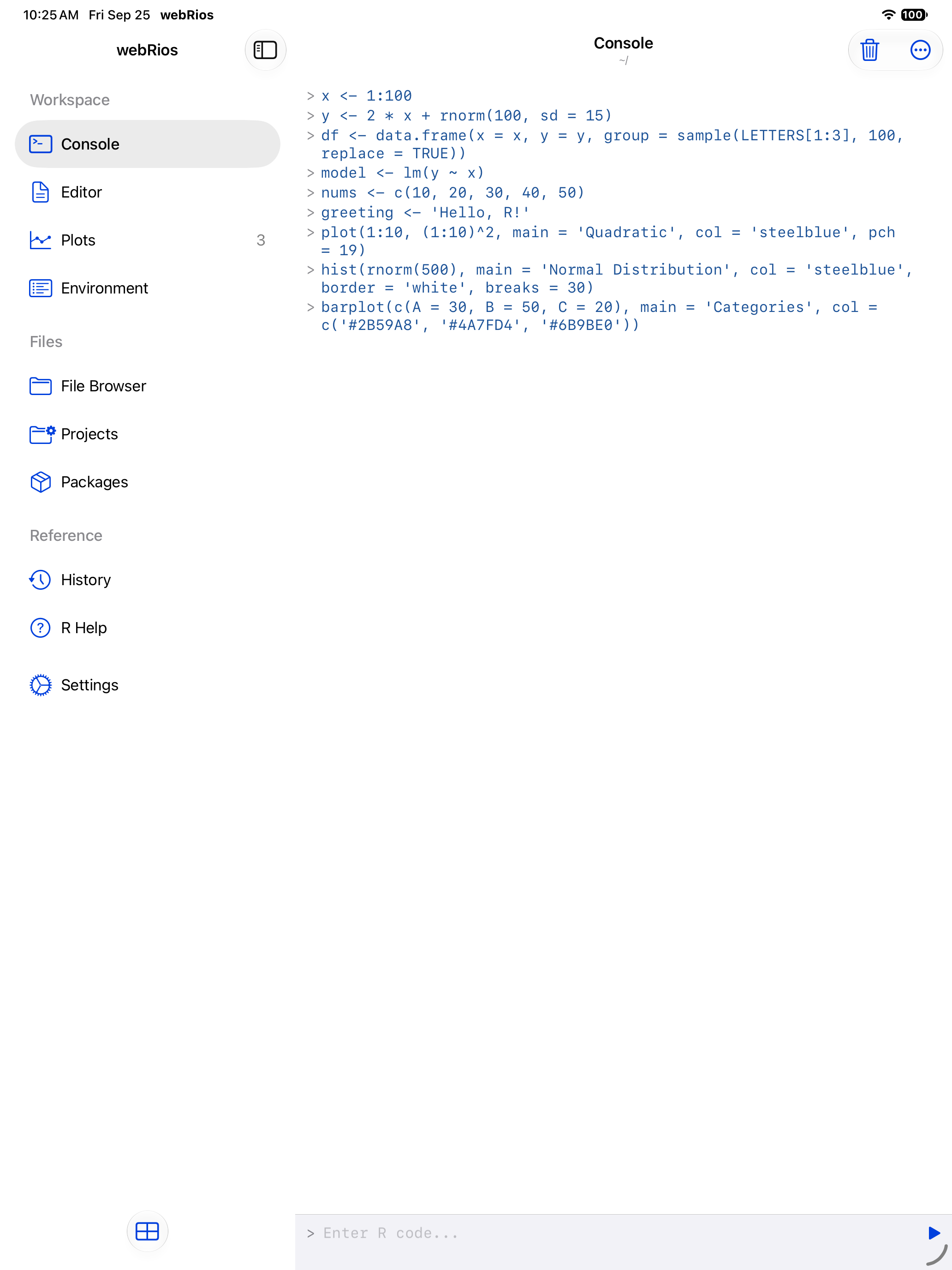
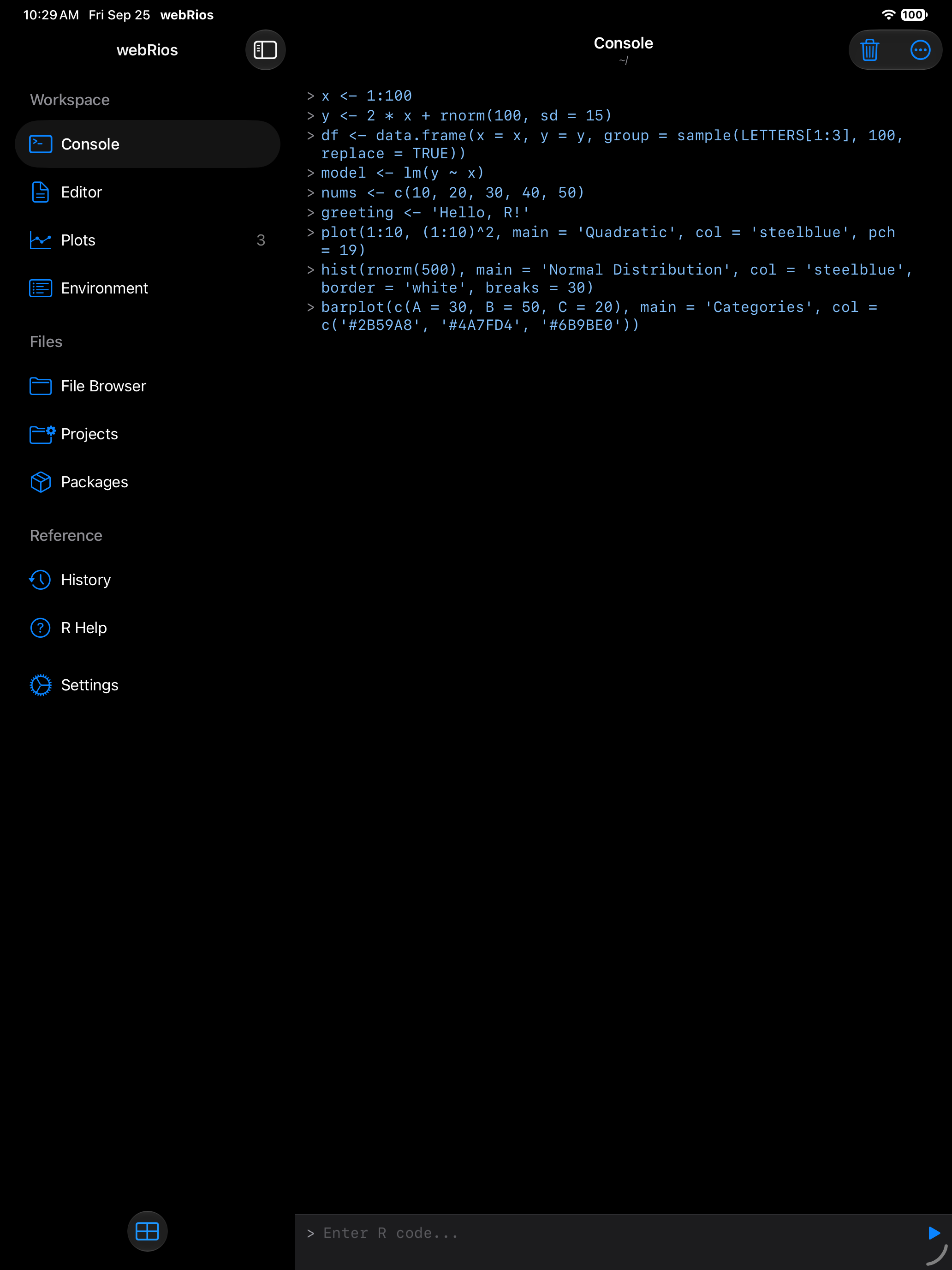
Hidden:
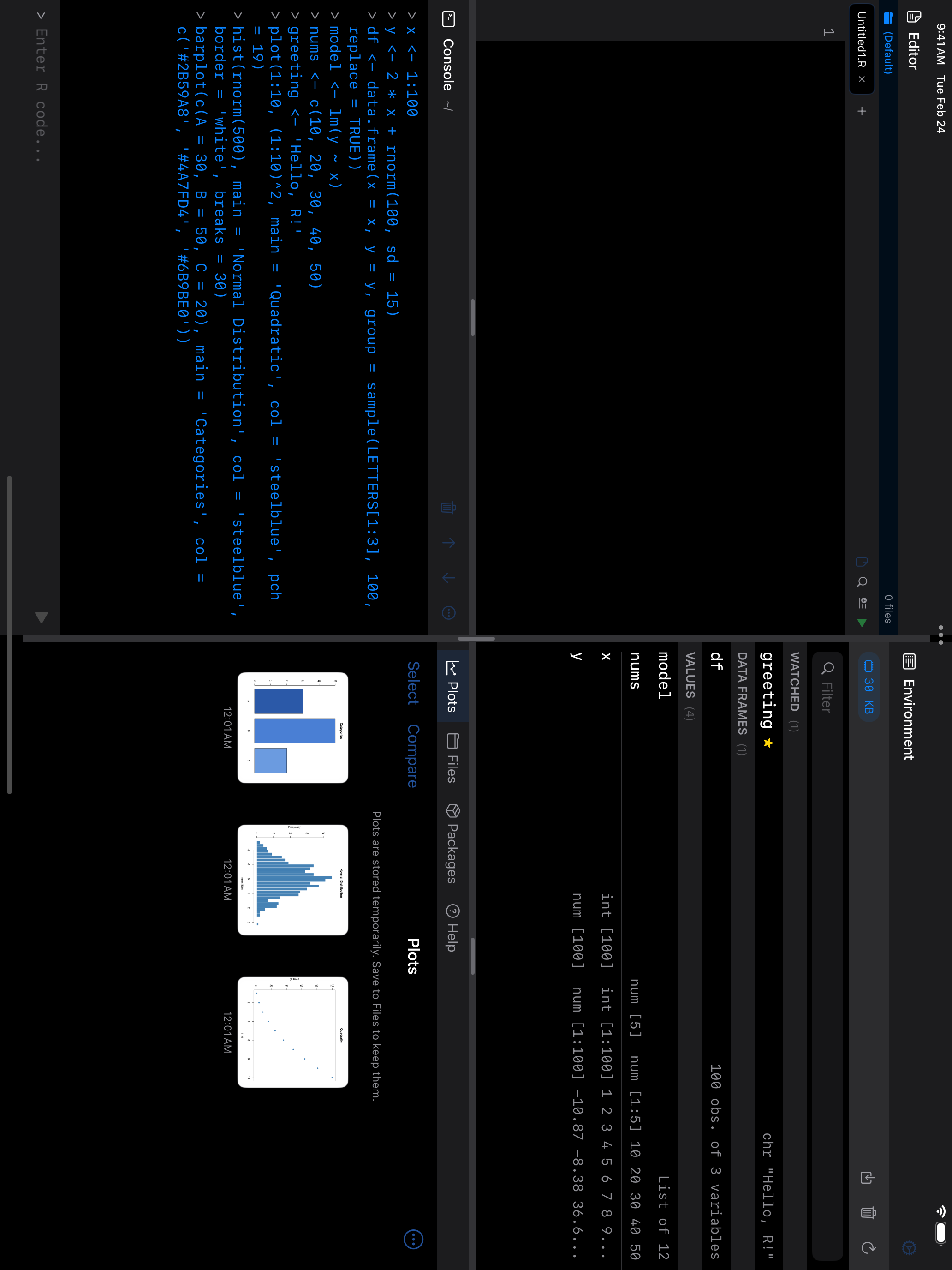
4-Pane Workspace
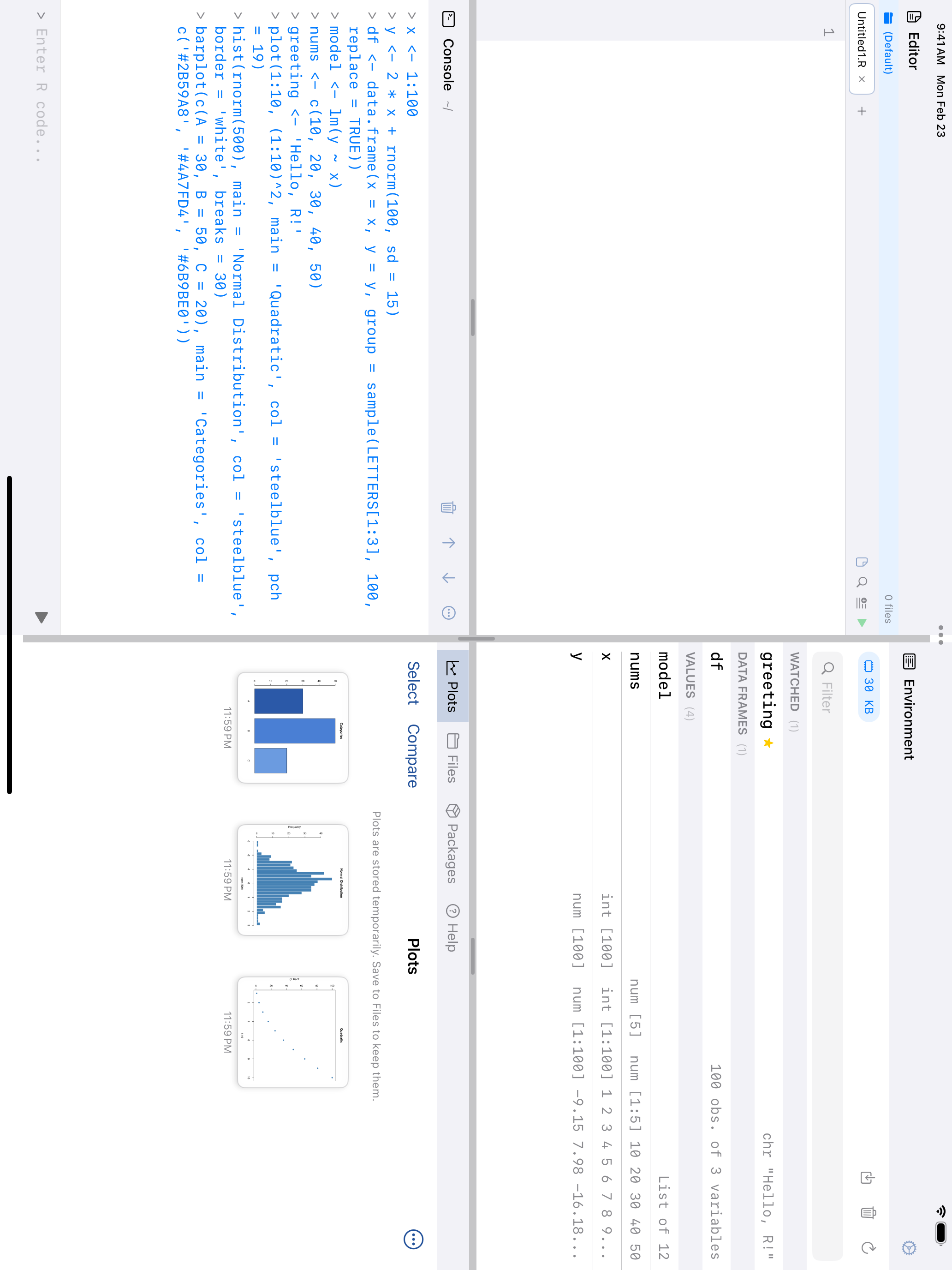
Four resizable panes at once: Editor and Console on the left, Environment and a tabbed pane (Plots, Files, Packages, Projects, History, Help) on the right. The tab strip scrolls when it doesn’t fit, and the Plots tab counts plots you haven’t seen. Tap the gear icon in the Environment header for Settings, or the Layout button beside it to change layout. The Console pane’s header has Stop while R is running, and Clear (Cmd+K). Help pages and the package list keep their place when you switch tabs or layouts. Works best on iPad in landscape.
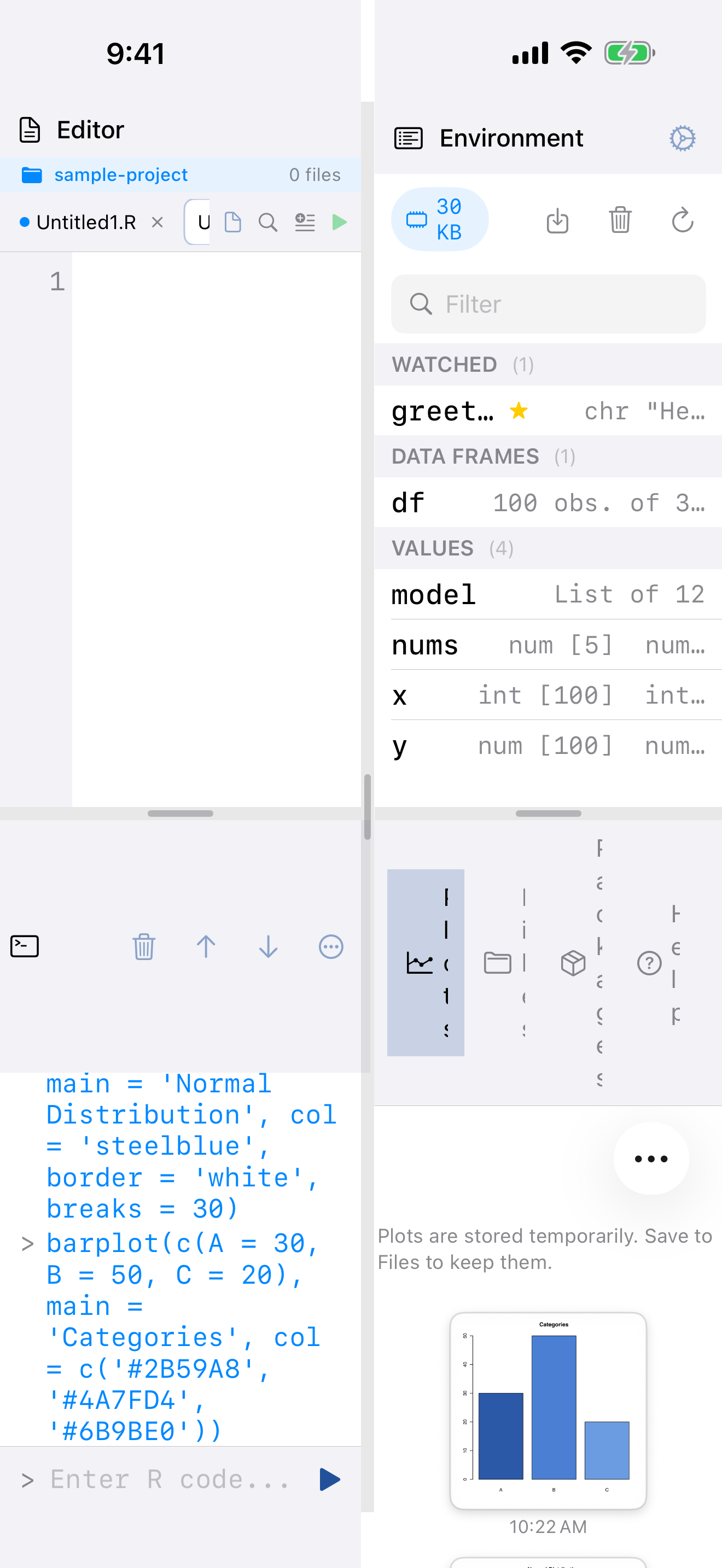
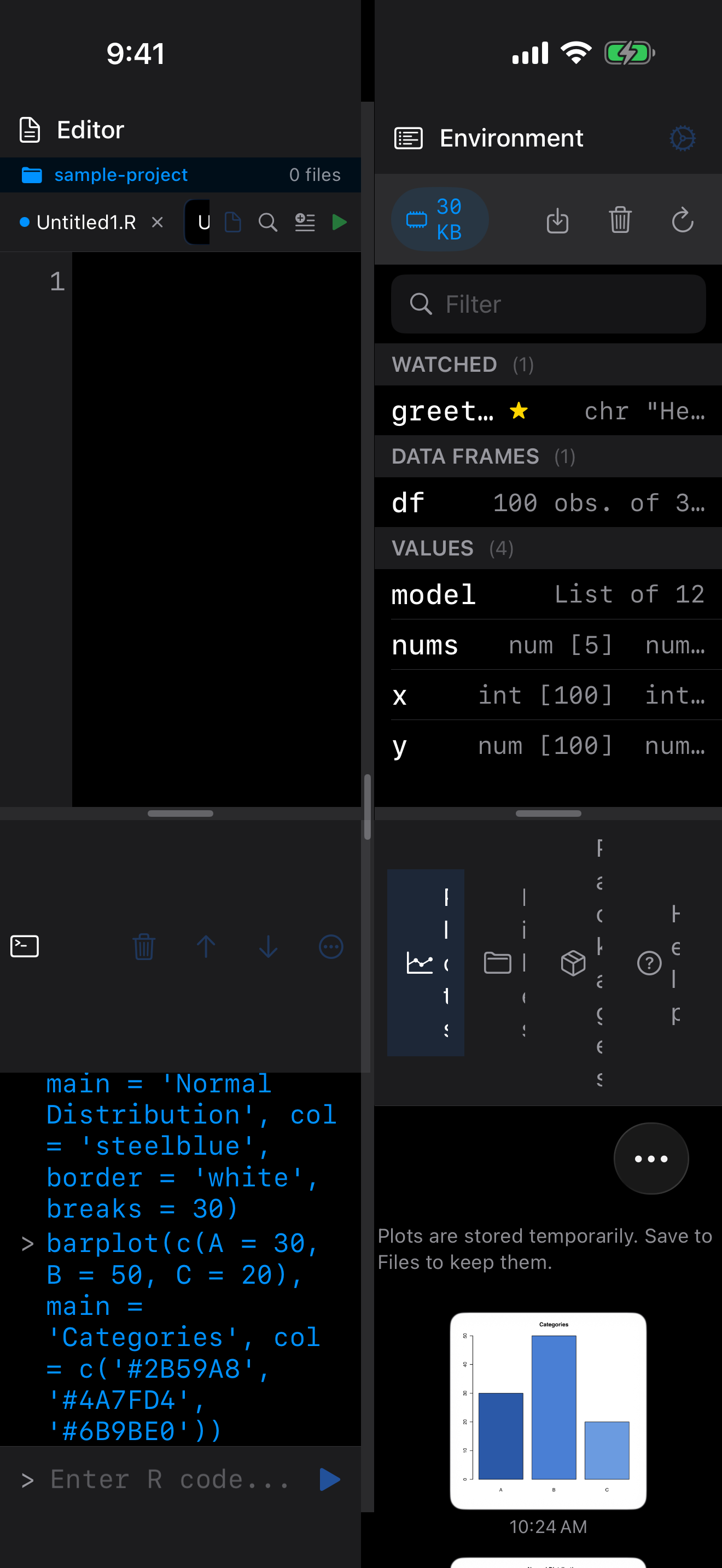
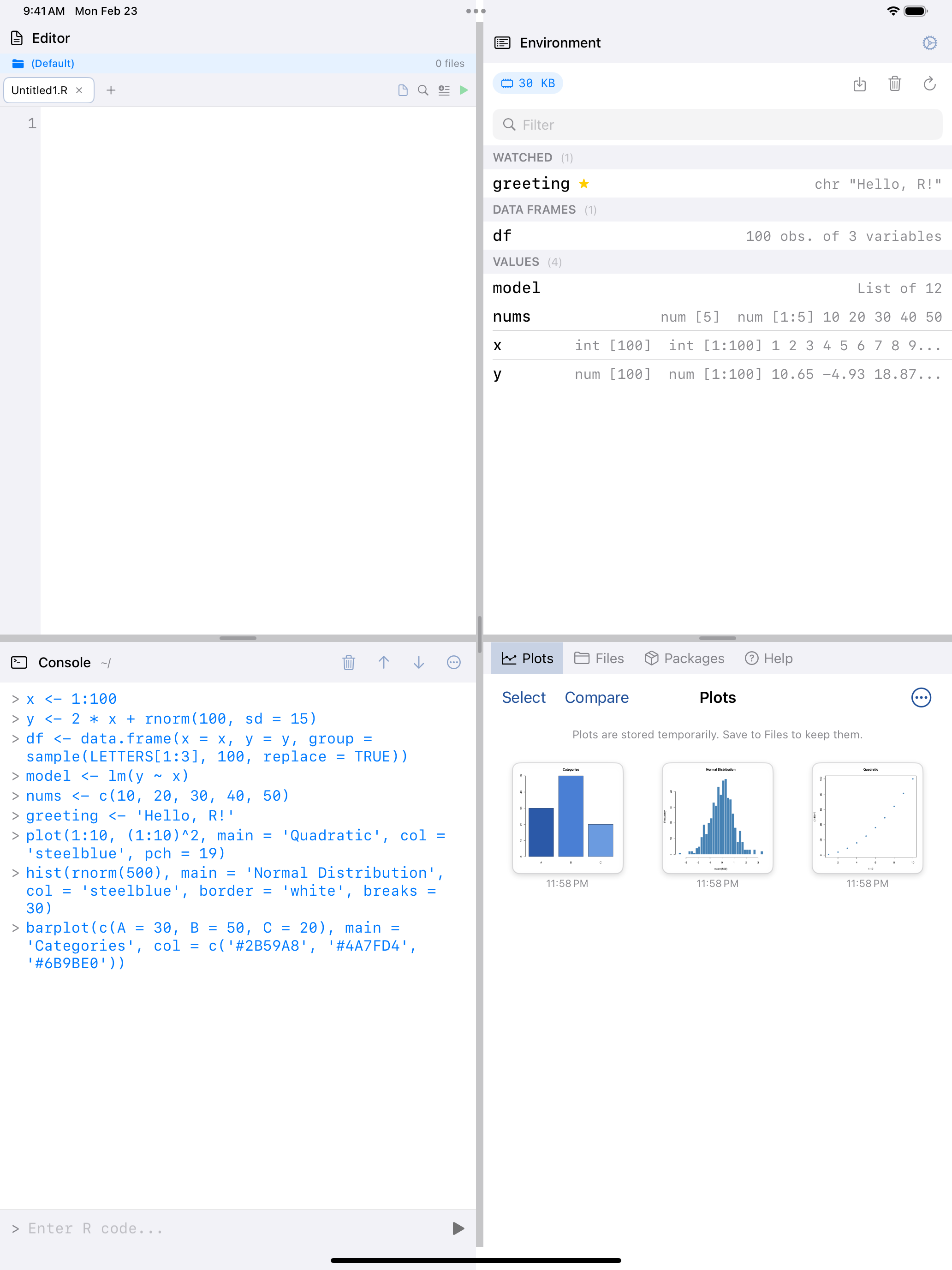
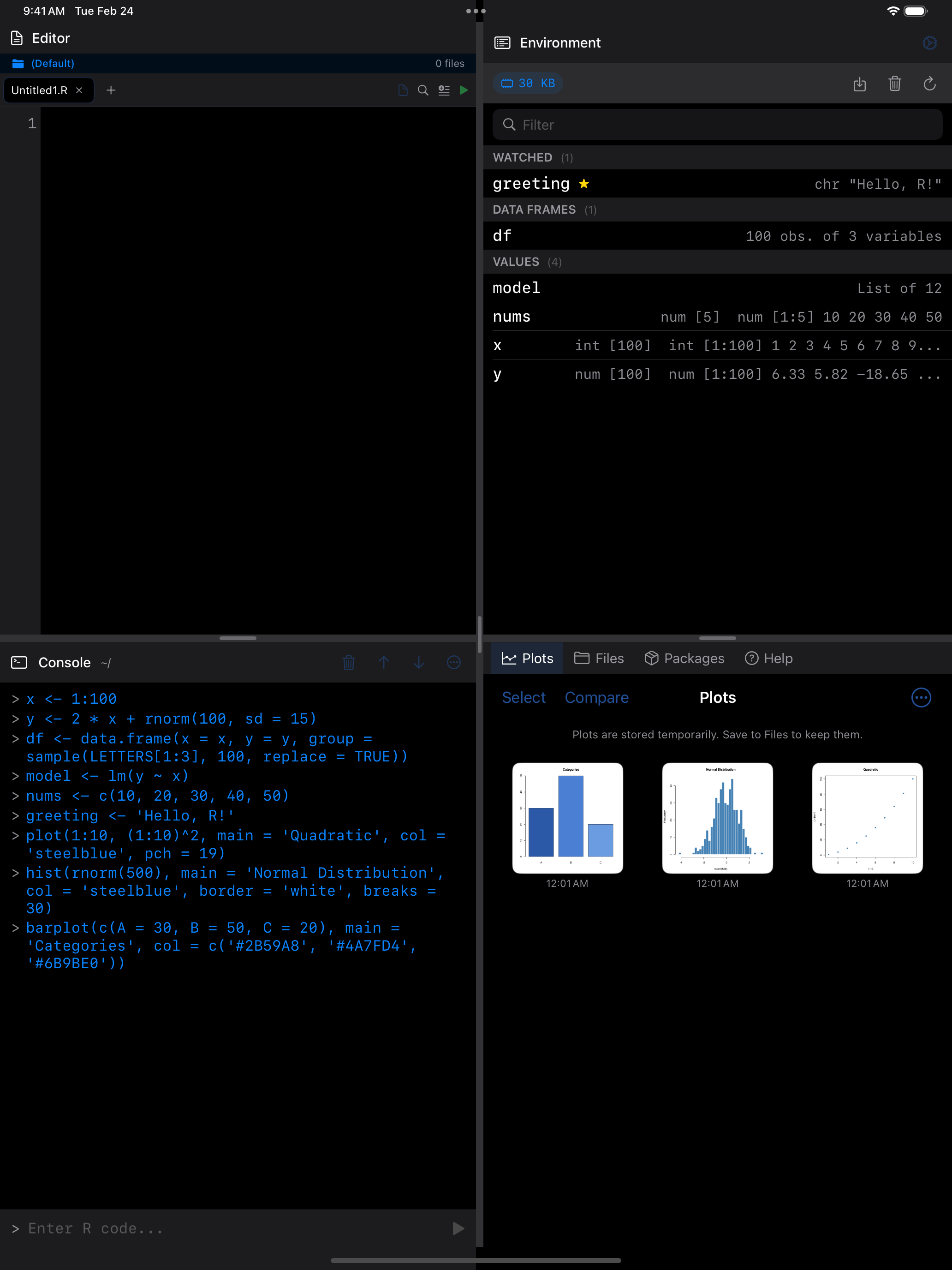
Drag the dividers to resize the panes, within 30–70% across and 20–80% down. Positions are kept between sessions.
Landscape vs. Portrait
Each layout adapts to the screen orientation. On iPad, the screenshots below show portrait (left) and landscape (right) side by side.
4-Pane Workspace
Sidebar Navigation
Tab Bar
4-Pane Workspace
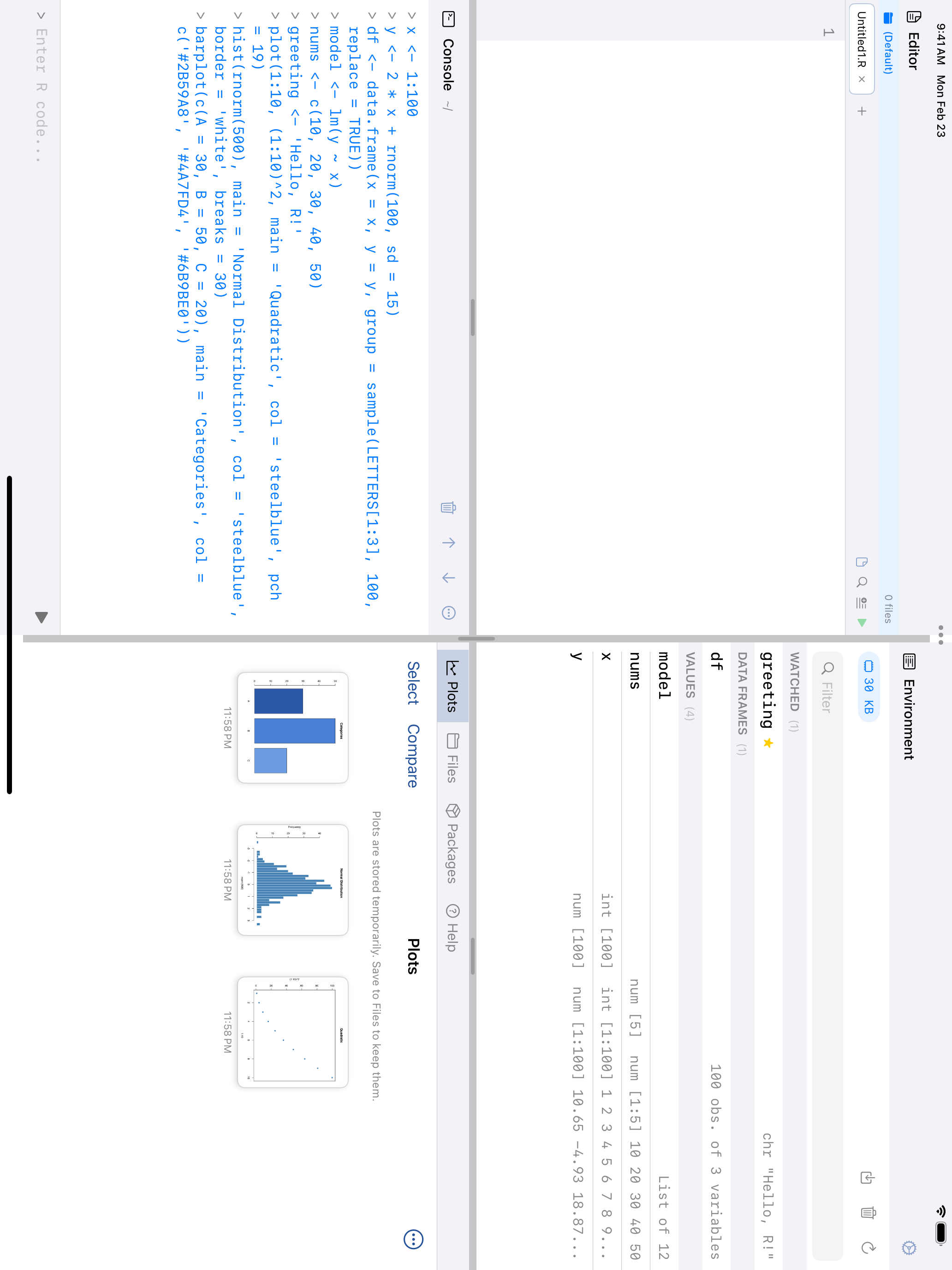
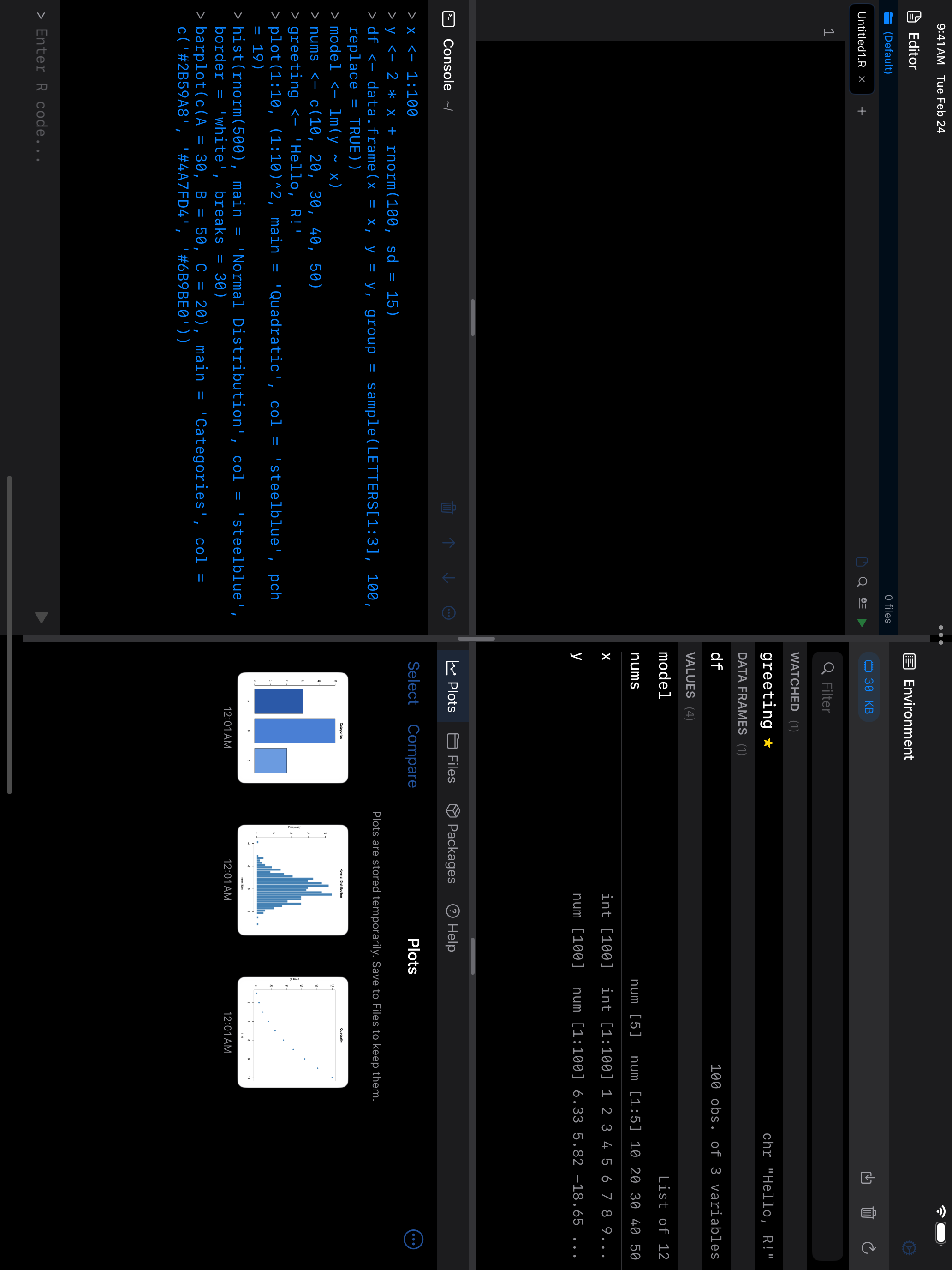
Sidebar Navigation
Tab Bar
On iPad, try 4-Pane Workspace in landscape and Sidebar Navigation in portrait. On iPhone, experiment with all three modes to find your favourite.
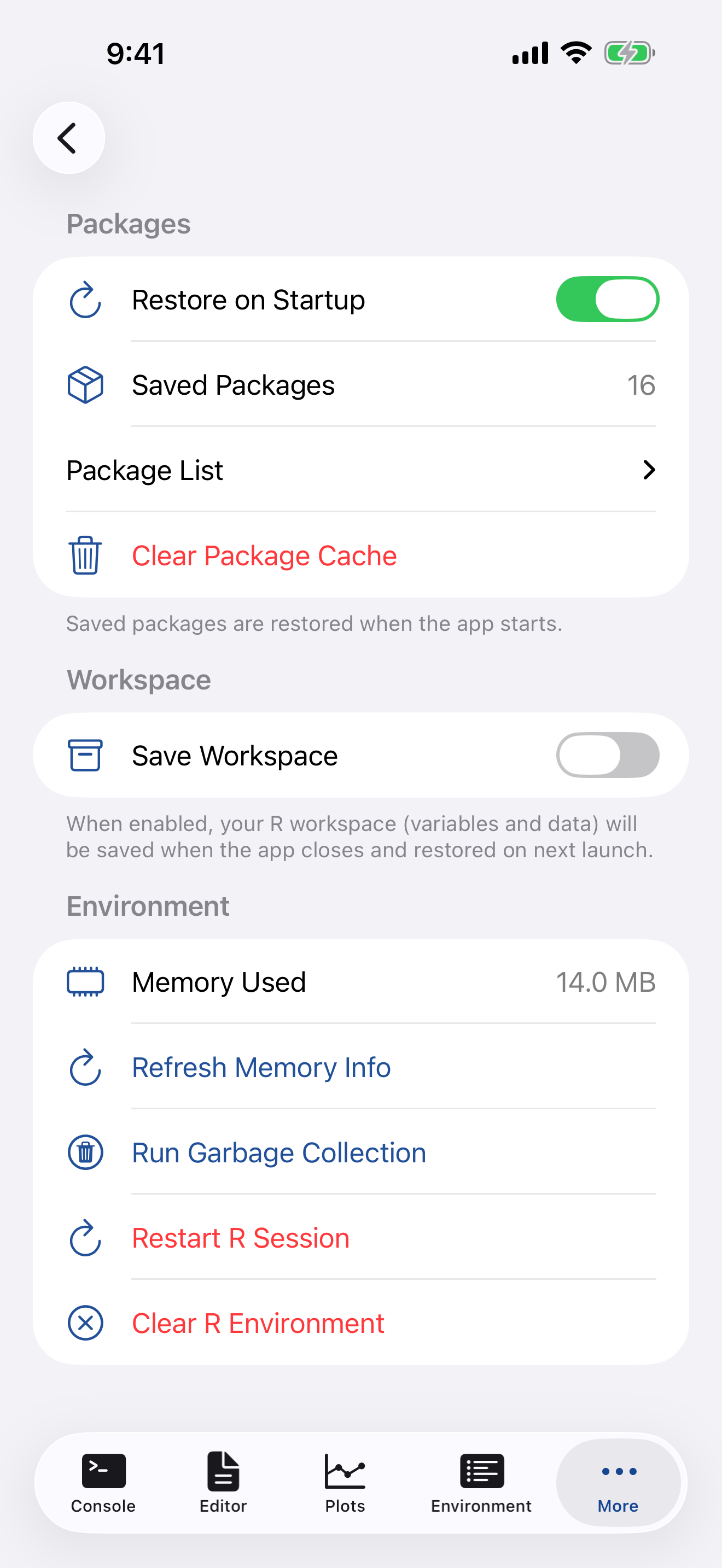
R Session
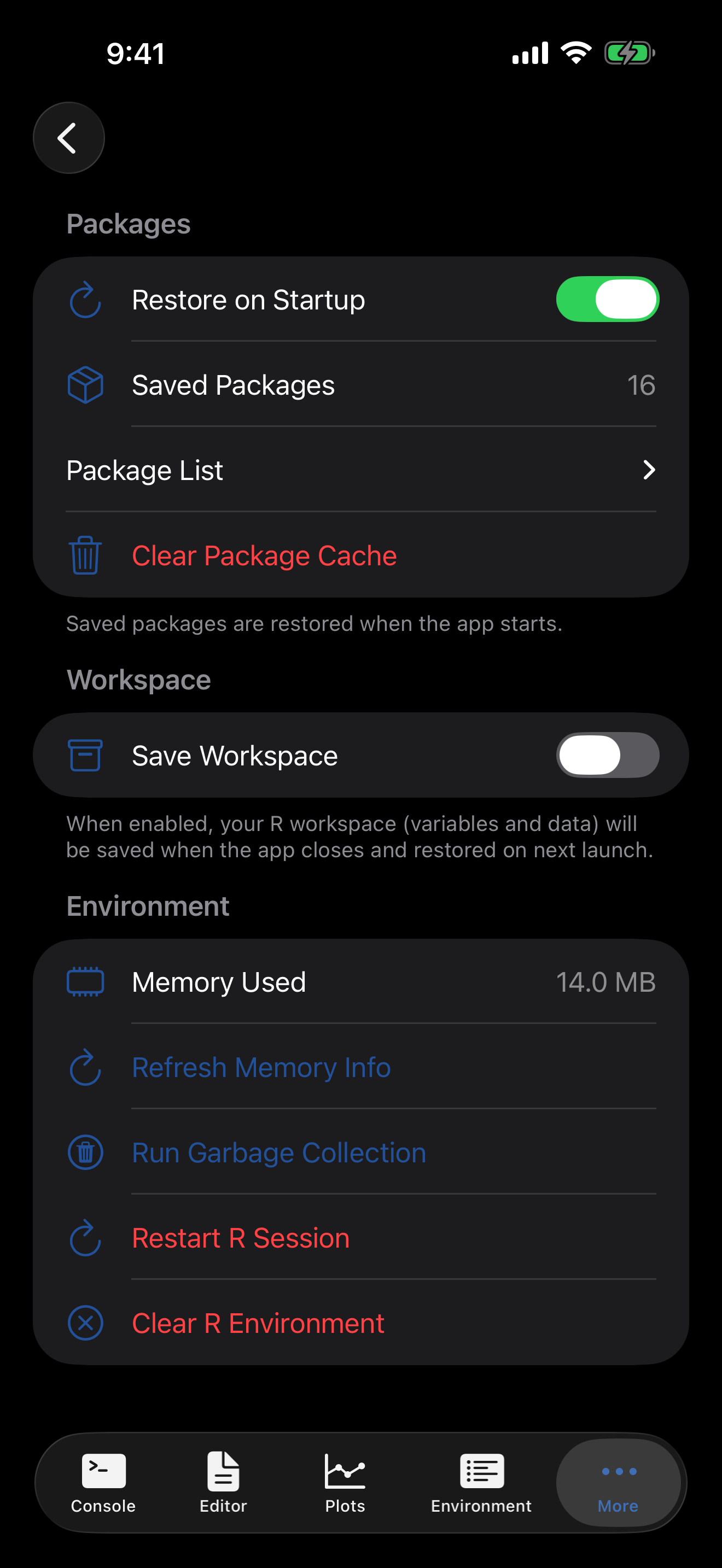
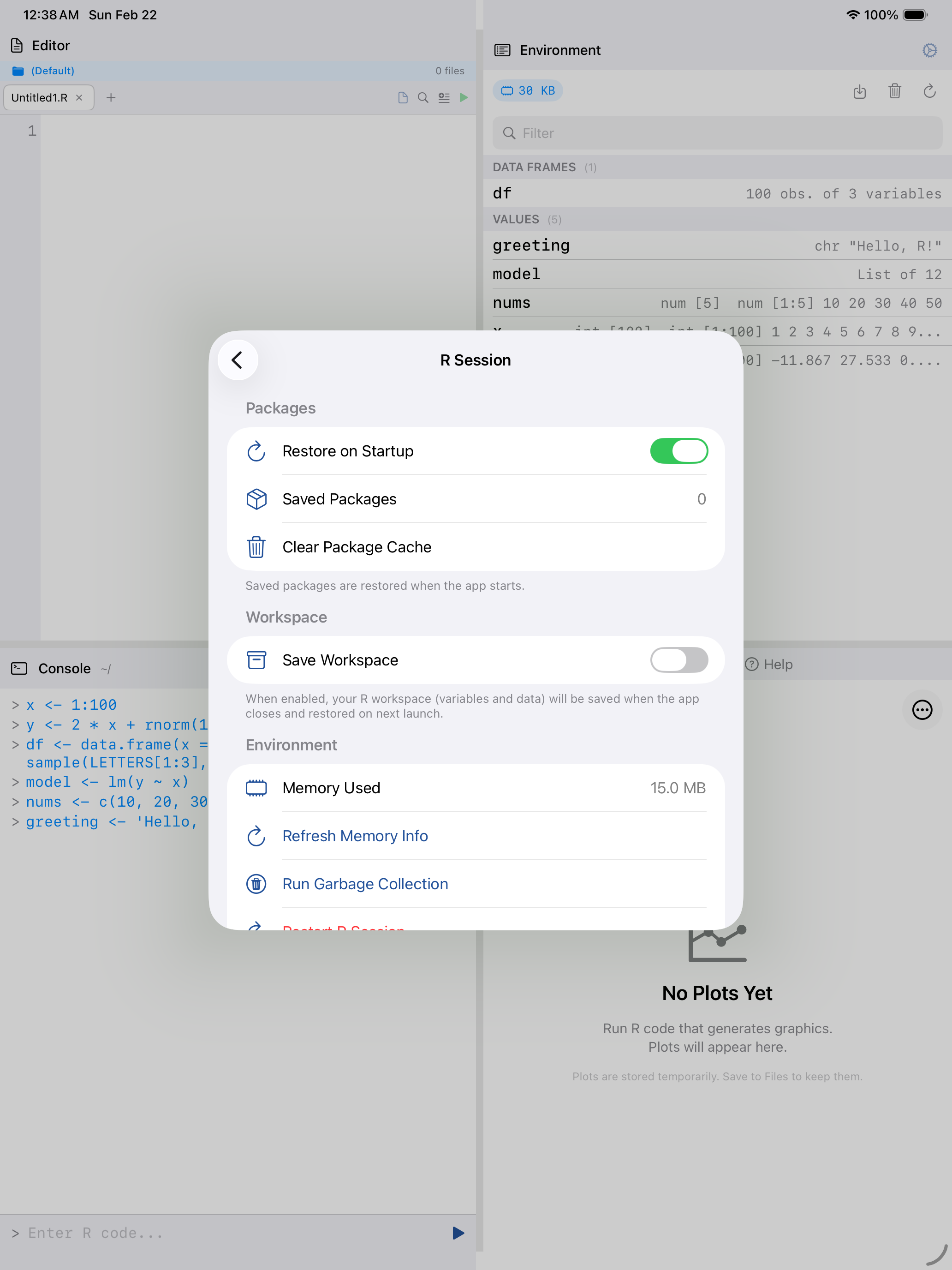
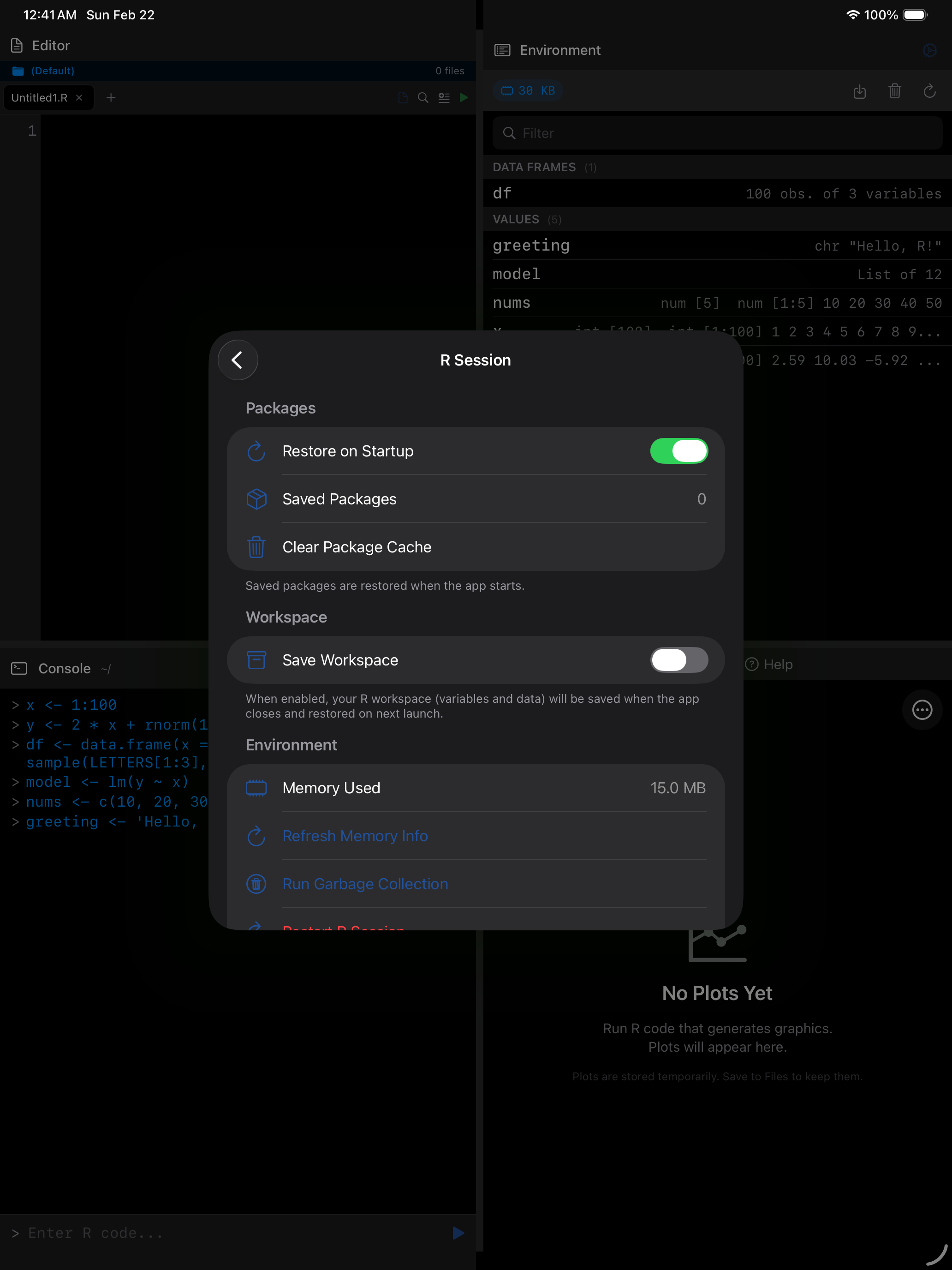
Controls for the R engine: package restoration, workspace saving, file sync, network proxy, long runs, and memory management.
Packages
| Setting | Description |
|---|---|
| Restore on Startup | Automatically restores your installed packages when the app launches, even offline. |
| Saved Packages | Shows how many packages are saved locally. Expand to see the list. |
| Clear Package Cache | Removes all saved packages. You will need to reinstall them next time. |
Workspace
| Setting | Description |
|---|---|
| Save Workspace | Like .RData in desktop R, per project. With this on, R’s variables are saved to the current project when you leave the app or switch projects, and loaded when R starts or restarts or you switch to that project. Off by default. |
| Saved Workspace | Appears when the current project has a saved workspace. Delete removes it, after asking. |
Switching projects swaps R’s variables in place, without restarting R; loaded packages, options and the working directory stay. A switch waits for running code, which you can still stop. Variables that belong to no project are kept, with a notice suggesting a restart. A workspace that fails to load is renamed aside rather than blocking every launch; see Known Issues.
Files
| Setting | Description |
|---|---|
| Copy Files Back Automatically | Copies files R writes in its working directory back to this iOS folder after every console command, overwriting the iOS versions with R’s. Off by default. |
Network
How network requests from R packages built on curl, such as httr2, leave your device. Installing packages and download.file() are not affected.
| Setting | Description |
|---|---|
| Network Proxy | On-Device Only (default) uses a proxy running inside the app, and blocks requests if it can’t start. On-Device, Public Fallback switches to a public proxy hosted at r-universe.dev only when the on-device one can’t start. Public Proxy always uses the public one. Changes apply when R restarts. |
| This Session | What the running R session is actually using: the on-device proxy, the public proxy, or blocked. |
| Restart R to Apply | Appears when you have changed the setting since R started. |
If the on-device proxy can’t start, the app tells you once per launch. The public proxy can see your device’s IP address and which sites you connect to, but not the contents of https requests.
Network Access shows how to pick a route, check from R which one a session uses, and what a blocked session looks like. How network access works explains the mechanism.
Long Runs
| Setting | Description |
|---|---|
| Suggest Stopping After | How long code runs before a banner suggests Stop, which keeps your variables, or Restart R: 30 seconds, 1 minute (the default), 2 minutes, 5 minutes or Never. The row shows it short, such as “30 sec”. A change applies from the next run. |
The banner names the time, as in “R has been running for over 2 minutes”. With Never there is no banner; Stop still works. A short time suits teaching; a long one, or Never, suits large models. See Stopping running code.
Environment
| Action | Description |
|---|---|
| Memory Used | Current memory usage of your R session. |
| Refresh Memory Info | Updates the memory display. |
| Run Garbage Collection | Frees memory by cleaning unused R objects. Try this if things feel sluggish. |
| Restart R Session | Restarts R. Clears variables and loaded packages; keeps editor code, plots and saved files. With Save Workspace on, the project’s workspace is loaded again, and the confirmation says so. |
| Clear R Environment | Removes all variables from .GlobalEnv without restarting R. Quicker than a full restart for a clean slate. |
If the app feels slow, try garbage collection first. If that does not help, restart the R session.
Help & Resources
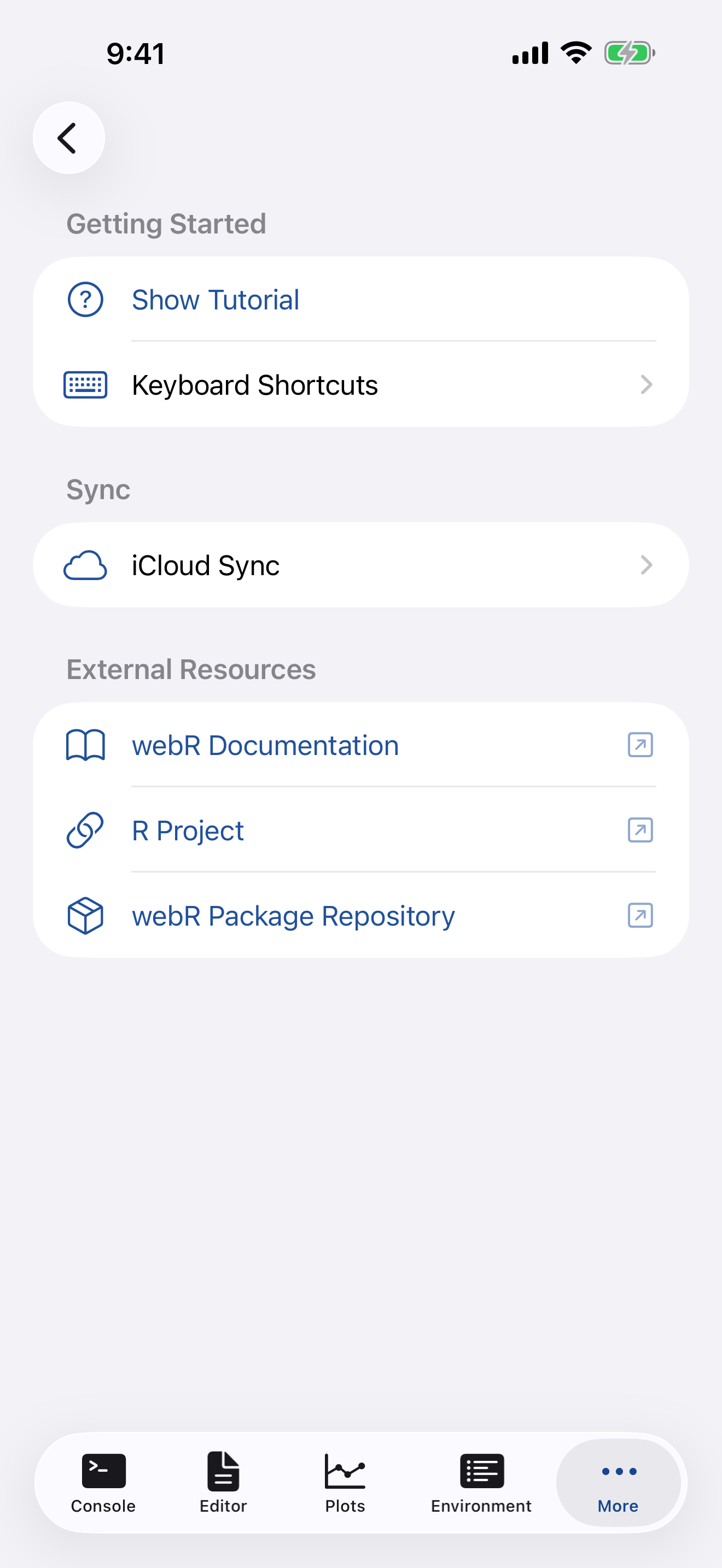
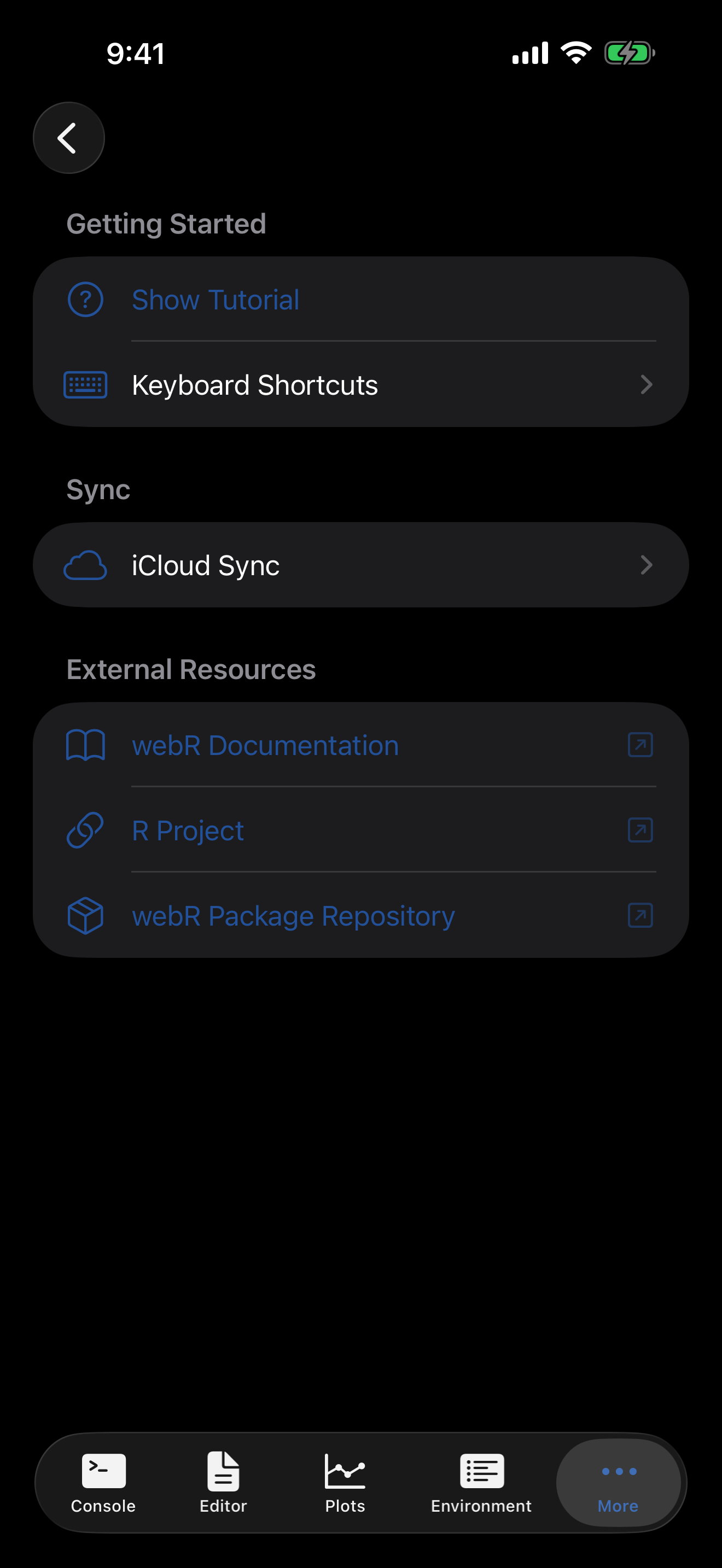
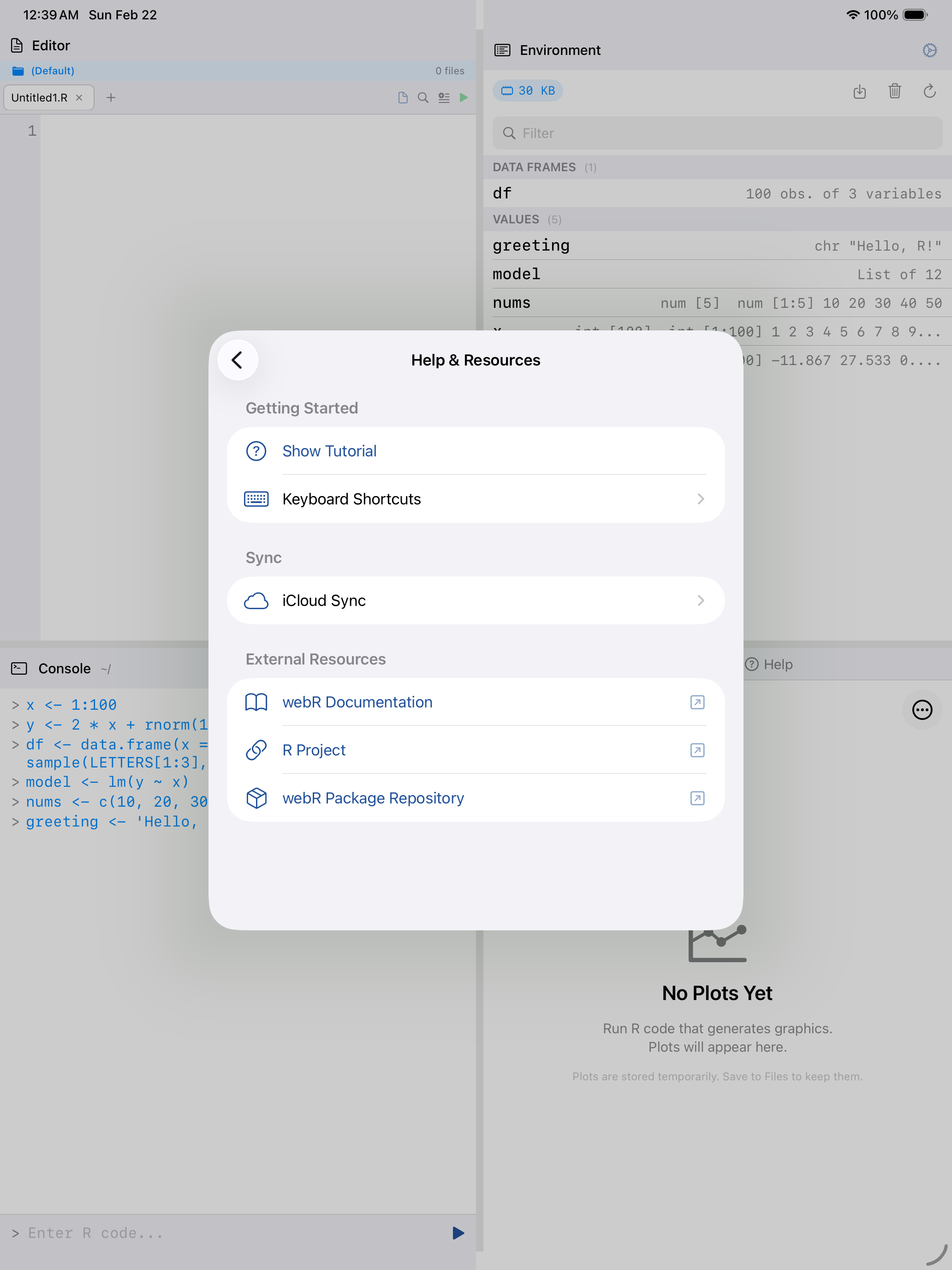
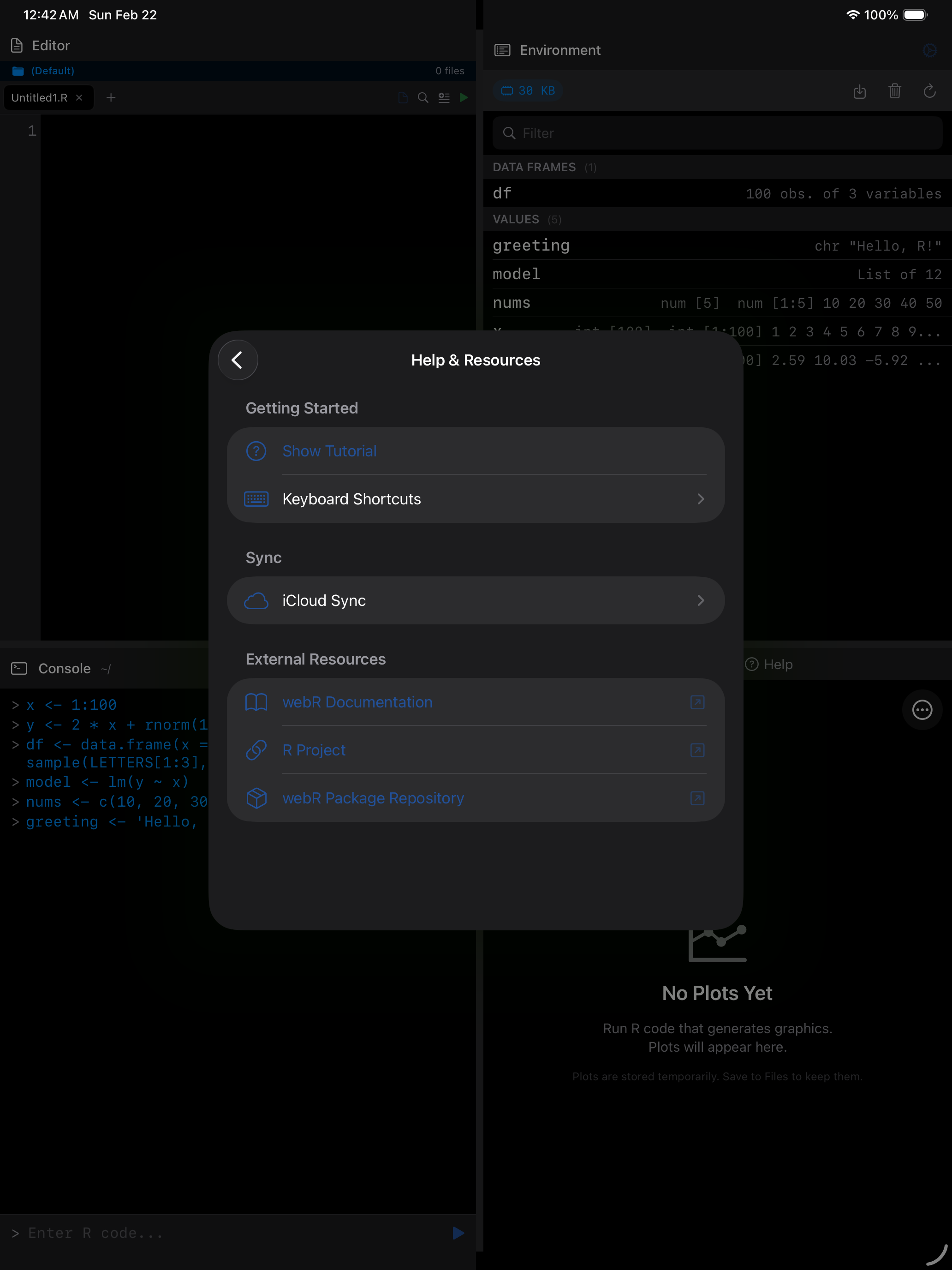
The Getting started checklist, keyboard shortcuts, iCloud sync, and links to external R and webR documentation.
| Item | Description |
|---|---|
| Getting Started | Puts the Getting started checklist back at the top of the Console, unfolded, ticks kept. Once all six steps are done, it starts the checklist over instead. The footer says which it did. |
| Keyboard Shortcuts | A reference card showing all available shortcuts. See the Keyboard Shortcuts section below for details. |
| iCloud Sync | Copy your R scripts to iCloud Drive and back. See iCloud Sync below. |
| External Resources | Links to the official webR documentation, the R Project website, and the webR package repository at repo.r-wasm.org. |
iCloud Sync
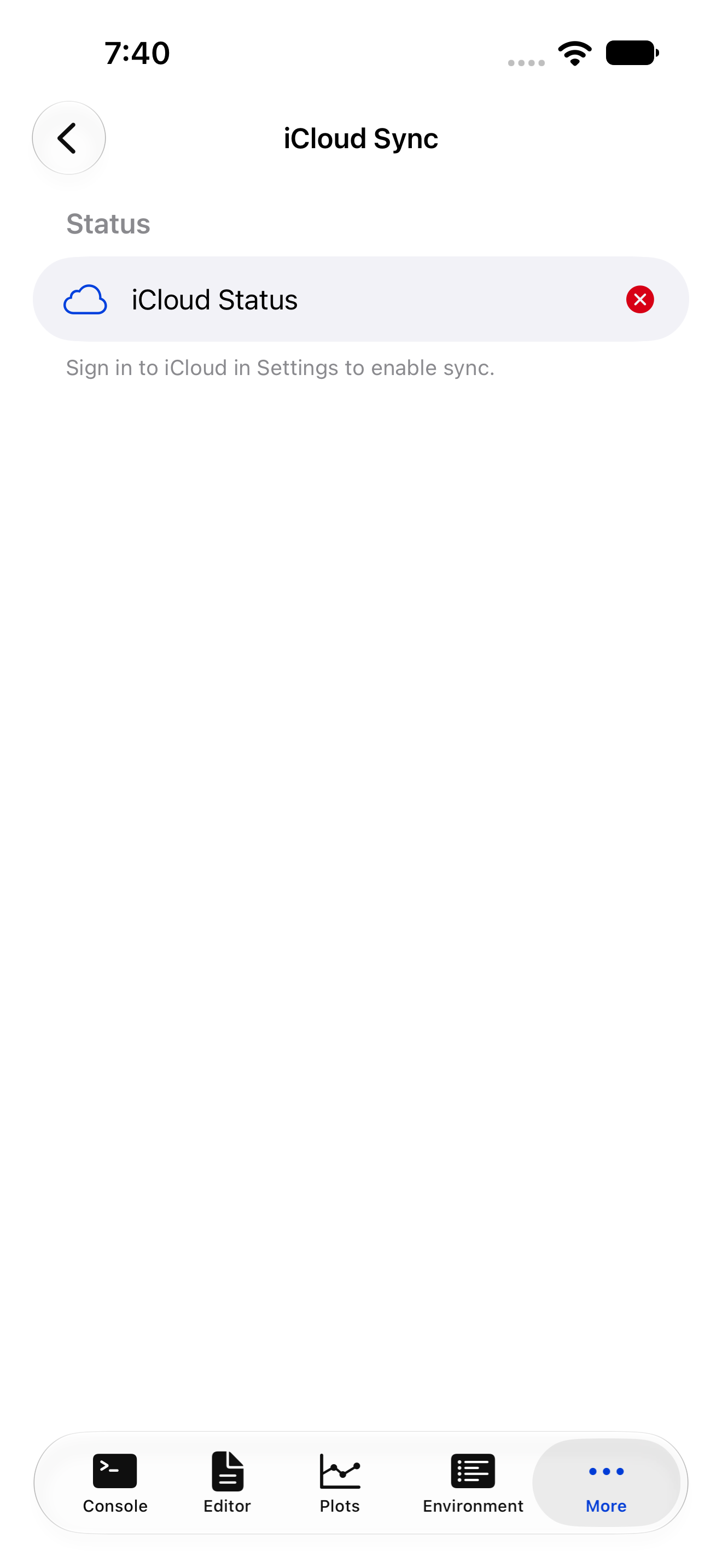
Copies your R scripts between this device and iCloud Drive. Without an iCloud sign-in, the screen says so and the actions are unavailable.
The status section shows whether iCloud is reachable and when you last synced. Below it:
| Action | What it does |
|---|---|
| Upload All Scripts to iCloud | Copies the .R and .Rmd files in the current project and at the top of your Documents folder to iCloud Drive. Two local files whose names differ only in case are refused, since iCloud Drive keeps one folder. |
| Download All from iCloud | Copies every script from iCloud Drive back to this device: over the local script of the same name, or otherwise into the current project. Downloading a single file asks before replacing a local one. |
| Refresh | Re-reads what is currently in iCloud Drive. |
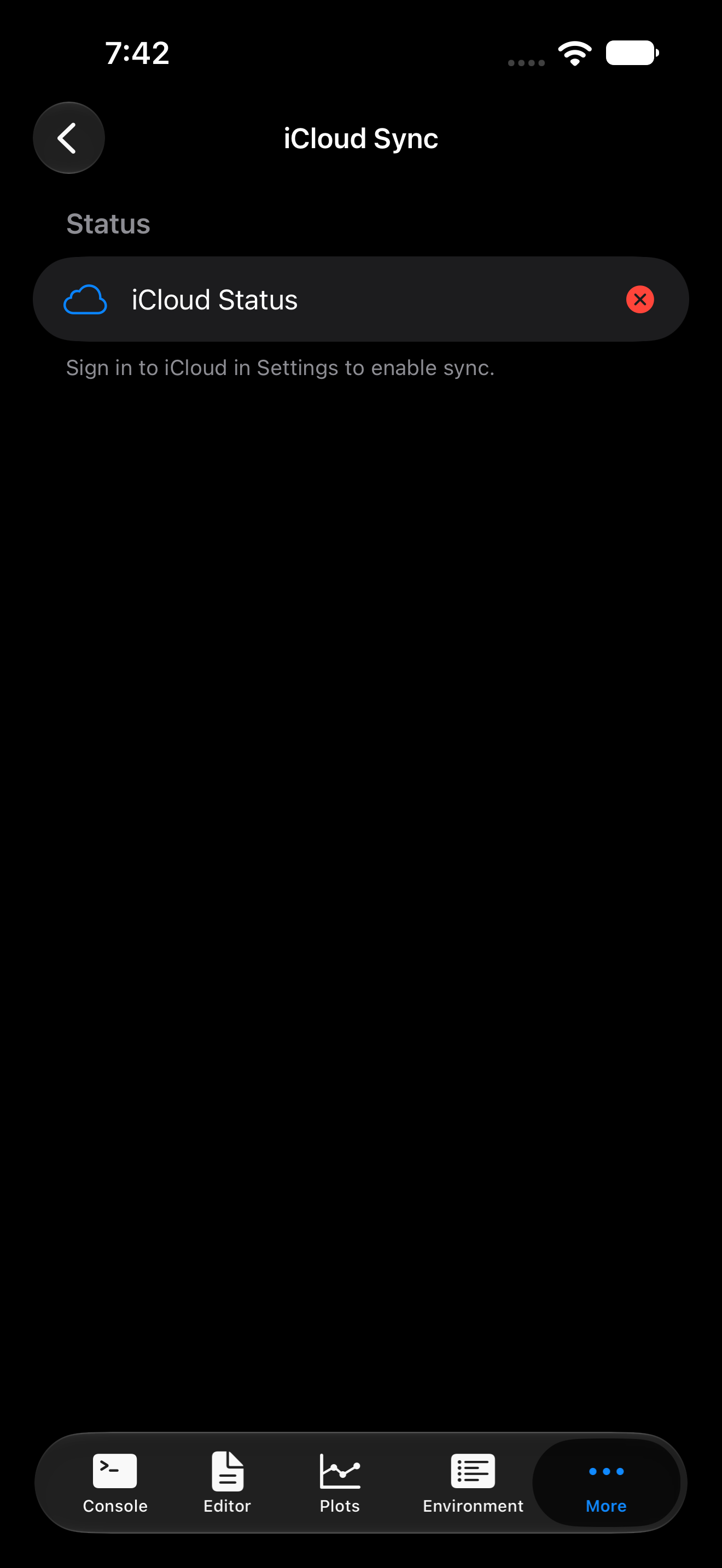
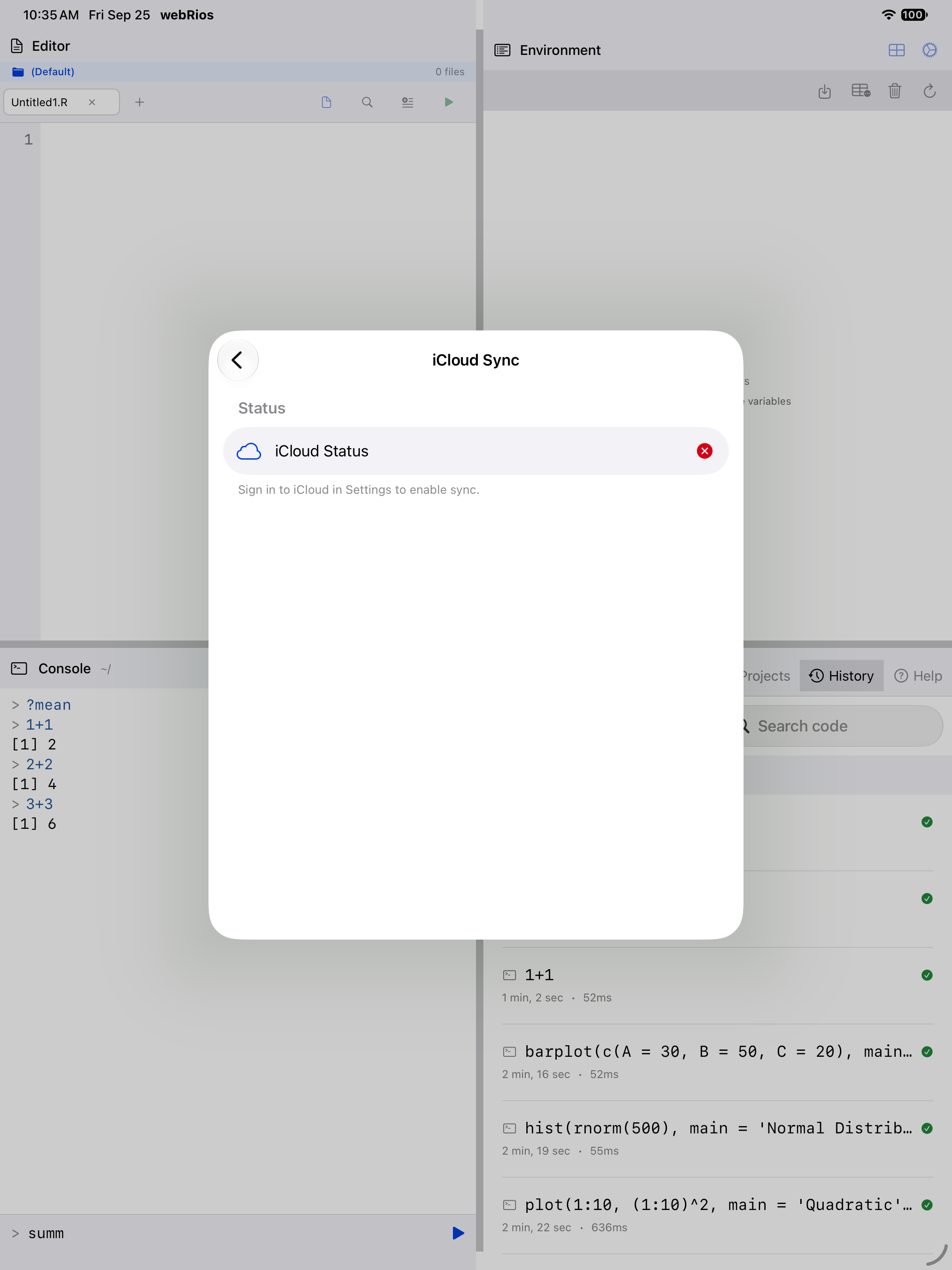
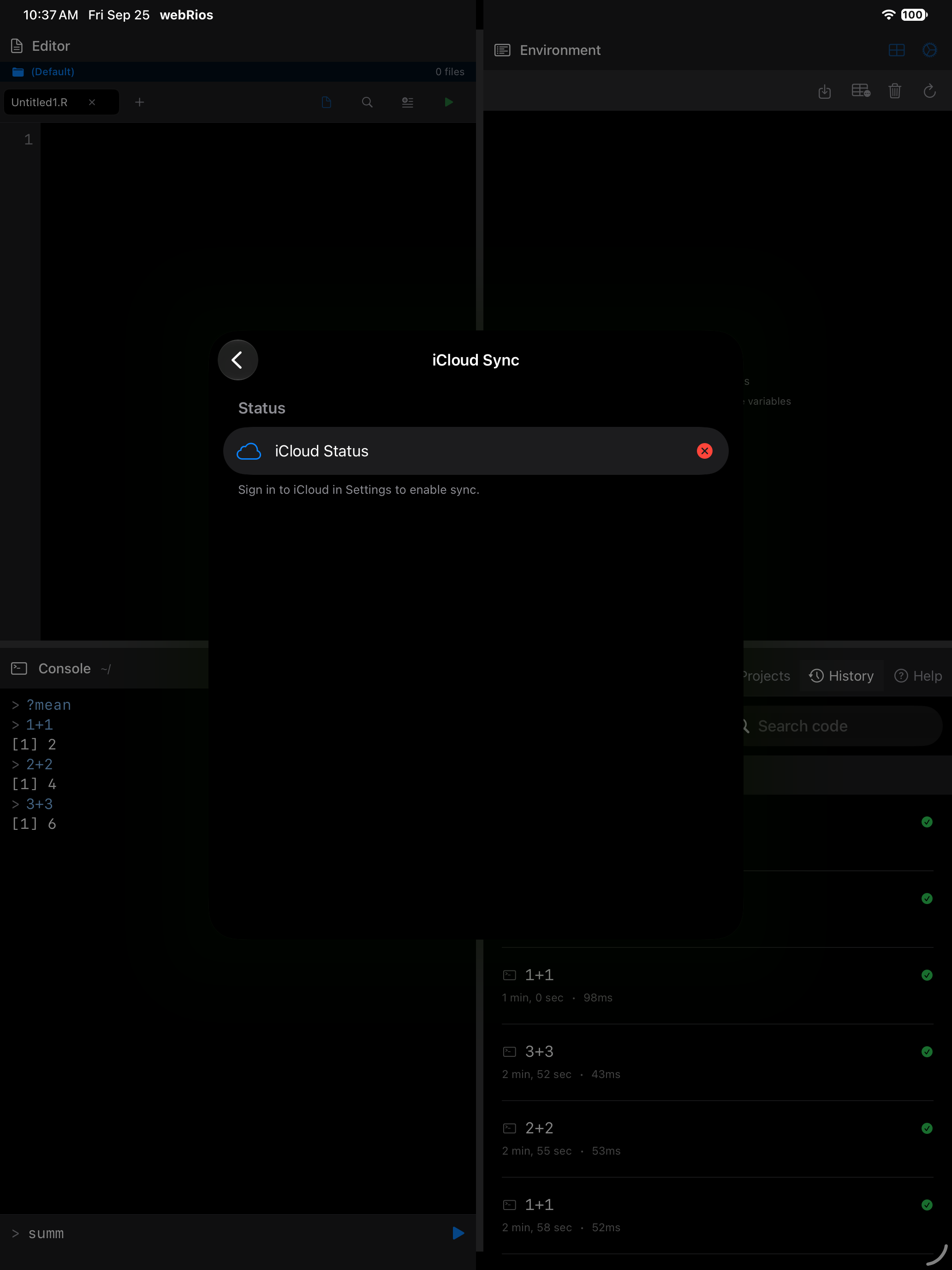
Scripts land in a webRios folder under iCloud Drive, visible in Files and in the Finder on a Mac, so a script written on a Mac and dropped there can be downloaded here.
A failure with one file doesn’t stop the rest, and Last Result says what the last sync did. A download is swapped in only once it is complete, so a file that can’t be downloaded never costs you the local copy.
It copies when you ask, not continuously, and never merges: a file edited in both places ends up as the later copy.
Keyboard Shortcuts
A reference card of every shortcut, organized by category. Especially useful with an external keyboard on iPad.
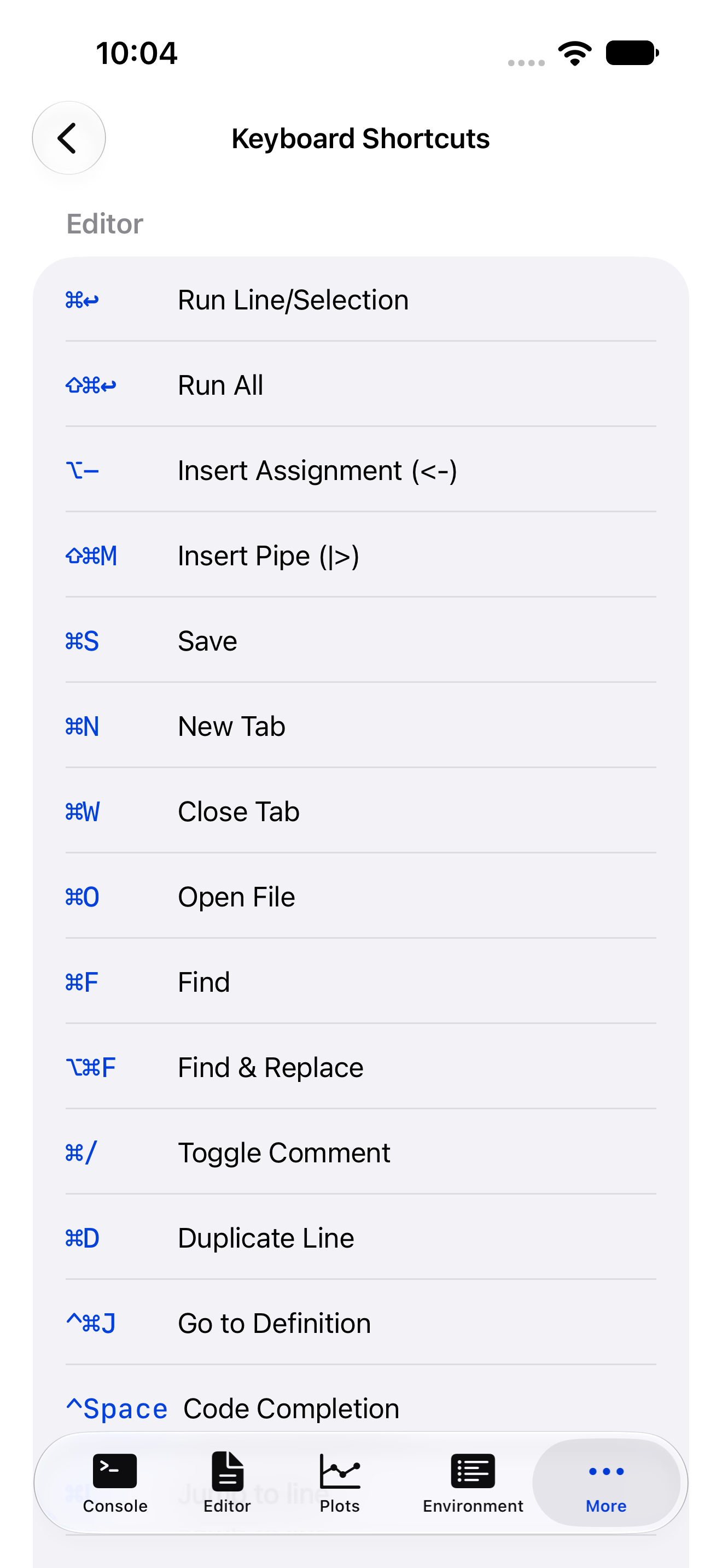
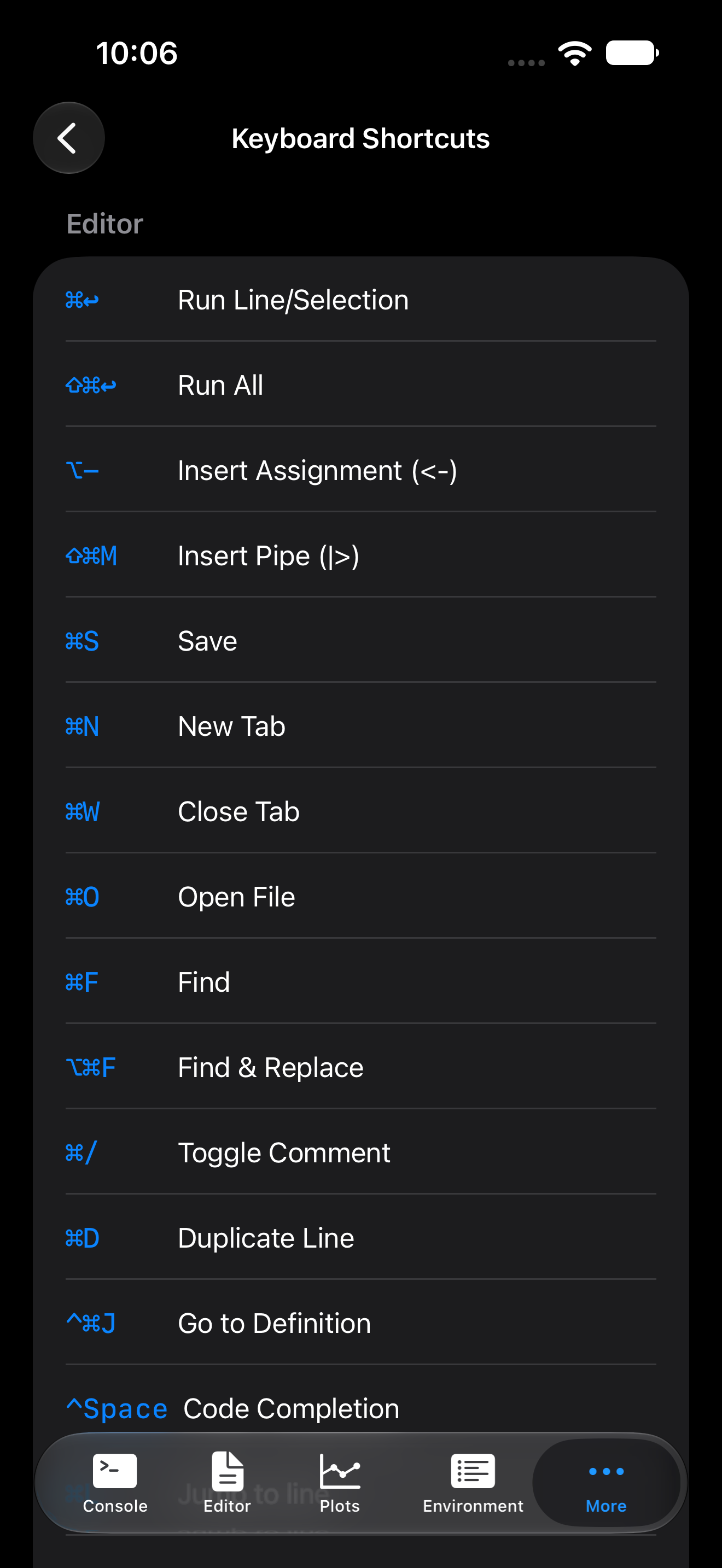
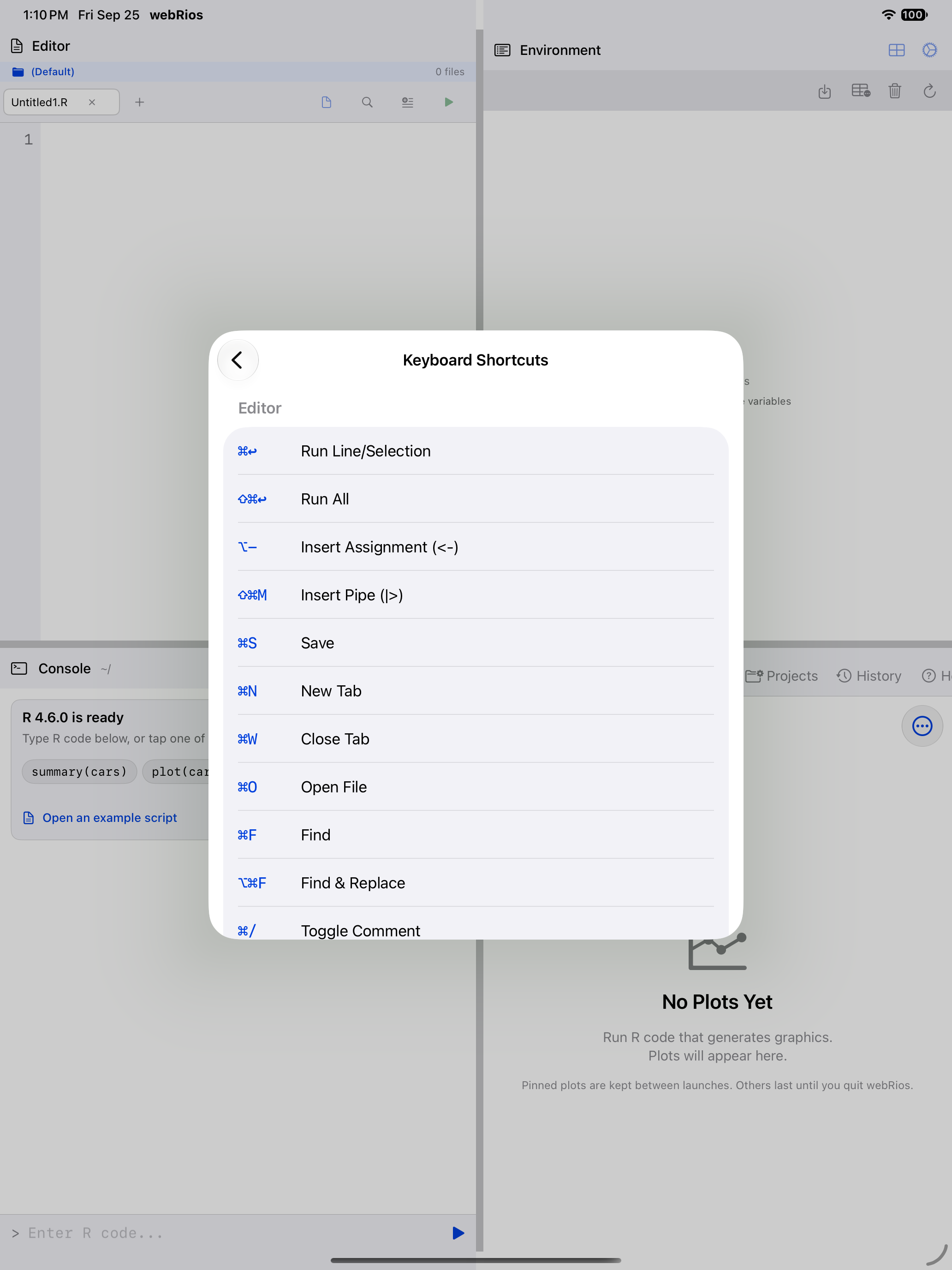
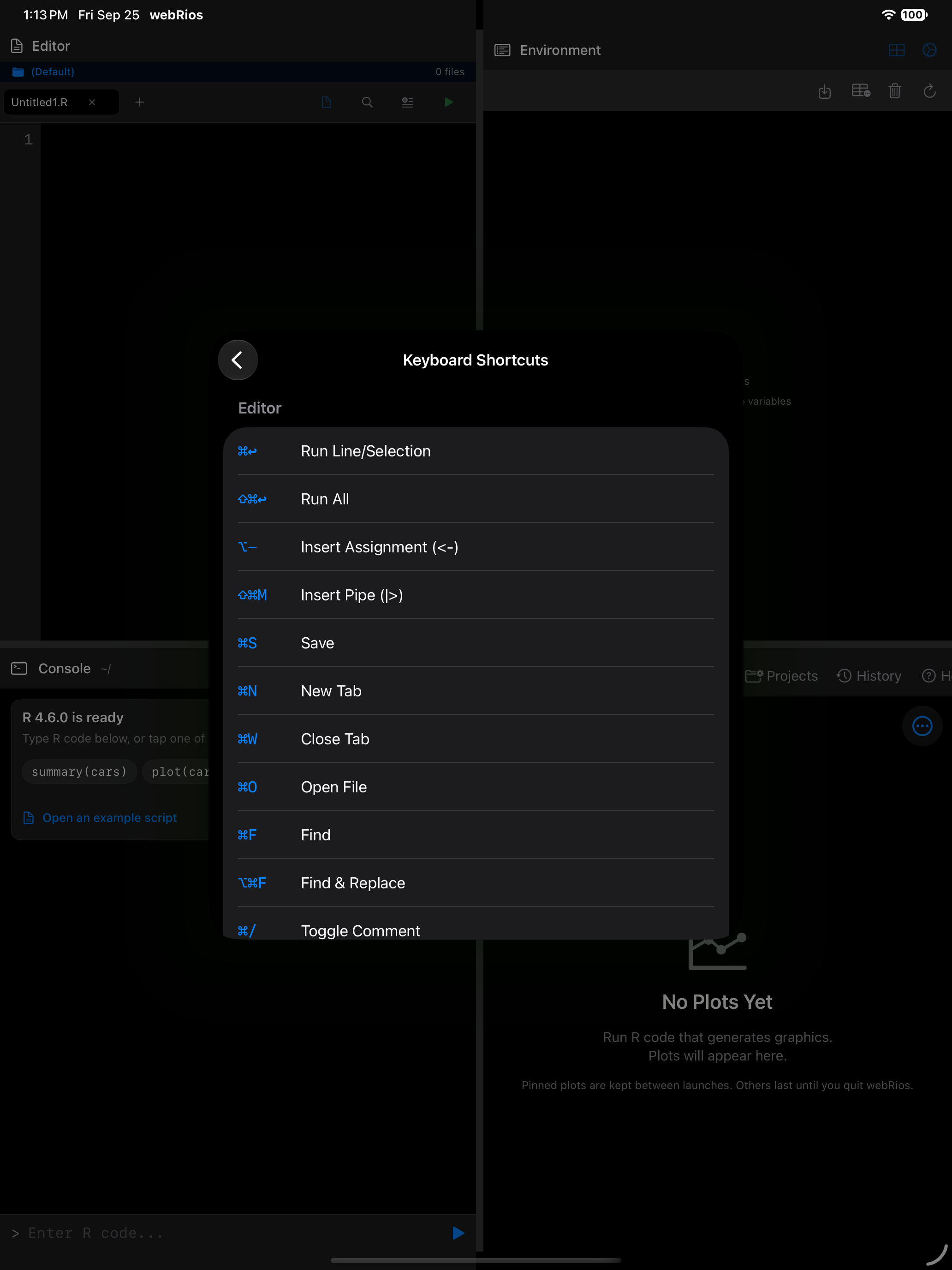
Default shortcuts. These editor shortcuts can be changed (see below):
| Category | Action | Shortcut |
|---|---|---|
| Run | Run Line / Selection | Cmd+Return |
| Run | Run All | Cmd+Shift+Return |
| Insert | Assignment Arrow (<-) |
Option+Hyphen |
| Insert | Pipe Operator (|>) |
Cmd+Shift+M |
| File | Save | Cmd+S |
| File | New Tab | Cmd+N |
| File | Close Tab | Cmd+W |
| File | Open File | Cmd+O |
| Find | Find | Cmd+F |
| Find | Find & Replace | Cmd+Option+F |
| Edit | Toggle Comment | Cmd+/ |
| Edit | Duplicate Line | Cmd+D |
| Navigate | Go to Definition | Ctrl+Cmd+J |
| Navigate | Code Completion | Ctrl+Space |
With nothing selected, Run Line / Selection runs the whole statement on the cursor’s line, then moves the cursor to the next statement, so pressing it again steps through a script. See Running one statement at a time.
Fixed shortcuts. These can’t be changed, and no other action can use their keys:
| Action | Shortcut |
|---|---|
| Stop R | Cmd+. |
| Restart R (asks first) | Ctrl+Cmd+0 |
| Clear Console | Cmd+K |
| Previous / Next Command | Cmd+Up / Cmd+Down |
| Go to Line | Cmd+L |
| Code Outline | Cmd+Shift+O |
| Console, Editor, Plots, Environment, Files, Packages, History, Help | Cmd+1 to Cmd+8 |
| Settings | Cmd+, |
In the Console, Cmd+F searches your command history. In a separate iPad editor window, Cmd+R runs the whole file.
A few keys belong to the system first. Cmd+G is Find Next, which is why Go to Line is Cmd+L. With the editor’s text focused, Cmd+Option+F is Find and Replace; elsewhere it opens Search in Files. Cmd+W closes the editor tab only while the editor’s text has focus; otherwise it closes the window.
Customizing Shortcuts
All the default shortcuts above are customizable in Settings > Keyboard > Custom Shortcuts. Tap any shortcut to edit it:
- Choose modifier keys (Command, Option, Control, Shift) with toggle buttons
- Pick a key from a grid of letters, numbers, and special characters
- See a live preview of the shortcut combination
- Reset an individual shortcut to its default
A blue dot marks customized shortcuts. Choosing a combination another action already uses offers to swap the two. The fixed shortcuts’ keys are refused, and the editor says what holds them; a custom shortcut saved earlier on one of those keys goes back to its default. Reset All to Defaults at the bottom undoes all changes. With VoiceOver, shortcuts are read as words, such as “Command Return”.
On iPad, hold the Cmd key to see a discoverability overlay listing the menus and shortcuts available right now.
About
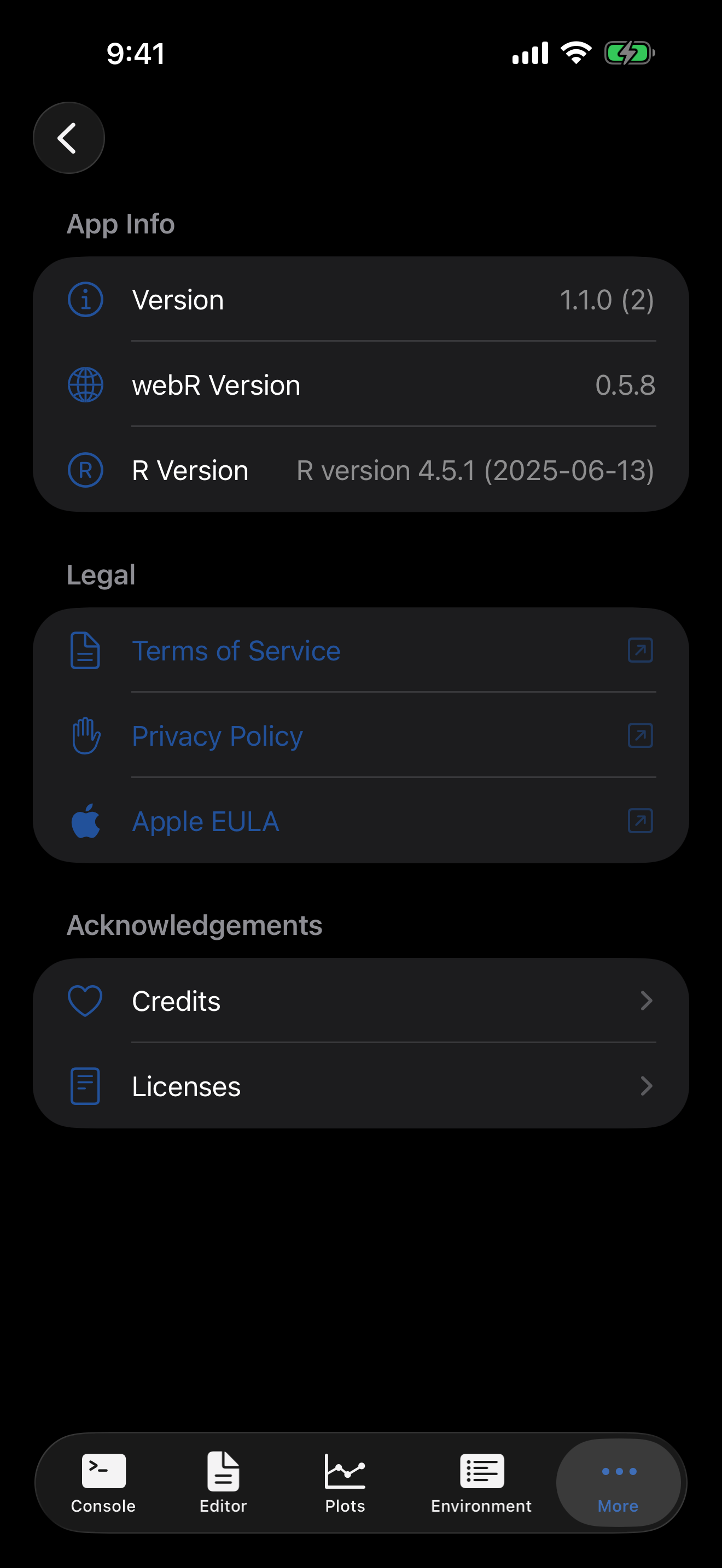
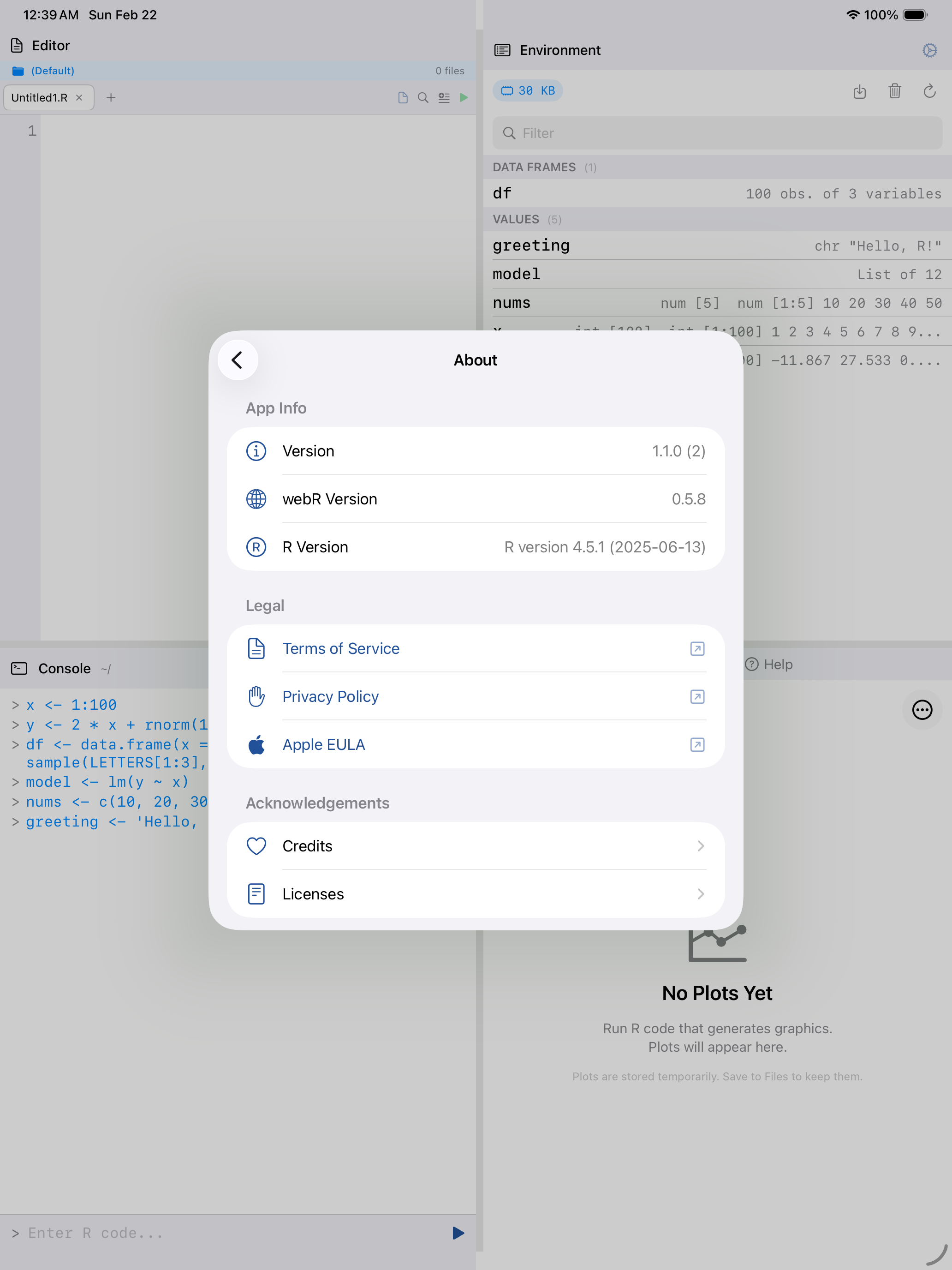
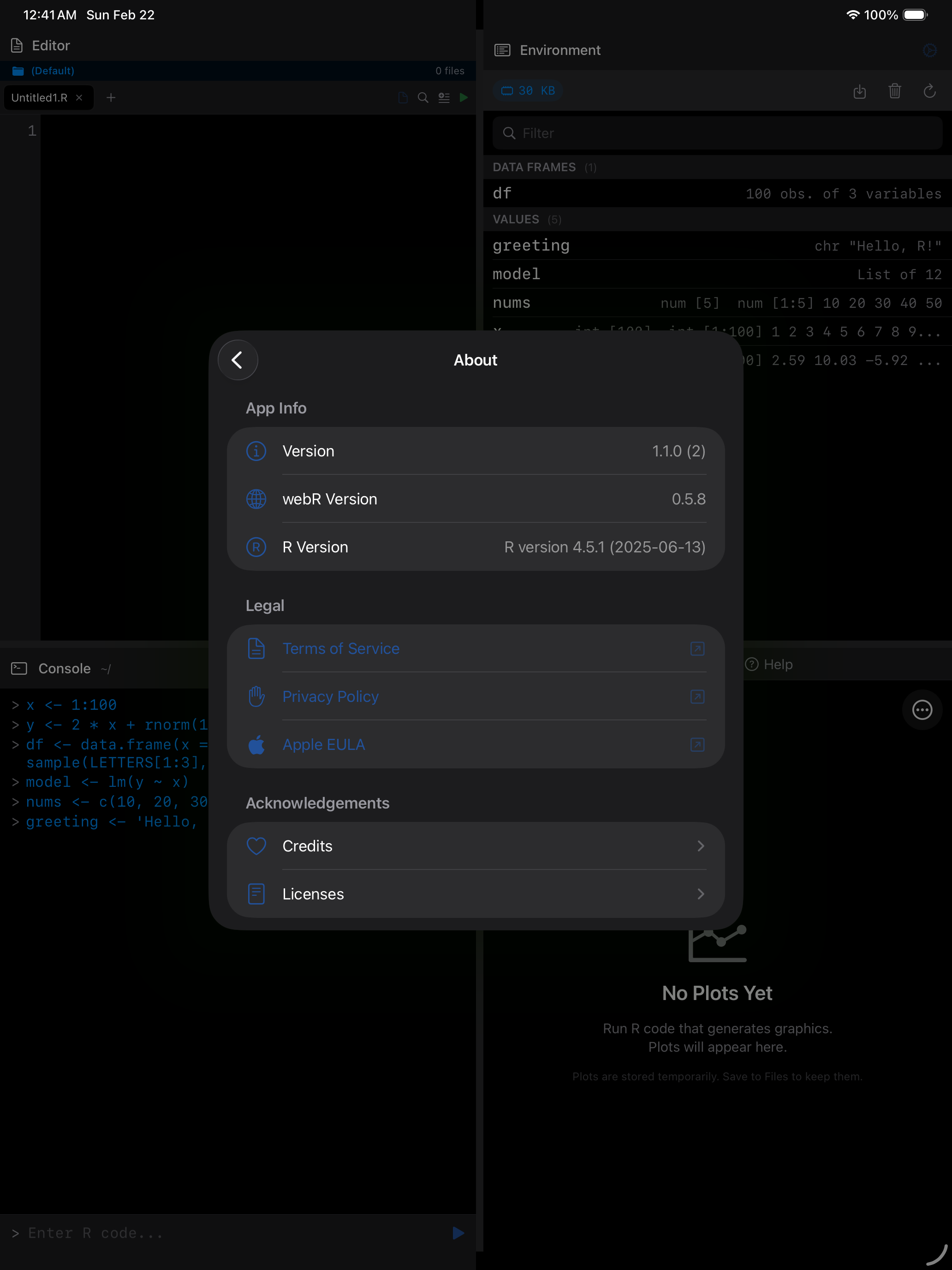
The app icon and name at the top, then version numbers, legal documents, credits, and open-source licenses. On iPad, scroll down to reach Credits and Licenses.
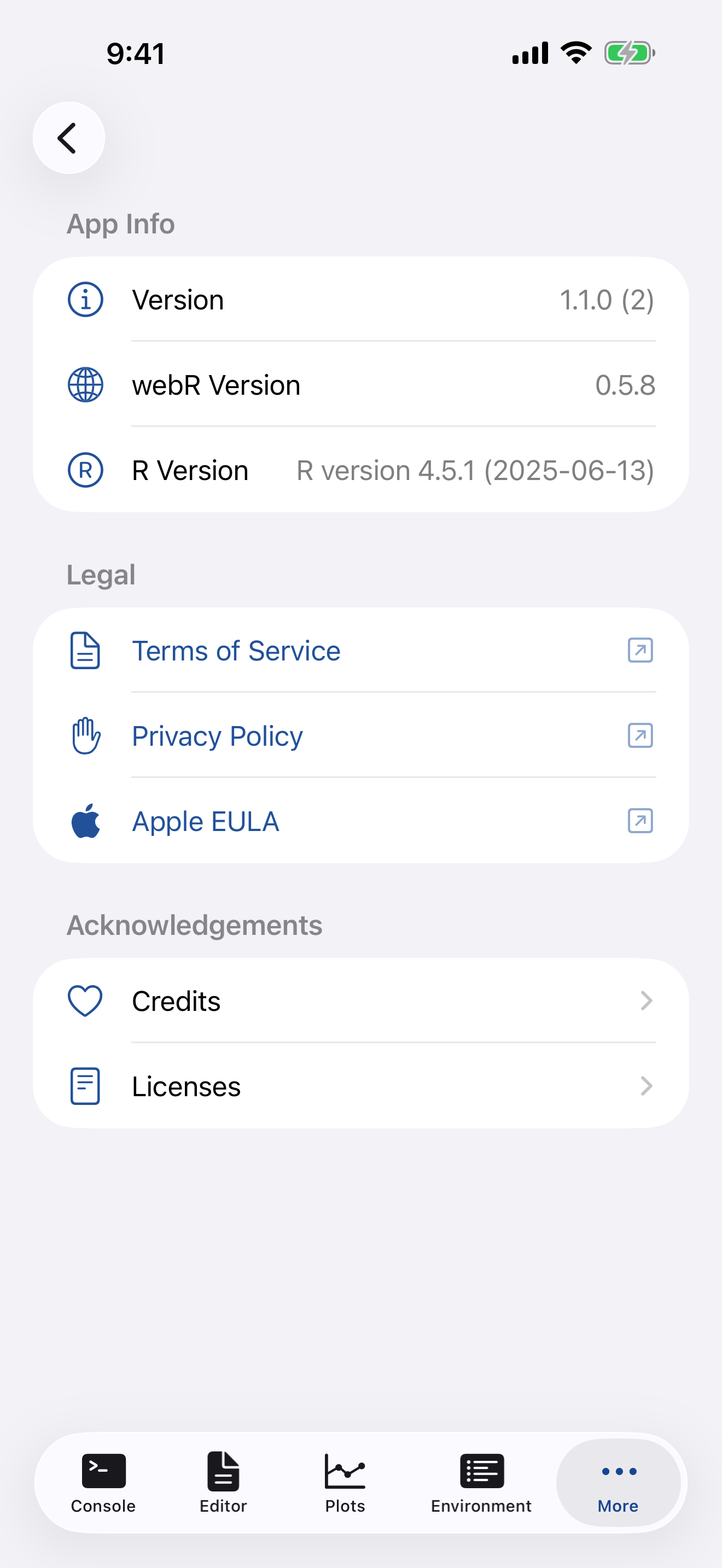
| Item | Description |
|---|---|
| Header | The webRios app icon, its name, and the tagline “R on iPhone and iPad”. |
| Version | App version and build number, such as 1.2.0 (9). |
| webR Version | The webR framework version bundled with the app. |
| R Version | The version of R running (e.g., R 4.6.0). |
| Legal | Terms of Service, Privacy Policy, and Apple EULA. |
| Credits | Acknowledgements for the people and projects behind the app. |
| Licenses | Open source licenses for webR, R, and other bundled technologies, including the full text for SwiftTreeSitter, tree-sitter and tree-sitter-r, which power syntax highlighting. |
Support
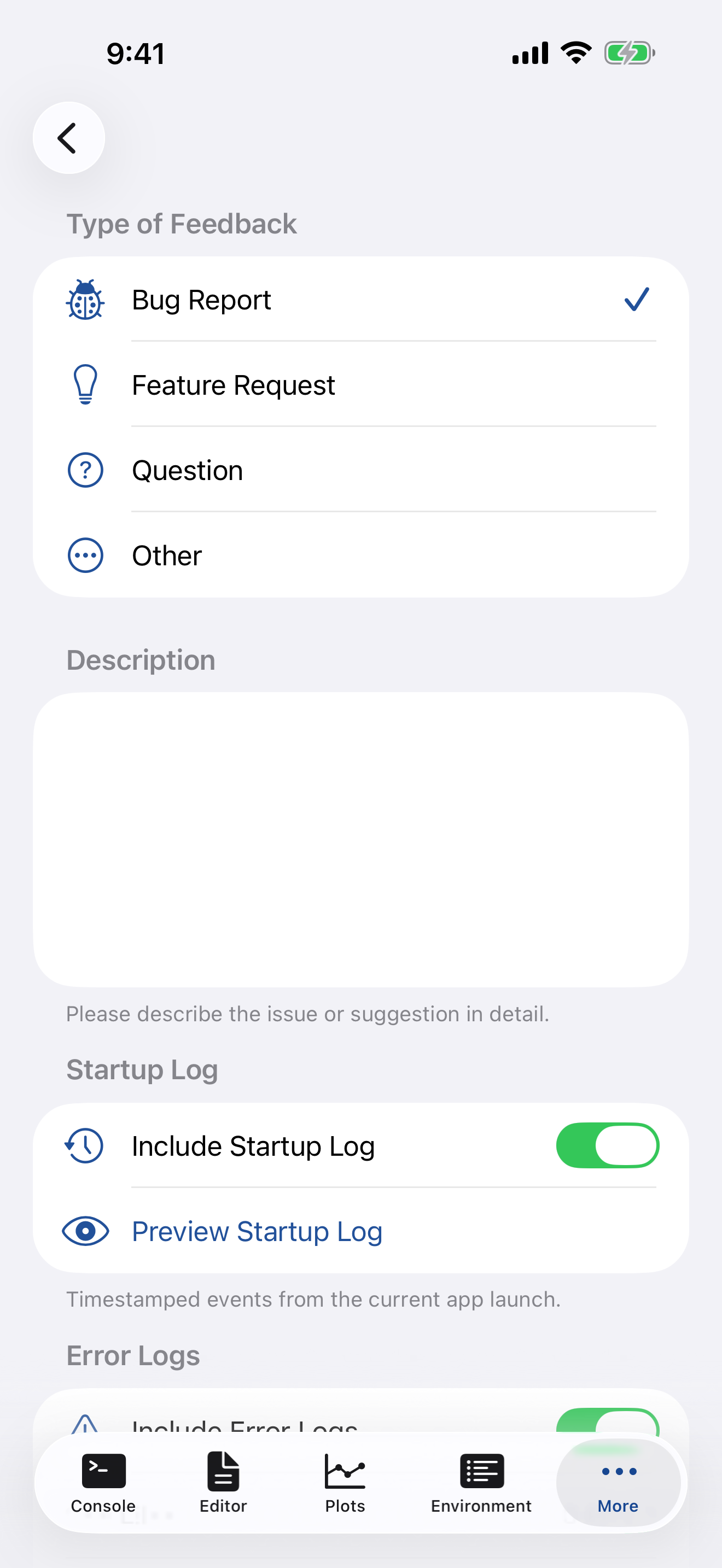
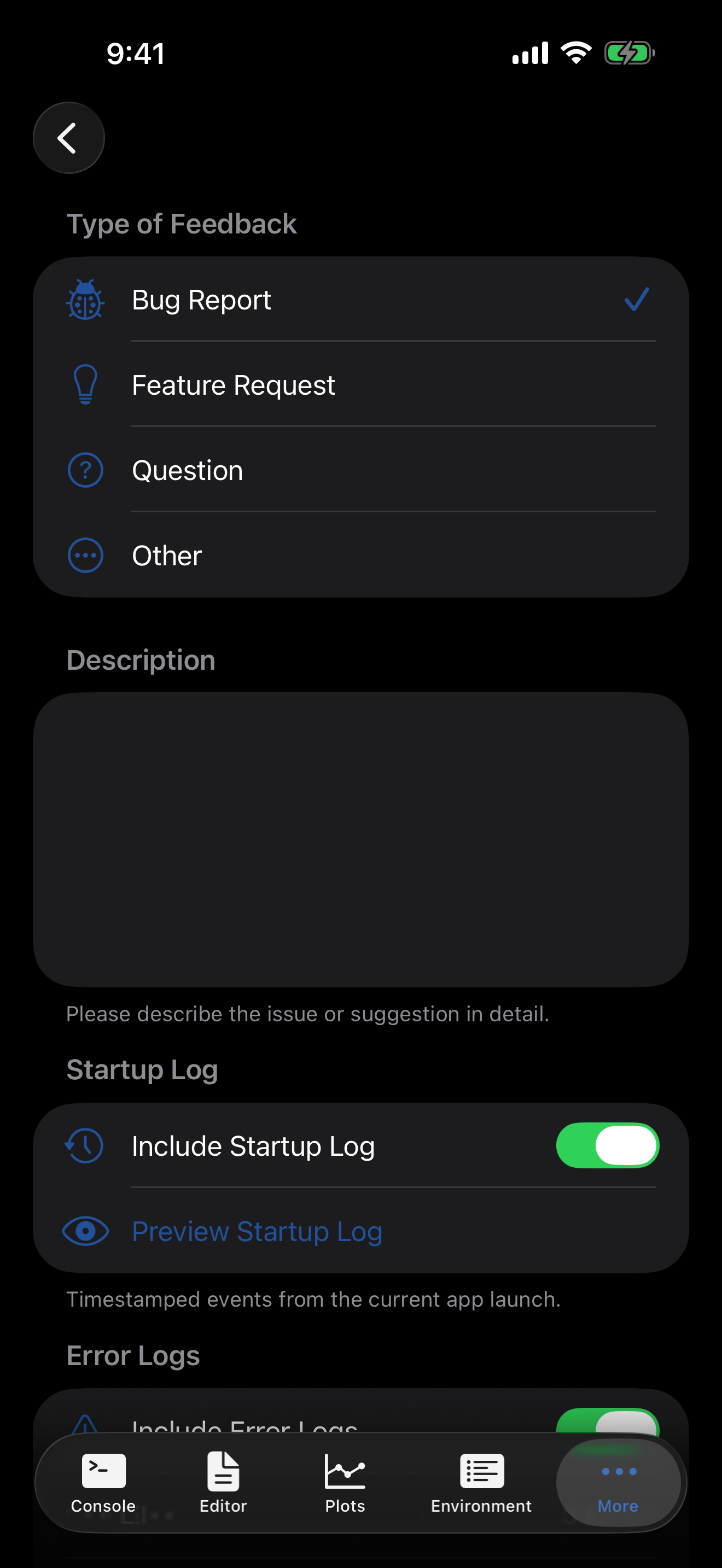
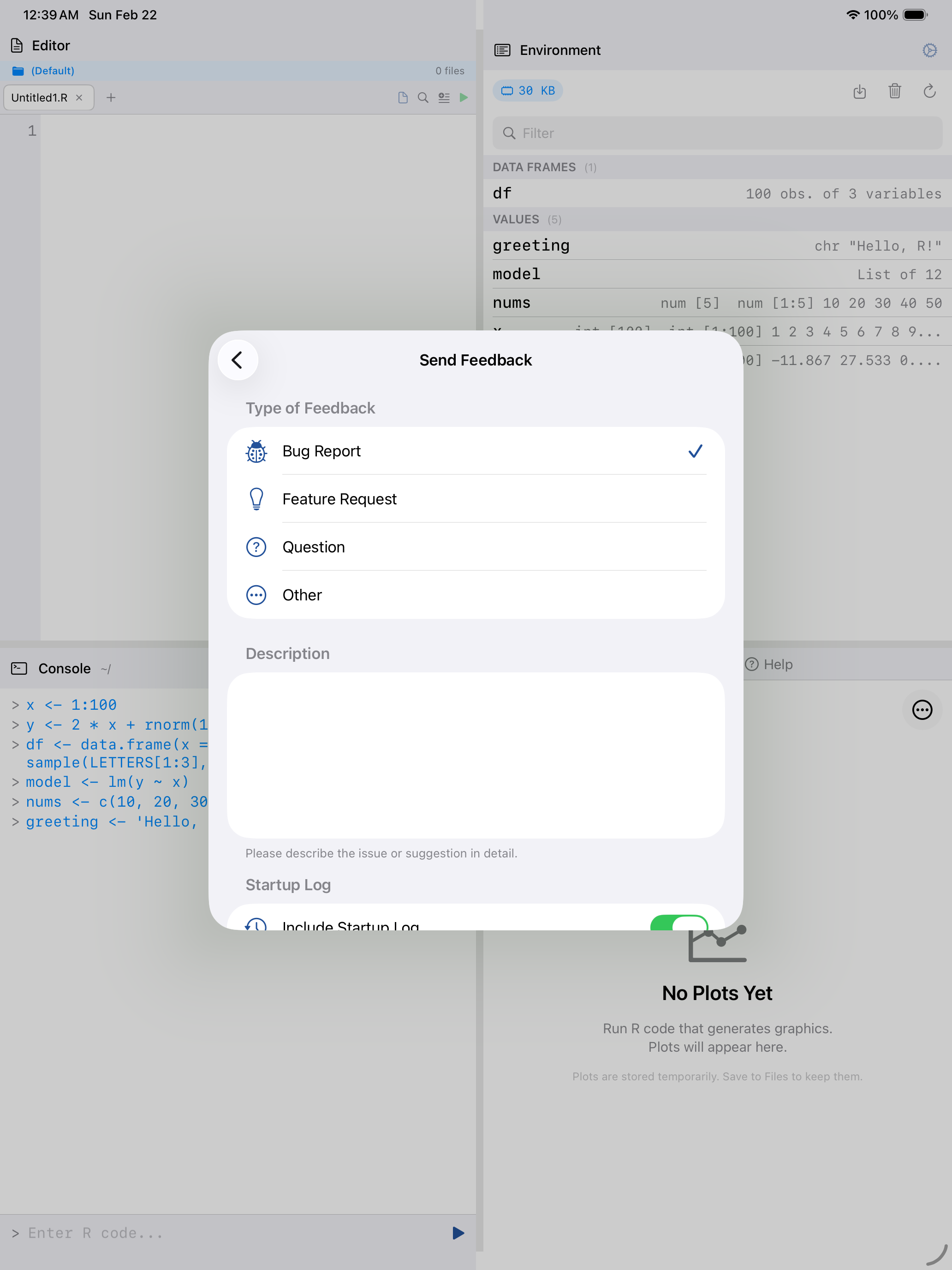
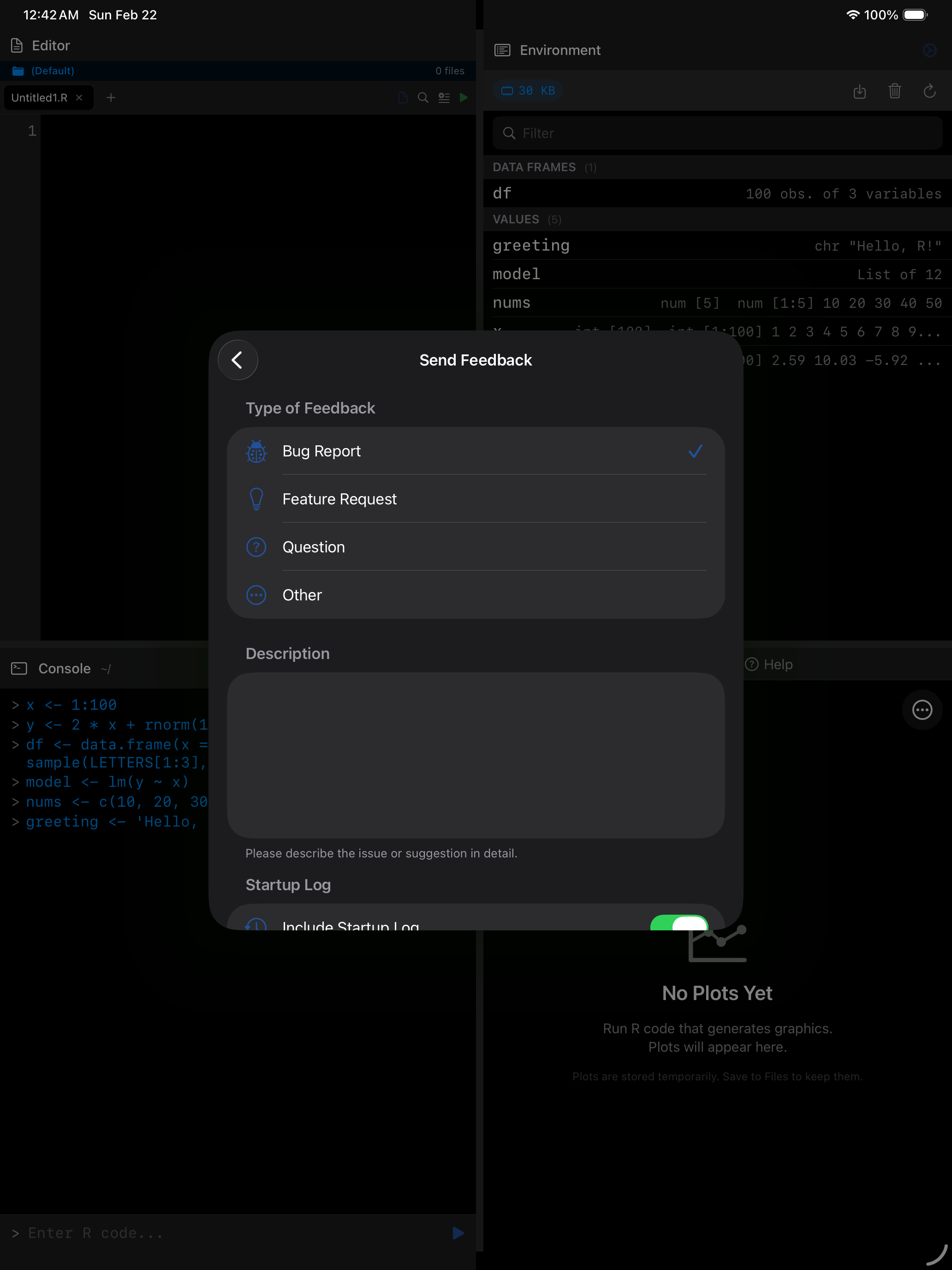
Diagnostic tools and a feedback form. To report a problem, enable Detailed Logging, reproduce the issue, then tap Send Feedback to submit with logs attached.
| Item | Description |
|---|---|
| Detailed Logging | Captures extra diagnostic information in error logs. Turn this on before reproducing an issue. |
| Send Feedback | Opens a form where you pick a type (Bug Report, Feature Request, Question, or Other) and describe the issue. |
| Startup Log | What happened during the most recent app launch. Useful for diagnosing slow startup. |
| Error Log | Captured errors that you can view and share when reporting issues. |
Reset All Settings
Reset All Settings, at the bottom, restores every preference to its default at once, keyboard toolbar buttons and custom shortcuts included, after asking. Files, installed packages, custom themes and the checklist’s ticks are untouched.